ECO mode GMC YUKON 2004 User Guide
[x] Cancel search | Manufacturer: GMC, Model Year: 2004, Model line: YUKON, Model: GMC YUKON 2004Pages: 554, PDF Size: 5.21 MB
Page 139 of 554
Automatic Dimming Mirror Operation
The automatic dimming mirror function is turned
on automatically each time the ignition is started. To
operate the automatic dimming mirror, do the following:
1. Make sure the green indicator light, located to the left
of the on/off button, is lit. If it’s not, press and hold the
on/off button for approximately six seconds until the
green light comes on, indicating that the mirror is in
automatic dimming mode.
2. Turn off the automatic dimming mirror function by
pressing and holding the on/off button for
approximately six seconds, until the green indicator
light turns off.
Compass Variance
The mirror is set in zone eight upon leaving the factory. It
will be necessary to adjust the compass to compensate
for compass variance if you live outside of zone eight.
Under certain circumstances, as during a long distance
cross-country trip, it will be necessary to adjust for
compass variance. Compass variance is the difference
between earth’s magnetic north and true geographic
north. If not adjusted to account for compass variance,
your compass could give false readings.
To adjust for compass variance do the following:
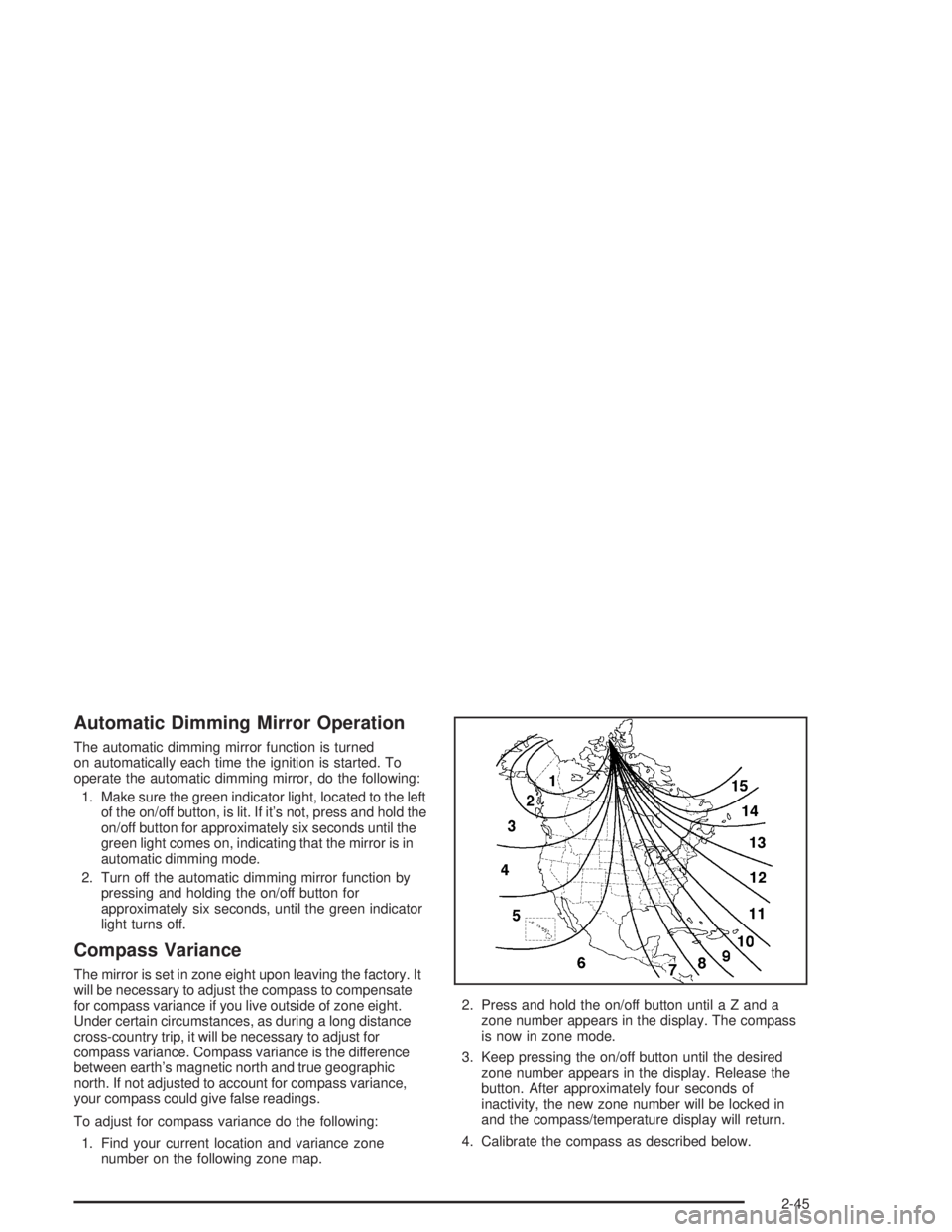
1. Find your current location and variance zone
number on the following zone map.2. Press and hold the on/off button until a Z and a
zone number appears in the display. The compass
is now in zone mode.
3. Keep pressing the on/off button until the desired
zone number appears in the display. Release the
button. After approximately four seconds of
inactivity, the new zone number will be locked in
and the compass/temperature display will return.
4. Calibrate the compass as described below.
2-45
Page 150 of 554
Programming the HomeLink®
Transmitter
Do not use the HomeLink®Transmitter with any garage
door opener that does not have the “stop and reverse”
feature. This includes any garage door opener model
manufactured before April 1, 1982. If you have a newer
garage door opener with rolling codes, please be
sure to follow steps 6 through 8 to complete the
programming of your HomeLink
®Transmitter.
Read the instructions completely before attempting to
program the HomeLink
®Transmitter. Because of
the steps involved, it may be helpful to have another
person available to assist you in programming the
transmitter.
Keep the original transmitter for use in other vehicles as
well as for future HomeLink
®programming. It is also
recommended that upon the sale of the vehicle,
the programmed HomeLink
®buttons should be erased
for security purposes. Refer to “Erasing HomeLink®
Buttons” or, for assistance, contact HomeLink®on the
internet at: www.homelink.com or by calling
1-800-355-3515.Be sure that people and objects are clear of the garage
door or gate operator you are programming. When
programming a garage door, it is advised to park outside
of the garage.
It is recommended that a new battery be installed in
your hand-held transmitter for quicker and more
accurate transmission of the radio frequency.
Your vehicle’s engine should be turned off while
programming the transmitter. Follow these steps to
program up to three channels:
1. Press and hold down the two outside buttons,
releasing only when the indicator light begins to
ash, after 20 seconds. Do not hold down the
buttons for longer than 30 seconds and do not
repeat this step to program a second and/or third
transmitter to the remaining two HomeLink
®buttons.
2. Position the end of your hand-held transmitter about
1 to 3 inches (3 to 8 cm) away from the HomeLink
®
buttons while keeping the indicator light in view.
3. Simultaneously press and hold both the desired
button on HomeLink
®and the hand-held transmitter
button. Do not release the buttons until Step 4
has been completed.
Some entry gates and garage door openers may
require you to substitute Step 3 with the procedure
noted in “Gate Operator and Canadian
Programming” later in this section.
2-56
Page 152 of 554
Gate Operator and Canadian
Programming
Canadian radio-frequency laws require transmitter
signals to “time out” or quit after several seconds of
transmission. This may not be long enough for
HomeLink
®to pick up the signal during programming.
Similarly, some U.S. gate operators are manufactured to
“time out” in the same manner.
If you live in Canada, or you are having difficulty
programming a gate operator by using the
“Programming HomeLink
®” procedures (regardless of
where you live), replace Step 3 under “Programming
HomeLink
®” with the following:
Continue to press and hold the HomeLink
®button while
you press and release every two seconds (cycle)
your hand-held transmitter until the frequency signal has
been successfully accepted by HomeLink
®. The
indicator light will ash slowly at rst and then rapidly.
Proceed with Step 4 under “Programming HomeLink
®”
to complete.
Using HomeLink®
Press and hold the appropriate HomeLink®button for at
least half of a second. The indicator light will come
on while the signal is being transmitted.
Erasing HomeLink®Buttons
To erase programming from the three buttons do the
following:
1. Press and hold down the two outside buttons until
the indicator light begins to ash, after 20 seconds.
2. Release both buttons. Do not hold for longer than
30 seconds.
HomeLink
®is now in the train (learning) mode and can
be programmed at any time beginning with Step 2
under “Programming HomeLink
®.”
Individual buttons can not be erased, but they can be
reprogrammed. See “Reprogramming a Single
HomeLink
®Button” next.
2-58
Page 188 of 554

Turn the knob counterclockwise or clockwise to lower or
increase the cabin temperature. The display will show
the temperature setting decreasing or increasing and an
arrow pointing to the passenger will be displayed
under and to the right of the temperature setting.
The passenger’s temperature setting can be set to
match the driver’s temperature setting by pressing and
holding the AUTO button for four seconds. Both the
driver and passenger arrows will be displayed.
Automatic Operation
AUTO (Automatic):When automatic operation is
active the system will control the inside temperature, the
air delivery, and the fan speed.
Use the steps below to place the entire system in
automatic mode:
1. Press the AUTO button.
When AUTO is selected, the display will change to
show the current driver’s set temperature, delivery
mode and fan speed. Press the AUTO button again
within ve seconds to display the passenger’s set
temperature.If the driver and passenger’s temperature settings
are not the same, the opposite side temperature
setting will be displayed for an additional ve
seconds. To make the passenger’s temperature the
same as the driver’s press and hold the AUTO
button for about four seconds.
When AUTO is selected, the air conditioning
operation and air inlet will be automatically
controlled. The air conditioning compressor will run
when the outside temperature is over about
40°F (4°C). The air inlet will normally be set to
outside air. If it’s hot outside, the air inlet may
automatically switch to recirculate inside air to help
quickly cool down your vehicle. The light on the
button will illuminate in recirculation.
2. Set the driver’s and passenger’s temperature.
To nd your comfort setting, start with a 74°F (23°C)
temperature setting and allow about 20 minutes
for the system to regulate. Turn the driver’s or
passenger’s side temperature knob to adjust the
temperature setting as necessary. If you choose the
temperature setting of 60°F (15°C) the system
will remain at the maximum cooling setting. If you
choose the temperature setting of 90°F (32°C)
the system will remain at the maximum heat setting.
Choosing either maximum setting will not cause
the vehicle to heat or cool any faster.
3-28
Page 191 of 554
Display
If you press the MODE button to select an air delivery
mode, the display will change to show you the selected
air delivery mode. After ten seconds, the display will
change to show the driver temperature setting and the
selected mode.
If you press the up or down arrows on the fan switch,
the display will change to show the selected fan speed.
After ten seconds, the display will change to show
the driver temperature setting and the selected mode.
Whenever you press AUTO, the display will change
to show the following:
The current driver’s set temperature and an arrow
for ve seconds
The current passenger’s set temperature setting
and an arrow for ve seconds
The automatic air delivery mode and fan speed
If the driver’s and passenger’s temperature settings are
the same when AUTO is pressed, the temperature
setting and both arrows will be displayed for ve
seconds along with the automatic air delivery mode and
fan speed. After the ve second update, the display
will change to show the temperature setting, both arrows
and AUTO.
Air Conditioning
#
(Air Conditioning):Press this button to turn the air
conditioning (A/C) compressor on and off. The snowake
symbol will appear on the display when the A/C is on.
Pressing this button when the outside temperature is too
cool for air conditioning will make the snowake symbol
ash three times and then turn off to let you know the air
conditioning mode is not available. If the air conditioning
is on and the outside temperature drops below a
temperature which is too cool for air conditioning to be
effective, the snowake symbol will turn off to let you
know the air conditioning mode has been canceled.
^(Air Conditioning Off):On some vehicles, when
you turn the air conditioning off, this symbol will appear
on the display. If your vehicle does not have this
symbol, the snowake symbol will turn off to let you
know the air conditioning is off.
When air conditioning is selected or in AUTO mode, the
system will run the air conditioning automatically to cool
and dehumidify the air entering the vehicle. If you select
A/C off while in front defrost, defog or recirculation, the
A/C snowake symbol will turn off, but the A/C
compressor will still run to help prevent fogging.
3-31
Page 218 of 554
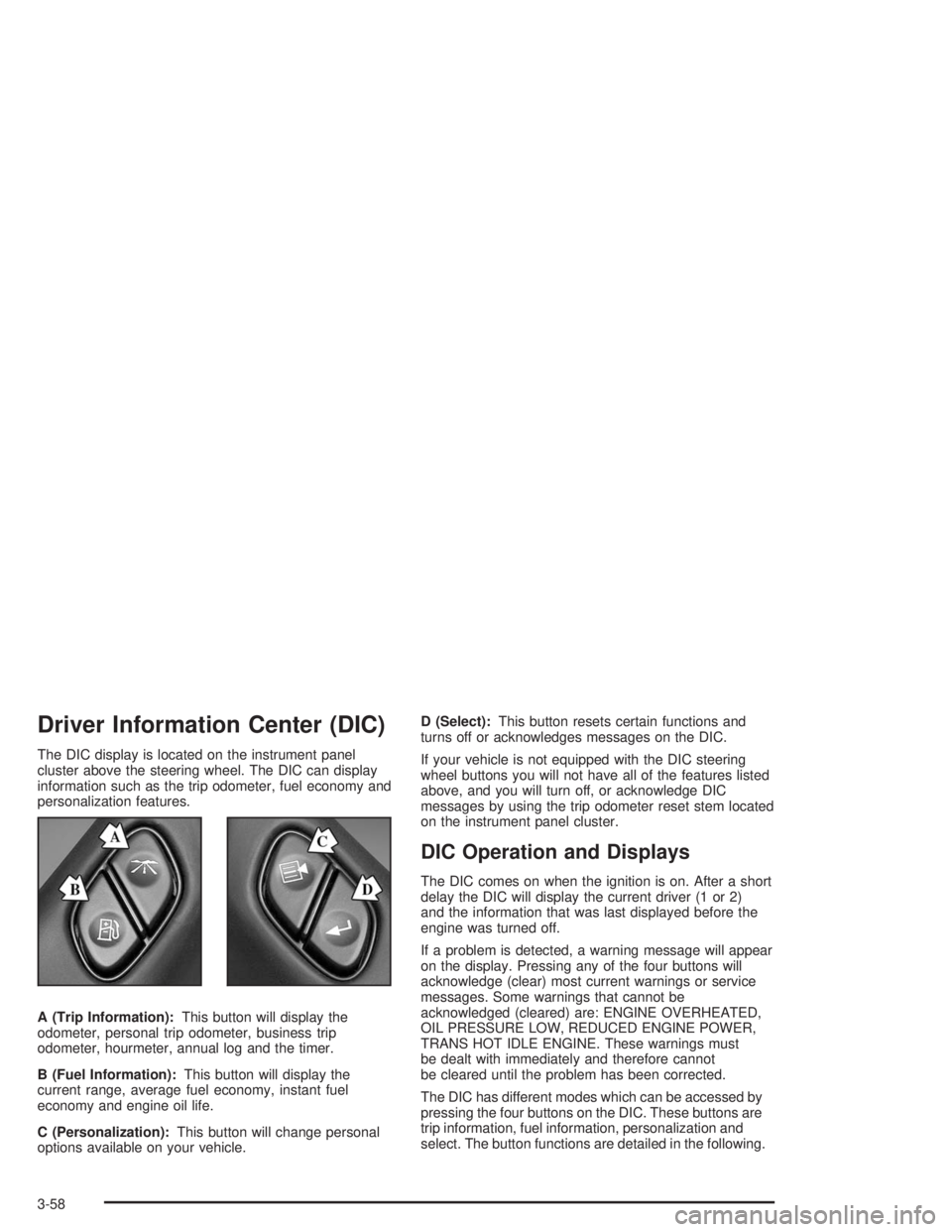
Driver Information Center (DIC)
The DIC display is located on the instrument panel
cluster above the steering wheel. The DIC can display
information such as the trip odometer, fuel economy and
personalization features.
A (Trip Information):This button will display the
odometer, personal trip odometer, business trip
odometer, hourmeter, annual log and the timer.
B (Fuel Information):This button will display the
current range, average fuel economy, instant fuel
economy and engine oil life.
C (Personalization):This button will change personal
options available on your vehicle.D (Select):This button resets certain functions and
turns off or acknowledges messages on the DIC.
If your vehicle is not equipped with the DIC steering
wheel buttons you will not have all of the features listed
above, and you will turn off, or acknowledge DIC
messages by using the trip odometer reset stem located
on the instrument panel cluster.
DIC Operation and Displays
The DIC comes on when the ignition is on. After a short
delay the DIC will display the current driver (1 or 2)
and the information that was last displayed before the
engine was turned off.
If a problem is detected, a warning message will appear
on the display. Pressing any of the four buttons will
acknowledge (clear) most current warnings or service
messages. Some warnings that cannot be
acknowledged (cleared) are: ENGINE OVERHEATED,
OIL PRESSURE LOW, REDUCED ENGINE POWER,
TRANS HOT IDLE ENGINE. These warnings must
be dealt with immediately and therefore cannot
be cleared until the problem has been corrected.
The DIC has different modes which can be accessed by
pressing the four buttons on the DIC. These buttons are
trip information, fuel information, personalization and
select. The button functions are detailed in the following.
3-58
Page 220 of 554
To reset personal or business trip information press and
hold the select button for approximately one second
while in one of the personal or business trip modes. This
will reset all of the information for the personal or
business trip.
You can also reset the PERSONAL: XX MI, or
BUSINESS: XX MI while they are displayed by pressing
the reset stem on the cluster. If you press and hold
the reset stem or select button for four seconds,
the display will show the distance traveled since the last
ignition cycle for the personal or business trip.
Odometer
Press the trip information button until ODOMETER
appears on the display. This shows the total distance
the vehicle has been driven in either miles or kilometers.
Pressing the reset stem located on the instrument
cluster with the vehicle off will also display the odometer.
Hourmeter
Press the trip information button to scroll to the
hourmeter. The hourmeter shows the total number of
hours the engine has run. Pressing and holding the reset
stem for about 4 seconds on the instrument cluster
will also display the hourmeter after the odometer
is displayed when the vehicle is off.
Annual Log
Press the trip information button to scroll to the annual
log. The annual log shows the mileage accumulated
since it was last reset. To reset the annual log,
press and hold the select button, or the trip odometer
reset stem, for approximately one second.
Timer
The DIC can be used as a stopwatch. Press the select
button while TIMER is displayed to start the timer.
The display will show the amount of time that has
passed since the timer was last reset (not including time
the ignition is off). Time will continue to be counted as
long as the ignition is on, even if another display is being
shown on the DIC. The timer will record up to 99 hours,
59 minutes and 59 seconds (99:59:59), after which
the display will roll back to zero.
To stop the counting of time, press the select button
briey while TIMER is displayed.
To reset the timer to zero, press and hold the select
button, or the trip odometer reset stem, while TIMER is
displayed.
3-60
Page 229 of 554
Display Units (ENG/MET)
Press the personalization button until DISPLAY UNITS
appears in the display. To select English or metric,
press the select button while DISPLAY UNITS is
displayed on the DIC. Pressing the select button will
scroll through the following choices:
UNITS: ENGLISH
UNITS: METRIC
If you choose English, all information will be displayed
in English units. For example, distance in miles and fuel
economy in miles per gallon.
Choose one of the two options and press the
personalization button while it is displayed on the DIC to
select it and end out of the personalization options.
Display Language
To select your personalization for display language,
press the select button while DISPLAY LANGUAGE is
displayed on the DIC. Pressing the select button
will scroll through the following languages:
English
French
SpanishChoose one of the three options and press the
personalization button while it is displayed on the DIC to
select it.
If you accidentally choose a language that you don’t
want or understand, press and hold the personalization
button and the trip information button at the same
time. The DIC will begin scrolling through the languages
in their particular language. English will be in English,
French will be in French and so on. When you see
the language that you would like, release both buttons.
The DIC will then display the information in the
language you chose.
You can also scroll through the different languages by
pressing and holding the trip reset stem for four
seconds, as long as you are in the odometer mode.
Select Button
The select button is used to reset certain functions and
turn off or acknowledge messages on the DIC display.
The select button also toggles through the options
available in each personalization menu. For example, this
button will reset the trip odometers, turn off the FUEL
LEVEL LOW message, and toggle through the languages
you can select the DIC to display information in.
3-69
Page 236 of 554
TIGHTEN FUEL CAP
If the vehicle’s fuel cap is not tightened properly this
message may appear along with the check engine light
on the instrument panel. Reinstall the fuel cap,
making sure to fully install the cap. SeeFilling Your
Tank on page 5-8. The diganostic system can determine
if the fuel cap has been left off or improperly installed.
A loose or missing fuel cap will allow fuel to evaporate
into the atmosphere. A few driving trips with the cap
properly installed should turn the light and message off.
TRACTION ACTIVE
When the traction control system has detected that any
of the vehicle’s wheels are spinning, the traction
control system will activate and this message will appear
on the DIC. For more information seeTraction Assist
System (TAS) on page 4-9.
TRANSMISSION HOT
If the transmission uid temperature becomes high, the
message center will display this message.
When the transmission enters the protection mode, you
may notice a change in the transmission shifting
patterns. When the transmission uid temperature
returns to normal, the display will turn off and the
transmission shifting patterns will return to normal.Notice:If you drive your vehicle while the
transmission uid is overheating and the
transmission temperature warning is displayed on
the instrument panel cluster and/or DIC, you
can damage the transmission. This could lead to
costly repairs that would not be covered by
your warranty. Do not drive your vehicle with
overheated transmission uid or while transmission
temperature warning is displayed.
The following situations can cause the transmission to
operate at higher temperatures:
Towing a trailer
Hot outside air temperatures
Hauling a large or heavy load
Low transmission uid level
High transmission uid level
Restricted air ow to the radiator and the auxiliary
transmission oil cooler.
A temporary solution to hotter transmission operating
temperatures may be to let the transmission cool down.
If the transmission is operated at higher temperatures
on a frequent basis, seeScheduled Maintenance
on page 6-4for the proper transmission maintenance
intervals.
3-76
Page 240 of 554
Setting the Tone (Bass/Treble)
AUDIO:To adjust bass and treble, press and release
AUDIO until BAS or TRE appears on the display.
Then press and hold the up or the down arrow to
increase or to decrease. If a station is weak or noisy,
you may want to decrease the treble.
To adjust bass or treble to the middle position, select
BAS or TRE. Then press and hold AUDIO for more than
two seconds until you hear a beep. B and a zero or T
and a zero will appear on the display.
To adjust both tone controls and both speaker controls
to the middle position, end out of audio by waiting
for the display to change to the time display. Then press
and hold AUDIO for more than two seconds until you
hear a beep. CEN will appear on the display.
Adjusting the Speakers (Balance/Fade)
AUDIO:To adjust the balance between the right and the
left speakers, press and release AUDIO until BAL
appears on the display. Then press and hold the up or the
down arrow to move the sound toward the right or the left
speakers.
To adjust the fade between the front and the rear
speakers, press and release AUDIO until FAD appears
on the display. Then press and hold the up or the down
arrow to move the sound toward the front or the rear
speakers.To adjust balance or fade to the middle position, select
BAL or FAD. Then press and hold AUDIO for more than
two seconds until you hear a beep. L and a zero or F and
a zero will appear on the display.
To adjust both tone controls and both speaker controls to
the middle position, end out of audio by waiting for the
display to change to the time display. Then press and
hold AUDIO for more than two seconds until you hear a
beep. CEN will appear on the display.
Fade may not be available if you have a regular cab
model.
Radio Messages
CAL (Calibrated):Your audio system has been
calibrated for your vehicle from the factory. If CAL
appears on the display it means that your radio has not
been congured properly for your vehicle and must
be returned to the dealer for service.
LOC (Locked):This message is displayed when the
Theftlock
®system has locked up. Your vehicle must be
returned to the dealer for service.
3-80