wheel GMC YUKON 2007 Owner's Guide
[x] Cancel search | Manufacturer: GMC, Model Year: 2007, Model line: YUKON, Model: GMC YUKON 2007Pages: 608, PDF Size: 3.06 MB
Page 273 of 608

Here are some ways in which you can help avoid
distraction while driving.
While your vehicle is parked:
Familiarize yourself with all of its controls.
Familiarize yourself with its operation.
Set up your audio system by presetting your
favorite radio stations, setting the tone, and
adjusting the speakers. Then, when driving
conditions permit, you can tune to your favorite
radio stations using the presets and steering
wheel controls if the vehicle has them.
Notice:Before adding any sound equipment
to your vehicle, such as an audio system,
CD player, CB radio, mobile telephone,
or two-way radio, make sure that it can be
added by checking with your dealer. Also,
check federal rules covering mobile radio and
telephone units. If sound equipment can be
added, it is very important to do it properly.
Added sound equipment may interfere with the
operation of your vehicle’s engine, radio, or
other systems, and even damage them.
Your vehicle’s systems may interfere with the
operation of sound equipment that has
been added.Notice:The chime signals related to safety
belts, parking brake, and other functions
of your vehicle operate through the
radio/entertainment system. If that equipment
is replaced or additional equipment is added
to your vehicle, the chimes may not work. Make
sure that replacement or additional equipment
is compatible with your vehicle before
installing it. SeeAccessories and Modifications
on page 421.
Your vehicle may have a feature called Retained
Accessory Power (RAP). With RAP, the audio
system can be played even after the ignition
is turned off. SeeRetained Accessory Power
(RAP) on page 141for more information.
273
Page 279 of 608
4(Information) (XM™ Satellite Radio Service,
MP3, and RDS Features):Press the information
button to display additional text information
related to the current FM-RDS or XM™ station,
or MP3 song. A choice of additional information
such as: Channel, Song, Artist, and CAT may
appear. Continue pressing the information button
to highlight the desired label, or press the
pushbutton positioned under any one of the labels
and the information about that label will be
displayed.
When information is not available, No Info will
appear on the display.
Storing a Radio Station as a Favorite
Drivers are encouraged to set up their radio station
favorites while the vehicle is parked. Tune to
your favorite stations using the presets, favorites
button, and steering wheel controls (if your vehicle
has them). SeeDefensive Driving on page 342.FAV (Favorites):A maximum of 36 stations
can be programmed as favorites using the
six pushbuttons positioned below the radio station
frequency labels and by using the radio favorites
page button (FAV button). Press the FAV button to
go through up to six pages of favorites, each
having six favorite stations available per page.
Each page of favorites can contain any
combination of AM, FM, or XM™ (if equipped)
stations. To store a station as a favorite, perform
the following steps:
1. Tune to the desired radio station.
2. Press the FAV button to display the page
where you want the station stored.
3. Press and hold one of the six pushbuttons
until you hear a beep. Whenever that
pushbutton is pressed and released, the
station that was set will return.
4. Repeat the steps for each pushbutton radio
station you want stored as a favorite.
279
Page 296 of 608

Finding a Station
BAND:Press this button to switch between AM,
FM, or XM™ (if equipped). The display will
show the selection.
f(Tune):Turn this knob to select radio stations.
©SEEK¨:Press the right or left SEEK
arrow to go to the next or to the previous station
and stay there.
To scan stations, press and hold either SEEK
arrow for a few seconds until you hear a beep. The
radio will go to a station, play for a few seconds,
then go on to the next station. Press either
SEEK arrow again to stop scanning.
The radio will only seek and scan stations with a
strong signal that are in the selected band.
4(Information) (XM™ Satellite Radio Service,
MP3, and RDS Features):Press the information
button to display additional text information
related to the current FM-RDS or XM™ station, or
MP3 song. A choice of additional information
such as: Channel, Song, Artist, and CAT
may appear. Continue pressing the information
button to highlight the desired label, or press
the pushbutton positioned under any one of the
labels and the information about that label will be
displayed.
When information is not available, No Info will
appear on the display.
Storing a Radio Station as a Favorite
Drivers are encouraged to set up their radio station
favorites while the vehicle is parked. Tune to
your favorite stations using the presets, favorites
button, and steering wheel controls, if the
vehicle has them. SeeDefensive Driving on
page 342.
296
Page 335 of 608

Theft-Deterrent Feature
THEFTLOCK®is designed to discourage theft
of your vehicle’s radio. The feature works
automatically by learning a portion of the Vehicle
Identication Number (VIN). If the radio is
moved to a different vehicle, it will not operate
and LOCKED will appear on the display.
When the radio and vehicle are turned off, the
blinking red light indicates that THEFTLOCK
®is
armed.
With THEFTLOCK
®activated, the radio will not
operate if stolen.
Audio Steering Wheel Controls
Your vehicle has audio
steering wheel controls,
they may differ
depending on your
vehicle’s options. Some
audio controls can
be adjusted at
the steering wheel.
They include the
following:
xw(Next/Previous):Press the up or the down
arrow to go to the next or to the previous radio
station stored as a favorite.
When a CD/DVD is playing, press the up or the
down arrow to go to the next or previous track or
chapter.
335
Page 341 of 608
Your Driving, the Road, and Your
Vehicle..................................................... 342
Defensive Driving...................................... 342
Drunken Driving........................................ 343
Control of a Vehicle.................................. 346
Braking...................................................... 346
Anti-Lock Brake System (ABS).................. 347
Braking in Emergencies............................. 349
Locking Differential.................................... 349
StabiliTrak
®System................................... 349
All-Wheel Drive (AWD) System.................. 353
Steering.................................................... 353
Off-Road Recovery.................................... 355
Passing..................................................... 356
Loss of Control.......................................... 357
Off-Road Driving........................................ 359
Driving at Night......................................... 375
Driving in Rain and on Wet Roads............ 376
City Driving............................................... 380Freeway Driving........................................ 381
Before Leaving on a Long Trip.................. 382
Highway Hypnosis..................................... 383
Hill and Mountain Roads........................... 384
Winter Driving........................................... 386
If Your Vehicle is Stuck in Sand, Mud,
Ice, or Snow.......................................... 390
Rocking Your Vehicle to Get It Out........... 390
Recovery Hooks........................................ 391
Loading Your Vehicle................................ 392
Towing........................................................ 398
Towing Your Vehicle................................. 398
Recreational Vehicle Towing...................... 398
Level Control............................................. 399
Autoride
®................................................... 399
Towing a Trailer........................................ 400
Trailer Recommendations.......................... 415
Section 4 Driving Your Vehicle
341
Page 348 of 608
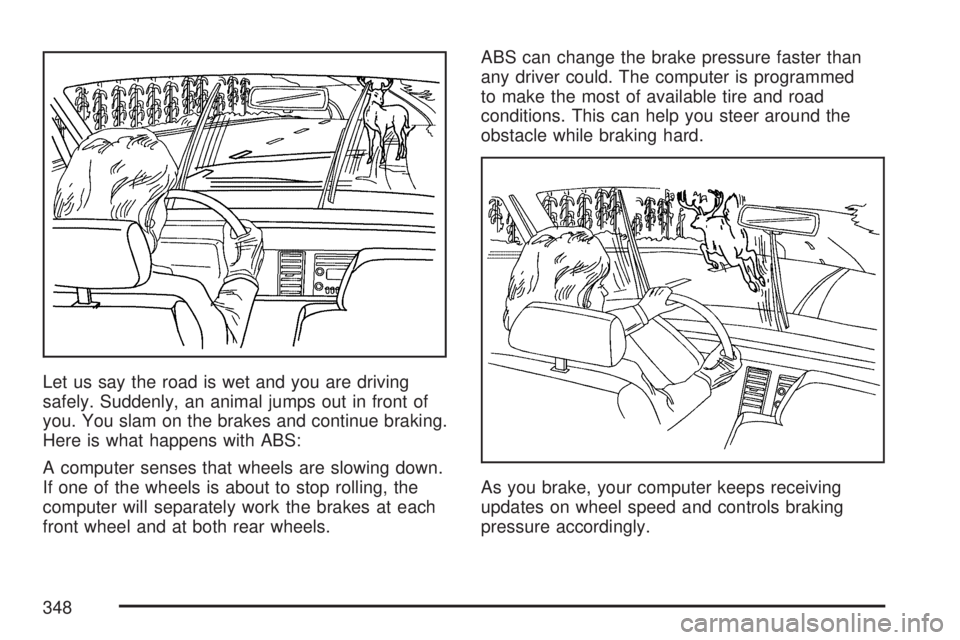
Let us say the road is wet and you are driving
safely. Suddenly, an animal jumps out in front of
you. You slam on the brakes and continue braking.
Here is what happens with ABS:
A computer senses that wheels are slowing down.
If one of the wheels is about to stop rolling, the
computer will separately work the brakes at each
front wheel and at both rear wheels.ABS can change the brake pressure faster than
any driver could. The computer is programmed
to make the most of available tire and road
conditions. This can help you steer around the
obstacle while braking hard.
As you brake, your computer keeps receiving
updates on wheel speed and controls braking
pressure accordingly.
348
Page 349 of 608

Remember: ABS does not change the time you
need to get your foot up to the brake pedal
or always decrease stopping distance. If you get
too close to the vehicle in front of you, you will not
have time to apply your brakes if that vehicle
suddenly slows or stops. Always leave enough
room up ahead to stop, even though you
have ABS.
Using ABS
Do not pump the brakes. Just hold the brake
pedal down rmly and let anti-lock work for you.
You may feel the brakes vibrate, or you may notice
some noise, but this is normal.
Braking in Emergencies
With ABS, you can steer and brake at the same
time. In many emergencies, steering can help you
more than even the very best braking.
Locking Differential
If your vehicle has this feature, your locking
differential can give you additional traction on snow,
mud, ice, sand or gravel. It works like a standard
axle most of the time, but when one of the wheels
has no traction and the other does, this feature will
allow the wheel with traction to move the vehicle.
StabiliTrak®System
Your vehicle may be equipped with the
StabiliTrak®system which combines antilock
brake, traction and stability control systems and
helps the driver maintain directional control of the
vehicle in most driving conditions.
When you rst start your vehicle and begin to
drive away, the system performs several diagnostic
checks to ensure there are no problems. You
may hear or feel the system working. This
is normal and does not mean there is a problem
with your vehicle. The system should initialize
before the vehicle reaches 20 mph (32 km/h).
In some cases, it may take approximately
two miles of driving before the system initializes.
349
Page 350 of 608

If the system fails to turn on or activate, the
StabiliTrak®light along with one of the following
messages will be displayed on the Driver
Information Center (DIC): TRACTION CONTROL
OFF, SERVICE TRACTION CONTROL,
STABILITRAK OFF, SERVICE STABILITRAK. If
these DIC messages appear, make sure the
StabiliTrak
®system has not been turned off using
the StabiliTrak®on/off button. Then turn the
steering wheel clockwise from the nine o’clock
position to the three o’clock position. If this clears
the message(s), your vehicle does not need
servicing. If this does not clear the message(s),
then turn the vehicle off, wait 15 seconds, and then
turn it back on again to reset the system. If any
of these messages still appear on the Driver
Information Center (DIC), your vehicle should be
taken in for service. For more information on
the DIC messages, seeDriver Information Center
(DIC) on page 244.The StabiliTrak
®light
will ash on the
instrument panel cluster
when the system is
both on and activated.
You may also feel or hear the system working;
this is normal.
The traction control
disable button is located
on the instrument
panel below the climate
controls.
The traction control part of StabiliTrak
®can
be turned off by pressing and releasing the
StabiliTrak
®button if both systems (traction control
and StabiliTrak®) were previously on. To disable
both traction control and StabiliTrak®, press
and hold the button for ve seconds.
350
Page 351 of 608

Traction control and StabiliTrak®can be turned
on by pressing and releasing the StabiliTrak®
button if not automatically shut off for any other
reason.
When the TCS or StabiliTrak
®system is turned
off, the StabiliTrak®light and the appropriate TCS
off or StabiliTrak®off message will be displayed
on the DIC to warn the driver. Your vehicle will still
have brake-traction control when traction control
is off, but will not be able to use the engine speed
management system. See “Traction Control
Operation” next for more information.
When the traction control system has been turned
off, you may still hear system noises as a result
of the brake-traction control coming on.It is recommended to leave the system on for
normal driving conditions, but it may be necessary
to turn the system off if your vehicle is stuck in
sand, mud, ice or snow, and you want to
“rock” your vehicle to attempt to free it. It may also
be necessary to turn off the system when driving
in extreme off-road conditions where high
wheel spin is required. SeeIf Your Vehicle is
Stuck in Sand, Mud, Ice, or Snow on page 390.
When the transfer case is in 4LO, the stability
system is automatically disabled, the StabiliTrak
®
light will come on and the STABILITRAK OFF
message will appear on the DIC. Both traction
control and StabiliTrak
®are automatically disabled
in this condition.
351
Page 352 of 608

Traction Control Operation
The traction control system is part of the
StabiliTrak®system. Traction control limits wheel
spin by reducing engine power to the wheels
(engine speed management) and by applying
brakes to each individual wheel (brake-traction
control) as necessary.
The traction control system is enabled
automatically when you start your vehicle. It will
activate and the StabiliTrak
®light will ash if
it senses that any of the wheels are spinning or
beginning to lose traction while driving. If you turn
off traction control, only the brake-traction
control portion of traction control will work. The
engine speed management will be disabled. In this
mode, engine power is not reduced automatically
and the driven wheels can spin more freely.
This can cause the brake-traction control to
activate constantly.
Notice:If you allow the wheel(s) of one axle
to spin excessively while the StabiliTrak
®, ABS
and brake warning lights and the SERVICE
STABILITRAK message are displayed,
you could damage the transfer case. The
repairs would not be covered by your warranty.Reduce engine power and do not spin the
wheel(s) excessively while these lights and this
message are displayed.
The traction control system may activate on
dry or rough roads or under conditions such as
heavy acceleration while turning or abrupt
upshifts/downshifts of the transmission. When
this happens, you may notice a reduction in
acceleration, or may hear a noise or vibration.
This is normal.
If your vehicle is in cruise control when the system
activates, the StabiliTrak
®light will ash and the
cruise control will automatically disengage.
When road conditions allow you to use cruise
again, you may re-engage the cruise control. See
Cruise Control on page 200.
StabiliTrak
®may also turn off automatically if it
determines that a problem exists with the system.
If the problem does not clear itself after restarting
the vehicle, you should see your dealer for
service.
352