remote control GMC YUKON 2010 User Guide
[x] Cancel search | Manufacturer: GMC, Model Year: 2010, Model line: YUKON, Model: GMC YUKON 2010Pages: 614, PDF Size: 3.55 MB
Page 155 of 614
Liftgate/Liftglass
{WARNING:
It can be dangerous to drive with the liftglass or
liftgate open because carbon monoxide (CO) gas
can come into your vehicle. You cannot see or
smell CO. It can cause unconsciousness and
even death.
If you must drive with the liftglass or liftgate open,
or if electrical wiring or other cable connections
must pass through the seal between the body and
the liftglass or liftgate:
.Make sure all other windows are shut.
.Turn the fan on your heating or cooling
system to its highest speed with the
recirculation mode off. That will force outside
air into your vehicle. SeeClimate Control
System
on page 4‑18or Dual Automatic
Climate Control System on page 4‑20.
(Continued)
WARNING: (Continued)
.If you have air outlets on or under the
instrument panel, open them all the way.
.If your vehicle has a power liftgate, disable the
power liftgate function.
See Engine Exhaust on page 3‑52.
If your vehicle has a power liftgate, see Power Liftgate
on page 3‑15.
To unlock the liftgate, use the power door lock switch or
press the door unlock button on the Remote Keyless
Entry (RKE) transmitter twice. See Remote Keyless
Entry (RKE) System Operation
on page 3‑5.
3-13
Page 164 of 614
Programming the Power Windows
If the battery on the vehicle has been recharged,
disconnected, or is not working, you will need to
reprogram each front power window for the express-up
feature to work. Before reprogramming, replace or
recharge the vehicle's battery.
To program each front window, follow these steps:1. With the ignition in ACC/ACCESSORY, ON/RUN, or when Retained Accessory Power (RAP) is
active, close all doors.
2. Press and hold the power window switch until the window is fully open.
3. Pull the power window switch up until the window is fully closed.
4. Continue holding the switch up for approximately two seconds after the window is completely closed.
The window is now reprogrammed. Repeat the process
for the other windows.
Window Lockout
o (Window Lockout): The rear window lockout button
is located on the driver door near the window switches.
Press the right side of the button to disable the rear
window controls. The light on the button will illuminate,
indicating the feature is in use. The rear windows still
can be raised or lowered using the driver window
switches when the lockout feature is active.
To restore power to the rear windows, press the button
again. The light on the button will go out.
Sun Visors
Swing down the visor to block out glare. It can also be
detached from the center mount and moved to the side
to block glare from that direction.
The driver visor may also have buttons for a built-in
garage door opener. See Universal Home Remote
System
on page 3‑69for more information.
Lighted Visor Vanity Mirror
Pull the visor down and lift the cover to access the
mirror. A light comes on when the cover is lifted and
goes out when it is closed.
3-22
Page 211 of 614
Universal Home Remote
System
SeeRadio Frequency Statementon page 8‑19for information regarding Part 15 of the Federal
Communications Commission (FCC) Rules and
RSS-210/211 of Industry Canada.
Universal Home Remote System
Operation (With Three Round LED)
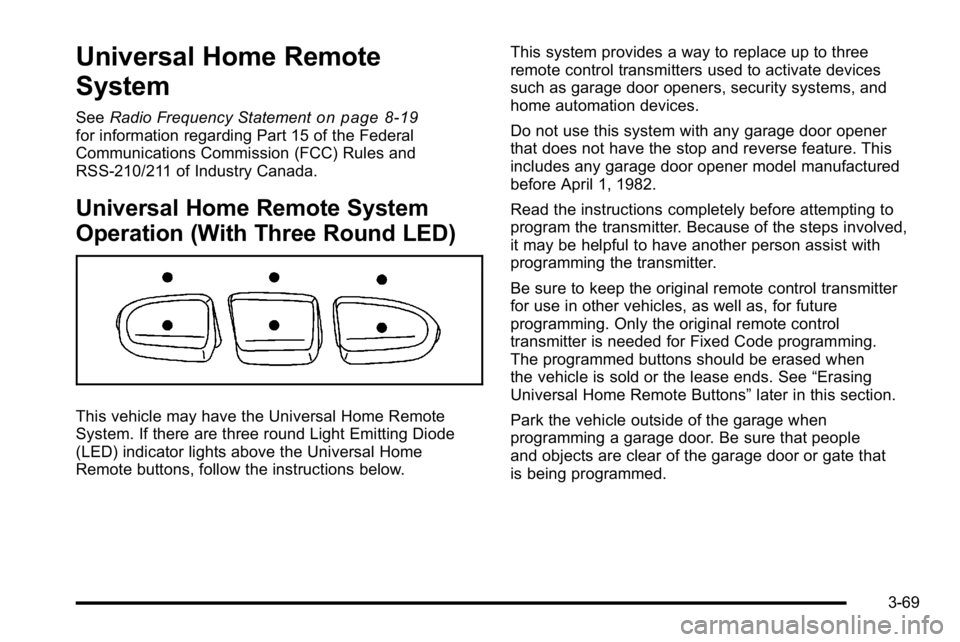
This vehicle may have the Universal Home Remote
System. If there are three round Light Emitting Diode
(LED) indicator lights above the Universal Home
Remote buttons, follow the instructions below. This system provides a way to replace up to three
remote control transmitters used to activate devices
such as garage door openers, security systems, and
home automation devices.
Do not use this system with any garage door opener
that does not have the stop and reverse feature. This
includes any garage door opener model manufactured
before April 1, 1982.
Read the instructions completely before attempting to
program the transmitter. Because of the steps involved,
it may be helpful to have another person assist with
programming the transmitter.
Be sure to keep the original remote control transmitter
for use in other vehicles, as well as, for future
programming. Only the original remote control
transmitter is needed for Fixed Code programming.
The programmed buttons should be erased when
the vehicle is sold or the lease ends. See
“Erasing
Universal Home Remote Buttons” later in this section.
Park the vehicle outside of the garage when
programming a garage door. Be sure that people
and objects are clear of the garage door or gate that
is being programmed.
3-69
Page 213 of 614

3. Immediately return to the vehicle. Press and holdthe Universal Home Remote button that will be
used to control the garage door until the garage
door moves. The indicator light, above the selected
button, should slowly blink. This button may need
to be held for up to 20 seconds.
4. Immediately, within one second, release the button when the garage door moves. The indicator light
will blink rapidly until programming is complete.
5. Press and release the same button again. The garage door should move, confirming that
programming is successful and complete.
To program another Rolling Code device such as
an additional garage door opener, a security device,
or home automation device, repeat Steps 1 through 5,
choosing a different function button in Step 3 than what
was used for the garage door opener.
If these instructions do not work, the garage door
opener is probably a Fixed Code unit. Follow the
Programming instructions that follow for a Fixed Code
garage door opener.Programming Universal Home
Remote —Fixed Code
For questions or help programming the Universal
Home Remote System, call 1-866-572-2728 or go to
learcar2u.com.
Most garage door openers sold before 1996 are Fixed
Code units.
Programming a garage door opener involves
time-sensitive actions, so read the entire procedure
before starting. Otherwise, the device will time out and
the procedure will have to be repeated.
3-71
Page 216 of 614
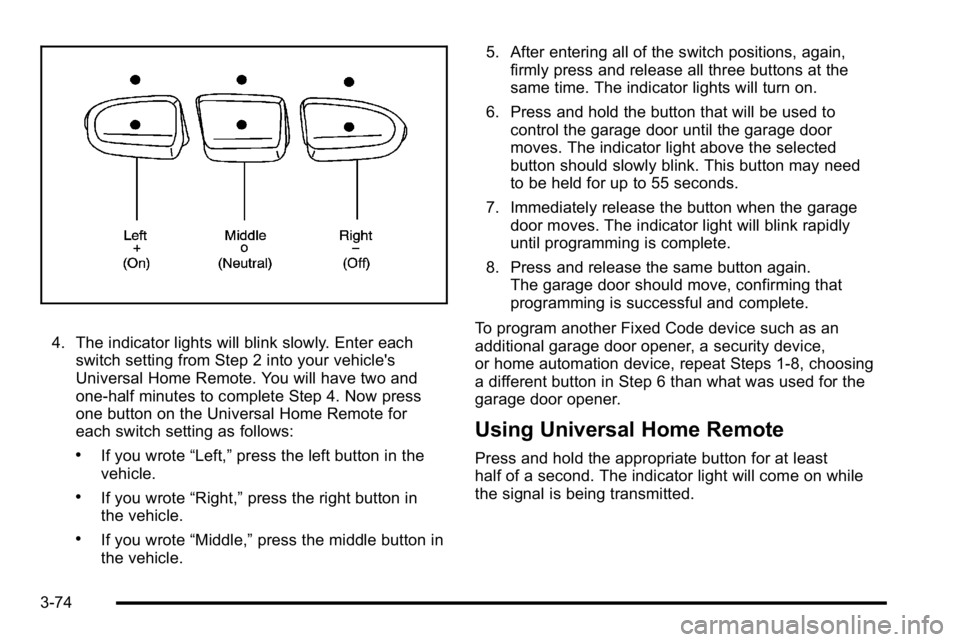
4. The indicator lights will blink slowly. Enter eachswitch setting from Step 2 into your vehicle's
Universal Home Remote. You will have two and
one-half minutes to complete Step 4. Now press
one button on the Universal Home Remote for
each switch setting as follows:
.If you wrote “Left,”press the left button in the
vehicle.
.If you wrote “Right,”press the right button in
the vehicle.
.If you wrote “Middle,”press the middle button in
the vehicle. 5. After entering all of the switch positions, again,
firmly press and release all three buttons at the
same time. The indicator lights will turn on.
6. Press and hold the button that will be used to control the garage door until the garage door
moves. The indicator light above the selected
button should slowly blink. This button may need
to be held for up to 55 seconds.
7. Immediately release the button when the garage door moves. The indicator light will blink rapidly
until programming is complete.
8. Press and release the same button again. The garage door should move, confirming that
programming is successful and complete.
To program another Fixed Code device such as an
additional garage door opener, a security device,
or home automation device, repeat Steps 1-8, choosing
a different button in Step 6 than what was used for the
garage door opener.
Using Universal Home Remote
Press and hold the appropriate button for at least
half of a second. The indicator light will come on while
the signal is being transmitted.
3-74
Page 271 of 614
T(Vehicle Information):Press this button to display
the oil life, units, side blind zone system on/off, tire
pressure readings for vehicles with the Tire Pressure
Monitor System (TPMS), trailer brake gain and output
information for vehicles with the Integrated Trailer Brake
Control (ITBC) system, engine hours, Remote Keyless
Entry (RKE) transmitter programming, compass zone
setting, and compass recalibration.
U(Customization): Press this button to customize
the feature settings on your vehicle. See DIC Vehicle
Customization (With DIC Buttons)
on page 4‑72for
more information.
V(Set/Reset): Press this button to set or reset certain
functions and to turn off or acknowledge messages on
the DIC.
Trip/Fuel Menu Items
3
(Trip/Fuel): Press this button to scroll through the
following menu items:
Odometer
Press the trip/fuel button until ODOMETER displays.
This display shows the distance the vehicle has been
driven in either miles (mi) or kilometers (km). Pressing
the trip odometer reset stem will also display the
odometer.
To switch between English and metric measurements,
see “Units” later in this section.
Trip Odometer
Press the trip/fuel button until TRIP displays. This
display shows the current distance traveled in either
miles (mi) or kilometers (km) since the last reset for the
trip odometer. Pressing the trip odometer reset stem will
also display the trip odometer.
The trip odometer can be reset to zero by pressing the
set/reset button while the trip odometer is displayed.
You can also reset the trip odometer while it is
displayed by pressing and holding the trip odometer
reset stem.
The trip odometer has a feature called the retro-active
reset. This can be used to set the trip odometer to the
number of miles (kilometers) driven since the ignition
was last turned on. This can be used if the trip
odometer is not reset at the beginning of the trip.
To use the retro-active reset feature, press and hold
the set/reset button for at least four seconds. The trip
odometer will display the number of miles (mi) or
kilometers (km) driven since the ignition was last turned
on and the vehicle was moving. Once the vehicle
begins moving, the trip odometer will accumulate
mileage. For example, if the vehicle was driven
5 miles (8 km) before it is started again, and then the
retro-active reset feature is activated, the display will
show 5 miles (8 km). As the vehicle begins moving, the
display will then increase to 5.1 miles (8.2 km), 5.2 miles
(8.4 km), etc.
4-49
Page 275 of 614
Trailer Gain and Output
On vehicles with the Integrated Trailer Brake
Control (ITBC) system, the trailer brake display appears
in the DIC. Press the vehicle information button until
TRAILER GAIN and OUTPUT display.
TRAILER GAIN shows the trailer gain setting. This
setting can be adjusted from 0.0 to 10.0 with either a
trailer connected or disconnected. To adjust this setting,
see“Integrated Trailer Brake Control System” under
Towing a Trailer
on page 5‑49for more information.
OUTPUT shows the power output to the trailer anytime
a trailer with electric brakes is connected. Output is
displayed in 0 to 10 bars. Dashes may appear in the
OUTPUT display. See “Integrated Trailer Brake Control
System” underTowing a Trailer
on page 5‑49for more
information.
Engine Hours
Press the vehicle information button until ENGINE
HOURS displays. This display shows the total number
of hours the engine has run.
Relearn Remote Key
This display allows you to match Remote Keyless
Entry (RKE) transmitters to your vehicle. This procedure
will erase all previously learned transmitters. Therefore,
they must be relearned as additional transmitters.
To match an RKE transmitter to your vehicle:
1. Press the vehicle information button until PRESS
VTO RELEARN REMOTE KEY displays.
2. Press the set/reset button until REMOTE KEY LEARNING ACTIVE is displayed.
3. Press and hold the lock and unlock buttons on the first transmitter at the same time for about
15 seconds.
On vehicles with memory recall seats, the first
transmitter learned will match driver 1 and the
second will match driver 2.
A chime will sound indicating that the transmitter is
matched.
4. To match additional transmitters at this time, repeat Step 3.
Each vehicle can have a maximum of eight
transmitters matched to it.
5. To exit the programming mode, you must cycle the key to LOCK/OFF.
4-53
Page 277 of 614
Language
This display allows you to select the language in which
the DIC messages will appear. To select a language:1. Press the trip odometer reset stem until ODOMETER displays.
2. While in the ODOMETER display, press and hold the trip odometer reset stem for three seconds until
the currently set language displays.
3. Continue to press and hold the trip odometer reset stem to scroll through all of the available
languages.
The available selections are ENGLISH (default),
FRANCAIS (French), ESPANOL (Spanish), and
NO CHANGE.
4. Once the desired language is displayed, release the trip odometer reset stem to set your choice.
Engine Hours
To display the ENGINE HOURS, place the ignition in
LOCK/OFF or ACC/ACCESSORY, then press and hold
the trip odometer reset stem for four seconds while
viewing the ODOMETER. This display shows the total
number of hours the engine has run.
DIC Operation and Displays
(Without DIC Buttons)
If your vehicle does not have DIC buttons, the
information below explains the operation of this system.
The DIC has different displays which can be accessed
by pressing the trip odometer reset stem located on the
instrument panel cluster. Pressing the trip odometer
reset stem will also turn off, or acknowledge, DIC
messages.
The DIC displays trip and vehicle system information,
and warning messages if a system problem is detected.
If your vehicle does not have DIC buttons, you
can use the trip odometer reset stem to view the
following displays: language selection, trip odometer,
transmission temperature, trailer brake gain and output
information for vehicles with the Integrated Trailer Brake
Control (ITBC) system, compass zone setting, compass
recalibration, oil life, Tire Pressure Monitor System
(TPMS) programming for vehicles with the TPMS, and
Remote Keyless Entry (RKE) transmitter programming.
4-55
Page 313 of 614
\FWD (Fast Forward):Press and hold to advance
playback quickly within a track. Sound is heard at a
reduced volume. Release to resume playing the track.
The elapsed time of the track displays.
RDM (Random): With the random setting, the tracks
can be listened to in random, rather than sequential
order.
To use random, press the softkey below the RDM tab.
Press the same softkey again to turn off random.
BAND: Press to listen to the radio while a CD is
playing.
CD/AUX (CD/Auxiliary): Press to play a CD while
listening to the radio. The CD icon and a message
showing the disc and/or track number displays when
a CD is in the player. Press again and the system
automatically searches for an auxiliary input device,
such as a portable audio player. If a portable audio
player is not connected, “No Input Device Found”
displays. DVD/CD AUX (Auxiliary):
Press this button to cycle
through DVD, CD, or Auxiliary when listening to the
radio. The DVD/CD text label and a message showing
the track or chapter number displays when a disc is in
either slot. Press this button again and the system
automatically searches for an auxiliary input device,
such as a portable audio player. If a portable audio
player is not connected, “No Aux Input Device”displays.
If a disc is in both the DVD slot and the CD slot the
DVD/CD AUX button cycles between the two sources
and does not indicate “No Aux Input Device”. If a front
auxiliary device is connected, the DVD/CD AUX button
cycles through all available options, such as: DVD slot,
CD slot, Front Auxiliary, and Rear Auxiliary (if available).
See “Using the Auxiliary Input Jack(s)” later in this
section, or “Audio/Video (A/V) Jacks” under,Rear Seat
Entertainment (RSE) System
on page 4‑125for more
information.
If a disc is inserted into top DVD slot, the rear seat
operator can turn on the video screen and use the
remote control to navigate the CD (tracks only) through
the remote control.
4-91
Page 315 of 614
Player Error:There are disc LOAD or disc EJECT
problems.
.It is very hot. When the temperature returns to
normal, the CD should play.
.The road is very rough. When the road becomes
smoother, the CD should play.
.The CD is dirty, scratched, wet, or upside down.
.The air is very humid. If so, wait about an hour and
try again.
.There could have been a problem while burning
the CD.
.The label could be caught in the CD player.
If the CD is not playing correctly, for any other reason,
try a known good CD.
If any error occurs repeatedly or if an error cannot be
corrected, contact your dealer. If the radio displays an
error message, write it down and provide it to your
dealer when reporting the problem.
Using the DVD Player
The DVD player is controlled by the buttons on the
remote control, or by the RSA system, or by the buttons
on the radio faceplate. See “Remote Control”, under
Rear Seat Entertainment (RSE) System
on page 4‑125and Rear Seat Audio (RSA)on page 4‑134for more
information.
The DVD player is only compatible with DVDs of the
appropriate region code that is printed on the jacket of
most DVDs.
The DVD slot of the radio is compatible with most
audio CDs, CD-R, CD-RW, DVD-Video, DVD-Audio,
DVD-R/RW, DVD+R/RW media along with MP3 and
WMA formats.
If an error message displays on the video screen or the
radio, see “DVD Display Error Messages” under,Rear
Seat Entertainment (RSE) System
on page 4‑125and
“DVD Radio Error Messages” in this section for more
information.
4-93