4g icon GMC YUKON 2020 Infotainment System Manual
[x] Cancel search | Manufacturer: GMC, Model Year: 2020, Model line: YUKON, Model: GMC YUKON 2020Pages: 116, PDF Size: 1.32 MB
Page 8 of 116
GMC Infotainment System (U.S./Canada 2.6) (GMNA-Localizing-U.S./Canada-
13583174) - 2020 - CRC - 4/15/19
Introduction 7
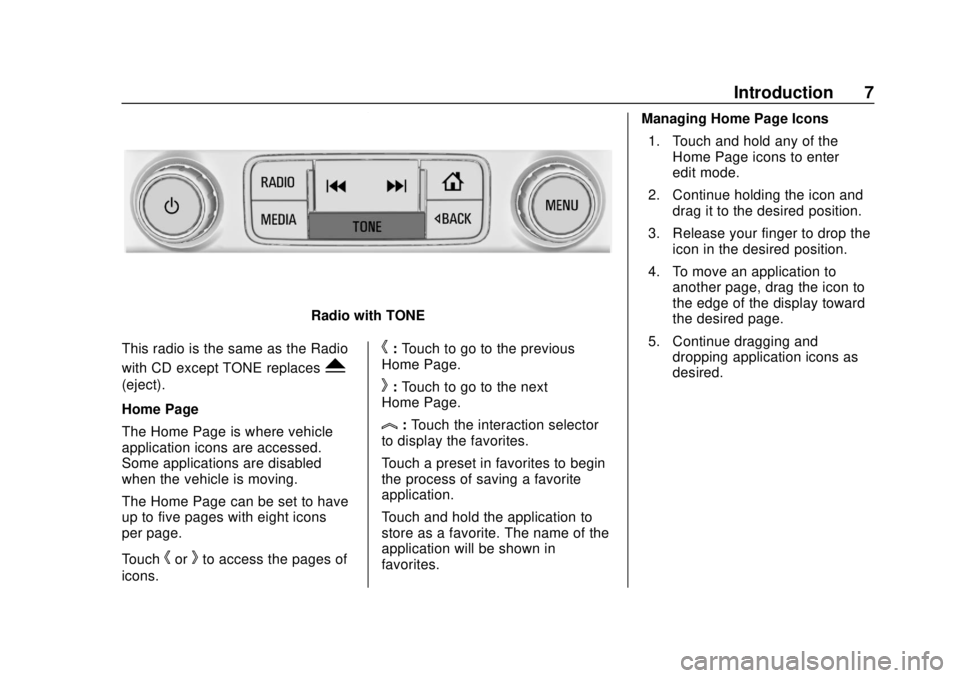
Radio with TONE
This radio is the same as the Radio
with CD except TONE replaces
Y
(eject).
Home Page
The Home Page is where vehicle
application icons are accessed.
Some applications are disabled
when the vehicle is moving.
The Home Page can be set to have
up to five pages with eight icons
per page.
Touch
horkto access the pages of
icons.
h: Touch to go to the previous
Home Page.
k: Touch to go to the next
Home Page.
l: Touch the interaction selector
to display the favorites.
Touch a preset in favorites to begin
the process of saving a favorite
application.
Touch and hold the application to
store as a favorite. The name of the
application will be shown in
favorites. Managing Home Page Icons
1. Touch and hold any of the Home Page icons to enter
edit mode.
2. Continue holding the icon and drag it to the desired position.
3. Release your finger to drop the icon in the desired position.
4. To move an application to another page, drag the icon to
the edge of the display toward
the desired page.
5. Continue dragging and dropping application icons as
desired.
Page 9 of 116
GMC Infotainment System (U.S./Canada 2.6) (GMNA-Localizing-U.S./Canada-
13583174) - 2020 - CRC - 4/15/19
8 Introduction
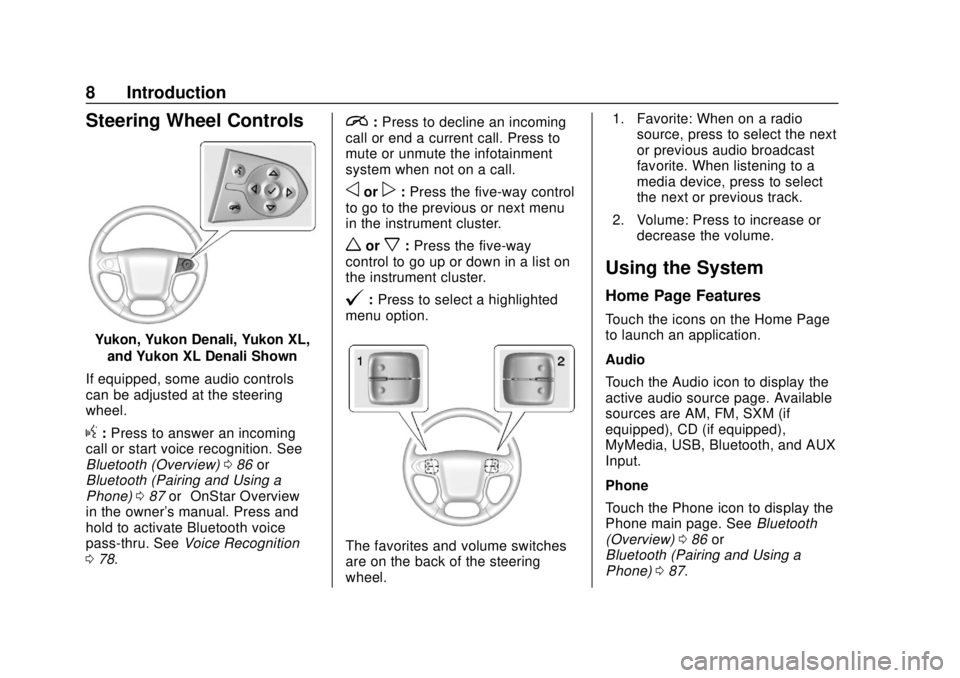
Steering Wheel Controls
Yukon, Yukon Denali, Yukon XL,and Yukon XL Denali Shown
If equipped, some audio controls
can be adjusted at the steering
wheel.
g: Press to answer an incoming
call or start voice recognition. See
Bluetooth (Overview) 086 or
Bluetooth (Pairing and Using a
Phone) 087 or“OnStar Overview”
in the owner's manual. Press and
hold to activate Bluetooth voice
pass-thru. See Voice Recognition
0 78.
i:Press to decline an incoming
call or end a current call. Press to
mute or unmute the infotainment
system when not on a call.
oorp: Press the five-way control
to go to the previous or next menu
in the instrument cluster.
worx: Press the five-way
control to go up or down in a list on
the instrument cluster.
@: Press to select a highlighted
menu option.
The favorites and volume switches
are on the back of the steering
wheel. 1. Favorite: When on a radio
source, press to select the next
or previous audio broadcast
favorite. When listening to a
media device, press to select
the next or previous track.
2. Volume: Press to increase or decrease the volume.
Using the System
Home Page Features
Touch the icons on the Home Page
to launch an application.
Audio
Touch the Audio icon to display the
active audio source page. Available
sources are AM, FM, SXM (if
equipped), CD (if equipped),
MyMedia, USB, Bluetooth, and AUX
Input.
Phone
Touch the Phone icon to display the
Phone main page. See Bluetooth
(Overview) 086 or
Bluetooth (Pairing and Using a
Phone) 087.
Page 10 of 116
GMC Infotainment System (U.S./Canada 2.6) (GMNA-Localizing-U.S./Canada-
13583174) - 2020 - CRC - 4/15/19
Introduction 9
Projection
Touch the Projection icon to activate
Android Auto or Apple CarPlay (if
equipped) after a supported device
is connected. SeeApple CarPlay
and Android Auto 091.
Nav
Touch the Nav icon to display the
navigation map. See Using the
Navigation System 048.
Settings
Touch the Settings icon to display
the Settings menu. See Settings
0 93.
Text
Touch the Text icon to display the
Text Messaging main page. See
Text Messaging 090.
Apps or Shop (Chevrolet, GMC,
Buick), or Apps or Collection
(Cadillac)
If equipped, in-vehicle apps are
available for download. Touch the
Apps or Shop icon, or the Apps or
Collection (Cadillac only) icon on
the Home Page to begin. Downloading and using in-vehicle
apps requires Internet connectivity
which can be accessed with a data
plan through the vehicle’s built-in
4G LTE Wi-Fi hotspot, if equipped,
or a compatible mobile device
hotspot. On most mobile devices,
activation of the Wi-Fi hotspot is in
the vehicle’
s Settings menu under
Mobile Network Sharing, Personal
Hotspot, Mobile Hotspot, or similar.
To purchase data for the in-vehicle
Wi-Fi hotspot, if equipped, touch the
myGMC icon on the Home Page or
contact an OnStar Advisor. The
vehicle must have active OnStar or
connected service and a payment
method on file.
Availability of apps and connectivity
varies by vehicle, conditions, and
location. Data plan rates apply.
Features are subject to change. For
information, see my.gmc.com/learn.
Weather
If equipped, touch the Weather icon
to display the Weather main page.
See “SiriusXM Travel Link Weather”
under Destination 057. OnStar
If equipped, touch the OnStar icon
to display the OnStar main page
and start OnStar voice recognition.
See
“OnStar Overview” in the
owner's manual.
Video
If equipped, touch the Video icon to
display the video Rear Seat
Infotainment main page. See Rear
Seat Infotainment (RSI) System
0 28.
Climate
Touch the Climate icon to display
the Climate main page. See “Dual
Automatic Climate Control System”
in the owner's manual.
Rear Climate
If equipped, touch the R. Climate
icon to display the Rear Climate
main page. See “Rear Climate
Control System” in the owner's
manual.
Page 11 of 116
GMC Infotainment System (U.S./Canada 2.6) (GMNA-Localizing-U.S./Canada-
13583174) - 2020 - CRC - 4/15/19
10 Introduction
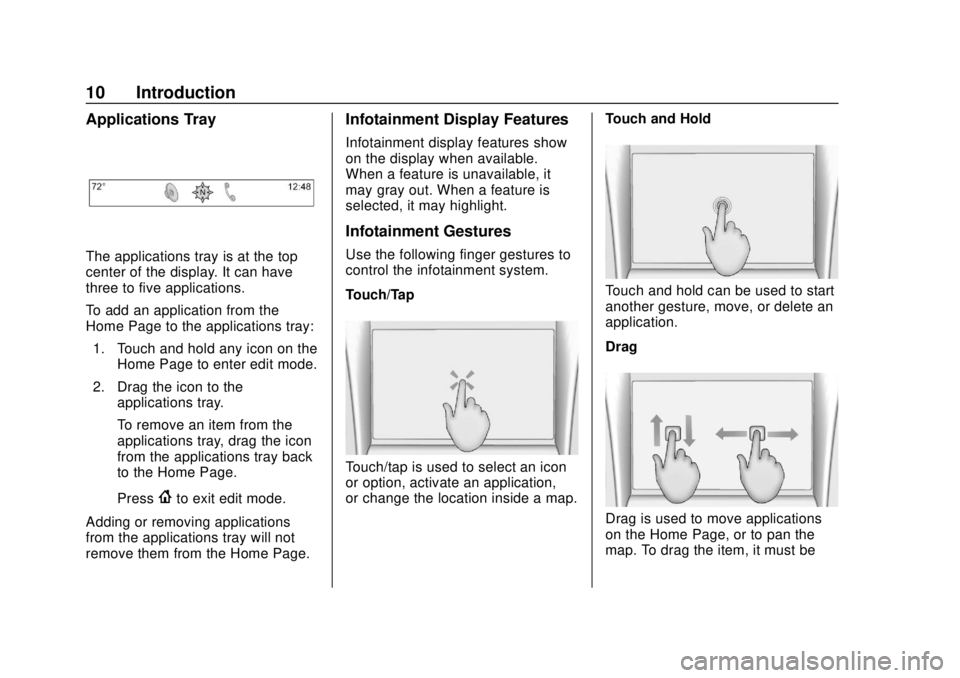
Applications Tray
The applications tray is at the top
center of the display. It can have
three to five applications.
To add an application from the
Home Page to the applications tray:1. Touch and hold any icon on the Home Page to enter edit mode.
2. Drag the icon to the applications tray.
To remove an item from the
applications tray, drag the icon
from the applications tray back
to the Home Page.
Press
{to exit edit mode.
Adding or removing applications
from the applications tray will not
remove them from the Home Page.
Infotainment Display Features
Infotainment display features show
on the display when available.
When a feature is unavailable, it
may gray out. When a feature is
selected, it may highlight.
Infotainment Gestures
Use the following finger gestures to
control the infotainment system.
Touch/Tap
Touch/tap is used to select an icon
or option, activate an application,
or change the location inside a map. Touch and Hold
Touch and hold can be used to start
another gesture, move, or delete an
application.
Drag
Drag is used to move applications
on the Home Page, or to pan the
map. To drag the item, it must be
Page 13 of 116
GMC Infotainment System (U.S./Canada 2.6) (GMNA-Localizing-U.S./Canada-
13583174) - 2020 - CRC - 4/15/19
12 Radio
Radio
AM-FM Radio
Playing the Radio
While on the Audio main page, the
available sources are AM, FM, SXM
(if equipped), CD (if equipped),
MyMedia, USB, Bluetooth, and AUX
Input.
.Press RADIO on the center
stack or touch the Audio icon on
the Home Page to scroll through
AM, FM, or SXM (if equipped).
. Press MEDIA on the center
stack or touch the Audio icon on
the Home Page to access Media
and scroll through CD (if
equipped), MyMedia, USB,
Bluetooth, and AUX Input.
Infotainment System Settings
Press RADIO on the center stack to
access broadcast sources. Touch the Menu icon on the
infotainment display or press TONE
on the center stack to display the
following menus:
Tone Settings:
.
Bass, Midrange, Treble,
Surround (if equipped): Touch +
or–to adjust. Surround adjusts
the headrest speaker
volume only.
. Balance: Touch
SorTfor more
sound from the left or right
speakers. The middle position
balances the sound between the
left and right speakers.
. Fade: Touch
yorzfor more
sound from the front or rear
speakers. The middle position
balances the sound between the
front and rear speakers. DSP Modes (If Equipped):
.
Bose Centerpoint surround
sound system has four DSP
modes:
‐Normal: Adjusts the audio to
provide the best sound for all
seating positions.
‐ Driver: Adjusts the audio to
provide the best sound for the
driver.
‐ Rear: Adjusts the audio to
provide the best sound for the
rear seat occupants.
‐ Centerpoint: Turns on Bose
Centerpoint surround
technology. This setting
creates a surround sound from
nearly any audio source:
existing stereo, CD collection,
and MP3 players. For more
information on Bose
Centerpoint surround
technology, see
www.boseautomotive.com.
Page 14 of 116
GMC Infotainment System (U.S./Canada 2.6) (GMNA-Localizing-U.S./Canada-
13583174) - 2020 - CRC - 4/15/19
Radio 13
Categories :Touch Categories
under the Audio menu to access the
categories list for AM, FM, or SXM
(if equipped). The list contains
names associated with the AM, FM,
and SXM, if equipped, stations or
channels. Touch a category name to
display a list of stations or channels
for that category. Touching a station
or channel from the list tunes the
radio to that station or channel and
returns the display to Now Playing.
EQ : If equipped with a Bose sound
system, the Equalizer settings are
selected through the tone settings
menu. Touch the left or right arrows
to cycle through the EQ options.
The available choices are Manual
and Talk.
Auto Volume (If Equipped) : This
feature adjusts the volume based on
vehicle speed. The options are Off,
Low, Medium - Low, Medium,
Medium - High, or High. Touch the
Back icon on the infotainment
display to go to the previous menu. Bose AudioPilot Noise
Compensation Technology (If
Equipped) :
When turned on,
AudioPilot technology detects noise
and vehicle speed to continuously
adjust the audio signal so that music
will sound the same at a set volume
level. This feature is most effective
at lower radio volume settings
where background noise can affect
how well the music is being played.
See www.boseautomotive.com. This
feature can be turned on or off.
Touch the Back icon on the
infotainment display to go back to
the previous menu.
HD Radio (If Equipped) : For AM,
FM, and SXM (if equipped) only,
touch to turn HD Radio (if equipped)
reception on or off. Touch the Back
icon on the infotainment display to
go back to the previous menu.
Update Station List : For AM, FM,
and SXM (if equipped), touch to
update the station channel list.
Touch the Back icon on the
infotainment display to go back to
the previous menu.Finding a Station
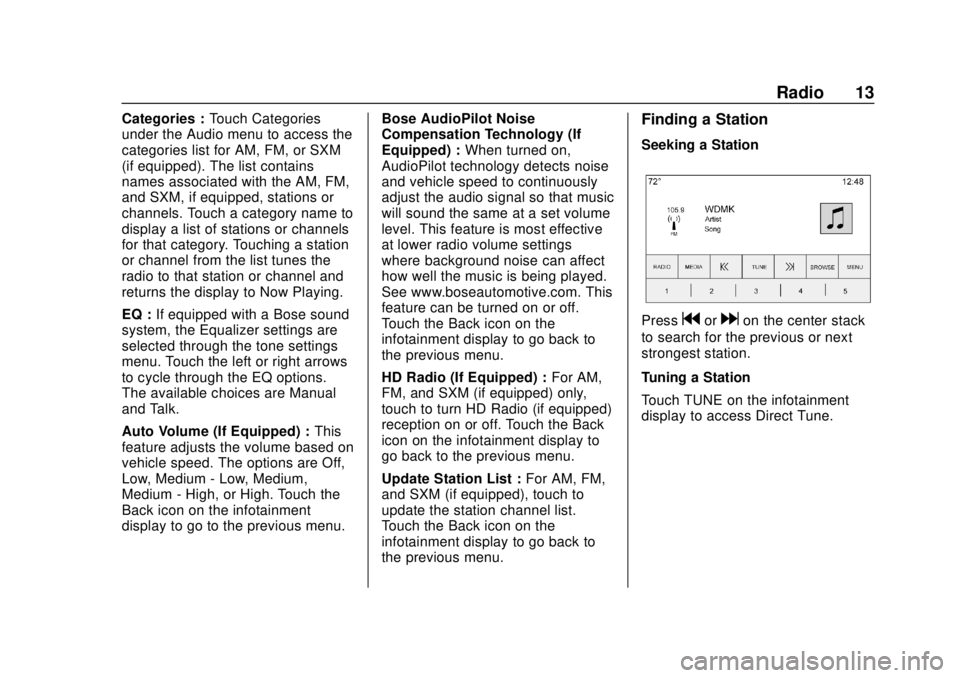
Seeking a Station
Pressgordon the center stack
to search for the previous or next
strongest station.
Tuning a Station
Touch TUNE on the infotainment
display to access Direct Tune.
Page 15 of 116
GMC Infotainment System (U.S./Canada 2.6) (GMNA-Localizing-U.S./Canada-
13583174) - 2020 - CRC - 4/15/19
14 Radio
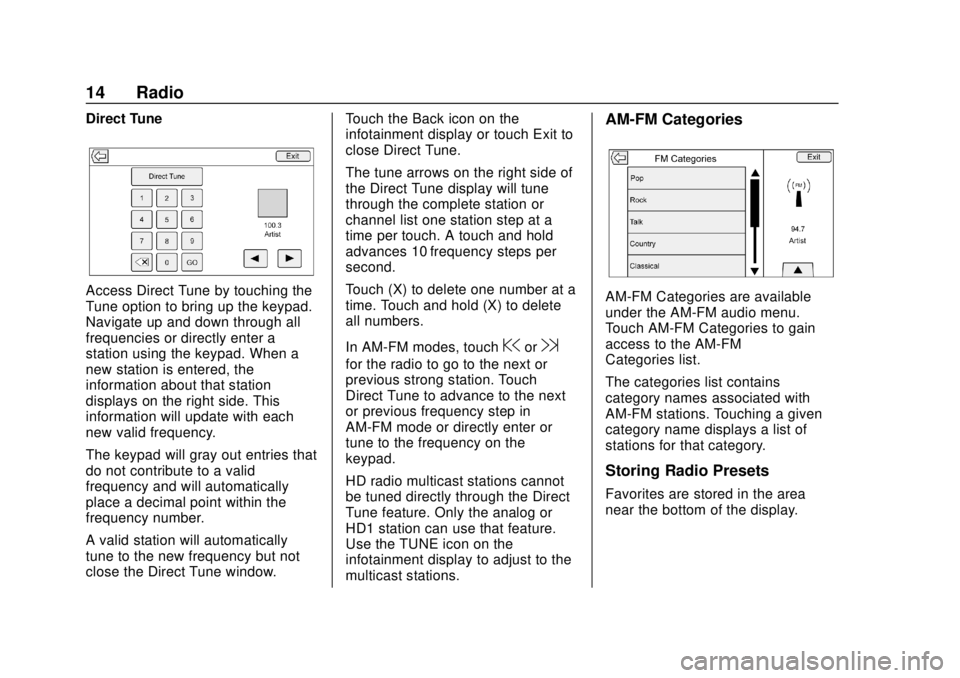
Direct Tune
Access Direct Tune by touching the
Tune option to bring up the keypad.
Navigate up and down through all
frequencies or directly enter a
station using the keypad. When a
new station is entered, the
information about that station
displays on the right side. This
information will update with each
new valid frequency.
The keypad will gray out entries that
do not contribute to a valid
frequency and will automatically
place a decimal point within the
frequency number.
A valid station will automatically
tune to the new frequency but not
close the Direct Tune window.Touch the Back icon on the
infotainment display or touch Exit to
close Direct Tune.
The tune arrows on the right side of
the Direct Tune display will tune
through the complete station or
channel list one station step at a
time per touch. A touch and hold
advances 10 frequency steps per
second.
Touch (X) to delete one number at a
time. Touch and hold (X) to delete
all numbers.
In AM-FM modes, touch
@or9
for the radio to go to the next or
previous strong station. Touch
Direct Tune to advance to the next
or previous frequency step in
AM-FM mode or directly enter or
tune to the frequency on the
keypad.
HD radio multicast stations cannot
be tuned directly through the Direct
Tune feature. Only the analog or
HD1 station can use that feature.
Use the TUNE icon on the
infotainment display to adjust to the
multicast stations.
AM-FM Categories
AM-FM Categories are available
under the AM-FM audio menu.
Touch AM-FM Categories to gain
access to the AM-FM
Categories list.
The categories list contains
category names associated with
AM-FM stations. Touching a given
category name displays a list of
stations for that category.
Storing Radio Presets
Favorites are stored in the area
near the bottom of the display.
Page 18 of 116
GMC Infotainment System (U.S./Canada 2.6) (GMNA-Localizing-U.S./Canada-
13583174) - 2020 - CRC - 4/15/19
Radio 17
When SiriusXM is active, the station
name, number, category name,
song title, and artist display.
SiriusXM Menu
SiriusXM has a menu to adjust
different features.
Touching the Menu icon on the
infotainment display may show the
following:
Tone Settings :Touch + or–to
adjust the tone settings. See AM-FM
Radio 012.
TuneSelect : For SiriusXM only, this
feature allows for an alert to be set
for artists or songs that are played
on any channel. Touch Manage
TuneSelect to turn the alerts On and
Off or manage the saved selection
of Artists or Songs. To turn off an
alert, touch the Song or Artist and
uncheck the box. To delete an alert,
touch –. Touch the Back icon on the
infotainment display to go back to
the previous menu. Auto Volume (If Equipped) :
This
feature adjusts the volume based on
the vehicle speed. See AM-FM
Radio 012.
Bose AudioPilot Noise
Compensation Technology (If
Equipped) : This feature adjusts
the volume based on the noise in
the vehicle and speed. See AM-FM
Radio 012.
Radio Reception
Unplug electronic devices from the
accessory power outlets if there is
interference or static in the radio.
FM
FM signals only reach about 16 to
65 km (10 to 40 mi). Although the
radio has a built-in electronic circuit
that automatically works to reduce
interference, some static can occur,
especially around tall buildings or
hills, causing the sound to fade in
and out.
AM
The range for most AM stations is
greater than for FM, especially at
night. The longer range can cause
station frequencies to interfere with
each other. Static can also occur
when things like storms and power
lines interfere with radio reception.
When this happens, try reducing the
treble on the radio.
SiriusXM Satellite Radio
Service
If equipped, SiriusXM Satellite
Radio Service provides digital radio
reception. Tall buildings or hills can
interfere with satellite radio signals,
causing the sound to fade in and
out. In addition, traveling or standing
under heavy foliage, bridges,
garages, or tunnels may cause loss
of the SiriusXM signal for a period
of time.
Mobile Device Usage
Mobile device usage, such as
making or receiving calls, charging,
or just having the mobile device on
Page 20 of 116
GMC Infotainment System (U.S./Canada 2.6) (GMNA-Localizing-U.S./Canada-
13583174) - 2020 - CRC - 4/15/19
Audio Players 19
Audio Players
Avoiding Untrusted Media
Devices
When using media devices such as
CDs, DVDs, Blu-ray Discs, SD
cards, USB devices, and mobile
devices, consider the source.
Untrusted media devices could
contain files that affect system
operation or performance. Avoid use
if the content or origin cannot be
trusted.
CD Player
If equipped, use the CD player to
play CDs and MP3 audio.
The system can play:
.Most audio CDs
. CD-R
. CD-RW
. MP3 or unprotected WMA
formats When playing any compatible
recordable disc, the sound quality
can be reduced due to disc quality,
the method of recording, the quality
of the music that has been
recorded, or the way the disc has
been handled.
There can be increased skipping,
difficulty in recording tracks,
difficulty in finding tracks, and/or
difficulty in loading and ejecting.
If these problems occur, check the
disc for damage or try a known
good disc.
To avoid damage to the CD player:
.
Do not use scratched or
damaged discs.
. Do not apply labels to discs. The
labels could get caught in the
player.
. Insert only one disc at a time.
. Keep the loading slot free of
foreign materials, liquids, and
debris.
. Use a marking pen to label the
top of the disc.
Loading and Ejecting Discs
To load a disc:
1. Turn the vehicle on.
2. Insert a disc into the slot, label side up. The player pulls it in
the rest of the way. If the disc
is damaged or improperly
loaded, there is an error and
the disc ejects.
Press
Xto eject a disc from the
CD player. If the disc is not removed
within a short period of time, it is
automatically pulled back into the
player.
Playing an Audio CD
Press MEDIA on the center stack or
touch the Audio icon on the Home
Page to access Media. Scroll until
the CD Audio view is selected.
On the CD main page, a track
number displays at the beginning of
each track, or Song, Artist, and
Album information displays when
available.
Page 21 of 116
GMC Infotainment System (U.S./Canada 2.6) (GMNA-Localizing-U.S./Canada-
13583174) - 2020 - CRC - 4/15/19
20 Audio Players
Use the following controls to play
the disc:
g:
. Press to seek to the beginning of
the current or previous track.
If the track has been playing for
less than five seconds, it seeks
to the previous track. If longer
than five seconds, the current
track starts from the beginning.
. Press and hold to fast reverse
through a track. Release to
return to playing speed. Elapsed
time displays.
d:
. Press to seek to the next track.
. Press and hold to fast forward
through a track. Release to
return to playing speed. Elapsed
time displays.
Z:Touch the shuffle icon near the
bottom of the infotainment display to
shuffle through the available media.
/: Touch the replay icon near the
bottom of the infotainment display to
show the time bar. Move the time
bar to interact with the currently
playing song.
Tone : Touch Tone near the bottom
of the infotainment display to access
the Tone Settings display. Set the
Bass, Midrange, Treble, Balance,
and Fade.
For vehicles equipped with Rear
Seat Infotainment (RSI), use the
Video application to play Blu-ray or
DVD discs.
Error Messages
If Disc Error displays and/or the disc
comes out, it could be for one of the
following reasons:
. The disc has an invalid or
unknown format.
. The road is very rough. Try the
disc again when the road is
smoother.
. The disc is dirty, scratched, wet,
or upside down. .
The air is very humid. Try the
disc again later.
. There was a problem while
burning the disc.
. The label is caught in the CD
player.
If Disc Player Error displays, it could
be for one of the following reasons:
. The player temperature is
too high.
. There are load or eject errors.
If the CD is not playing correctly, for
any other reason, try a known
good CD.
If any error continues, contact your
dealer.
Playing an MP3 CD
To play an MP3 CD, follow the same
instructions as “Playing an
Audio CD.”