4g icon GMC YUKON 2020 Infotainment System Manual
[x] Cancel search | Manufacturer: GMC, Model Year: 2020, Model line: YUKON, Model: GMC YUKON 2020Pages: 116, PDF Size: 1.32 MB
Page 23 of 116
GMC Infotainment System (U.S./Canada 2.6) (GMNA-Localizing-U.S./Canada-
13583174) - 2020 - CRC - 4/15/19
22 Audio Players
Playing from a USB
A USB mass storage device can be
connected to the USB port.
Audio extensions supported by the
USB may include:
.FLAC
. MP3
. AAC
. OGG
. 3GP
Gracenote
When plugging in a USB device,
Gracenote service builds voice tags
for music. Voice tags allow artists,
albums with hard to pronounce
names, and nicknames to be used
to play music through voice
recognition.
While indexing, infotainment
features are available.
My Media Library
MyMedia is only available when
more than one indexed device is
connected. It allows access to content from all indexed media
sources. MyMedia will show as an
available source in the
Source page.
USB MP3 Player and USB Devices
The USB MP3 players and USB
devices connected must comply
with the USB Mass Storage Class
specification (USB MSC).
To play a USB device:
1. Connect the USB.
2. Press MEDIA on the center stack until the connected
device is shown.
Use the following when playing an
active USB source:
r: Touch to play the current media
source.
j: Touch to pause playback of the
current media source.
g:
. Press to seek to the beginning of
the current or previous track. .
Press and hold to reverse
quickly through playback.
Release to return to playing
speed. Elapsed time displays.
d:
. Press to seek to the next track.
. Press and hold to advance
quickly through playback.
Release to return to playing
speed. Elapsed time displays.
Shuffle : Touch the shuffle icon to
play music in random order.
USB Menu
Touch the Menu icon to display the
USB menu. The following may be
available:
Shuffle : Touch to play the tracks
randomly. Touch again to stop
shuffle.
Tone : Touch + or –to adjust the
tone settings. See AM-FM Radio
0 12.
Auto Volume (If Equipped) : This
feature adjusts the volume based on
the vehicle speed. See AM-FM
Radio 012.
Page 25 of 116
GMC Infotainment System (U.S./Canada 2.6) (GMNA-Localizing-U.S./Canada-
13583174) - 2020 - CRC - 4/15/19
24 Audio Players
2. Touch a Composer to view alist of albums by that
composer.
3. Touch an album or All Songs to view a list of songs.
4. Touch a song from the list to begin playback.
Folder View: 1. Touch to view the directories on the USB.
2. Touch a folder to view a list of all files.
3. Touch a file from the list to begin playback.
Audiobooks: 1. Touch to view the audiobooks stored on the USB.
2. Touch an audiobook to get a list of chapters.
3. Touch the chapter from the list to begin playback. File System and Naming
The songs, artists, albums, and
genres are taken from the file’s
song information and are only
displayed if present. The radio
displays the file name as the track
name if the song information is not
available.
Supported Apple Devices
To view supported devices, see
my.gmc.com/learn.
Loss of Audio
If a phone currently paired over
Bluetooth is plugged in with a USB
cable, the system will automatically
mute the phone audio. Playback
can be resumed by changing the
audio source from Bluetooth to USB
cable.
Source USB from the Media icon on
the infotainment display to resume
playback.
Other phones such as Android
phones may have a similar reaction. Bluetooth Streaming Audio and
Voice Recognition
See
Bluetooth Audio 025 for
information using voice recognition
with Bluetooth streaming audio.
Make sure all devices have the
latest software downloaded.
Auxiliary Jack
This vehicle has an auxiliary input
jack. This may be located in the
center stack or center console
under the armrest. Possible auxiliary
audio sources include:
. Laptop computer
. Audio music player
This jack is not an audio output. Do
not plug headphones into the
auxiliary input jack. Set up an
auxiliary device while the vehicle is
in P (Park).
Connect a 3.5 mm (1/8 in) cable
from the auxiliary device to the
auxiliary input jack. When a device
is connected, the system can play
audio from the device over the
vehicle speakers.
Page 26 of 116
GMC Infotainment System (U.S./Canada 2.6) (GMNA-Localizing-U.S./Canada-
13583174) - 2020 - CRC - 4/15/19
Audio Players 25
If an auxiliary device has already
been connected, but a different
source is currently active, press
MEDIA on the center stack or touch
the Media icon on the infotainment
display to scroll through audio
source menus, until the AUX Input
source appears.
Playing from the AUX Port
An auxiliary device is played
through the audio system and
controlled through the device itself.
AUX Menu
Press MENU on the center stack to
display the AUX Input menu and the
following may display:
Tone Settings :Touch to adjust
Bass, Midrange, Treble, Balance,
Fade, and EQ (Equalizer). See
AM-FM Radio 012.
Auto Volume (If Equipped) : This
feature adjusts the volume based on
the vehicle speed. See AM-FM
Radio 012. Bose AudioPilot Noise
Compensation Technology (If
Equipped) :
This feature adjusts
the volume based on the noise in
the vehicle and speed. See “Bose
AudioPilot” inAM-FM Radio 012.
Bluetooth Audio
If equipped, music may be played
from a paired Bluetooth device. See
Bluetooth (Overview) 086 or
Bluetooth (Pairing and Using a
Phone) 087 for help pairing a
device.
Volume and song selection may be
controlled by using the infotainment
controls or the mobile device.
If Bluetooth is selected and no
volume is present, check the
volume setting on both your mobile
device and the infotainment system.
Music can be launched by touching
Bluetooth from the recent sources
list on the left of the display or by
touching the More option and then
touching the Bluetooth device. To play music via Bluetooth:
1. Power on the device, and pair to connect the device.
2. Once paired, touch Audio from the Home Page, then touch
Bluetooth from the recent
sources list on the left of the
display.
Bluetooth Audio Menu
Touch the Menu icon on the
infotainment display or MENU on
the center stack to display the
Bluetooth Audio menu. The
following may be available:
Tone Settings : Touch + or–to
adjust the tone settings. See AM-FM
Radio 012.
Auto Volume (If Equipped) : This
feature adjusts the volume based on
the vehicle speed. See AM-FM
Radio 012.
Bose AudioPilot Noise
Compensation Technology (If
Equipped) : This feature adjusts
the volume based on the noise in
the vehicle and speed. See AM-FM
Radio 012.
Page 27 of 116
GMC Infotainment System (U.S./Canada 2.6) (GMNA-Localizing-U.S./Canada-
13583174) - 2020 - CRC - 4/15/19
26 Audio Players
Touch the Back icon on the
infotainment display to go back to
the previous menu.
Manage Bluetooth Devices :
Touch to go to the Bluetooth page to
add or delete devices.
When using the Bluetooth audio
source, the radio may not be able to
launch specific applications on your
device. Use the device to start audio
playback when it is safe to do so.
All devices launch audio differently.
When selecting Bluetooth audio as
a source, the radio may show as
paused on the display. Touch play
on the device or touch
rto begin
playback.
Some phones support sending
Bluetooth music information to
display on the radio. When the radio
receives this information, it will
check to see if any is available and
display it. For more information
about supported Bluetooth features,
see www.gm.com/bluetooth.
Page 28 of 116
GMC Infotainment System (U.S./Canada 2.6) (GMNA-Localizing-U.S./Canada-
13583174) - 2020 - CRC - 4/15/19
OnStar System 27
OnStar System
4G LTE
If equipped with 4G LTE, up to
seven devices, such as
smartphones, tablets, and laptops,
can be connected to high-speed
Internet through the vehicle’s built-in
Wi-Fi hotspot.
Call 1-888-4ONSTAR
(1-888-466-7827) to connect to an
OnStar Advisor for assistance. See
www.onstar.com for vehicle
availability, details, and system
limitations. Service and connectivity
may vary by make, model, year,
carrier, availability, and conditions.
4G LTE service is available in select
markets. 4G LTE performance is
based on industry averages and
vehicle systems design. Some
services require a data plan.
The OnStar App
If equipped, the infotainment system
has OnStar controls in the
embedded OnStar app on the Home
Page. All OnStar functions that can
be performed with the buttons can
be done using the app. To open the
app, select the OnStar icon on the
Home Page. Features vary by
region and model. Features are
subject to change. For more
information on this feature, see
my.gmc.com/learn.
Page 29 of 116
GMC Infotainment System (U.S./Canada 2.6) (GMNA-Localizing-U.S./Canada-
13583174) - 2020 - CRC - 4/15/19
28 Rear Seat Infotainment
Rear Seat
Infotainment
Rear Seat Infotainment
(RSI) System
If equipped, the system includes a
Blu-ray/DVD/CD player, two USB
ports, HDMI/MHL input, wireless
headphones, and a remote control.
The remote control is used to select
the same or a different source for
each screen from the rear seats.
Video can be viewed from the front
by touching Video on the Home
Page, if the vehicle is in P (Park).
Audio will be heard over the
speakers. If another display icon is
selected, the video on the rear
screen will continue to play but the
audio on the speakers will change
to the source selected.
To resume play of the video where it
left off, Pseudo Resume must be
on. See“Player Setup BD/DVD"
later in this section. The RSI system may not operate
properly until the temperature is
above
−20 °C (−4 °F) and below
55 °C (131 °F).
System Operation
The video screens are overhead in
the second or third row (if
equipped).
To use:
1. Press the release in front of the overhead screen. Do not pull
on the sides of the screen.
2. Move the screen to the viewingposition. Remove the remote
from the storage location
to use.
Caution
When storing the remote, place it
in the storage area with the
buttons facing toward you or
damage to the screen could
occur.
Page 30 of 116
GMC Infotainment System (U.S./Canada 2.6) (GMNA-Localizing-U.S./Canada-
13583174) - 2020 - CRC - 4/15/19
Rear Seat Infotainment 29
3. Opening a screen will turn thesystem on. If the screens are
open with the system off, press
the power icon on the remote
to turn the system on.
The system can also be turned
on from the front infotainment
system by touching the Video
icon on the Home Page and
then touching On/Off.
If RSI audio is desired without
video being displayed, stow the
display in the closed position.
To turn the audio off, press the
power button on the remote or
press On/Off on the front
infotainment Video page.
Push the video screen into the
locked position when it is not in
use. The screen turns off
automatically.
Caution
Avoid directly touching the video
screen, as damage may occur.
Sources
Sources include AM, FM, SXM (if
equipped), HDMI/MHL, CD/DVD/
Blu-ray, and USB.
Menus and Features
AM/FM Menu
Press RADIO on the remote control,
then select AM, FM, or SXM (if
equipped).
Press MENU on the remote control
to select All Strong Stations, All
Stations, Favorites, Categories,
Wired Headphones, or other RSI
functions.
Only one tuner source may be
active at a time. To close, press MENU or
0
(Back), or wait for the time out.
SXM Menu (If Equipped)
Press RADIO on the remote control,
then select SXM.
Touch Menu to select Channel List,
Categories, Favorites, SXM View,
Wired Headphones, or other RSI
functions.
Only one tuner source may be
active at a time.
To close, press MENU or
0
(Back), or wait for the time out.
Disc Menu BD (Blu-ray Disc)
With a Blu-ray disc in the player,
press MEDIA on the remote control
and then select Blu-ray.
Page 38 of 116
GMC Infotainment System (U.S./Canada 2.6) (GMNA-Localizing-U.S./Canada-
13583174) - 2020 - CRC - 4/15/19
Rear Seat Infotainment 37
of the headphones. Change the
channel on the headphones to the
desired screen source.
One user can listen to the audio
from SCREEN 1 and view the
source on the overhead display
while another user can listen to a
separate audio source by changing
the channel on the wireless
headphones or setting their wired
headphones to SCREEN 2 in
the MENU.
RSI Controls Available from
the Front Screen
To access the RSI, touch the Video
icon from the Home Page. The
Video app may also be touched
from the applications tray if it has
been stored in one of the five
locations.
Sourcing to DVD/BD
This allows for watching a DVD/BD
video on the front screen when the
vehicle is in P (Park).
After a disc is inserted, it will
automatically begin playing. To
resume play of the video where itleft off, Pseudo Resume must be
on. See "Player Setup BD/DVD"
previously in this section.
With the vehicle in P (Park), icons
display along the bottom of the front
display. When a DVD, VCD, USB,
or HDMI source is inserted:When a BD is inserted:
Rear Media
This allows for transitioning between
Disc, USB, and HDMI sources for
the rear screens. Sources selected
will be automatically sourced for
both rear screens and will begin
playback from the first available file.
The video will only appear on the
front screen with the vehicle in
P (Park). In any other gear, the front
screen displays the active media
source.
DVD/BD Disc Menu
With the vehicle in P (Park), select
DISC MENU to access the DVD/BD
disc menu.
Next Track/Previous Track
Use
7to skip ahead or6to skip
back chapters. Press
7less than
five seconds into the current track to
start at the beginning of the
previous track. Press
7more than
five seconds into the current track to
start at the beginning of the current
track.
Fast Forward/Fast Rewind
With the vehicle in P (Park), hold
7
or6for approximately one and
one-half seconds to fast forward or
Page 39 of 116
GMC Infotainment System (U.S./Canada 2.6) (GMNA-Localizing-U.S./Canada-
13583174) - 2020 - CRC - 4/15/19
38 Rear Seat Infotainment
fast rewind. If7or6are held for
approximately six seconds, the rate
of fast forward or fast rewind will
increase.
Play/Pause
Touch
rto play orjto pause,
depending on the current selection.
Keypad for DVD/VCD/USB
With the vehicle in P (Park), select
to display the DVD keypad. DVD
keypad functionality is disc
dependent and may not be available
on all DVDs. Up to four digits can
be entered. Select Clear to remove
one digit in the entry field. Touch
and hold Clear to remove all digits
in the entry field.
Pop-Up Menu (BD Only)
This displays the pop-up menu
contents for the BD. Make a
selection or use the interaction
selector to exit pop-up menu view. Cursor
Use to navigate and select items in
the disc menu. Press the up, down,
right, or left arrows, or ENTER.
Touch the cursor to close the
interaction selector and display a
vertical menu of cursors. The cursor
will time out and close.
Enter
Touch the cursor to close the
interaction selector and display a
vertical menu of cursors. The cursor
will time out and close.
Sourcing USB/VCD/HDMI with
Video
This allows for watching videos on
the front screen from devices
plugged into the rear module when
in P (Park).
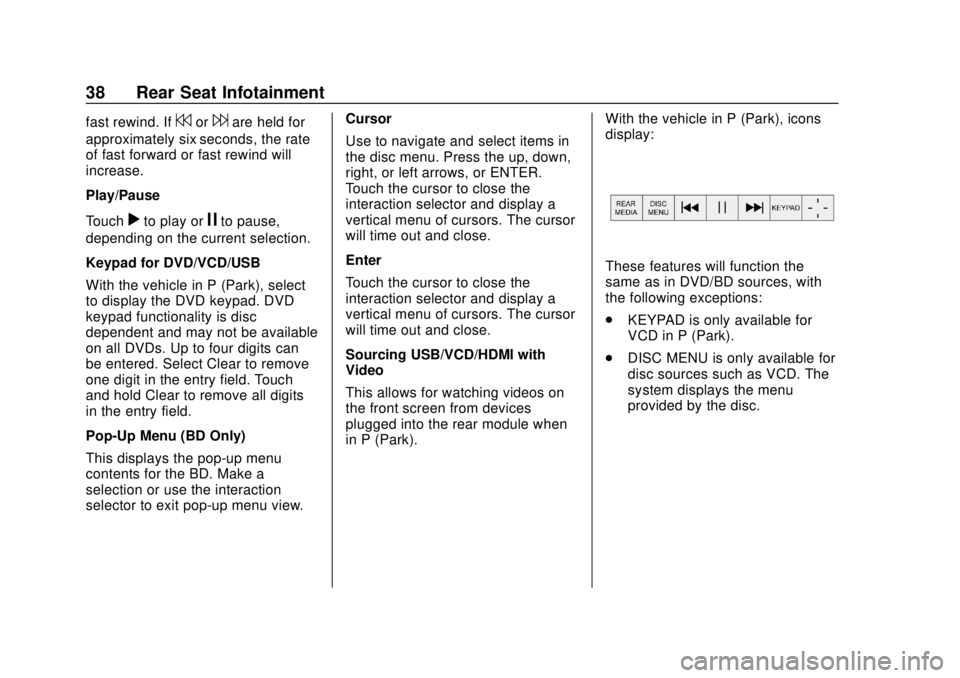
With the vehicle in P (Park), icons
display:
These features will function the
same as in DVD/BD sources, with
the following exceptions:
.
KEYPAD is only available for
VCD in P (Park).
. DISC MENU is only available for
disc sources such as VCD. The
system displays the menu
provided by the disc.
Page 40 of 116
GMC Infotainment System (U.S./Canada 2.6) (GMNA-Localizing-U.S./Canada-
13583174) - 2020 - CRC - 4/15/19
Rear Seat Infotainment 39
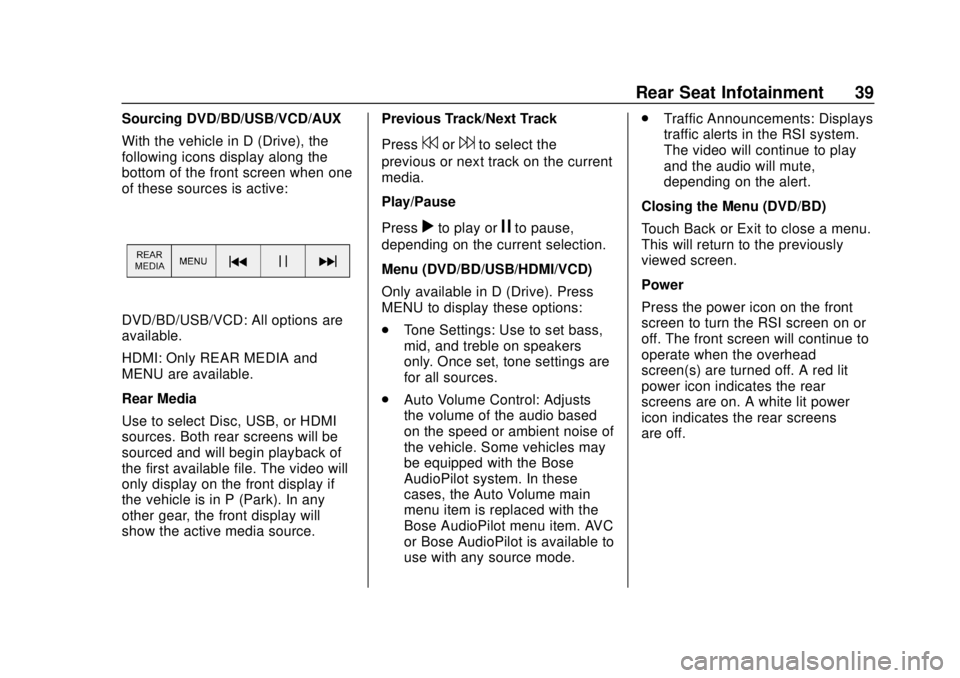
Sourcing DVD/BD/USB/VCD/AUX
With the vehicle in D (Drive), the
following icons display along the
bottom of the front screen when one
of these sources is active:
DVD/BD/USB/VCD: All options are
available.
HDMI: Only REAR MEDIA and
MENU are available.
Rear Media
Use to select Disc, USB, or HDMI
sources. Both rear screens will be
sourced and will begin playback of
the first available file. The video will
only display on the front display if
the vehicle is in P (Park). In any
other gear, the front display will
show the active media source.Previous Track/Next Track
Press
7or6to select the
previous or next track on the current
media.
Play/Pause
Press
rto play orjto pause,
depending on the current selection.
Menu (DVD/BD/USB/HDMI/VCD)
Only available in D (Drive). Press
MENU to display these options:
. Tone Settings: Use to set bass,
mid, and treble on speakers
only. Once set, tone settings are
for all sources.
. Auto Volume Control: Adjusts
the volume of the audio based
on the speed or ambient noise of
the vehicle. Some vehicles may
be equipped with the Bose
AudioPilot system. In these
cases, the Auto Volume main
menu item is replaced with the
Bose AudioPilot menu item. AVC
or Bose AudioPilot is available to
use with any source mode. .
Traffic Announcements: Displays
traffic alerts in the RSI system.
The video will continue to play
and the audio will mute,
depending on the alert.
Closing the Menu (DVD/BD)
Touch Back or Exit to close a menu.
This will return to the previously
viewed screen.
Power
Press the power icon on the front
screen to turn the RSI screen on or
off. The front screen will continue to
operate when the overhead
screen(s) are turned off. A red lit
power icon indicates the rear
screens are on. A white lit power
icon indicates the rear screens
are off.