Icons GMC YUKON 2020 Infotainment System Manual
[x] Cancel search | Manufacturer: GMC, Model Year: 2020, Model line: YUKON, Model: GMC YUKON 2020Pages: 116, PDF Size: 1.32 MB
Page 8 of 116
GMC Infotainment System (U.S./Canada 2.6) (GMNA-Localizing-U.S./Canada-
13583174) - 2020 - CRC - 4/15/19
Introduction 7
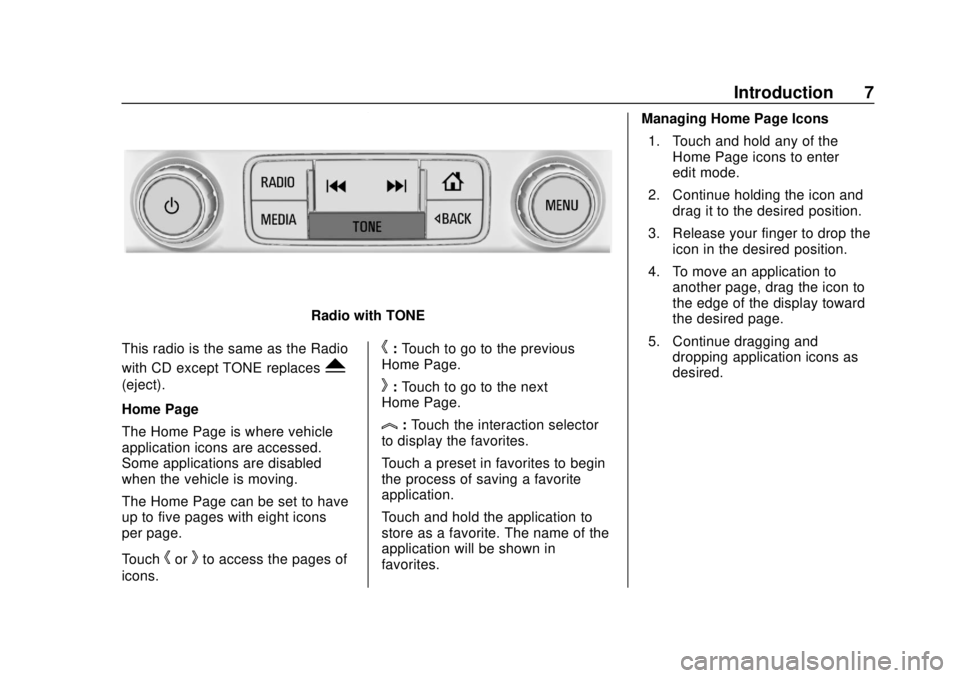
Radio with TONE
This radio is the same as the Radio
with CD except TONE replaces
Y
(eject).
Home Page
The Home Page is where vehicle
application icons are accessed.
Some applications are disabled
when the vehicle is moving.
The Home Page can be set to have
up to five pages with eight icons
per page.
Touch
horkto access the pages of
icons.
h: Touch to go to the previous
Home Page.
k: Touch to go to the next
Home Page.
l: Touch the interaction selector
to display the favorites.
Touch a preset in favorites to begin
the process of saving a favorite
application.
Touch and hold the application to
store as a favorite. The name of the
application will be shown in
favorites. Managing Home Page Icons
1. Touch and hold any of the Home Page icons to enter
edit mode.
2. Continue holding the icon and drag it to the desired position.
3. Release your finger to drop the icon in the desired position.
4. To move an application to another page, drag the icon to
the edge of the display toward
the desired page.
5. Continue dragging and dropping application icons as
desired.
Page 9 of 116
GMC Infotainment System (U.S./Canada 2.6) (GMNA-Localizing-U.S./Canada-
13583174) - 2020 - CRC - 4/15/19
8 Introduction
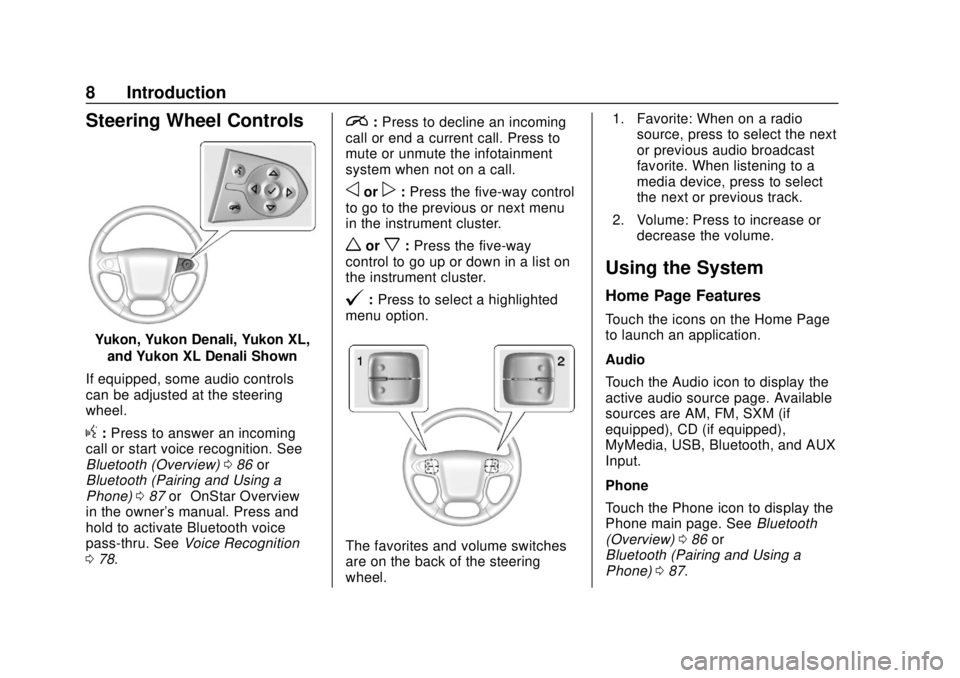
Steering Wheel Controls
Yukon, Yukon Denali, Yukon XL,and Yukon XL Denali Shown
If equipped, some audio controls
can be adjusted at the steering
wheel.
g: Press to answer an incoming
call or start voice recognition. See
Bluetooth (Overview) 086 or
Bluetooth (Pairing and Using a
Phone) 087 or“OnStar Overview”
in the owner's manual. Press and
hold to activate Bluetooth voice
pass-thru. See Voice Recognition
0 78.
i:Press to decline an incoming
call or end a current call. Press to
mute or unmute the infotainment
system when not on a call.
oorp: Press the five-way control
to go to the previous or next menu
in the instrument cluster.
worx: Press the five-way
control to go up or down in a list on
the instrument cluster.
@: Press to select a highlighted
menu option.
The favorites and volume switches
are on the back of the steering
wheel. 1. Favorite: When on a radio
source, press to select the next
or previous audio broadcast
favorite. When listening to a
media device, press to select
the next or previous track.
2. Volume: Press to increase or decrease the volume.
Using the System
Home Page Features
Touch the icons on the Home Page
to launch an application.
Audio
Touch the Audio icon to display the
active audio source page. Available
sources are AM, FM, SXM (if
equipped), CD (if equipped),
MyMedia, USB, Bluetooth, and AUX
Input.
Phone
Touch the Phone icon to display the
Phone main page. See Bluetooth
(Overview) 086 or
Bluetooth (Pairing and Using a
Phone) 087.
Page 38 of 116
GMC Infotainment System (U.S./Canada 2.6) (GMNA-Localizing-U.S./Canada-
13583174) - 2020 - CRC - 4/15/19
Rear Seat Infotainment 37
of the headphones. Change the
channel on the headphones to the
desired screen source.
One user can listen to the audio
from SCREEN 1 and view the
source on the overhead display
while another user can listen to a
separate audio source by changing
the channel on the wireless
headphones or setting their wired
headphones to SCREEN 2 in
the MENU.
RSI Controls Available from
the Front Screen
To access the RSI, touch the Video
icon from the Home Page. The
Video app may also be touched
from the applications tray if it has
been stored in one of the five
locations.
Sourcing to DVD/BD
This allows for watching a DVD/BD
video on the front screen when the
vehicle is in P (Park).
After a disc is inserted, it will
automatically begin playing. To
resume play of the video where itleft off, Pseudo Resume must be
on. See "Player Setup BD/DVD"
previously in this section.
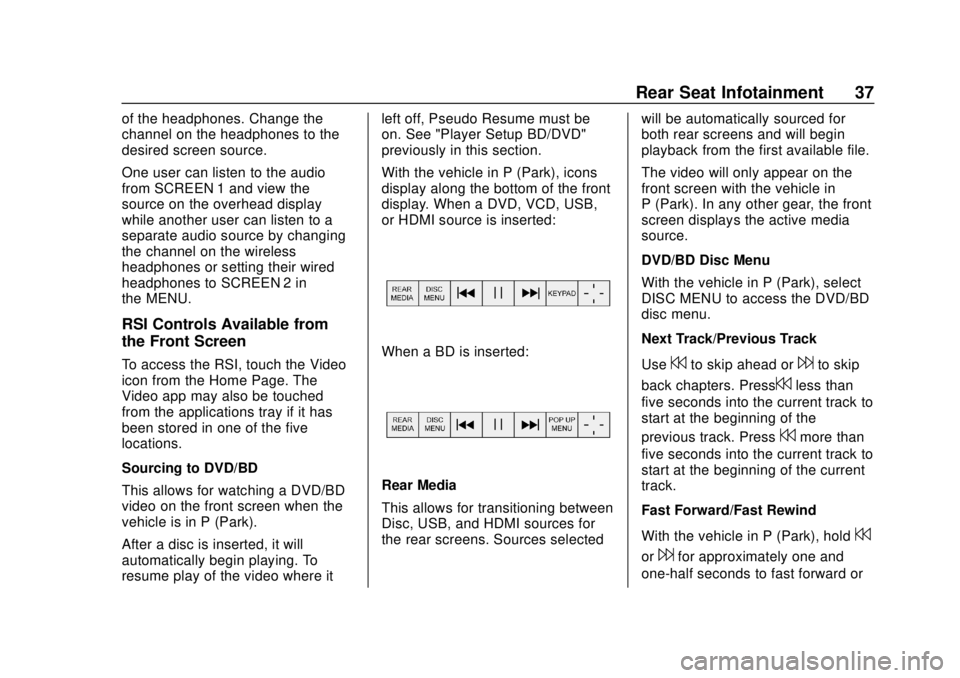
With the vehicle in P (Park), icons
display along the bottom of the front
display. When a DVD, VCD, USB,
or HDMI source is inserted:When a BD is inserted:
Rear Media
This allows for transitioning between
Disc, USB, and HDMI sources for
the rear screens. Sources selected
will be automatically sourced for
both rear screens and will begin
playback from the first available file.
The video will only appear on the
front screen with the vehicle in
P (Park). In any other gear, the front
screen displays the active media
source.
DVD/BD Disc Menu
With the vehicle in P (Park), select
DISC MENU to access the DVD/BD
disc menu.
Next Track/Previous Track
Use
7to skip ahead or6to skip
back chapters. Press
7less than
five seconds into the current track to
start at the beginning of the
previous track. Press
7more than
five seconds into the current track to
start at the beginning of the current
track.
Fast Forward/Fast Rewind
With the vehicle in P (Park), hold
7
or6for approximately one and
one-half seconds to fast forward or
Page 39 of 116
GMC Infotainment System (U.S./Canada 2.6) (GMNA-Localizing-U.S./Canada-
13583174) - 2020 - CRC - 4/15/19
38 Rear Seat Infotainment
fast rewind. If7or6are held for
approximately six seconds, the rate
of fast forward or fast rewind will
increase.
Play/Pause
Touch
rto play orjto pause,
depending on the current selection.
Keypad for DVD/VCD/USB
With the vehicle in P (Park), select
to display the DVD keypad. DVD
keypad functionality is disc
dependent and may not be available
on all DVDs. Up to four digits can
be entered. Select Clear to remove
one digit in the entry field. Touch
and hold Clear to remove all digits
in the entry field.
Pop-Up Menu (BD Only)
This displays the pop-up menu
contents for the BD. Make a
selection or use the interaction
selector to exit pop-up menu view. Cursor
Use to navigate and select items in
the disc menu. Press the up, down,
right, or left arrows, or ENTER.
Touch the cursor to close the
interaction selector and display a
vertical menu of cursors. The cursor
will time out and close.
Enter
Touch the cursor to close the
interaction selector and display a
vertical menu of cursors. The cursor
will time out and close.
Sourcing USB/VCD/HDMI with
Video
This allows for watching videos on
the front screen from devices
plugged into the rear module when
in P (Park).
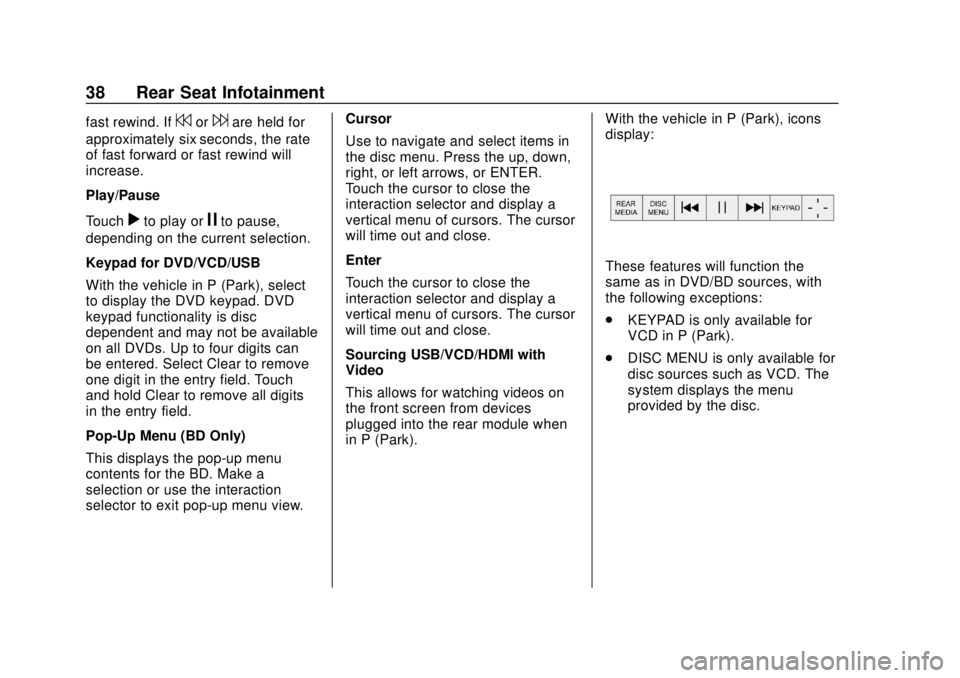
With the vehicle in P (Park), icons
display:
These features will function the
same as in DVD/BD sources, with
the following exceptions:
.
KEYPAD is only available for
VCD in P (Park).
. DISC MENU is only available for
disc sources such as VCD. The
system displays the menu
provided by the disc.
Page 40 of 116
GMC Infotainment System (U.S./Canada 2.6) (GMNA-Localizing-U.S./Canada-
13583174) - 2020 - CRC - 4/15/19
Rear Seat Infotainment 39
Sourcing DVD/BD/USB/VCD/AUX
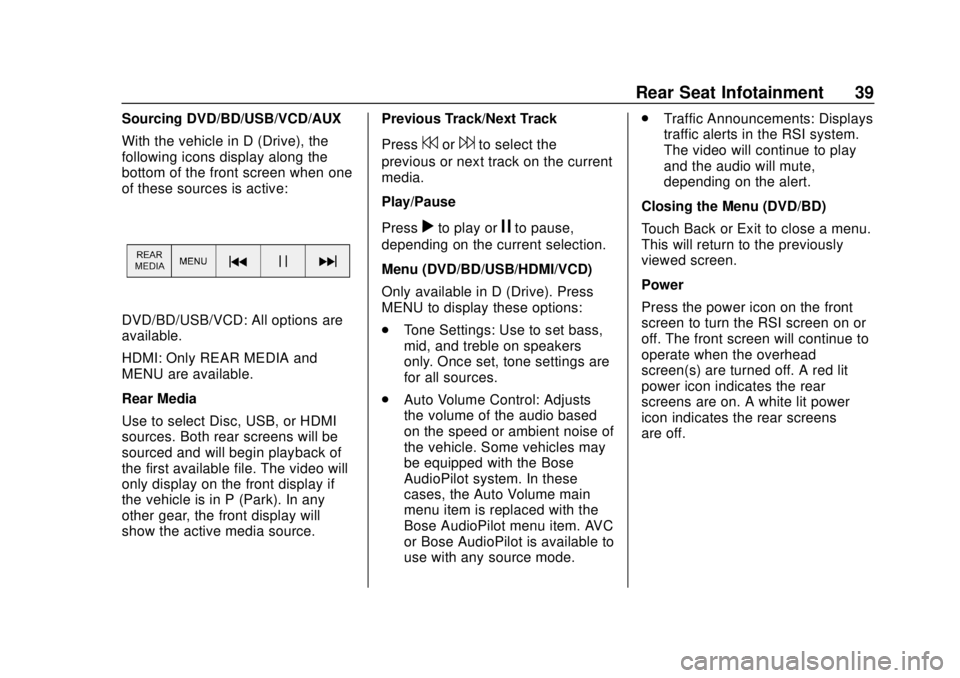
With the vehicle in D (Drive), the
following icons display along the
bottom of the front screen when one
of these sources is active:
DVD/BD/USB/VCD: All options are
available.
HDMI: Only REAR MEDIA and
MENU are available.
Rear Media
Use to select Disc, USB, or HDMI
sources. Both rear screens will be
sourced and will begin playback of
the first available file. The video will
only display on the front display if
the vehicle is in P (Park). In any
other gear, the front display will
show the active media source.Previous Track/Next Track
Press
7or6to select the
previous or next track on the current
media.
Play/Pause
Press
rto play orjto pause,
depending on the current selection.
Menu (DVD/BD/USB/HDMI/VCD)
Only available in D (Drive). Press
MENU to display these options:
. Tone Settings: Use to set bass,
mid, and treble on speakers
only. Once set, tone settings are
for all sources.
. Auto Volume Control: Adjusts
the volume of the audio based
on the speed or ambient noise of
the vehicle. Some vehicles may
be equipped with the Bose
AudioPilot system. In these
cases, the Auto Volume main
menu item is replaced with the
Bose AudioPilot menu item. AVC
or Bose AudioPilot is available to
use with any source mode. .
Traffic Announcements: Displays
traffic alerts in the RSI system.
The video will continue to play
and the audio will mute,
depending on the alert.
Closing the Menu (DVD/BD)
Touch Back or Exit to close a menu.
This will return to the previously
viewed screen.
Power
Press the power icon on the front
screen to turn the RSI screen on or
off. The front screen will continue to
operate when the overhead
screen(s) are turned off. A red lit
power icon indicates the rear
screens are on. A white lit power
icon indicates the rear screens
are off.
Page 49 of 116
GMC Infotainment System (U.S./Canada 2.6) (GMNA-Localizing-U.S./Canada-
13583174) - 2020 - CRC - 4/15/19
48 Navigation
Navigation
Using the Navigation
System
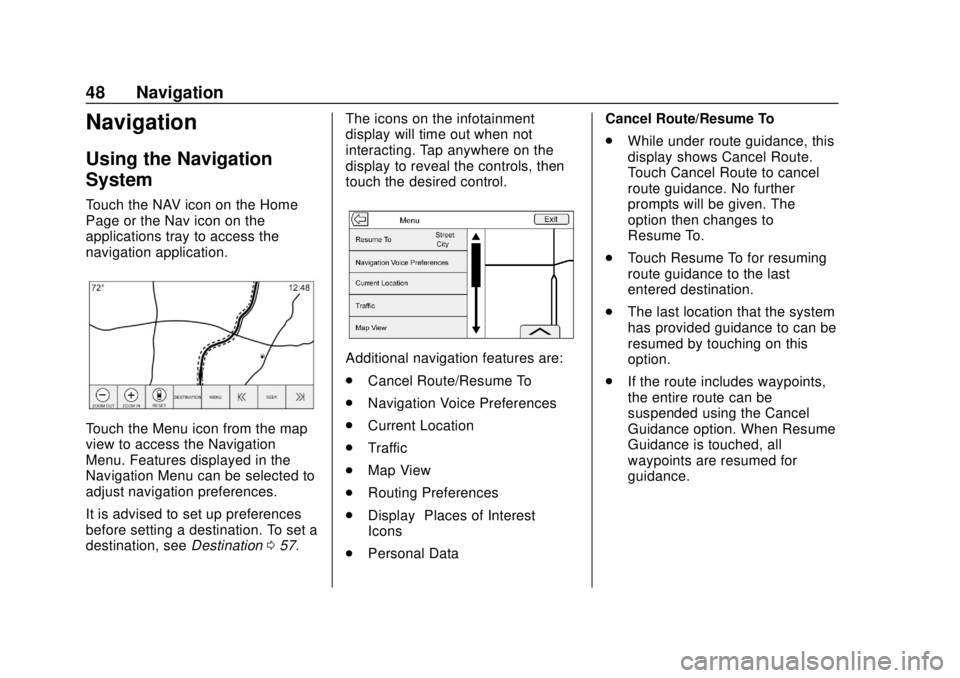
Touch the NAV icon on the Home
Page or the Nav icon on the
applications tray to access the
navigation application.
Touch the Menu icon from the map
view to access the Navigation
Menu. Features displayed in the
Navigation Menu can be selected to
adjust navigation preferences.
It is advised to set up preferences
before setting a destination. To set a
destination, seeDestination057. The icons on the infotainment
display will time out when not
interacting. Tap anywhere on the
display to reveal the controls, then
touch the desired control.
Additional navigation features are:
.
Cancel Route/Resume To
. Navigation Voice Preferences
. Current Location
. Traffic
. Map View
. Routing Preferences
. Display “Places of Interest”
Icons
. Personal Data Cancel Route/Resume To
.
While under route guidance, this
display shows Cancel Route.
Touch Cancel Route to cancel
route guidance. No further
prompts will be given. The
option then changes to
Resume To.
. Touch Resume To for resuming
route guidance to the last
entered destination.
. The last location that the system
has provided guidance to can be
resumed by touching on this
option.
. If the route includes waypoints,
the entire route can be
suspended using the Cancel
Guidance option. When Resume
Guidance is touched, all
waypoints are resumed for
guidance.
Page 51 of 116
GMC Infotainment System (U.S./Canada 2.6) (GMNA-Localizing-U.S./Canada-
13583174) - 2020 - CRC - 4/15/19
50 Navigation
Touch Nearest Address and then
Save to store the current location to
the Address Book.
Traffic (If Equipped)
Touch to browse the traffic in the
area as well as adjust the traffic
settings. Where traffic information is
available, it is displayed on the map.
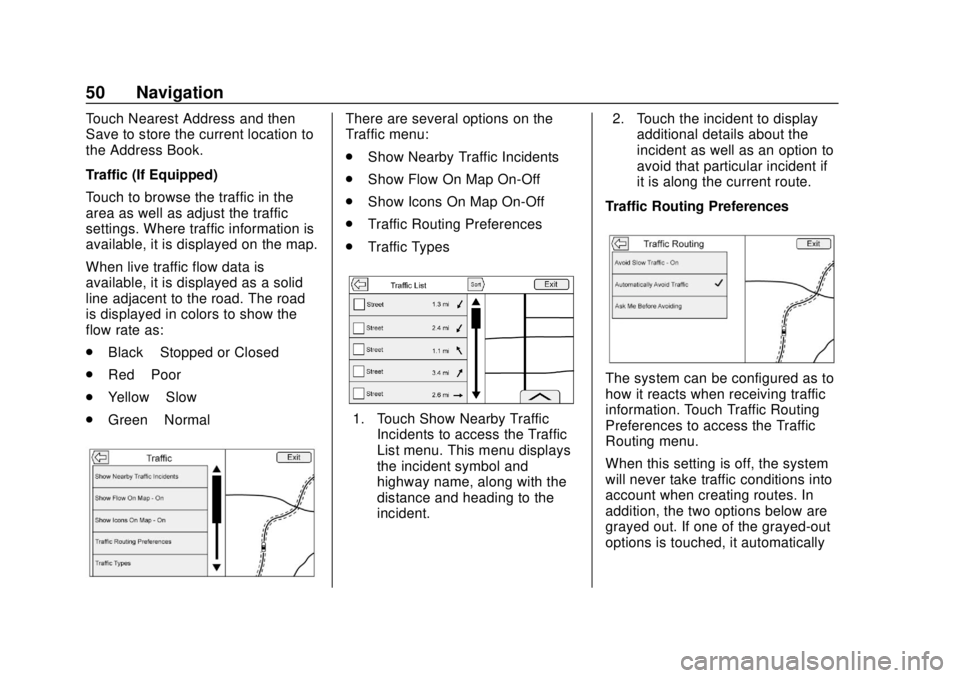
When live traffic flow data is
available, it is displayed as a solid
line adjacent to the road. The road
is displayed in colors to show the
flow rate as:
.Black –Stopped or Closed
. Red –Poor
. Yellow –Slow
. Green –NormalThere are several options on the
Traffic menu:
.
Show Nearby Traffic Incidents
. Show Flow On Map On-Off
. Show Icons On Map On-Off
. Traffic Routing Preferences
. Traffic Types
1. Touch Show Nearby Traffic
Incidents to access the Traffic
List menu. This menu displays
the incident symbol and
highway name, along with the
distance and heading to the
incident. 2. Touch the incident to display
additional details about the
incident as well as an option to
avoid that particular incident if
it is along the current route.
Traffic Routing Preferences
The system can be configured as to
how it reacts when receiving traffic
information. Touch Traffic Routing
Preferences to access the Traffic
Routing menu.
When this setting is off, the system
will never take traffic conditions into
account when creating routes. In
addition, the two options below are
grayed out. If one of the grayed-out
options is touched, it automatically
Page 53 of 116
GMC Infotainment System (U.S./Canada 2.6) (GMNA-Localizing-U.S./Canada-
13583174) - 2020 - CRC - 4/15/19
52 Navigation
The audio status screen contains
the following elements:
.Station Frequency
. Artist Information
. Song Information
.
r/j g dStation and Channel
Controls
Press the
gordstation controls
to go to the next or previous strong
signal station or digital channel.
When the audio status pane
displays Artist and Song
Information, press
gordto go to
the next or previous track based on
the current media mode.
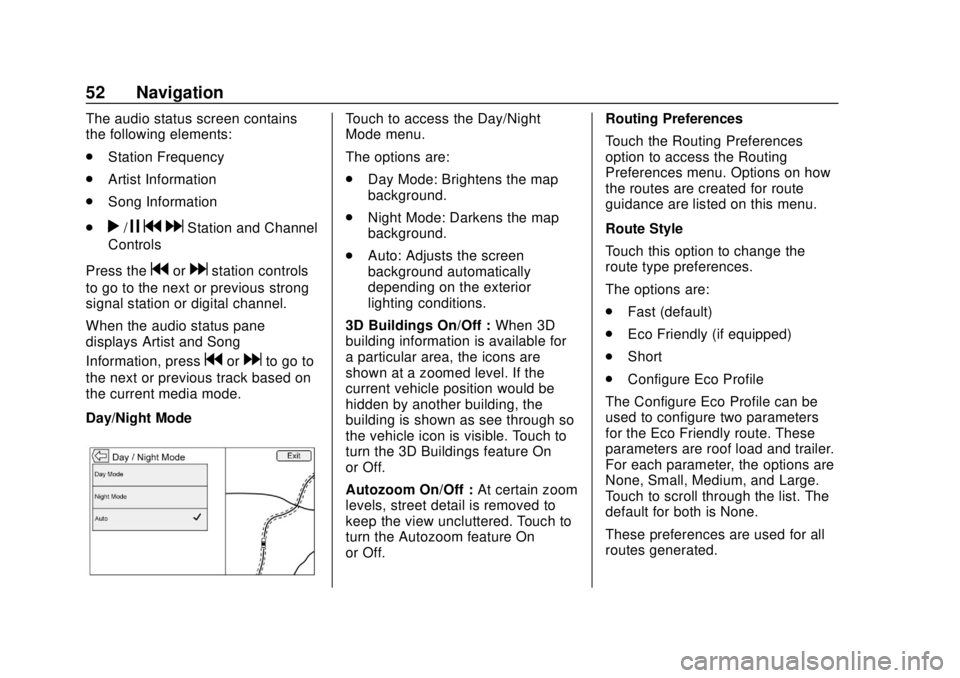
Day/Night Mode
Touch to access the Day/Night
Mode menu.
The options are:
. Day Mode: Brightens the map
background.
. Night Mode: Darkens the map
background.
. Auto: Adjusts the screen
background automatically
depending on the exterior
lighting conditions.
3D Buildings On/Off : When 3D
building information is available for
a particular area, the icons are
shown at a zoomed level. If the
current vehicle position would be
hidden by another building, the
building is shown as see through so
the vehicle icon is visible. Touch to
turn the 3D Buildings feature On
or Off.
Autozoom On/Off : At certain zoom
levels, street detail is removed to
keep the view uncluttered. Touch to
turn the Autozoom feature On
or Off. Routing Preferences
Touch the Routing Preferences
option to access the Routing
Preferences menu. Options on how
the routes are created for route
guidance are listed on this menu.
Route Style
Touch this option to change the
route type preferences.
The options are:
.
Fast (default)
. Eco Friendly (if equipped)
. Short
. Configure Eco Profile
The Configure Eco Profile can be
used to configure two parameters
for the Eco Friendly route. These
parameters are roof load and trailer.
For each parameter, the options are
None, Small, Medium, and Large.
Touch to scroll through the list. The
default for both is None.
These preferences are used for all
routes generated.
Page 54 of 116
GMC Infotainment System (U.S./Canada 2.6) (GMNA-Localizing-U.S./Canada-
13583174) - 2020 - CRC - 4/15/19
Navigation 53
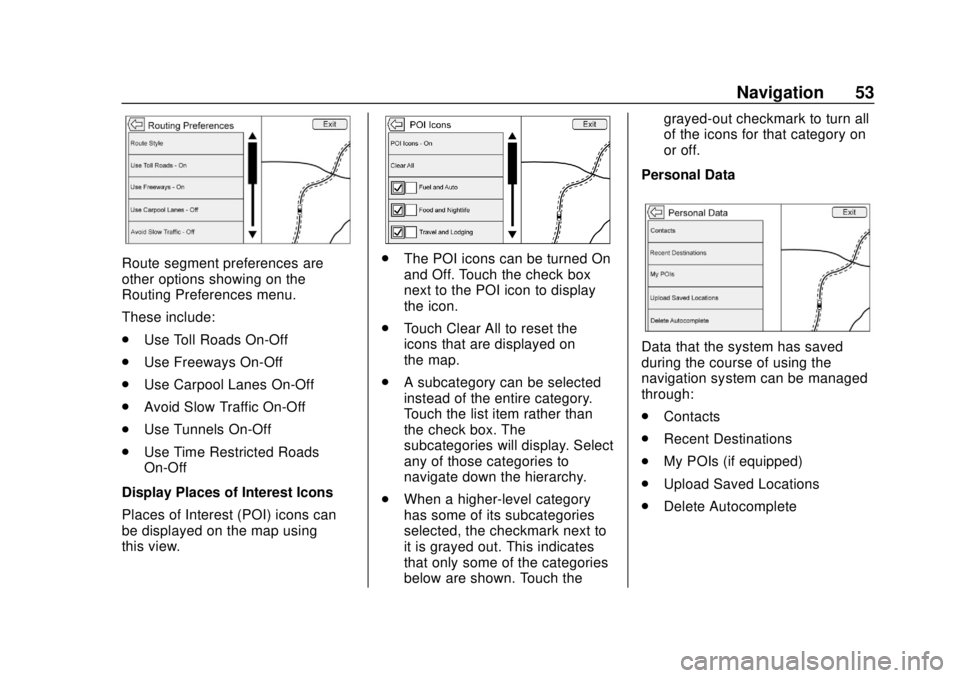
Route segment preferences are
other options showing on the
Routing Preferences menu.
These include:
.Use Toll Roads On-Off
. Use Freeways On-Off
. Use Carpool Lanes On-Off
. Avoid Slow Traffic On-Off
. Use Tunnels On-Off
. Use Time Restricted Roads
On-Off
Display Places of Interest Icons
Places of Interest (POI) icons can
be displayed on the map using
this view.. The POI icons can be turned On
and Off. Touch the check box
next to the POI icon to display
the icon.
. Touch Clear All to reset the
icons that are displayed on
the map.
. A subcategory can be selected
instead of the entire category.
Touch the list item rather than
the check box. The
subcategories will display. Select
any of those categories to
navigate down the hierarchy.
. When a higher-level category
has some of its subcategories
selected, the checkmark next to
it is grayed out. This indicates
that only some of the categories
below are shown. Touch the grayed-out checkmark to turn all
of the icons for that category on
or off.
Personal Data
Data that the system has saved
during the course of using the
navigation system can be managed
through:
. Contacts
. Recent Destinations
. My POIs (if equipped)
. Upload Saved Locations
. Delete Autocomplete
Page 58 of 116
GMC Infotainment System (U.S./Canada 2.6) (GMNA-Localizing-U.S./Canada-
13583174) - 2020 - CRC - 4/15/19
Navigation 57
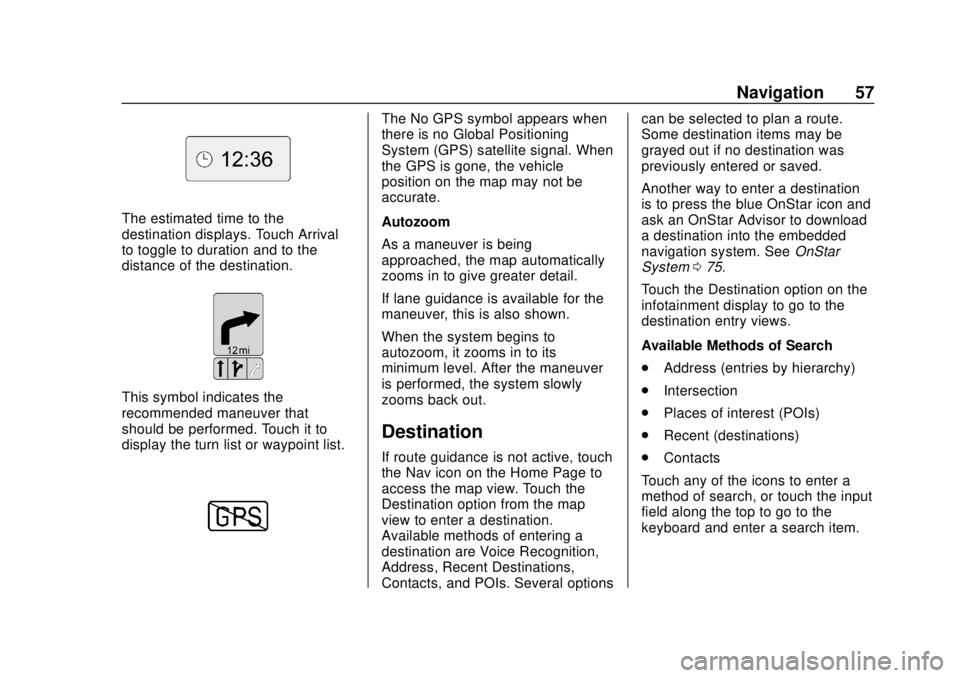
The estimated time to the
destination displays. Touch Arrival
to toggle to duration and to the
distance of the destination.
This symbol indicates the
recommended maneuver that
should be performed. Touch it to
display the turn list or waypoint list.
The No GPS symbol appears when
there is no Global Positioning
System (GPS) satellite signal. When
the GPS is gone, the vehicle
position on the map may not be
accurate.
Autozoom
As a maneuver is being
approached, the map automatically
zooms in to give greater detail.
If lane guidance is available for the
maneuver, this is also shown.
When the system begins to
autozoom, it zooms in to its
minimum level. After the maneuver
is performed, the system slowly
zooms back out.
Destination
If route guidance is not active, touch
the Nav icon on the Home Page to
access the map view. Touch the
Destination option from the map
view to enter a destination.
Available methods of entering a
destination are Voice Recognition,
Address, Recent Destinations,
Contacts, and POIs. Several optionscan be selected to plan a route.
Some destination items may be
grayed out if no destination was
previously entered or saved.
Another way to enter a destination
is to press the blue OnStar icon and
ask an OnStar Advisor to download
a destination into the embedded
navigation system. See
OnStar
System 075.
Touch the Destination option on the
infotainment display to go to the
destination entry views.
Available Methods of Search
. Address (entries by hierarchy)
. Intersection
. Places of interest (POIs)
. Recent (destinations)
. Contacts
Touch any of the icons to enter a
method of search, or touch the input
field along the top to go to the
keyboard and enter a search item.