FM radio GMC YUKON 2020 User Guide
[x] Cancel search | Manufacturer: GMC, Model Year: 2020, Model line: YUKON, Model: GMC YUKON 2020Pages: 434, PDF Size: 6.45 MB
Page 160 of 434
GMC Yukon/Yukon XL/Denali Owner Manual (GMNA-Localizing-U.S./
Canada/Mexico-13566587) - 2020 - CRC - 4/15/19
Instruments and Controls 159
Confidence Threshold
This feature allows the adjustment
of the sensitivity of the speech
recognition system.
Select Confirm More or
Confirm Less.
Prompt Length
This feature adjusts the voice
prompt length.
Select Short or Long.
Audio Feedback Speed
This feature adjusts the audio
feedback speed.
Select Slow, Medium, or Fast.
Display“What Can I Say?” Tips
This feature gives voice
command tips.
Select Off or On.Display
Select and the following may
display:
. Mode
. Calibrate Touchscreen
. Turn Display Off
Mode
Select to change the display of the
infotainment system.
Select Auto, Day, or Night.
Calibrate Touchscreen
Select to calibrate the touchscreen,
then follow the prompts.
Turn Display Off
Select to turn the display off. Touch
anywhere on the infotainment
display or press any infotainment
controls on the center stack to turn
the display on.
Rear Camera
Select and the following may
display:
. Guidance Lines
. Rear Cross Traffic Alert
. Rear Park Assist Symbols
Guidance Lines
Select to turn Off or On. See
Assistance Systems for Parking or
Backing 0242.
Rear Cross Traffic Alert
Select to turn Off or On.
Rear Park Assist Symbols
Select to turn Off or On. See
Assistance Systems for Parking or
Backing 0242.
Return to Factory Settings
Select and the following may
display:
.
Restore Vehicle Settings
. Clear All Private Data
. Restore Radio Settings
Page 161 of 434
GMC Yukon/Yukon XL/Denali Owner Manual (GMNA-Localizing-U.S./
Canada/Mexico-13566587) - 2020 - CRC - 4/15/19
160 Instruments and Controls
Restore Vehicle Settings
This allows selection of restoring
vehicle settings.
Select Restore or Cancel.
Clear All Private Data
This allows selection to clear all
private information from the vehicle.
Select Delete or Cancel.
Restore Radio Settings
This allows selection to restore
radio settings.
Select Restore or Cancel.
Software Information
Select to view or update the
infotainment system current
software information.
Wi-Fi
Select and the following may
display:
.Wi-Fi
. Manage Wi-Fi Networks
Wi-Fi
This feature allows Wi-Fi networks
to be turned off or on.
Select Off or On.
Manage Wi-Fi Networks
Select to manage Wi-Fi networks.
Wi-Fi must be on for this feature to
be accessed.
Universal Remote
System
See Radio Frequency Statement
0 405.
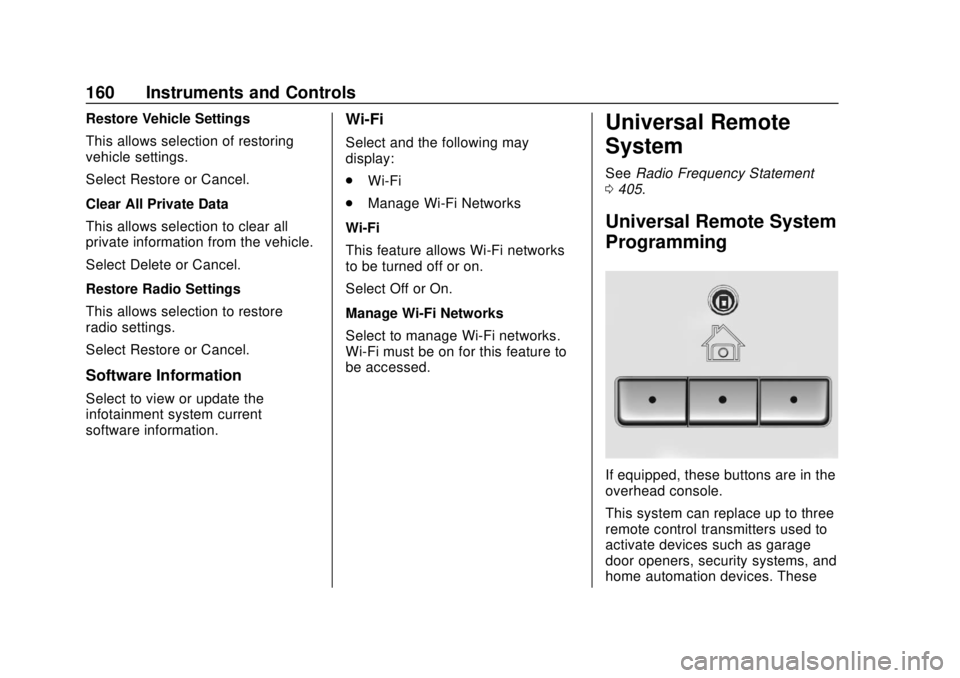
Universal Remote System
Programming
If equipped, these buttons are in the
overhead console.
This system can replace up to three
remote control transmitters used to
activate devices such as garage
door openers, security systems, and
home automation devices. These
Page 162 of 434
GMC Yukon/Yukon XL/Denali Owner Manual (GMNA-Localizing-U.S./
Canada/Mexico-13566587) - 2020 - CRC - 4/15/19
Instruments and Controls 161
instructions refer to a garage door
opener, but can be used for other
devices.
Do not use the Universal Remote
system with any garage door opener
that does not have the stop and
reverse feature. This includes any
garage door opener model
manufactured before April 1, 1982.
Read these instructions completely
before programming the Universal
Remote system. It may help to have
another person assist with the
programming process.
Keep the original hand-held
transmitter for use in other vehicles
as well as for future programming.
Erase the programming when
vehicle ownership is terminated.
See“Erasing Universal Remote
System Buttons” later in this
section.
To program a garage door opener,
park outside directly in line with and
facing the garage door opener
receiver. Clear all people and
objects near the garage door. Make sure the hand-held transmitter
has a new battery for quicker and
more accurate transmission of the
radio-frequency signal.
Programming the Universal
Remote System
For questions or programming help,
see www.homelink.com/gm or call
1-800-355-3515. For calls placed
outside the U.S.A, Canada,
or Puerto Rico, international rates
will apply and may differ based on
landline or mobile phone.
Programming involves
time-sensitive actions, and may time
out causing the procedure to be
repeated.
To program up to three devices:
1. Hold the end of the hand-held transmitter about 3 to 8 cm (1
to 3 in) away from the
Universal Remote system
buttons with the indicator light
in view. The hand-held
transmitter was supplied by the
manufacturer of the garage
door opener receiver. 2. At the same time, press and
hold both the hand-held
transmitter button and one of
the three Universal Remote
system buttons to be used to
operate the garage door. Do
not release either button until
the indicator light changes from
a slow to a rapid flash. Then
release both buttons.
Some garage door openers
may require substitution of
Step 2 with the procedure
under “Radio Signals for Some
Gate Operators” later in this
section.
3. Press and hold the newly programmed Universal Remote
system button for five seconds
while watching the indicator
light and garage door
activation.
.If the indicator light stays on
continuously or the garage
door moves when the
button is pressed, then
programming is complete.
There is no need to
complete Steps 4–6.
Page 163 of 434
GMC Yukon/Yukon XL/Denali Owner Manual (GMNA-Localizing-U.S./
Canada/Mexico-13566587) - 2020 - CRC - 4/15/19
162 Instruments and Controls
.If the indicator light does
not come on or the garage
door does not move, a
second button press may
be required. For a second
time, press and hold the
newly programmed button
for five seconds. If the light
stays on or the garage door
moves, programming is
complete.
. If the indicator light blinks
rapidly for two seconds,
then changes to a solid light
and the garage door does
not move, continue with
programming Steps 4–6.
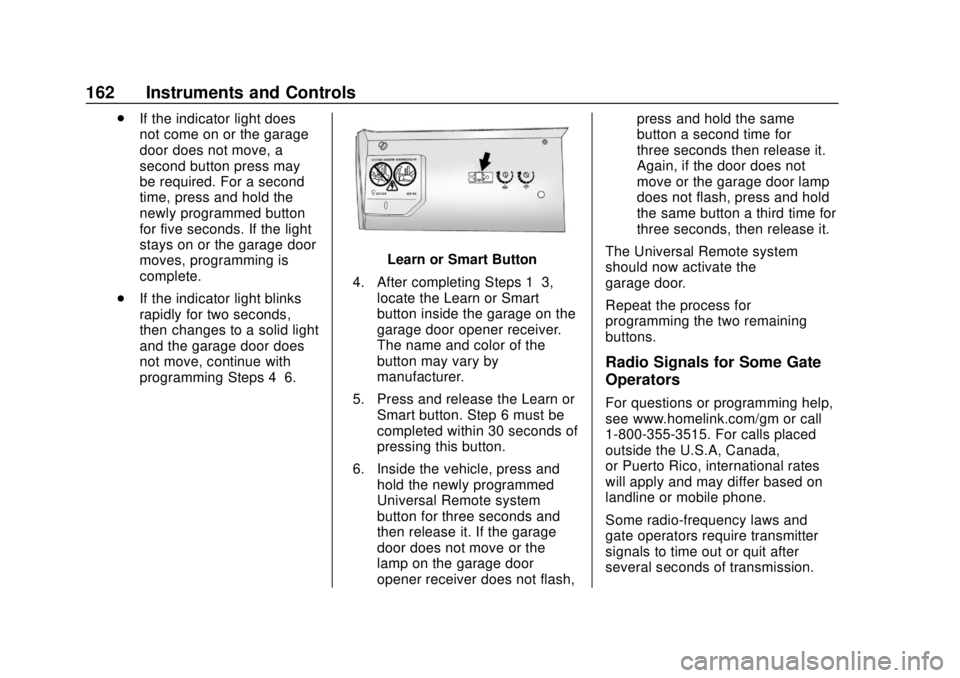
Learn or Smart Button
4. After completing Steps 1–3, locate the Learn or Smart
button inside the garage on the
garage door opener receiver.
The name and color of the
button may vary by
manufacturer.
5. Press and release the Learn or Smart button. Step 6 must be
completed within 30 seconds of
pressing this button.
6. Inside the vehicle, press and hold the newly programmed
Universal Remote system
button for three seconds and
then release it. If the garage
door does not move or the
lamp on the garage door
opener receiver does not flash, press and hold the same
button a second time for
three seconds then release it.
Again, if the door does not
move or the garage door lamp
does not flash, press and hold
the same button a third time for
three seconds, then release it.
The Universal Remote system
should now activate the
garage door.
Repeat the process for
programming the two remaining
buttons.
Radio Signals for Some Gate
Operators
For questions or programming help,
see www.homelink.com/gm or call
1-800-355-3515. For calls placed
outside the U.S.A, Canada,
or Puerto Rico, international rates
will apply and may differ based on
landline or mobile phone.
Some radio-frequency laws and
gate operators require transmitter
signals to time out or quit after
several seconds of transmission.
Page 175 of 434
GMC Yukon/Yukon XL/Denali Owner Manual (GMNA-Localizing-U.S./
Canada/Mexico-13566587) - 2020 - CRC - 4/15/19
174 Infotainment System
Infotainment
System
Introduction
Infotainment . . . . . . . . . . . . . . . . . . 174
Introduction
Infotainment
See the infotainment manual for
information on the radio, audio
players, phone, navigation system,
Rear Seat Entertainment (RSE),
and voice or speech recognition,
if equipped. It also includes
information on settings.
Active Noise Cancellation (ANC)
If equipped, ANC reduces engine
noise in the vehicle’s interior. ANC
requires the factory-installed audio
system, radio, speakers, amplifier
(if equipped), induction system, and
exhaust system to work properly.
Deactivation is required by your
dealer if related aftermarket
equipment is installed.
Page 186 of 434
GMC Yukon/Yukon XL/Denali Owner Manual (GMNA-Localizing-U.S./
Canada/Mexico-13566587) - 2020 - CRC - 4/15/19
Driving and Operating 185
.Do not use a phone in
demanding driving situations.
Use a hands-free method to
place or receive necessary
phone calls.
. Watch the road. Do not read,
take notes, or look up
information on phones or other
electronic devices.
. Designate a front seat
passenger to handle potential
distractions.
. Become familiar with vehicle
features before driving, such as
programming favorite radio
stations and adjusting climate
control and seat settings.
Program all trip information into
any navigation device prior to
driving.
. Wait until the vehicle is parked
to retrieve items that have fallen
to the floor.
. Stop or park the vehicle to tend
to children.
. Keep pets in an appropriate
carrier or restraint. .
Avoid stressful conversations
while driving, whether with a
passenger or on a cell phone.
{Warning
Taking your eyes off the road too
long or too often could cause a
crash resulting in injury or death.
Focus your attention on driving.
Refer to the infotainment manual for
more information on using that
system and the navigation system,
if equipped, including pairing and
using a cell phone.
Defensive Driving
Defensive driving means “always
expect the unexpected.” The first
step in driving defensively is to wear
the seat belt. See Seat Belts062.
. Assume that other road users
(pedestrians, bicyclists, and
other drivers) are going to be
careless and make mistakes.
Anticipate what they might do
and be ready. .
Allow enough following distance
between you and the driver in
front of you.
. Focus on the task of driving.
Drunk Driving
Death and injury associated with
drinking and driving is a global
tragedy.
{Warning
Drinking and then driving is very
dangerous. Your reflexes,
perceptions, attentiveness, and
judgment can be affected by even
a small amount of alcohol. You
can have a serious —or even
fatal —collision if you drive after
drinking.
Do not drink and drive or ride with
a driver who has been drinking.
Ride home in a cab; or if you are
with a group, designate a driver
who will not drink.
Page 203 of 434
GMC Yukon/Yukon XL/Denali Owner Manual (GMNA-Localizing-U.S./
Canada/Mexico-13566587) - 2020 - CRC - 4/15/19
202 Driving and Operating
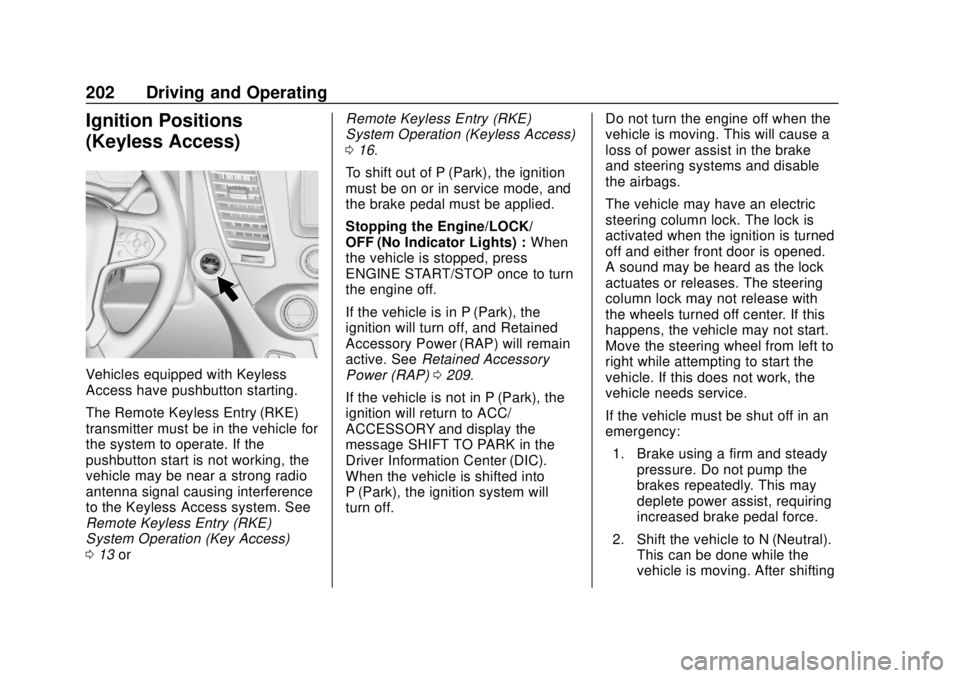
Ignition Positions
(Keyless Access)
Vehicles equipped with Keyless
Access have pushbutton starting.
The Remote Keyless Entry (RKE)
transmitter must be in the vehicle for
the system to operate. If the
pushbutton start is not working, the
vehicle may be near a strong radio
antenna signal causing interference
to the Keyless Access system. See
Remote Keyless Entry (RKE)
System Operation (Key Access)
013 or Remote Keyless Entry (RKE)
System Operation (Keyless Access)
0
16.
To shift out of P (Park), the ignition
must be on or in service mode, and
the brake pedal must be applied.
Stopping the Engine/LOCK/
OFF (No Indicator Lights) : When
the vehicle is stopped, press
ENGINE START/STOP once to turn
the engine off.
If the vehicle is in P (Park), the
ignition will turn off, and Retained
Accessory Power (RAP) will remain
active. See Retained Accessory
Power (RAP) 0209.
If the vehicle is not in P (Park), the
ignition will return to ACC/
ACCESSORY and display the
message SHIFT TO PARK in the
Driver Information Center (DIC).
When the vehicle is shifted into
P (Park), the ignition system will
turn off. Do not turn the engine off when the
vehicle is moving. This will cause a
loss of power assist in the brake
and steering systems and disable
the airbags.
The vehicle may have an electric
steering column lock. The lock is
activated when the ignition is turned
off and either front door is opened.
A sound may be heard as the lock
actuates or releases. The steering
column lock may not release with
the wheels turned off center. If this
happens, the vehicle may not start.
Move the steering wheel from left to
right while attempting to start the
vehicle. If this does not work, the
vehicle needs service.
If the vehicle must be shut off in an
emergency:
1. Brake using a firm and steady pressure. Do not pump the
brakes repeatedly. This may
deplete power assist, requiring
increased brake pedal force.
2. Shift the vehicle to N (Neutral). This can be done while the
vehicle is moving. After shifting
Page 233 of 434

GMC Yukon/Yukon XL/Denali Owner Manual (GMNA-Localizing-U.S./
Canada/Mexico-13566587) - 2020 - CRC - 4/15/19
232 Driving and Operating
may be necessary to maintain
vehicle speed. When going
downhill, Cruise Grade Braking
helps maintain the driver selected
speed.
Cruise Grade Braking is enabled
when the vehicle is started and
cruise control is active. It is not
enabled in Range Selection Mode.
It assists in maintaining driver
selected speed when driving on
downhill grades by using the engine
and transmission to slow the
vehicle.
To disable and enable Cruise Grade
Braking for the current ignition key
cycle, press and hold the Tow/Haul
button for five seconds. A DIC
message displays.
For other forms of Grade Braking,
seeAutomatic Transmission 0213
and
Tow/Haul Mode 0218.
Ending Cruise Control
There are four ways to end cruise
control:
. Step lightly on the brake pedal. .
Press*.
. Shift the transmission to
N (Neutral).
. To turn off cruise control,
press
5.
Erasing Speed Memory
The cruise control set speed is
erased from memory if
5is pressed
or if the ignition is turned off.
Adaptive Cruise Control
If equipped with Adaptive Cruise
Control (ACC), it allows for selecting
the cruise control set speed and
following gap. Read this entire
section before using this system.
ACC uses a camera and radar
sensors to detect other vehicles.
See Radio Frequency Statement
0 405. The following gap is the
following time (or distance) between
your vehicle and a vehicle detected
directly ahead in your path, moving
in the same direction. If no vehicle
is detected in your path, ACC works
like regular cruise control. If a vehicle is detected in your path,
ACC can speed up the vehicle or
apply limited, moderate braking to
maintain the selected following gap.
To disengage ACC, apply the brake.
If the Traction Control System (TCS)
or electronic stability control system
activates while ACC is engaged,
ACC may automatically disengage.
See
Traction Control/Electronic
Stability Control 0226. When road
conditions allow ACC to be safely
used, the ACC can be turned
back on.
ACC will not engage if the TCS or
electronic stability control system is
disabled.
{Warning
ACC has limited braking ability
and may not have time to slow
the vehicle down enough to avoid
a collision with another vehicle
you are following. This can occur
when vehicles suddenly slow or
stop ahead, or enter your lane.
(Continued)
Page 252 of 434

GMC Yukon/Yukon XL/Denali Owner Manual (GMNA-Localizing-U.S./
Canada/Mexico-13566587) - 2020 - CRC - 4/15/19
Driving and Operating 251
blind zone or rapidly approaching
that zone. If the turn signal is
activated in the same direction as a
detected vehicle, this display will
flash as an extra warning not to
change lanes.
LCA can be disabled through
vehicle personalization. When you
disable LCA, Side Blind Zone Alert
is also disabled. See“Collision/
Detection Systems” underVehicle
Personalization 0152. If LCA is
disabled by the driver, the LCA
mirror displays will not light up.
When the System Does Not
Seem to Work Properly
The LCA system requires some
driving for the system to calibrate to
maximum performance. This
calibration may occur more quickly if
the vehicle is driving on a straight
highway road with traffic and
roadside objects (e.g., guardrails,
barriers).
LCA displays may not come on
when passing a vehicle quickly, for
a stopped vehicle, or when towing a
trailer. The LCA detection zones that extend back from the side of
the vehicle do not move further back
when a trailer is towed. Use caution
while changing lanes when towing a
trailer. LCA may alert to objects
attached to the vehicle, such as a
trailer, bicycle, or object extending
out to either side of the vehicle.
Attached objects may also interfere
with the detection of vehicles. This
is normal system operation; the
vehicle does not need service.
LCA may not always alert the driver
to vehicles in the next lane over,
especially in wet conditions or when
driving on sharp curves. The system
does not need to be serviced. The
system may light up due to
guardrails, signs, trees, shrubs, and
other non-moving objects. This is
normal system operation; the
vehicle does not need service.
LCA may not operate when the LCA
sensors in the left or right corners of
the rear bumper are covered with
mud, dirt, snow, ice, or slush, or in
heavy rainstorms. For cleaning
instructions, see "Washing the
Vehicle" under
Exterior Care0367. If the DIC still displays the system
unavailable message after cleaning
both sides of the vehicle toward the
rear corners of the vehicle, see your
dealer.
If the LCA displays do not light up
when moving vehicles are in the
side blind zone or are rapidly
approaching this zone and the
system is clean, the system may
need service. Take the vehicle to
your dealer.
Radio Frequency Information
See
Radio Frequency Statement
0 405.
Lane Keep Assist (LKA)
If equipped, LKA may help avoid
crashes due to unintentional lane
departures. This system uses a
camera to detect lane markings
between 60 km/h (37 mph) and
180 km/h (112 mph). It may assist by
gently turning the steering wheel if
the vehicle approaches a detected
lane marking. It may also provide a
Lane Departure Warning (LDW)
alert if the vehicle crosses a
Page 323 of 434
GMC Yukon/Yukon XL/Denali Owner Manual (GMNA-Localizing-U.S./
Canada/Mexico-13566587) - 2020 - CRC - 4/15/19
322 Vehicle Care
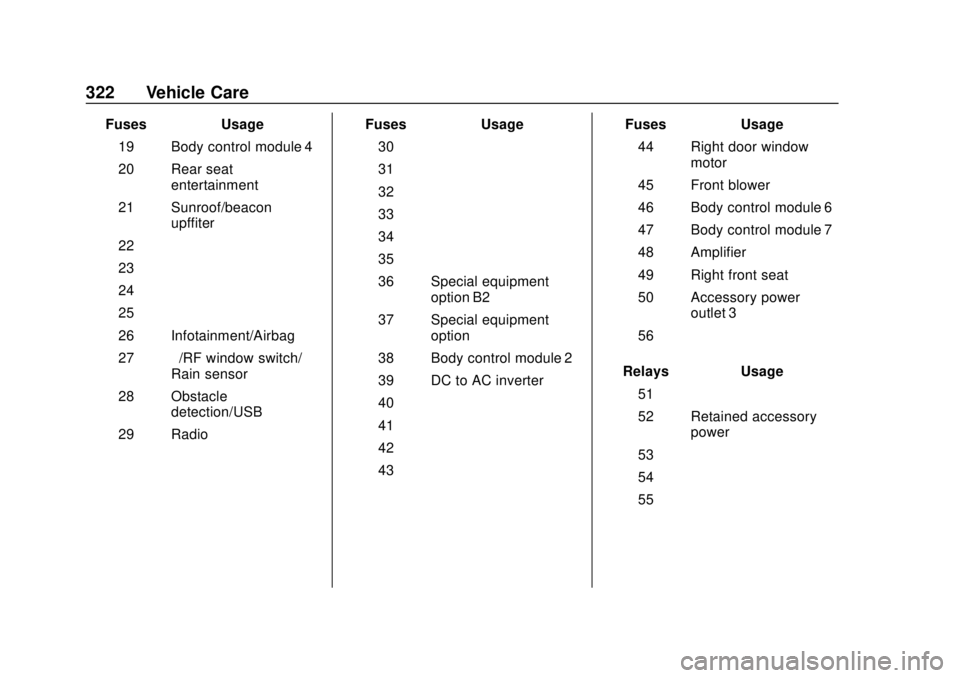
FusesUsage
19 Body control module 4
20 Rear seat entertainment
21 Sunroof/beacon upffiter
22 –
23 –
24 –
25 –
26 Infotainment/Airbag
27 –/RF window switch/
Rain sensor
28 Obstacle detection/USB
29 Radio Fuses
Usage
30 –
31 –
32 –
33 –
34 –
35 –
36 Special equipment option B2
37 Special equipment option
38 Body control module 2
39 DC to AC inverter
40 –
41 –
42 –
43 – Fuses
Usage
44 Right door window motor
45 Front blower
46 Body control module 6
47 Body control module 7
48 Amplifier
49 Right front seat
50 Accessory power outlet 3
56 –
Relays Usage
51 –
52 Retained accessory power
53 –
54 –
55 –