USB GMC YUKON 2021 User Guide
[x] Cancel search | Manufacturer: GMC, Model Year: 2021, Model line: YUKON, Model: GMC YUKON 2021Pages: 433, PDF Size: 6.54 MB
Page 157 of 433
GMC Yukon/Yukon XL/Denali Owner Manual (GMNA-Localizing-U.S./
Canada/Mexico-13690468) - 2021 - crc - 8/14/20
154 Infotainment System
The songs, artists, albums, and genres are
taken from the file’s song information and
are only displayed if present. The radio
displays the file name as the track name if
the song information is not available.
Supported Apple Devices
To view supported devices, see
my.gmc.com/learn.
Storing and Recalling Media Favorites
To store media favorites, touch Browse to
display a list of media types.
Touch one of the following Browse options
to save a favorite:
Playlists :Touch
Hnext to any playlist to
store the playlist as a favorite. Touch a
saved favorite to recall a favorite playlist.
The first song in the playlist begins to play.
Artists : Touch
Hnext to any artist to
store the artist as a favorite. Touch a saved
favorite to recall a favorite artist. The first
song in the artist list begins to play.
Songs : Touch
Hnext to any song to store
the song as a favorite. Touch a saved
favorite to recall a favorite song. Albums :
Touch
Hnext to any album to
store the album as a favorite. Touch a saved
favorite to recall a favorite album. The first
song in the album list begins to play.
Genres : Touch
Hnext to any genre to
store the genre as a favorite. Touch a saved
favorite to recall a favorite genre. The first
song of the genre begins to play.
Podcasts : Touch
Hnext to any podcast to
store the podcast as a favorite. Touch a
saved favorite to recall a favorite podcast.
The podcast begins to play.
Audiobooks : Touch
Hnext to any
audiobook to store the audiobook as a
favorite. Touch a saved favorite to recall a
favorite audiobook. The first chapter in the
audiobook begins to play.
Media Playback and Mute
USB playback will be paused if the system is
muted. If the steering wheel mute control is
pressed again, playback will resume.
If the source is changed while in mute,
playback resumes and audio will unmute.
Bluetooth Audio
Music may be played from a paired
Bluetooth device. See Bluetooth (Pairing and
Using a Phone) 0182 or
Bluetooth (Overview) 0181 for help pairing a
device.
Volume and song selection may be
controlled by using the infotainment
controls or the mobile device. If Bluetooth is
selected and no volume is present, check the
volume setting on the infotainment system.
Music can be launched by touching
Bluetooth from the recent sources list on
the left of the display or by touching the
More option and then touching the
Bluetooth device.
To play music via Bluetooth:
1. Power on the device, and pair to connect the device.
2. Once paired, touch Audio from the Home Page, then touch Bluetooth from the
recent sources list on the left of the
display.
Bluetooth Sound Menu
See “Infotainment System Sound Menu”
under AM-FM Radio 0148.
Page 159 of 433
GMC Yukon/Yukon XL/Denali Owner Manual (GMNA-Localizing-U.S./
Canada/Mexico-13690468) - 2021 - crc - 8/14/20
156 Infotainment System
if equipped. Select Turn-by-Turn Directions
from the Services tab of the OnStar app to
call an Advisor or select a recent or favorite
destination. Touch the navigation icons to
select home, address or place. A destination
transfer from OnStar will show the detail
view of the destination when it is
transferred from OnStar to the Navigation
application. See www.onstar.com for a
coverage map. Services vary by model. Map
coverage is available in the United States,
Puerto Rico, and Canada.
Wi-Fi Hotspot
Touch to display the Settings page, which
shows the configurations for the vehicle
hotspot and allows them to be changed.
For more information, see www.onstar.com.
Rear Seat Infotainment
Rear Seat Infotainment (RSI)
System
If equipped, the system includes two rear
USB-C ports, two HDMI ports, two wireless
headphones, and video touchscreen displays
in back of the driver and passenger seats.The RSI system may not operate properly
until the temperature is above
−20 °C (−4 °F)
and below 55 °C (131 °F).
System Operation
To use:
1. Double-tap anywhere on either screen to Power On and view the Home screen.
2. Touch
}on the status bar to turn off
the screen.
The screens can be turned on and off
through each individual touchscreen
independently from the other and through
front seat control.
Playback of any media playing through that
specific screen is paused when the screen is
turned off.
Screens can be locked via front seat control.
If Remember Screen Power Status was
selected in the settings, the screens will
return to the same Power Status as when
the vehicle was turned off. See “Remember
Screen Power Status” later in this section.
Home Screen
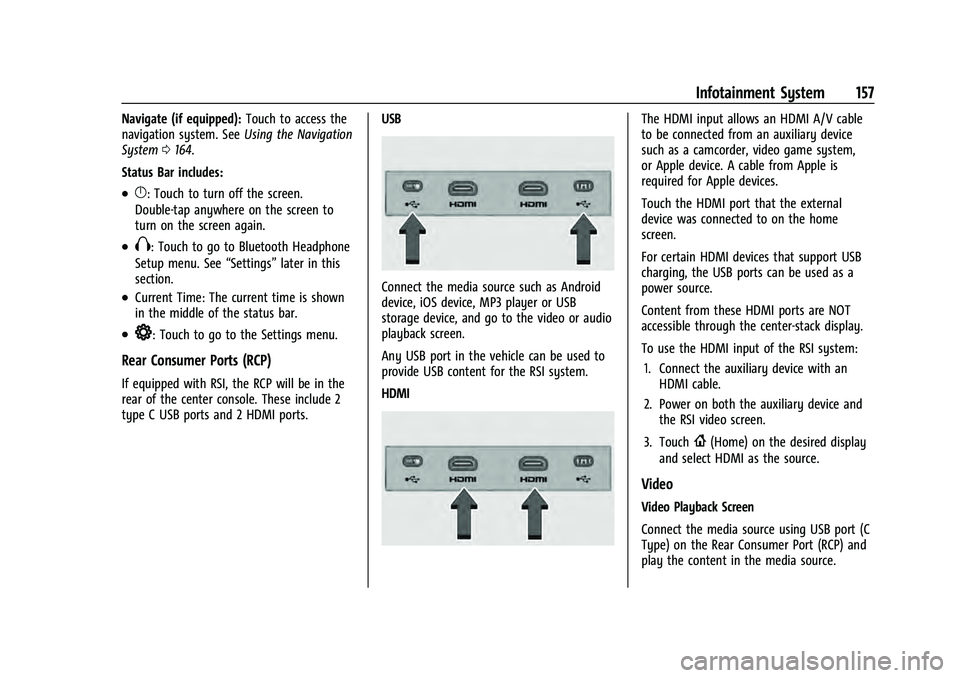
Watch sources include:
.USB Video: Touch to go to the video
player screen.
.Connections: Connect external devices via
HDMI ports or Miracast to mirror the
video playback.
.Recents: Shows the video content played
recently. Touch the video content to play
directly.
Listen Sources include:
.USB Music: Touch to go to the audio
player screen.
.Recents: Shows the audio content played
recently. Touch the audio content to play
directly.
Page 160 of 433
GMC Yukon/Yukon XL/Denali Owner Manual (GMNA-Localizing-U.S./
Canada/Mexico-13690468) - 2021 - crc - 8/14/20
Infotainment System 157
Navigate (if equipped):Touch to access the
navigation system. See Using the Navigation
System 0164.
Status Bar includes:
.}: Touch to turn off the screen.
Double-tap anywhere on the screen to
turn on the screen again.
.X: Touch to go to Bluetooth Headphone
Setup menu. See “Settings”later in this
section.
.Current Time: The current time is shown
in the middle of the status bar.
.*: Touch to go to the Settings menu.
Rear Consumer Ports (RCP)
If equipped with RSI, the RCP will be in the
rear of the center console. These include 2
type C USB ports and 2 HDMI ports. USB
Connect the media source such as Android
device, iOS device, MP3 player or USB
storage device, and go to the video or audio
playback screen.
Any USB port in the vehicle can be used to
provide USB content for the RSI system.
HDMI
The HDMI input allows an HDMI A/V cable
to be connected from an auxiliary device
such as a camcorder, video game system,
or Apple device. A cable from Apple is
required for Apple devices.
Touch the HDMI port that the external
device was connected to on the home
screen.
For certain HDMI devices that support USB
charging, the USB ports can be used as a
power source.
Content from these HDMI ports are NOT
accessible through the center-stack display.
To use the HDMI input of the RSI system:
1. Connect the auxiliary device with an HDMI cable.
2. Power on both the auxiliary device and the RSI video screen.
3. Touch
{(Home) on the desired display
and select HDMI as the source.
Video
Video Playback Screen
Connect the media source using USB port (C
Type) on the Rear Consumer Port (RCP) and
play the content in the media source.
Page 161 of 433
GMC Yukon/Yukon XL/Denali Owner Manual (GMNA-Localizing-U.S./
Canada/Mexico-13690468) - 2021 - crc - 8/14/20
158 Infotainment System
Touch USB Video and the most recent
viewed USB video will begin playback from
the last played position. During playback,
Browse may be selected to search additional
available USB videos. For a newly inserted
device, the Browse menu is immediately
available.
Recently played videos are also available
from the Watch Menu.
When playing a video, the playback controls
are available during the first few moments.
The Playback Controls can be re-displayed by
touching the screen at any time.
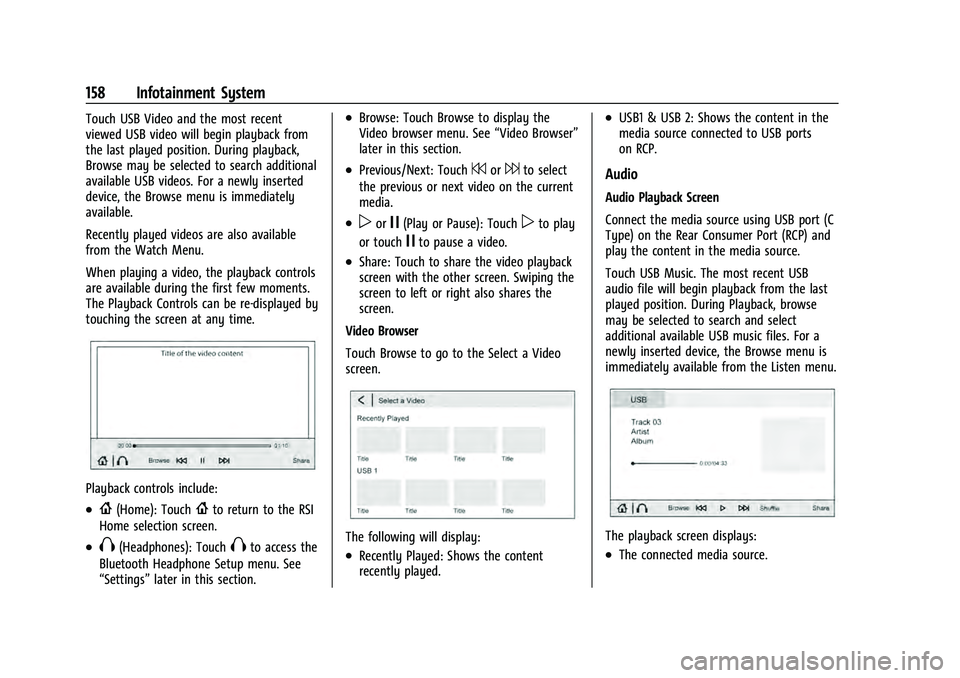
Playback controls include:
.{(Home): Touch{to return to the RSI
Home selection screen.
.X(Headphones): TouchXto access the
Bluetooth Headphone Setup menu. See
“Settings” later in this section.
.Browse: Touch Browse to display the
Video browser menu. See “Video Browser”
later in this section.
.Previous/Next: Touch7or6to select
the previous or next video on the current
media.
.porj(Play or Pause): Touchpto play
or touch
jto pause a video.
.Share: Touch to share the video playback
screen with the other screen. Swiping the
screen to left or right also shares the
screen.
Video Browser
Touch Browse to go to the Select a Video
screen.
The following will display:
.Recently Played: Shows the content
recently played.
.USB1 & USB 2: Shows the content in the
media source connected to USB ports
on RCP.
Audio
Audio Playback Screen
Connect the media source using USB port (C
Type) on the Rear Consumer Port (RCP) and
play the content in the media source.
Touch USB Music. The most recent USB
audio file will begin playback from the last
played position. During Playback, browse
may be selected to search and select
additional available USB music files. For a
newly inserted device, the Browse menu is
immediately available from the Listen menu.
The playback screen displays:
.The connected media source.
Page 165 of 433

GMC Yukon/Yukon XL/Denali Owner Manual (GMNA-Localizing-U.S./
Canada/Mexico-13690468) - 2021 - crc - 8/14/20
162 Infotainment System
RSI Video App Front Screen
The RSI Video App will allow a front user to
control the Rear Seat Video Screen sources.
To access the RSI Video App, touch the RSI
Video App icon from the Home Page.
The Rear Screens may be powered on or off
from the RSI Video App. Touch the Rear
Screen 1 or Rear Screen 2 icons to select a
screen. Touch the 1-2 icon to view both Rear
Screens together. Touching the Power icon
next to the highlighted screen icon will turn
that screen on or off. Both screens can be
powered on or off by pressing the POWER
ALL button.
The audio for the rear users can be muted
by the front user by pressing the mute icon
associated with the left or right rear screen
on the Rear Video App screen, or both rear
screens by pressing the MUTE ALL button.The current source from the desired Rear
Screen can also be shown on the other Rear
Screen by pressing the Share button on the
lower right side of the RSI Video App
screens.
Content can be searched for the selected
source by pressing the Browse button on
the right side of the RSI Video App screen.
Source Selecting from the RSI Video App
Sources may be selected for the highlighted
Rear Screen. Select Source from the RSI App
screen, then select from the list of available
sources shown on the RSI Sources screen.
Touch More to display additional available
sources.
Playback Controls USB Sources
Playback controls include:
.6or7(Next Track/Previous Track) :
Touch
6to skip ahead or7to skip
back tracks. Touch
7less than
five seconds into the current track to start
at the beginning of the previous track.
Touch
7more than five seconds into the
current track to start at the beginning of
the current track.
.6or7(Fast Forward/Fast Rewind) :
Touch and hold
6or7for
approximately one and one-half seconds
to fast forward or fast rewind. If
6or
7are held for approximately
six seconds, the rate of fast forward or
fast rewind will increase.
Page 189 of 433
GMC Yukon/Yukon XL/Denali Owner Manual (GMNA-Localizing-U.S./
Canada/Mexico-13690468) - 2021 - crc - 8/14/20
186 Infotainment System
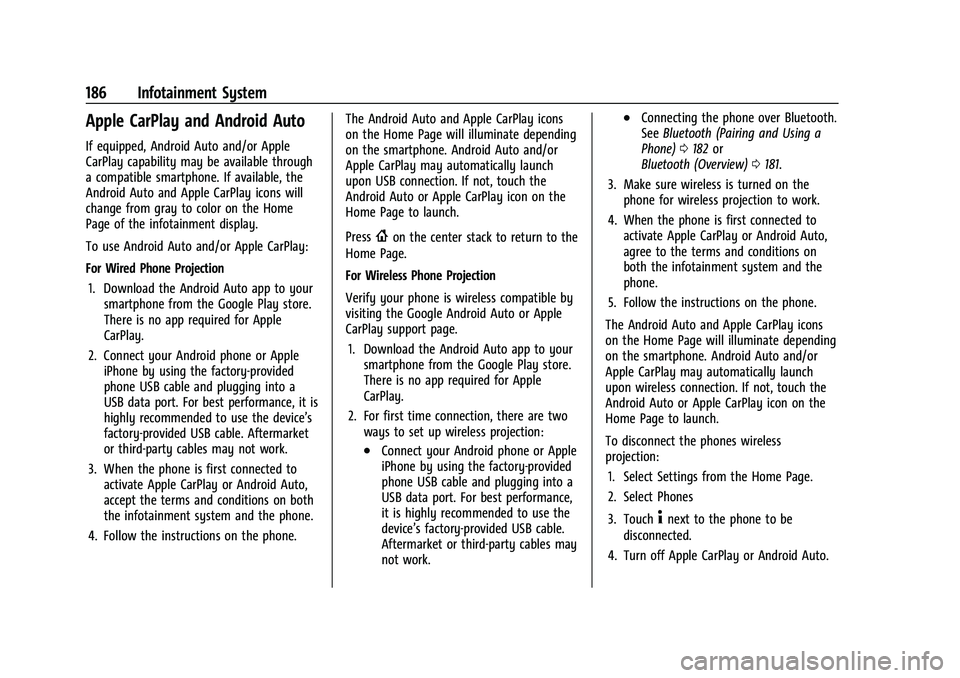
Apple CarPlay and Android Auto
If equipped, Android Auto and/or Apple
CarPlay capability may be available through
a compatible smartphone. If available, the
Android Auto and Apple CarPlay icons will
change from gray to color on the Home
Page of the infotainment display.
To use Android Auto and/or Apple CarPlay:
For Wired Phone Projection1. Download the Android Auto app to your smartphone from the Google Play store.
There is no app required for Apple
CarPlay.
2. Connect your Android phone or Apple iPhone by using the factory-provided
phone USB cable and plugging into a
USB data port. For best performance, it is
highly recommended to use the device’s
factory-provided USB cable. Aftermarket
or third-party cables may not work.
3. When the phone is first connected to activate Apple CarPlay or Android Auto,
accept the terms and conditions on both
the infotainment system and the phone.
4. Follow the instructions on the phone. The Android Auto and Apple CarPlay icons
on the Home Page will illuminate depending
on the smartphone. Android Auto and/or
Apple CarPlay may automatically launch
upon USB connection. If not, touch the
Android Auto or Apple CarPlay icon on the
Home Page to launch.
Press
{on the center stack to return to the
Home Page.
For Wireless Phone Projection
Verify your phone is wireless compatible by
visiting the Google Android Auto or Apple
CarPlay support page.
1. Download the Android Auto app to your smartphone from the Google Play store.
There is no app required for Apple
CarPlay.
2. For first time connection, there are two ways to set up wireless projection:
.Connect your Android phone or Apple
iPhone by using the factory-provided
phone USB cable and plugging into a
USB data port. For best performance,
it is highly recommended to use the
device’s factory-provided USB cable.
Aftermarket or third-party cables may
not work.
.Connecting the phone over Bluetooth.
See Bluetooth (Pairing and Using a
Phone) 0182 or
Bluetooth (Overview) 0181.
3. Make sure wireless is turned on the phone for wireless projection to work.
4. When the phone is first connected to activate Apple CarPlay or Android Auto,
agree to the terms and conditions on
both the infotainment system and the
phone.
5. Follow the instructions on the phone.
The Android Auto and Apple CarPlay icons
on the Home Page will illuminate depending
on the smartphone. Android Auto and/or
Apple CarPlay may automatically launch
upon wireless connection. If not, touch the
Android Auto or Apple CarPlay icon on the
Home Page to launch.
To disconnect the phones wireless
projection: 1. Select Settings from the Home Page.
2. Select Phones
3. Touch
4next to the phone to be
disconnected.
4. Turn off Apple CarPlay or Android Auto.
Page 339 of 433

GMC Yukon/Yukon XL/Denali Owner Manual (GMNA-Localizing-U.S./
Canada/Mexico-13690468) - 2021 - crc - 8/14/20
336 Vehicle Care
There are relays on the back of the fuse
block. To access, press the tabs and remove
the fuse block.The vehicle may not be equipped with all of
the fuses, relays, and features shown. Fuses Usage
Fuses Usage
F1 Right door
F2 Left door
F3 UGDO/OHC/camera
F4 BCM 2 F5 Displays
F6 Front blower
F8 Left door panel
F10 Tilt/column lock F11 USB/DLC
F12 CGM/onstar
F14 Right door panel F17 Steering wheel control
F18 AVM 1
F19 –
F20 –
F21 –
F22 Heated wheel
F23 –
F24 –
Page 340 of 433

GMC Yukon/Yukon XL/Denali Owner Manual (GMNA-Localizing-U.S./
Canada/Mexico-13690468) - 2021 - crc - 8/14/20
Vehicle Care 337
FusesUsage
F25 SEO/UPFITTER
F26 USB/SEO RAP F27 APO/RAP
F28 Spare
F30 SDM AOS F31 BCM 3
F32 CSM/USB
F33 BCM 4
F34 Out of park
F40 –
F41 –
F42 Electric park brake switch
F43 RSE
F44 AVM 2 F45 Radio module
F46 BCM 1A F47 –
F48 TCM
F49 BCM 1 F50 DMS Fuses
Usage
F51 –
F52 –
F53 –
F54 Sunroof F55 APO 3
F56 DC/DC CNV BATT 1 F57 DC/DC CNV BATT 2
F58 Spare
F59 –
Circuit
Breakers Usage
CBO1 APO1
CBO2 APO2
Relays Usage
K1 –
K2 RAP/ACCY 1
K4 RAP/ACCY 2 K5 –Rear Compartment Fuse Block
The rear compartment fuse block is behind
the access panel on the left side of the
compartment.
Pull the panel out by grabbing the finger
access slot at the rear edge.
Page 428 of 433
GMC Yukon/Yukon XL/Denali Owner Manual (GMNA-Localizing-U.S./Cana-
da/Mexico-13690468) - 2021 - crc - 8/14/20
Index 425
OnStar Additional Information . . . . . . . . . . . . 411
OnStar Emergency . . . . . . . . . . . . . . . . . . . . . . . . 411
OnStar Overview . . . . . . . . . . . . . . . . . . . . . . . . . 410
OnStar Security . . . . . . . . . . . . . . . . . . . . . . . . . . . 411
OnStar System . . . . . . . . . . . . . . . . . . . . . . 155, 174
OperationFog Lamps . . . . . . . . . . . . . . . . . . . . . . . . . . . . . 138
Outlets Power . . . . . . . . . . . . . . . . . . . . . . . . . . . . . . . . . 100
Overheating, Engine . . . . . . . . . . . . . . . . . . . . . 322
Overview . . . . . . . . . . . . . . . . . . . . . . . . . . . . . . . . .143 Instrument Panel . . . . . . . . . . . . . . . . . . . . . . . . 4
P
ParkShifting Into . . . . . . . . . . . . . . . . . . . . . . . . . . . 230
Shifting Out of . . . . . . . . . . . . . . . . . . . . . . . . 230
Park Assist . . . . . . . . . . . . . . . . . . . . . . . . . . . . . . . 262
Parking Brake and P (Park) MechanismCheck . . . . . . . . . . . . . . . . . . . . . . . . . . . . . . . . 328
Extended . . . . . . . . . . . . . . . . . . . . . . . . . . . . . . 231
Over Things That Burn . . . . . . . . . . . . . . . . . 231
Parking or Backing Assistance Systems . . . . . . . . . . . . . . . . . . . . 262
Passenger Airbag Status Indicator . . . . . . . . .110
Passenger Compartment Air Filter . . . . . . . 209
Passenger Sensing System . . . . . . . . . . . . . . . . 66 Pedestrian Ahead Indicator . . . . . . . . . . . . . . . 115
Perchlorate Materials Requirements,
California . . . . . . . . . . . . . . . . . . . . . . . . . . . . . . 309
Personalization Vehicle . . . . . . . . . . . . . . . . . . . . . . . . . . . . . . . . 126
Phone Apple CarPlay and Android Auto . . . . . . . 186
Bluetooth . . . . . . . . . . . . . . . . . . . . . . . . . . 181, 182
Port USB . . . . . . . . . . . . . . . . . . . . . . . . . . . . . . . . . . . . 152
Positioning
Vehicle . . . . . . . . . . . . . . . . . . . . . . . . . . . . . . . . . 175
Power Door Locks . . . . . . . . . . . . . . . . . . . . . . . . . . . . . . 16
Mirrors . . . . . . . . . . . . . . . . . . . . . . . . . . . . . . . . . 28
Outlets . . . . . . . . . . . . . . . . . . . . . . . . . . . . . . . . 100
Protection, Battery . . . . . . . . . . . . . . . . . . . . . . 141
Retained Accessory (RAP) . . . . . . . . . . . . . . 229
Seat Adjustment . . . . . . . . . . . . . . . . . . . . . . . . 40
Windows . . . . . . . . . . . . . . . . . . . . . . . . . . . . . . . 33
Power Assist Steps . . . . . . . . . . . . . . . . . . . . . . . . .25
Pregnancy, Using Seat Belts . . . . . . . . . . . . . . 59
Privacy
Vehicle Data Recording . . . . . . . . . . . . . . . . 408
Problems with Route Guidance . . . . . . . . . . . 175
Program
Courtesy Transportation . . . . . . . . . . . . . . . 404
Prohibited Fuels . . . . . . . . . . . . . . . . . . . . . . . . . 277 Proposition 65 Warning,
California . . . . . . . . . . . . . . . . . . . . 309, 327, 367,
Back Cover
Publication Ordering Information . . . . . . . . 406
R
Radio HD Radio Technology . . . . . . . . . . . . . . . . . . 149
Radio Data System (RDS) . . . . . . . . . . . . . . . . 150
Radio Frequency Statement . . . . . . . . . . . . . . 407
Radio Reception . . . . . . . . . . . . . . . . . . . . . . . . . . 151
Radios AM-FM Radio . . . . . . . . . . . . . . . . . . . . . . . . . . 148
Satellite . . . . . . . . . . . . . . . . . . . . . . . . . . . . . . . . 150
Reading Lamps . . . . . . . . . . . . . . . . . . . . . . . . . . 139
Rear Axle . . . . . . . . . . . . . . . . . . . . . . . . . . . . . . . . 328 Locking . . . . . . . . . . . . . . . . . . . . . . . . . . . . . . . . 248
Rear Camera Mirror . . . . . . . . . . . . . . . . . . . . . . . 30
Rear Climate Control System . . . . . . . . . . . . 207
Rear Pedestrian Alert . . . . . . . . . . . . . . . . . . . . 266
Rear Seat Infotainment (RSI) System . . . . . 156
Rear Seats . . . . . . . . . . . . . . . . . . . . . . . . . . . . . . . . 45 Heated . . . . . . . . . . . . . . . . . . . . . . . . . . . . . . . . . 45
Rear Storage . . . . . . . . . . . . . . . . . . . . . . . . . . . . . . 90
Rear Vision Camera (RVC) . . . . . . . . . . . . . . . . 262
Rear Window Washer/Wiper . . . . . . . . . . . . . 98
Rearview Mirrors . . . . . . . . . . . . . . . . . . . . . . . . . 30 Automatic Dimming . . . . . . . . . . . . . . . . . . . . 30
Page 431 of 433
GMC Yukon/Yukon XL/Denali Owner Manual (GMNA-Localizing-U.S./Cana-
da/Mexico-13690468) - 2021 - crc - 8/14/20
428 Index
Tires (cont'd)Pressure Light . . . . . . . . . . . . . . . . . . . . . . . . . . 118
Pressure Monitor Operation . . . . . . . . . . . 347
Pressure Monitor System . . . . . . . . . . . . . . 346
Rotation . . . . . . . . . . . . . . . . . . . . . . . . . . . . . . . 350
Sidewall Labeling . . . . . . . . . . . . . . . . . . . . . . 341
Terminology and Definitions . . . . . . . . . . . 342
Uniform Tire Quality Grading . . . . . . . . . . 353
Wheel Alignment and Tire Balance . . . . 354
Wheel Replacement . . . . . . . . . . . . . . . . . . . . 354
When It Is Time for New Tires . . . . . . . . . 351
Winter . . . . . . . . . . . . . . . . . . . . . . . . . . . . . . . . . 340
Top Tier Fuel . . . . . . . . . . . . . . . . . . . . . . . . . . . . 276
Tow/Haul Mode . . . . . . . . . . . . . . . . . . . . . . . . . 235
Towing Driving Characteristics . . . . . . . . . . . . . . . . . 280
Equipment . . . . . . . . . . . . . . . . . . . . . . . . . . . . . 287
General Information . . . . . . . . . . . . . . . . . . . 280
Recreational Vehicle . . . . . . . . . . . . . . . . . . . . 371
Trailer . . . . . . . . . . . . . . . . . . . . . . . . . . . . . . . . . 284
Trailer Sway Control (TSC) . . . . . . . . . . . . . 295
Vehicle . . . . . . . . . . . . . . . . . . . . . . . . . . . . . . . . 370
Traction Off Light . . . . . . . . . . . . . . . . . . . . . . . . . . . . . . . . 115
Traction Control/Electronic Stability Control . . . . . . . . . . . . . . . . . . . . . . . . . . . . . . . . . 242
Trademarks and License Agreements . . . . . 196 Trailer
Sway Control (TSC) . . . . . . . . . . . . . . . . . . . . 295
Towing . . . . . . . . . . . . . . . . . . . . . . . . . . . . . . . . 284
Trailer Towing App . . . . . . . . . . . . . . . . . . . . . . . . . . . . . . . . . . . . 297
Trailering App . . . . . . . . . . . . . . . . . . . . . . . . . . . 297
Transfer Case . . . . . . . . . . . . . . . . . . . . . . . . . . . . 236
Transmission Automatic . . . . . . . . . . . . . . . . . . . . . . . . . . . . . 232
Fluid, Automatic . . . . . . . . . . . . . . . . . . . . . . . . 317
Transportation Program, Courtesy . . . . . . . 404
Trip Odometer . . . . . . . . . . . . . . . . . . . . . . . . . . . 106
Turn and Lane-Change Signals . . . . . . . . . . . .138
U
Uniform Tire Quality Grading . . . . . . . . . . . . 353
Universal Remote System . . . . . . . . . . . . . . . . . 131
Operation . . . . . . . . . . . . . . . . . . . . . . . . . . . . . . 133
Programming . . . . . . . . . . . . . . . . . . . . . . . . . . . 131
Updates Map Data . . . . . . . . . . . . . . . . . . . . . . . . . . . . . . . 175
Software . . . . . . . . . . . . . . . . . . . . . . . . . . . . . . . 148
USB Port . . . . . . . . . . . . . . . . . . . . . . . . . . . . . . . . . . 152
Using the Navigation System . . . . . . . . . . . . 164
Using the System . . . . . . . . . . . . . . . . . . . . . . . . .145
Using This Manual . . . . . . . . . . . . . . . . . . . . . . . . . .2
V
Vehicle Alarm System . . . . . . . . . . . . . . . . . . . . . . . . . . 25
Canadian Owners . . . . . . . . . . . . . . . . . . . . . . . . 2
Control . . . . . . . . . . . . . . . . . . . . . . . . . . . . . . . . 214
Identification Number (VIN) . . . . . . . . . . . . 396
Load Limits . . . . . . . . . . . . . . . . . . . . . . . . . . . . 222
Messages . . . . . . . . . . . . . . . . . . . . . . . . . . . . . . 125
Personalization . . . . . . . . . . . . . . . . . . . . . . . . 126
Remote Start . . . . . . . . . . . . . . . . . . . . . . . . . . . 14
Security . . . . . . . . . . . . . . . . . . . . . . . . . . . . . . . . . 25
Speed Messages . . . . . . . . . . . . . . . . . . . . . . . 126
Towing . . . . . . . . . . . . . . . . . . . . . . . . . . . . . . . . 370
Vehicle Ahead Indicator . . . . . . . . . . . . . . . . . . . 115
Vehicle Care
Tire Pressure . . . . . . . . . . . . . . . . . . . . . . . . . . . 344
Vehicle Data Recording and Privacy . . . . . . 408
Vehicle Positioning . . . . . . . . . . . . . . . . . . . . . . . 175
Vehicle Security Steering Column Lock . . . . . . . . . . . . . . . . . . . 27
Ventilation, Air . . . . . . . . . . . . . . . . . . . . . . . . . . 208
Visors . . . . . . . . . . . . . . . . . . . . . . . . . . . . . . . . . . . . . .35
Voice Recognition . . . . . . . . . . . . . . . . . . . . . . . . 176
Voltmeter Gauge . . . . . . . . . . . . . . . . . . . . . . . . 108
W
Warning Brake System Light . . . . . . . . . . . . . . . . . . . . . 112