phone GMC YUKON 2021 User Guide
[x] Cancel search | Manufacturer: GMC, Model Year: 2021, Model line: YUKON, Model: GMC YUKON 2021Pages: 433, PDF Size: 6.54 MB
Page 148 of 433
GMC Yukon/Yukon XL/Denali Owner Manual (GMNA-Localizing-U.S./
Canada/Mexico-13690468) - 2021 - crc - 8/14/20
Infotainment System 145
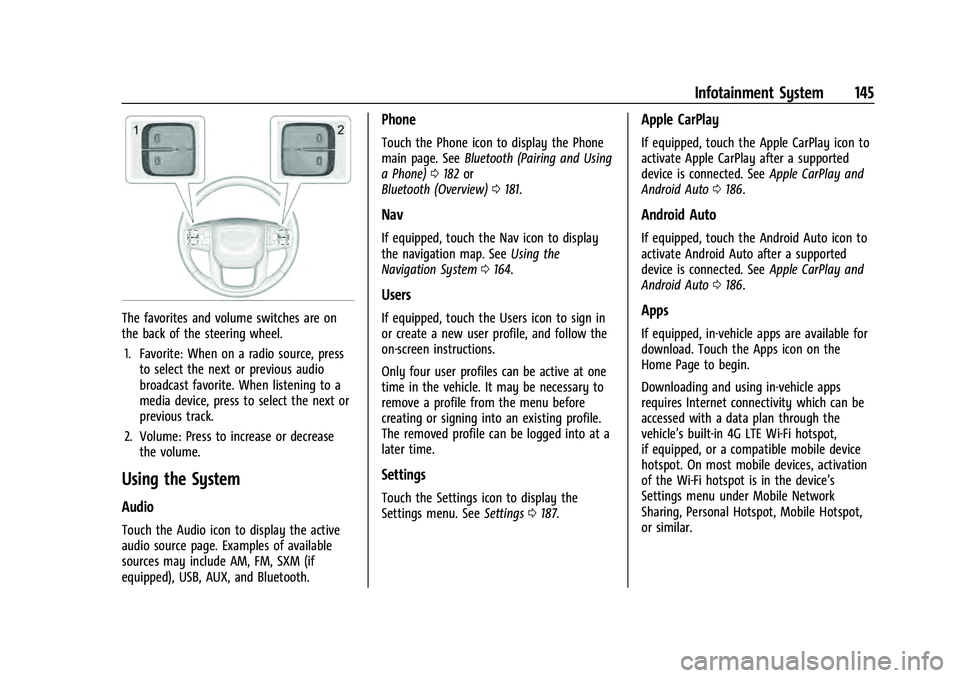
The favorites and volume switches are on
the back of the steering wheel.1. Favorite: When on a radio source, press to select the next or previous audio
broadcast favorite. When listening to a
media device, press to select the next or
previous track.
2. Volume: Press to increase or decrease the volume.
Using the System
Audio
Touch the Audio icon to display the active
audio source page. Examples of available
sources may include AM, FM, SXM (if
equipped), USB, AUX, and Bluetooth.
Phone
Touch the Phone icon to display the Phone
main page. See Bluetooth (Pairing and Using
a Phone) 0182 or
Bluetooth (Overview) 0181.
Nav
If equipped, touch the Nav icon to display
the navigation map. See Using the
Navigation System 0164.
Users
If equipped, touch the Users icon to sign in
or create a new user profile, and follow the
on-screen instructions.
Only four user profiles can be active at one
time in the vehicle. It may be necessary to
remove a profile from the menu before
creating or signing into an existing profile.
The removed profile can be logged into at a
later time.
Settings
Touch the Settings icon to display the
Settings menu. See Settings0187.
Apple CarPlay
If equipped, touch the Apple CarPlay icon to
activate Apple CarPlay after a supported
device is connected. See Apple CarPlay and
Android Auto 0186.
Android Auto
If equipped, touch the Android Auto icon to
activate Android Auto after a supported
device is connected. See Apple CarPlay and
Android Auto 0186.
Apps
If equipped, in-vehicle apps are available for
download. Touch the Apps icon on the
Home Page to begin.
Downloading and using in-vehicle apps
requires Internet connectivity which can be
accessed with a data plan through the
vehicle’s built-in 4G LTE Wi-Fi hotspot,
if equipped, or a compatible mobile device
hotspot. On most mobile devices, activation
of the Wi-Fi hotspot is in the device’s
Settings menu under Mobile Network
Sharing, Personal Hotspot, Mobile Hotspot,
or similar.
Page 157 of 433
GMC Yukon/Yukon XL/Denali Owner Manual (GMNA-Localizing-U.S./
Canada/Mexico-13690468) - 2021 - crc - 8/14/20
154 Infotainment System
The songs, artists, albums, and genres are
taken from the file’s song information and
are only displayed if present. The radio
displays the file name as the track name if
the song information is not available.
Supported Apple Devices
To view supported devices, see
my.gmc.com/learn.
Storing and Recalling Media Favorites
To store media favorites, touch Browse to
display a list of media types.
Touch one of the following Browse options
to save a favorite:
Playlists :Touch
Hnext to any playlist to
store the playlist as a favorite. Touch a
saved favorite to recall a favorite playlist.
The first song in the playlist begins to play.
Artists : Touch
Hnext to any artist to
store the artist as a favorite. Touch a saved
favorite to recall a favorite artist. The first
song in the artist list begins to play.
Songs : Touch
Hnext to any song to store
the song as a favorite. Touch a saved
favorite to recall a favorite song. Albums :
Touch
Hnext to any album to
store the album as a favorite. Touch a saved
favorite to recall a favorite album. The first
song in the album list begins to play.
Genres : Touch
Hnext to any genre to
store the genre as a favorite. Touch a saved
favorite to recall a favorite genre. The first
song of the genre begins to play.
Podcasts : Touch
Hnext to any podcast to
store the podcast as a favorite. Touch a
saved favorite to recall a favorite podcast.
The podcast begins to play.
Audiobooks : Touch
Hnext to any
audiobook to store the audiobook as a
favorite. Touch a saved favorite to recall a
favorite audiobook. The first chapter in the
audiobook begins to play.
Media Playback and Mute
USB playback will be paused if the system is
muted. If the steering wheel mute control is
pressed again, playback will resume.
If the source is changed while in mute,
playback resumes and audio will unmute.
Bluetooth Audio
Music may be played from a paired
Bluetooth device. See Bluetooth (Pairing and
Using a Phone) 0182 or
Bluetooth (Overview) 0181 for help pairing a
device.
Volume and song selection may be
controlled by using the infotainment
controls or the mobile device. If Bluetooth is
selected and no volume is present, check the
volume setting on the infotainment system.
Music can be launched by touching
Bluetooth from the recent sources list on
the left of the display or by touching the
More option and then touching the
Bluetooth device.
To play music via Bluetooth:
1. Power on the device, and pair to connect the device.
2. Once paired, touch Audio from the Home Page, then touch Bluetooth from the
recent sources list on the left of the
display.
Bluetooth Sound Menu
See “Infotainment System Sound Menu”
under AM-FM Radio 0148.
Page 158 of 433
GMC Yukon/Yukon XL/Denali Owner Manual (GMNA-Localizing-U.S./
Canada/Mexico-13690468) - 2021 - crc - 8/14/20
Infotainment System 155
Manage Bluetooth Devices
From the Home Page:1. Touch Audio.
2. Touch More.
3. Touch Bluetooth.
4. Touch Devices to add or delete devices.
When touching Bluetooth, the radio may
not be able to launch the audio player on
the connected device to start playing. When
the vehicle is not moving, use the mobile
device to begin playback.
All devices launch audio differently. When
selecting Bluetooth as a source, the radio
may show as paused on the display. Press
play on the device or touch
pon the
display to begin playback.
Browse functionality will be provided where
supported by the Bluetooth device. This
media content will not be part of the
MyMedia source mode.
Some smartphones support sending
Bluetooth music information to display on
the radio. When the radio receives this
information, it will check to see if any is
available and display it. For more
information about supported Bluetooth
features, see my.gmc.com/learn.
OnStar System
4G LTE
If equipped with 4G LTE, up to seven
devices, such as smartphones, tablets, and
laptops, can be connected to high-speed
Internet through the vehicle’s built-in Wi-Fi
hotspot.
Call 1-888-4ONSTAR (1-888-466-7827) to
connect to an OnStar Advisor for assistance.
See www.onstar.com for vehicle availability,
details, and system limitations. Service and
connectivity may vary by make, model,
year, carrier, availability, and conditions. 4G
LTE service is available in select markets. 4G
LTE performance is based on industry
averages and vehicle systems design. Some
services require a data plan.
The OnStar App
If equipped, the infotainment system has
OnStar controls in the embedded OnStar app
on the Home Page. Most OnStar functions
that can be performed with the buttons can
be done using the app. To open the app,
touch the OnStar icon on the Home Page.
App updates require a corresponding service
plan. Features vary by region and model. Features are subject to change. For more
information, see my.gmc.com/learn or
press
Q.
Services
The Services tab displays the default view
for the app. Use this page to launch the
available OnStar services. Touch a service to
open its display. Touch Wi-Fi to launch the
connections manager. Turn-by-Turn and
Advisor Call are the other tiled options.
Account
The Account tab displays a snapshot of the
account linked with the vehicle. If there is
no such account, this tab will show all
values as ——. The advisor call icon will be
active even if there is no active account.
Advisor Call
Selecting Advisor Call is the same as
pressing
Qor calling 1-888-4ONSTAR
(1-888-466-7827). The X option in the upper
right corner of the screen does not end the
call, but returns to the previous screen.
Turn-by-Turn Directions
With a connected plan, an OnStar Advisor
can download a destination to the vehicle or
its embedded navigation system,
Page 159 of 433
GMC Yukon/Yukon XL/Denali Owner Manual (GMNA-Localizing-U.S./
Canada/Mexico-13690468) - 2021 - crc - 8/14/20
156 Infotainment System
if equipped. Select Turn-by-Turn Directions
from the Services tab of the OnStar app to
call an Advisor or select a recent or favorite
destination. Touch the navigation icons to
select home, address or place. A destination
transfer from OnStar will show the detail
view of the destination when it is
transferred from OnStar to the Navigation
application. See www.onstar.com for a
coverage map. Services vary by model. Map
coverage is available in the United States,
Puerto Rico, and Canada.
Wi-Fi Hotspot
Touch to display the Settings page, which
shows the configurations for the vehicle
hotspot and allows them to be changed.
For more information, see www.onstar.com.
Rear Seat Infotainment
Rear Seat Infotainment (RSI)
System
If equipped, the system includes two rear
USB-C ports, two HDMI ports, two wireless
headphones, and video touchscreen displays
in back of the driver and passenger seats.The RSI system may not operate properly
until the temperature is above
−20 °C (−4 °F)
and below 55 °C (131 °F).
System Operation
To use:
1. Double-tap anywhere on either screen to Power On and view the Home screen.
2. Touch
}on the status bar to turn off
the screen.
The screens can be turned on and off
through each individual touchscreen
independently from the other and through
front seat control.
Playback of any media playing through that
specific screen is paused when the screen is
turned off.
Screens can be locked via front seat control.
If Remember Screen Power Status was
selected in the settings, the screens will
return to the same Power Status as when
the vehicle was turned off. See “Remember
Screen Power Status” later in this section.
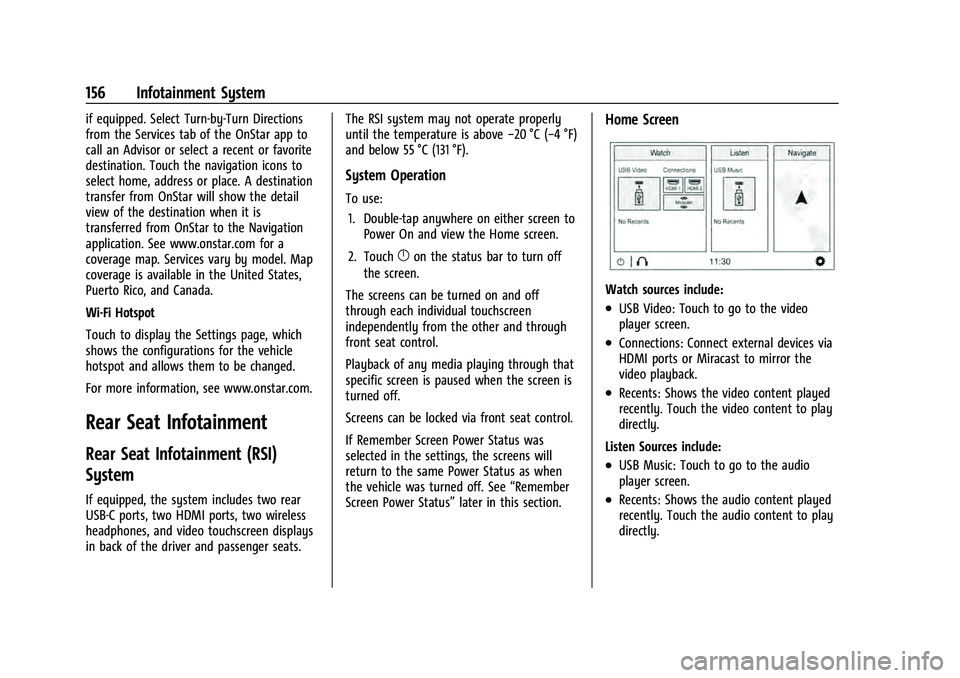
Home Screen
Watch sources include:
.USB Video: Touch to go to the video
player screen.
.Connections: Connect external devices via
HDMI ports or Miracast to mirror the
video playback.
.Recents: Shows the video content played
recently. Touch the video content to play
directly.
Listen Sources include:
.USB Music: Touch to go to the audio
player screen.
.Recents: Shows the audio content played
recently. Touch the audio content to play
directly.
Page 160 of 433
GMC Yukon/Yukon XL/Denali Owner Manual (GMNA-Localizing-U.S./
Canada/Mexico-13690468) - 2021 - crc - 8/14/20
Infotainment System 157
Navigate (if equipped):Touch to access the
navigation system. See Using the Navigation
System 0164.
Status Bar includes:
.}: Touch to turn off the screen.
Double-tap anywhere on the screen to
turn on the screen again.
.X: Touch to go to Bluetooth Headphone
Setup menu. See “Settings”later in this
section.
.Current Time: The current time is shown
in the middle of the status bar.
.*: Touch to go to the Settings menu.
Rear Consumer Ports (RCP)
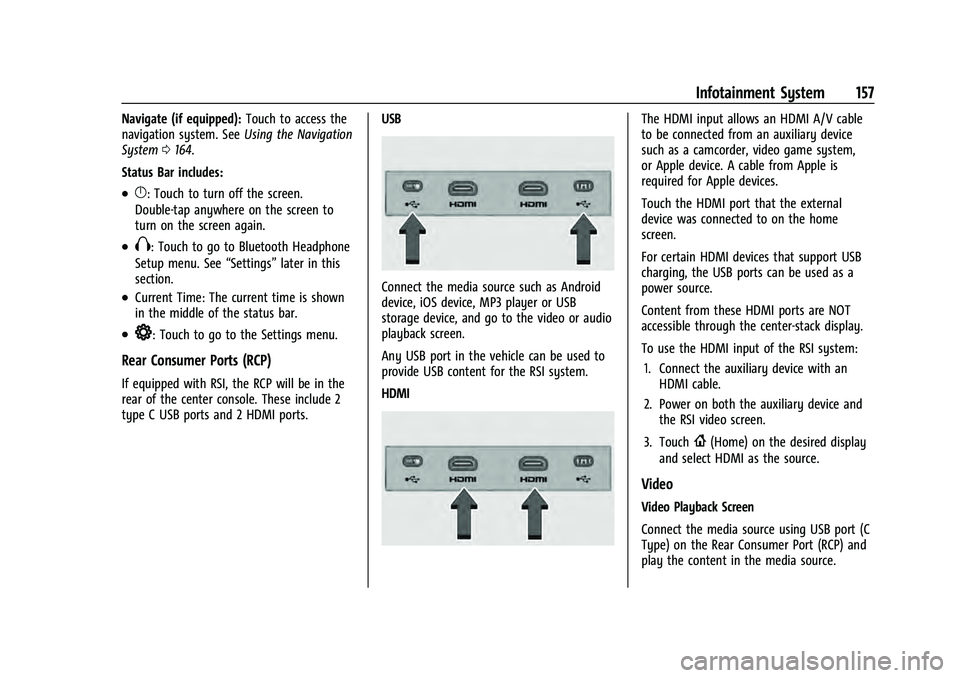
If equipped with RSI, the RCP will be in the
rear of the center console. These include 2
type C USB ports and 2 HDMI ports. USB
Connect the media source such as Android
device, iOS device, MP3 player or USB
storage device, and go to the video or audio
playback screen.
Any USB port in the vehicle can be used to
provide USB content for the RSI system.
HDMI
The HDMI input allows an HDMI A/V cable
to be connected from an auxiliary device
such as a camcorder, video game system,
or Apple device. A cable from Apple is
required for Apple devices.
Touch the HDMI port that the external
device was connected to on the home
screen.
For certain HDMI devices that support USB
charging, the USB ports can be used as a
power source.
Content from these HDMI ports are NOT
accessible through the center-stack display.
To use the HDMI input of the RSI system:
1. Connect the auxiliary device with an HDMI cable.
2. Power on both the auxiliary device and the RSI video screen.
3. Touch
{(Home) on the desired display
and select HDMI as the source.
Video
Video Playback Screen
Connect the media source using USB port (C
Type) on the Rear Consumer Port (RCP) and
play the content in the media source.
Page 161 of 433
GMC Yukon/Yukon XL/Denali Owner Manual (GMNA-Localizing-U.S./
Canada/Mexico-13690468) - 2021 - crc - 8/14/20
158 Infotainment System
Touch USB Video and the most recent
viewed USB video will begin playback from
the last played position. During playback,
Browse may be selected to search additional
available USB videos. For a newly inserted
device, the Browse menu is immediately
available.
Recently played videos are also available
from the Watch Menu.
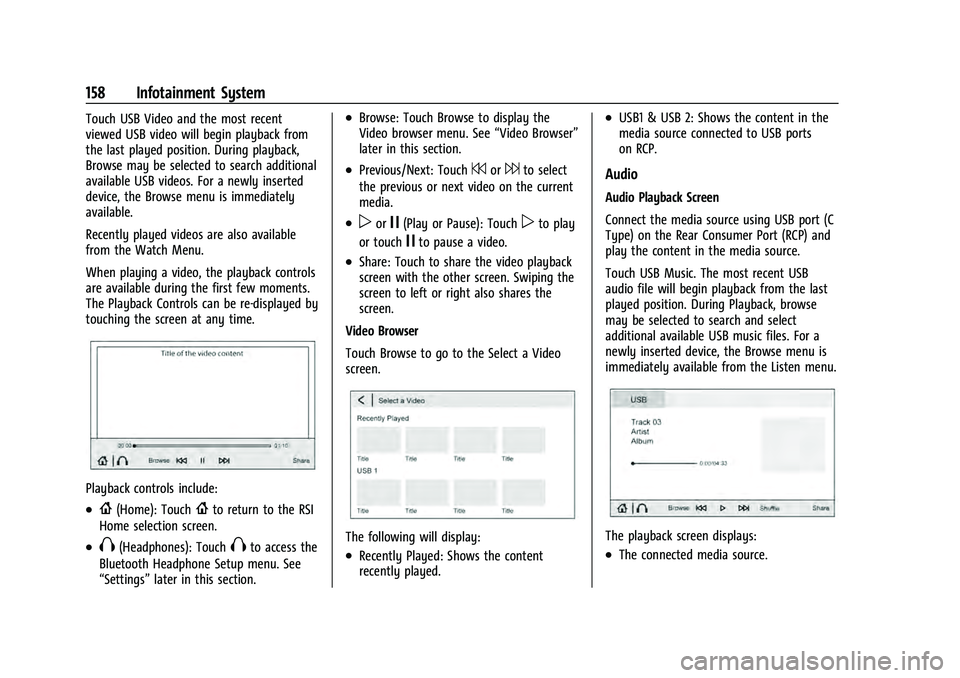
When playing a video, the playback controls
are available during the first few moments.
The Playback Controls can be re-displayed by
touching the screen at any time.
Playback controls include:
.{(Home): Touch{to return to the RSI
Home selection screen.
.X(Headphones): TouchXto access the
Bluetooth Headphone Setup menu. See
“Settings” later in this section.
.Browse: Touch Browse to display the
Video browser menu. See “Video Browser”
later in this section.
.Previous/Next: Touch7or6to select
the previous or next video on the current
media.
.porj(Play or Pause): Touchpto play
or touch
jto pause a video.
.Share: Touch to share the video playback
screen with the other screen. Swiping the
screen to left or right also shares the
screen.
Video Browser
Touch Browse to go to the Select a Video
screen.
The following will display:
.Recently Played: Shows the content
recently played.
.USB1 & USB 2: Shows the content in the
media source connected to USB ports
on RCP.
Audio
Audio Playback Screen
Connect the media source using USB port (C
Type) on the Rear Consumer Port (RCP) and
play the content in the media source.
Touch USB Music. The most recent USB
audio file will begin playback from the last
played position. During Playback, browse
may be selected to search and select
additional available USB music files. For a
newly inserted device, the Browse menu is
immediately available from the Listen menu.
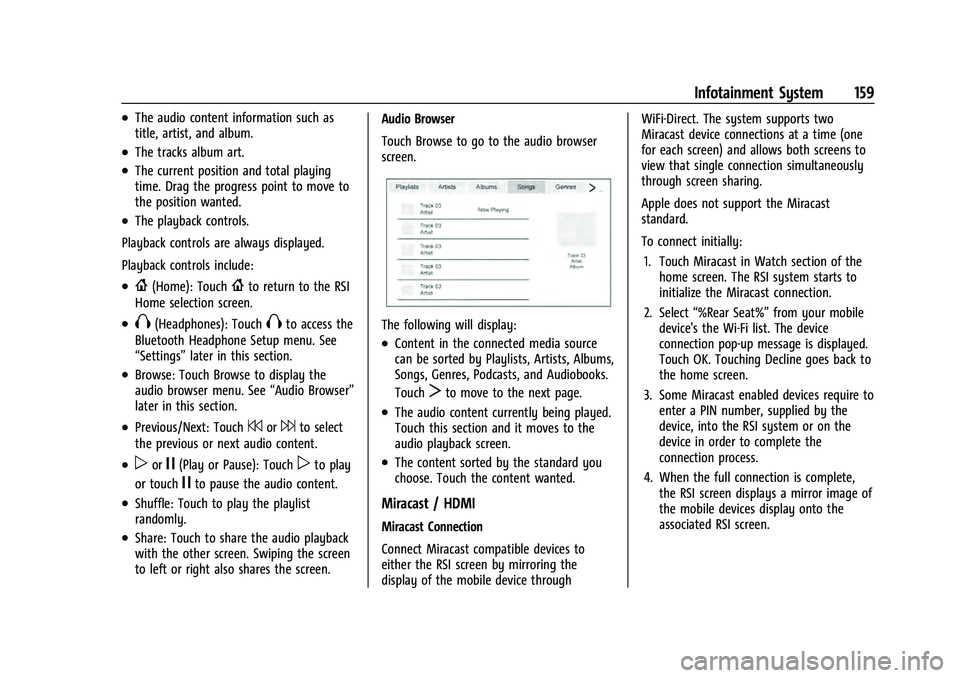
The playback screen displays:
.The connected media source.
Page 162 of 433
GMC Yukon/Yukon XL/Denali Owner Manual (GMNA-Localizing-U.S./
Canada/Mexico-13690468) - 2021 - crc - 8/14/20
Infotainment System 159
.The audio content information such as
title, artist, and album.
.The tracks album art.
.The current position and total playing
time. Drag the progress point to move to
the position wanted.
.The playback controls.
Playback controls are always displayed.
Playback controls include:
.{(Home): Touch{to return to the RSI
Home selection screen.
.X(Headphones): TouchXto access the
Bluetooth Headphone Setup menu. See
“Settings” later in this section.
.Browse: Touch Browse to display the
audio browser menu. See “Audio Browser”
later in this section.
.Previous/Next: Touch7or6to select
the previous or next audio content.
.porj(Play or Pause): Touchpto play
or touch
jto pause the audio content.
.Shuffle: Touch to play the playlist
randomly.
.Share: Touch to share the audio playback
with the other screen. Swiping the screen
to left or right also shares the screen. Audio Browser
Touch Browse to go to the audio browser
screen.
The following will display:
.Content in the connected media source
can be sorted by Playlists, Artists, Albums,
Songs, Genres, Podcasts, and Audiobooks.
Touch
Tto move to the next page.
.The audio content currently being played.
Touch this section and it moves to the
audio playback screen.
.The content sorted by the standard you
choose. Touch the content wanted.
Miracast / HDMI
Miracast Connection
Connect Miracast compatible devices to
either the RSI screen by mirroring the
display of the mobile device through WiFi-Direct. The system supports two
Miracast device connections at a time (one
for each screen) and allows both screens to
view that single connection simultaneously
through screen sharing.
Apple does not support the Miracast
standard.
To connect initially:
1. Touch Miracast in Watch section of the home screen. The RSI system starts to
initialize the Miracast connection.
2. Select “%Rear Seat%” from your mobile
device's the Wi-Fi list. The device
connection pop-up message is displayed.
Touch OK. Touching Decline goes back to
the home screen.
3. Some Miracast enabled devices require to enter a PIN number, supplied by the
device, into the RSI system or on the
device in order to complete the
connection process.
4. When the full connection is complete, the RSI screen displays a mirror image of
the mobile devices display onto the
associated RSI screen.
Page 163 of 433
GMC Yukon/Yukon XL/Denali Owner Manual (GMNA-Localizing-U.S./
Canada/Mexico-13690468) - 2021 - crc - 8/14/20
160 Infotainment System
Once any Miracast device has been
successfully connected to the RSI system,
the device connects to the RSI system
automatically.
The RSI system stores information of up to
10 Miracast devices.
All Miracast information stored in the
system can be deleted. See“Miracast data
delete” in“Settings” later in this section.
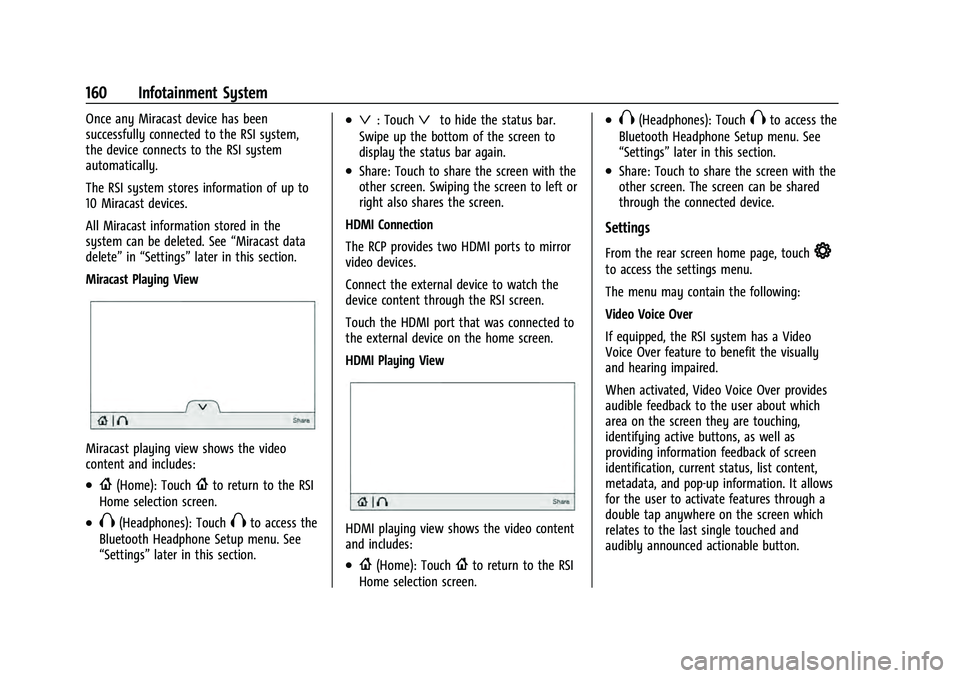
Miracast Playing View
Miracast playing view shows the video
content and includes:
.{(Home): Touch{to return to the RSI
Home selection screen.
.X(Headphones): TouchXto access the
Bluetooth Headphone Setup menu. See
“Settings” later in this section.
.ª: Touchªto hide the status bar.
Swipe up the bottom of the screen to
display the status bar again.
.Share: Touch to share the screen with the
other screen. Swiping the screen to left or
right also shares the screen.
HDMI Connection
The RCP provides two HDMI ports to mirror
video devices.
Connect the external device to watch the
device content through the RSI screen.
Touch the HDMI port that was connected to
the external device on the home screen.
HDMI Playing View
HDMI playing view shows the video content
and includes:
.{(Home): Touch{to return to the RSI
Home selection screen.
.X(Headphones): TouchXto access the
Bluetooth Headphone Setup menu. See
“Settings” later in this section.
.Share: Touch to share the screen with the
other screen. The screen can be shared
through the connected device.
Settings
From the rear screen home page, touch*
to access the settings menu.
The menu may contain the following:
Video Voice Over
If equipped, the RSI system has a Video
Voice Over feature to benefit the visually
and hearing impaired.
When activated, Video Voice Over provides
audible feedback to the user about which
area on the screen they are touching,
identifying active buttons, as well as
providing information feedback of screen
identification, current status, list content,
metadata, and pop-up information. It allows
for the user to activate features through a
double tap anywhere on the screen which
relates to the last single touched and
audibly announced actionable button.
Page 164 of 433
GMC Yukon/Yukon XL/Denali Owner Manual (GMNA-Localizing-U.S./
Canada/Mexico-13690468) - 2021 - crc - 8/14/20
Infotainment System 161
To turn Video Voice Over on or off, touch
*, touch the toggle and then press OK to
confirm. Video Voice Over will remain active
over ignition cycles until it is turned off.
Bluetooth Headphone Setup
The RSI system will support Bluetooth
headphones. Up to 9 Bluetooth headphones
can be paired to each REAR SCREEN. This
screen provides a list of all Bluetooth
headphones that have been paired to the
RSI system, as well as control over their use
and settings. New Bluetooth headphones
can be connected or the Bluetooth
headphone settings can be changed in this
screen.
To pair Bluetooth headphones to one of the
rear screens:
1. Select Bluetooth Headphone Setup or touch
Xfrom the desired Rear Screen
Home Page.
2. Select Add New Headphones.
3. Make sure your Bluetooth headphones are in pairing mode. Once recognized by
the system, your Bluetooth headphones
will be displayed on the list of Available
Headphones. 4. Select your Bluetooth headphones from
the list. Touch OK once the Pairing
Successful pop-up displays. The
headphones may need to be unpaired
from your phone before pairing to
the RSI.
5. An option will be given to create a custom name for this pair of headphones
–touch Yes if you want to create a
unique name for these headphones in
this vehicle. Type the headphone’s name
using virtual keyboard on the screen. The
new name is assigned when
touching SAVE.
Paired headphones can be selected from the
list of currently connected headphones. The
selected headphone’s icon turns to green.
The name of the Bluetooth headphone can
be edited by touchingy.
To delete a connected Bluetooth headphone,
Touch
Yand then touch Yes.
Screen Brightness
Select Screen Brightness. Move the bar left
or right to adjust the display brightness.
Each screen may be uniquely adjusted. Remember Screen Power Status
The system remembers the last power state
(screen ON or OFF) of each rear screen
independently. After the vehicle ignition
power is turned ON, each rear screen power
ON, or remain OFF, based on it's last known
state prior to the previous ignition cycle.
Select On or Off.
Video Auto Play
Enabling Video Auto Play will cause the next
available video to automatically begin
playing when the previous video has ended.
Disabling Video Auto Play will cause the
video playback to pause until another video
is selected for playback. Select On or Off.
Clear All Miracast Data
The system stores the Miracast data of the
devices which have been connected to the
RSI system. The data can be deleted from
this feature.
Select Clear All Miracast Data. A pop-up
message is displayed when the data is
successfully deleted.
Page 166 of 433
GMC Yukon/Yukon XL/Denali Owner Manual (GMNA-Localizing-U.S./
Canada/Mexico-13690468) - 2021 - crc - 8/14/20
Infotainment System 163
.porj(Play or Pause): Touchpto play
or touch
jto pause depending on the
current selection.
.Listen: Touch Listen to hear the audio
source on the vehicle speakers.
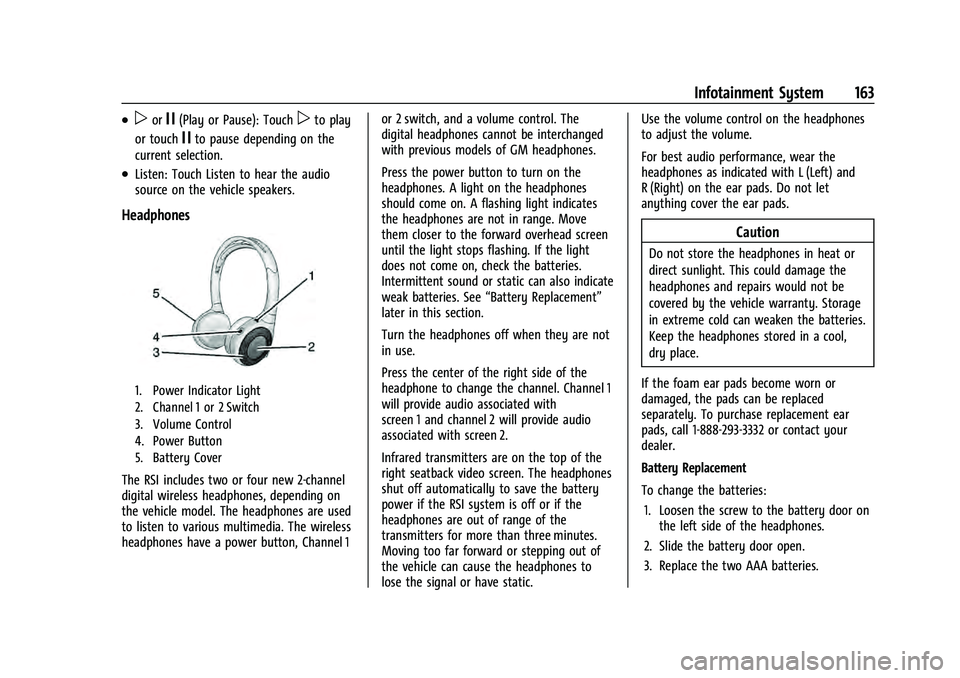
Headphones
1. Power Indicator Light
2. Channel 1 or 2 Switch
3. Volume Control
4. Power Button
5. Battery Cover
The RSI includes two or four new 2-channel
digital wireless headphones, depending on
the vehicle model. The headphones are used
to listen to various multimedia. The wireless
headphones have a power button, Channel 1 or 2 switch, and a volume control. The
digital headphones cannot be interchanged
with previous models of GM headphones.
Press the power button to turn on the
headphones. A light on the headphones
should come on. A flashing light indicates
the headphones are not in range. Move
them closer to the forward overhead screen
until the light stops flashing. If the light
does not come on, check the batteries.
Intermittent sound or static can also indicate
weak batteries. See
“Battery Replacement”
later in this section.
Turn the headphones off when they are not
in use.
Press the center of the right side of the
headphone to change the channel. Channel 1
will provide audio associated with
screen 1 and channel 2 will provide audio
associated with screen 2.
Infrared transmitters are on the top of the
right seatback video screen. The headphones
shut off automatically to save the battery
power if the RSI system is off or if the
headphones are out of range of the
transmitters for more than three minutes.
Moving too far forward or stepping out of
the vehicle can cause the headphones to
lose the signal or have static. Use the volume control on the headphones
to adjust the volume.
For best audio performance, wear the
headphones as indicated with L (Left) and
R (Right) on the ear pads. Do not let
anything cover the ear pads.
Caution
Do not store the headphones in heat or
direct sunlight. This could damage the
headphones and repairs would not be
covered by the vehicle warranty. Storage
in extreme cold can weaken the batteries.
Keep the headphones stored in a cool,
dry place.
If the foam ear pads become worn or
damaged, the pads can be replaced
separately. To purchase replacement ear
pads, call 1-888-293-3332 or contact your
dealer.
Battery Replacement
To change the batteries: 1. Loosen the screw to the battery door on the left side of the headphones.
2. Slide the battery door open.
3. Replace the two AAA batteries.