display screen GMC YUKON 2021 Owner's Guide
[x] Cancel search | Manufacturer: GMC, Model Year: 2021, Model line: YUKON, Model: GMC YUKON 2021Pages: 433, PDF Size: 6.54 MB
Page 302 of 433

GMC Yukon/Yukon XL/Denali Owner Manual (GMNA-Localizing-U.S./
Canada/Mexico-13690468) - 2021 - crc - 8/14/20
Driving and Operating 299
Each sensor has a minimum of two minutes
to learn, shown by a timer. After a sensor is
learned, a checkmark appears next to the
tire, the vehicle horn will sound, the
vehicle’s brake lamps will flash, and all
working trailer lamps will flash. It then
moves to the next sensor.
To cancel the process touch Stop.
The recommended tire pressure must be
entered for the trailer tires. This allows the
vehicle to alert when the tire pressure is
high or low.
TTPMS must learn the location of the
installed tire sensors to show correct air
pressure and temperature for each tire. To
set up, use one of the following options or
see a tire or trailer dealer for service. The
learning process must be repeated when the
trailer tires are rotated or replaced. See
“Editing a Trailer Profile”later in this section
for tire pressure sensor relearn information.
Tool Method: A TTPMS activation tool can
be purchased separately to learn the sensor
locations.
Manual Method: Without the tool, the air
pressure can be increased or decreased in
each tire for 10 seconds. Do not exceed the
maximum inflation pressure found on the tire sidewalls. Make sure to re-adjust tire
pressure to the recommended level when
the process is complete.
Sensor Learning Steps
To complete the sensor-to-vehicle learn
process:
1. Touch Start on the Learn Sensors screen. The horn chirps twice and the Learning
Active screen appears on the
infotainment display.
2. Start with the driver side front trailer tire.
3. Activate the tool near the valve stem or adjust the air pressure of this tire until
the horn chirps and all working vehicle
and trailer lights flash.
The process stops without saving the
sensor locations if this step takes more
than two minutes.
4. Move to the next tire and repeat Step 3 for each sensor. The horn chirps twice
when all sensors are completed.
5. Return to the vehicle to complete the setup.Maintenance Reminders
To set up maintenance reminders, touch the
Trailer Maintenance icon. Select Yes to set
up the maintenance reminders for the
Trailer Profile. Follow the on-screen prompts.
The maximum number of reminders is 50.
Select No to return to the previous screen.
Trailer Side Blind Zone Alert Setup
Trailer dimensions must be in range to
enable this feature.
.Trailer Length: 300 cm (118.1 in) –1200 cm
(472.4 in). Measure from center of coupler
to furthest rear point on the trailer.
If trailer dimensions are out of range, this
feature will be unavailable.
Status View
The Status view shows:
.Vehicle
.Connections
.Tires
.Maintenance
Upon entry, the most recent items will be
shown. Select MORE to view all options.
Page 303 of 433
GMC Yukon/Yukon XL/Denali Owner Manual (GMNA-Localizing-U.S./
Canada/Mexico-13690468) - 2021 - crc - 8/14/20
300 Driving and Operating
Vehicle
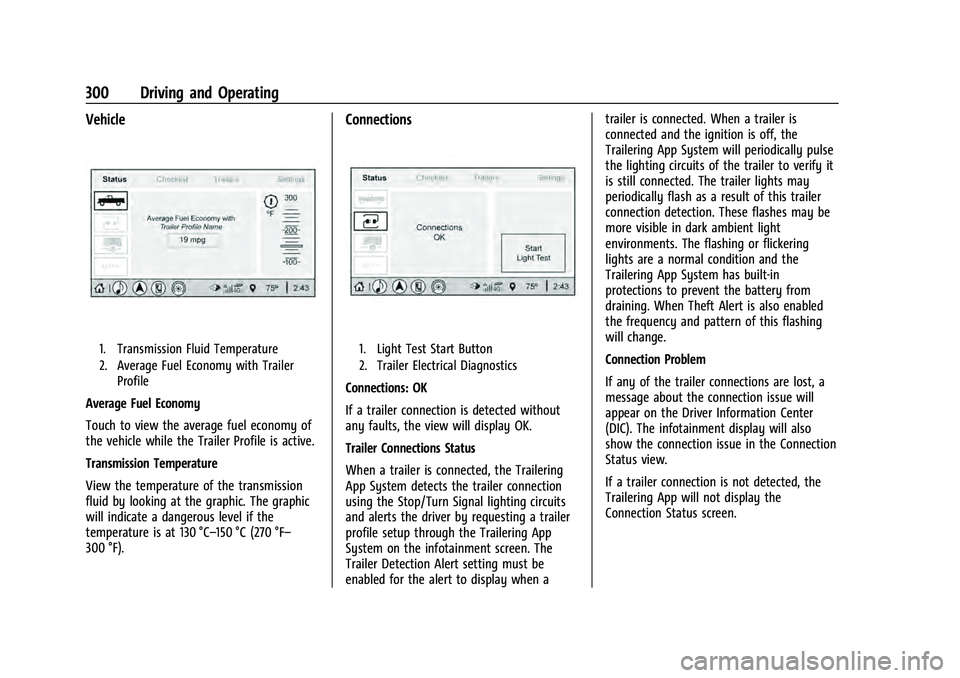
1. Transmission Fluid Temperature
2. Average Fuel Economy with TrailerProfile
Average Fuel Economy
Touch to view the average fuel economy of
the vehicle while the Trailer Profile is active.
Transmission Temperature
View the temperature of the transmission
fluid by looking at the graphic. The graphic
will indicate a dangerous level if the
temperature is at 130 °C–150 °C (270 °F–
300 °F).
Connections
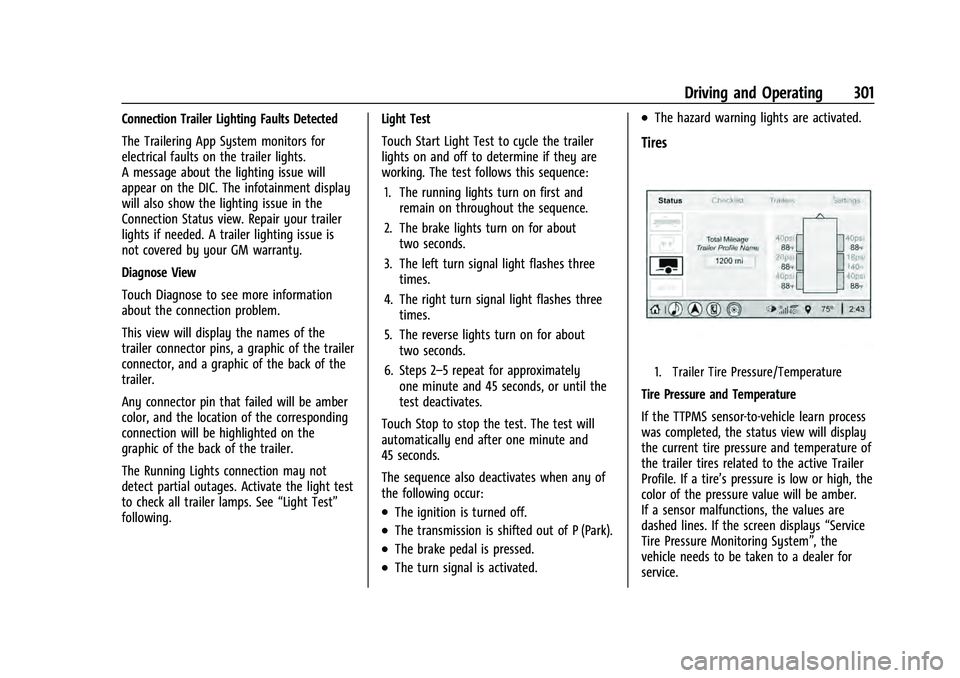
1. Light Test Start Button
2. Trailer Electrical Diagnostics
Connections: OK
If a trailer connection is detected without
any faults, the view will display OK.
Trailer Connections Status
When a trailer is connected, the Trailering
App System detects the trailer connection
using the Stop/Turn Signal lighting circuits
and alerts the driver by requesting a trailer
profile setup through the Trailering App
System on the infotainment screen. The
Trailer Detection Alert setting must be
enabled for the alert to display when a trailer is connected. When a trailer is
connected and the ignition is off, the
Trailering App System will periodically pulse
the lighting circuits of the trailer to verify it
is still connected. The trailer lights may
periodically flash as a result of this trailer
connection detection. These flashes may be
more visible in dark ambient light
environments. The flashing or flickering
lights are a normal condition and the
Trailering App System has built-in
protections to prevent the battery from
draining. When Theft Alert is also enabled
the frequency and pattern of this flashing
will change.
Connection Problem
If any of the trailer connections are lost, a
message about the connection issue will
appear on the Driver Information Center
(DIC). The infotainment display will also
show the connection issue in the Connection
Status view.
If a trailer connection is not detected, the
Trailering App will not display the
Connection Status screen.
Page 304 of 433
GMC Yukon/Yukon XL/Denali Owner Manual (GMNA-Localizing-U.S./
Canada/Mexico-13690468) - 2021 - crc - 8/14/20
Driving and Operating 301
Connection Trailer Lighting Faults Detected
The Trailering App System monitors for
electrical faults on the trailer lights.
A message about the lighting issue will
appear on the DIC. The infotainment display
will also show the lighting issue in the
Connection Status view. Repair your trailer
lights if needed. A trailer lighting issue is
not covered by your GM warranty.
Diagnose View
Touch Diagnose to see more information
about the connection problem.
This view will display the names of the
trailer connector pins, a graphic of the trailer
connector, and a graphic of the back of the
trailer.
Any connector pin that failed will be amber
color, and the location of the corresponding
connection will be highlighted on the
graphic of the back of the trailer.
The Running Lights connection may not
detect partial outages. Activate the light test
to check all trailer lamps. See“Light Test”
following. Light Test
Touch Start Light Test to cycle the trailer
lights on and off to determine if they are
working. The test follows this sequence:
1. The running lights turn on first and remain on throughout the sequence.
2. The brake lights turn on for about two seconds.
3. The left turn signal light flashes three times.
4. The right turn signal light flashes three times.
5. The reverse lights turn on for about two seconds.
6. Steps 2–5 repeat for approximately one minute and 45 seconds, or until the
test deactivates.
Touch Stop to stop the test. The test will
automatically end after one minute and
45 seconds.
The sequence also deactivates when any of
the following occur:
.The ignition is turned off.
.The transmission is shifted out of P (Park).
.The brake pedal is pressed.
.The turn signal is activated.
.The hazard warning lights are activated.
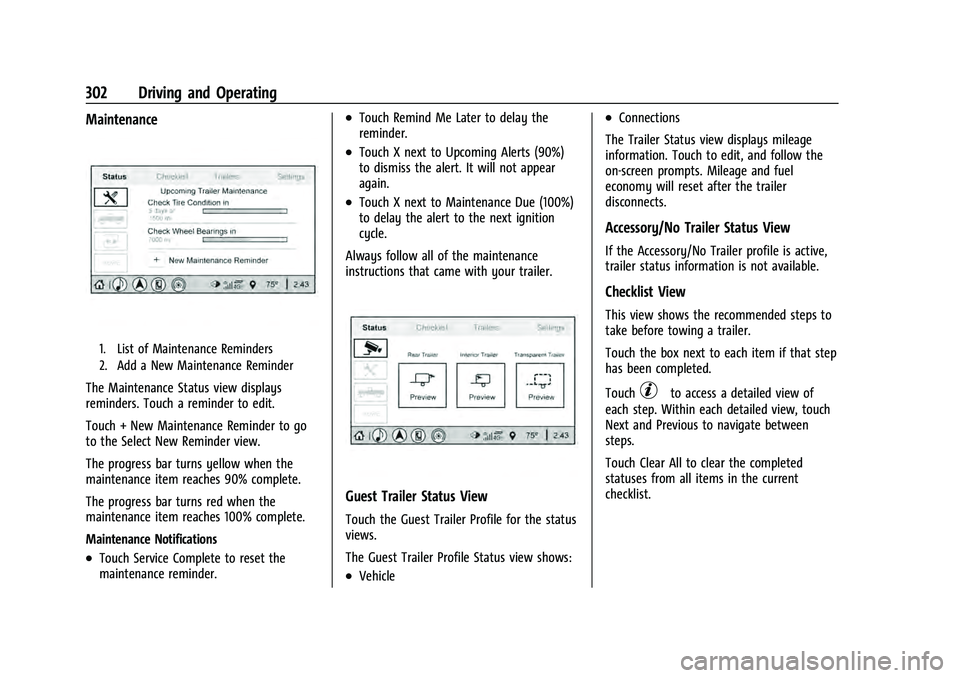
Tires
1. Trailer Tire Pressure/Temperature
Tire Pressure and Temperature
If the TTPMS sensor-to-vehicle learn process
was completed, the status view will display
the current tire pressure and temperature of
the trailer tires related to the active Trailer
Profile. If a tire’s pressure is low or high, the
color of the pressure value will be amber.
If a sensor malfunctions, the values are
dashed lines. If the screen displays “Service
Tire Pressure Monitoring System”, the
vehicle needs to be taken to a dealer for
service.
Page 305 of 433
GMC Yukon/Yukon XL/Denali Owner Manual (GMNA-Localizing-U.S./
Canada/Mexico-13690468) - 2021 - crc - 8/14/20
302 Driving and Operating
Maintenance
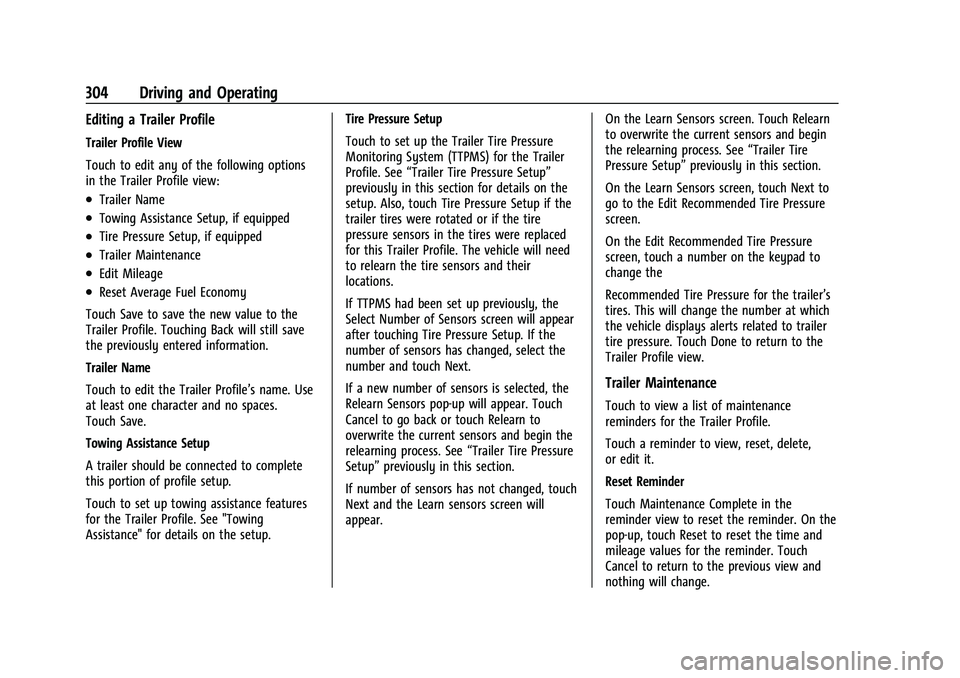
1. List of Maintenance Reminders
2. Add a New Maintenance Reminder
The Maintenance Status view displays
reminders. Touch a reminder to edit.
Touch + New Maintenance Reminder to go
to the Select New Reminder view.
The progress bar turns yellow when the
maintenance item reaches 90% complete.
The progress bar turns red when the
maintenance item reaches 100% complete.
Maintenance Notifications
.Touch Service Complete to reset the
maintenance reminder.
.Touch Remind Me Later to delay the
reminder.
.Touch X next to Upcoming Alerts (90%)
to dismiss the alert. It will not appear
again.
.Touch X next to Maintenance Due (100%)
to delay the alert to the next ignition
cycle.
Always follow all of the maintenance
instructions that came with your trailer.
Guest Trailer Status View
Touch the Guest Trailer Profile for the status
views.
The Guest Trailer Profile Status view shows:
.Vehicle
.Connections
The Trailer Status view displays mileage
information. Touch to edit, and follow the
on-screen prompts. Mileage and fuel
economy will reset after the trailer
disconnects.
Accessory/No Trailer Status View
If the Accessory/No Trailer profile is active,
trailer status information is not available.
Checklist View
This view shows the recommended steps to
take before towing a trailer.
Touch the box next to each item if that step
has been completed.
Touch
pto access a detailed view of
each step. Within each detailed view, touch
Next and Previous to navigate between
steps.
Touch Clear All to clear the completed
statuses from all items in the current
checklist.
Page 307 of 433
GMC Yukon/Yukon XL/Denali Owner Manual (GMNA-Localizing-U.S./
Canada/Mexico-13690468) - 2021 - crc - 8/14/20
304 Driving and Operating
Editing a Trailer Profile
Trailer Profile View
Touch to edit any of the following options
in the Trailer Profile view:
.Trailer Name
.Towing Assistance Setup, if equipped
.Tire Pressure Setup, if equipped
.Trailer Maintenance
.Edit Mileage
.Reset Average Fuel Economy
Touch Save to save the new value to the
Trailer Profile. Touching Back will still save
the previously entered information.
Trailer Name
Touch to edit the Trailer Profile’s name. Use
at least one character and no spaces.
Touch Save.
Towing Assistance Setup
A trailer should be connected to complete
this portion of profile setup.
Touch to set up towing assistance features
for the Trailer Profile. See "Towing
Assistance" for details on the setup. Tire Pressure Setup
Touch to set up the Trailer Tire Pressure
Monitoring System (TTPMS) for the Trailer
Profile. See
“Trailer Tire Pressure Setup”
previously in this section for details on the
setup. Also, touch Tire Pressure Setup if the
trailer tires were rotated or if the tire
pressure sensors in the tires were replaced
for this Trailer Profile. The vehicle will need
to relearn the tire sensors and their
locations.
If TTPMS had been set up previously, the
Select Number of Sensors screen will appear
after touching Tire Pressure Setup. If the
number of sensors has changed, select the
number and touch Next.
If a new number of sensors is selected, the
Relearn Sensors pop-up will appear. Touch
Cancel to go back or touch Relearn to
overwrite the current sensors and begin the
relearning process. See “Trailer Tire Pressure
Setup” previously in this section.
If number of sensors has not changed, touch
Next and the Learn sensors screen will
appear. On the Learn Sensors screen. Touch Relearn
to overwrite the current sensors and begin
the relearning process. See
“Trailer Tire
Pressure Setup” previously in this section.
On the Learn Sensors screen, touch Next to
go to the Edit Recommended Tire Pressure
screen.
On the Edit Recommended Tire Pressure
screen, touch a number on the keypad to
change the
Recommended Tire Pressure for the trailer’s
tires. This will change the number at which
the vehicle displays alerts related to trailer
tire pressure. Touch Done to return to the
Trailer Profile view.
Trailer Maintenance
Touch to view a list of maintenance
reminders for the Trailer Profile.
Touch a reminder to view, reset, delete,
or edit it.
Reset Reminder
Touch Maintenance Complete in the
reminder view to reset the reminder. On the
pop-up, touch Reset to reset the time and
mileage values for the reminder. Touch
Cancel to return to the previous view and
nothing will change.
Page 418 of 433

GMC Yukon/Yukon XL/Denali Owner Manual (GMNA-Localizing-U.S./
Canada/Mexico-13690468) - 2021 - crc - 8/14/20
Connected Services 415
Connected Services
Connected Services
Navigation . . . . . . . . . . . . . . . . . . . . . . . . . . . . . 415
Connections . . . . . . . . . . . . . . . . . . . . . . . . . . . 416
Diagnostics . . . . . . . . . . . . . . . . . . . . . . . . . . . . 417
Connected Services
Navigation
Navigation requires a specific OnStar or
connected service plan.
Press
Qto receive Turn-by-Turn directions
or have them sent to the vehicle’s
navigation screen, if equipped.
Turn-by-Turn Navigation
1. PressQto connect to an Advisor.
2. Request directions to be downloaded to the vehicle.
3. Follow the voice-guided commands.
Using Voice Commands During a
Planned Route
Functionality of the Voice Command button,
if equipped, may vary by vehicle and region.
For some vehicles, press
=to open the
OnStar app on the infotainment display. For
other vehicles press
=as follows.
Cancel Route 1. Press
=. System responds: “OnStar
ready,” then a tone. 2. Say
“Cancel route.” System responds:
“Do you want to cancel directions?”
3. Say “Yes.”System responds: “OK, request
completed, thank you, goodbye.”
Route Preview
1. Press
=. System responds: “OnStar
ready,” then a tone.
2. Say “Route preview.” System responds
with the next three maneuvers.
Repeat
1. Press
=. System responds: “OnStar
ready,” then a tone.
2. Say “Repeat.” System responds with the
last direction given, then responds with
“OnStar ready,” then a tone.
Get My Destination
1. Press
=. System responds: “OnStar
ready,” then a tone.
2. Say “Get my destination.” System
responds with the address and distance
to the destination, then responds with
“OnStar ready,” then a tone.
Send Destination to Vehicle
Directions can be sent to the vehicle’s
navigation screen, if equipped.
Page 419 of 433
GMC Yukon/Yukon XL/Denali Owner Manual (GMNA-Localizing-U.S./
Canada/Mexico-13690468) - 2021 - crc - 8/14/20
416 Connected Services
PressQ, then ask the Advisor to download
directions to the vehicle’s navigation system,
if equipped. After the call ends, the
navigation screen will provide prompts to
begin driving directions. Routes that are sent
to the navigation screen can only be
canceled through the navigation system.
See www.onstar.com (U.S.) or www.onstar.ca
(Canada).
Connections
The following services help with staying
connected.
For coverage maps, see www.onstar.com
(U.S.) or www.onstar.ca (Canada).
Ensuring Security
.Change the default passwords for the
Wi-Fi hotspot and myGMC mobile
application. Make these passwords
different from each other and use a
combination of letters and numbers to
increase the security.
.Change the default name of the SSID
(Service Set Identifier). This is your
network’s name that is visible to other
wireless devices. Choose a unique name
and avoid family names or vehicle
descriptions. Wi-Fi Hotspot (If Equipped)
The vehicle may have a built-in Wi-Fi
hotspot that provides access to the Internet
and web content at 4G LTE speed. Up to
seven mobile devices can be connected.
A data plan is required. Use the in-vehicle
controls only when it is safe to do so.
1. To retrieve Wi-Fi hotspot information, press
=to open the OnStar app on the
infotainment display, then select Wi-Fi
Hotspot. On some vehicles, touch Wi-Fi
or Wi-Fi Settings on the screen.
2. The Wi-Fi settings will display the Wi-Fi hotspot name (SSID), password, and on
some vehicles, the connection type (no
Internet connection, 3G, 4G, 4G LTE), and
signal quality (poor, good, excellent). The
LTE icon shows connection to Wi-Fi. It is
possible that the icon may not illuminate
even though the vehicle has an active
connection.
3. To change the SSID or password, press
Qor call 1-888-4ONSTAR to connect
with an Advisor. On some vehicles, the
SSID and password can be changed in
the Wi-Fi Hotspot menu. After initial set-up, your vehicle’s Wi-Fi
hotspot will connect automatically to your
mobile devices. Manage data usage by
turning Wi-Fi on or off on your mobile
device, using the myGMC mobile app, or by
contacting an OnStar Advisor. On some
vehicles, Wi-Fi can also be managed from
the Wi-Fi Hotspot menu.
MyGMC Mobile App (If Available)
Download the myGMC mobile app to
compatible Apple and Android smartphones.
GMC users can access the following services
from a smartphone:
.Remotely start/stop the vehicle,
if factory-equipped.
.Lock/unlock doors, if equipped with
automatic locks.
.Activate the horn and lamps.
.Check the vehicle’s fuel level, oil life,
or tire pressure, if factory-equipped with
the Tire Pressure Monitor System.
.Send destinations to the vehicle.
.Locate the vehicle on a map (U.S.
market only).
.Turn the vehicle's Wi-Fi hotspot on/off,
manage settings, and monitor data
consumption, if equipped.
.Locate a dealer and schedule service.