3-1 GMC YUKON DENALI 2009 User Guide
[x] Cancel search | Manufacturer: GMC, Model Year: 2009, Model line: YUKON DENALI, Model: GMC YUKON DENALI 2009Pages: 100, PDF Size: 1.41 MB
Page 81 of 100
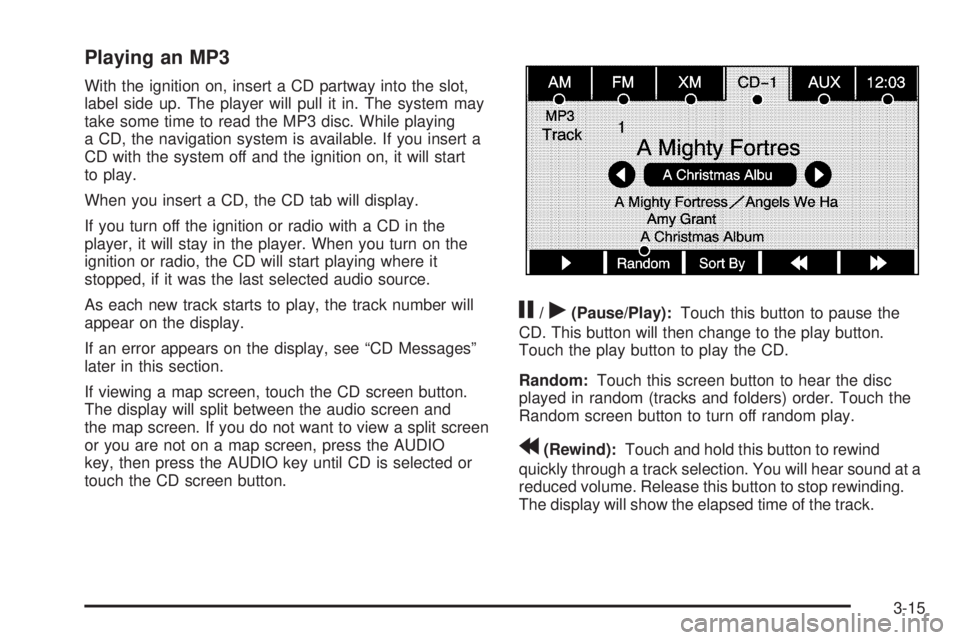
Playing an MP3
With the ignition on, insert a CD partway into the slot,
label side up. The player will pull it in. The system may
take some time to read the MP3 disc. While playing
a CD, the navigation system is available. If you insert a
CD with the system off and the ignition on, it will start
to play.
When you insert a CD, the CD tab will display.
If you turn off the ignition or radio with a CD in the
player, it will stay in the player. When you turn on the
ignition or radio, the CD will start playing where it
stopped, if it was the last selected audio source.
As each new track starts to play, the track number will
appear on the display.
If an error appears on the display, see “CD Messages”
later in this section.
If viewing a map screen, touch the CD screen button.
The display will split between the audio screen and
the map screen. If you do not want to view a split screen
or you are not on a map screen, press the AUDIO
key, then press the AUDIO key until CD is selected or
touch the CD screen button.
j/r(Pause/Play):Touch this button to pause the
CD. This button will then change to the play button.
Touch the play button to play the CD.
Random:Touch this screen button to hear the disc
played in random (tracks and folders) order. Touch the
Random screen button to turn off random play.
r(Rewind):Touch and hold this button to rewind
quickly through a track selection. You will hear sound at a
reduced volume. Release this button to stop rewinding.
The display will show the elapsed time of the track.
3-15
Page 82 of 100
[(Forward):Touch and hold this button to fast
forward quickly through a track selection. You will hear
sound at a reduced volume. Release this button to
stop fast forwarding. The display will show the elapsed
time of the track.
qr(Folder):Select the left or right arrow to go to
the previous or next folder on the disc.
Press the middle screen button, with the folder name, to
sort the MP3 by folder and le name. It may take a
few minutes for the system to sort the MP3.
Sort By:Touch this screen button to organize the
MP3 to enable you to sort the MP3 by artist, album, and
genre. It may take a few minutes for the system to
sort the MP3.
¨SEEK /©SEEK:Press the right arrow to go to the
next track. Press the left arrow to go to the start of
the current track, if more than ve seconds have played.
If either arrow is pressed more than once, the player
will continue moving backward or forward through
the CD. The sound will mute while seeking.
You can also turn the tune knob to seek to the next or
previous track.
When playing an MP3, if your vehicle has RSE, the rear
seat operator can power on the RSE video screen
and use the remote control to navigate through the MP3.
CD Messages
If Disc Read Error appears on the display and/or the CD
comes out, it could be for one of the following reasons:
If a disc was inserted with an invalid or unknown
format.
If the map DVD disc was installed into the CD slot.
See “Installing the Map DVD” underMaps on
page 2-4for more information.
It is very hot. When the temperature returns to
normal, the CD should play.
You are driving on a very rough road. When the
road becomes smoother, the CD should play.
The CD is dirty, scratched, wet, or upside down.
The air is very humid. If so, wait about an hour
and try again.
There may have been a problem while burning
the CD.
The label may be caught in the CD player.
If the CD is not playing correctly, for any other reason,
try a known good CD.
If any error occurs repeatedly or if an error cannot be
corrected, contact your dealer/retailer.
3-16
Page 83 of 100
DVD Player
The player can be used for DVD audio and DVD video.
With the ignition on, insert a DVD partway into the top
visible slot, label side up. The player will pull it in and the
DVD should begin playing. While playing a DVD, the
navigation system is available. If you insert a DVD with
the system off and the ignition on, it will start to play.
This feature will not operate on the navigation screen
unless the vehicle is in PARK (P).
The Rear Seat Entertainment (RSE) video screen will
start play of the DVD when a DVD has been inserted into
the navigation system. See “Rear Seat Entertainment
System” in the Index of your vehicle’s owner manual for
more information.
The DVD player is only compatible with DVDs of the
appropriate region code that is printed on the jacket of
most DVDs.
The DVD slot is compatible with most audio CDs,
CD-R, CD-RW, DVD-Video, DVD-Audio, DVD-R/RW,
DVD+R/RW media along with MP3 and WMA
“un-protected” formats.
If an error appears on the display, see “DVD Messages”
later in this section.
Rear Seat Entertainment (RSE)
If the Rear Seat Entertainment (RSE) video screen is
playing a DVD movie and the ignition is turned to LOCK
and then back to ACCESSORY, RUN, or START, the
RSE screen will not turn back on automatically. To view
the movie on the RSE video screen:
Press the remote controlO(power) button, then
the
r(play) button, which will continue the
movie from where it was stopped.
Press ther(play) screen button on the navigation
screen, which will continue the movie from where it
was stopped.
Eject and replace the DVD movie from the
navigation system, which will start the movie from
the beginning.
3-17
Page 84 of 100
Playing a DVD
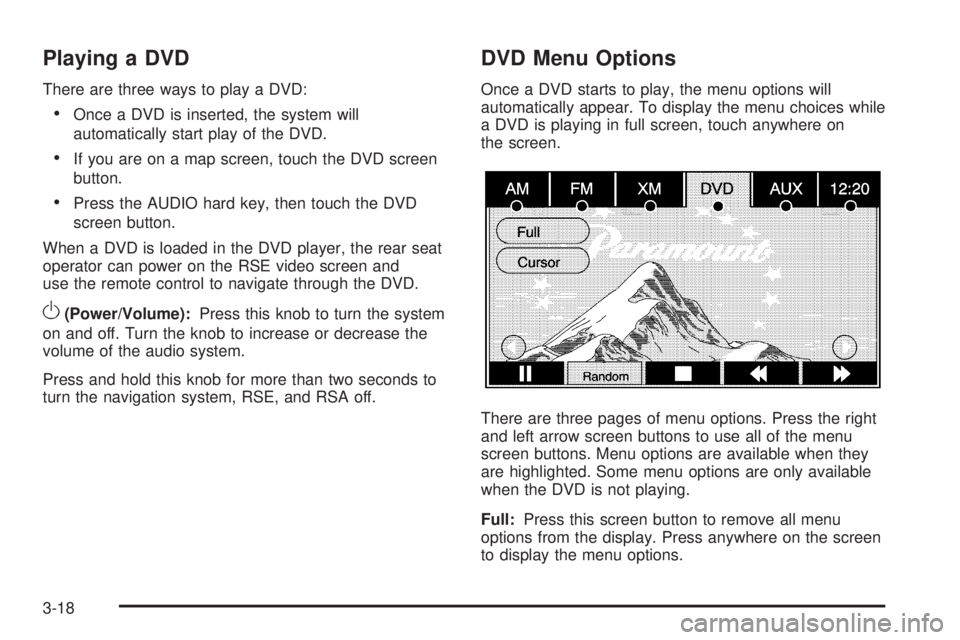
There are three ways to play a DVD:
Once a DVD is inserted, the system will
automatically start play of the DVD.
If you are on a map screen, touch the DVD screen
button.
Press the AUDIO hard key, then touch the DVD
screen button.
When a DVD is loaded in the DVD player, the rear seat
operator can power on the RSE video screen and
use the remote control to navigate through the DVD.
O(Power/Volume):Press this knob to turn the system
on and off. Turn the knob to increase or decrease the
volume of the audio system.
Press and hold this knob for more than two seconds to
turn the navigation system, RSE, and RSA off.
DVD Menu Options
Once a DVD starts to play, the menu options will
automatically appear. To display the menu choices while
a DVD is playing in full screen, touch anywhere on
the screen.
There are three pages of menu options. Press the right
and left arrow screen buttons to use all of the menu
screen buttons. Menu options are available when they
are highlighted. Some menu options are only available
when the DVD is not playing.
Full:Press this screen button to remove all menu
options from the display. Press anywhere on the screen
to display the menu options.
3-18
Page 85 of 100
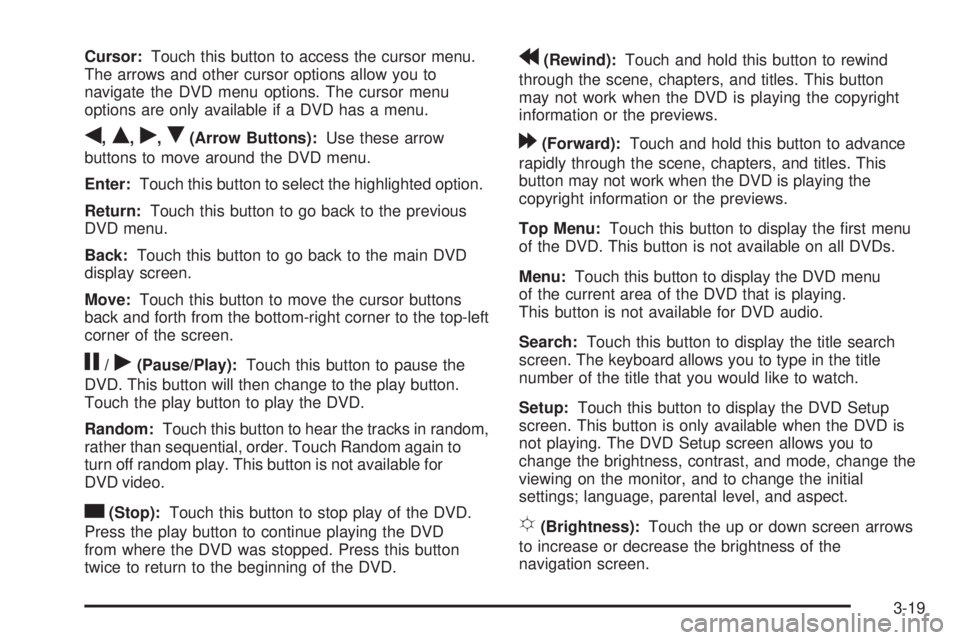
Cursor:Touch this button to access the cursor menu.
The arrows and other cursor options allow you to
navigate the DVD menu options. The cursor menu
options are only available if a DVD has a menu.
q,Q,r,R(Arrow Buttons):Use these arrow
buttons to move around the DVD menu.
Enter:Touch this button to select the highlighted option.
Return:Touch this button to go back to the previous
DVD menu.
Back:Touch this button to go back to the main DVD
display screen.
Move:Touch this button to move the cursor buttons
back and forth from the bottom-right corner to the top-left
corner of the screen.
j/r(Pause/Play):Touch this button to pause the
DVD. This button will then change to the play button.
Touch the play button to play the DVD.
Random:Touch this button to hear the tracks in random,
rather than sequential, order. Touch Random again to
turn off random play. This button is not available for
DVD video.
c(Stop):Touch this button to stop play of the DVD.
Press the play button to continue playing the DVD
from where the DVD was stopped. Press this button
twice to return to the beginning of the DVD.
r(Rewind):Touch and hold this button to rewind
through the scene, chapters, and titles. This button
may not work when the DVD is playing the copyright
information or the previews.
[(Forward):Touch and hold this button to advance
rapidly through the scene, chapters, and titles. This
button may not work when the DVD is playing the
copyright information or the previews.
Top Menu:Touch this button to display the rst menu
of the DVD. This button is not available on all DVDs.
Menu:Touch this button to display the DVD menu
of the current area of the DVD that is playing.
This button is not available for DVD audio.
Search:Touch this button to display the title search
screen. The keyboard allows you to type in the title
number of the title that you would like to watch.
Setup:Touch this button to display the DVD Setup
screen. This button is only available when the DVD is
not playing. The DVD Setup screen allows you to
change the brightness, contrast, and mode, change the
viewing on the monitor, and to change the initial
settings; language, parental level, and aspect.
!(Brightness):Touch the up or down screen arrows
to increase or decrease the brightness of the
navigation screen.
3-19
Page 97 of 100
A
Adding Destinations to the Address Book...........2-28
Adding or Changing Preset Destinations.............2-29
Alpha-Numeric Keyboard................................... 2-3
Audio Players.................................................3-11
CD ............................................................3-11
Audio System
Radio.......................................................... 3-2
Auto Reroute..................................................2-14
Auxiliary Devices............................................3-23
C
Canadian Owners............................................... iii
Canadian Owners (Propriétaires Canadiens)........... iii
Canceling Guidance........................................1-12
Care of Your CDs and DVDs ............................3-22
CD Messages................................................3-16
CD Player......................................................3-11
CDs
Care ..........................................................3-22
Cleaning the Video Screen...............................1-12
Congure Menu..............................................2-30
D
Database Coverage Explanations......................2-49
Deleting Personal Information............................. 1-7
Destination,Navigation......................................2-15
Devices, Auxiliary............................................3-23
Display..........................................................2-44
Driving on a Route..........................................2-13
DVD Map Disc Messages.................................. 2-6
DVD Menu Options.........................................3-18
DVD Messages..............................................3-22
DVD Player....................................................3-17
DVDs
Care ..........................................................3-22
E
Ejecting the DVD Map Disc............................... 2-5
F
Finding a Station.............................................. 3-3
1
Page 99 of 100
O
OnStar®Destination Download..........................2-22
Ordering
Map DVDs .................................................2-49
Overview, Navigation System............................. 1-2
Owners, Canadian.............................................. iii
P
Playing a DVD...............................................3-18
Playing the Radio............................................. 3-2
Problems with Route Guidance.........................2-48
R
Radio............................................................2-30
Radio Data System (RDS)...............................3-10
Radio Menu..................................................... 3-7
Rear Seat Entertainment (RSE)........................3-17
S
Scrolling the Map............................................. 2-7
Servicing the Navigation System.......................2-48
Setting the Clock......................................1-8, 2-45
Setting the Search Area, Entering an
Address and Point of Interest, and Storing
Preset Destinations........................................ 1-8
Sound...........................................................2-30
Sound Menu.................................................... 3-5
Speech Recognition.......................................... 4-2
Storing Radio Station Presets......................1-8, 3-5
Symbols.......................................................... 2-8
T
Touch-Sensitive Screen Buttons.......................... 2-3
Traveling Across Regions.................................2-14
3
Page 100 of 100
U
Using an MP3 CD..........................................3-13
Using OnStar®Destination Download.................2-22
Using the Navigation System.............................. 2-2
Using Your Stored Preset Destinations...............1-11
V
Vehicle
Positioning, Navigation.................................2-47
Video Screen, Cleaning...................................1-12Voice Recognition............................................. 4-2
Voice Recognition Commands............................ 4-3
X
XM NavTraffic™ (USA and Canada)..................2-35
XM™ Satellite Radio Service............................3-10
4