3-1 GMC YUKON DENALI 2009 Owners Manual
[x] Cancel search | Manufacturer: GMC, Model Year: 2009, Model line: YUKON DENALI, Model: GMC YUKON DENALI 2009Pages: 100, PDF Size: 1.41 MB
Page 1 of 100
Overview........................................................ 1-1
Overview
.................................................. 1-2
Features and Controls..................................... 2-1
Features and Controls
................................ 2-2Navigation Audio System................................ 3-1
Navigation Audio System
............................ 3-2
Voice Recognition........................................... 4-1
Voice Recognition
...................................... 4-2
Index................................................................ 1
2009 Full-Size Truck NavigationM
Page 7 of 100
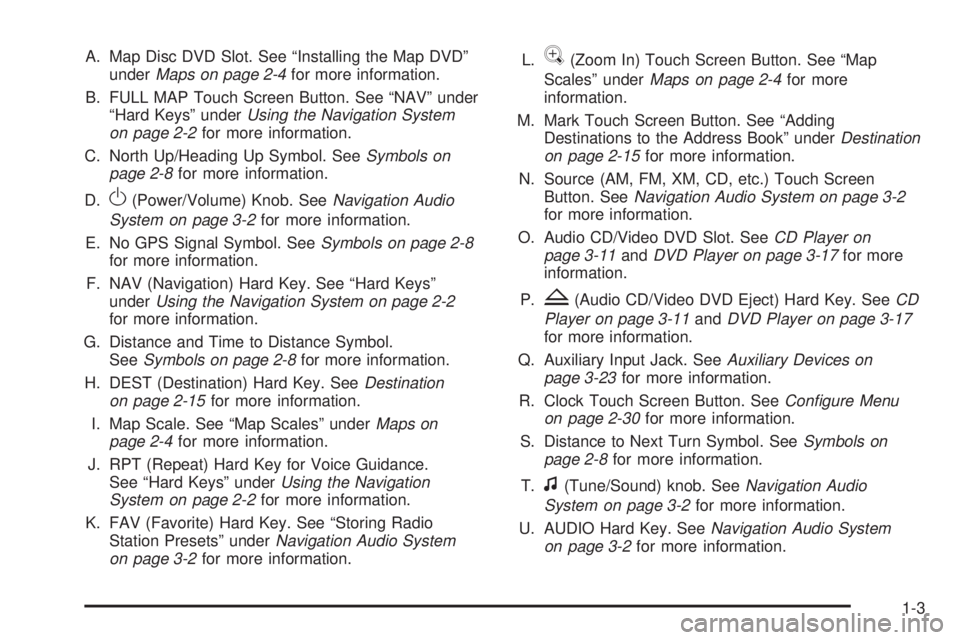
A. Map Disc DVD Slot. See “Installing the Map DVD”
underMaps on page 2-4for more information.
B. FULL MAP Touch Screen Button. See “NAV” under
“Hard Keys” underUsing the Navigation System
on page 2-2for more information.
C. North Up/Heading Up Symbol. SeeSymbols on
page 2-8for more information.
D.
O(Power/Volume) Knob. SeeNavigation Audio
System on page 3-2for more information.
E. No GPS Signal Symbol. SeeSymbols on page 2-8
for more information.
F. NAV (Navigation) Hard Key. See “Hard Keys”
underUsing the Navigation System on page 2-2
for more information.
G. Distance and Time to Distance Symbol.
SeeSymbols on page 2-8for more information.
H. DEST (Destination) Hard Key. SeeDestination
on page 2-15for more information.
I. Map Scale. See “Map Scales” underMaps on
page 2-4for more information.
J. RPT (Repeat) Hard Key for Voice Guidance.
See “Hard Keys” underUsing the Navigation
System on page 2-2for more information.
K. FAV (Favorite) Hard Key. See “Storing Radio
Station Presets” underNavigation Audio System
on page 3-2for more information.L.
V(Zoom In) Touch Screen Button. See “Map
Scales” underMaps on page 2-4for more
information.
M. Mark Touch Screen Button. See “Adding
Destinations to the Address Book” underDestination
on page 2-15for more information.
N. Source (AM, FM, XM, CD, etc.) Touch Screen
Button. SeeNavigation Audio System on page 3-2
for more information.
O. Audio CD/Video DVD Slot. SeeCD Player on
page 3-11andDVD Player on page 3-17for more
information.
P.
Z(Audio CD/Video DVD Eject) Hard Key. SeeCD
Player on page 3-11andDVD Player on page 3-17
for more information.
Q. Auxiliary Input Jack. SeeAuxiliary Devices on
page 3-23for more information.
R. Clock Touch Screen Button. SeeConfigure Menu
on page 2-30for more information.
S. Distance to Next Turn Symbol. SeeSymbols on
page 2-8for more information.
T.
f(Tune/Sound) knob. SeeNavigation Audio
System on page 3-2for more information.
U. AUDIO Hard Key. SeeNavigation Audio System
on page 3-2for more information.
1-3
Page 19 of 100
FAV (Favorite):Press this key to access the preset
stations. See “Storing Radio Station Presets” under
Navigation Audio System on page 3-2for more
information.
AUDIO:Press this key to access the full Audio screen
to change AM, FM, XM™ Satellite Radio Service
(if equipped), CD, DVD (if equipped), and auxiliary input.
See “Audio” underNavigation Audio System on
page 3-2for more information.
MENU:Press this key to adjust features for sound,
radio, navigation, and the display. SeeConfigure Menu
on page 2-30for more information.
¨SEEK /©SEEK:Press the seek arrows to seek
and scan radio stations, to seek tracks on a CD, and
to seek chapters on a DVD. SeeNavigation Audio
System on page 3-2,CD Player on page 3-11, and
DVD Player on page 3-17for more information.
Touch-Sensitive Screen Buttons
Touch-sensitive screen buttons are located on the
screen. When a screen button has been selected, a
beep will sound. Screen buttons are highlighted when
a feature is available.
Alpha-Numeric Keyboard
Letters of the alphabet, symbols, punctuation, and
numbers, when available, will display on the navigation
screen as an alpha or numeric keyboard. The alpha
keyboard will display when the system requires entry of
a city or street name.
All characters are touch-sensitive screen buttons.
Touch a character to select it.
A-Y (Accent Alphabet):Select this screen button to
select letters with accent symbols. This button may
toggle to A-Z.
A-Z (Alphabet):Select this screen button to select
letters from the alphabet. This button may toggle to A-Y.
0-9 (Numbers):Select this screen button to select
numbers.
U(Space):Select the space screen button to enter
a space between characters or the words of a name.
q(Backspace):Select the backspace screen button if
an incorrect character has been selected.
To make name selections easier, the system will only
highlight the characters that can follow the last one
entered. For example, if a Z is entered, a T may not be
available for selection.
2-3
Page 67 of 100
Navigation Audio System..................................3-2
CD Player...................................................3-11
DVD Player.................................................3-17Care of Your CDs and DVDs.........................3-22
Auxiliary Devices..........................................3-23
Section 3 Navigation Audio System
3-1
Page 68 of 100
Navigation Audio System
Notice:Before adding any sound equipment to
the vehicle, such as an audio system, CD player,
CB radio, mobile telephone, or two-way radio,
make sure that it can be added by checking with
your dealer/retailer. Also, check federal rules
covering mobile radio and telephone units. If sound
equipment can be added, it is very important to
do it properly. Added sound equipment can interfere
with the operation of the vehicle’s engine, radio,
or other systems, and even damage them.
The vehicle’s systems can interfere with the
operation of sound equipment that has been added.
Notice:The chime signals related to safety belts,
parking brake, and other functions of the vehicle
operate through the navigation system. If that
equipment is replaced or additional equipment is
added to the vehicle, the chimes may not work.
Make sure that replacement or additional equipment
is compatible with the vehicle before installing it.
See “Accessories and Modications” in the Index of
the vehicle’s owner manual.
Playing the Radio
O
(Power/Volume):Press this knob to turn the audio
system on and off. Turn the knob to increase or to
decrease the volume.
f(Tuning/Sound Knob):Turn this knob to go to the
next or previous frequency.
Press this knob to display the Sound menu. See “Sound
Menu” later in this section.
AUDIO:Press this key to display the audio screen.
Press the key to switch between AM, FM, or XM,
if equipped, DISC, or AUX (Auxiliary), or touch the
screen button. SeeCD Player on page 3-11,DVD
Player on page 3-17, andAuxiliary Devices on
page 3-23for more information.
3-2
Page 76 of 100
Radio Data System (RDS)
The audio system has a Radio Data System (RDS).
RDS features are available for use only on FM stations
that broadcast RDS information. With RDS, the radio
can do the following:
Seek to stations broadcasting the selected type of
programming
Receive announcements concerning local and
national emergencies
Display messages from radio stations
This system relies on receiving specic information from
these stations and will only work when the information
is available. In rare cases, a radio station may broadcast
incorrect information that will cause the radio features
to work improperly. If this happens, contact the
radio station.
The RDS system is always on. When information is
broadcast from the FM station you are listening to, the
station name or call letters will be displayed on the
audio screen. RDS may provide a program type (PTY)
for current programming and the name of the program
being broadcasted.
XM™ Satellite Radio Service
XM™ is a satellite radio service that is based in the
48 contiguous United States and 10 Canadian provinces.
XM Satellite Radio has a wide variety of programming
and commercial-free music, coast-to-coast, and in
digital-quality sound. During your trial or when you
subscribe, you will get unlimited access to XM Radio
Online for when you are not in the vehicle. A service
fee is required to receive the XM service. For more
information, contact XM at xmradio.com or call
1-800-929-2100 in the U.S. and xmradio.ca or
call 1-877-438-9677 in Canada.
When XM™ is active, the channel name and number,
song title, and artist will display on the screen.
XM™ Radio Messages
See “XM™ Radio Messages” in the vehicle’s owner
manual” for a list of possible XM messages.
3-10
Page 77 of 100
CD Player
The player can be used for CD and MP3. If your vehicle
has RSE, the player can be used for CD, MP3, DVD
audio, and as a DVD video player. SeeDVD Player on
page 3-17for more information about DVD audio
and video.
With the ignition on, insert a CD partway into the slot,
label side up. The player will pull it in and the CD should
begin playing. While playing a CD, the navigation
system is available. If you insert a CD with the system
off and the ignition on, it will start to play.
When you insert a CD, the CD tab will display.
If you turn off the ignition or radio with a CD in the
player, it will stay in the player. When you turn on the
ignition or radio, the CD will start playing where it
stopped, if it was the last selected audio source.As each new track starts to play, the track number will
appear on the display.
The CD player can play the smaller 3 inch (8cm)
single CDs with an adapter ring. Full-size CDs and the
smaller CDs are loaded in the same manner.
If an error appears on the display, see “CD Messages”
later in this section.
If viewing a map screen, touch the CD screen button.
The display will split between the audio screen and
the map screen. If you do not want to view a split screen
or you are not on a map screen, press the AUDIO
key then press the AUDIO key until CD is selected or
touch the CD screen button.
3-11
Page 78 of 100
Playing an Audio CD
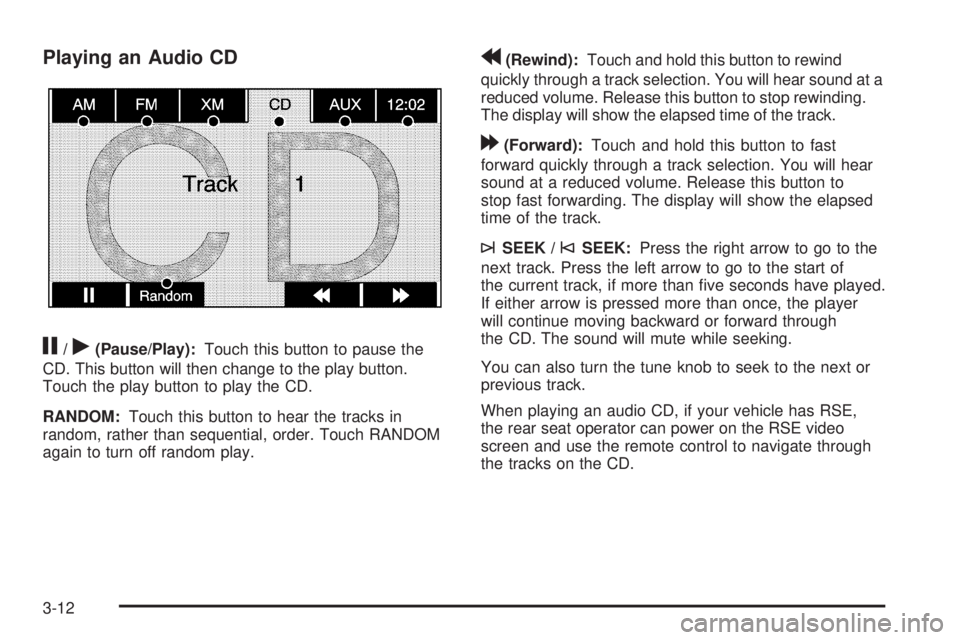
j/r(Pause/Play):Touch this button to pause the
CD. This button will then change to the play button.
Touch the play button to play the CD.
RANDOM:Touch this button to hear the tracks in
random, rather than sequential, order. Touch RANDOM
again to turn off random play.
r(Rewind):Touch and hold this button to rewind
quickly through a track selection. You will hear sound at a
reduced volume. Release this button to stop rewinding.
The display will show the elapsed time of the track.
[(Forward):Touch and hold this button to fast
forward quickly through a track selection. You will hear
sound at a reduced volume. Release this button to
stop fast forwarding. The display will show the elapsed
time of the track.
¨SEEK /©SEEK:Press the right arrow to go to the
next track. Press the left arrow to go to the start of
the current track, if more than ve seconds have played.
If either arrow is pressed more than once, the player
will continue moving backward or forward through
the CD. The sound will mute while seeking.
You can also turn the tune knob to seek to the next or
previous track.
When playing an audio CD, if your vehicle has RSE,
the rear seat operator can power on the RSE video
screen and use the remote control to navigate through
the tracks on the CD.
3-12
Page 79 of 100
Using an MP3 CD
MP3 Format
There are guidelines that must be met, when creating an
MP3 disc. If the guidelines are not met when recording a
CD-R(W), the CD may not play. The guidelines are:
Sampling rate: 16 kHz, 22.05 kHz, 24 kHz, 32 kHz,
and 44.1 kHz.
Bit rates supported: 32, 40, 48, 56, 64, 80, 96, 112,
128, 160, 192, 224, 256, and 320 kbps.
ID3 tag information is displayed by the radio if it is
available. The radio supports ID3 tag information
v1.0 or v1.1. The radio will display a lename, song
name, artist name, album name, and directory name.
Maximum 32 characters, including spaces, in a le or
folder name.
Maximum number of folders is 253 with a maximum
hierarchy of eight folders.
Create a folder structure that makes it easy to nd
songs while driving. Organize songs by albums using
one folder for each album. Each folder or album
should contain 18 songs or less.
It is recommended that there is a maximum of
192 les on a disc.
The les can be recorded on a CD-R or CD-RW with
a maximum capacity of 700MB.
DVD with MP3 are not playable on this system.
Root Directory
The root directory will be treated as a folder. If the root
directory has compressed audio les, the directory
will be displayed as ROOT. All les contained directly
under the root directory will be accessed prior to
any root directory folders. However, playlists (Px) will
always be accessed before root folders or les.
Empty Directory or Folder
If a root directory or a folder exists somewhere in the
le structure that contains only folders/subfolders and no
compressed les directly beneath them, the player will
advance to the next folder in the le structure that
contains compressed audio les and the empty folder
will not be displayed or numbered.
3-13
Page 80 of 100
No Folder
When the CD contains only compressed les, the les will
be located under the root folder. The next and previous
folder functions will have no function on a CD that was
recorded without folders or playlists. When displaying the
name of the folder the radio will display ROOT.
When the CD contains only playlists and compressed
audio les, but no folders, all les will be located under
the root folder. The left and right arrow buttons will
search playlists (Px) rst and then go to the root folder.
When the radio displays the name of the folder the
radio will display ROOT.
Order of Play
Tracks will be played in the following order:
Play will begin from the rst track in the rst playlist
and will continue sequentially through all tracks in
each playlist. When the last track of the last playlist
has been played, play will continue from the rst
track of the rst playlist.
If the CD does not contain any playlists, then play will
begin from the rst track under the root directory.
When all tracks from the root directory have been
played, play will continue from les according to their
numerical listing. After playing the last track from the
last folder, play will begin again at the rst track of
the rst folder or root directory.When play enters a new folder, the display will not
automatically show the new folder name. The new track
name will appear on the display.
File System and Naming
The song name that will display will be the song name
that is contained in the ID3 tag. If the song name is
not present in the ID3 tag, then the radio will display the
le name without the extension (such as .mp3) as the
track name.
Track names longer than 32 characters or four pages
will be shortened. The display will not show parts
of words on the last page of text and the extension of
the lename will not display.
Preprogrammed Playlists
You can access preprogrammed playlists which were
created by WinAmp™, MusicMatch™, or Real
Jukebox™ software, however, you will not have editing
capability. These playlists will be treated as special
folders containing compressed audio song les.
3-14