steering wheel GMC YUKON DENALI 2010 Owner's Manual
[x] Cancel search | Manufacturer: GMC, Model Year: 2010, Model line: YUKON DENALI, Model: GMC YUKON DENALI 2010Pages: 560, PDF Size: 4.32 MB
Page 203 of 560
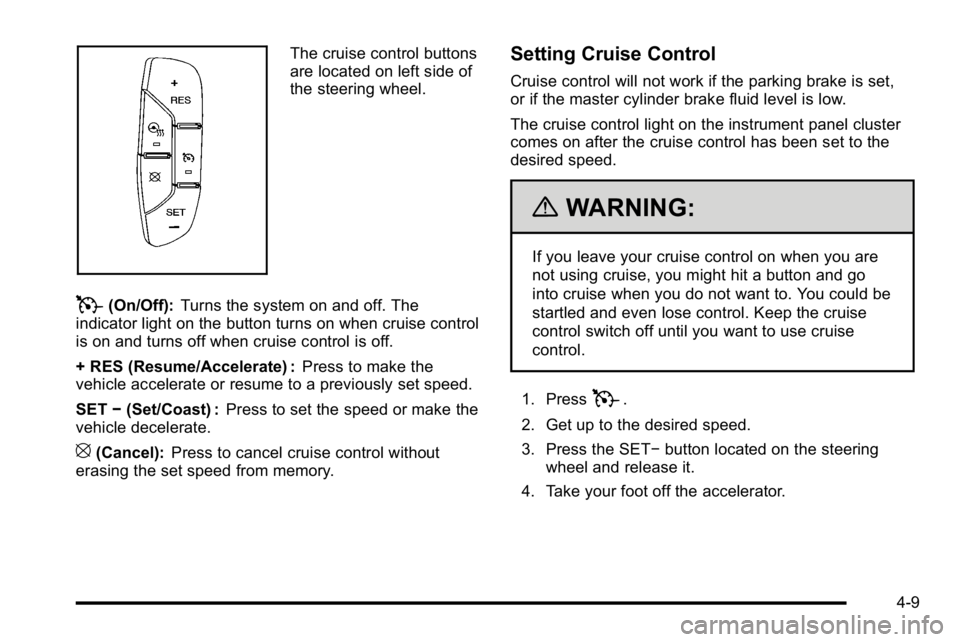
The cruise control buttons
are located on left side of
the steering wheel.
T(On/Off):Turns the system on and off. The
indicator light on the button turns on when cruise control
is on and turns off when cruise control is off.
+ RES (Resume/Accelerate) : Press to make the
vehicle accelerate or resume to a previously set speed.
SET −(Set/Coast) : Press to set the speed or make the
vehicle decelerate.
[(Cancel): Press to cancel cruise control without
erasing the set speed from memory.
Setting Cruise Control
Cruise control will not work if the parking brake is set,
or if the master cylinder brake fluid level is low.
The cruise control light on the instrument panel cluster
comes on after the cruise control has been set to the
desired speed.
{WARNING:
If you leave your cruise control on when you are
not using cruise, you might hit a button and go
into cruise when you do not want to. You could be
startled and even lose control. Keep the cruise
control switch off until you want to use cruise
control.
1. Press
T.
2. Get up to the desired speed.
3. Press the SET− button located on the steering
wheel and release it.
4. Take your foot off the accelerator.
4-9
Page 204 of 560
Resuming a Set Speed
If the cruise control is set at a desired speed and then
the brakes are applied, this shuts off the cruise control.
But it does not need to be reset.
Once the vehicle speed is about 40 km/h (25 mph) or
more, press the +RES button on the steering wheel.
The vehicle goes back to the previous set speed and
stays there.
Increasing Speed While Using Cruise
Control
To increase the cruise speed while using cruise control:
.Press and hold the +RES button on the steering
wheel until the desired speed is reached, then
release it.
.To increase vehicle speed in small increments,
press the +RES button. Each time this is done,
the vehicle goes about 1.6 km/h (1 mph) faster.
Reducing Speed While Using Cruise
Control
To reduce your speed while using cruise control:
.Press and hold the SET–button on the steering
wheel until the desired lower speed is reached,
then release it.
.To slow down in very small amounts, press the
SET– button on the steering wheel briefly.
Each time this is done, the vehicle goes about
1.6 km/h (1 mph) slower.
Passing Another Vehicle While Using
Cruise Control
Use the accelerator pedal to increase your speed.
When you take your foot off the pedal, the vehicle slows
down to the previous set cruise speed.
Using Cruise Control on Hills
How well the cruise control works on hills depends upon
the vehicle speed, load, and the steepness of the hills.
When going up steep hills, you might have to step on
the accelerator pedal to maintain the vehicle's speed.
4-10
Page 205 of 560
When going downhill, you might have to brake or shift
to a lower gear to keep the vehicle's speed down. When
the brakes are applied the cruise control is disengaged.
Ending Cruise Control
There are three ways to end cruise control:
.Step lightly on the brake pedal.
.Press the[button on the steering wheel.
.Press theIbutton on the steering wheel.
Erasing Speed Memory
The cruise control set speed memory is erased when
the cruise control or the ignition is turned off.
Exterior Lamps
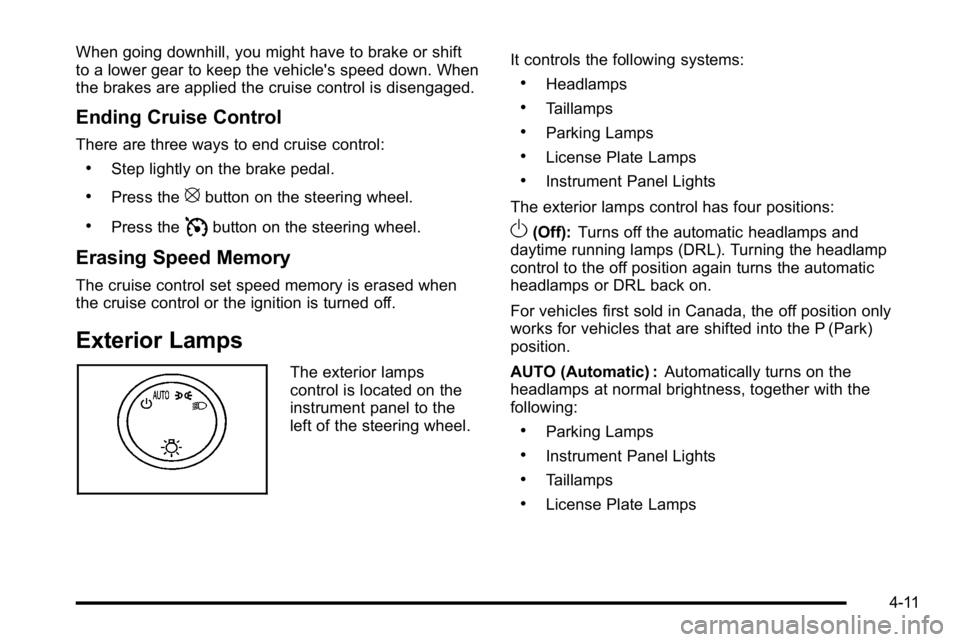
The exterior lamps
control is located on the
instrument panel to the
left of the steering wheel.It controls the following systems:
.Headlamps
.Taillamps
.Parking Lamps
.License Plate Lamps
.Instrument Panel Lights
The exterior lamps control has four positions:
O(Off): Turns off the automatic headlamps and
daytime running lamps (DRL). Turning the headlamp
control to the off position again turns the automatic
headlamps or DRL back on.
For vehicles first sold in Canada, the off position only
works for vehicles that are shifted into the P (Park)
position.
AUTO (Automatic) : Automatically turns on the
headlamps at normal brightness, together with the
following:
.Parking Lamps
.Instrument Panel Lights
.Taillamps
.License Plate Lamps
4-11
Page 237 of 560
DIC Operation and Displays
(Using DIC Buttons)
The DIC has different displays which can be accessed
by pressing the DIC buttons located on the instrument
panel, next to the steering wheel.
The DIC displays trip, fuel, and vehicle system
information, and warning messages if a system problem
is detected.
The DIC also allows some features to be customized.
SeeDIC Vehicle Customization (With DIC Buttons)
on
page 4‑66for more information.
If the vehicle has DIC buttons, you can also use the trip
odometer reset stem to view some of the DIC displays.
See “Trip Odometer Reset Stem Menu Items” later in
this section.
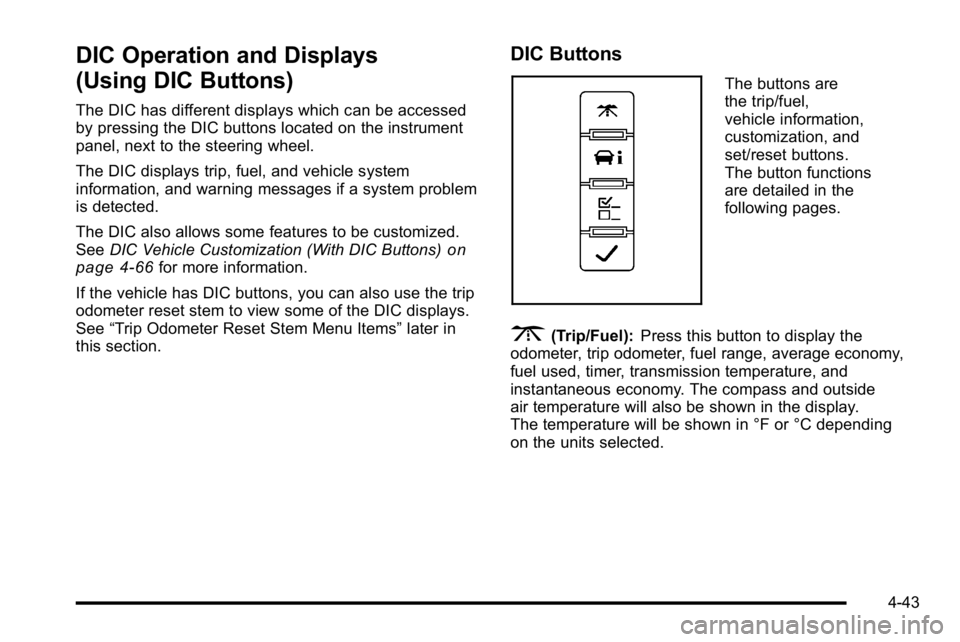
DIC Buttons
The buttons are
the trip/fuel,
vehicle information,
customization, and
set/reset buttons.
The button functions
are detailed in the
following pages.
3(Trip/Fuel): Press this button to display the
odometer, trip odometer, fuel range, average economy,
fuel used, timer, transmission temperature, and
instantaneous economy. The compass and outside
air temperature will also be shown in the display.
The temperature will be shown in °F or °C depending
on the units selected.
4-43
Page 266 of 560
EASY EXIT RECALL
If your vehicle has this feature, it allows you to select
your preference for the automatic easy exit seat feature.
SeeMemory Features
on page 2‑6for more
information.
Press the customization button until EASY EXIT
RECALL appears on the DIC display. Press the
set/reset button once to access the settings for this
feature. Then press the customization button to scroll
through the following settings:
DOOR BUTTON ONLY : No automatic seat exit recall
will occur. The recall will only occur after pressing the
easy exit seat button.
BUTTON & KEY OUT (default) : If the features are
enabled through the EASY EXIT SETUP menu, the
driver's seat will move back, and the power steering
column will move up when the key is removed from the
ignition or after pressing the easy exit seat button.
The automatic easy exit seat movement will only occur
one time after the key is removed from the ignition.
If the automatic movement has already occurred, and
you put the key back in the ignition and remove it again,
the seat and steering column will stay in the original exit
position, unless a memory recall took place prior to
removing the key again. NO CHANGE :
No change will be made to this feature.
The current setting will remain.
To select a setting, press the set/reset button while the
desired setting is displayed on the DIC.
EASY EXIT SETUP
If your vehicle has this feature, it allows you to select
which areas will recall with the automatic easy exit seat
feature. It also allows you to turn off the automatic easy
exit feature. See Memory Features
on page 2‑6and
“EASY EXIT RECALL” earlier for more information.
Press the customization button until EASY EXIT SETUP
appears on the DIC display. Press the set/reset button
once to access the settings for this feature. Then press
the menu up/down button to scroll through the following
settings:
OFF : No automatic seat exit will recall.
SEAT ONLY : The driver's seat will recall.
TILT ONLY : The steering wheel tilt feature will recall.
SEAT & TILT (default) : The driver's seat and the
steering wheel tilt will recall.
NO CHANGE : No change will be made to this feature.
The current setting will remain.
To select a setting, press the set/reset button while the
desired setting is displayed on the DIC.
4-72
Page 274 of 560
Storing a Radio Station as a Favorite
Drivers are encouraged to set up their radio station
favorites while the vehicle is stopped. Tune to favorite
stations using the softkeys, favorites button, and
steering wheel controls, if the vehicle has this feature.
SeeDefensive Driving on page 5‑2.
FAV (Favorites) : A maximum of 36 stations can be
programmed as favorites using the six softkeys below
the radio station frequency tabs and by using the
radio favorites page button (FAV button). Press the
FAV button to go through up to six pages of favorites,
each having six favorite stations available per page.
Each page of favorites can contain any combination of
AM, FM, or XM, if equipped, stations.
The balance/fade and tone settings that were previously
adjusted, are stored with the favorite stations. To store a station as a favorite:
1. Tune to the radio station.
2. Press the FAV button to display the page where the station is to be stored.
3. Press and hold one of the six softkeys until a beep sounds. When that softkey is pressed and
released, the station that was set, returns.
4. Repeat the steps for each softkey radio station to be stored as a favorite.
The number of favorites pages can be setup using the
MENU button. To setup the number of favorites pages: 1. Press the MENU button.
2. Press the softkey located below the FAV 1-6 label.
3. Select the number of favorites pages by pressing the softkey below the displayed page numbers.
4. Press the FAV button, or let the menu time out, to return to the original main radio screen showing
the radio station frequency tabs and to begin the
process of programming favorites for the chosen
amount of numbered pages.
4-80
Page 304 of 560
Navigation/Radio System
For vehicles with a navigation radio system, see the
separate Navigation System manual.
Bluetooth®
Vehicles with a Bluetooth system can use a Bluetooth
capable cell phone with a Hands Free Profile to make
and receive phone calls. The system can be used while
the key is in ON/RUN or ACC/ACCESSORY position.
The range of the Bluetooth system can be up to 9.1 m
(30 ft). Not all phones support all functions, and not all
phones are guaranteed to work with the in-vehicle
Bluetooth system. See www.gm.com/bluetooth for more
information on compatible phones.
Voice Recognition
The Bluetooth system uses voice recognition to
interpret voice commands to dial phone numbers and
name tags.
Noise :Keep interior noise levels to a minimum.
The system may not recognize voice commands if there
is too much background noise.
When to Speak : A short tone sounds after the system
responds indicating when it is waiting for a voice
command. Wait until the tone and then speak.
How to Speak : Speak clearly in a calm and natural
voice.
Audio System
When using the in‐vehicle Bluetooth system, sound
comes through the vehicle's front audio system
speakers and overrides the audio system. Use the
audio system volume knob, during a call, to change the
volume level. The adjusted volume level remains in
memory for later calls. To prevent missed calls, a
minimum volume level is used if the volume is turned
down too low.
Bluetooth Controls
Use the buttons located on the steering wheel to
operate the in‐vehicle Bluetooth system. See Audio
Steering Wheel Controls
on page 4‑132for more
information.
b g(Push To Talk) : Press to answer incoming calls,
to confirm system information, and to start speech
recognition.
c x(Phone On Hook): Press to end a call, reject a
call, or to cancel an operation.
4-110
Page 326 of 560
Theft-Deterrent Feature
THEFTLOCK®is designed to discourage theft of the
vehicle's radio by learning a portion of the Vehicle
Identification Number (VIN). The radio does not operate
if it is stolen or moved to a different vehicle.
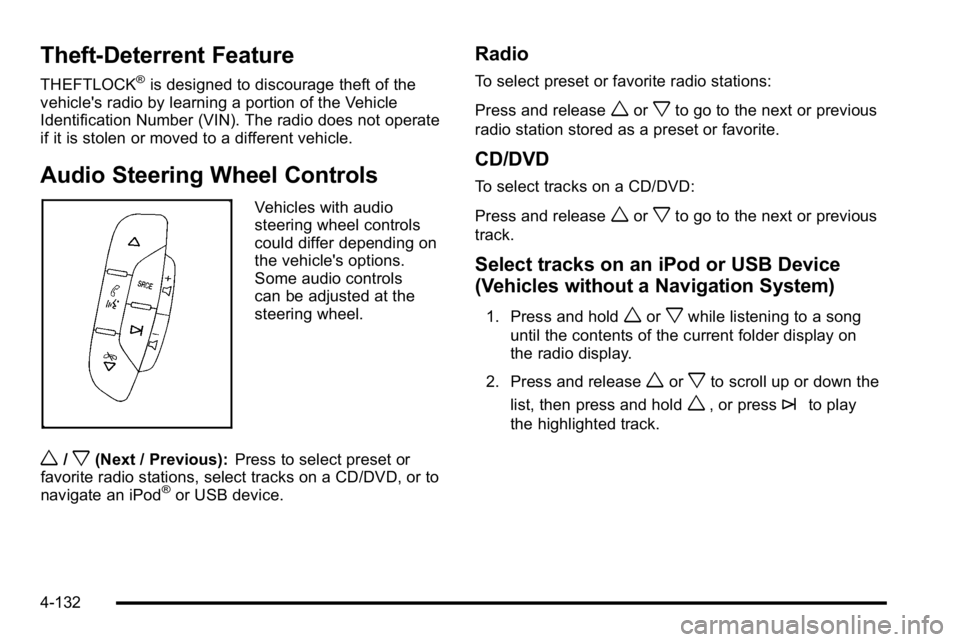
Audio Steering Wheel Controls
Vehicles with audio
steering wheel controls
could differ depending on
the vehicle's options.
Some audio controls
can be adjusted at the
steering wheel.
w/x(Next / Previous): Press to select preset or
favorite radio stations, select tracks on a CD/DVD, or to
navigate an iPod
®or USB device.
Radio
To select preset or favorite radio stations:
Press and release
worxto go to the next or previous
radio station stored as a preset or favorite.
CD/DVD
To select tracks on a CD/DVD:
Press and release
worxto go to the next or previous
track.
Select tracks on an iPod or USB Device
(Vehicles without a Navigation System)
1. Press and holdworxwhile listening to a song
until the contents of the current folder display on
the radio display.
2. Press and release
worxto scroll up or down the
list, then press and hold
w, or press¨to play
the highlighted track.
4-132
Page 331 of 560
Section 5 Driving Your Vehicle
Your Driving, the Road, and the Vehicle. . . . . . . . . .5-2
Defensive Driving . . . . . . . . . . . . . . . . . . . . . . . . . . . . . . . 5-2
Drunk Driving . . . . . . . . . . . . . . . . . . . . . . . . . . . . . . . . . . . 5-2
Control of a Vehicle . . . . . . . . . . . . . . . . . . . . . . . . . . . . . 5-3
Braking . . . . . . . . . . . . . . . . . . . . . . . . . . . . . . . . . . . . . . . . . 5-3
Antilock Brake System (ABS) . . . . . . . . . . . . . . . . . . . 5-4
Braking in Emergencies . . . . . . . . . . . . . . . . . . . . . . . . . 5-5
StabiliTrak
®System . . . . . . . . . . . . . . . . . . . . . . . . . . . . . 5-6
Locking Rear Axle . . . . . . . . . . . . . . . . . . . . . . . . . . . . . . 5-8
All-Wheel Drive (AWD) System . . . . . . . . . . . . . . . . . 5-9
Steering . . . . . . . . . . . . . . . . . . . . . . . . . . . . . . . . . . . . . . . . . 5-9
Off-Road Recovery . . . . . . . . . . . . . . . . . . . . . . . . . . . . 5-10
Passing . . . . . . . . . . . . . . . . . . . . . . . . . . . . . . . . . . . . . . . . 5-11
Loss of Control . . . . . . . . . . . . . . . . . . . . . . . . . . . . . . . . 5-11
Off-Road Driving . . . . . . . . . . . . . . . . . . . . . . . . . . . . . . . 5-12
Driving at Night . . . . . . . . . . . . . . . . . . . . . . . . . . . . . . . . 5-24
Driving in Rain and on Wet Roads . . . . . . . . . . . . . 5-24 Before Leaving on a Long Trip . . . . . . . . . . . . . . . . . 5-25
Highway Hypnosis . . . . . . . . . . . . . . . . . . . . . . . . . . . . . 5-26
Hill and Mountain Roads . . . . . . . . . . . . . . . . . . . . . . . 5-26
Winter Driving . . . . . . . . . . . . . . . . . . . . . . . . . . . . . . . . . 5-27
If Your Vehicle is Stuck in Sand, Mud, Ice,
or Snow . . . . . . . . . . . . . . . . . . . . . . . . . . . . . . . . . . . . . 5-29
Rocking Your Vehicle to Get It Out . . . . . . . . . . . . . 5-30
Recovery Hooks . . . . . . . . . . . . . . . . . . . . . . . . . . . . . . . 5-30
Loading the Vehicle . . . . . . . . . . . . . . . . . . . . . . . . . . . . 5-31
Towing . . . . . . . . . . . . . . . . . . . . . . . . . . . . . . . . . . . . . . . . . . . . 5-37
Towing Your Vehicle . . . . . . . . . . . . . . . . . . . . . . . . . . . 5-37
Recreational Vehicle Towing . . . . . . . . . . . . . . . . . . . 5-37
Level Control . . . . . . . . . . . . . . . . . . . . . . . . . . . . . . . . . . 5-41
Autoride
®. . . . . . . . . . . . . . . . . . . . . . . . . . . . . . . . . . . . . . 5-41
Towing a Trailer . . . . . . . . . . . . . . . . . . . . . . . . . . . . . . . . 5-42
Trailer Recommendations . . . . . . . . . . . . . . . . . . . . . . 5-60
5-1
Page 335 of 560
Let us say the road is wet and you are driving safely.
Suddenly, an animal jumps out in front of you. You slam
on the brakes and continue braking. Here is what
happens with ABS:
A computer senses that the wheels are slowing down.
If one of the wheels is about to stop rolling, the
computer will separately work the brakes at each front
wheel and at both rear wheels.
ABS can change the brake pressure to each wheel, as
required, faster than any driver could. This can help the
driver steer around the obstacle while braking hard.
As the brakes are applied, the computer keeps
receiving updates on wheel speed and controls braking
pressure accordingly.
Remember: ABS does not change the time needed to
get a foot up to the brake pedal or always decrease
stopping distance. If you get too close to the vehicle in
front of you, there will not be enough time to apply the
brakes if that vehicle suddenly slows or stops. Always
leave enough room up ahead to stop, even with ABS.
Using ABS
Do not pump the brakes. Just hold the brake pedal
down firmly and let antilock work. The brakes might
vibrate or some noise might be heard, but this is
normal.
Braking in Emergencies
ABS allows the driver to steer and brake at the same
time. In many emergencies, steering can help more
than even the very best braking.
Brake Assist
This vehicle has a Brake Assist feature designed to
assist the driver in stopping or decreasing vehicle
speed in emergency driving conditions. This feature
uses the stability system hydraulic brake control module
to supplement the power brake system under conditions
where the driver has quickly and forcefully applied the
brake pedal in an attempt to quickly stop or slow down
the vehicle. The stability system hydraulic brake control
module increases brake pressure at each corner of the
vehicle until the ABS activates. Minor brake pedal
pulsations or pedal movement during this time is normal
and the driver should continue to apply the brake pedal
as the driving situation dictates The Brake Assist
feature will automatically disengage when the brake
pedal is released or brake pedal pressure is quickly
decreased.
5-5