CD player GMC YUKON XL 2007 User Guide
[x] Cancel search | Manufacturer: GMC, Model Year: 2007, Model line: YUKON XL, Model: GMC YUKON XL 2007Pages: 608, PDF Size: 3.01 MB
Page 290 of 608
File System and Naming
Preprogrammed Playlists
You can access preprogrammed playlists that
were created using WinAmp™, MusicMatch™, or
Real Jukebox™ software, however, you will
not have playlist editing capability using the radio.
These playlists will be treated as special folders
containing compressed audio song les.
Playing an MP3
Insert a CD-R partway into the slot (Single CD
Player), or press the load button and wait for the
message to insert disc (Six-Disc CD Player),
label side up. The player will pull it in, and the
CD-R should begin playing.
If you turn off the ignition or radio with a CD-R in
the player it will stay in the player. When you
turn on the ignition or radio, the CD-R will start to
play where it stopped, if it was the last selected
audio source.
As each new track starts to play, the track number
and song title will appear on the display.The CD player can play the smaller 3 inch (8 cm)
single CD-Rs with an adapter ring. Full-size
CD-Rs and the smaller CD-Rs are loaded in the
same manner.
If playing a CD-R, the sound quality may be
reduced due to CD-R quality, the method of
recording, the quality of the music that has been
recorded, and the way the CD-R has been
handled. There may be an increase in skipping,
difficulty in nding tracks, and/or difficulty in loading
and ejecting. If these problems occur, check the
bottom surface of the CD. If the surface of the CD
is damaged, such as cracked, broken, or
scratched, the CD will not play properly. If the
surface of the CD is soiled, seeCare of Your CDs
and DVDs on page 336for more information.
If there is no apparent damage, try a known
good CD.
290
Page 291 of 608
Notice:If you add any label to a CD, insert
more than one CD into the slot at a time, or
attempt to play scratched or damaged CDs, you
could damage the CD player. When using the
CD player, use only CDs in good condition
without any label, load one CD at a time, and
keep the CD player and the loading slot free of
foreign materials, liquids, and debris.
Do not add any label to a CD, it could get caught
in the CD player. If a CD is recorded on a
personal computer and a description label is
needed, try labeling the top of the recorded CD
with a soft marker instead.
If an error appears on the display, see “CD
Messages” later in this section.
ZEJECT:Press the CD eject button to eject
CD-R(s). To eject the CD-R that is currently playing,
press and release this button. You will hear a beep
and Ejecting Disc will be displayed. Once the disc
is ejected, Remove Disc will appear on display.
The CD-R can be removed. If the CD-R is not
removed, after several seconds, the CD-R will be
automatically pulled back into the player and begin
playing. For the Six-Disc CD player, press and hold
the eject button for two seconds to eject all discs.
f(Tune):Turn this knob to select MP3 les on
the CD-R currently playing.
©SEEK¨:Press the left SEEK arrow to go to
the start of the current MP3 le, if more than
ten seconds have played. Press the right SEEK
arrow to go to the next MP3 le. If either
SEEK arrow is held or pressed multiple times, the
player will continue moving backward or forward
through MP3 les on the CD.
Sc(Previous Folder):Press the pushbutton
positioned under the Folder label to go to the
rst track in the previous folder.
cT(Next Folder):Press the pushbutton
positioned under the Folder label to go to the rst
track in the next folder.
sREV (Reverse):Press and hold this button
to reverse playback quickly within an MP3 le.
You will hear sound at a reduced volume. Release
this button to resume playing the le. The
elapsed time of the le will appear on the display.
291
Page 292 of 608
\FWD (Fast Forward):Press and hold this
button to advance playback quickly within an MP3
le. You will hear sound at a reduced volume.
Release this button to resume playing the le.
The elapsed time of the le will appear on
the display.
RDM (Random):With random, you can listen to
MP3 les on the CD-R in random, rather than
sequential order, on one CD-R or all discs in a
six-disc CD player. To use random, do one of the
following:
1. To play MP3 les from the CD-R you are
listening to in random order, press the
pushbutton positioned under the RDM label
until Random Current Disc is displayed.
Press the same pushbutton again to turn off
random play.
2. To play songs from all CDs loaded in a
six-disc CD player in random order, press the
pushbutton positioned under the RDM label
until Randomize All Discs is displayed.
Press the same pushbutton again to turn off
random play.h(Music Navigator):Use the music navigator
feature to play MP3 les on the CD-R in order by
artist or album. Press the pushbutton located below
the music navigator label. The player will scan the
disc to sort the les by artist and album ID3 tag
information. It may take several minutes to scan the
disc depending on the number of MP3 les
recorded to the CD-R. The radio may begin playing
while it is scanning the disc in the background.
When the scan is nished, the CD-R will begin
playing again.
Once the disc has been scanned, the player will
default to playing MP3 les in order by artist. The
current artist playing is shown on the second line of
the display between the arrows. Once all songs by
that artist are played, the player will move to the
next artist in alphabetic order on the CD-R and
begin playing MP3 les by that artist. If you want to
listen to MP3 les by another artist, press the
pushbutton located below either arrow button. You
will go to the next or previous artist in alphabetic
order. Continue pressing either button until the
desired artist is displayed.
292
Page 293 of 608
To change from playback by artist to playback by
album, press the pushbutton located below the
Sort By label. From the sort screen, push one of
the buttons below the album button. Press the
pushbutton below the back label to return to the
main music navigator screen. Now the album
name is displayed on the second line between the
arrows and songs from the current album will
begin to play. Once all songs from that album are
played, the player will move to the next album
in alphabetic order on the CD-R and begin playing
MP3 les from that album.
To exit music navigator mode, press the
pushbutton below the Back label to return to
normal MP3 playback.
BAND:Press this button to listen to the radio
when a CD is playing. The CD will remain safely
inside the radio for future listening.
CD/AUX (CD/Auxiliary):Press this button to play
a CD when listening to the radio. The CD icon
and a message showing disc and/or track number
will appear on the display when a CD is in the
player. Press this button again and the system will
automatically search for an auxiliary input device
such as a portable audio player. If a portable audio
player is not connected, “no input device found”
will be displayed.CD Messages
CHECK DISC:If this message appears on the
display and/or the CD comes out, it could be
for one of the following reasons:
It is very hot. When the temperature returns to
normal, the CD should play.
You are driving on a very rough road. When
the road becomes smoother, the CD
should play.
The CD is dirty, scratched, wet, or
upside down.
The air is very humid. If so, wait about an
hour and try again.
There may have been a problem while
burning the CD.
The label may be caught in the CD player.
If the CD is not playing correctly, for any other
reason, try a known good CD.
If any error occurs repeatedly or if an error cannot
be corrected, contact your dealer. If the radio
displays an error message, write it down
and provide it to your dealer when reporting the
problem.
293
Page 294 of 608
Using the Auxiliary Input Jack
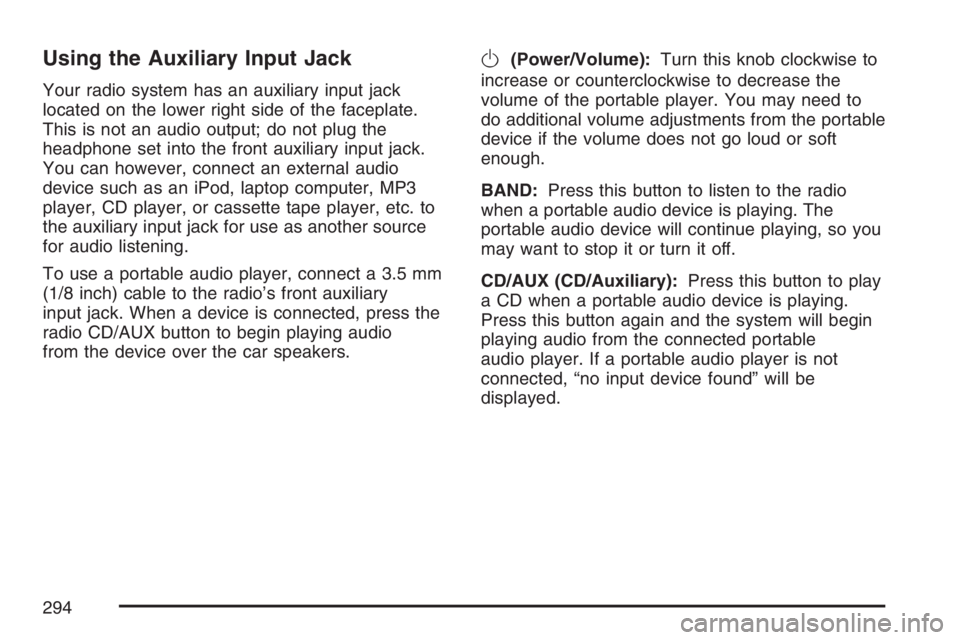
Your radio system has an auxiliary input jack
located on the lower right side of the faceplate.
This is not an audio output; do not plug the
headphone set into the front auxiliary input jack.
You can however, connect an external audio
device such as an iPod, laptop computer, MP3
player, CD player, or cassette tape player, etc. to
the auxiliary input jack for use as another source
for audio listening.
To use a portable audio player, connect a 3.5 mm
(1/8 inch) cable to the radio’s front auxiliary
input jack. When a device is connected, press the
radio CD/AUX button to begin playing audio
from the device over the car speakers.
O(Power/Volume):Turn this knob clockwise to
increase or counterclockwise to decrease the
volume of the portable player. You may need to
do additional volume adjustments from the portable
device if the volume does not go loud or soft
enough.
BAND:Press this button to listen to the radio
when a portable audio device is playing. The
portable audio device will continue playing, so you
may want to stop it or turn it off.
CD/AUX (CD/Auxiliary):Press this button to play
a CD when a portable audio device is playing.
Press this button again and the system will begin
playing audio from the connected portable
audio player. If a portable audio player is not
connected, “no input device found” will be
displayed.
294
Page 295 of 608
Radio with CD and DVD (MP3)
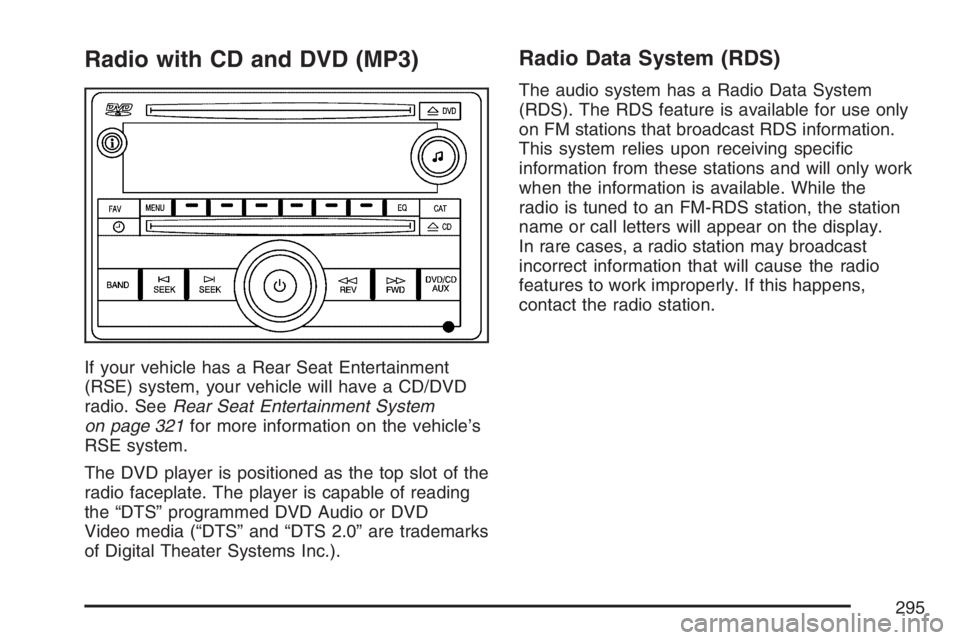
If your vehicle has a Rear Seat Entertainment
(RSE) system, your vehicle will have a CD/DVD
radio. SeeRear Seat Entertainment System
on page 321for more information on the vehicle’s
RSE system.
The DVD player is positioned as the top slot of the
radio faceplate. The player is capable of reading
the “DTS” programmed DVD Audio or DVD
Video media (“DTS” and “DTS 2.0” are trademarks
of Digital Theater Systems Inc.).
Radio Data System (RDS)
The audio system has a Radio Data System
(RDS). The RDS feature is available for use only
on FM stations that broadcast RDS information.
This system relies upon receiving specic
information from these stations and will only work
when the information is available. While the
radio is tuned to an FM-RDS station, the station
name or call letters will appear on the display.
In rare cases, a radio station may broadcast
incorrect information that will cause the radio
features to work improperly. If this happens,
contact the radio station.
295
Page 301 of 608
Radio Messages
Calibration Error:The audio system has been
calibrated for your vehicle from the factory. If
Calibration Error appears on the display, it means
that the radio has not been congured properly
for your vehicle and it must be returned to
your dealer for service.
Locked:This message is displayed when the
THEFTLOCK
®system has locked up the
radio. Take the vehicle to your dealer for service.
If any error occurs repeatedly or if an error
cannot be corrected, contact your dealer.
Radio Messages for XM™ Only
SeeXM Radio Messages on page 319later in this
section for further detail.
Playing a CD (In Either the DVD
or CD Slot)
Insert a CD partway into the slot, label side up.
The player will pull it in and the CD should begin
playing (loading a disc into the system, depending
on media type and format ranges from
5 to 20 seconds for a CD, and up to 30 seconds
for a DVD to begin playing).
If the ignition or radio is turned off, with a CD in
the player, it will stay in the player. When the
ignition or radio is turned on, the CD will
start playing where it stopped, if it was the last
selected audio source. The CD is controlled by the
buttons on the radio faceplate or by the RSA
unit. SeeRear Seat Audio (RSA) on page 332for
more information. The DVD/CD decks, (upper
slot is the DVD deck and the lower slot is the CD
deck) of the radio are compatible with most
audio CDs, CD-R, CD-RW, and MP3s.
When a CD is inserted, the text label DVD or CD
symbol will appear on the left side of the radio
display. As each new track starts to play, the track
number will appear on the display.
301
Page 302 of 608
The CD player can play the smaller 3 inch (8 cm)
single CDs with an adapter ring. Full-size CDs
and the smaller CDs are loaded in the same
manner.
If playing a CD-R, the sound quality may be
reduced due to CD-R quality, the method of
recording, the quality of the music that has been
recorded, and the way the CD-R has been
handled. There may be an increase in skipping,
difficulty in nding tracks, and/or difficulty in loading
and ejecting. If these problems occur, check the
bottom surface of the CD. If the surface of the CD
is damaged, such as cracked, broken, or
scratched, the CD will not play properly. If the
surface of the CD is soiled, seeCare of Your CDs
and DVDs on page 336for more information.
If there is no apparent damage, try a known
good CD.
Notice:If you add any label to a CD, insert
more than one CD into the slot at a time, or
attempt to play scratched or damaged CDs, you
could damage the CD player. When using the
CD player, use only CDs in good condition
without any label, load one CD at a time, and
keep the CD player and the loading slot free of
foreign materials, liquids, and debris.Do not add any label to a CD, it could get caught
in the CD player. If a CD is recorded on a
personal computer and a description label is
needed, try labeling the top of the recorded CD
with a soft marker instead.
If an error appears on the display, see “CD
Messages” later in this section.
ZCD (Eject):Press and release the CD eject
button to eject the CD that is currently playing
in the bottom slot. You will hear a beep and
Ejecting Disc will be displayed. Once the disc is
ejected, Remove Disc will appear on display.
The CD can be removed. If the CD is not removed,
after several seconds, the CD will be automatically
pulled back into the player.
If loading and reading of a CD cannot be
completed, such as unknown format, etc., and the
disc fails to eject, press and hold the DVD eject
button for more than ve seconds to force the disc
to eject.
302
Page 303 of 608
ZDVD (Eject):Press and release the DVD
eject button to eject the CD that is currently playing
in the top slot. You will hear a beep and Ejecting
Disc will be displayed. Once the disc is ejected,
Remove Disc will appear on display. The CD can
be removed. If the CD is not removed, after
several seconds, the CD will be automatically
pulled back into the player.
If loading and reading of a CD cannot be
completed, such as unknown format, etc., and the
disc fails to eject, press and hold the DVD eject
button for more than ve seconds to force the disc
to eject.
f(Tune):Turn this knob to select tracks on the
CD currently playing.
©SEEK¨:Press the left SEEK arrow to
go to the start of the current track, if more than
ve seconds have played. If less than ve seconds
have played, the previous track will be played.
Press the right SEEK arrow to go to the next track.
If either SEEK arrow is held, or pressed multiple
times, the player will continue moving backward or
forward through the tracks on the CD.
sREV (Reverse):Press and hold this button
to reverse playback quickly within a track. You will
hear sound at a reduced volume. Release this
pushbutton to resume playing the track. The
elapsed time of the track will appear on the
display.
\FWD (Fast Forward):Press and hold this
button to advance playback quickly within a track.
You will hear sound at a reduced volume.
Release this button to resume playing the track.
The elapsed time of the track will appear on
the display.
RDM (Random):With random, you can listen to
the tracks in random, rather than sequential
order. To play the tracks from the CD, press the
DVD/CD AUX button when not sourced to the CD,
or insert a disc partway into the slot. A RDM
label will appear on display. Press the pushbutton
positioned under the RDM label until Random
Current Disc is displayed. Press the pushbutton
again to turn off random play.
BAND:Press this button to listen to the radio
when a CD or DVD is playing. The CD or DVD will
remain safely inside the radio for future listening
or viewing entertainment.
303
Page 304 of 608
DVD/CD AUX (Auxiliary):Press this button to
cycle through DVD, CD, or Auxiliary when listening
to the radio. The DVD/CD text label and a message
showing track or chapter number will appear on
display when a disc is in either slot. Press this
button again and the system will automatically
search for an auxiliary input device, such as a
portable audio player. If a portable audio player is
not connected, “no aux input device” will be
displayed. If a disc is in both the DVD slot and the
CD slot the DVD/CD AUX button will cycle between
the two sources and not indicate “no aux input
device”. If a front auxiliary device is connected, the
DVD/CD AUX button will cycle through all available
options, such as: DVD slot, CD slot, Front AUX, and
Rear AUX (if available). See “Using the Auxiliary
Input Jack(s)” later in this section, orRear Seat
Entertainment System on page 321, “Audio/Video
(A/V) Jacks” for more information.
If a disc is inserted into top DVD slot, the rear seat
operator can turn on the video screen and use the
remote control to navigate the CD (tracks only)
through the remote control.Audio Output
Only one audio source can be heard through the
speakers at one time. An audio source is
dened as DVD slot, CD slot, XM™, FM/AM,
Front Aux Jack, or Rear Aux Jack.
Press the power button to turn the radio on.
The radio can be heard through all of the vehicle
speakers.
Front seat passengers can listen to the radio
(AM, FM, or XM) by pressing the BAND button or
the DVD/CD AUX button to select CD slot,
DVD slot, front or rear auxiliary input (if available).
If a playback device is plugged into the radio’s
front auxiliary input jack or the rear auxiliary jack,
the front seat passengers will be able to listen
to playback from this source through the vehicle
speakers. See “Using the Auxiliary Input Jack(s)”
later in this section, orRear Seat Entertainment
System on page 321, “Audio/Video (A/V) Jacks” for
more information.
In some vehicles, depending on audio options, the
rear speakers can be muted when the RSA
power is turned on. SeeRear Seat Audio (RSA)
on page 332for more information.
304