CD player GMC YUKON XL 2007 Owner's Guide
[x] Cancel search | Manufacturer: GMC, Model Year: 2007, Model line: YUKON XL, Model: GMC YUKON XL 2007Pages: 608, PDF Size: 3.01 MB
Page 316 of 608
qGroupr:Press this button to cycle through
musical groupings on the DVD-A disc.
Nav (Navigate):Press this button to display
directional arrows for navigating through the
menus.
e(Audio Stream):Press this button to cycle
through audio steam formats located on DVD-A
disc. There is not any type of notication for
the customer to see through the radio display, but
VSM will have a text eld that will show audio
stream changing.
Inserting a Disc
To play a disc, gently insert the disc, with the label
side up, into the loading slot. The DVD player
may not accept some paper labeled media. The
player will start loading the disc into the system
and display “Loading Disc” on the radio display.
At the same time, the radio will display a
softkey menu of option(s). Some discs will
automatically play the movie while others will
default to the softkey menu display which requires
the Play, Enter, or Navigation softkeys to be
pressed (either by softkey or by the rear seat
passenger using the remote control).Loading a disc into the system, depending
on media type and format, ranges from
5 to 20 seconds for a CD, and up to 30 seconds
for a DVD.
Stopping and Resuming Playback
To stop playing a DVD without turning off the
system, press the stop button on the remote
control, or press the pushbutton located under the
stop or the play/pause symbol tags displayed
on the radio. If the radio head is sourced to
something other than DVD-V, press the DVD/CD
AUX button to make DVD-V the active source.
To resume DVD playback, press the play/pause
button on the remote control, or press the
pushbutton located under the play/pause symbol
tag displayed on the radio. The DVD should
resume play from where it last stopped if the disc
has not been ejected and the stop button has
not been pressed twice on the remote control.
If the disc has been ejected or the stop button has
been pressed twice on the remote control, the
disc will resume playing at the beginning of
the disc.
316
Page 317 of 608
Ejecting a Disc
Press the eject button on the radio to eject the
disc. If a disc is ejected from the radio, but
not removed, the radio will reload the disc after a
short period of time. The disc will be stored in
the radio. The radio will not resume play of the disc
automatically. If the RSA system is sourced to
the DVD, the movie when reloaded into the DVD
player will begin to play again. In case loading
and reading of a DVD or CD cannot be completed
(unknown format, etc.), and the disc fails to
eject, press and hold the DVD Eject button more
than 5 seconds to force the disc to eject.
DVD Radio Error Messages
Player Error:This message is displayed when
there are disc load or eject problems.
Disc Format Error:This message will be
displayed, if the disc is inserted with the disc label
wrong side up, or if the disc is damaged.
Disc Region Error:This message will be
displayed, if the disc is not from a correct region.No Disc Inserted:This message will be
displayed, if no disc is present when the EJECT or
DVD/CD AUX button is pressed on the radio.
Using the Auxiliary Input Jack(s)
Your radio system has an auxiliary input jack
located on the lower right side of the faceplate.
This is not an audio output; do not plug the
headphone set into the front auxiliary input jack.
You can however, connect an external audio
device such as an iPod, laptop computer, MP3
player, CD player, or cassette tape player, etc. to
the auxiliary input jack for use as another
source for audio listening.
To use a portable audio player, connect a
3.5 mm (1/8 inch) cable to the radio’s front
auxiliary input jack. When a device is connected,
the radio automatically begins playing audio
from the device over the vehicle speakers.
To listen to a device through the rear auxiliary input
over the speakers, cycle the DVD/CD Aux button
on the radio faceplate until “Rear Aux Input” is
displayed on the radio. The RSA or DVD Screen
must be on in order for the radio to source to rear
auxiliary.
317
Page 318 of 608
O(Power/Volume):Turn this knob clockwise or
counterclockwise to increase or decrease the
volume of the portable player. You may need to do
additional volume adjustments from the portable
device if the volume does not go loud or soft
enough.
BAND:Press this button to listen to the radio
when a portable audio device is playing. The
portable audio device will continue playing, so you
may want to stop it or power it off.
DVD/CD AUX (CD/Auxiliary):Press this button to
cycle through DVD, CD, or Auxiliary when
listening to the radio. The DVD/CD text label and
a message showing track or chapter number
will appear on display when a disc is in either slot.
Press this button again and the system will
automatically search for an auxiliary input device,
such as a portable audio player.If a portable audio player is not connected, “no
aux input device” will be displayed. If a disc is in
both the DVD slot and the CD slot the DVD/CD
AUX button will cycle between the two sources and
not indicate “no aux input device”. If a front
auxiliary device is connected, the DVD/CD AUX
button will cycle through all available options, such
as: DVD slot, CD slot, Front AUX, and Rear
AUX (if available). See “Using the Auxiliary Input
Jack(s)” later in this section, orRear Seat
Entertainment System on page 321, “Audio/Video
(A/V) Jacks” for more information.
318
Page 321 of 608
Navigation/Radio System
Your vehicle may have a navigation radio system.
The navigation system has built-in features
intended to minimize driver distraction. Technology
alone, no matter how advanced, can never
replace your own judgment. See the Navigation
System manual for some tips to help you
reduce distractions while driving.
Rear Seat Entertainment System
Your vehicle may have a DVD Rear Seat
Entertainment (RSE) system. The RSE system
works with the vehicle’s audio system. The
DVD player is part of the front radio. The RSE
system includes a radio with a DVD player, a video
display screen, two wireless headphones, and a
remote control. SeeRadio with CD and DVD
(MP3) on page 295for more information on the
vehicle’s audio/DVD system.
Before You Drive
The RSE is designed for rear seat passengers
only. The driver cannot safely view the video
screen while driving and should not try to do so.
In severe or extreme weather conditions the
RSE system may or may not work until the
temperature is within the operating range.
The operating range for the RSE system is above
−4°F (−20°C) or below 140°F (60°C). If the
temperature of your vehicle is outside of this
range, heat or cool the vehicle until the
temperature is within the operating range of the
RSE system.
321
Page 325 of 608
Audio/Video (A/V) Jacks
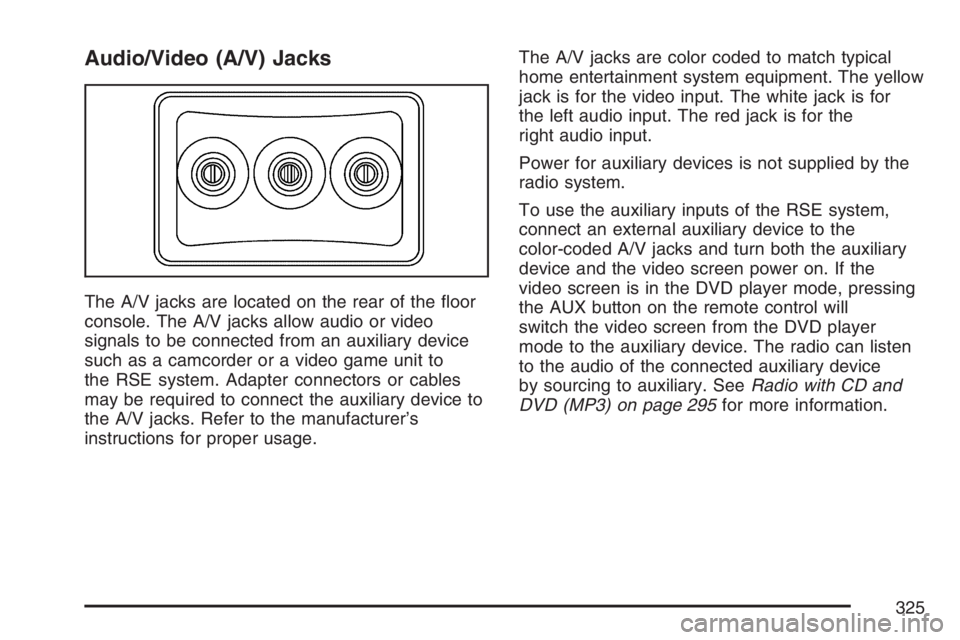
The A/V jacks are located on the rear of the oor
console. The A/V jacks allow audio or video
signals to be connected from an auxiliary device
such as a camcorder or a video game unit to
the RSE system. Adapter connectors or cables
may be required to connect the auxiliary device to
the A/V jacks. Refer to the manufacturer’s
instructions for proper usage.The A/V jacks are color coded to match typical
home entertainment system equipment. The yellow
jack is for the video input. The white jack is for
the left audio input. The red jack is for the
right audio input.
Power for auxiliary devices is not supplied by the
radio system.
To use the auxiliary inputs of the RSE system,
connect an external auxiliary device to the
color-coded A/V jacks and turn both the auxiliary
device and the video screen power on. If the
video screen is in the DVD player mode, pressing
the AUX button on the remote control will
switch the video screen from the DVD player
mode to the auxiliary device. The radio can listen
to the audio of the connected auxiliary device
by sourcing to auxiliary. SeeRadio with CD and
DVD (MP3) on page 295for more information.
325
Page 326 of 608
How to Change the Video Format When in
the Auxiliary Mode
The auxiliary input video format is preset to NTSC.
In some countries, the video format may be
PAL. To change the video format, perform the
following:
1. Press the display menu button on the remote
control.
2. Select screen option and press enter to
select.
3. Press the up or down arrow buttons to select
the video format option and press enter to set
the format.
Audio Output
Audio from the DVD player or auxiliary inputs may
be heard through the following possible sources:
Wireless Headphones
Vehicle Speakers
Vehicle wired headphone jacks on the rear
seat audio system, if your vehicle has this
feature.The RSE system will always transmit the audio
signal to the wireless headphones, if there is audio
available. See “Headphones” earlier in this
section for more information.
The DVD player is capable of outputting audio to
the wired headphone jacks on the RSA system,
if your vehicle has this feature. The DVD
player may be selected as an audio source on the
RSA system. SeeRear Seat Audio (RSA) on
page 332for more information.
When a device is connected to the A/V jacks the
rear seat passengers will be able to hear audio
from the auxiliary device through the wireless or
wired headphones. The front seat passengers
will be able to listen to playback from this device
through the vehicle speakers by selecting AUX
as the source on the radio.
If a playback device is plugged into the radio’s
auxiliary input jack, the front seat passengers will
be able to listen to playback from this device
through the vehicle speakers by selecting AUX as
the source on the radio.
326
Page 330 of 608
{(Subtitles):Press this button to turn ON/OFF
subtitles and to move through subtitle options
when a DVD is playing. The format and content of
this function will vary for each disc.
AUX (Auxiliary):Press this button to switch the
system between the DVD player and an auxiliary
source.
d(Camera):Press this button to change camera
angles on DVDs that have this feature when a DVD
is playing. The format and content of this function
will vary for each disc.
1 through 0 (Numeric Keypad):The numeric
keypad provides the capability of direct chapter or
track number selection.
\(Clear):Press this button within three seconds
after inputting a numeric selection, to clear all
numeric inputs.
}10 (Double Digit Entries):Press this button to
select chapter or track numbers greater than 9.
Press this button before inputting the number.
Battery Replacement
To change the remote control batteries, do the
following:
1. Remove the battery compartment door
located on the bottom of the remote control.
2. Replace the two AA batteries in the
compartment. Make sure that they are
installed correctly, using the diagram on the
inside of the battery compartment.
3. Close the battery door securely.
If the remote control is to be stored for a long
period of time, remove the batteries and keep them
in a cool, dry place.
330
Page 331 of 608
DVD Display Error Messages
The DVD display error message depends on
which radio you have. The video screen may
display one of the following:
Disc Load/Eject Error:This message is
displayed when there are disc load or eject
problems.
Disc Format Error:This message will be
displayed, if the disc is inserted with the disc label
wrong side up, or if the disc is damaged.
Disc Region Error:This message will be
displayed, if the disc is not from a correct region.
No Disc Inserted:This message will be
displayed, if no disc is present when the EJECT or
DVD/AUX button is pressed on the radio.
DVD Distortion
Video distortion may occur when operating cellular
phones, scanners, CB radios, Global Position
Systems (GPS)*, two-way radios, mobile fax, or
walkie talkies.
It may be necessary to turn off the DVD player
when operating one of these devices in or near the
vehicle.
*Excludes the OnStar
®System.
Cleaning the RSE Overhead Console
When cleaning the RSE overhead console surface,
use only a clean cloth dampened with clean
water.
Cleaning the Video Screen
When cleaning the video screen, use only a clean
cloth dampened with clean water. Use care
when directly touching or cleaning the screen, as
damage may result.
331
Page 336 of 608
AM
The range for most AM stations is greater than for
FM, especially at night. The longer range can
cause station frequencies to interfere with each
other. For better radio reception, most AM
radio stations will boost the power levels during
the day, and then reduce these levels during
the night. Static can also occur when things like
storms and power lines interfere with radio
reception. When this happens, try reducing the
treble on your radio.
FM Stereo
FM stereo will give the best sound, but FM signals
will reach only about 10 to 40 miles (16 to 65 km).
Tall buildings or hills can interfere with FM
signals, causing the sound to fade in and out.
XM™ Satellite Radio Service
XM™ Satellite Radio Service gives digital radio
reception from coast-to-coast in the 48 contiguous
United States, and in Canada (if available). Just
as with FM, tall buildings or hills can interfere with
satellite radio signals, causing the sound to
fade in and out.In addition, traveling or standing under heavy
foliage, bridges, garages, or tunnels may cause
loss of the XM™ signal for a period of time.
The radio may display NO SIGNAL to indicate
interference.
Care of Your CDs and DVDs
Handle CDs carefully. Store them in their original
cases or other protective cases and away from
direct sunlight and dust. The CD player scans the
bottom surface of the disc. If the surface of a
CD is damaged, such as cracked, broken,
or scratched, the CD will not play properly or not
at all. If the surface of a CD is soiled, take a
soft, lint free cloth or dampen a clean, soft cloth in
a mild, neutral detergent solution mixed with
water, and clean it. Make sure the wiping process
starts from the center to the edge.
Do not touch the bottom side of a CD while
handling it; this could damage the surface. Pick up
CDs by grasping the outer edges or the edge of
the hole and the outer edge.
336
Page 337 of 608
Care of the CD and DVD Player
The use of CD lens cleaners for CDs is not
advised, due to the risk of contaminating the lens
of the CD optics with lubricants internal to the
CD mechanism.
Rear Side Window Antenna
Your AM-FM antenna is located in the passenger
rear side windows. Be sure that the inside
surfaces of the rear side windows are not
scratched and that the lines on the glass are not
damaged. If the inside surfaces are damaged, they
could interfere with radio reception.
Notice:Using a razor blade or sharp object to
clear the inside of the rear side windows
may affect radio reception or damage the rear
window defogger. Repairs would not be
covered by your warranty. Do not clear the
inside of the rear side windows with sharp
objects.
Notice:Do not apply aftermarket glass tinting
with metallic lm. The metallic lm in some
tinting materials will interfere with or distort the
incoming radio reception. Any damage caused
to your antenna due to metallic tinting materials
will not be covered by your warranty.Because this antenna is built into your rear side
window, there is a reduced risk of damage caused
by car washes and vandals.
If you choose to add an aftermarket cellular
telephone to your vehicle, and the antenna needs
to be attached to the glass, be sure that you
do not damage the grid lines for the AM-FM
antennas or place the cellular telephone antenna
over the grid lines.
XM™ Satellite Radio Antenna
System
The XM™ Satellite Radio antenna is located on
the roof of your vehicle. Keep this antenna clear of
snow and ice build up for clear radio reception.
The performance of the XM™ system may
be affected if the sunroof is open.
Loading items onto the roof of your vehicle can
interfere with the performance of the XM™ system.
Make sure that the XM™ satellite antenna is not
obstructed.
337