key GMC YUKON XL DENALI 2005 User Guide
[x] Cancel search | Manufacturer: GMC, Model Year: 2005, Model line: YUKON XL DENALI, Model: GMC YUKON XL DENALI 2005Pages: 62, PDF Size: 1.17 MB
Page 24 of 62
Map Color (Night):This feature allows you to adjust
the nighttime map appearance. Choose between
Normal, Auto, 1, 2, 3, or 4. The numbered settings vary
the color scheme of the map display. The Auto setting
will change the map appearance automatically every
three months. When the desired color setting has been
selected, press the NAV hard key to view the adjusted
map color.
Calibrate System?:This feature will calibrate wheel
speed to assist in the calculation of vehicle position.
This feature also allows you to manually reposition the
vehicle symbol on the map. You may need to calibrate
the system following a tire change, rotation, or if
your vehicle has been relocated a great distance.
Touch the Yes screen button to calibrate the system, or
the No screen button to leave the calibration as it is.
Select Defaults?:This feature allows you to restore
all available factory default settings in the Nav Setup
menu. Touch the Yes screen button to restore defaults,
or the No screen button to retain the current settings.Memory Points
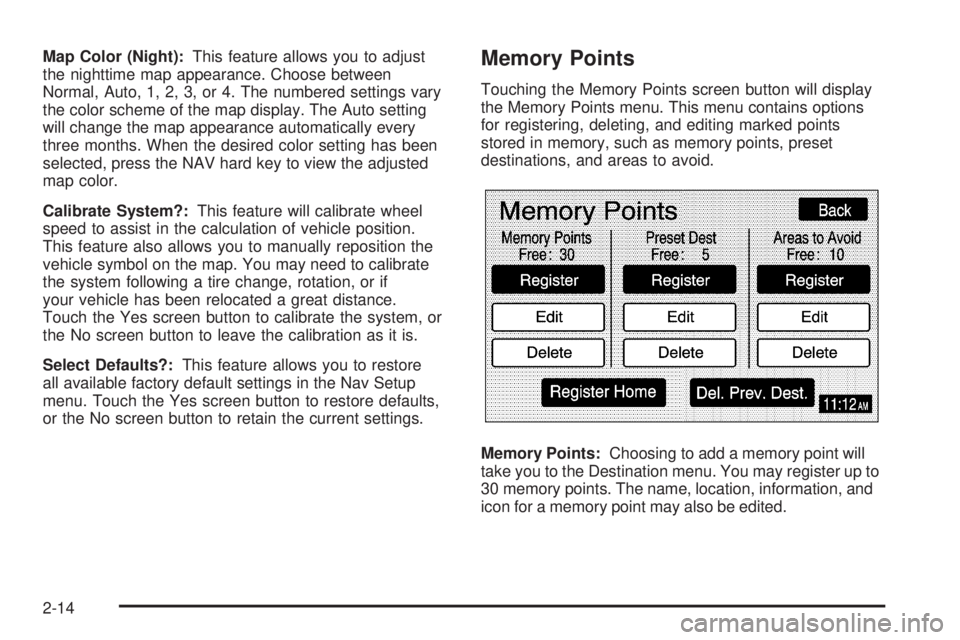
Touching the Memory Points screen button will display
the Memory Points menu. This menu contains options
for registering, deleting, and editing marked points
stored in memory, such as memory points, preset
destinations, and areas to avoid.
Memory Points:Choosing to add a memory point will
take you to the Destination menu. You may register up to
30 memory points. The name, location, information, and
icon for a memory point may also be edited.
2-14
Page 28 of 62
Alpha-Numeric Keypad
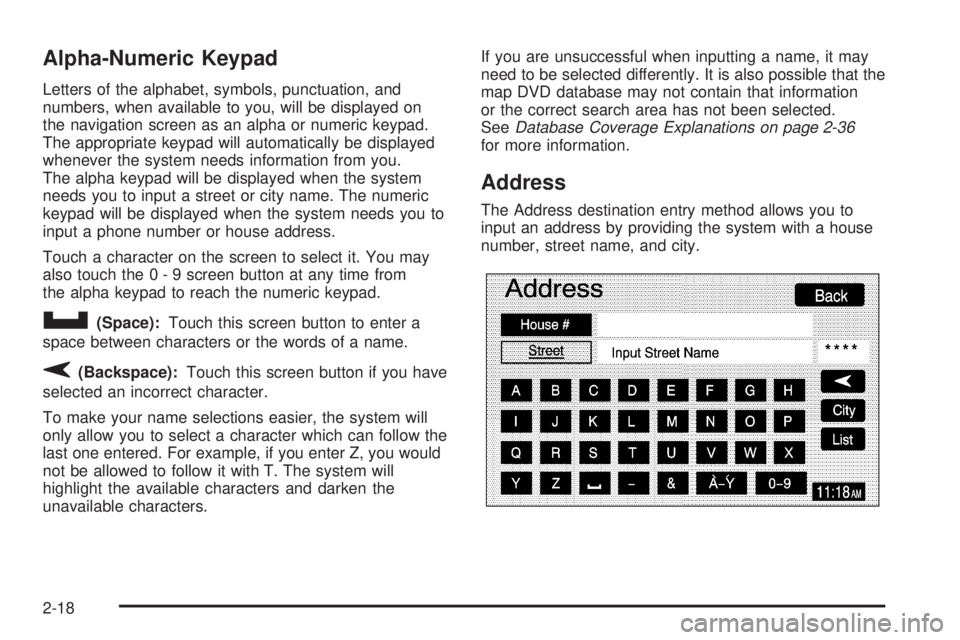
Letters of the alphabet, symbols, punctuation, and
numbers, when available to you, will be displayed on
the navigation screen as an alpha or numeric keypad.
The appropriate keypad will automatically be displayed
whenever the system needs information from you.
The alpha keypad will be displayed when the system
needs you to input a street or city name. The numeric
keypad will be displayed when the system needs you to
input a phone number or house address.
Touch a character on the screen to select it. You may
also touch the 0 - 9 screen button at any time from
the alpha keypad to reach the numeric keypad.
U(Space):Touch this screen button to enter a
space between characters or the words of a name.
V(Backspace):Touch this screen button if you have
selected an incorrect character.
To make your name selections easier, the system will
only allow you to select a character which can follow the
last one entered. For example, if you enter Z, you would
not be allowed to follow it with T. The system will
highlight the available characters and darken the
unavailable characters.If you are unsuccessful when inputting a name, it may
need to be selected differently. It is also possible that the
map DVD database may not contain that information
or the correct search area has not been selected.
SeeDatabase Coverage Explanations on page 2-36
for more information.
Address
The Address destination entry method allows you to
input an address by providing the system with a house
number, street name, and city.
2-18
Page 29 of 62
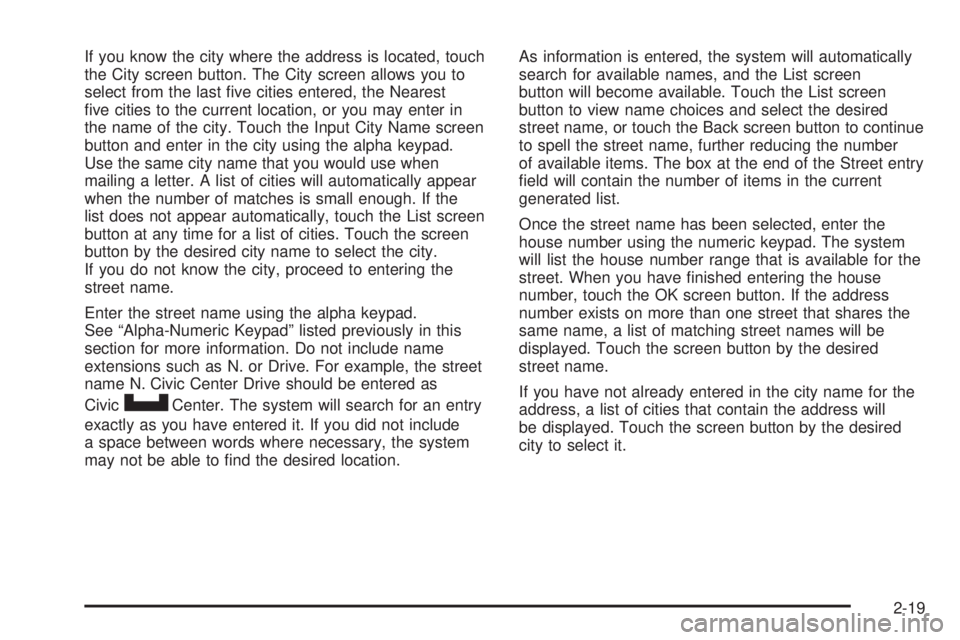
If you know the city where the address is located, touch
the City screen button. The City screen allows you to
select from the last ve cities entered, the Nearest
ve cities to the current location, or you may enter in
the name of the city. Touch the Input City Name screen
button and enter in the city using the alpha keypad.
Use the same city name that you would use when
mailing a letter. A list of cities will automatically appear
when the number of matches is small enough. If the
list does not appear automatically, touch the List screen
button at any time for a list of cities. Touch the screen
button by the desired city name to select the city.
If you do not know the city, proceed to entering the
street name.
Enter the street name using the alpha keypad.
See “Alpha-Numeric Keypad” listed previously in this
section for more information. Do not include name
extensions such as N. or Drive. For example, the street
name N. Civic Center Drive should be entered as
Civic
UCenter. The system will search for an entry
exactly as you have entered it. If you did not include
a space between words where necessary, the system
may not be able to nd the desired location.As information is entered, the system will automatically
search for available names, and the List screen
button will become available. Touch the List screen
button to view name choices and select the desired
street name, or touch the Back screen button to continue
to spell the street name, further reducing the number
of available items. The box at the end of the Street entry
eld will contain the number of items in the current
generated list.
Once the street name has been selected, enter the
house number using the numeric keypad. The system
will list the house number range that is available for the
street. When you have nished entering the house
number, touch the OK screen button. If the address
number exists on more than one street that shares the
same name, a list of matching street names will be
displayed. Touch the screen button by the desired
street name.
If you have not already entered in the city name for the
address, a list of cities that contain the address will
be displayed. Touch the screen button by the desired
city to select it.
2-19
Page 30 of 62
Point of Interest (POI)
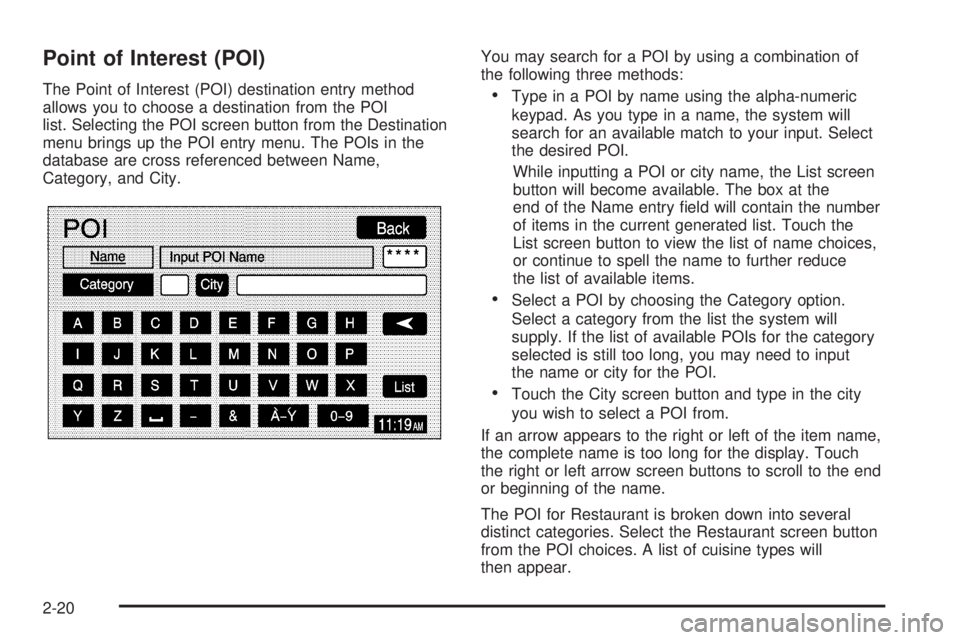
The Point of Interest (POI) destination entry method
allows you to choose a destination from the POI
list. Selecting the POI screen button from the Destination
menu brings up the POI entry menu. The POIs in the
database are cross referenced between Name,
Category, and City.You may search for a POI by using a combination of
the following three methods:Type in a POI by name using the alpha-numeric
keypad. As you type in a name, the system will
search for an available match to your input. Select
the desired POI.
While inputting a POI or city name, the List screen
button will become available. The box at the
end of the Name entry eld will contain the number
of items in the current generated list. Touch the
List screen button to view the list of name choices,
or continue to spell the name to further reduce
the list of available items.
Select a POI by choosing the Category option.
Select a category from the list the system will
supply. If the list of available POIs for the category
selected is still too long, you may need to input
the name or city for the POI.
Touch the City screen button and type in the city
you wish to select a POI from.
If an arrow appears to the right or left of the item name,
the complete name is too long for the display. Touch
the right or left arrow screen buttons to scroll to the end
or beginning of the name.
The POI for Restaurant is broken down into several
distinct categories. Select the Restaurant screen button
from the POI choices. A list of cuisine types will
then appear.
2-20
Page 33 of 62
Map
The Map destination entry method displays the last
location on the map, and the road preference.
Scroll across and touch the map at the location you
would like to set as your destination. Once you
have located the desired destination, touch the Enter
Destination screen button and then the OK screen
button. The route will then be calculated. You may begin
driving to start route guidance or you may touch the
Route screen button and then the Start screen button.
You may also zoom out to view the entire regional map.
See “Touch-Sensitive Screen Buttons” underUsing
the Navigation System on page 2-2for more information.
However, if you zoom out as much as possible and
scroll around the map, some parts of the map will
appear to be missing because they are not readable in
larger scales.
Previous Start Point
The Previous start point destination entry method allows
you to select the last start point as a destination.
Phone Number
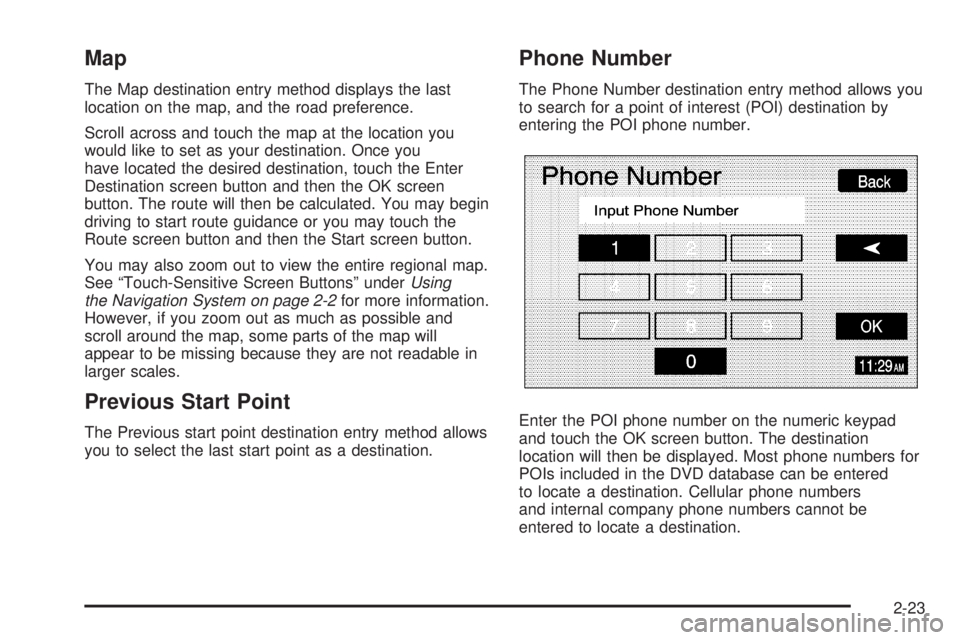
The Phone Number destination entry method allows you
to search for a point of interest (POI) destination by
entering the POI phone number.
Enter the POI phone number on the numeric keypad
and touch the OK screen button. The destination
location will then be displayed. Most phone numbers for
POIs included in the DVD database can be entered
to locate a destination. Cellular phone numbers
and internal company phone numbers cannot be
entered to locate a destination.
2-23
Page 35 of 62
Freeway Entrance/Exit
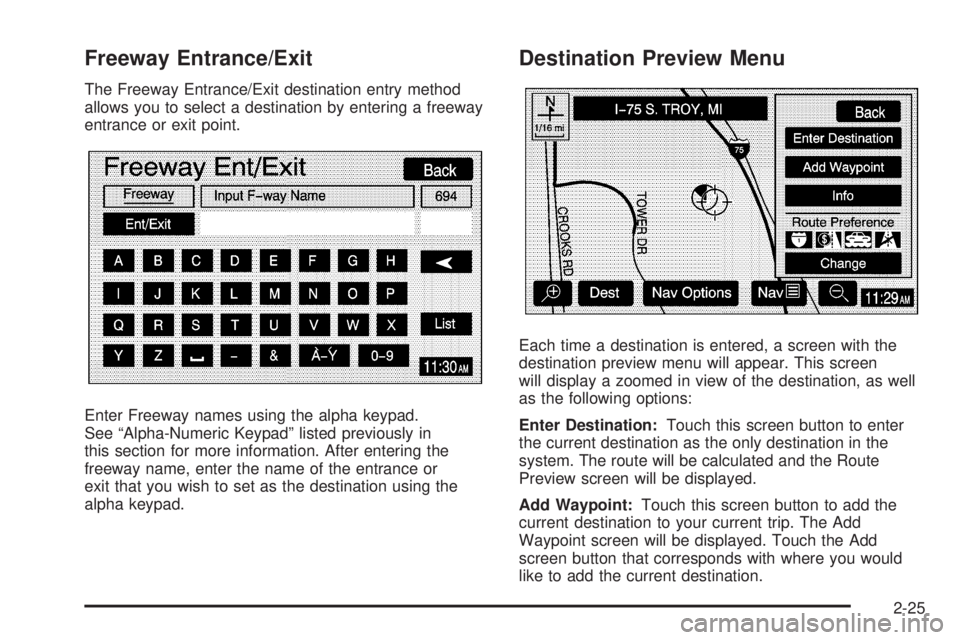
The Freeway Entrance/Exit destination entry method
allows you to select a destination by entering a freeway
entrance or exit point.
Enter Freeway names using the alpha keypad.
See “Alpha-Numeric Keypad” listed previously in
this section for more information. After entering the
freeway name, enter the name of the entrance or
exit that you wish to set as the destination using the
alpha keypad.
Destination Preview Menu
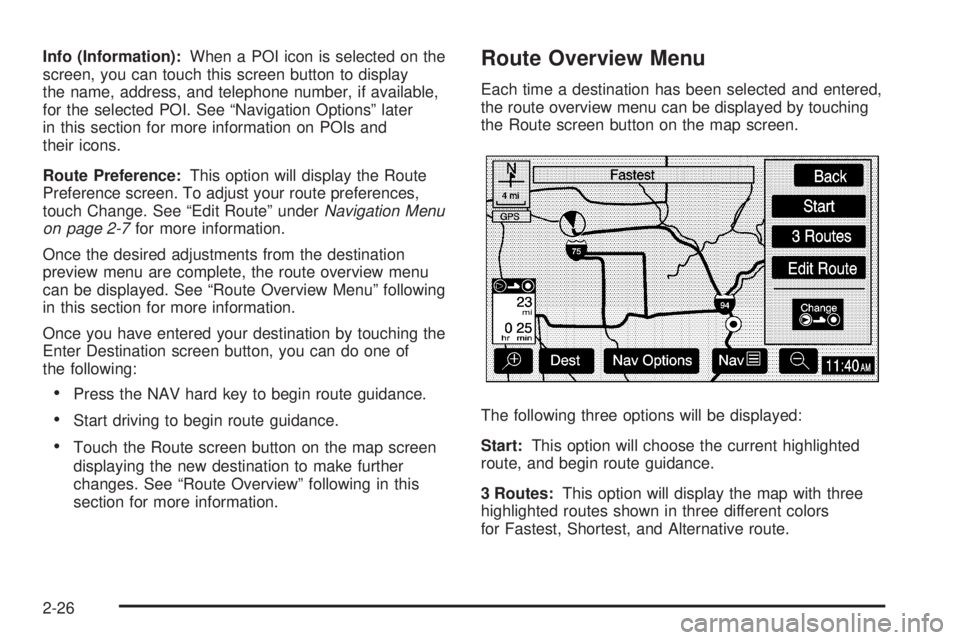
Each time a destination is entered, a screen with the
destination preview menu will appear. This screen
will display a zoomed in view of the destination, as well
as the following options:
Enter Destination:Touch this screen button to enter
the current destination as the only destination in the
system. The route will be calculated and the Route
Preview screen will be displayed.
Add Waypoint:Touch this screen button to add the
current destination to your current trip. The Add
Waypoint screen will be displayed. Touch the Add
screen button that corresponds with where you would
like to add the current destination.
2-25
Page 36 of 62
Info (Information):When a POI icon is selected on the
screen, you can touch this screen button to display
the name, address, and telephone number, if available,
for the selected POI. See “Navigation Options” later
in this section for more information on POIs and
their icons.
Route Preference:This option will display the Route
Preference screen. To adjust your route preferences,
touch Change. See “Edit Route” underNavigation Menu
on page 2-7for more information.
Once the desired adjustments from the destination
preview menu are complete, the route overview menu
can be displayed. See “Route Overview Menu” following
in this section for more information.
Once you have entered your destination by touching the
Enter Destination screen button, you can do one of
the following:
Press the NAV hard key to begin route guidance.
Start driving to begin route guidance.
Touch the Route screen button on the map screen
displaying the new destination to make further
changes. See “Route Overview” following in this
section for more information.
Route Overview Menu
Each time a destination has been selected and entered,
the route overview menu can be displayed by touching
the Route screen button on the map screen.
The following three options will be displayed:
Start:This option will choose the current highlighted
route, and begin route guidance.
3 Routes:This option will display the map with three
highlighted routes shown in three different colors
for Fastest, Shortest, and Alternative route.
2-26
Page 41 of 62
Configure Menu
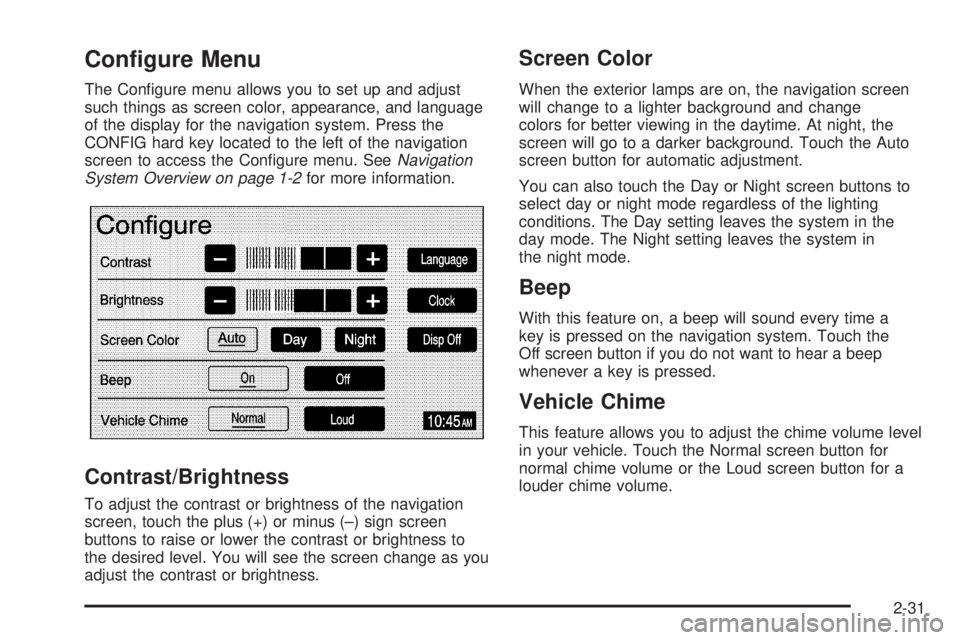
The Congure menu allows you to set up and adjust
such things as screen color, appearance, and language
of the display for the navigation system. Press the
CONFIG hard key located to the left of the navigation
screen to access the Congure menu. SeeNavigation
System Overview on page 1-2for more information.
Contrast/Brightness
To adjust the contrast or brightness of the navigation
screen, touch the plus (+) or minus (–) sign screen
buttons to raise or lower the contrast or brightness to
the desired level. You will see the screen change as you
adjust the contrast or brightness.
Screen Color
When the exterior lamps are on, the navigation screen
will change to a lighter background and change
colors for better viewing in the daytime. At night, the
screen will go to a darker background. Touch the Auto
screen button for automatic adjustment.
You can also touch the Day or Night screen buttons to
select day or night mode regardless of the lighting
conditions. The Day setting leaves the system in the
day mode. The Night setting leaves the system in
the night mode.
Beep
With this feature on, a beep will sound every time a
key is pressed on the navigation system. Touch the
Off screen button if you do not want to hear a beep
whenever a key is pressed.
Vehicle Chime
This feature allows you to adjust the chime volume level
in your vehicle. Touch the Normal screen button for
normal chime volume or the Loud screen button for a
louder chime volume.
2-31
Page 42 of 62
Language
Your vehicle has been set for the English language,
but you may also select French for all instructional text
and voice prompts. However, names on the map
when using the navigation functions will not change.
If you wish to change the language, the map DVD must
be inserted. Then, do the following:
1. Touch the Language screen button. A caution
will display.
2. Touch the desired language to select it.
3. Touch the NEXT screen button to change the
display back to the map screen.
If the language is changed from English, the menu
screens will not match word-for-word as they appear in
this manual.
If you accidentally select a language you do not
understand, press the CONFIG hard key, then select
the desired language.
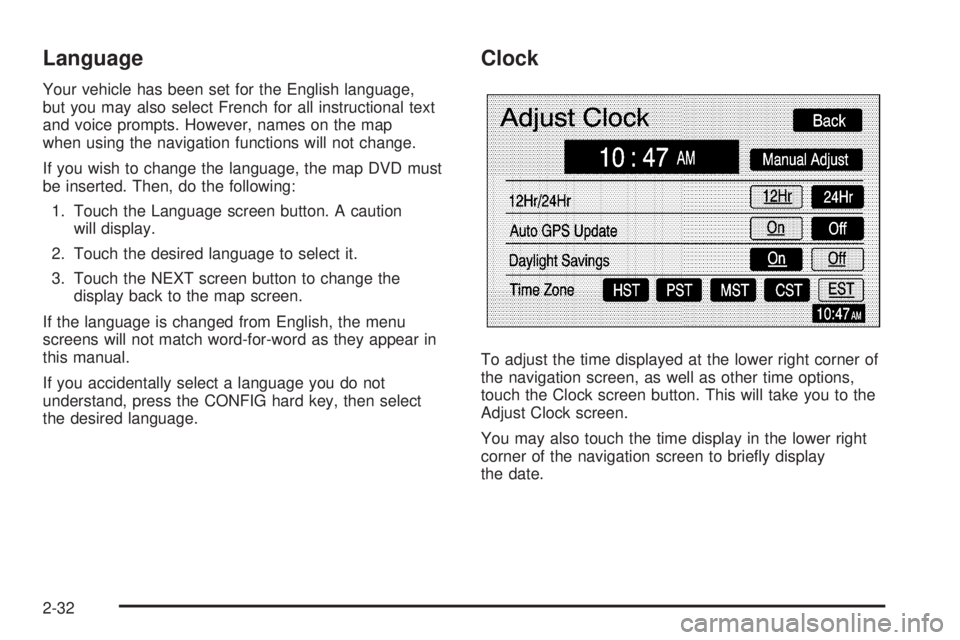
Clock
To adjust the time displayed at the lower right corner of
the navigation screen, as well as other time options,
touch the Clock screen button. This will take you to the
Adjust Clock screen.
You may also touch the time display in the lower right
corner of the navigation screen to briey display
the date.
2-32
Page 43 of 62
To change the hours and minutes on the clock,
do the following:
1. Touch the Manual Adjust screen button.
2. Touch the up or down arrow screen buttons to
increase or decrease the hours and minutes.
3. Touch the Back screen button to return to the
previous screen.
12Hr/24Hr:This feature allows you to choose whether
the time is displayed in standard or military time.
Touch the 12Hr screen button for standard time or the
24Hr screen button for military time.
Auto GPS Update:With this feature on, the navigation
system time will be set to match the current GPS
time. The time will be updated with the GPS time when
the ignition is turned on. You may also touch the Off
screen button to turn this feature off.Daylight Savings:With this feature on, the navigation
system will automatically adjust the time for Daylight
Savings. You may also touch the Off screen button to
turn this feature off.
Time Zone:This feature allows you to choose from
ve different time zones: HST (Hawaii), PST (Pacic),
MST (Mountain), CST (Central), and EST (Eastern).
Touch the desired time zone screen button to select it.
Display Off
To turn the navigation screen off, touch the Disp Off
screen button on the Congure menu. To turn the
screen back on, press any hard key to the left of the
navigation screen.
2-33