navigation system GMC YUKON XL DENALI 2005 Owner's Manual
[x] Cancel search | Manufacturer: GMC, Model Year: 2005, Model line: YUKON XL DENALI, Model: GMC YUKON XL DENALI 2005Pages: 62, PDF Size: 1.17 MB
Page 46 of 62
Problems with Route Guidance
Inappropriate route guidance may occur under any of
the following conditions:
You have not turned onto the road indicated by
the system.
Route guidance is not available for the next turn.
The route is not changed during automatic rerouting.
Plural names of places are displayed.
You are driving at high speeds, which may cause
the automatic rerouting to operate more slowly.
The route prohibits the entry of a vehicle due to a
regulation by time or season or any other regulation
which may be given.
A route cannot be found.
A road is new, was recently changed or is not listed
on the DVD. The route to the destination may not
be shown. SeeOrdering Map DVDs on page 2-36.
If the System Needs Service
If you are still experiencing difficulty with your navigation
system after reading this information, see your dealer
for assistance.
Ordering Map DVDs
The map DVD in your vehicle is the most up-to-date
information available when your vehicle was purchased.
The map DVD is updated periodically, provided that
the map information has changed. To order a new map
DVD, contact your dealer.
Database Coverage Explanations
Coverage areas vary with respect to the level of map
detail available for any given area. Some areas will
feature greater levels of detail than others. If this
happens, it does not mean there is a problem with the
system. As the map DVD is updated, more detail
may become available for areas which previously had
limited detail. SeeOrdering Map DVDs on page 2-36.
2-36
Page 47 of 62
Navigation Audio System..................................3-2
Rear Seat Entertainment System....................3-14
Section 3 Navigation Audio System
3-1
Page 48 of 62
Navigation Audio System
Notice:Before adding any sound equipment to
your vehicle, like a tape player, CB radio, mobile
telephone, or two-way radio, make sure that it can
be added by checking with your dealer. Also,
check federal rules covering mobile radio and
telephone units. If sound equipment can be added,
it is very important to do it properly. Added
sound equipment may interfere with the operation
of your vehicle’s engine, radio, or other systems,
and even damage them. Your vehicle’s systems may
interfere with the operation of sound equipment
that has been added improperly.
Your vehicle has a feature called Retained Accessory
Power (RAP). With RAP, the audio system can be
played even after the ignition is turned off. See
“Retained Accessory Power (RAP)” in Section 2 of
your vehicle’s owner manual for more information.
The audio system is operated using navigation system
menus. The audio menus are explained in this section.
Playing the Radio
O
(Power/Volume):Press this knob to turn the audio
and navigation systems on and off. Turn the knob to
increase or decrease the volume.
Finding a Station
BAND:Press this hard key to access the BAND screen
and to switch between AM, FM1, FM2, XM1, and
XM2, if equipped.
Tuning Knob:Use the tuning knob on the lower
left corner of the navigation system to choose a
radio station.
wSEEKx:Press the SEEK up or the down arrow to
go to the next or previous station and stay there.
To scan stations, press and hold the SEEK up or down
arrow for two seconds until you hear a beep. The radio
will go to a station, play for a few seconds, then go
on to the next station. Press either SEEK arrow again
to stop scanning.
To scan preset stations, press and hold the SEEK up or
down arrow for more than four seconds. You will hear
two beeps and PSCAN will be displayed, along with
the highlighted preset. The radio will go to one of
the preset stations, play for a few seconds, then go on
to the next preset station. Press either SEEK arrow
again to stop scanning presets.
The radio will only seek and scan stations with a strong
signal that are in the selected band.
3-2
Page 49 of 62
Setting Preset Stations
Up to 30 stations, six AM, six FM1, six FM2, six XM1,
and six XM2, if equipped, can be programmed using the
six screen buttons on the bottom of each band menu.
To set preset stations, do the following:
1. Turn the audio system on.
2. Press the BAND hard key to select AM, FM1, FM2,
XM1, or XM2, if equipped.
3. Locate the desired station using the SEEK hard key
or the tuning knob.
4. Press and hold one of the six preset screen buttons
until you hear a beep. Whenever you press that
screen button while in that band menu, the station
you set will return.
5. Repeat the steps for each preset and source.
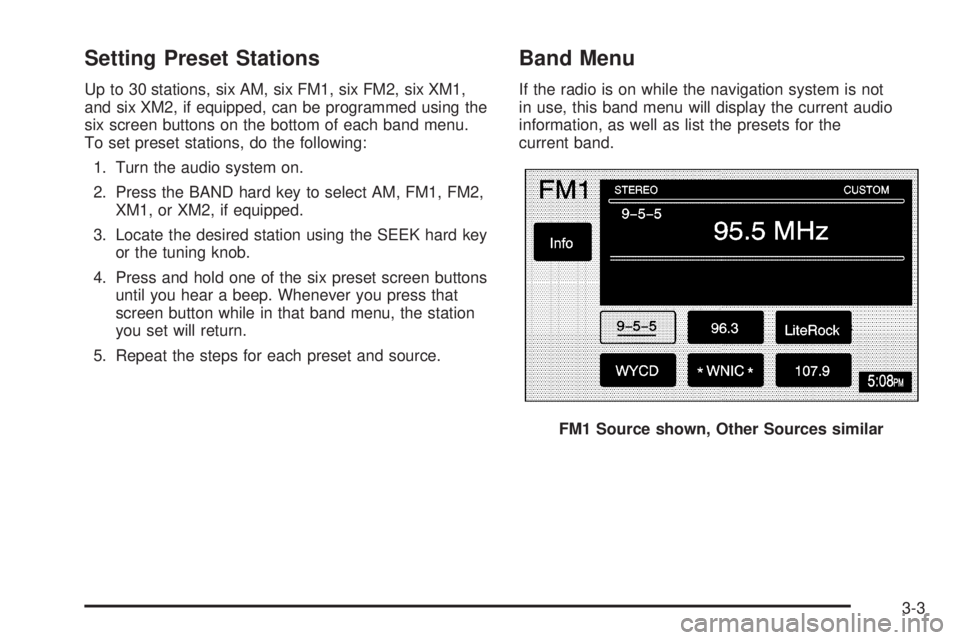
Band Menu
If the radio is on while the navigation system is not
in use, this band menu will display the current audio
information, as well as list the presets for the
current band.
FM1 Source shown, Other Sources similar
3-3
Page 50 of 62
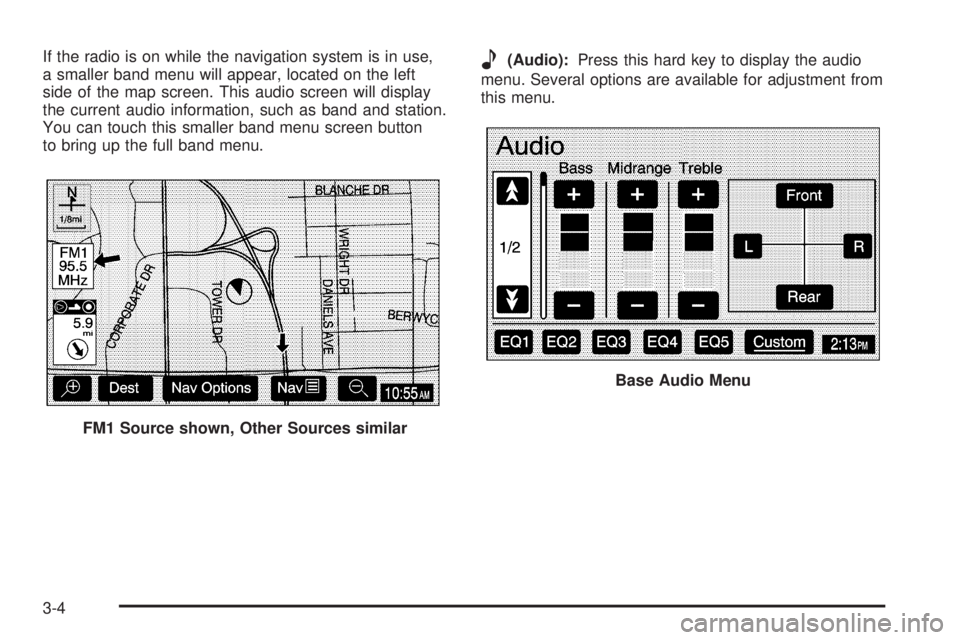
If the radio is on while the navigation system is in use,
a smaller band menu will appear, located on the left
side of the map screen. This audio screen will display
the current audio information, such as band and station.
You can touch this smaller band menu screen button
to bring up the full band menu.e(Audio):Press this hard key to display the audio
menu. Several options are available for adjustment from
this menu.
FM1 Source shown, Other Sources similar
Base Audio Menu
3-4
Page 57 of 62
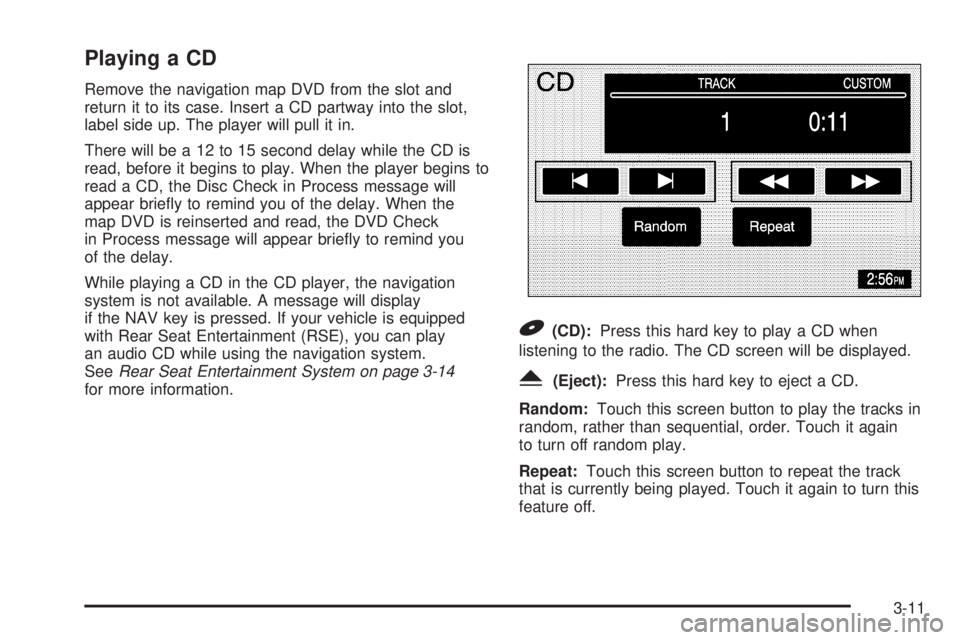
Playing a CD
Remove the navigation map DVD from the slot and
return it to its case. Insert a CD partway into the slot,
label side up. The player will pull it in.
There will be a 12 to 15 second delay while the CD is
read, before it begins to play. When the player begins to
read a CD, the Disc Check in Process message will
appear briey to remind you of the delay. When the
map DVD is reinserted and read, the DVD Check
in Process message will appear briey to remind you
of the delay.
While playing a CD in the CD player, the navigation
system is not available. A message will display
if the NAV key is pressed. If your vehicle is equipped
with Rear Seat Entertainment (RSE), you can play
an audio CD while using the navigation system.
SeeRear Seat Entertainment System on page 3-14
for more information.
B(CD):Press this hard key to play a CD when
listening to the radio. The CD screen will be displayed.
Y(Eject):Press this hard key to eject a CD.
Random:Touch this screen button to play the tracks in
random, rather than sequential, order. Touch it again
to turn off random play.
Repeat:Touch this screen button to repeat the track
that is currently being played. Touch it again to turn this
feature off.
3-11
Page 60 of 62
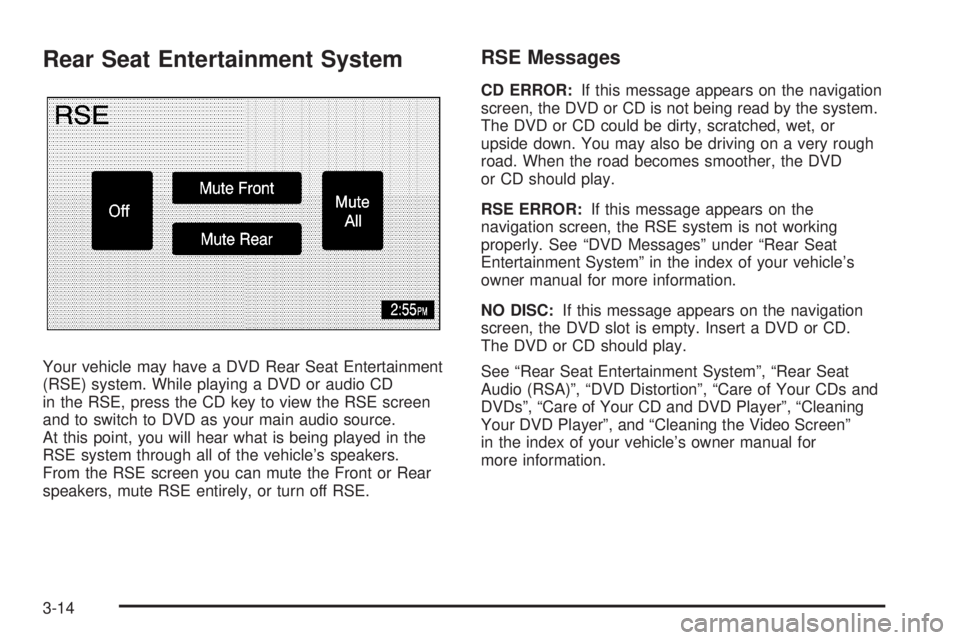
Rear Seat Entertainment System
Your vehicle may have a DVD Rear Seat Entertainment
(RSE) system. While playing a DVD or audio CD
in the RSE, press the CD key to view the RSE screen
and to switch to DVD as your main audio source.
At this point, you will hear what is being played in the
RSE system through all of the vehicle’s speakers.
From the RSE screen you can mute the Front or Rear
speakers, mute RSE entirely, or turn off RSE.
RSE Messages
CD ERROR:If this message appears on the navigation
screen, the DVD or CD is not being read by the system.
The DVD or CD could be dirty, scratched, wet, or
upside down. You may also be driving on a very rough
road. When the road becomes smoother, the DVD
or CD should play.
RSE ERROR:If this message appears on the
navigation screen, the RSE system is not working
properly. See “DVD Messages” under “Rear Seat
Entertainment System” in the index of your vehicle’s
owner manual for more information.
NO DISC:If this message appears on the navigation
screen, the DVD slot is empty. Insert a DVD or CD.
The DVD or CD should play.
See “Rear Seat Entertainment System”, “Rear Seat
Audio (RSA)”, “DVD Distortion”, “Care of Your CDs and
DVDs”, “Care of Your CD and DVD Player”, “Cleaning
Your DVD Player”, and “Cleaning the Video Screen”
in the index of your vehicle’s owner manual for
more information.
3-14
Page 61 of 62
A
Audio System.................................................. 3-2
C
Colors on the Screen......................................2-30
D
Database Coverage Explanations......................2-36
Destination.....................................................2-16
DVD
Rear Seat Entertainment System...................3-14
G
Getting Started
Navigation.................................................... 1-4
Global Positioning System (GPS)......................2-34
M
Maps.............................................................. 2-5
Menu
Navigation.................................................... 2-7
N
Navigation.................................................1-2, 1-4
Menu.......................................................... 2-7
Using the System.......................................... 2-2
O
Ordering
Map DVDs.................................................2-36
1
Page 62 of 62
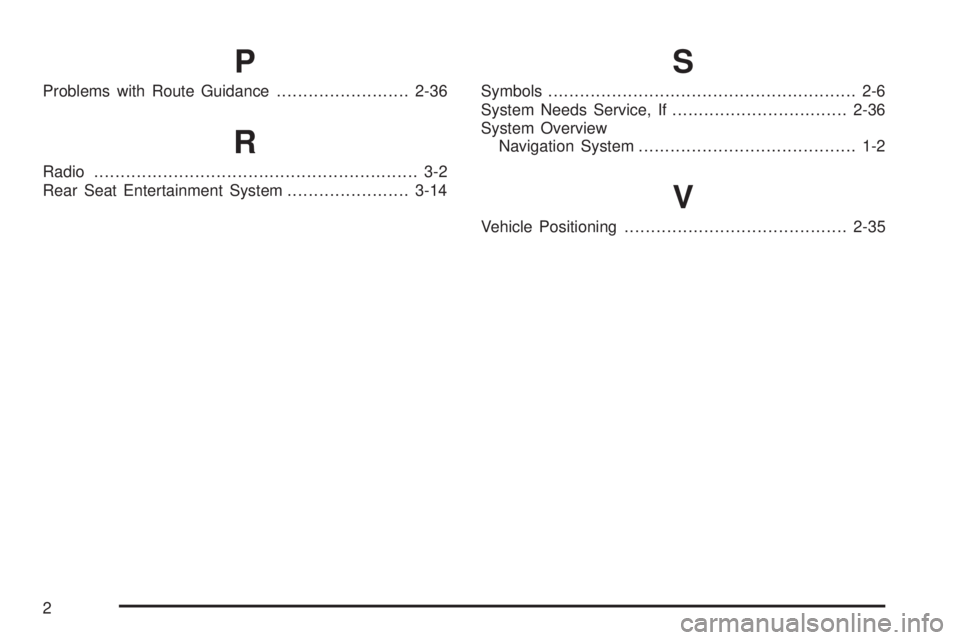
P
Problems with Route Guidance.........................2-36
R
Radio............................................................. 3-2
Rear Seat Entertainment System.......................3-14
S
Symbols.......................................................... 2-6
System Needs Service, If.................................2-36
System Overview
Navigation System......................................... 1-2
V
Vehicle Positioning..........................................2-35
2