ad blue HONDA ACCORD 2012 8.G Navigation Manual
[x] Cancel search | Manufacturer: HONDA, Model Year: 2012, Model line: ACCORD, Model: HONDA ACCORD 2012 8.GPages: 156, PDF Size: 7.2 MB
Page 60 of 156
60
Navigation System
Accord 2D4D_KA 31TA5840
Showing Icons on the MapSelecting Show Icon on Map from
the Map menu (see page 53) displays
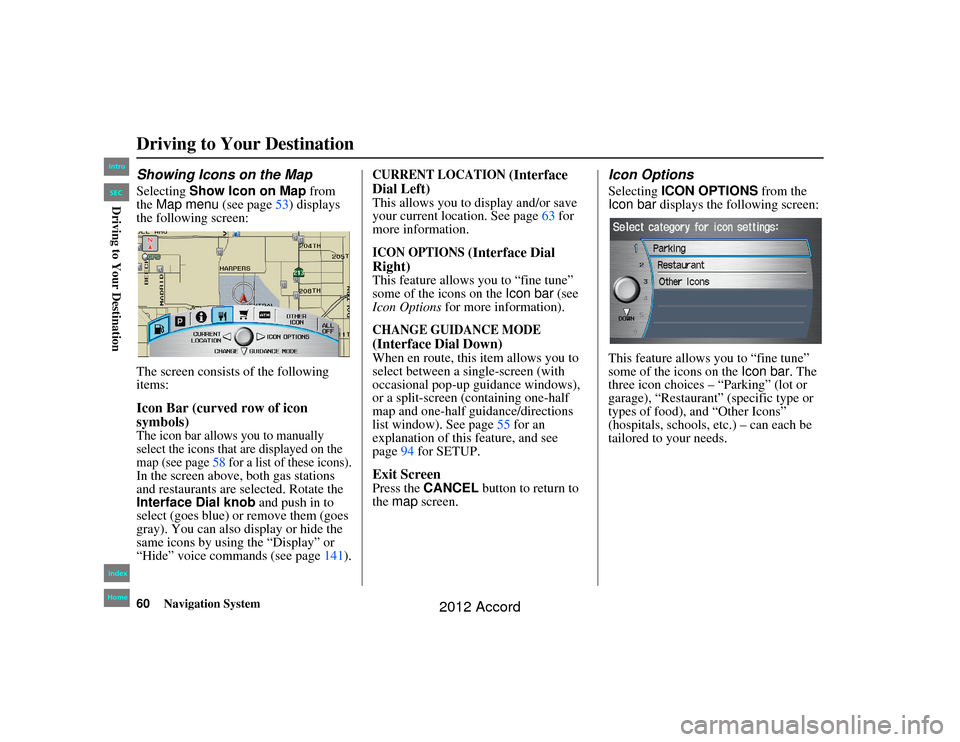
the following screen:
The screen consists of the following
items:Icon Bar (curved row of icon
symbols)The icon bar allows you to manually
select the icons that are displayed on the
map (see page 58 for a list of these icons).In the screen above, both gas stations
and restaurants are selected. Rotate the
Interface Dial knob and push in to
select (goes blue) or remove them (goes
gray). You can also display or hide the
same icons by using the “Display” or
“Hide” voice commands (see page 141).
CURRENT LOCATION
(Interface
Dial Left)
This allows you to display and/or save
your current location. See page 63 for
more information.ICON OPTIONS
(Interface Dial
Right)
This feature allows you to “fine tune”
some of the icons on the Icon bar (see
Icon Options for more information).CHANGE GUIDANCE MODE
(Interface Dial Down)
When en route, this item allows you to
select between a single-screen (with
occasional pop-up guidance windows),
or a split-screen (containing one-half
map and one-half guidance/directions
list window). See page 55 for an
explanation of this feature, and see
page 94 for SETUP.Exit ScreenPress the CANCEL button to return to
the map screen.
Icon OptionsSelecting ICON OPTIONS from the
Icon bar displays the fo llowing screen:
This feature allows you to “fine tune”
some of the icons on the Icon bar . The
three icon choices – “Parking” (lot or
garage), “Restaurant” (specific type or
types of food), and “Other Icons”
(hospitals, schools, etc.) – can each be
tailored to your needs.
Driving to Your Destination00_Accord 2D4D_KA.book 60 ページ 2011年7月21日 木曜日 午後1時59分
IntroIndex
HomeSECDriving to Your Destination
2012 Accord
Page 61 of 156
Navigation System61
Accord 2D4D_KA 31TA5840
Driving to Your Destination
For instance, let’s assume that hospital
icons are not displayed on the map, and
you want to make sure that your settings
are correct. You would do the
following:
First, you would ensure that the
“OTHER ICON” button on the Icon
bar is blue (see Icon Bar on page60).
Second, you select ICON OPTIONS
and verify that the hospital option is
also on (blue). This procedure is
explained below.
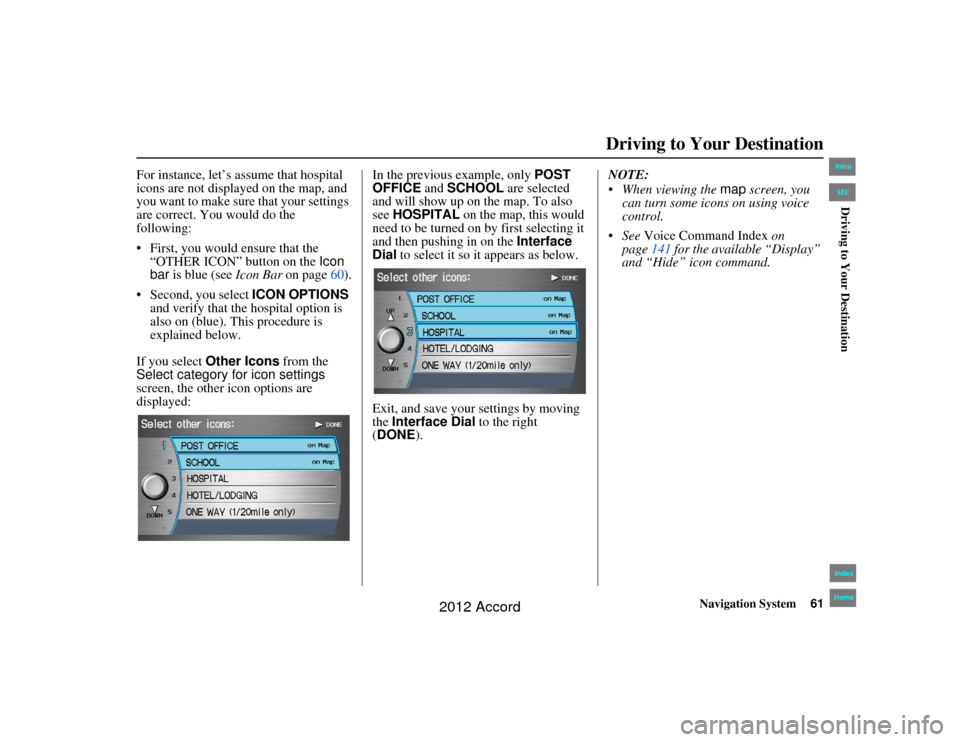
If you select Other Icons from the
Select category for icon settings
screen, the other icon options are
displayed: In the previous example, only
POST
OFFICE and SCHOOL are selected
and will show up on the map. To also
see HOSPITAL on the map, this would
need to be turned on by first selecting it
and then pushing in on the Interface
Dial to select it so it appears as below.
Exit, and save your settings by moving
the Interface Dial to the right
(DONE ). NOTE:
When viewing the
map screen, you
can turn some icons on using voice
control.
See Voice Command Index on
page 141 for the available “Display”
and “Hide” icon command.00_Accord 2D4D_KA.book 61 ページ 2011年7月21日 木曜日 午後1時59分
IntroIndex
HomeSECDriving to Your Destination
2012 Accord
Page 70 of 156
70
Navigation System
Accord 2D4D_KA 31TA5840
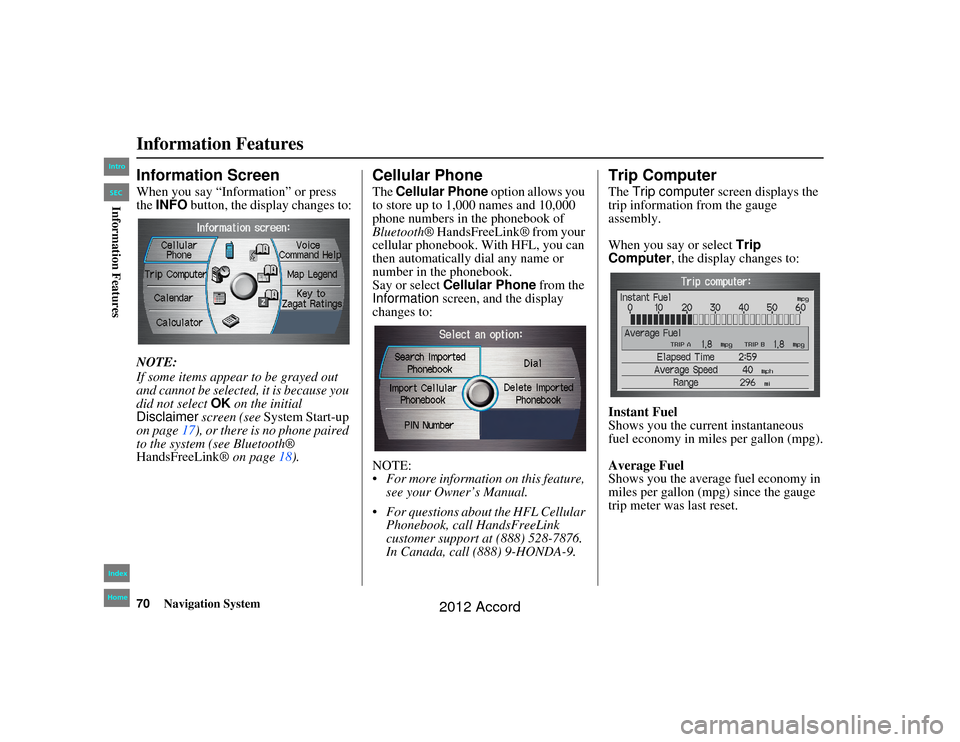
Information FeaturesInformation ScreenWhen you say “Information” or press
the INFO button, the display changes to:
NOTE:
If some items appear to be grayed out
and cannot be selected, it is because you
did not select OK on the initial
Disclaimer screen (see System Start-up
on page 17), or there is no phone paired
to the system (see Bluetooth®
HandsFreeLink ® on page18).
Cellular PhoneThe Cellular Phone option allows you
to store up to 1,000 names and 10,000
phone numbers in the phonebook of
Bluetooth ® HandsFreeLink® from your
cellular phonebook. With HFL, you can
then automatically dial any name or
number in the phonebook.
Say or select Cellular Phone from the
Information screen, and the display
changes to:
NOTE:
For more information on this feature, see your Owner’s Manual.
For questions about the HFL Cellular Phonebook, call HandsFreeLink
customer support at (888) 528-7876.
In Canada, call (888) 9-HONDA-9.
Trip ComputerThe Trip computer screen displays the
trip information from the gauge
assembly.
When you say or select Trip
Computer , the display changes to:
Instant Fuel
Shows you the current instantaneous
fuel economy in miles per gallon (mpg).
Average Fuel
Shows you the averag e fuel economy in
miles per gallon (mpg) since the gauge
trip meter was last reset.
00_Accord 2D4D_KA.book 70 ページ 2011年7月21日 木曜日 午後1時59分
IntroIndex
HomeSECInformation Features
2012 Accord
Page 75 of 156
Navigation System75
Accord 2D4D_KA 31TA5840
Information Features
Map LegendYou can use the Map legend screens to
learn the meaning of map features,
icons, colors, etc. us ed in this system.
When you say or select Map Legend,
the display changes to:
Say or select the desired item or item
number to view each section of the map
legend.
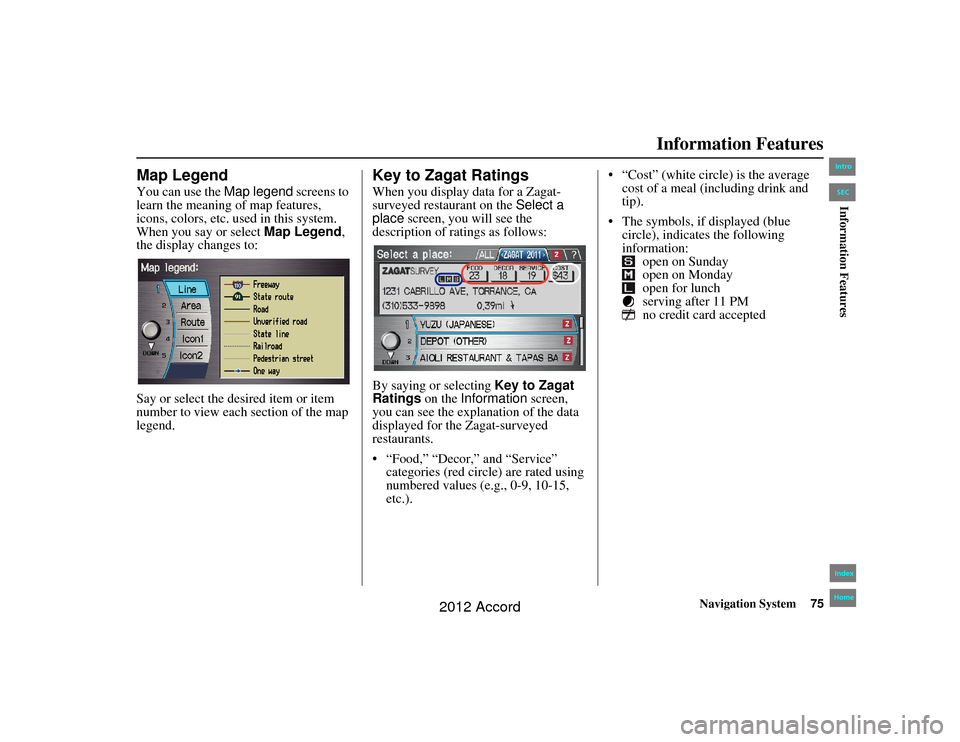
Key to Zagat RatingsWhen you display data for a Zagat-
surveyed restaurant on the Select a
place screen, you will see the
description of ratings as follows:
By saying or selecting Key to Zagat
Ratings on the Information screen,
you can see the explanation of the data
displayed for the Zagat-surveyed
restaurants.
“Food,” “Decor,” and “Service” categories (red circle) are rated using
numbered values (e.g., 0-9, 10-15,
etc.). “Cost” (white circle) is the average
cost of a meal (including drink and
tip).
The symbols, if displayed (blue circle), indicates the following
information: open on Sunday
open on Monday
open for lunch
serving after 11 PM
no credit card accepted
00_Accord 2D4D_KA.book 75 ページ 2011年7月21日 木曜日 午後1時59分
IntroIndex
HomeSECInformation Features
2012 Accord
Page 87 of 156
Navigation System87
Accord 2D4D_KA 31TA5840
System Setup
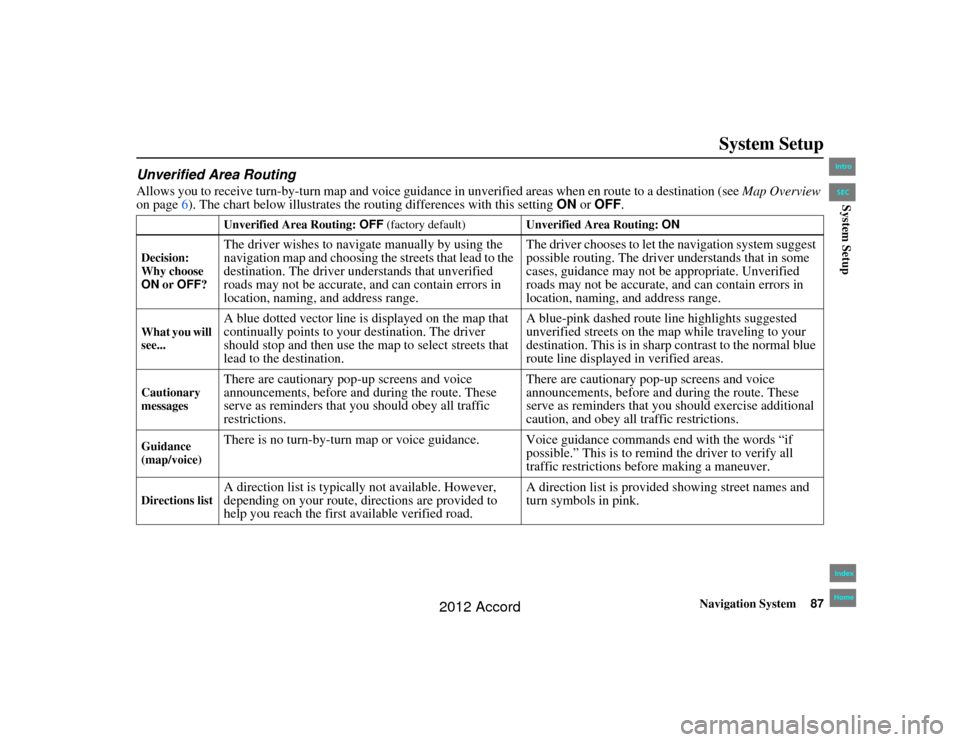
Unverified Area RoutingAllows you to receive turn-b y-turn map and voice guidance in unverified areas when en route to a destination (see Map Overview
on page 6). The chart below illustrates the routing differences with this setting ON or OFF .
Unverified Area Routing: OFF (factory default) Unverified Area Routing: ON
Decision:
Why choose
ON or OFF ?The driver wishes to naviga te manually by using the
navigation map and choosing the streets that lead to the
destination. The driver understands that unverified
roads may not be accurate, and can contain errors in
location, naming, and address range. The driver chooses to let the navigation system suggest
possible routing. The driver understands that in some
cases, guidance may not be appropriate. Unverified
roads may not be accurate, and can contain errors in
location, naming, and address range.
What you will
see...
A blue dotted vector line is displayed on the map that
continually points to your destination. The driver
should stop and then use the
map to select streets that
lead to the destination. A blue-pink dashed route line highlights suggested
unverified streets on the map while traveling to your
destination. This is in sharp
contrast to the normal blue
route line displayed in verified areas.
Cautionary
messages
There are cautionary pop-up screens and voice
announcements, before and during the route. These
serve as reminders that you should obey all traffic
restrictions. There are cautionary pop-up screens and voice
announcements, before and during the route. These
serve as reminders that you should exercise additional
caution, and obey all traffic restrictions.
Guidance
(map/voice)
There is no turn-by-turn map or voice guidance. Voice guidance commands end with the words “if
possible.” This is to remind the driver to verify all
traffic restrictions before making a maneuver.
Directions list
A direction list is typically not available. However,
depending on your route, directions are provided to
help you reach the first available verified road. A direction list is provided showing street names and
turn symbols in pink.
00_Accord 2D4D_KA.book 87 ページ 2011年7月21日 木曜日 午後1時59分
IntroIndex
HomeSECSystem Setup
2012 Accord
Page 89 of 156
Navigation System89
Accord 2D4D_KA 31TA5840
System Setup
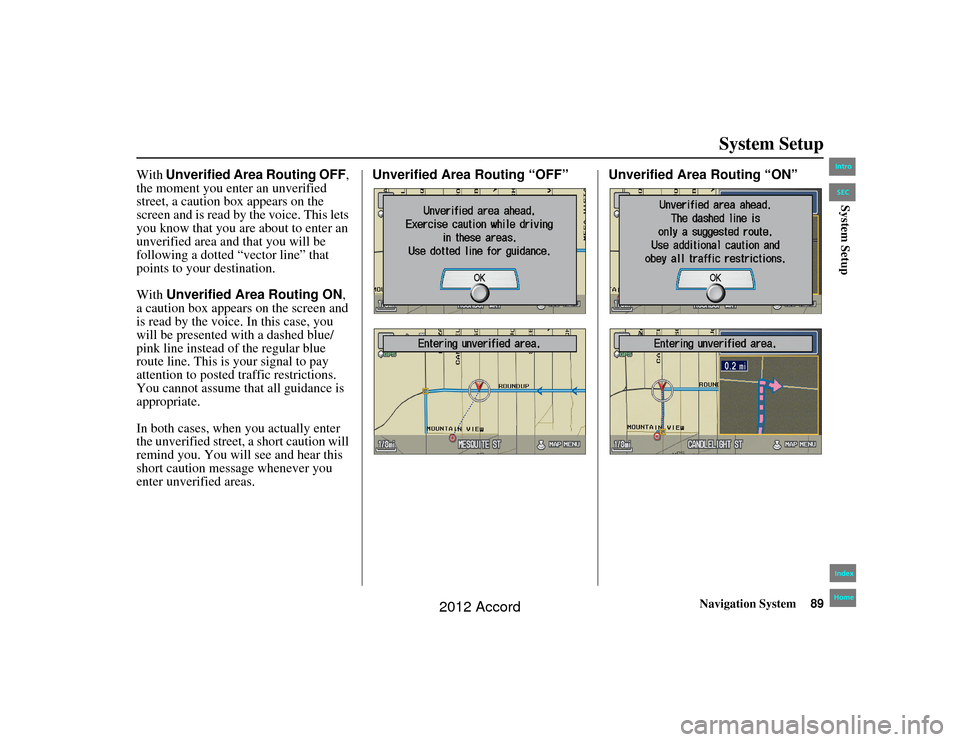
With Unverified Area Routing OFF,
the moment you enter an unverified
street, a caution box appears on the
screen and is read by the voice. This lets
you know that you are about to enter an
unverified area and that you will be
following a dotted “vector line” that
points to your destination.
With Unverified Area Routing ON ,
a caution box appears on the screen and
is read by the voice. In this case, you
will be presented with a dashed blue/
pink line instead of the regular blue
route line. This is your signal to pay
attention to posted traffic restrictions.
You cannot assume that all guidance is
appropriate.
In both cases, when you actually enter
the unverified street, a short caution will
remind you. You will see and hear this
short caution message whenever you
enter unverified areas. Unverified Area Routing “OFF” Unverified Area Routing “ON”00_Accord 2D4D_KA.book 89 ページ 2011年7月21日 木曜日 午後1時59分
IntroIndex
HomeSECSystem Setup
2012 Accord
Page 90 of 156
90
Navigation System
Accord 2D4D_KA 31TA5840
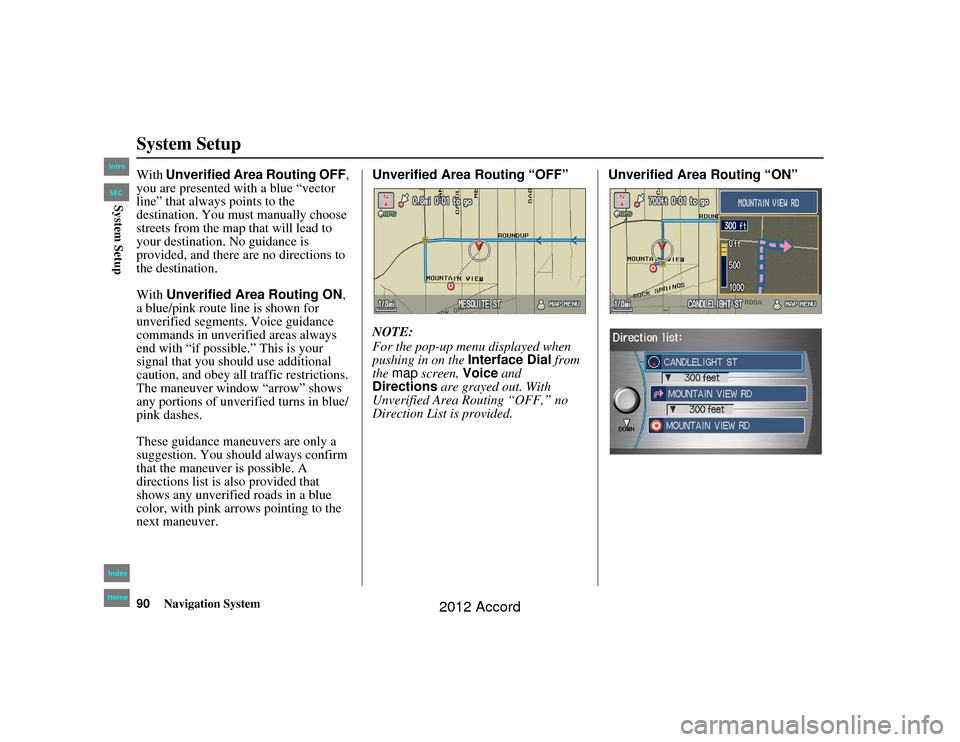
System SetupWith Unverified Area Routing OFF,
you are presented with a blue “vector
line” that always points to the
destination. You must manually choose
streets from the map that will lead to
your destination. No guidance is
provided, and there are no directions to
the destination.
With Unverified Area Routing ON ,
a blue/pink route line is shown for
unverified segments. Voice guidance
commands in unverified areas always
end with “if possible.” This is your
signal that you should use additional
caution, and obey all traffic restrictions.
The maneuver window “arrow” shows
any portions of unverified turns in blue/
pink dashes.
These guidance maneuvers are only a
suggestion. You should always confirm
that the maneuver is possible. A
directions list is also provided that
shows any unverified roads in a blue
color, with pink a rrows pointing to the
next maneuver. Unverified Area Routing “OFF”
NOTE:
For the pop-up menu displayed when
pushing in on the
Interface Dial from
the map screen, Voice and
Directions are grayed out. With
Unverified Area Ro uting “OFF,” no
Direction List is provided. Unverified Area Routing “ON”00_Accord 2D4D_KA.book 90 ページ 2011年7月21日 木曜日 午後1時59分
IntroIndex
HomeSECSystem Setup
2012 Accord
Page 117 of 156
Navigation System117
Accord 2D4D_KA 31TA5840
Coverage Areas
Spokane
Tri-Cities
Whatcom
Point Roberts (community)
Yakima
West Virginia Charleston
Harper’s Ferry Metro
Huntington
Morgantown
Parkersburg
Wisconsin Appleton
Beloit
Eau Claire
Green Bay
Janesville
Kenosha County
La Crosse
Lake Geneva
Madison
Manitowoc
Milwaukee Metro – including
Milwaukee, Ozaukee, Washington,
and Waukesha Counties
Neenah
Oshkosh
Racine
Sheboygan
Southeastern Wisconsin
Wausau Wyoming
Cheyenne
Grand Teton/Jackson
Jackson Ski Resorts
Canada Detailed Coverage
AreasNOTE:
The blue city names are not included in
the USA South DVD. To obtain
coverage for cities listed in red, you
may purchase the gray Canada DVD
(see page 110, Obtaining a Navigation
DVD). DVDs are not available at your
dealer.ALBERTA
Airdrie
Banff
Beaumont
Calgary
Calmar
Canmore
Chestermere
Cochrane
Crossfield
Devon
Edmonton
Fort Saskatchewan
Leduc Lethbridge
Medicine Hat
Red Deer
Spruce Grove
St. Albert
Stony Plain
Strathcona County
BRITISH COLUMBIAGreater Vancouver
Anmore
Belcarra
Bowen Island
Burnaby
Coquitlam
Delta
Langley
Langley Twp
Lions Bay
Maple Ridge
New Westminster
North Vancouver
North Vancouver District
Pitt Meadows
Port Coquitlam
Port Moody
Richmond
Surrey
Squamish
Vancouver
West Vancouver
White Rock
00_Accord 2D 4D_KA.book 117 ページ 2011年7月21日 木曜日 午後1時59分
IntroIndex
HomeSECCoverage Areas
2012 Accord
Page 119 of 156
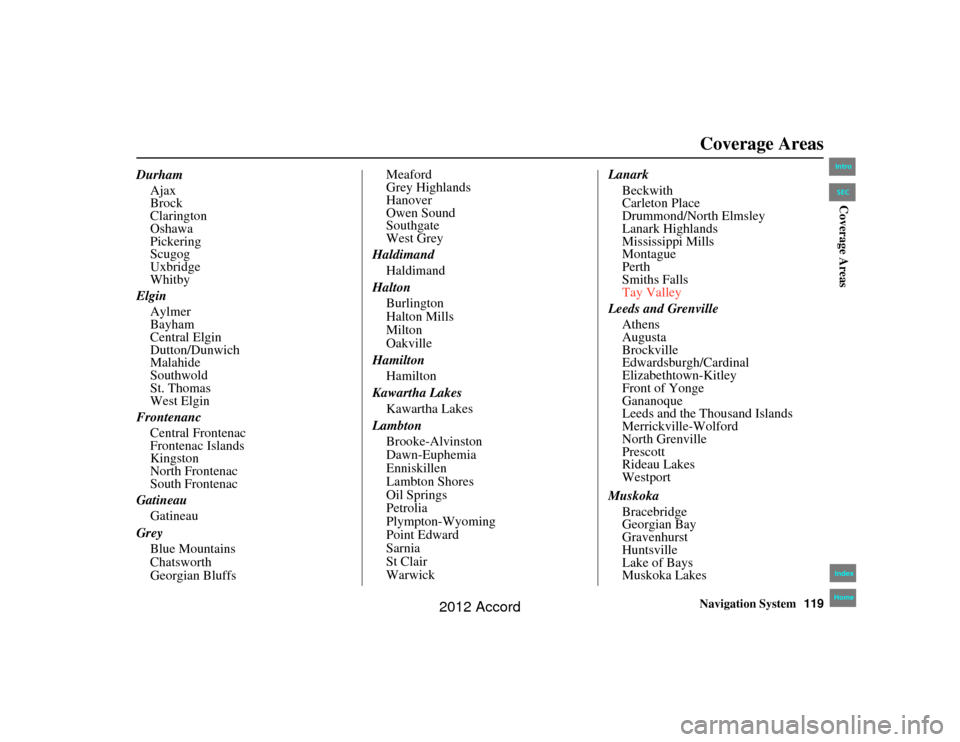
Navigation System119
Accord 2D4D_KA 31TA5840
Coverage Areas
Durham
Ajax
Brock
Clarington
Oshawa
Pickering
Scugog
Uxbridge
Whitby
Elgin Aylmer
Bayham
Central Elgin
Dutton/Dunwich
Malahide
Southwold
St. Thomas
West Elgin
Frontenanc Central Frontenac
Frontenac Islands
Kingston
North Frontenac
South Frontenac
Gatineau Gatineau
Grey Blue Mountains
Chatsworth
Georgian Bluffs Meaford
Grey Highlands
Hanover
Owen Sound
Southgate
West Grey
Haldimand Haldimand
Halton Burlington
Halton Mills
Milton
Oakville
Hamilton Hamilton
Kawartha Lakes Kawartha Lakes
Lambton Brooke-Alvinston
Dawn-Euphemia
Enniskillen
Lambton Shores
Oil Springs
Petrolia
Plympton-Wyoming
Point Edward
Sarnia
St Clair
Warwick Lanark
Beckwith
Carleton Place
Drummond/North Elmsley
Lanark Highlands
Mississippi Mills
Montague
Perth
Smiths Falls
Tay Valley
Leeds and Grenville Athens
Augusta
Brockville
Edwardsburgh/Cardinal
Elizabethtown-Kitley
Front of Yonge
Gananoque
Leeds and the Thousand Islands
Merrickville-Wolford
North Grenville
Prescott
Rideau Lakes
Westport
Muskoka Bracebridge
Georgian Bay
Gravenhurst
Huntsville
Lake of Bays
Muskoka Lakes00_Accord 2D 4D_KA.book 119 ページ 2011年7月21日 木曜日 午後1時59分
IntroIndex
HomeSECCoverage Areas
2012 Accord
Page 130 of 156
130
Navigation System
Accord 2D4D_KA 31TA5840
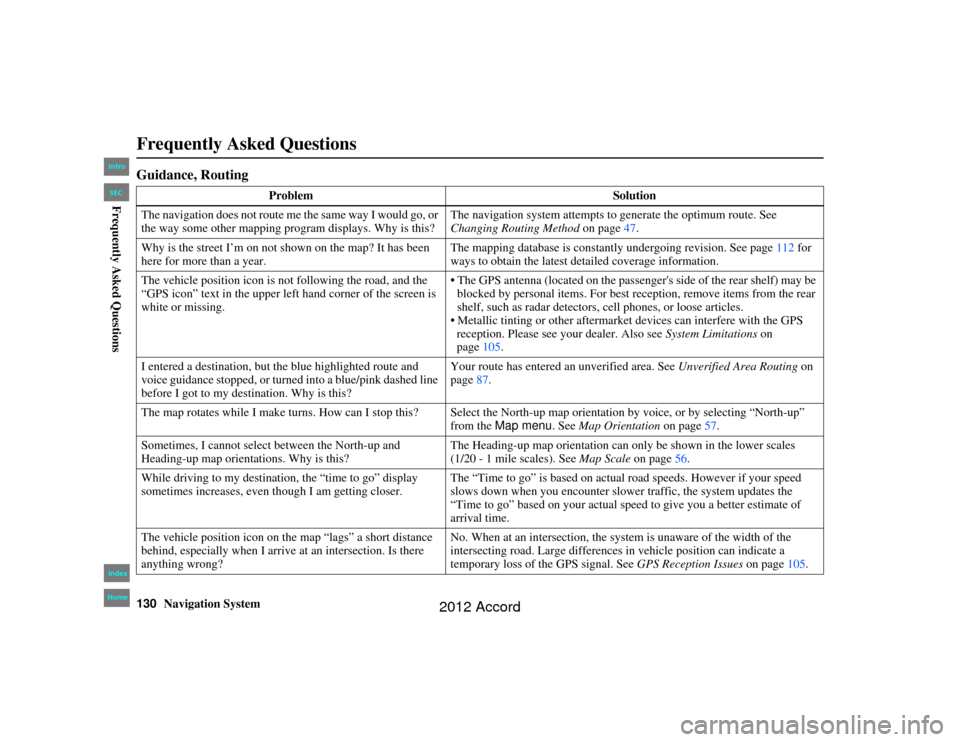
Frequently Asked QuestionsGuidance, Routing
ProblemSolution
The navigation does not route me the same way I would go, or
the way some other mapping program displays. Why is this? The navigation system attempts to generate the optimum route. See
Changing Routing Method
on page47.
Why is the street I’m on not s hown on the map? It has been
here for more than a year. The mapping database is constantly undergoing revision. See page
112 for
ways to obtain the latest detailed coverage information.
The vehicle position icon is not following the road, and the
“GPS icon” text in the upper left hand corner of the screen is
white or missing. The GPS antenna (located on the passenger
's side of the rear shelf) may be
blocked by personal items. For best reception, remove items from the rear
shelf, such as radar detectors, cell phones, or loose articles.
Metallic tinting or other aftermarket devices can interfere with the GPS reception. Please see you r dealer. Also see System Limitations on
page 105.
I entered a destination, but the blue highlighted route and
voice guidance stopped, or turned into a blue/pink dashed line
before I got to my destination. Why is this? Your route has entered an
unverified area. See Unverified Area Routing on
page 87.
The map rotates while I make turns. How can I stop this? Select the North-up map orientation by voice, or by selecting “North-up” from the Map menu. See Map Orientation on page57.
Sometimes, I cannot select between the North-up and
Heading-up map orientations. Why is this? The Heading-up map orientation can only be shown in the lower scales
(1/20 - 1 mile scales). See
Map Scale on page56.
While driving to my destination, the “time to go” display
sometimes increases, even th ough I am getting closer. The “Time to go” is based on actual road speeds. However if your speed
slows down when you encounter slower traffic, the system updates the
“Time to go” based on your actual speed to give you a better estimate of
arrival time.
The vehicle position icon on th e map “lags” a short distance
behind, especially when I arrive at an intersection. Is there
anything wrong? No. When at an in
tersection, the system is un aware of the width of the
intersecting road. Large differences in vehicle position can indicate a
temporary loss of the GPS signal. See GPS Reception Issues on page105.
00_Accord 2D 4D_KA.book 130 ページ 2011年7月21日 木曜日 午後1時59分
IntroIndex
HomeSECFrequently Asked Questions
2012 Accord