turn signal HONDA ACCORD 2013 9.G User Guide
[x] Cancel search | Manufacturer: HONDA, Model Year: 2013, Model line: ACCORD, Model: HONDA ACCORD 2013 9.GPages: 595, PDF Size: 20.67 MB
Page 217 of 595
uuAudio System Basic Operation uPlaying AM/FM Radio
216Features
Provides text data information related to your selected RDS-capable FM station.■To find an RDS station from Station List
1. Press to switch to the Audio menu screen while listening to an FM station.
2. Rotate to select Station List, then press .
3. Rotate to select the station, then press .■Manual update
Updates your available station list at any time.
1. Press to switch to the Audio menu screen while listening to an FM station.
2. Rotate to select Station List, then press .
3. Rotate to select UPDATE LIST, then press .■Radio Data System (RDS)
1Radio Data System (RDS)
When you select an RDS-capable FM station, the RDS
automatically turns on, and the frequency display
changes to the station name. However, when the
signals of that station become weak, the display
changes from the station name to the frequency.
Page 254 of 595
253
uuAudio System Basic Operation uPlaying AM/FM Radio
Continued
Features
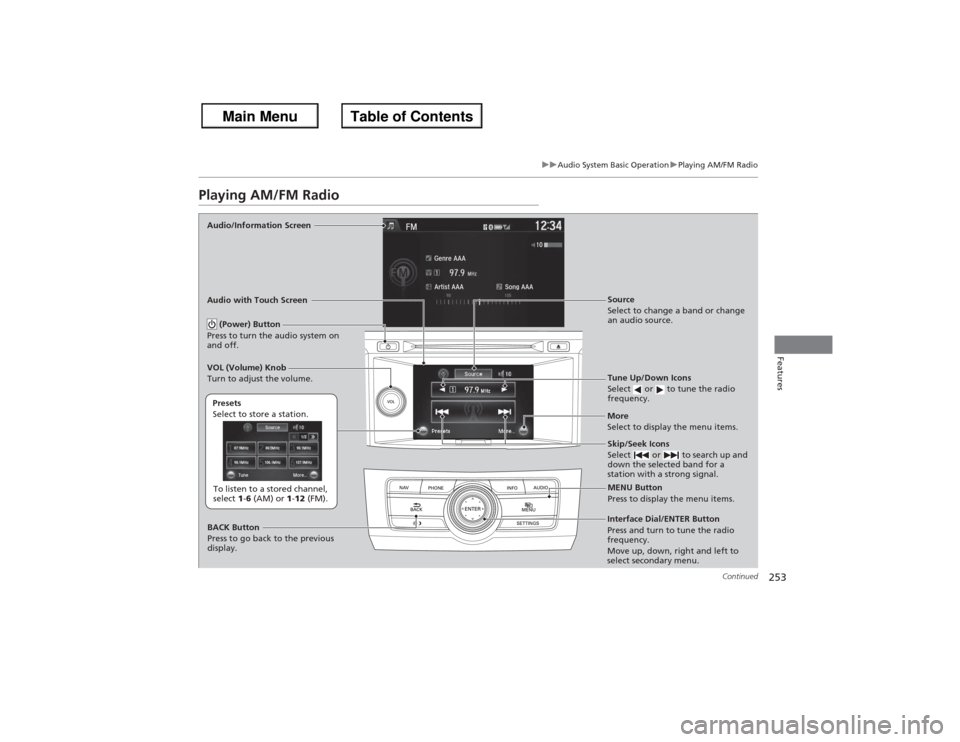
Playing AM/FM RadioAudio/Information Screen
Audio with Touch Screen
Tune Up/Down Icons
Select or to tune the radio
frequency.
MENU Button
Press to display the menu items.
(Power) Button
Press to turn the audio system on
and off.
Source
Select to change a band or change
an audio source.
To listen to a stored channel,
select 1-6 (AM) or 1-12 (FM).
Presets
Select to store a station.
Skip/Seek Icons
Select or to search up and
down the selected band for a
station with a strong signal.
More
Select to display the menu items.
BACK Button
Press to go back to the previous
display.
VOL (Volume) Knob
Turn to adjust the volume.Interface Dial/ENTER Button
Press and turn to tune the radio
frequency.
Move up, down, right and left to
select secondary menu.
Page 256 of 595
Continued
255
uuAudio System Basic Operation uPlaying AM/FM Radio
Features
Provides text data information related to your selected RDS-capable FM station.■To find an RDS station from Station List
1. Press the MENU button while listening to an FM station.
2. Rotate to select Station List, then press .
3. Rotate to select the station, then press .■Manual update
Updates your available station list at any time.
1. Press the MENU button while listening to an FM station.
2. Rotate to select Station List, then press .
3. Rotate to select Refresh, then press .■Radio Data System (RDS)
1Radio Data System (RDS)
When you select an RDS-capable FM station, the RDS
automatically turns on, and the frequency display
changes to the station name. However, when the
signals of that station become weak, the display
changes from the station name to the frequency.
Page 296 of 595
295Features
General Information on the Audio SystemXM® Radio Service
*
1.You need your radio ID ready before registering for subscription. To see the ID in
the display: Turn the selector knob or the interface dial until 0 appears.
2. Have your radio ID and credit card number ready, and either call or visit the XM ®
website to subscribe.
Switch to the XM ® mode by pressing the SOURCE button repeatedly or operating
the audio with touch screen, and stay in this mode for about 30 minutes until the
service is activated. Make sure your vehicle is in an open area with good reception.
Loading:
XM ® is loading the audio or program information.
Ch off air:
The channel is not currently broadcasting.
Ch unauthorized:
XM ® radio is receiving information update from the network.
No signal:
The signal is too weak in the current location.
Ch unavailable:
No such channel exists, the channel is not part of your subscription, or the artist or
title information is unavailable.
Check antenna:
There is a problem with the XM ® antenna. Contact a dealer.■Subscribing to XM ® Radio■Receiving XM ® Radio■XM ® Radio Display Messages
1 Subscribing to XM ® Radio
Contact Information for XM ® Radio:
US: XM ® Radio at www.siriusxm.com or (800) 852-
9696
Canada: XM ® Canada at www.xmradio.ca , or (877)
209-00791 Receiving XM ® Radio
The XM ® satellites are in orbit over the equator;
therefore, objects south of the vehicle may cause
satellite reception interruptions. Satellite signals are
more likely to be blocked by tall buildings and
mountains the farther north you travel from the
equator.
You may experience reception problems under the
following circumstances:•In a location with an obstruction to the south of
your vehicle.•In tunnels•On the lower level of a multi-tiered road•Large items carried on the roof rack
* Not available on all models
Page 307 of 595
306
uuCustomized Features u
Features
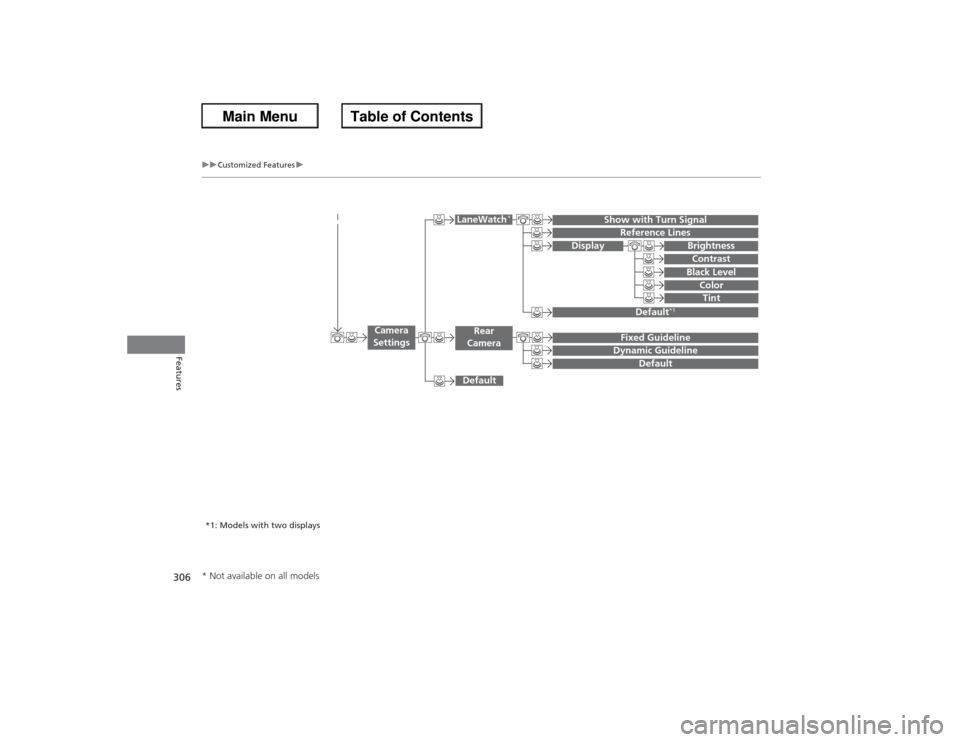
Display
Show with Turn Signal
Reference Lines
Default
*1
Default
Default
Fixed GuidelineDynamic Guideline
Camera
Settings
LaneWatch
*
Rear
Camera
BrightnessContrastBlack Level
ColorTint
*1: Models with two displays* Not available on all models
Page 311 of 595
310
uuCustomized Features u
Features
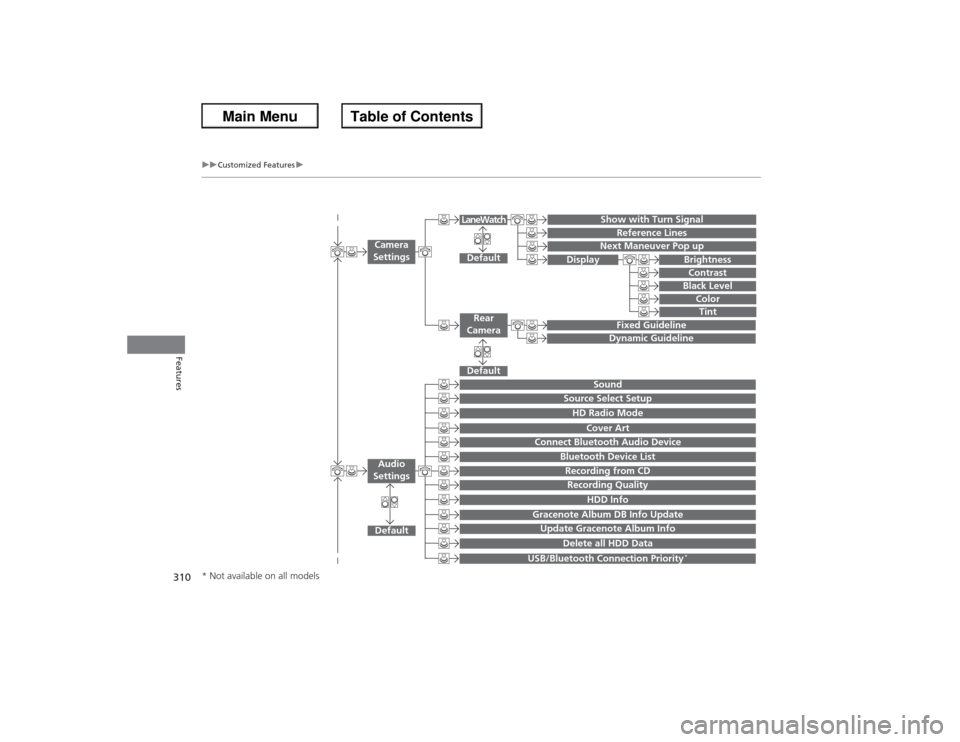
Show with Turn Signal
Reference Lines
Next Maneuver Pop up
Default
Fixed GuidelineDynamic Guideline
Default
Default
Sound
Source Select SetupHD Radio Mode
Cover Art
Connect Bluetooth Audio Device
Bluetooth Device ListRecording from CDRecording Quality
HDD Info
Gracenote Album DB Info UpdateUpdate Gracenote Album Info
Delete all HDD Data
USB/Bluetooth Connection Priority
*
Camera
Settings
Rear
Camera
LaneWatch
Audio
Settings
Display
BrightnessContrastBlack Level
ColorTint
* Not available on all models
Page 323 of 595
322
uuCustomized Features u
Features
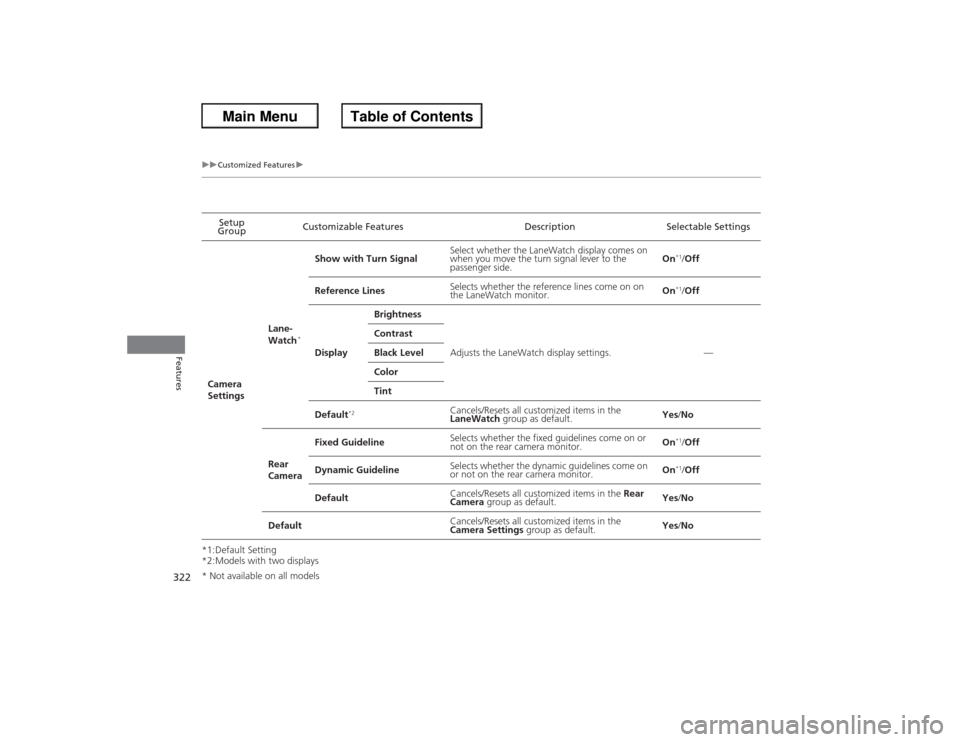
*1:Default Setting
*2:Models with two displaysSetup
Group Customizable Features Description Selectable Settings
Camera
Settings Lane-
Watch
*
Show with Turn Signal
Select whether the LaneWatch display comes on
when you move the turn signal lever to the
passenger side.
On
*1/
Off
Reference Lines Selects whether the reference lines come on on
the LaneWatch monitor.
On*1/
Off
Display Brightness
Adjusts the LaneWatch display settings. —
Contrast
Black Level
Color
Tint
Default
*2
Cancels/Resets all cus tomized items in the
LaneWatch group as default. Yes
/No
Rear
Camera Fixed Guideline
Selects whether the fixed guidelines come on or
not on the rear camera monitor. On
*1/
Off
Dynamic Guideline Selects whether the dynamic guidelines come on
or not on the rear camera monitor.
On*1/
Off
Default Cancels/Resets all cus
tomized items in the Rear
Camera group as default. Yes
/No
Default Cancels/Resets all cus
tomized items in the
Camera Settings group as default. Yes
/No
* Not available on all models
Page 330 of 595
329
uuCustomized Features u
Continued
Features
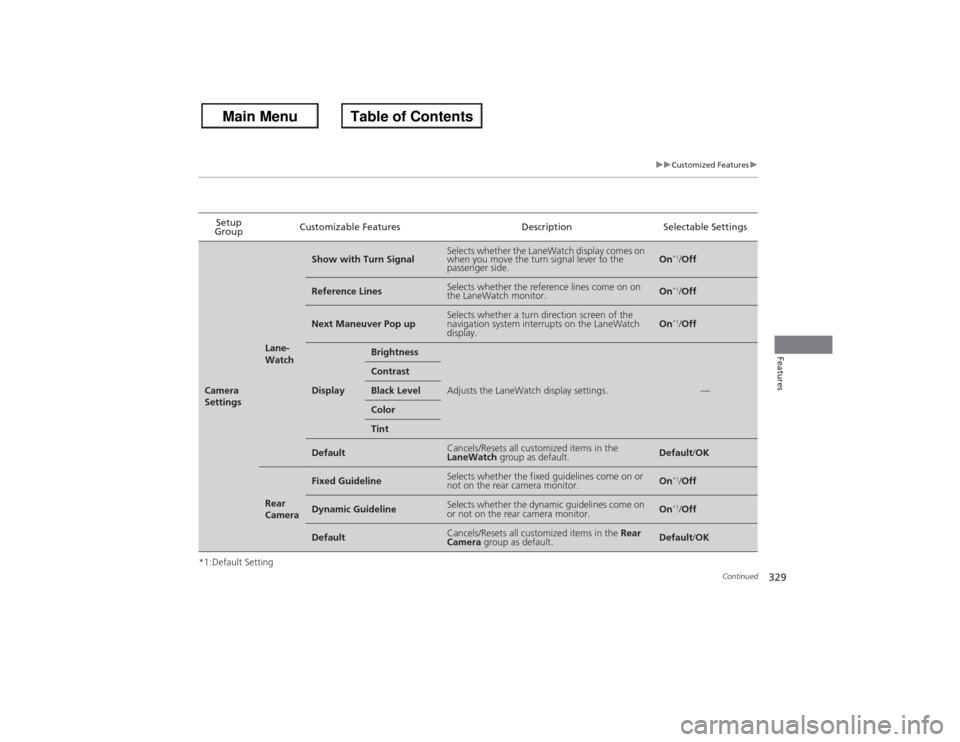
*1:Default SettingSetup
Group Customizable Features Description Selectable SettingsCamera
Settings
Lane-
Watch
Show with Turn Signal
Selects whether the LaneWatch display comes on
when you move the turn signal lever to the
passenger side.
On
*1/
Off
Reference Lines
Selects whether the reference lines come on on
the LaneWatch monitor.
On
*1/Off
Next Maneuver Pop up
Selects whether a turn direction screen of the
navigation system interrupts on the LaneWatch
display.
On
*1/Off
Display
Brightness
Adjusts the LaneWatch display settings.
—
ContrastBlack LevelColorTint
Default
Cancels/Resets all customized items in the
LaneWatch group as default.
Default/OK
Rear
Camera
Fixed Guideline
Selects whether the fixed guidelines come on or
not on the rear camera monitor.
On
*1/Off
Dynamic Guideline
Selects whether the dynamic guidelines come on
or not on the rear camera monitor.
On
*1/Off
Default
Cancels/Resets all customized items in the Rear
Camera group as default.
Default/OK
Page 463 of 595
462
uuWhen Driving uLane Departure Warning (LDW)
*
Driving
Lane Departure Warning (LDW)
*
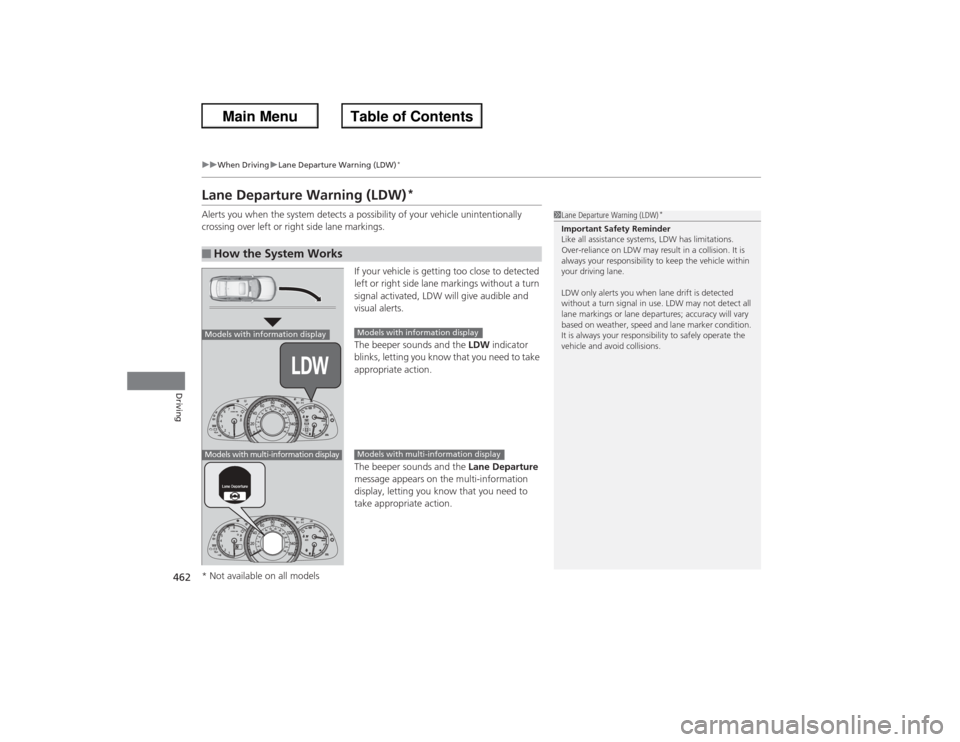
Alerts you when the system detects a possibility of your vehicle unintentionally
crossing over left or right side lane markings.
If your vehicle is getting too close to detected
left or right side lane markings without a turn
signal activated, LDW will give audible and
visual alerts.
The beeper sounds and the LDW indicator
blinks, letting you know that you need to take
appropriate action.
The beeper sounds and the Lane Departure
message appears on the multi-information
display, letting you know that you need to
take appropriate action.■How the System Works
1 Lane Departure Warning (LDW)
*
Important Safety Reminder
Like all assistance systems, LDW has limitations.
Over-reliance on LDW may result in a collision. It is
always your responsibility to keep the vehicle within
your driving lane.
LDW only alerts you when lane drift is detected
without a turn signal in use. LDW may not detect all
lane markings or lane departures; accuracy will vary
based on weather, speed and lane marker condition.
It is always your responsibility to safely operate the
vehicle and avoid collisions.
Models with information displayModels with multi-information display
Models with information displayModels with multi-information display
* Not available on all models
Page 464 of 595
Continued
463
uuWhen Driving uLane Departure Warning (LDW)
*
Driving
The system begins to search for lane markings when all the following conditions are met:
• The vehicle is traveling between at 40-90 mph (64-145 km/h).
• The vehicle is on a straight or slightly curved road.
• The turn signals are off.
• The brake pedal is not pressed.
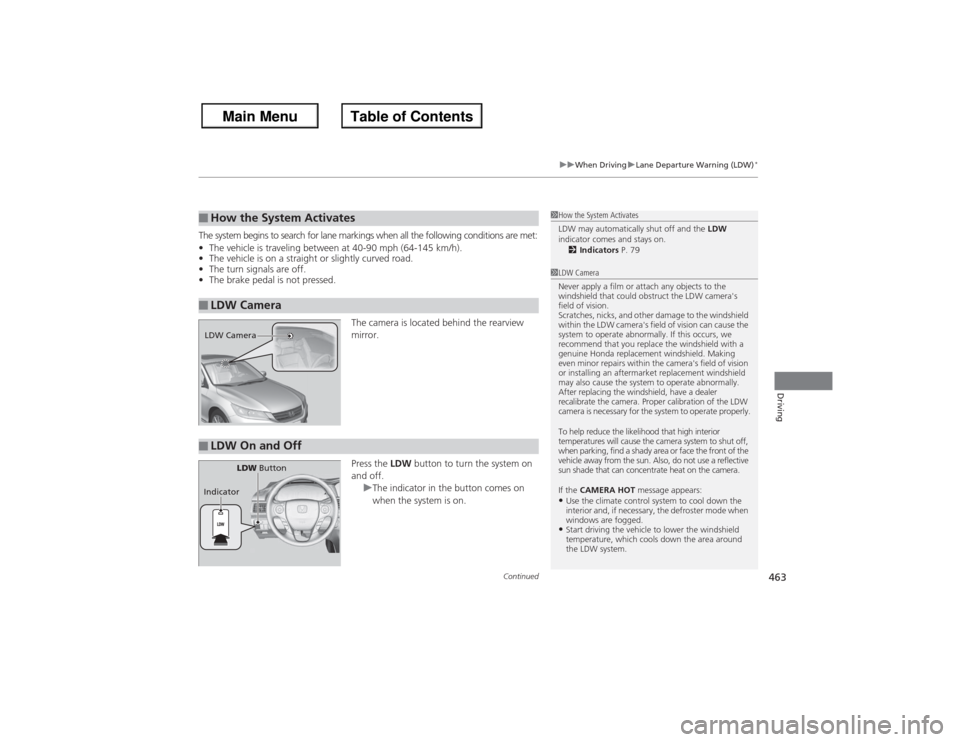
The camera is located behind the rearview
mirror.
Press the LDW button to turn the system on
and off. uThe indicator in the button comes on
when the system is on.■How the System Activates■LDW Camera
1How the System Activates
LDW may automatically shut off and the LDW
indicator comes and stays on. 2 Indicators P. 791LDW Camera
Never apply a film or attach any objects to the
windshield that could obstruct the LDW camera's
field of vision.
Scratches, nicks, and other damage to the windshield
within the LDW camera's field of vision can cause the
system to operate abnormally. If this occurs, we
recommend that you replace the windshield with a
genuine Honda replacement windshield. Making
even minor repairs within the camera's field of vision
or installing an aftermarket replacement windshield
may also cause the system to operate abnormally.
After replacing the windshield, have a dealer
recalibrate the camera. Proper calibration of the LDW
camera is necessary for the system to operate properly.
To help reduce the likelihood that high interior
temperatures will cause the camera system to shut off,
when parking, find a shady area or face the front of the
vehicle away from the sun. Also, do not use a reflective
sun shade that can concentrate heat on the camera.
If the CAMERA HOT message appears:•Use the climate control system to cool down the
interior and, if necessary, the defroster mode when
windows are fogged.•Start driving the vehicle to lower the windshield
temperature, which cools down the area around
the LDW system.
LDW Camera■LDW On and Off
LDW Button
Indicator