phone HONDA ACCORD 2013 9.G Owner's Manual
[x] Cancel search | Manufacturer: HONDA, Model Year: 2013, Model line: ACCORD, Model: HONDA ACCORD 2013 9.GPages: 595, PDF Size: 20.67 MB
Page 246 of 595
245
uuAudio System Basic Operation uVoice Control Operation
Continued
Features
Voice Control OperationYour vehicle has a voice control system that allows hands-free operation of most of
the navigation system functions.
The voice control system uses the (Talk) and (hang-up/back) buttons on the
steering wheel and a microphone near the map lights on the ceiling.
To achieve optimum voice recognition when using the navigation voice control
system:
• Make sure the correct screen is displayed for the voice command that you are
using.
• Close the windows and moonroof.
• Adjust the dashboard and side vents so air does not blow onto the microphone
on the ceiling.
• Speak clearly in a clear, natural speaking voice without pausing between words.
• Reduce any background noise if possible. The system may misinterpret your
command if more than one person is speaking at the same time.
• Refer to the Voice Help feature.
2 Refer to the navigation System Manual
■Voice Recognition
1Voice Control Operation
When you press the button, a helpful prompt asks
what you would like to do. Press and release the
button again to bypass this prompt and give a
command.1Voice Recognition
The voice control system can only be used from the
driver’s seat because the microphone unit removes
noises from the front passenger’s side.
Page 247 of 595
246
uuAudio System Basic Operation uVoice Control Operation
Features
The system accepts these commands on the
Voice Portal screen.
• Call Your contact name
• Call Phone Number
• Find nearest POI category name
• Go home
• Route menu
• Cancel route
The system accepts these commands on any
screen.
• Call by number
• Call by name
Contacts that are imported from your
phone to the vehicle are all made available
by voice. Voice Tags can also be recorded
for each of your Speed Dial entries.■Voice Portal Commands■Phone Commands
2 Refer to the Navigation System ManualThe system accepts these commands on any
screen.
•Trip computer
• Traffic information
• Display clock
• Display wallpaper■Navigation Commands■Info Commands
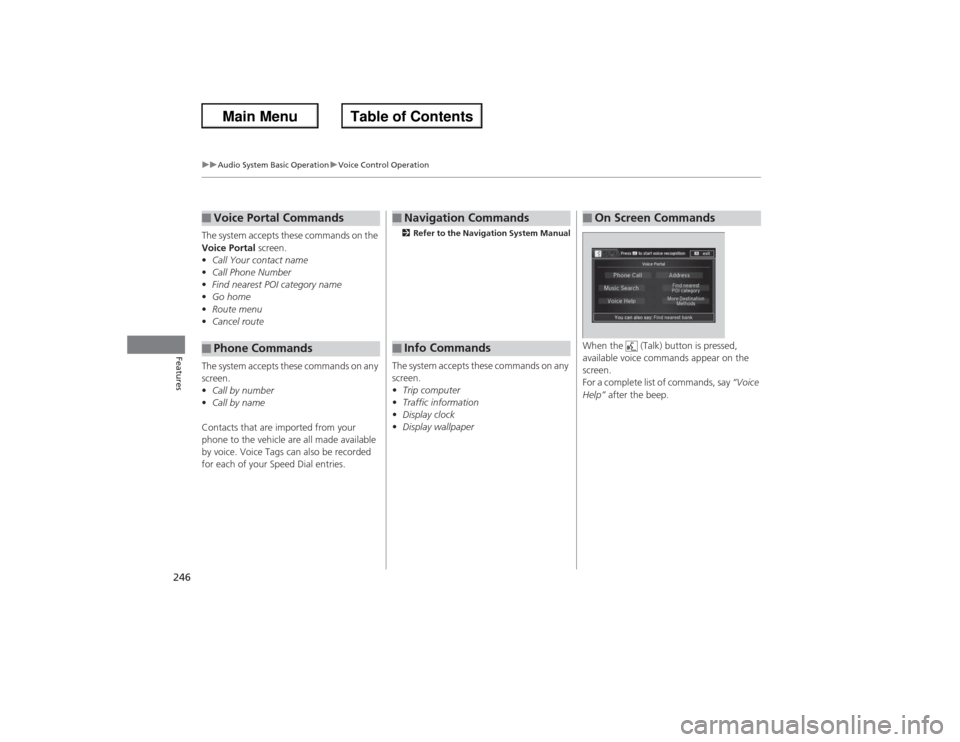
When the (Talk) button is pressed,
available voice commands appear on the
screen.
For a complete list of commands, say “Voice
Help” after the beep.■On Screen Commands
Page 250 of 595
249
uuAudio System Basic Operation uVoice Control Operation
Continued
Features
■iPod ® commands
• iPod play
• iPod play track # (#: 1 to 30)
• iPod skip forward
• iPod skip back
• iPod track shuffle
*1
•iPod album shuffle
*1
•iPod track repeat
*1
•iPod normal play
• What am I listening to?
• Who am I listening to?
• Who is this?
• What’s playing?
• Who’s playing?
• What album is this?
*1: These commands toggle the function
on and off, so the command may not match
your intended action.
■USB commands
• USB play
• USB play track # (#: 1 to 30)
• USB skip forward
• USB skip back
• USB track random
*1
•USB track repeat
*1
•USB track scan
*1
•USB folder up
• USB folder down
• USB folder random
*1
•USB folder repeat
*1
•USB folder scan
*1
•USB normal play
*1: These commands toggle the function
on and off, so the command may not match
your intended action.
■Bluetooth ® Audio commands
• Bluetooth Audio play
• Bluetooth Audio skip forward
• Bluetooth Audio skip back
• Bluetooth Audio group up
• Bluetooth Audio group down
• Bluetooth Audio pause
• Bluetooth Audio resume
• Bluetooth Audio track random
• Bluetooth Audio track repeat
NOTE:
Bluetooth ® Audio commands may not work
on some phones or Bluetooth® Audio
devices.■AUX commands
• Auxiliary play
Page 279 of 595
uuAudio System Basic Operation uSong By Voice
TM (SBV)
278Features
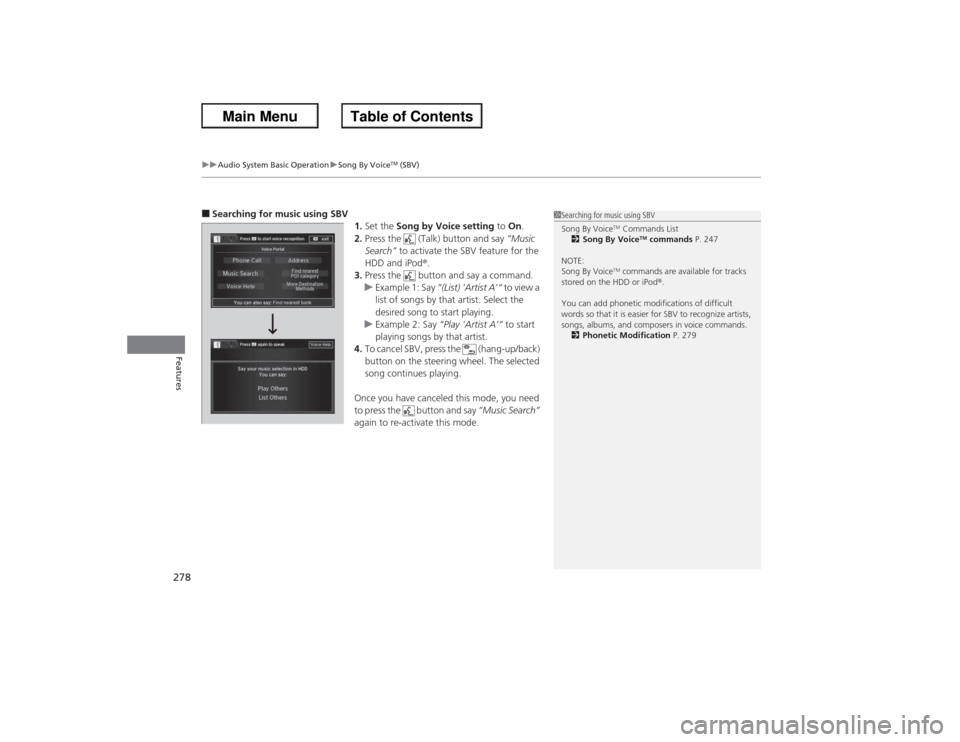
■Searching for music using SBV
1.Set the Song by Voice setting to On.
2. Press the (Talk) button and say “Music
Search” to activate the SBV feature for the
HDD and iPod ®.
3. Press the button and say a command.
u Example 1: Say “(List) ‘Artist A’“ to view a
list of songs by that artist. Select the
desired song to start playing.
u Example 2: Say “Play ‘Artist A’“ to start
playing songs by that artist.
4. To cancel SBV, press the (hang-up/back)
button on the steering wheel. The selected
song continues playing.
Once you have canceled this mode, you need
to press the button and say “Music Search”
again to re-activate this mode.
1 Searching for music using SBV
Song By Voice
TM Commands List
2 Song By Voice
TM commands P. 247
NOTE:
Song By Voice
TM commands are available for tracks
stored on the HDD or iPod ®.
You can add phonetic modifications of difficult
words so that it is easier for SBV to recognize artists,
songs, albums, and composers in voice commands. 2 Phonetic Modification P. 279
Page 280 of 595
Continued
279
uuAudio System Basic Operation uSong By Voice
TM (SBV)
Features
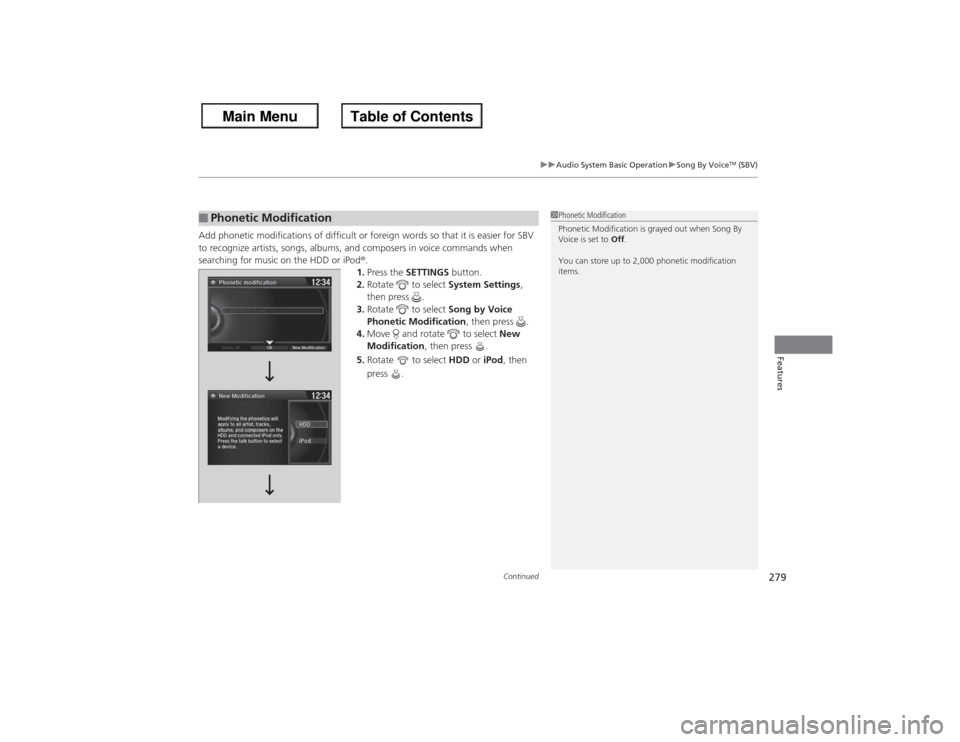
Add phonetic modifications of difficult or foreign words so that it is easier for SBV
to recognize artists, songs, albums, and composers in voice commands when
searching for music on the HDD or iPod ®.
1. Press the SETTINGS button.
2. Rotate to select System Settings,
then press .
3. Rotate to select Song by Voice
Phonetic Modification , then press .
4. Move and rotate to select New
Modification , then press .
5. Rotate to select HDD or iPod , then
press .■Phonetic Modification
1 Phonetic Modification
Phonetic Modification is grayed out when Song By
Voice is set to Off.
You can store up to 2,000 phonetic modification
items.
Page 281 of 595
280
uuAudio System Basic Operation u
Features
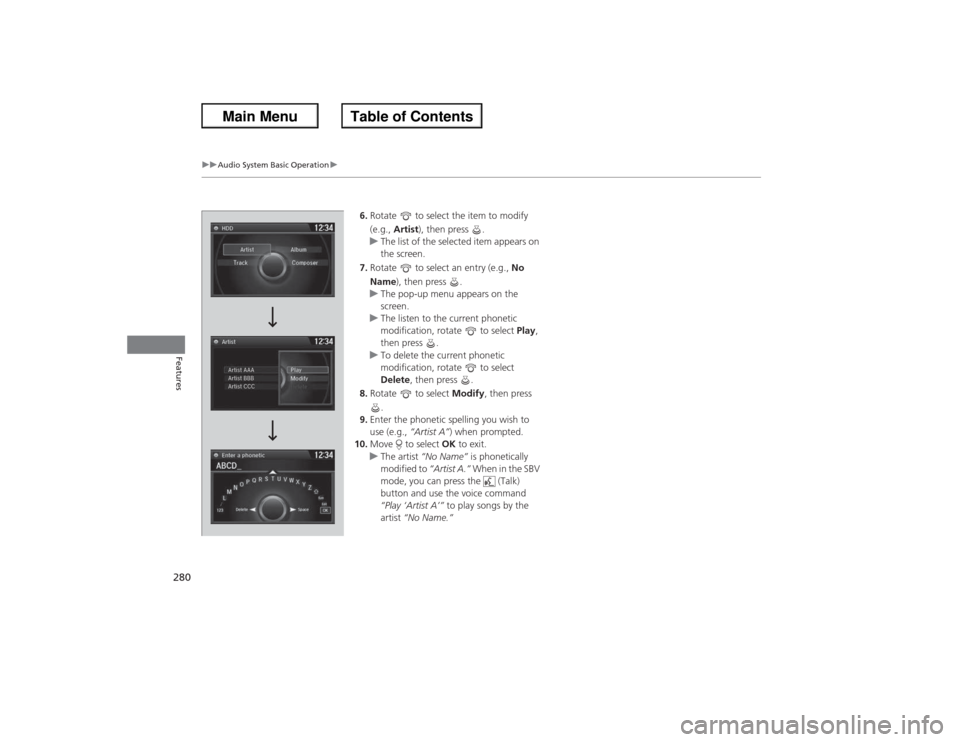
6.Rotate to select the item to modify
(e.g., Artist ), then press .
u The list of the selected item appears on
the screen.
7. Rotate to select an entry (e.g., No
Name), then press .
u The pop-up menu appears on the
screen.
u The listen to the current phonetic
modification, rotate to select Play,
then press .
u To delete the current phonetic
modification, rotate to select
Delete , then press .
8. Rotate to select Modify, then press
.
9. Enter the phonetic spelling you wish to
use (e.g., “Artist A”) when prompted.
10. Move to select OK to exit.
u The artist “No Name” is phonetically
modified to “Artist A.” When in the SBV
mode, you can press the (Talk)
button and use the voice command
“Play ‘Artist A’” to play songs by the
artist “No Name.”
Page 282 of 595
281
uuAudio System Basic Operation uPlaying Internet Radio
Continued
Features
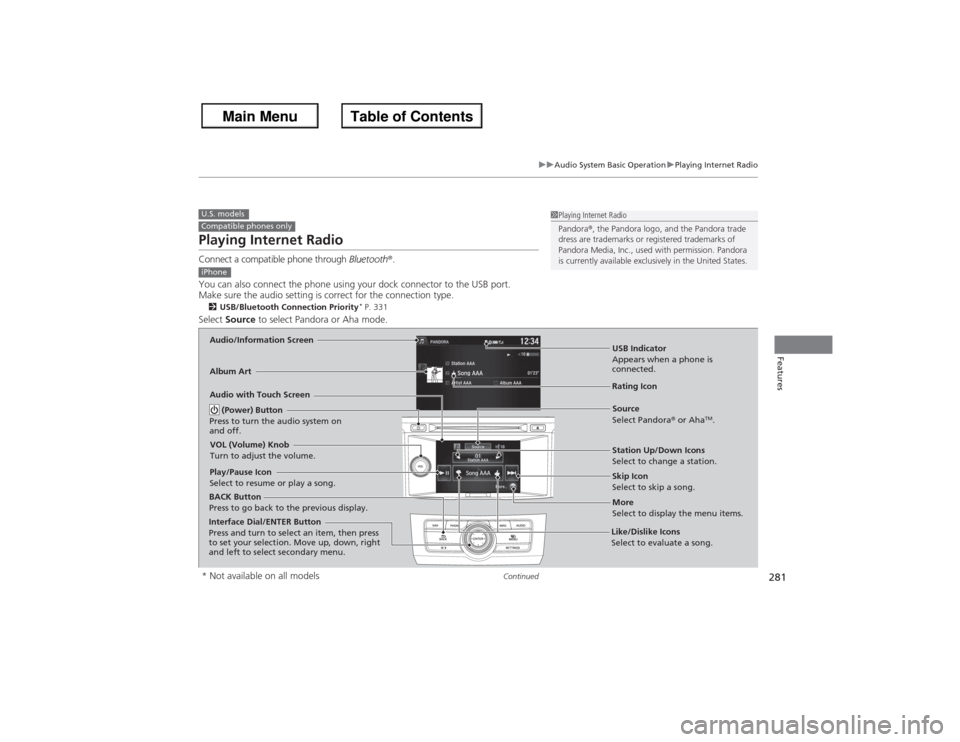
Playing Internet RadioConnect a compatible phone through Bluetooth®.
You can also connect the phone using your dock connector to the USB port.
Make sure the audio setting is correct for the connection type.2 USB/Bluetooth Connection Priority
* P. 331
Select Source to select Pandora or Aha mode.U.S. modelsCompatible phones only
1Playing Internet Radio
Pandora ®, the Pandora logo, and the Pandora trade
dress are trademarks or registered trademarks of
Pandora Media, Inc., used with permission. Pandora
is currently available exclusively in the United States.
iPhoneAudio/Information ScreenAlbum Art
USB Indicator
Appears when a phone is
connected.Rating Icon
Audio with Touch Screen
BACK Button
Press to go back to the previous display.
Skip Icon
Select to skip a song. More
Select to display the menu items.
Station Up/Down Icons
Select to change a station.
Source
Select Pandora
® or Aha
TM.
Play/Pause Icon
Select to resume or play a song.
Like/Dislike Icons
Select to evaluate a song.
(Power) Button
Press to turn the audio system on
and off.VOL (Volume) Knob
Turn to adjust the volume.Interface Dial/ENTER Button
Press and turn to select an item, then press
to set your selection. Move up, down, right
and left to select secondary menu.* Not available on all models
Page 283 of 595
uuAudio System Basic Operation uPlaying Internet Radio
282Features
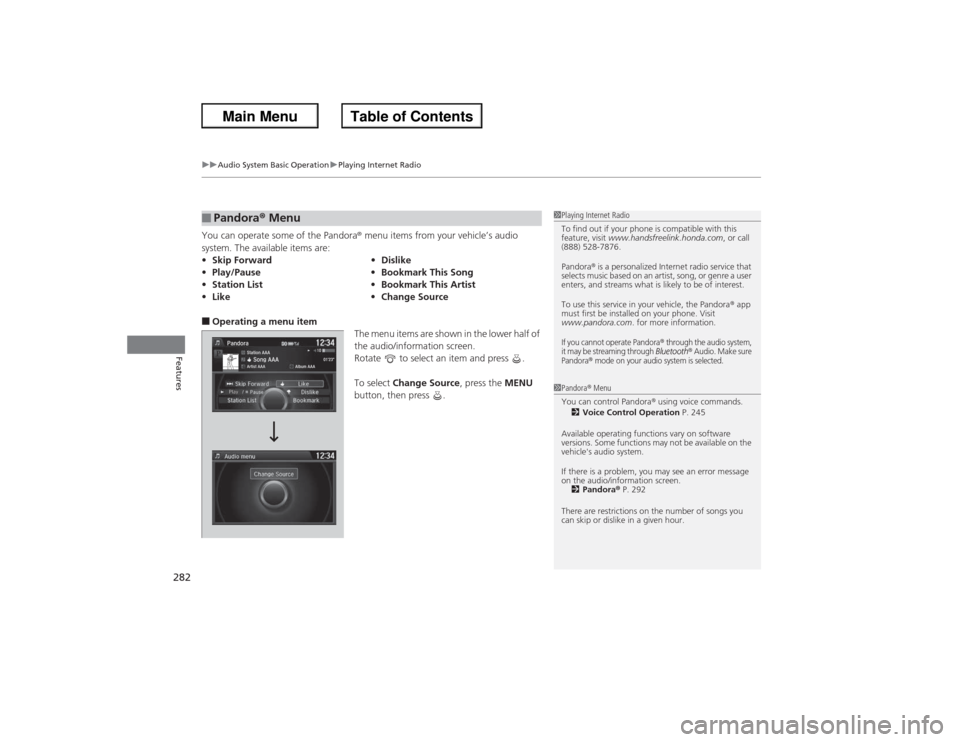
You can operate some of the Pandora ® menu items from your vehicle’s audio
system. The available items are:■Operating a menu item The menu items are shown in the lower half of
the audio/information screen.
Rotate to select an item and press .
To select Change Source , press the MENU
button, then press .■Pandora ® Menu• Skip Forward •Dislike
• Play/Pause •Bookmark This Song
• Station List •Bookmark This Artist
• Like •Change Source
1Playing Internet Radio
To find out if your phone is compatible with this
feature, visit www.handsfreelink.honda.com , or call
(888) 528-7876.
Pandora ® is a personalized Internet radio service that
selects music based on an artist, song, or genre a user
enters, and streams what is likely to be of interest.
To use this service in your vehicle, the Pandora ® app
must first be installed on your phone. Visit
www.pandora.com . for more information.If you cannot operate Pandora
® through the audio system,
it may be streaming through Bluetooth
® Audio. Make sure
Pandora
® mode on your audio system is selected.
1 Pandora ® Menu
You can control Pandora ® using voice commands.
2 Voice Control Operation P. 245
Available operating functions vary on software
versions. Some functions may not be available on the
vehicle's audio system.
If there is a problem, you may see an error message
on the audio/information screen. 2 Pandora ® P. 292
There are restrictions on the number of songs you
can skip or dislike in a given hour.
Page 284 of 595
283
uuAudio System Basic Operation uPlaying Internet Radio
Features
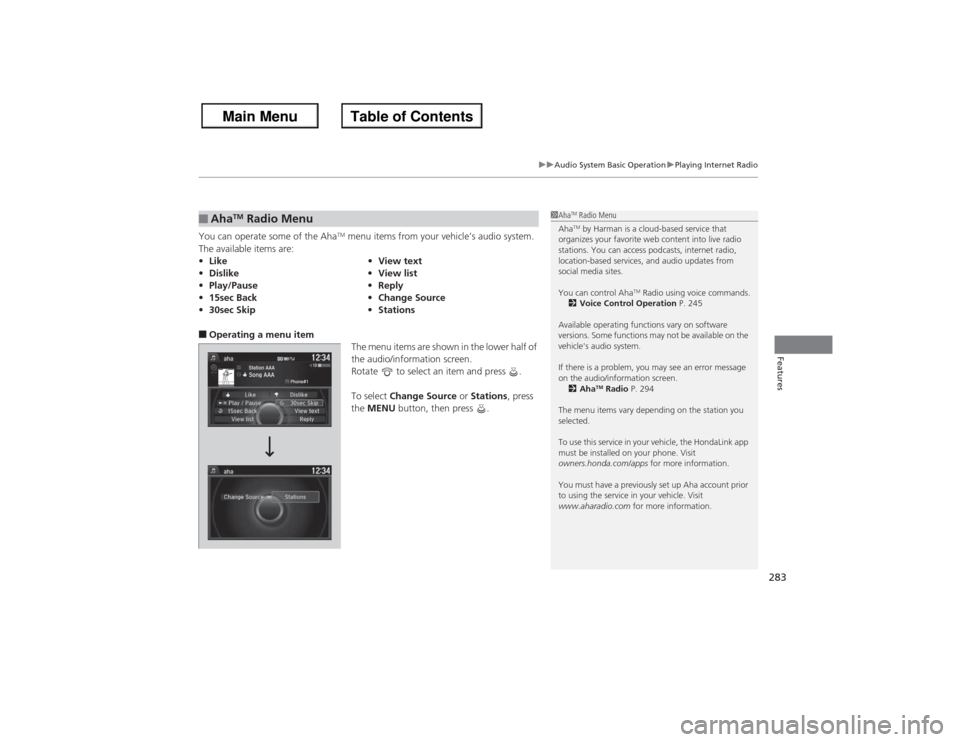
You can operate some of the Aha
TM menu items from your vehicle’s audio system.
The available items are:
■Operating a menu item The menu items are shown in the lower half of
the audio/information screen.
Rotate to select an item and press .
To select Change Source or Stations , press
the MENU button, then press .■Aha
TM Radio Menu
•Like •View text
• Dislike •View list
• Play/Pause •Reply
• 15sec Back •Change Source
• 30sec Skip •Stations
1Aha
TM Radio Menu
AhaTM by Harman is a cloud-based service that
organizes your favorite web content into live radio
stations. You can access podcasts, internet radio,
location-based services, and audio updates from
social media sites.
You can control Aha
TM Radio using voice commands.
2 Voice Control Operation P. 245
Available operating functions vary on software
versions. Some functions may not be available on the
vehicle's audio system.
If there is a problem, you may see an error message
on the audio/information screen. 2 Aha
TM Radio P. 294
The menu items vary depending on the station you
selected.
To use this service in your vehicle, the HondaLink app
must be installed on your phone. Visit
owners.honda.com/apps for more information.
You must have a previously set up Aha account prior
to using the service in your vehicle. Visit
www.aharadio.com for more information.
Page 288 of 595
287
uuAudio System Basic Operation uPlaying Bluetooth ® Audio
Continued
Features
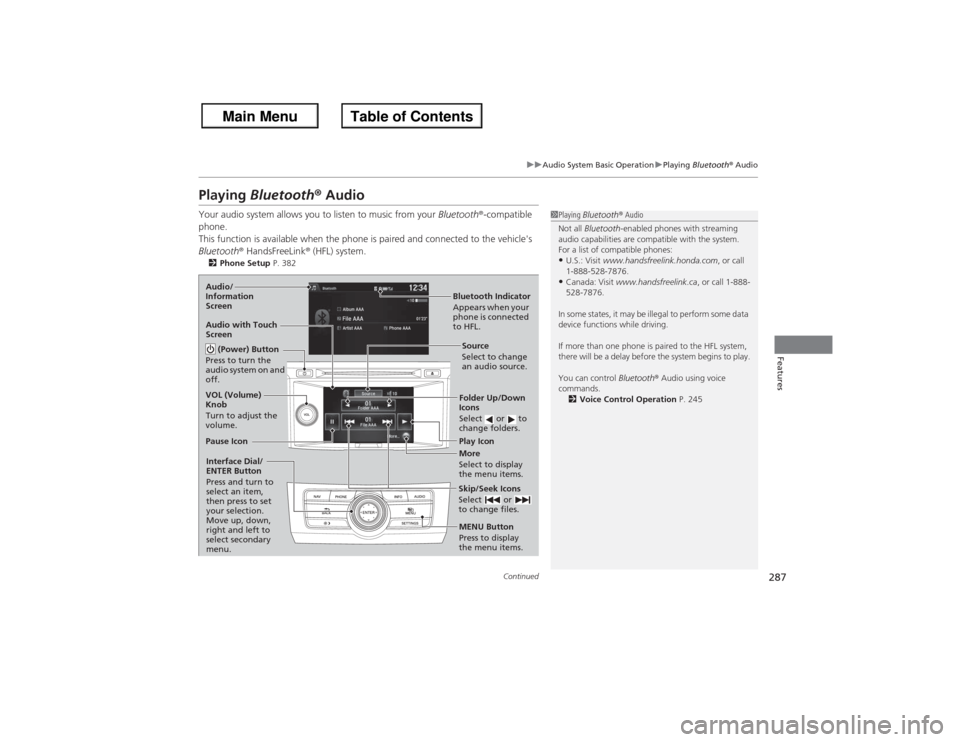
Playing Bluetooth® AudioYour audio system allows you to listen to music from your Bluetooth®-compatible
phone.
This function is available when the phone is paired and connected to the vehicle's
Bluetooth ® HandsFreeLink ® (HFL) system.2 Phone Setup P. 382
1Playing Bluetooth ® Audio
Not all Bluetooth -enabled phones with streaming
audio capabilities are compatible with the system.
For a list of compatible phones:•U.S.: Visit www.handsfreelink.honda.com , or call
1-888-528-7876.•Canada: Visit www.handsfreelink.ca , or call 1-888-
528-7876.
In some states, it may be illegal to perform some data
device functions while driving.
If more than one phone is paired to the HFL system,
there will be a delay before the system begins to play.
You can control Bluetooth® Audio using voice
commands.
2 Voice Control Operation P. 245
Bluetooth Indicator
Appears when your
phone is connected
to HFL.
Audio/
Information
Screen
Audio with Touch
Screen
Play Icon
Pause Icon
More
Select to display
the menu items.Source
Select to change
an audio source. (Power) Button
Press to turn the
audio system on and
off.VOL (Volume)
Knob
Turn to adjust the
volume.
Interface Dial/
ENTER Button
Press and turn to
select an item,
then press to set
your selection.
Move up, down,
right and left to
select secondary
menu.
Skip/Seek Icons
Select or
to change files.MENU Button
Press to display
the menu items.Folder Up/Down
Icons
Select or to
change folders.