remote control HONDA ACCORD 2013 9.G Owner's Manual
[x] Cancel search | Manufacturer: HONDA, Model Year: 2013, Model line: ACCORD, Model: HONDA ACCORD 2013 9.GPages: 595, PDF Size: 20.67 MB
Page 174 of 595
173
Features
This chapter describes how to operate technology features.
Audio SystemUSB Port .......................................... 175
Auxiliary Input Jack .......................... 176
Audio System Theft Protection
*....... 177
Region Setting ................................. 178
Audio Remote Controls .................... 179
Audio System Basic Operation ...... 180
Audio/Information Screen ................ 181
Display Setup ................................... 186
Playing AM/FM Radio ....................... 187
Playing a CD .................................... 190
Playing an iPod® ............................... 193
Playing Internet Radio ...................... 196
Playing a USB Flash Drive ................. 198
Playing Bluetooth ® Audio................. 201
Models with one display
Audio System Basic Operation ...... 203
Audio with Touch Screen .. ............... 204
Audio/Information Screen ................ 207
Display Setup ................................... 213
Playing AM/FM Radio ....................... 214
Playing XM ® Radio ........................... 218
Playing a CD .................................... 221
Playing an iPod ®............................... 224
Playing Internet Radio ...................... 228
Playing a USB Flash Drive ................. 231
Playing Bluetooth ® Audio................. 234
Audio System Basic Operation ...... 236
Audio with Touch Screen .. ............... 237
Audio/Information Screen ................ 239Models with two displaysModels with navigation system
Display Setup ................................... 244
Voice Control Operation .................. 245
Playing AM/FM Radio....................... 253
Playing XM ® Radio ........................... 257
Playing a CD .................................... 260Playing Hard Disc Drive (HDD) Audio..... 263Playing an iPod® .............................. 273
Playing Internet Radio .... .................. 281
Playing a USB Flash Drive ................. 284
Playing Bluetooth ® Audio ................ 287
Audio Error Messages ...................... 289General Information on the Audio System
.....295
Customized Features........................ 299
HomeLink ® Universal Transceiver
*.. 337
Bluetooth ® HandsFreeLink ®..... 339 , 376
Compass
*.......................................... 414
* Not available on all models
Page 175 of 595
174Features
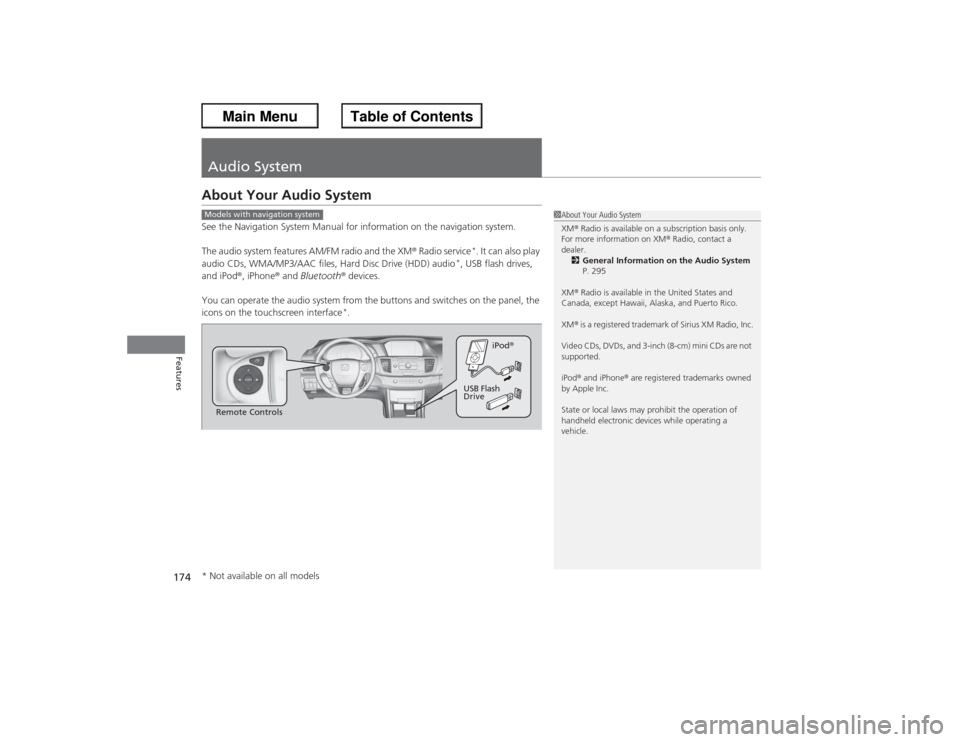
Audio SystemAbout Your Audio SystemSee the Navigation System Manual for information on the navigation system.
The audio system features AM/FM radio and the XM® Radio service
*. It can also play
audio CDs, WMA/MP3/AAC files, Hard Disc Drive (HDD) audio
*, USB flash drives,
and iPod ®, iPhone® and Bluetooth ® devices.
You can operate the audio system from the buttons and switches on the panel, the
icons on the touchscreen interface
*.
1 About Your Audio System
XM ® Radio is available on a subscription basis only.
For more information on XM ® Radio, contact a
dealer. 2 General Information on the Audio System
P. 295
XM ® Radio is available in the United States and
Canada, except Hawaii, Alaska, and Puerto Rico.
XM ® is a registered trademark of Sirius XM Radio, Inc.
Video CDs, DVDs, and 3-inch (8-cm) mini CDs are not
supported.
iPod ® and iPhone ® are registered trademarks owned
by Apple Inc.
State or local laws may prohibit the operation of
handheld electronic devices while operating a
vehicle.
Models with navigation systemRemote Controls iPod
®
USB Flash
Drive
* Not available on all models
Page 180 of 595
179
uuAudio System uAudio Remote Controls
Features
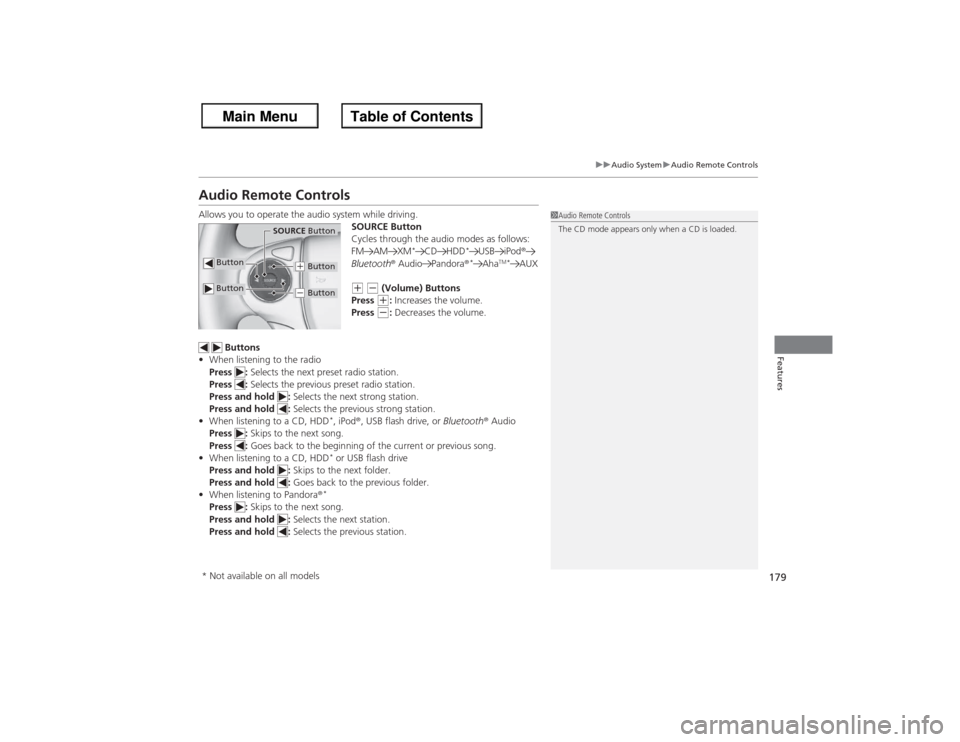
Audio Remote ControlsAllows you to operate the audio system while driving.
SOURCE Button
Cycles through the audio modes as follows:
FM AM XM
*
CD HDD
*
USB iPod®
Bluetooth ® Audio Pandora ®*
Aha
TM*
AUX
(+ (- (Volume) Buttons
Press (+: Increases the volume.
Press (-: Decreases the volume.
Buttons
• When listening to the radio
Press : Selects the next preset radio station.
Press : Selects the previous preset radio station.
Press and hold : Selects the next strong station.
Press and hold : Selects the previous strong station.
• When listening to a CD, HDD
*, iPod ®, USB flash drive, or Bluetooth® Audio
Press : Skips to the next song.
Press : Goes back to the beginning of the current or previous song.
• When listening to a CD, HDD* or USB flash drive
Press and hold : Skips to the next folder.
Press and hold : Goes back to the previous folder.
• When listening to Pandora ®*
Press : Skips to the next song.
Press and hold : Selects the next station.
Press and hold : Selects the previous station.
1Audio Remote Controls
The CD mode appears only when a CD is loaded.
Button
SOURCE Button
Button
(+ Button(- Button
* Not available on all models
Page 189 of 595
uuAudio System Basic Operation uPlaying AM/FM Radio
188Features
Provides text data information related to your selected RDS-capable FM station.■To find an RDS station from Station List
1. Press while listening to an FM station.
2. Rotate to select the station, then press .■Manual update
Updates your available station list at any time.
1. Press while listening to an FM station.
2. Rotate to select Refresh, then press .■Radio Data System (RDS)
1Playing AM/FM Radio
The ST indicator appears on the display indicating
stereo FM broadcasts.
Stereo reproduction in AM is not available.
Switching the Audio Mode
Press the SOURCE button on the steering wheel.
2 Audio Remote Controls P. 179
You can also switch the mode by pressing the MENU
button and selecting Change Source on the MENU
screen.
You can store 6 AM stations and 12 FM stations into
the preset button memory. FM1 and FM2 let you
store 6 stations each.1 Radio Data System (RDS)
When you select an RDS-capable FM station, the RDS
automatically turns on, and the frequency display
changes to the station name. However, when the
signals of that station become weak, the display
changes from the station name to the frequency.
Page 216 of 595
Continued
215
uuAudio System Basic Operation uPlaying AM/FM Radio
Features
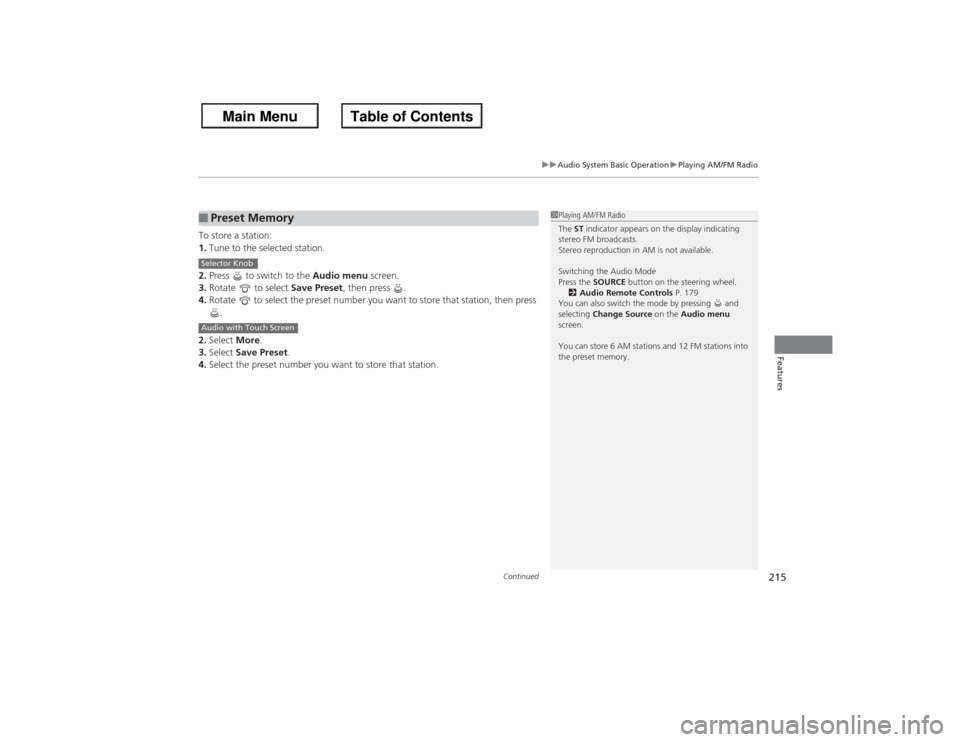
To store a station:
1. Tune to the selected station.
2. Press to switch to the Audio menu screen.
3. Rotate to select Save Preset, then press .
4. Rotate to select the preset number you want to store that station, then press
.
2. Select More.
3. Select Save Preset .
4. Select the preset number you want to store that station.■Preset Memory
1Playing AM/FM Radio
The ST indicator appears on the display indicating
stereo FM broadcasts.
Stereo reproduction in AM is not available.
Switching the Audio Mode
Press the SOURCE button on the steering wheel.
2 Audio Remote Controls P. 179
You can also switch the mode by pressing and
selecting Change Source on the Audio menu
screen.
You can store 6 AM stations and 12 FM stations into
the preset memory.
Selector KnobAudio with Touch Screen
Page 220 of 595
Continued
219
uuAudio System Basic Operation uPlaying XM ® Radio
Features
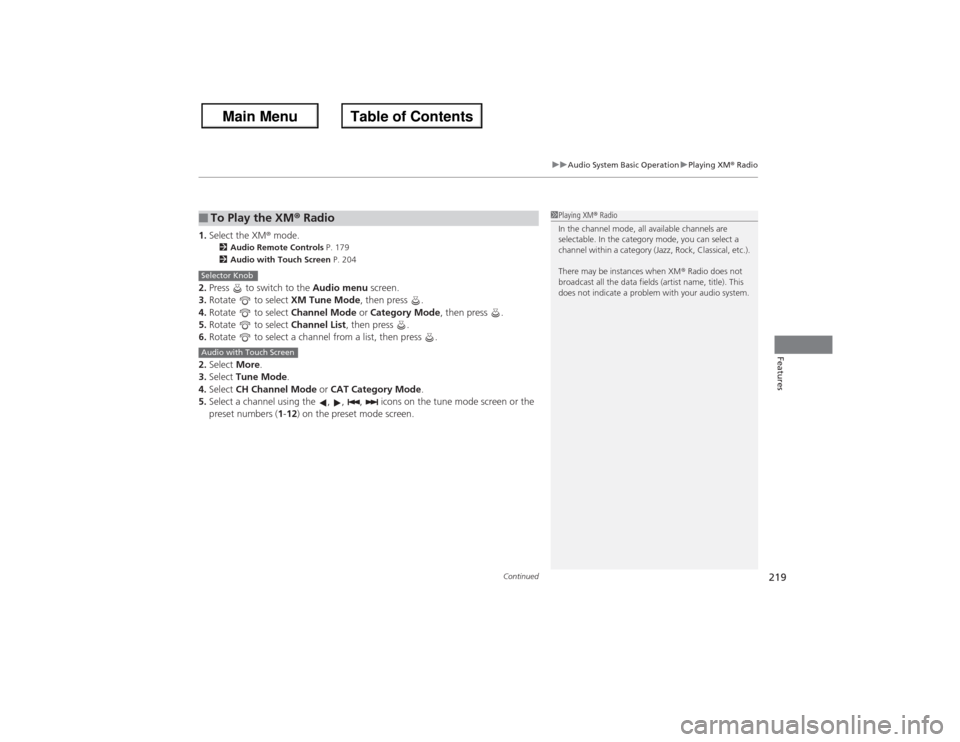
1. Select the XM ® mode.
2 Audio Remote Controls P. 179
2 Audio with Touch Screen P. 204
2.Press to switch to the Audio menu screen.
3. Rotate to select XM Tune Mode, then press .
4. Rotate to select Channel Mode or Category Mode , then press .
5. Rotate to select Channel List, then press .
6. Rotate to select a channel from a list, then press .
2. Select More.
3. Select Tune Mode .
4. Select CH Channel Mode or CAT Category Mode .
5. Select a channel using the , , , icons on the tune mode screen or the
preset numbers ( 1-12 ) on the preset mode screen.■To Play the XM ® Radio
1 Playing XM ® Radio
In the channel mode, all available channels are
selectable. In the category mode, you can select a
channel within a category (Jazz, Rock, Classical, etc.).
There may be instances when XM ® Radio does not
broadcast all the data fields (artist name, title). This
does not indicate a problem with your audio system.
Selector KnobAudio with Touch Screen
Page 255 of 595
uuAudio System Basic Operation uPlaying AM/FM Radio
254Features
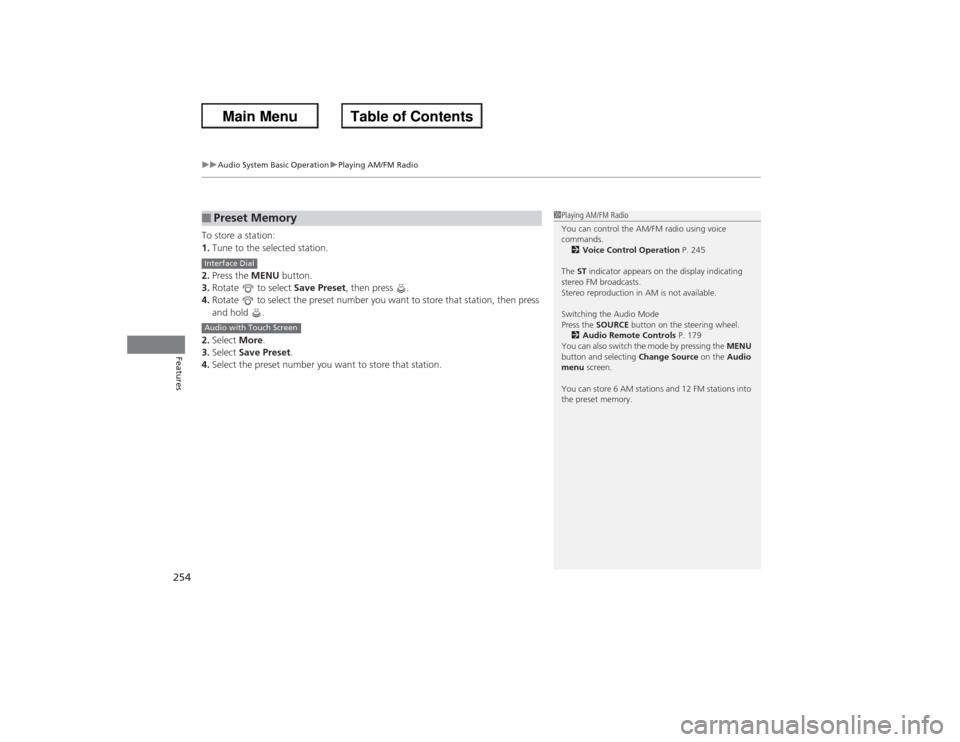
To store a station:
1. Tune to the selected station.
2. Press the MENU button.
3. Rotate to select Save Preset, then press .
4. Rotate to select the preset number you want to store that station, then press
and hold .
2. Select More.
3. Select Save Preset .
4. Select the preset number you want to store that station.■Preset Memory
1Playing AM/FM Radio
You can control the AM/FM radio using voice
commands.
2 Voice Control Operation P. 245
The ST indicator appears on the display indicating
stereo FM broadcasts.
Stereo reproduction in AM is not available.
Switching the Audio Mode
Press the SOURCE button on the steering wheel.
2 Audio Remote Controls P. 179
You can also switch the mode by pressing the MENU
button and selecting Change Source on the Audio
menu screen.
You can store 6 AM stations and 12 FM stations into
the preset memory.
Interface DialAudio with Touch Screen
Page 259 of 595
uuAudio System Basic Operation uPlaying XM ® Radio
258Features
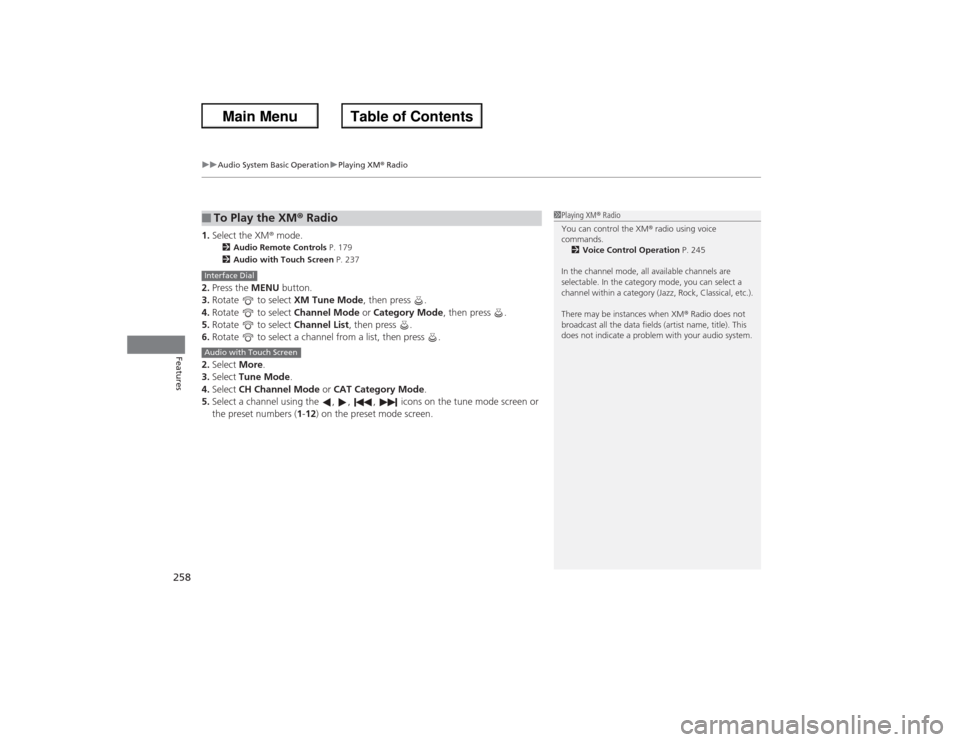
1. Select the XM ® mode.
2 Audio Remote Controls P. 179
2 Audio with Touch Screen P. 237
2.Press the MENU button.
3. Rotate to select XM Tune Mode, then press .
4. Rotate to select Channel Mode or Category Mode , then press .
5. Rotate to select Channel List, then press .
6. Rotate to select a channel from a list, then press .
2. Select More.
3. Select Tune Mode .
4. Select CH Channel Mode or CAT Category Mode .
5. Select a channel using the , , , icons on the tune mode screen or
the preset numbers ( 1-12) on the preset mode screen.■To Play the XM ® Radio
1 Playing XM ® Radio
You can control the XM ® radio using voice
commands. 2 Voice Control Operation P. 245
In the channel mode, all available channels are
selectable. In the category mode, you can select a
channel within a category (Jazz, Rock, Classical, etc.).
There may be instances when XM ® Radio does not
broadcast all the data fields (artist name, title). This
does not indicate a problem with your audio system.
Interface DialAudio with Touch Screen
Page 338 of 595
337
Continued
Features
HomeLink® Universal Transceiver
*
The HomeLink ® Universal Transceiver can be programmed to operate up to three
remote controlled devices around your home, such as garage doors, lighting, or
home security systems.
Refer to the safety information that comes with your garage door opener to test that
the safety features are functioning properl y. If you do not have the safety
information, contact the manufacturer.
Before programming HomeLink, make sure that people and objects are out of the
way of the garage or gate to prevent potential injury or damage.
When programming a garage door opener, park just outside the garage door’s
path.Training HomeLink
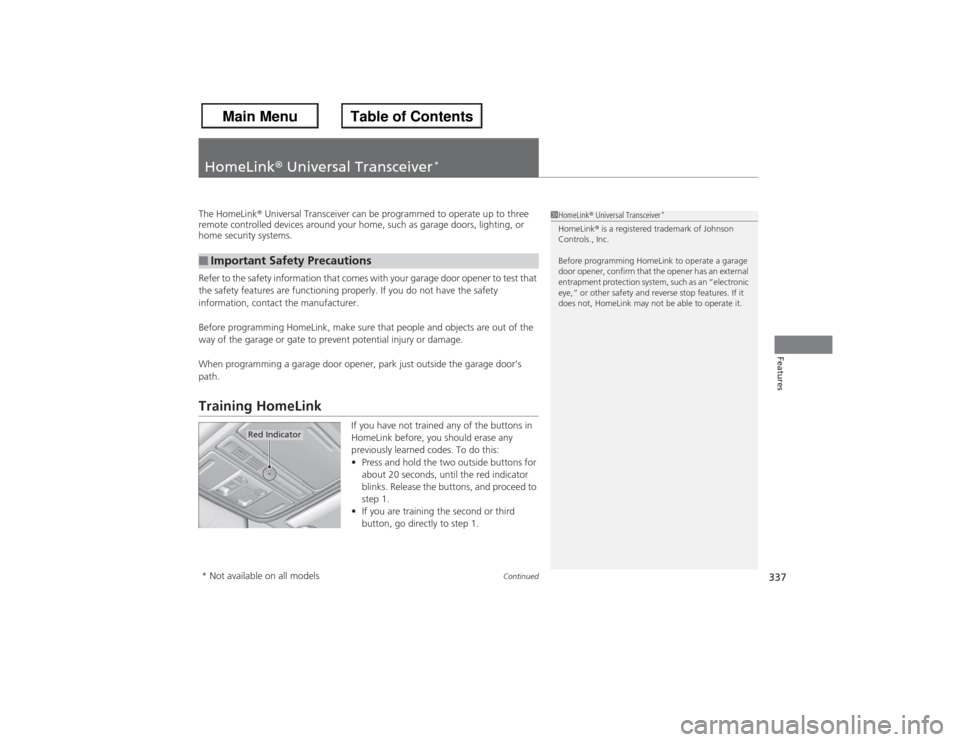
If you have not trained any of the buttons in
HomeLink before, you should erase any
previously learned codes. To do this:
• Press and hold the two outside buttons for
about 20 seconds, until the red indicator
blinks. Release the buttons, and proceed to
step 1.
• If you are training the second or third
button, go directly to step 1.
■Important Safety Precautions
1HomeLink ® Universal Transceiver
*
HomeLink ® is a registered trademark of Johnson
Controls., Inc.
Before programming HomeLink to operate a garage
door opener, confirm that the opener has an external
entrapment protection system, such as an “electronic
eye,” or other safety and reverse stop features. If it
does not, HomeLink may not be able to operate it.
Red Indicator
* Not available on all models
Page 339 of 595
uuHomeLink ® Universal Transceiver
*u Training HomeLink
338Features
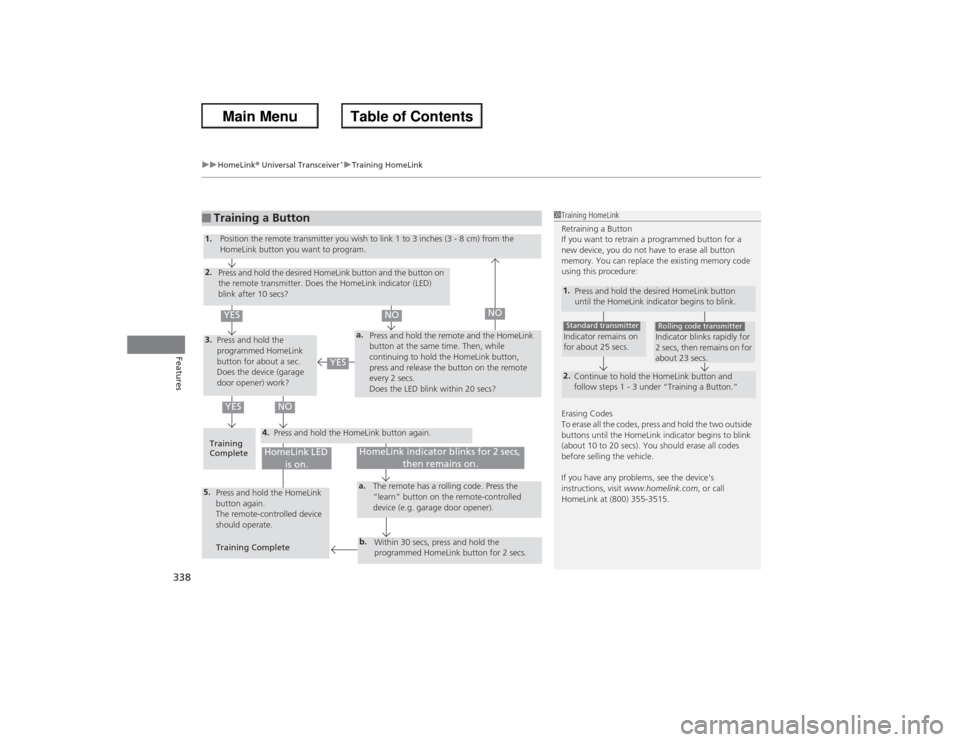
■Training a Button
1Training HomeLink
Retraining a Button
If you want to retrain a programmed button for a
new device, you do not have to erase all button
memory. You can replace the existing memory code
using this procedure:1.
Press and hold the desired HomeLink button
until the HomeLink indicator begins to blink.2.
Continue to hold the HomeLink button and
follow steps 1 - 3 under “Training a Button.”Indicator remains on
for about 25 secs.Standard transmitter
Indicator blinks rapidly for
2 secs, then remains on for
about 23 secs.Rolling code transmitter
Erasing Codes
To erase all the codes, press and hold the two outside
buttons until the HomeLink indicator begins to blink
(about 10 to 20 secs). You should erase all codes
before selling the vehicle.
If you have any problems, see the device’s
instructions, visit www.homelink.com , or call
HomeLink at (800) 355-3515.
4.
a.
3.2.5.
a.b.
1. Position the remote transmitter you wish to link 1 to 3 inches (3 - 8 cm) from the
HomeLink button you want to program.
Press and hold the desired HomeLink button and the button on
the remote transmitter. Does the HomeLink indicator (LED)
blink after 10 secs?
Press and hold the
programmed HomeLink
button for about a sec.
Does the device (garage
door opener) work? Press and hold the remote and the HomeLink
button at the same time. Then, while
continuing to hold the HomeLink button,
press and release the button on the remote
every 2 secs.
Does the LED blink within 20 secs?
Training
Complete Press and hold the HomeLink button again.
Press and hold the HomeLink
button again.
The remote-controlled device
should operate.
Training Complete The remote has a rolling code. Press the
“learn” button on the remote-controlled
device (e.g. garage door opener).
Within 30 secs, press and hold the
programmed HomeLink button for 2 secs.
HomeLink indicator blinks for 2 secs,
then remains on.
HomeLink LED
is on.
YES
NO
YES
YES
NO
NO