Few HONDA ACCORD 2014 9.G User Guide
[x] Cancel search | Manufacturer: HONDA, Model Year: 2014, Model line: ACCORD, Model: HONDA ACCORD 2014 9.GPages: 595
Page 79 of 595
78
uuIndicators u
Instrument Panel
*1:Models with the smart entry system have an ENGINE START/STOP button instead of an ignition switch.
*2:On the left: Models with information display On the right: Models with multi-information displayIndicator
Name
On/Blinking
Explanation
Message
*2
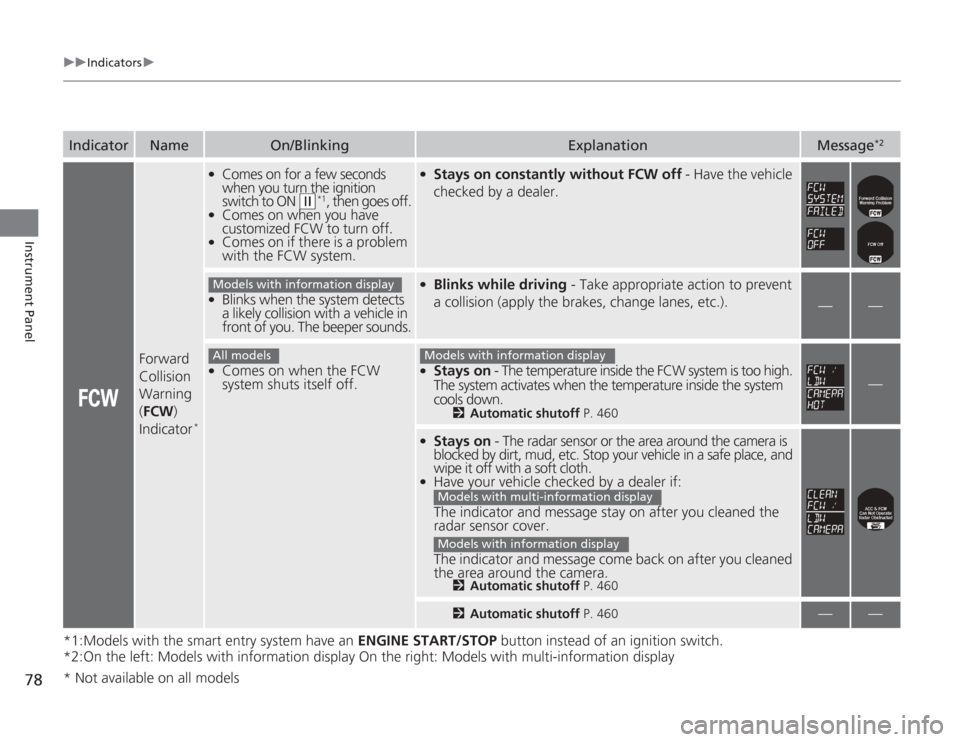
Forward
Collision
Warning
( FCW )
Indicator
*
●
Comes on for a few seconds
when you turn the ignition
switch to ON
(w
*1, then goes off.
●
Comes on when you have
customized FCW to turn off.
●
Comes on if there is a problem
with the FCW system.
●
Stays on constantly without FCW off - Have the vehicle
checked by a dealer.
●
Blinks when the system detects
a likely collision with a vehicle in
front of you. The beeper sounds.
●
Blinks while driving - Take appropriate action to prevent
a collision (apply the brakes, change lanes, etc.).
—
—
●
Comes on when the FCW
system shuts itself off.
●
Stays on - The temperature inside the FCW system is too high.
The system activates when the temperature inside the system
cools down.
2 Automatic shutoff P. 460
—
●
Stays on - The radar sensor or the area around the camera is
blocked by dirt, mud, etc. Stop your vehicle in a safe place, and
wipe it off with a soft cloth.
●
Have your vehicle checked by a dealer if:
The indicator and message stay on after you cleaned the
radar sensor cover.
The indicator and message come back on after you cleaned
the area around the camera.
2 Automatic shutoff P. 4602Automatic shutoff P. 460
—
—
Models with information displayAll models
Models with information display
Models with multi-information displayModels with information display
* Not available on all models
Page 80 of 595
79
uuIndicators u
Continued
Instrument Panel
*1:Models with the smart entry system have an ENGINE START/STOP button instead of an ignition switch.
*2:On the left: Models with information display
On the right: Models with multi-information displayIndicator
Name
On/Blinking
Explanation
Message
*2
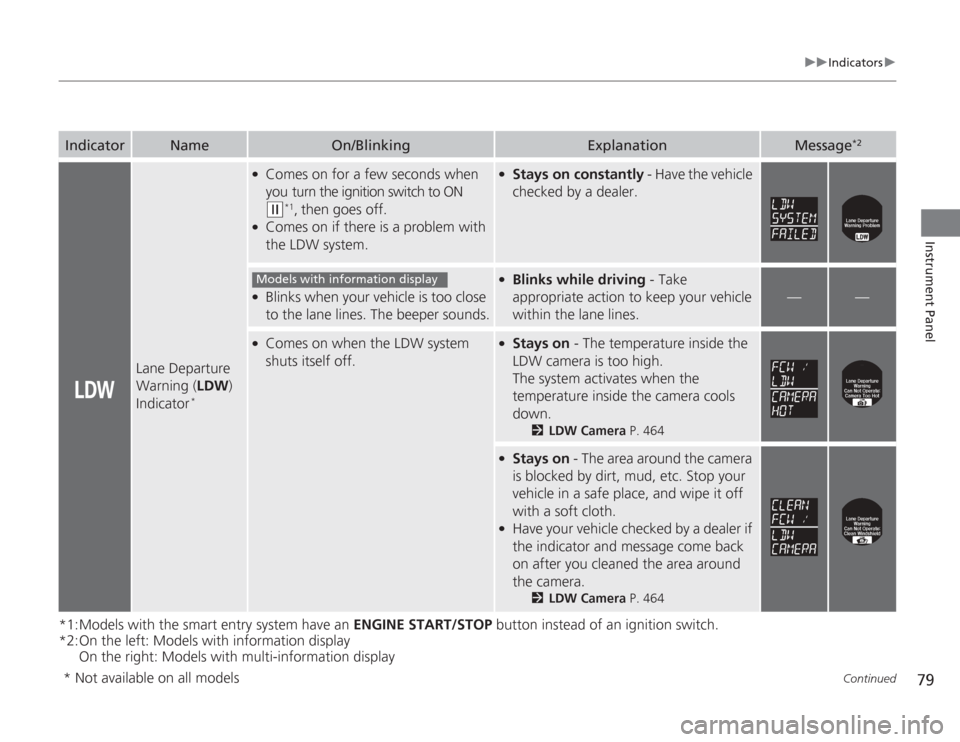
Lane Departure
Warning ( LDW)
Indicator
*
●
Comes on for a few seconds when
you turn the ignition switch to ON (w
*1, then goes off.
●
Comes on if there is a problem with
the LDW system.
●
Stays on constantly - Have the vehicle
checked by a dealer.
●
Blinks when your vehicle is too close
to the lane lines. The beeper sounds.
●
Blinks while driving - Take
appropriate action to keep your vehicle
within the lane lines.
—
—
●
Comes on when the LDW system
shuts itself off.
●
Stays on - The temperature inside the
LDW camera is too high.
The system activates when the
temperature inside the camera cools
down.
2 LDW Camera P. 464
●
Stays on - The area around the camera
is blocked by dirt, mud, etc. Stop your
vehicle in a safe place, and wipe it off
with a soft cloth.
●
Have your vehicle checked by a dealer if
the indicator and message come back
on after you cleaned the area around
the camera.
2 LDW Camera P. 464
Models with information display
* Not available on all models
Page 81 of 595
80
uuIndicators u
Instrument Panel
*1:Models with the smart entry system have an ENGINE START/STOP button instead of an ignition switch.Indicator
Name
On/Blinking
Explanation
Message
*
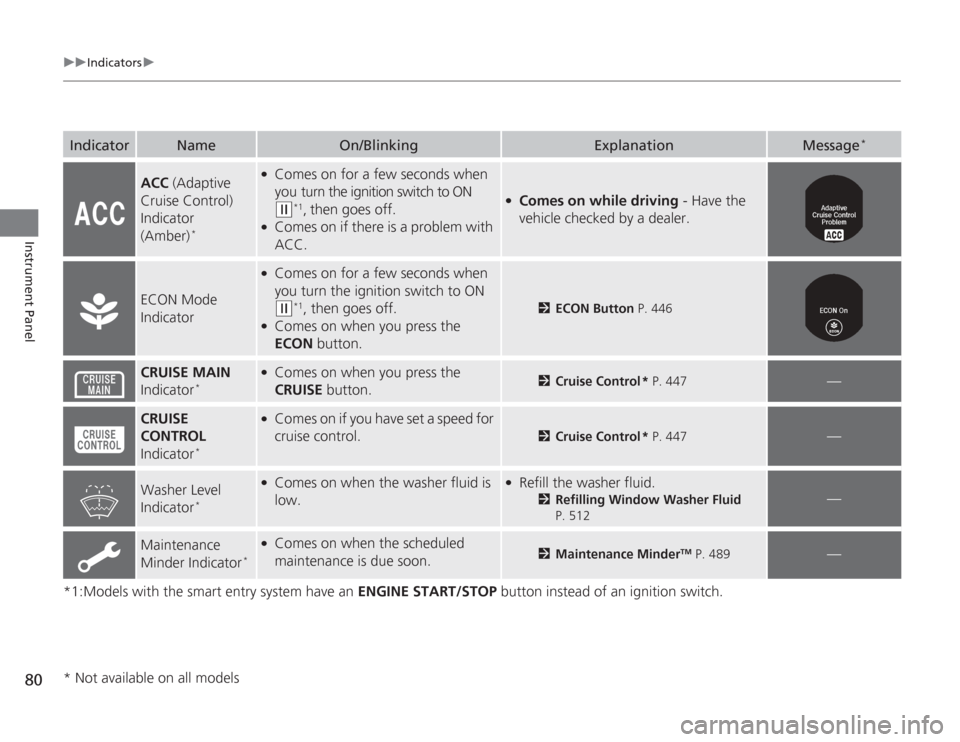
ACC (Adaptive
Cruise Control)
Indicator
(Amber)
*
●
Comes on for a few seconds when
you turn the ignition switch to ON (w
*1, then goes off.
●
Comes on if there is a problem with
ACC.
●
Comes on while driving - Have the
vehicle checked by a dealer.
ECON Mode
Indicator
●
Comes on for a few seconds when
you turn the ignition switch to ON (w
*1, then goes off.
●
Comes on when you press the
ECON button.
2ECON Button P. 446
CRUISE MAIN
Indicator
*
●
Comes on when you press the
CRUISE button.
2Cruise Control * P. 447
—
CRUISE
CONTROL
Indicator
*
●
Comes on if you have set a speed for
cruise control.
2 Cruise Control * P. 447
—
Washer Level
Indicator
*
●
Comes on when the washer fluid is
low.
●
Refill the washer fluid.
2Refilling Window Washer Fluid
P. 512
—
Maintenance
Minder Indicator
*
●
Comes on when the scheduled
maintenance is due soon.
2 Maintenance Minder
TM P. 489
—
* Not available on all models
Page 82 of 595
81
uuIndicators u
Instrument Panel
*1:Models with the smart entry system have an ENGINE START/STOP button instead of an ignition switch.Indicator
Name
On/Blinking
Explanation
Message
*
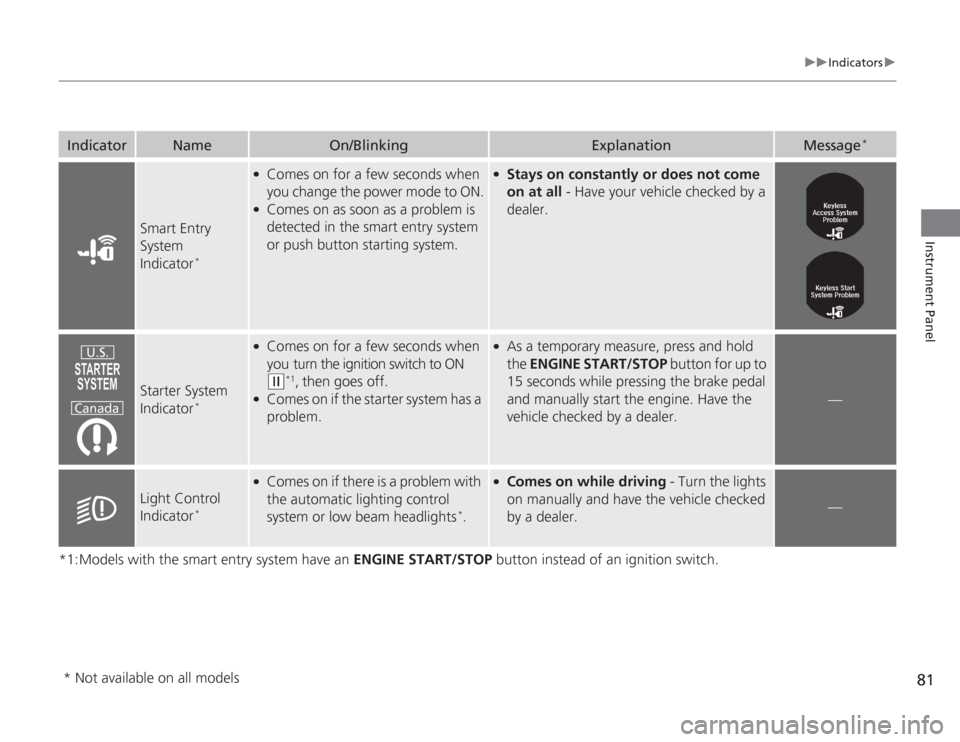
Smart Entry
System
Indicator
*
●
Comes on for a few seconds when
you change the power mode to ON.
●
Comes on as soon as a problem is
detected in the smart entry system
or push button starting system.
●
Stays on constantly or does not come
on at all - Have your vehicle checked by a
dealer.
Starter System
Indicator
*
●
Comes on for a few seconds when
you turn the ignition switch to ON (w
*1, then goes off.
●
Comes on if the starter system has a
problem.
●
As a temporary measure, press and hold
the ENGINE START/STOP button for up to
15 seconds while pressing the brake pedal
and manually start the engine. Have the
vehicle checked by a dealer.
—
Light Control
Indicator
*
●
Comes on if there is a problem with
the automatic lighting control
system or low beam headlights
*.
●
Comes on while driving - Turn the lights
on manually and have the vehicle checked
by a dealer.
—
U.S.
Canada
* Not available on all models
Page 101 of 595
100
uuGauges and Displays uMulti-Information Display
*
Instrument Panel
■
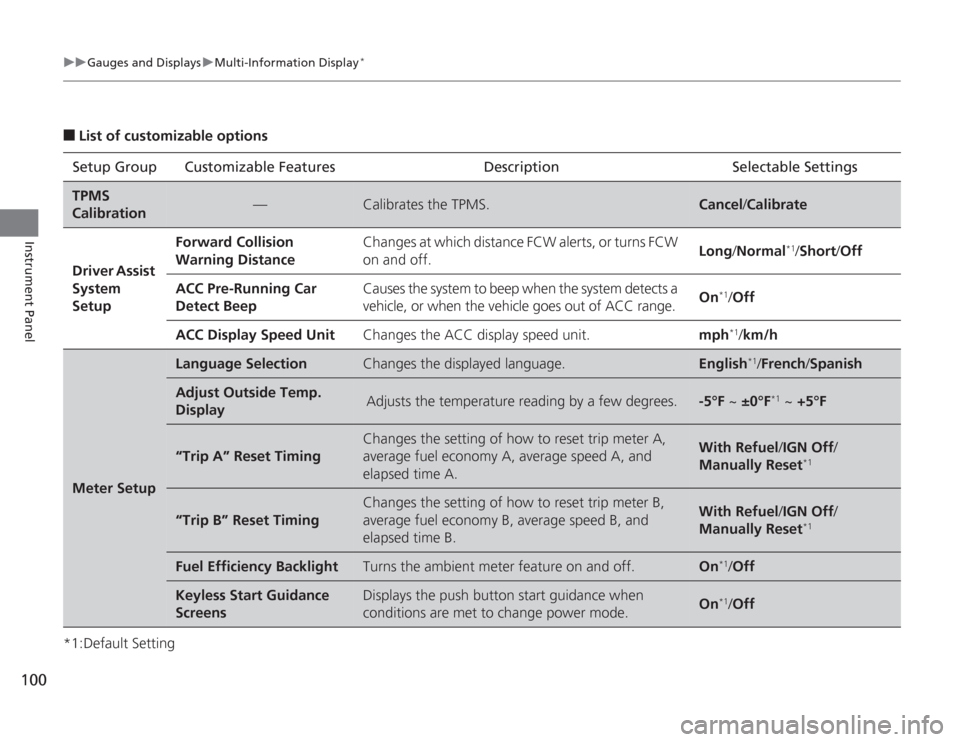
List of customizable options
*1:Default Setting Setup Group Customizable Features Description Selectable SettingsTPMS
Calibration
—
Calibrates the TPMS.
Cancel
/Calibrate
Driver Assist
System
Setup
Forward Collision
Warning Distance
Changes at which distance FCW alerts, or turns FCW
on and off.
Long /Normal
*1/Short /Off
ACC Pre-Running Car
Detect Beep
Causes the system to beep when the system detects a
vehicle, or when the vehicle goes out of ACC range.
On
*1/Off
ACC Display Speed Unit
Changes the ACC display speed unit.
mph
*1/km/h
Meter Setup
Language Selection
Changes the displayed language.
English
*1/French /Spanish
Adjust Outside Temp.
Display
Adjusts the temperature reading by a few degrees.
-5°F ~ ±0°F
*1 ~ +5°F
“Trip A” Reset Timing
Changes the setting of how to reset trip meter A,
average fuel economy A, average speed A, and
elapsed time A.
With Refuel /IGN Off /
Manually Reset
*1
“Trip B” Reset Timing
Changes the setting of how to reset trip meter B,
average fuel economy B, average speed B, and
elapsed time B.
With Refuel /IGN Off /
Manually Reset
*1
Fuel Efficiency Backlight
Turns the ambient meter feature on and off.
On
*1/ Off
Keyless Start Guidance
Screens
Displays the push button start guidance when
conditions are met to change power mode.
On
*1/Off
Page 116 of 595
115
uuLocking and Unlocking the Doors uLocking/Unlocking the Doors from the Outside
Controls
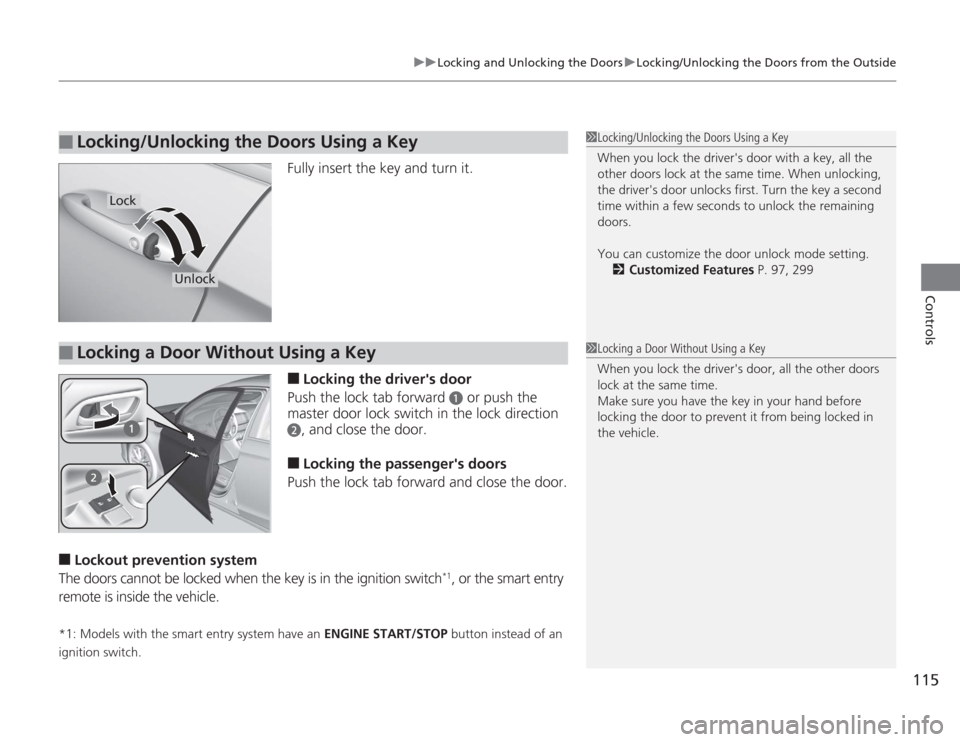
Fully insert the key and turn it.■
Locking the driver's door
Push the lock tab forward
a
or push the
master door lock switch in the lock direction
b
, and close the door.
■
Locking the passenger's doors
Push the lock tab forward and close the door.
■
Lockout prevention system
The doors cannot be locked when the key is in the ignition switch
*1, or the smart entry
remote is inside the vehicle.
*1: Models with the smart entry system have an ENGINE START/STOP button instead of an
ignition switch.■
Locking/Unlocking the Doors Using a Key
1 Locking/Unlocking the Doors Using a Key
When you lock the driver's door with a key, all the
other doors lock at the same time. When unlocking,
the driver's door unlocks first. Turn the key a second
time within a few seconds to unlock the remaining
doors.
You can customize the door unlock mode setting.
2 Customized Features P. 97, 299
Lock
Unlock
■
Locking a Door Without Using a Key
1Locking a Door Without Using a Key
When you lock the driver's door, all the other doors
lock at the same time.
Make sure you have the key in your hand before
locking the door to prevent it from being locked in
the vehicle.
Page 139 of 595
uuOperating the Switches Around the Steering Wheel uFog Lights
*
138Controls
The headlights automatically come on when the wipers are used several times within
a certain number of intervals with the headlight switch in AUTO.
The headlights automatically go off a few minutes later if the wipers are stopped.
The headlights, all other exterior lights, and the instrument panel lights turn off 15
seconds after you remove the key or set the power mode to VEHICLE OFF (LOCK),
take the remote with you, and close the driver's door.
u You can change the headlight auto off timer setting.
2 Customized Features P. 97, 299
If you turn the ignition switch to LOCK
(0
*1 with the headlight switch on, but do
not open the door, the lights turn off after 10 minutes (three minutes, if the switch
is in the AUTO position).
The lights turn on again when you unlock or open th e driver's door. If you unlock
the door, but do not open it within 15 seconds, the lights go off. If you open the
driver's door, you will hear a lights on reminder chime.
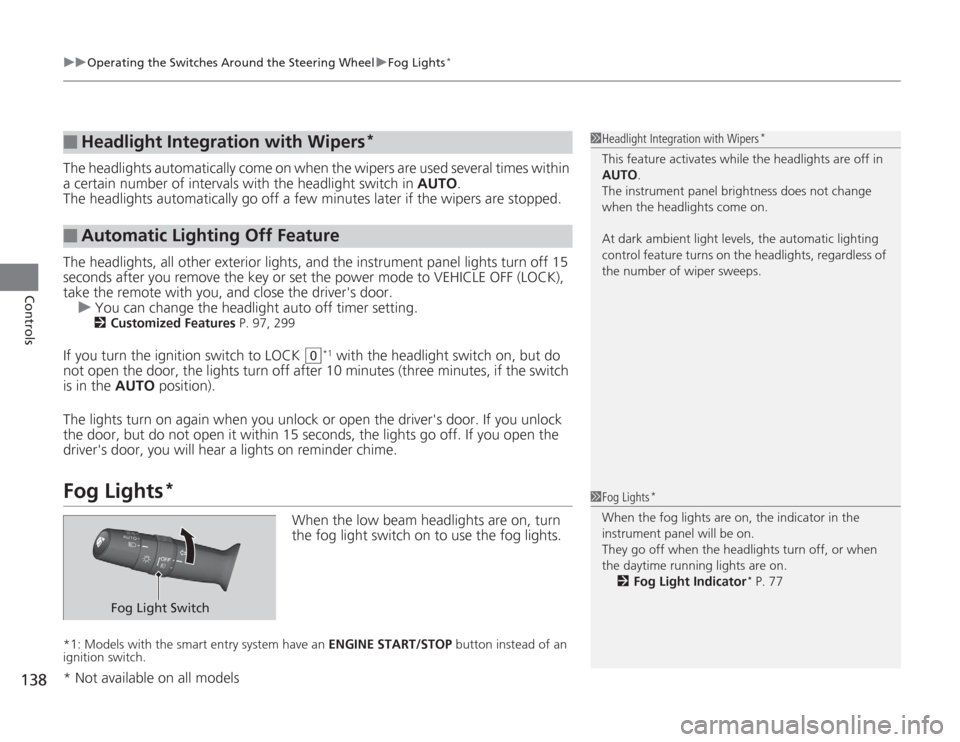
Fog Lights
*
When the low beam headlights are on, turn
the fog light switch on to use the fog lights.
*1: Models with the smart entry system have an ENGINE START/STOP button instead of an
ignition switch.■
Headlight Integration with Wipers
*
■
Automatic Lighting Off Feature
1 Headlight Integration with Wipers
*
This feature activates while the headlights are off in
AUTO .
The instrument panel brightness does not change
when the headlights come on.
At dark ambient light levels, the automatic lighting
control feature turns on the headlights, regardless of
the number of wiper sweeps.1 Fog Lights
*
When the fog lights are on, the indicator in the
instrument panel will be on.
They go off when the headlights turn off, or when
the daytime running lights are on.
2 Fog Light Indicator
* P. 77
Fog Light Switch
* Not available on all models
Page 141 of 595
140
uuOperating the Switches Around the Steering Wheel uWipers and Washers
Controls
Wipers and Washers
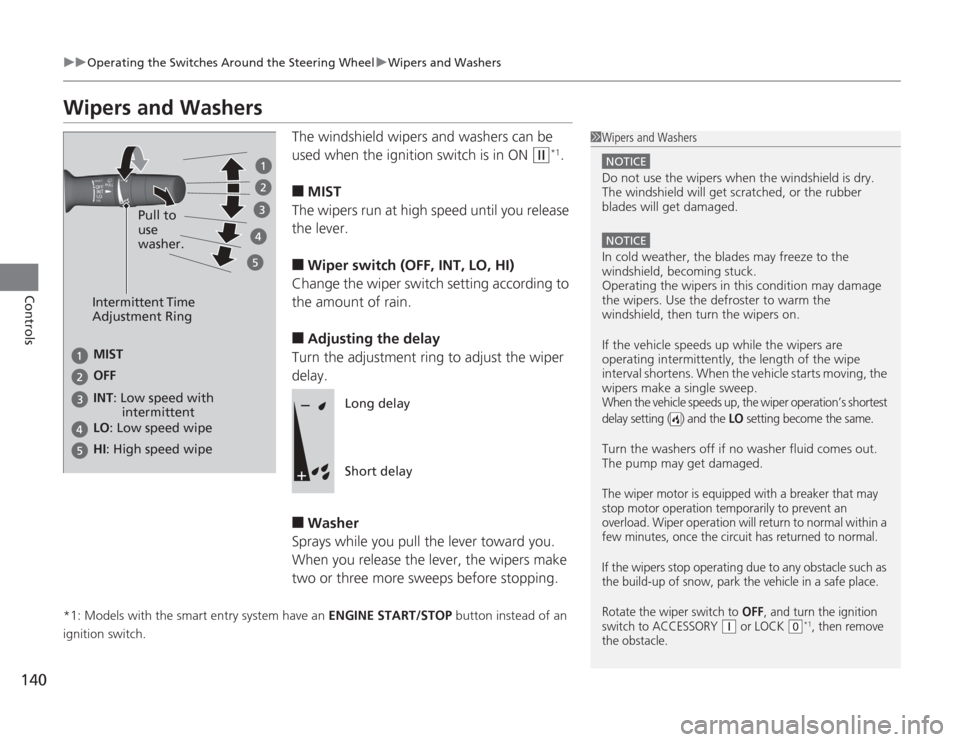
The windshield wipers and washers can be
used when the ignition switch is in ON
(w
*1.
■
MIST
The wipers run at high speed until you release
the lever.
■
Wiper switch (OFF, INT, LO, HI)
Change the wiper switch setting according to
the amount of rain.
■
Adjusting the delay
Turn the adjustment ring to adjust the wiper
delay.
■
Washer
Sprays while you pull the lever toward you.
When you release the lever, the wipers make
two or three more sweeps before stopping.
*1: Models with the smart entry system have an ENGINE START/STOP button instead of an
ignition switch.
1 Wipers and Washers
NOTICEDo not use the wipers when the windshield is dry.
The windshield will get scratched, or the rubber
blades will get damaged.NOTICEIn cold weather, the blades may freeze to the
windshield, becoming stuck.
Operating the wipers in this condition may damage
the wipers. Use the defroster to warm the
windshield, then turn the wipers on.
If the vehicle speeds up while the wipers are
operating intermitte ntly, the length of the wipe
interval shortens. When the vehicle starts moving, the
wipers make a single sweep.When the vehicle speeds up, the wiper operation’s shortest
delay setting ( ) and the
LO
setting become the same.
Turn the washers off if no washer fluid comes out.
The pump may get damaged.The wiper motor is equipped with a breaker that may
stop motor operation temporarily to prevent an
overload. Wiper operation will return to normal within a
few minutes, once the circuit has returned to normal.
If the wipers stop operating due to any obstacle such as
the build-up of snow, park the vehicle in a safe place.
Rotate the wiper switch to
OFF
, and turn the ignition
switch to ACCESSORY
( q
or LOCK
(0
*1, then remove
the obstacle.
Intermittent Time
Adjustment Ring
MIST
INT: Low speed with
intermittent OFF
LO : Low speed wipe
HI: High speed wipe Pull to
use
washer.
Long delay
Short delay
Page 176 of 595
175
uuAudio System uUSB Port
Features
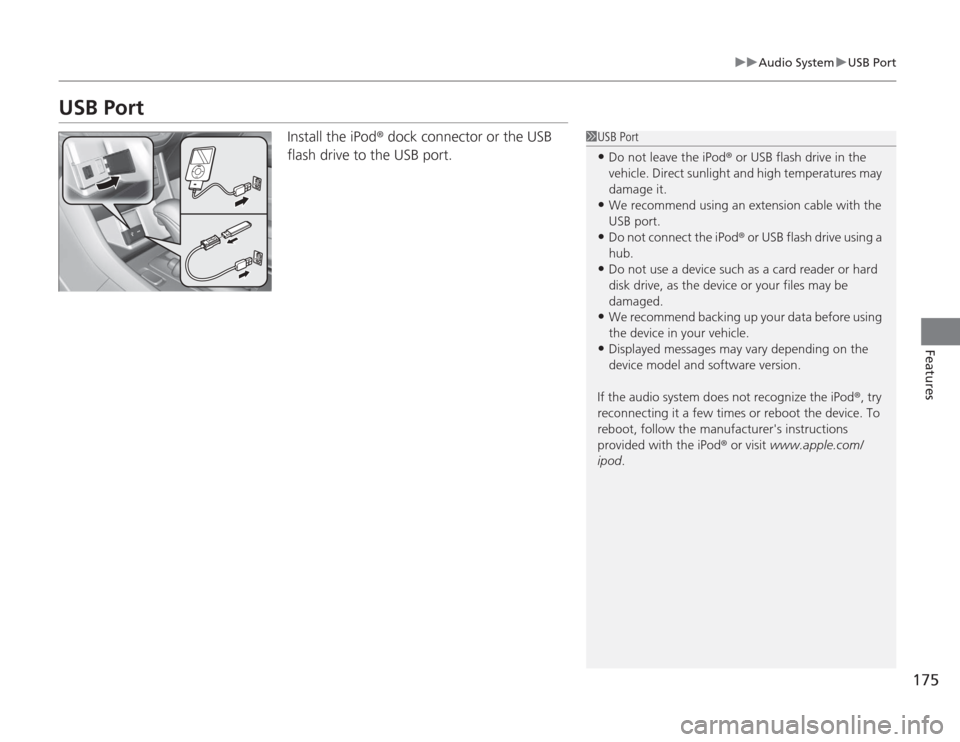
USB Port
Install the iPod ® dock connector or the USB
flash drive to the USB port.
1 USB Port•Do not leave the iPod ® or USB flash drive in the
vehicle. Direct sunlight and high temperatures may
damage it.•We recommend using an extension cable with the
USB port.•Do not connect the iPod ® or USB flash drive using a
hub.•Do not use a device such as a card reader or hard
disk drive, as the device or your files may be
damaged.•We recommend backing up your data before using
the device in your vehicle.•Displayed messages may vary depending on the
device model and software version.
If the audio system does not recognize the iPod ®, try
reconnecting it a few times or reboot the device. To
reboot, follow the manufacturer's instructions
provided with the iPod ® or visit www.apple.com/
ipod .
Page 184 of 595
Continued
183
uuAudio System Basic Operation uAudio/Information Screen
Features
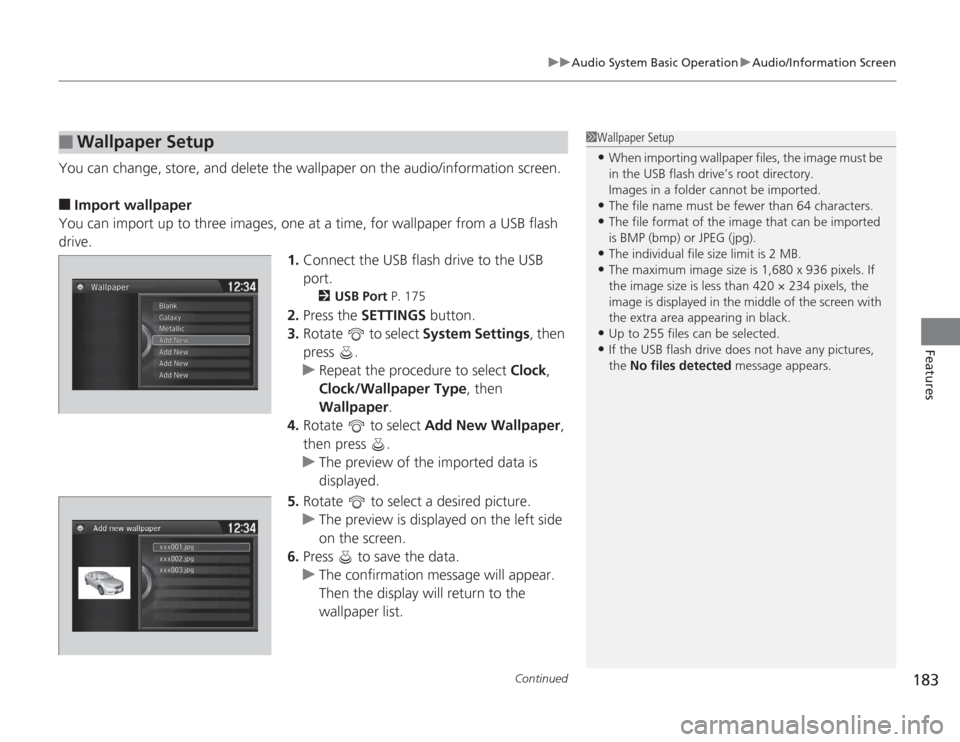
You can change, store, and delete the wallpaper on the audio/information screen.■
Import wallpaper
You can import up to three images, one at a time, for wallpaper from a USB flash
drive. 1.Connect the USB flash drive to the USB
port.
2 USB Port P. 175
2.Press the SETTINGS button.
3. Rotate to select System Settings, then
press .
u Repeat the procedure to select Clock,
Clock/Wallpaper Type , then
Wallpaper .
4. Rotate to select Add New Wallpaper ,
then press .
u The preview of the imported data is
displayed.
5. Rotate to select a desired picture.
u The preview is displayed on the left side
on the screen.
6. Press to save the data.
u The confirmation message will appear.
Then the display will return to the
wallpaper list.
■
Wallpaper Setup
1Wallpaper Setup•When importing wallpaper files, the image must be
in the USB flash drive’s root directory.
Images in a folder cannot be imported.•The file name must be fewer than 64 characters.•The file format of the image that can be imported
is BMP (bmp) or JPEG (jpg).•The individual file size limit is 2 MB.•The maximum image size is 1,680 x 936 pixels. If
the image size is less than 420 × 234 pixels, the
image is displayed in the middle of the screen with
the extra area appearing in black.•Up to 255 files can be selected.•If the USB flash drive does not have any pictures,
the No files detected message appears.