Bluetooth HONDA ACCORD 2014 9.G Manual Online
[x] Cancel search | Manufacturer: HONDA, Model Year: 2014, Model line: ACCORD, Model: HONDA ACCORD 2014 9.GPages: 595
Page 386 of 595
Continued
385
uuBluetooth ® HandsFreeLink ®u HFL Menus
Features
■
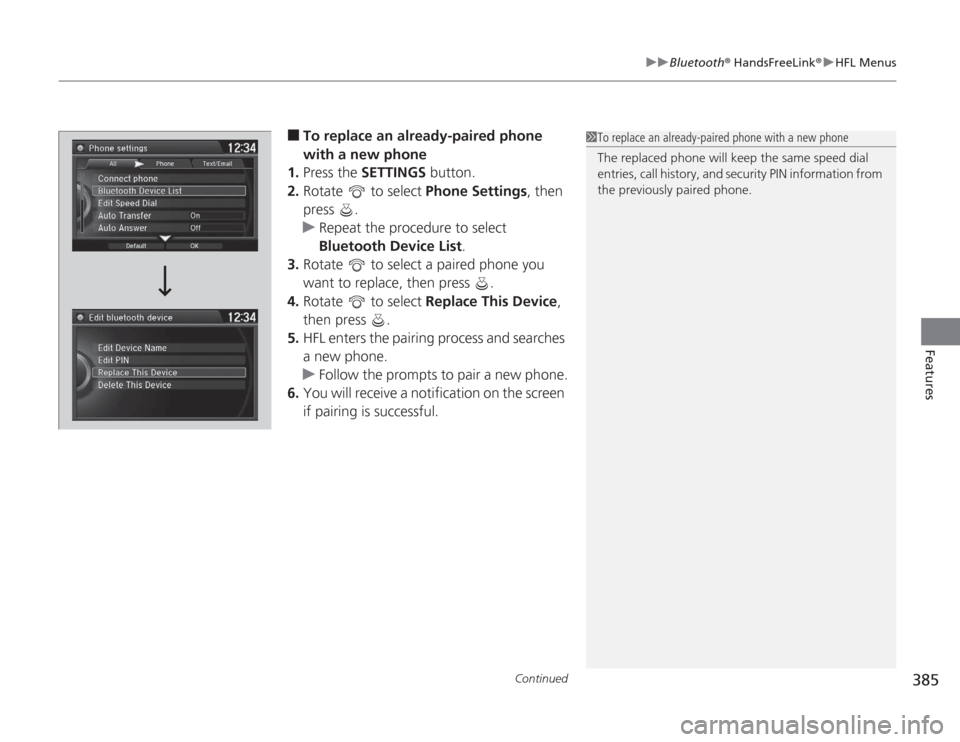
To replace an already-paired phone
with a new phone
1. Press the SETTINGS button.
2. Rotate to select Phone Settings, then
press .
u Repeat the procedure to select
Bluetooth Device List .
3. Rotate to select a paired phone you
want to replace, then press .
4. Rotate to select Replace This Device ,
then press .
5. HFL enters the pairing process and searches
a new phone.
u Follow the prompts to pair a new phone.
6. You will receive a notification on the screen
if pairing is successful.
1To replace an already-paired phone with a new phone
The replaced phone will keep the same speed dial
entries, call history, and security PIN information from
the previously paired phone.
Page 387 of 595
386
uuBluetooth ® HandsFreeLink ®u HFL Menus
Features
■
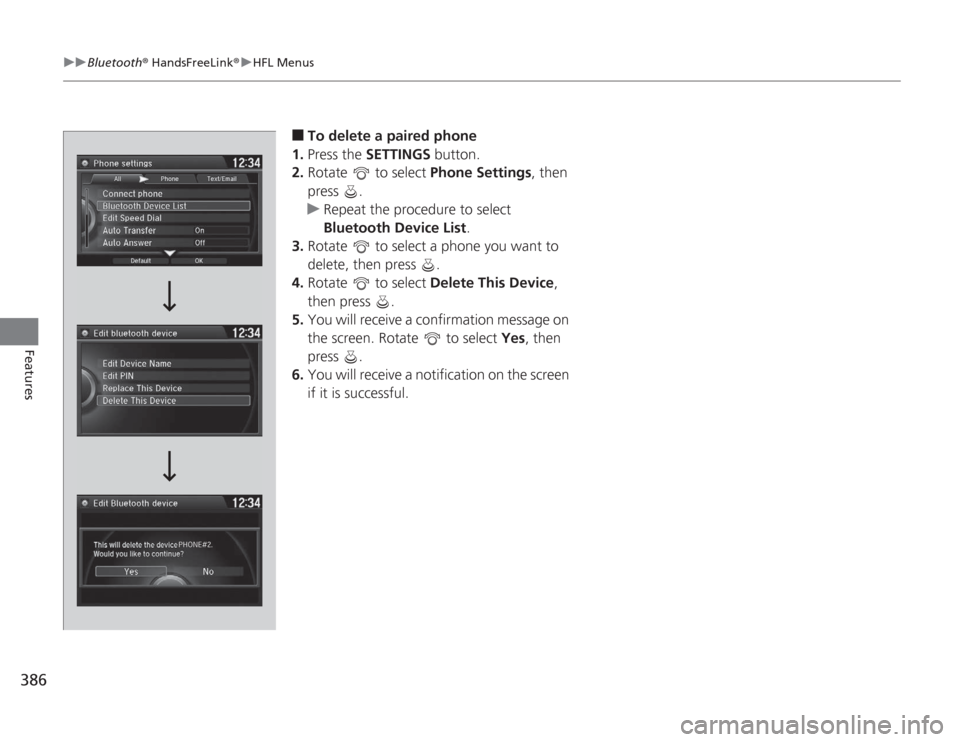
To delete a paired phone
1. Press the SETTINGS button.
2. Rotate to select Phone Settings, then
press .
u Repeat the procedure to select
Bluetooth Device List .
3. Rotate to select a phone you want to
delete, then press .
4. Rotate to select Delete This Device ,
then press .
5. You will receive a confirmation message on
the screen. Rotate to select Yes, then
press .
6. You will receive a notification on the screen
if it is successful.
Page 388 of 595
Continued
387
uuBluetooth ® HandsFreeLink ®u HFL Menus
Features
■
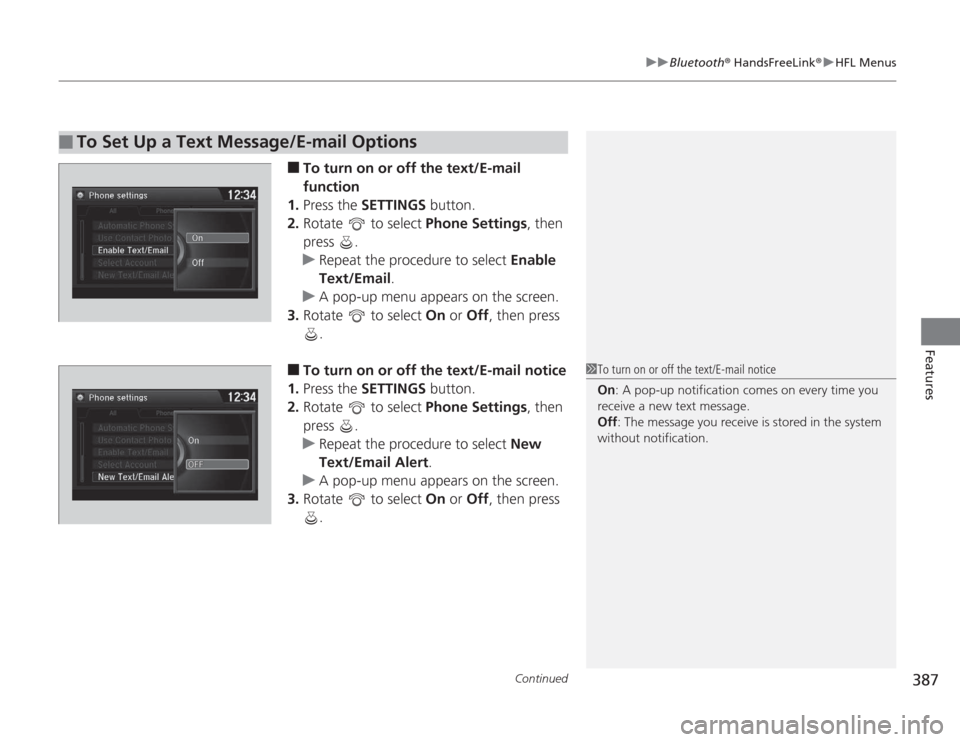
To turn on or off the text/E-mail
function
1. Press the SETTINGS button.
2. Rotate to select Phone Settings, then
press .
u Repeat the procedure to select Enable
Text/Email.
u A pop-up menu appears on the screen.
3. Rotate to select On or Off , then press
.
■
To turn on or off the text/E-mail notice
1. Press the SETTINGS button.
2. Rotate to select Phone Settings, then
press .
u Repeat the procedure to select New
Text/Email Alert .
u A pop-up menu appears on the screen.
3. Rotate to select On or Off , then press
.
■
To Set Up a Text Message/E-mail Options
1 To turn on or off the text/E-mail notice
On : A pop-up notification comes on every time you
receive a new text message.
Off : The message you receive is stored in the system
without notification.
Page 389 of 595
uuBluetooth ® HandsFreeLink ®u HFL Menus
388Features
■
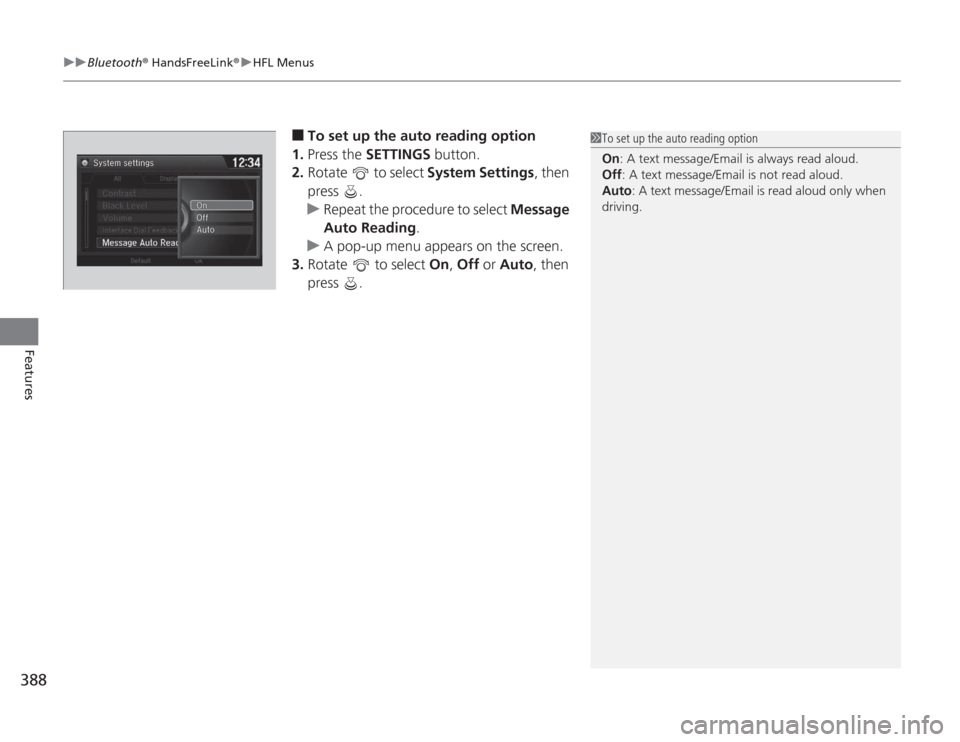
To set up the auto reading option
1. Press the SETTINGS button.
2. Rotate to select System Settings, then
press .
u Repeat the procedure to select Message
Auto Reading .
u A pop-up menu appears on the screen.
3. Rotate to select On, Off or Auto , then
press .
1 To set up the auto reading option
On : A text message/Email is always read aloud.
Off : A text message/Email is not read aloud.
Auto : A text message/Email is read aloud only when
driving.
Page 390 of 595
Continued
389
uuBluetooth ® HandsFreeLink ®u HFL Menus
Features
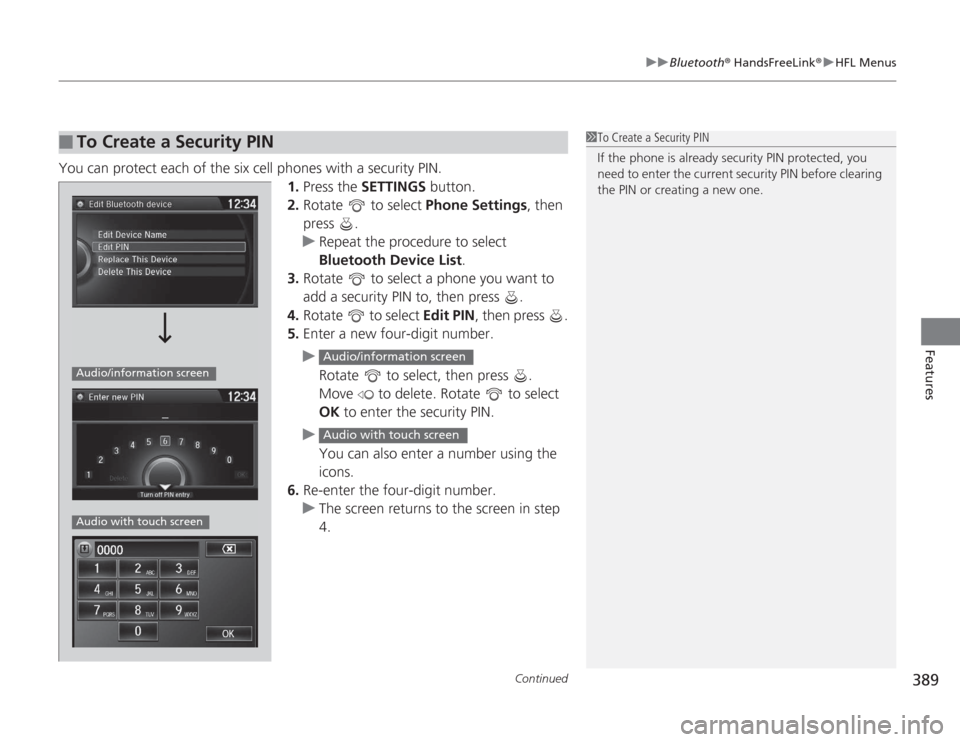
You can protect each of the six cell phones with a security PIN.
1.Press the SETTINGS button.
2. Rotate to select Phone Settings, then
press .
u Repeat the procedure to select
Bluetooth Device List .
3. Rotate to select a phone you want to
add a security PIN to, then press .
4. Rotate to select Edit PIN, then press .
5. Enter a new four-digit number.
u Rotate to select, then press .
Move to delete. Rotate to select
OK to enter the security PIN.
u You can also enter a number using the
icons.
6. Re-enter the four-digit number.
u The screen returns to the screen in step
4.■
To Create a Security PIN
1To Create a Security PIN
If the phone is already security PIN protected, you
need to enter the current security PIN before clearing
the PIN or creating a new one.
Audio/information screenAudio with touch screen
Audio/information screenAudio with touch screen
Page 391 of 595
390
uuBluetooth ® HandsFreeLink ®u HFL Menus
Features
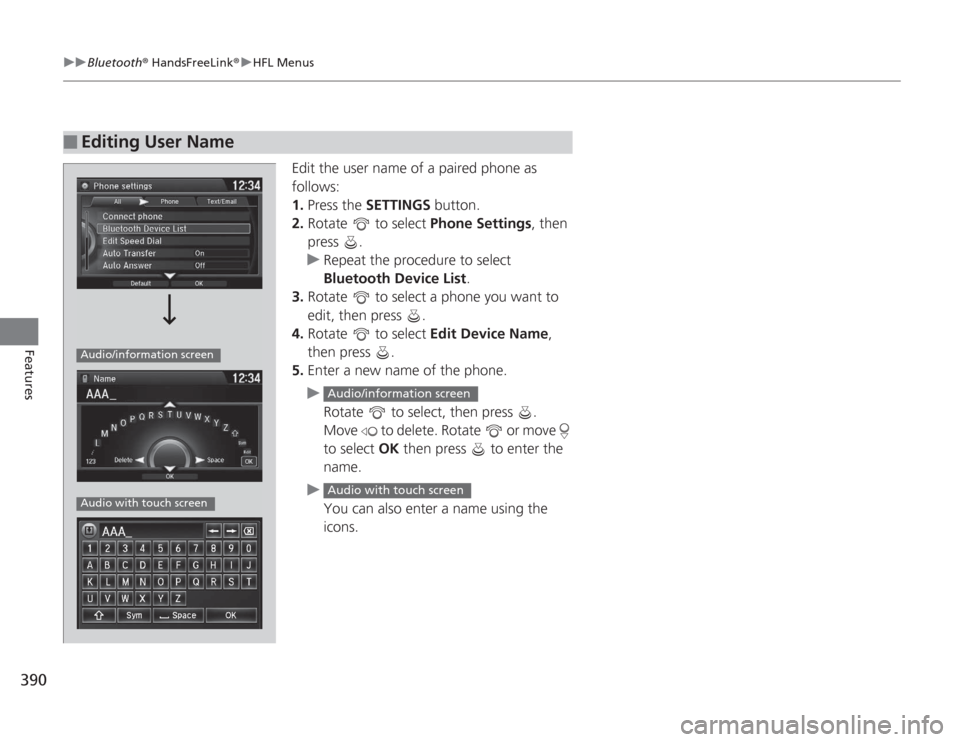
Edit the user name of a paired phone as
follows:
1. Press the SETTINGS button.
2. Rotate to select Phone Settings, then
press .
u Repeat the procedure to select
Bluetooth Device List .
3. Rotate to select a phone you want to
edit, then press .
4. Rotate to select Edit Device Name,
then press .
5. Enter a new name of the phone.
u Rotate to select, then press .
Move to delete. Rotate or move
to select OK then press to enter the
name.
u You can also enter a name using the
icons.
■
Editing User NameAudio/information screenAudio with touch screen
Audio/information screenAudio with touch screen
Page 392 of 595
391
uuBluetooth ® HandsFreeLink ®u HFL Menus
Continued
Features
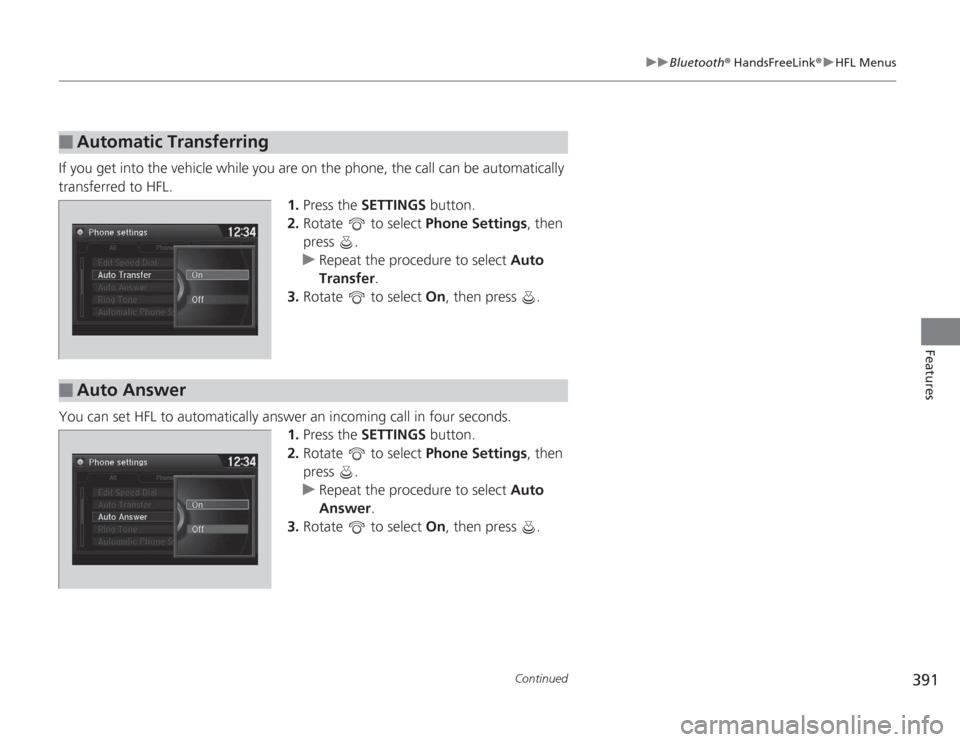
If you get into the vehicle while you are on the phone, the call can be automatically
transferred to HFL.
1.Press the SETTINGS button.
2. Rotate to select Phone Settings, then
press .
u Repeat the procedure to select Auto
Transfer .
3. Rotate to select On, then press .
You can set HFL to automatically answer an incoming call in four seconds. 1.Press the SETTINGS button.
2. Rotate to select Phone Settings, then
press .
u Repeat the procedure to select Auto
Answer.
3. Rotate to select On, then press .■
Automatic Transferring
■
Auto Answer
Page 393 of 595
uuBluetooth ® HandsFreeLink ®u HFL Menus
392Features
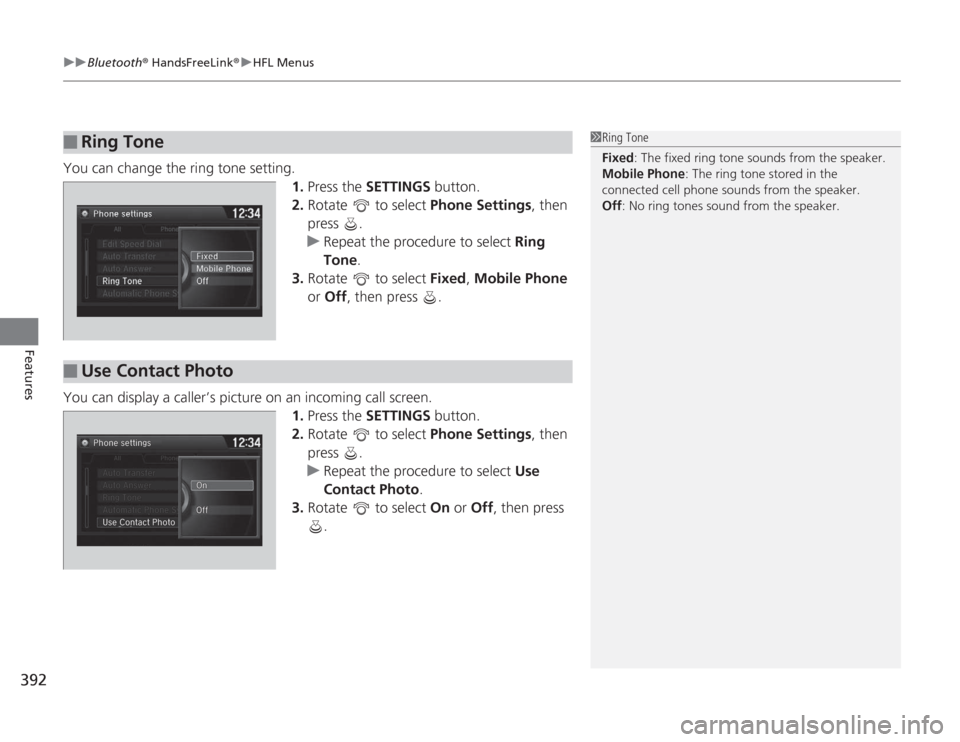
You can change the ring tone setting.
1.Press the SETTINGS button.
2. Rotate to select Phone Settings, then
press .
u Repeat the procedure to select Ring
Tone .
3. Rotate to select Fixed, Mobile Phone
or Off , then press .
You can display a caller’s picture on an incoming call screen. 1.Press the SETTINGS button.
2. Rotate to select Phone Settings, then
press .
u Repeat the procedure to select Use
Contact Photo.
3. Rotate to select On or Off , then press
.■
Ring Tone
1 Ring Tone
Fixed: The fixed ring tone sounds from the speaker.
Mobile Phone : The ring tone stored in the
connected cell phone sounds from the speaker.
Off : No ring tones sound from the speaker.
■
Use Contact Photo
Page 394 of 595
Continued
393
uuBluetooth ® HandsFreeLink ®u HFL Menus
Features
■
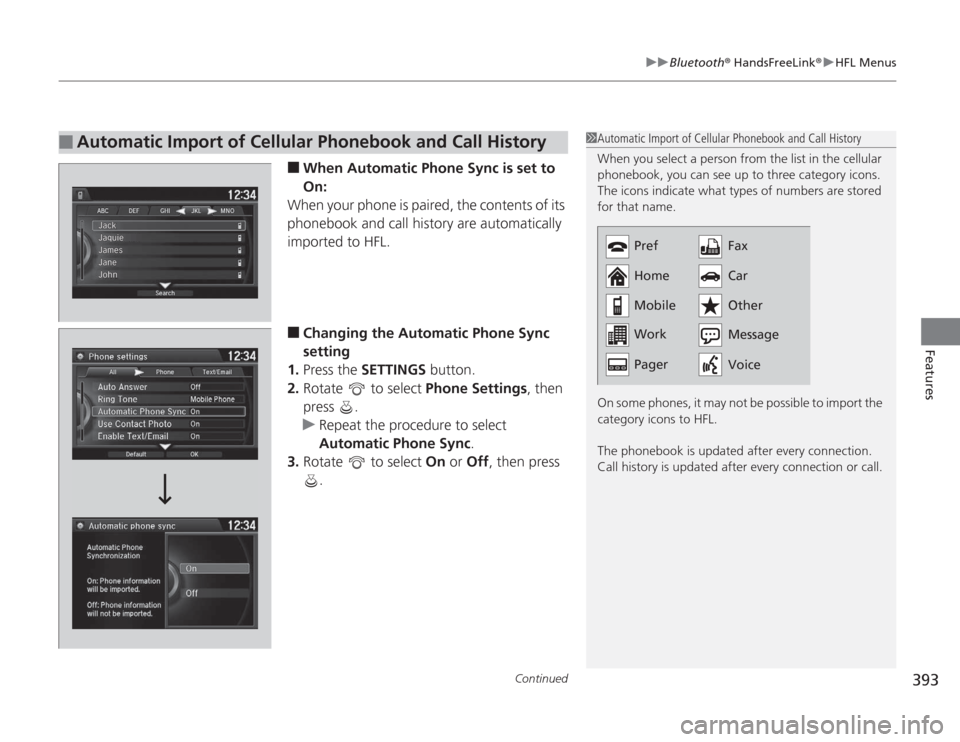
When Automatic Phone Sync is set to
On:
When your phone is paired, the contents of its
phonebook and call history are automatically
imported to HFL.
■
Changing the Automatic Phone Sync
setting
1. Press the SETTINGS button.
2. Rotate to select Phone Settings, then
press .
u Repeat the procedure to select
Automatic Phone Sync .
3. Rotate to select On or Off , then press
.
■
Automatic Import of Cellular Phonebook and Call History
1 Automatic Import of Cellular Phonebook and Call History
When you select a person from the list in the cellular
phonebook, you can see up to three category icons.
The icons indicate what types of numbers are stored
for that name.
On some phones, it may not be possible to import the
category icons to HFL.
The phonebook is updated after every connection.
Call history is updated after every connection or call.
Pref
Home
Mobile
Work
Pager Fax
Car
Other
Message
Voice
Page 395 of 595
uuBluetooth ® HandsFreeLink ®u HFL Menus
394Features
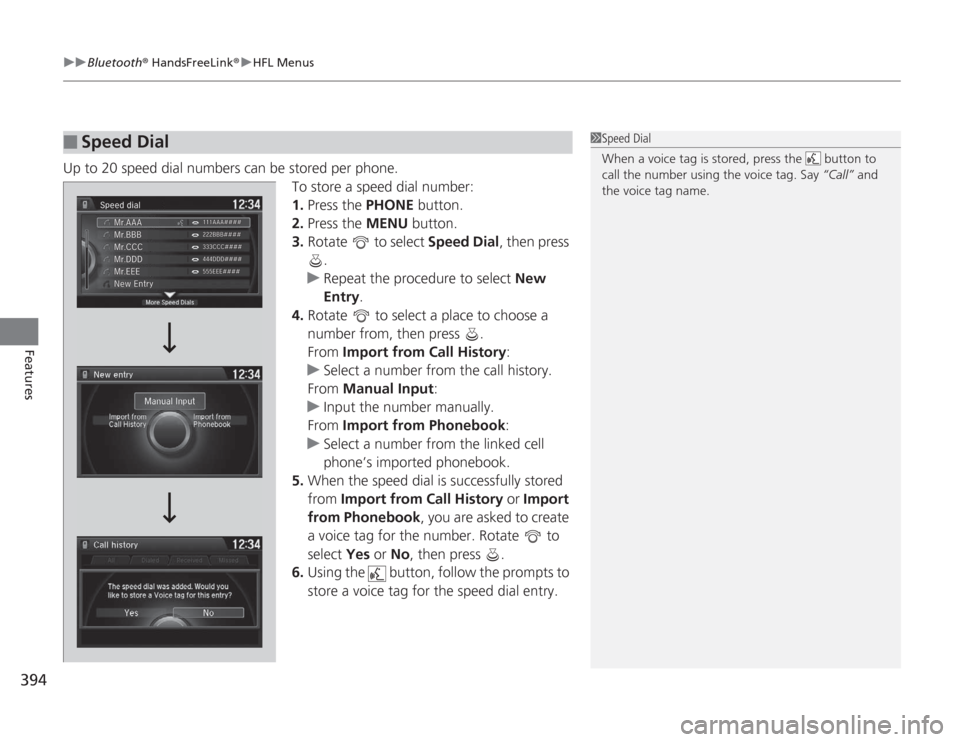
Up to 20 speed dial numbers can be stored per phone.
To store a speed dial number:
1.Press the PHONE button.
2. Press the MENU button.
3. Rotate to select Speed Dial, then press
.
u Repeat the procedure to select New
Entry.
4. Rotate to select a place to choose a
number from, then press .
From Import from Call History :
u Select a number from the call history.
From Manual Input :
u Input the number manually.
From Import from Phonebook :
u Select a number from the linked cell
phone’s imported phonebook.
5. When the speed dial is successfully stored
from Import from Call History or Import
from Phonebook , you are asked to create
a voice tag for the number. Rotate to
select Yes or No, then press .
6. Using the button, follow the prompts to
store a voice tag for the speed dial entry.■
Speed Dial
1Speed Dial
When a voice tag is stored, press the button to
call the number using the voice tag. Say “Call” and
the voice tag name.