Bluetooth HONDA ACCORD 2014 9.G Owners Manual
[x] Cancel search | Manufacturer: HONDA, Model Year: 2014, Model line: ACCORD, Model: HONDA ACCORD 2014 9.GPages: 595
Page 406 of 595
Continued
405
uuBluetooth ® HandsFreeLink ®u HFL Menus
Features
■
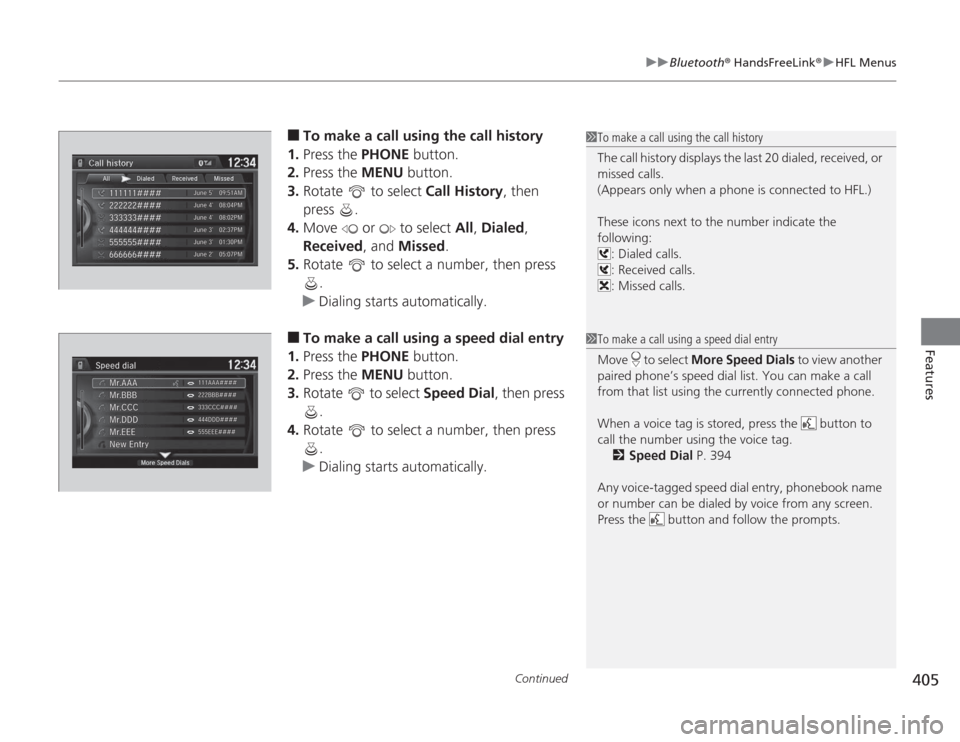
To make a call using the call history
1. Press the PHONE button.
2. Press the MENU button.
3. Rotate to select Call History, then
press .
4. Move or to select All, Dialed ,
Received , and Missed .
5. Rotate to select a number, then press
.
u Dialing starts automatically.
■
To make a call using a speed dial entry
1. Press the PHONE button.
2. Press the MENU button.
3. Rotate to select Speed Dial, then press
.
4. Rotate to select a number, then press
.
u Dialing starts automatically.
1To make a call using the call history
The call history displays the last 20 dialed, received, or
missed calls.
(Appears only when a phone is connected to HFL.)
These icons next to the number indicate the
following:
: Dialed calls.
: Received calls.
: Missed calls.1To make a call using a speed dial entry
Move to select More Speed Dials to view another
paired phone’s speed dial list. You can make a call
from that list using the currently connected phone.
When a voice tag is stored, press the button to
call the number using the voice tag. 2 Speed Dial P. 394
Any voice-tagged speed dial entry, phonebook name
or number can be dialed by voice from any screen.
Press the button and follow the prompts.
Page 407 of 595
uuBluetooth ® HandsFreeLink ®u HFL Menus
406Features
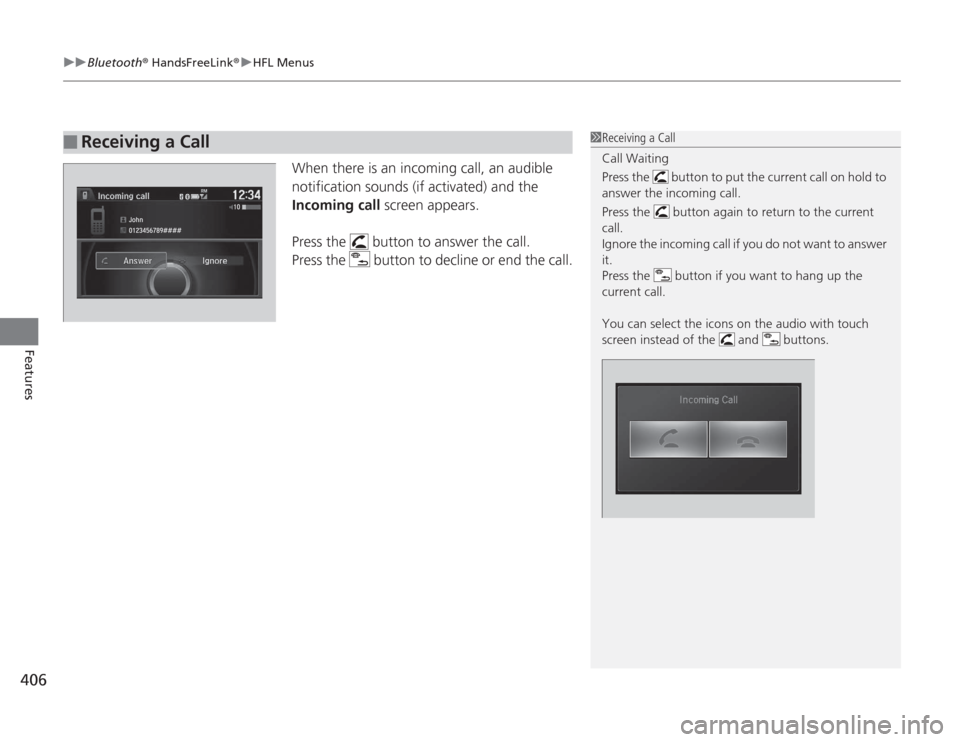
When there is an incoming call, an audible
notification sounds (if activated) and the
Incoming call screen appears.
Press the button to answer the call.
Press the button to decline or end the call.
■
Receiving a Call
1 Receiving a Call
Call Waiting
Press the button to put the current call on hold to
answer the incoming call.
Press the button again to return to the current
call.
Ignore the incoming call if you do not want to answer
it.
Press the button if you want to hang up the
current call.
You can select the icons on the audio with touch
screen instead of the and buttons.
Page 408 of 595
Continued
407
uuBluetooth ® HandsFreeLink ®u HFL Menus
Features
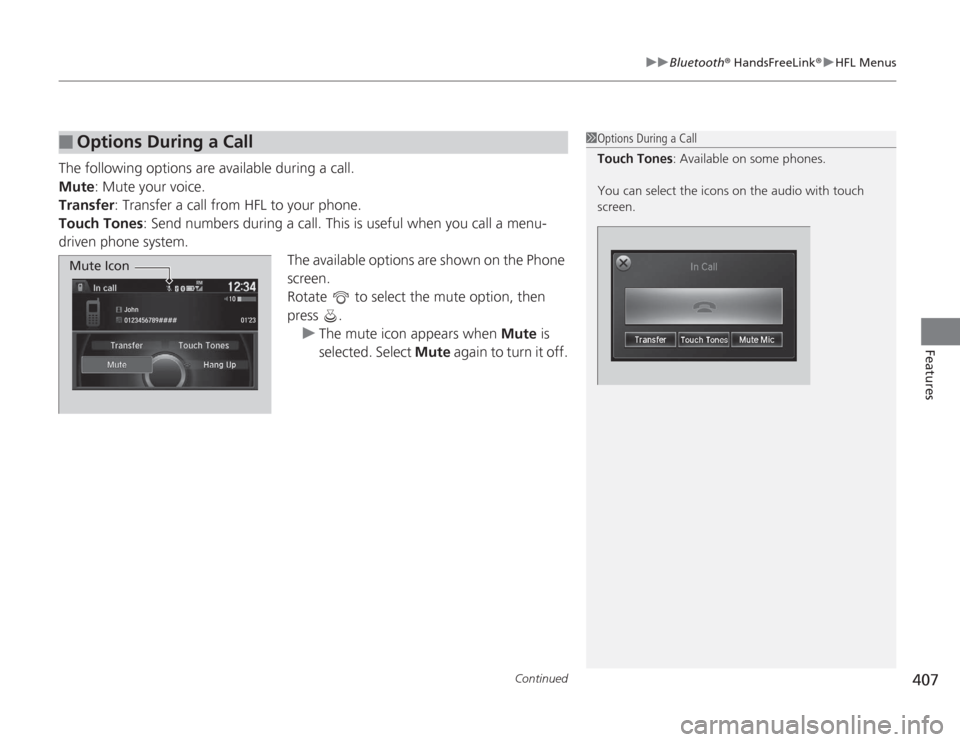
The following options are available during a call.
Mute : Mute your voice.
Transfer : Transfer a call from HFL to your phone.
Touch Tones : Send numbers during a call. This is useful when you call a menu-
driven phone system.
The available options are shown on the Phone
screen.
Rotate to select the mute option, then
press .u The mute icon appears when Mute is
selected. Select Mute again to turn it off.■
Options During a Call
1Options During a Call
Touch Tones : Available on some phones.
You can select the icons on the audio with touch
screen.
Mute Icon
Page 409 of 595
uuBluetooth ® HandsFreeLink ®u HFL Menus
408Features
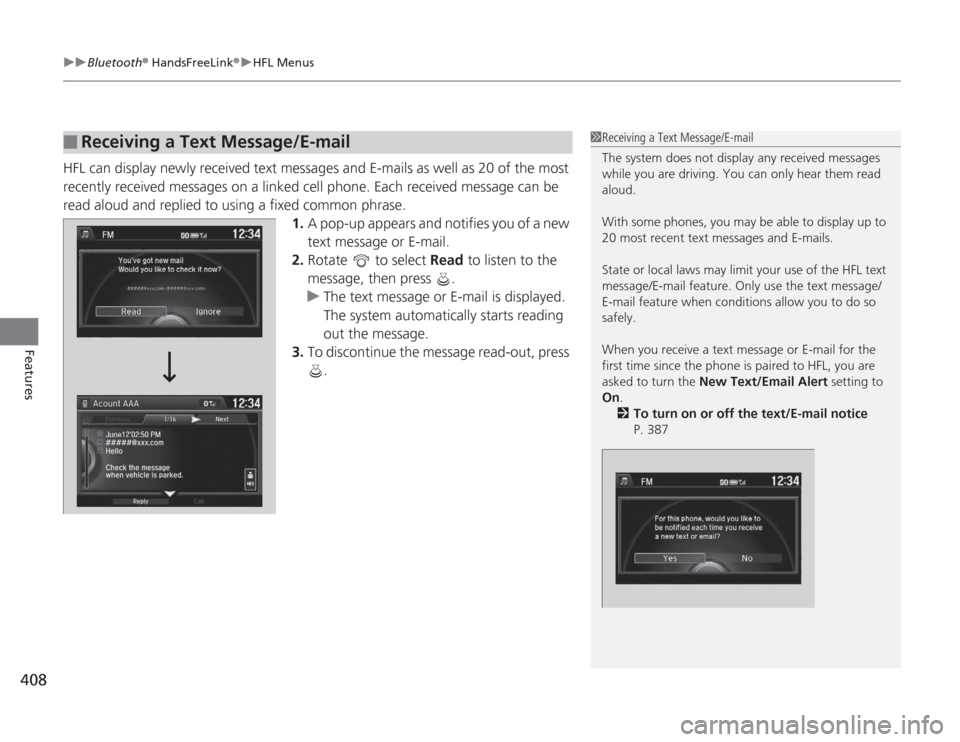
HFL can display newly received text messages and E-mails as well as 20 of the most
recently received messages on a linked cell phone. Each received message can be
read aloud and replied to using a fixed common phrase.
1.A pop-up appears and notifies you of a new
text message or E-mail.
2. Rotate to select Read to listen to the
message, then press .
u The text message or E-mail is displayed.
The system automatically starts reading
out the message.
3. To discontinue the message read-out, press
.■
Receiving a Text Message/E-mail
1Receiving a Text Message/E-mail
The system does not display any received messages
while you are driving. You can only hear them read
aloud.
With some phones, you may be able to display up to
20 most recent text messages and E-mails.
State or local laws may limit your use of the HFL text
message/E-mail feature. Only use the text message/
E-mail feature when conditions allow you to do so
safely.
When you receive a text message or E-mail for the
first time since the phone is paired to HFL, you are
asked to turn the New Text/Email Alert setting to
On .
2 To turn on or off the text/E-mail notice
P. 387
Page 410 of 595
Continued
409
uuBluetooth ® HandsFreeLink ®u HFL Menus
Features
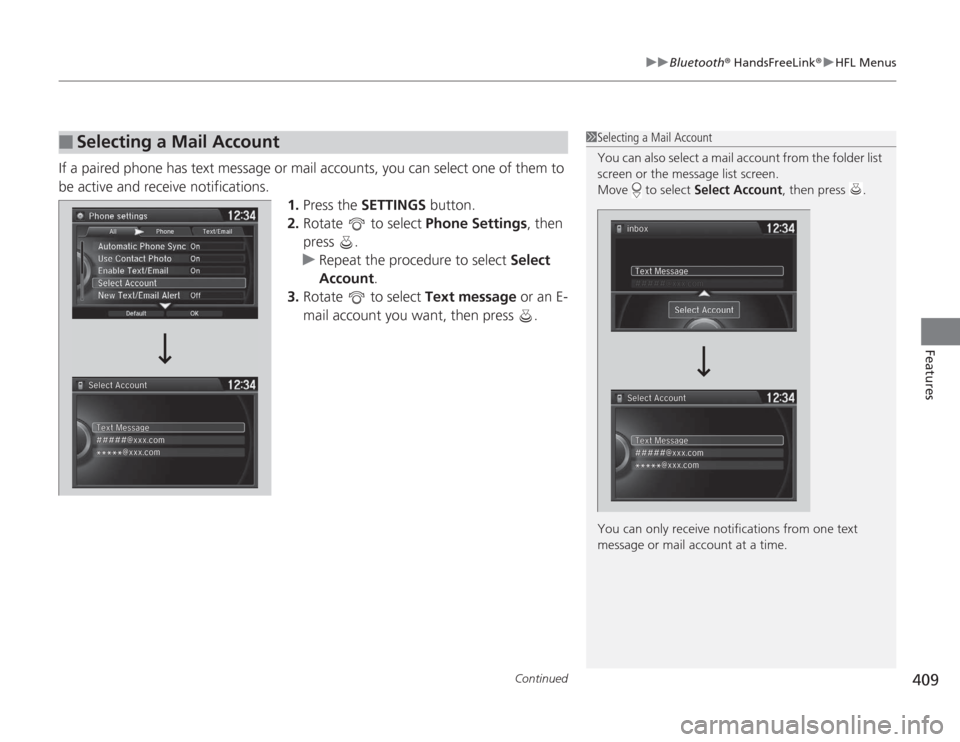
If a paired phone has text message or mail accounts, you can select one of them to
be active and receive notifications.
1.Press the SETTINGS button.
2. Rotate to select Phone Settings, then
press .
u Repeat the procedure to select Select
Account .
3. Rotate to select Text message or an E-
mail account you want, then press .■
Selecting a Mail Account
1 Selecting a Mail Account
You can also select a mail account from the folder list
screen or the message list screen.
Move to select Select Account, then press .
You can only receive notifications from one text
message or mail account at a time.
Page 411 of 595
uuBluetooth ® HandsFreeLink ®u HFL Menus
410Features
■
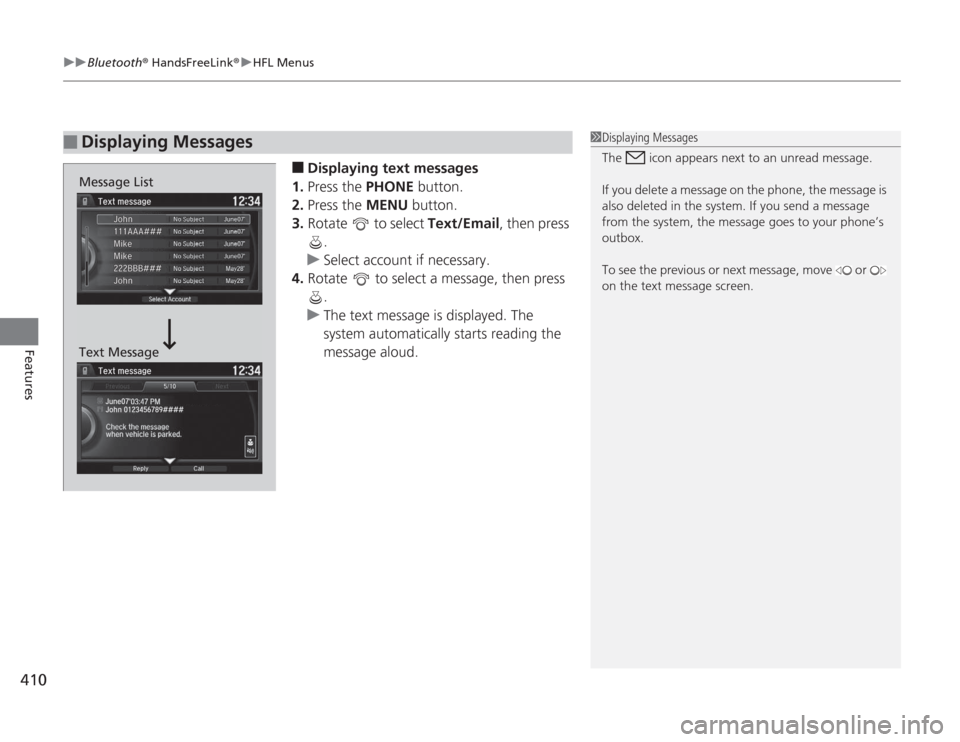
Displaying text messages
1. Press the PHONE button.
2. Press the MENU button.
3. Rotate to select Text/Email, then press
.
u Select account if necessary.
4. Rotate to select a message, then press
.
u The text message is displayed. The
system automatically starts reading the
message aloud.
■
Displaying Messages
1Displaying Messages
The icon appears next to an unread message.
If you delete a message on the phone, the message is
also deleted in the system. If you send a message
from the system, the message goes to your phone’s
outbox.
To see the previous or next message, move or
on the text message screen.
Message List
Text Message
Page 412 of 595
Continued
411
uuBluetooth ® HandsFreeLink ®u HFL Menus
Features
■
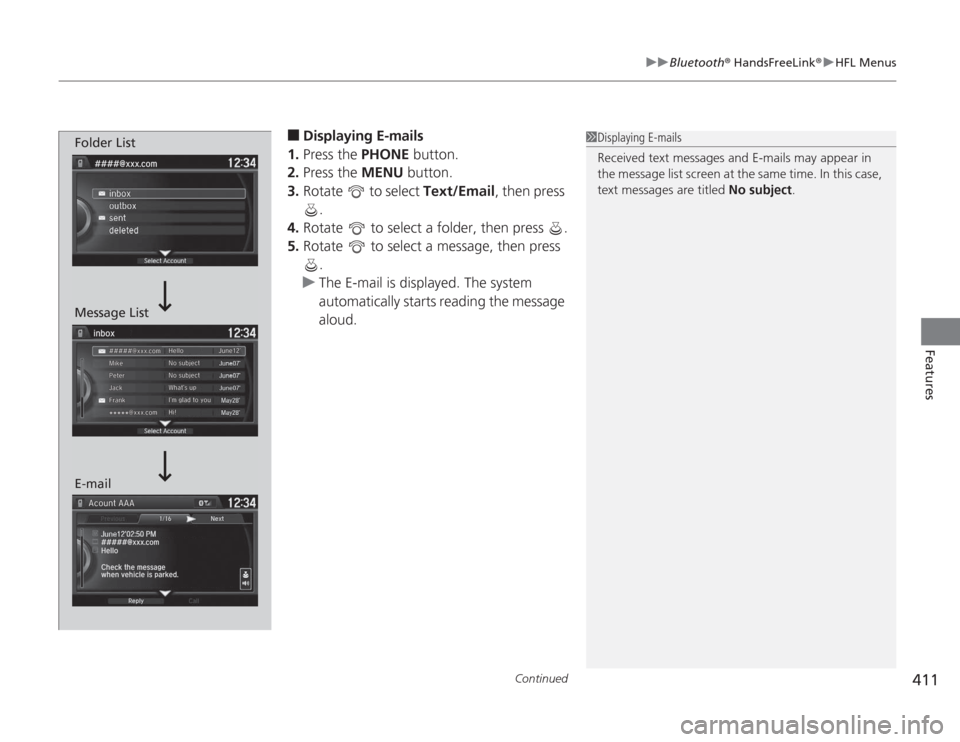
Displaying E-mails
1. Press the PHONE button.
2. Press the MENU button.
3. Rotate to select Text/Email , then press
.
4. Rotate to select a folder, then press .
5. Rotate to select a message, then press
.
u The E-mail is displayed. The system
automatically starts reading the message
aloud.
1Displaying E-mails
Received text messages and E-mails may appear in
the message list screen at the same time. In this case,
text messages are titled No subject.
Folder List
Message List
E-mail
Page 413 of 595
uuBluetooth ® HandsFreeLink ®u HFL Menus
412Features
■
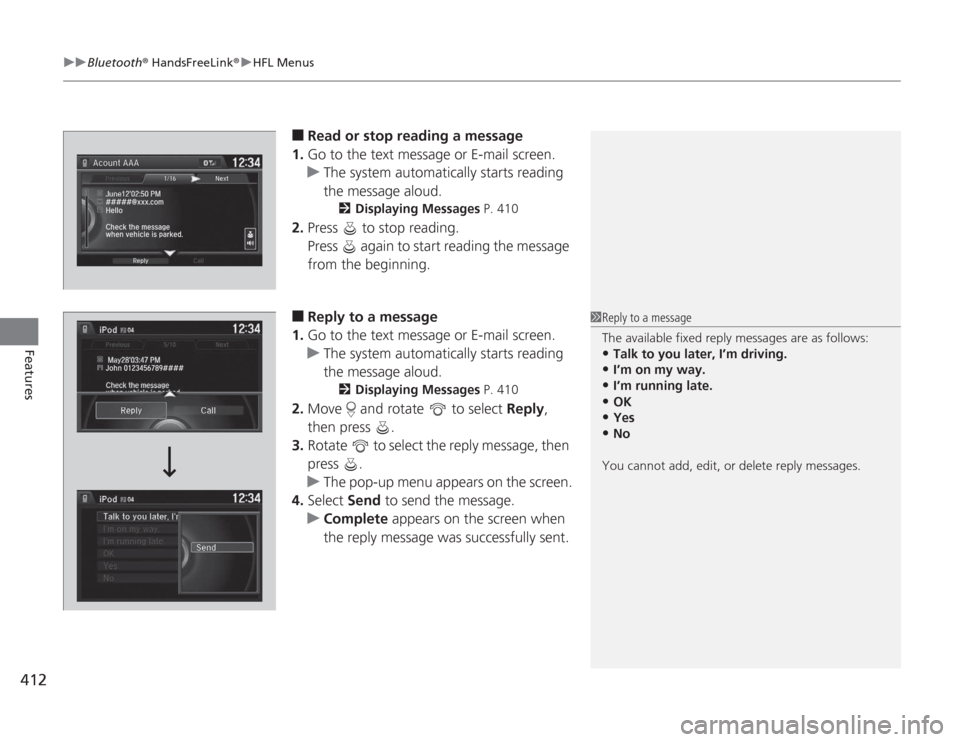
Read or stop reading a message
1. Go to the text message or E-mail screen.
u The system automatically starts reading
the message aloud.
2 Displaying Messages P. 410
2.Press to stop reading.
Press again to start reading the message
from the beginning.■
Reply to a message
1. Go to the text message or E-mail screen.
u The system automatically starts reading
the message aloud.
2 Displaying Messages P. 410
2.Move and rotate to select Reply,
then press .
3. Rotate to select the reply message, then
press .
u The pop-up menu appears on the screen.
4. Select Send to send the message.
u Complete appears on the screen when
the reply message was successfully sent.
1 Reply to a message
The available fixed reply messages are as follows:•Talk to you later, I’m driving.•I’m on my way.•I’m running late.•OK•Yes•No
You cannot add, edit, or delete reply messages.
Page 414 of 595
413
uuBluetooth ® HandsFreeLink ®u HFL Menus
Features
■
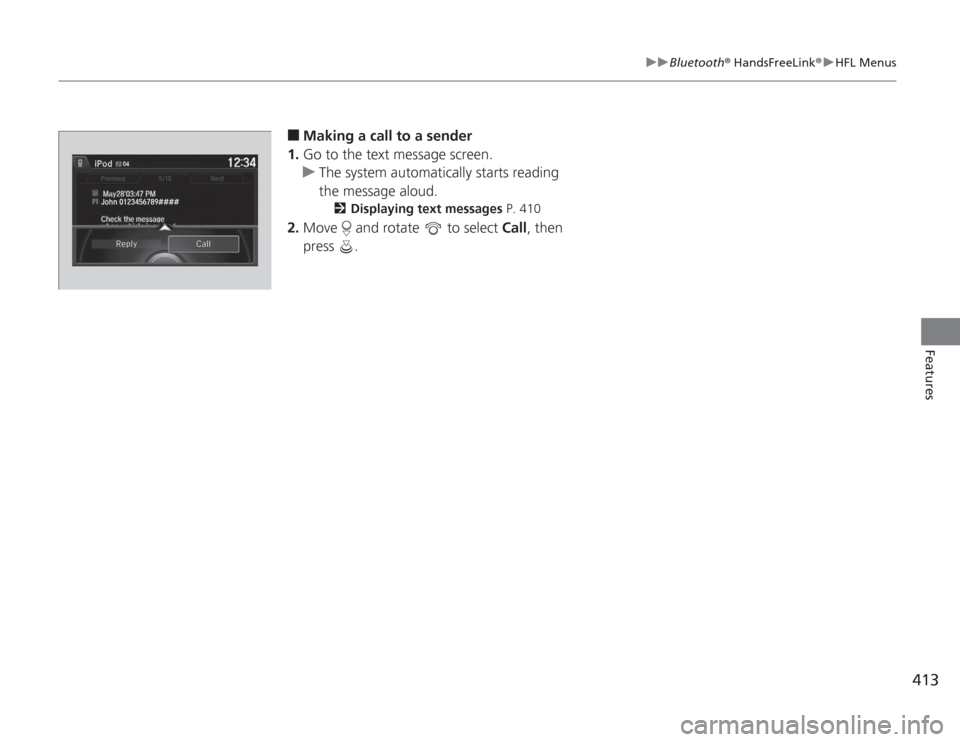
Making a call to a sender
1. Go to the text message screen.
u The system automatically starts reading
the message aloud.
2 Displaying text messages P. 410
2.Move and rotate to select Call, then
press .
John 0123456789####
Reply Call
Page 576 of 595
575
Information
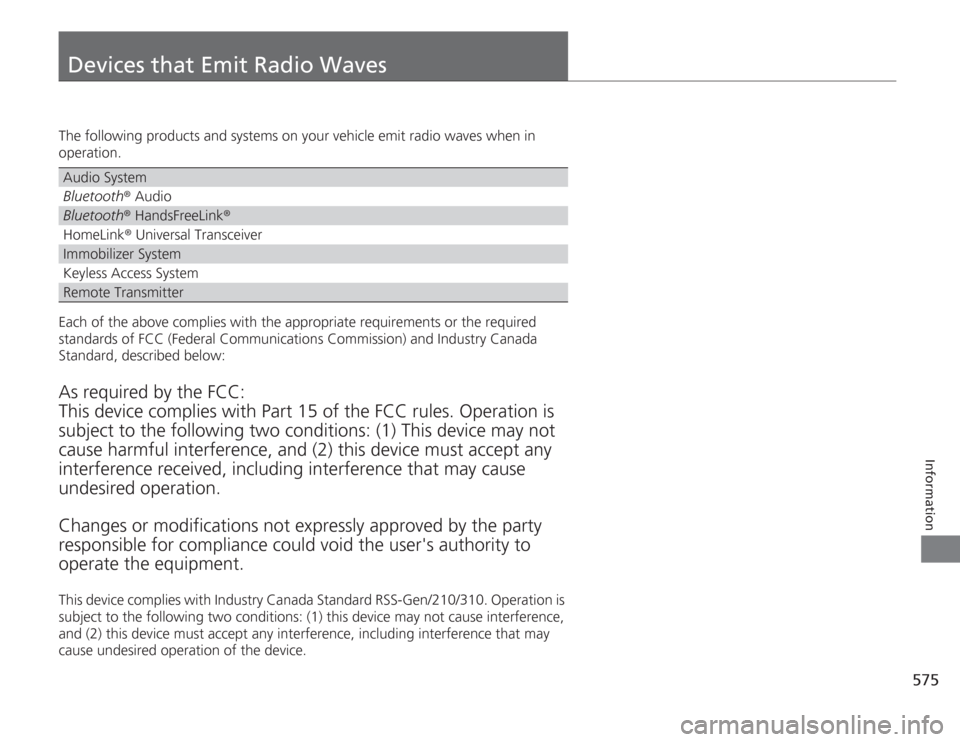
Devices that Emit Radio WavesThe following products and systems on your vehicle emit radio waves when in
operation.
Each of the above complies with the appropriate requirements or the required
standards of FCC (Federal Communications Commission) and Industry Canada
Standard, described below:As required by the FCC:
This device complies with Part 15 of the FCC rules. Operation is
subject to the following two conditions: (1) This device may not
cause harmful interference, and (2) this device must accept any
interference received, including interference that may cause
undesired operation.
Changes or modifications not expressly approved by the party
responsible for compliance could void the user's authority to
operate the equipment.This device complies with Industry Canada Standard RSS-Gen/210/310. Operation is
subject to the following two conditions: (1) this device may not cause interference,
and (2) this device must accept any interference, including interference that may
cause undesired operation of the device.Audio SystemBluetooth ® AudioBluetooth® HandsFreeLink ®HomeLink® Universal TransceiverImmobilizer SystemKeyless Access SystemRemote Transmitter