clock reset HONDA ACCORD 2014 9.G Owners Manual
[x] Cancel search | Manufacturer: HONDA, Model Year: 2014, Model line: ACCORD, Model: HONDA ACCORD 2014 9.GPages: 595
Page 16 of 595
15Quick Reference Guide
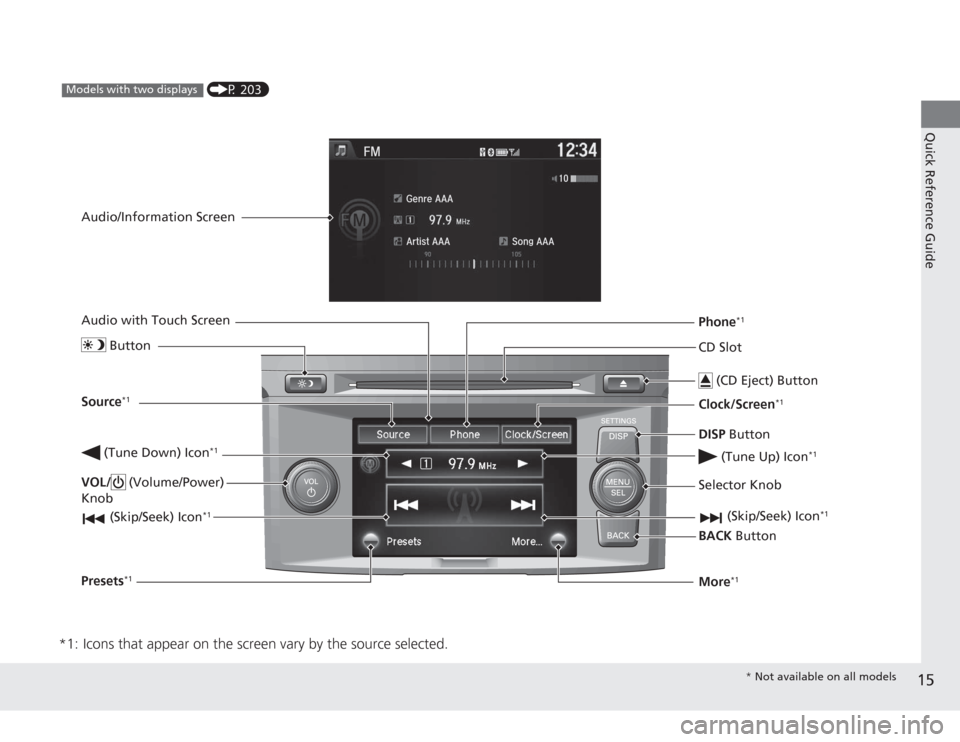
*1: Icons that appear on the screen vary by the source selected.
CD Slot (CD Eject) ButtonBACK Button
Selector Knob
(Tune Down) Icon
*1
(Skip/Seek) Icon
*1
(P 203)
Models with two displays
Audio/Information Screen
Audio with Touch Screen
ButtonSource
*1
VOL/ (Volume/Power)
Knob
(Skip/Seek) Icon
*1
Presets
*1
Phone
*1
Clock/Screen
*1
DISP Button
(Tune Up) Icon
*1
More
*1
* Not available on all models
Page 108 of 595
107
uuClock uAdjusting the Clock
Controls
■
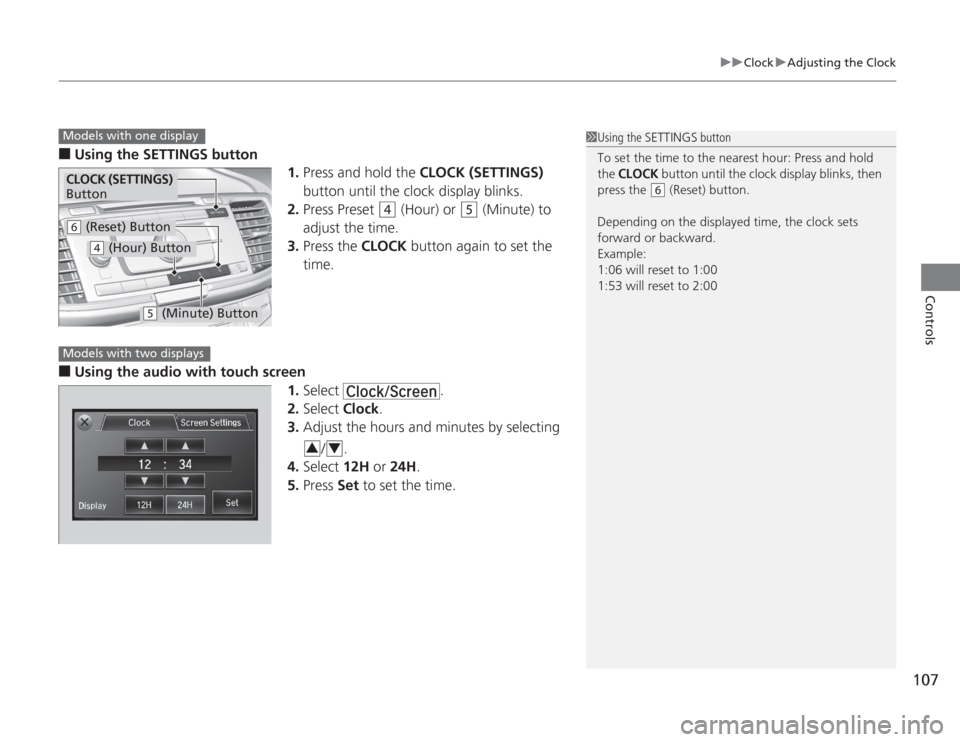
Using the SETTINGS button
1.Press and hold the CLOCK (SETTINGS)
button until the clock display blinks.
2. Press Preset
(4
(Hour) or
(5
(Minute) to
adjust the time.
3. Press the CLOCK button again to set the
time.
■
Using the audio with touch screen 1.Select .
2. Select Clock.
3. Adjust the hours and minutes by selecting
/.
4. Select 12H or 24H.
5. Press Set to set the time.
1Using the SETTINGS button
To set the time to the nearest hour: Press and hold
the CLOCK button until the clock display blinks, then
press the
( 6
(Reset) button.
Depending on the displayed time, the clock sets
forward or backward.
Example:
1:06 will reset to 1:00
1:53 will reset to 2:00
Models with one displayCLOCK (SETTINGS)
Button( 6
(Reset) Button(4
(Hour) Button
(5
(Minute) Button
Models with two displays
3
4
Page 183 of 595
182
uuAudio System Basic Operation uAudio/Information Screen
Features
■
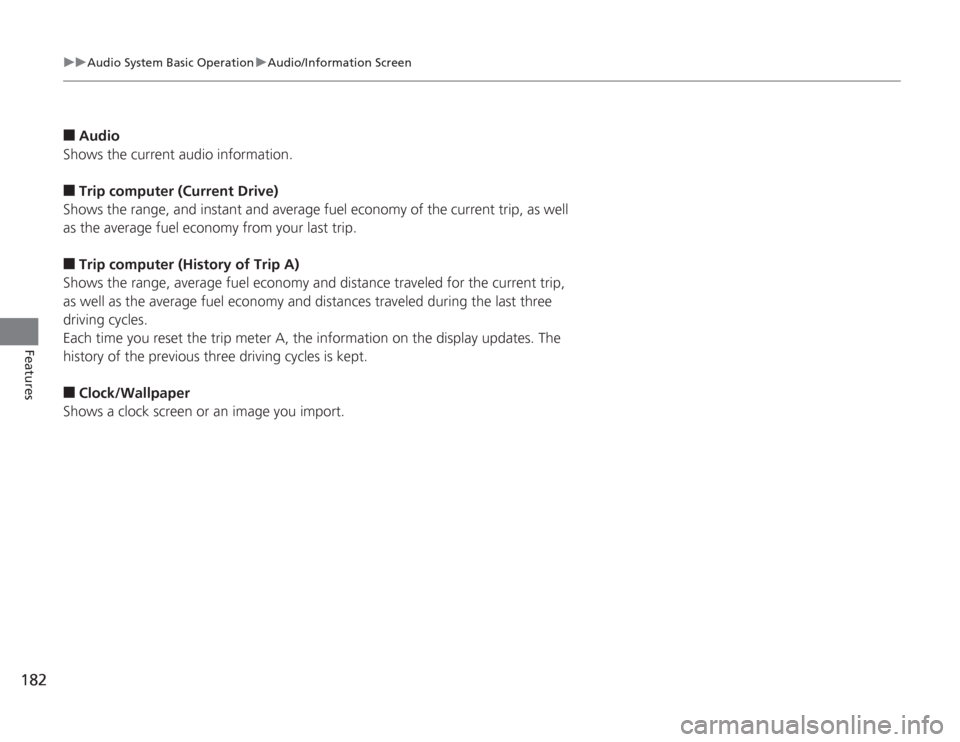
Audio
Shows the current audio information.
■
Trip computer (Current Drive)
Shows the range, and instant and average fuel economy of the current trip, as well
as the average fuel economy from your last trip.
■
Trip computer (History of Trip A)
Shows the range, average fuel economy and distance traveled for the current trip,
as well as the average fuel economy and distances traveled during the last three
driving cycles.
Each time you reset the trip meter A, the information on the display updates. The
history of the previous three driving cycles is kept.
■
Clock/Wallpaper
Shows a clock screen or an image you import.
Page 210 of 595
209
uuAudio System Basic Operation uAudio/Information Screen
Continued
Features
■
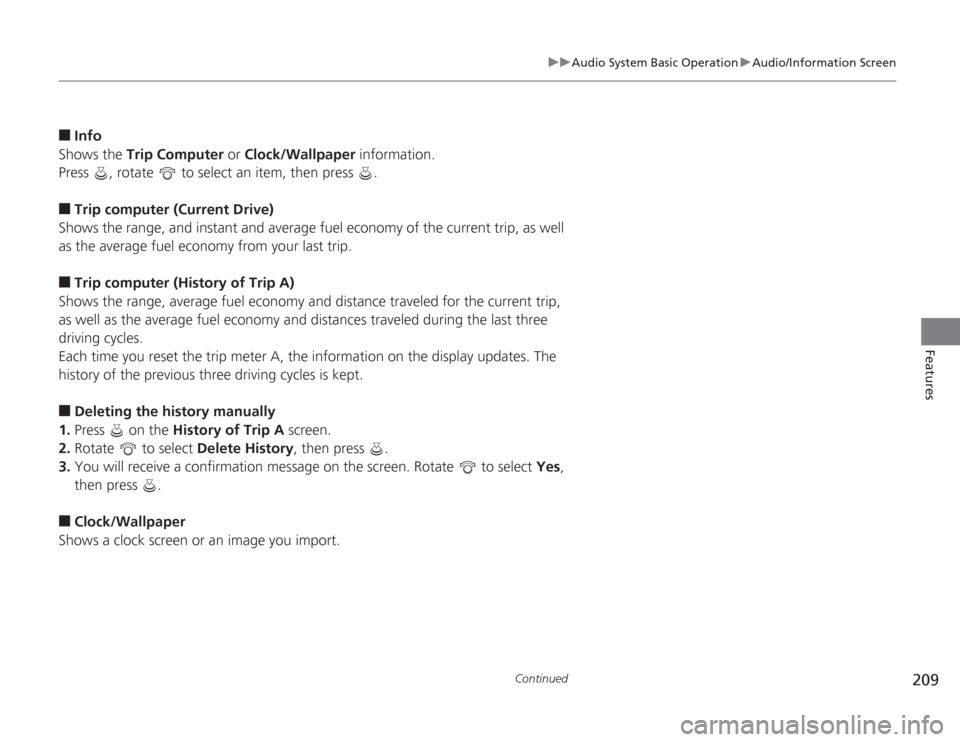
Info
Shows the Trip Computer or Clock/Wallpaper information.
Press , rotate to select an item, then press .
■
Trip computer (Current Drive)
Shows the range, and instant and average fuel economy of the current trip, as well
as the average fuel economy from your last trip.
■
Trip computer (History of Trip A)
Shows the range, average fuel economy and distance traveled for the current trip,
as well as the average fuel economy and distances traveled during the last three
driving cycles.
Each time you reset the trip meter A, the information on the display updates. The
history of the previous three driving cycles is kept.
■
Deleting the history manually
1. Press on the History of Trip A screen.
2. Rotate to select Delete History, then press .
3. You will receive a confirmation message on the screen. Rotate to select Yes,
then press .
■
Clock/Wallpaper
Shows a clock screen or an image you import.
Page 241 of 595
240
uuAudio System Basic Operation uAudio/Information Screen
Features
■
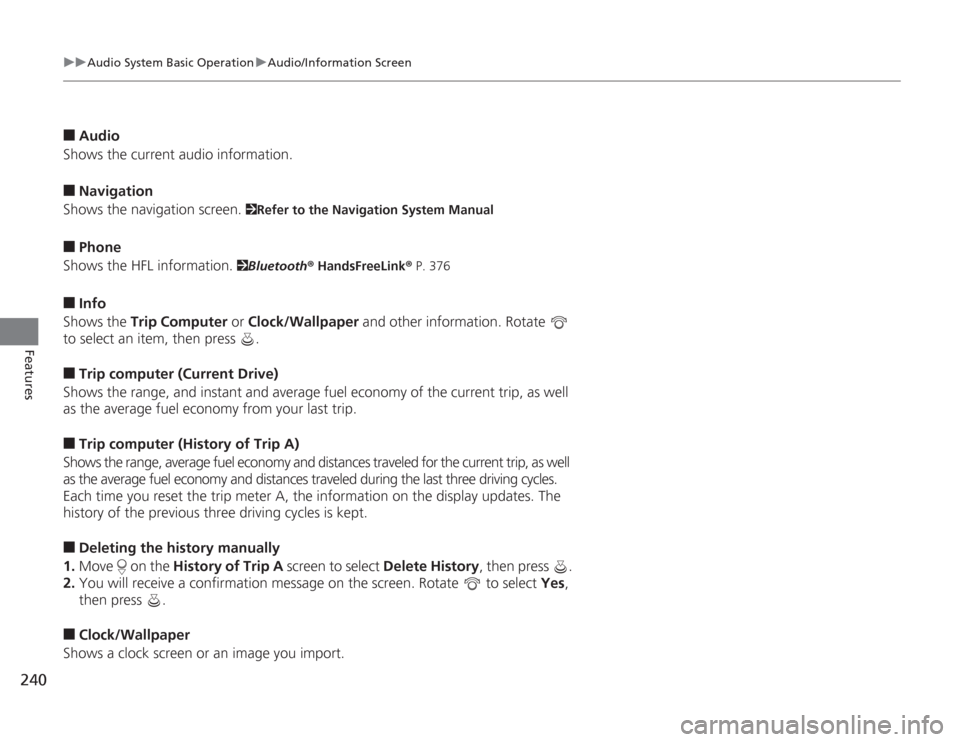
Audio
Shows the current audio information.
■
Navigation
Shows the navigation screen.
2 Refer to the Navigation System Manual
■
Phone
Shows the HFL information.
2 Bluetooth® HandsFreeLink ® P. 376
■
Info
Shows the Trip Computer or Clock/Wallpaper and other information. Rotate
to select an item, then press .
■
Trip computer (Current Drive)
Shows the range, and instant and average fuel economy of the current trip, as well
as the average fuel economy from your last trip.
■
Trip computer (History of Trip A)
Shows the range, average fuel economy and distances traveled for the current trip, as well
as the average fuel economy and distances traveled during the last three driving cycles.
Each time you reset the trip meter A, the information on the display updates. The
history of the previous three driving cycles is kept.
■
Deleting the history manually
1. Move on the History of Trip A screen to select Delete History, then press .
2. You will receive a confirmation message on the screen. Rotate to select Yes,
then press .
■
Clock/Wallpaper
Shows a clock screen or an image you import.
Page 302 of 595
301
uuCustomized Features u
Continued
Features
■
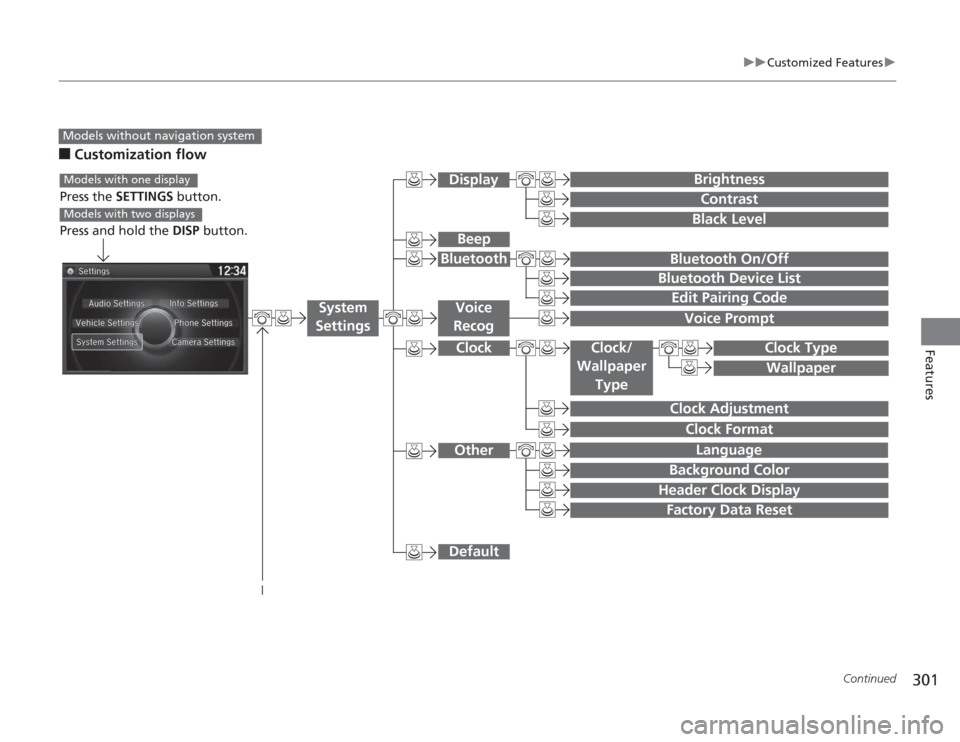
Customization flowModels without navigation system
Clock Format
Background ColorHeader Clock DisplayFactory Data ResetClock Adjustment
Press the SETTINGS button.
Press and hold the DISP button.Models with one displayModels with two displays
Language
Default
Edit Pairing CodeBluetooth On/OffBluetooth Device List
Voice PromptBrightnessContrastBlack Level
Beep
Clock/
Wallpaper
Type
Clock TypeWallpaper
System
Settings
Voice
Recog
BluetoothDisplayClockOther
Page 308 of 595
307
uuCustomized Features u
Continued
Features
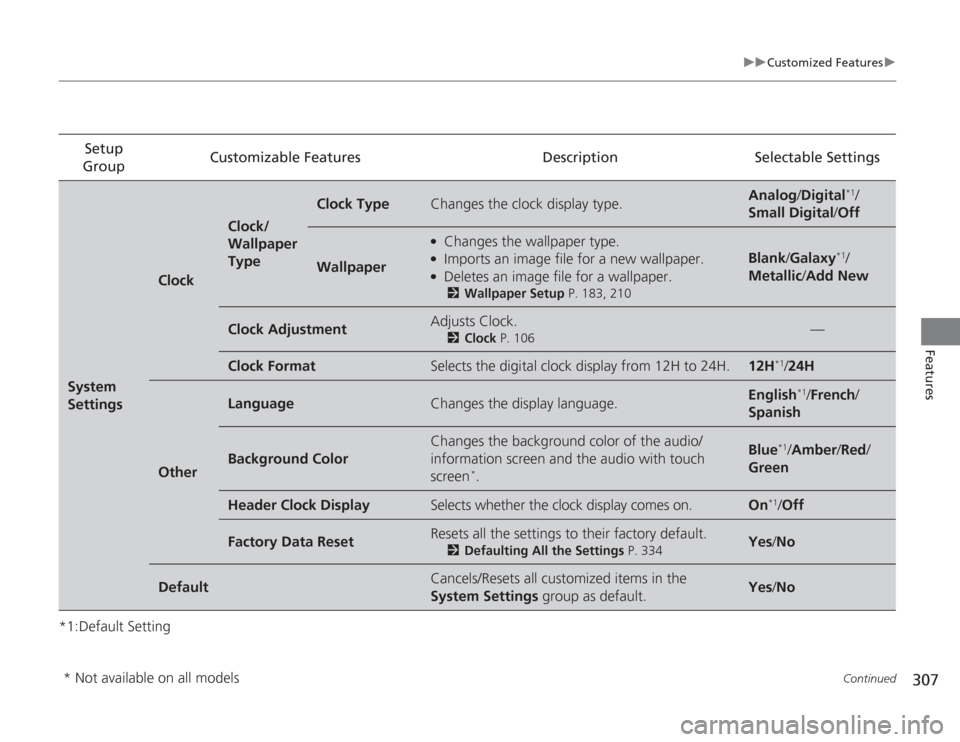
*1:Default SettingSetup
Group Customizable Features Description Selectable SettingsSystem
Settings
Clock
Clock/
Wallpaper
Type
Clock Type
Changes the clock display type.
Analog
/Digital
*1/
Small Digital /Off
Wallpaper
●
Changes the wallpaper type.
●
Imports an image file for a new wallpaper.
●
Deletes an image file for a wallpaper.2 Wallpaper Setup P. 183, 210
Blank/Galaxy
*1/
Metallic /Add New
Clock Adjustment
Adjusts Clock.
2 Clock P. 106
—
Clock Format
Selects the digital clock display from 12H to 24H.
12H
*1/24H
Other
Language
Changes the display language.
English
*1/ French /
Spanish
Background Color
Changes the background color of the audio/
information screen and the audio with touch
screen
*.
Blue
*1/ Amber /Red /
Green
Header Clock Display
Selects whether the clock display comes on.
On
*1/ Off
Factory Data Reset
Resets all the settings to their factory default.
2 Defaulting All the Settings P. 334
Yes /No
Default
Cancels/Resets all customized items in the
System Settings group as default.
Yes/No
* Not available on all models
Page 313 of 595
312
uuCustomized Features u
Features
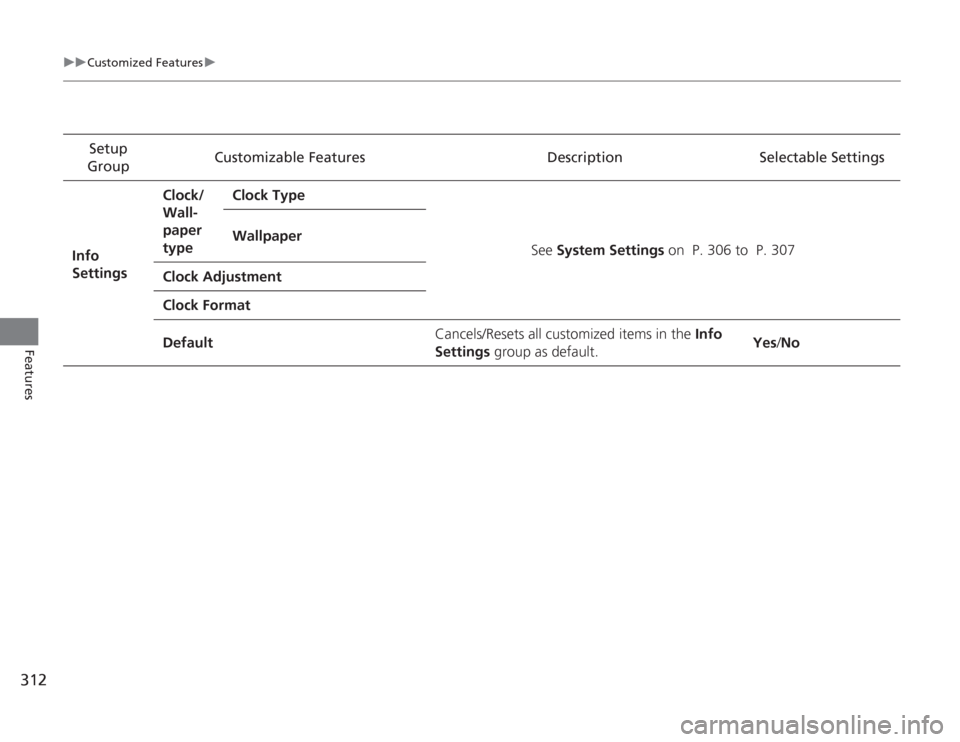
Setup
Group Customizable Features
DescriptionSelectable Settings
Info
Settings Clock/
Wall-
paper
type
Clock Type
See System Settings on P. 306 to P. 307
Wallpaper
Clock Adjustment
Clock Format
Default Cancels/Resets all customized items in the Info
Settings
group as default. Yes
/No
Page 319 of 595
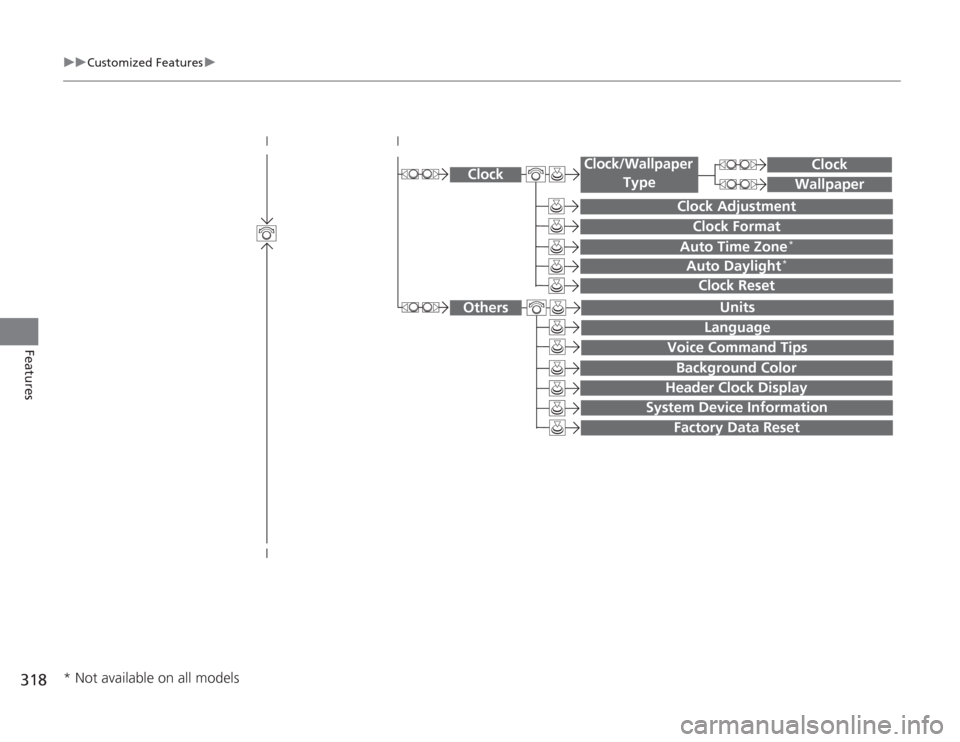
318
uuCustomized Features u
Features
System Device Information
Factory Data Reset
Background ColorHeader Clock Display
Clock Reset
Auto Time Zone
*
Auto Daylight
*
Clock
Clock Adjustment
Clock Format
Clock
Units
Language
Voice Command Tips
Others
Wallpaper
Clock/Wallpaper
Type
* Not available on all models
Page 323 of 595
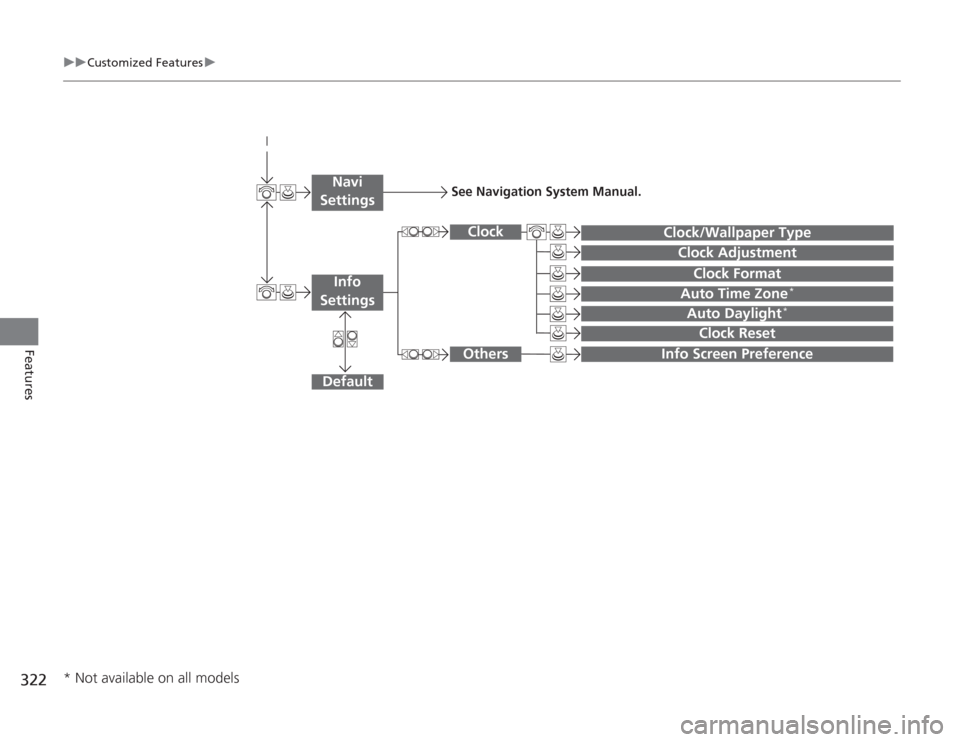
322
uuCustomized Features u
Features
Auto Daylight
*
Clock Reset
Info Screen Preference
Clock Format
Auto Time Zone
*
Clock/Wallpaper Type
Clock Adjustment
Clock
Default
Others
Info
SettingsNavi
Settings
See Navigation System Manual.
* Not available on all models