buttons HONDA ACCORD 2015 9.G User Guide
[x] Cancel search | Manufacturer: HONDA, Model Year: 2015, Model line: ACCORD, Model: HONDA ACCORD 2015 9.GPages: 593
Page 175 of 593
174Features
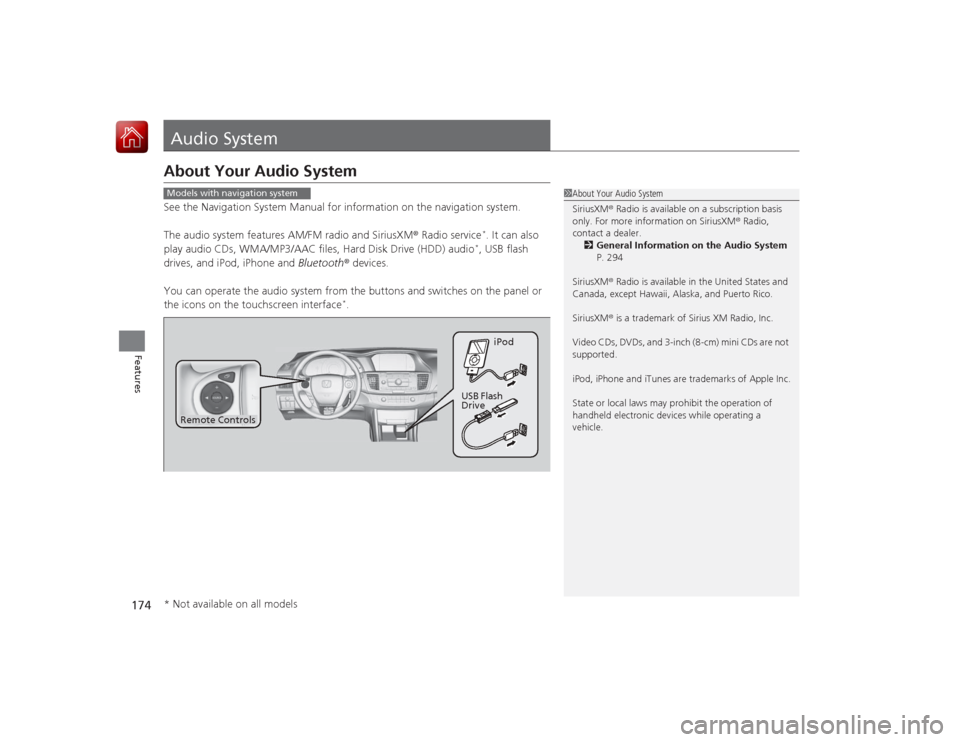
Audio SystemAbout Your Audio SystemSee the Navigation System Manual for information on the navigation system.
The audio system features AM/FM radio and SiriusXM® Radio service
*. It can also
play audio CDs, WMA/MP3/AAC files, Hard Disk Drive (HDD) audio*, USB flash
drives, and iPod, iPhone and Bluetooth® devices.
You can operate the audio system from the buttons and switches on the panel or
the icons on the touchscreen interface
*.
1 About Your Audio System
SiriusXM ® Radio is available on a subscription basis
only. For more information on SiriusXM ® Radio,
contact a dealer.
2 General Information on the Audio System
P. 294
SiriusXM ® Radio is available in the United States and
Canada, except Hawaii, Alaska, and Puerto Rico.
SiriusXM ® is a trademark of Sirius XM Radio, Inc.
Video CDs, DVDs, and 3-inch (8-cm) mini CDs are not
supported.
iPod, iPhone and iTunes are trademarks of Apple Inc.
State or local laws may prohibit the operation of
handheld electronic devices while operating a
vehicle.
Models with navigation system
Remote Controls iPod
USB Flash
Drive
* Not available on all models
Page 180 of 593
179
uuAudio System uAudio Remote Controls
Features
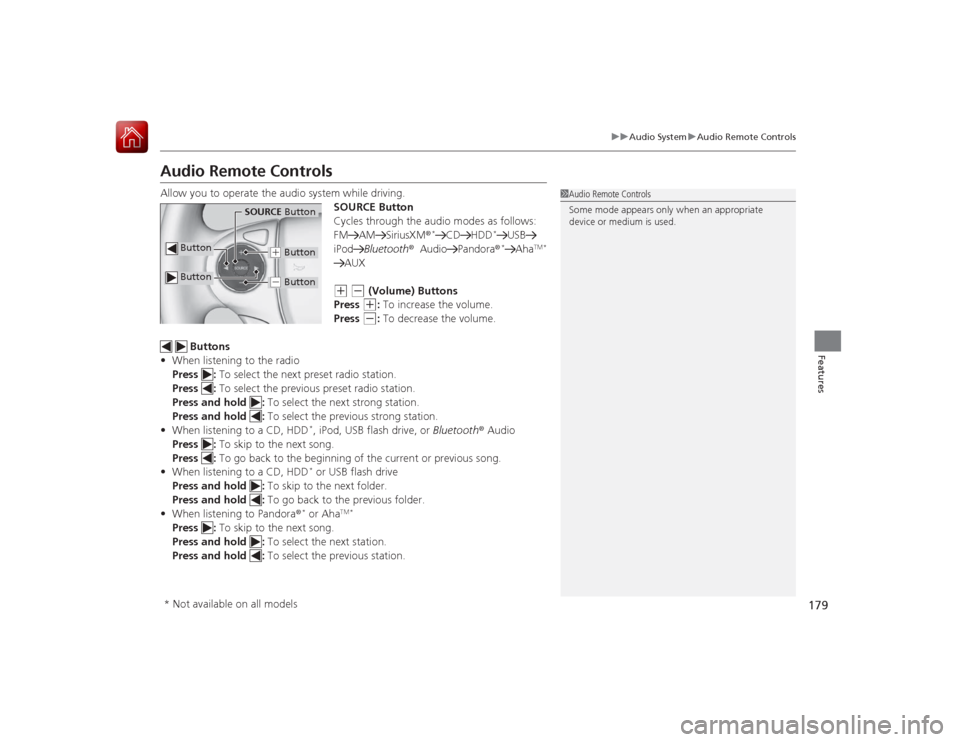
Audio Remote ControlsAllow you to operate the audio system while driving.
SOURCE Button
Cycles through the audio modes as follows:
FM AM SiriusXM ®
*
CD HDD
*
USB
iPod Bluetooth® Audio Pandora ®*
Aha
TM *
AUX(+
(-
(Volume) Buttons
Press (+
: To increase the volume.
Press
(-
: To decrease the volume.
Buttons
• When listening to the radio
Press : To select the next preset radio station.
Press : To select the previous preset radio station.
Press and hold : To select the next strong station.
Press and hold : To select the previous strong station.
• When listening to a CD, HDD
*, iPod, USB flash drive, or Bluetooth ® Audio
Press : To skip to the next song.
Press : To go back to the beginning of the current or previous song.
• When listening to a CD, HDD* or USB flash drive
Press and hold : To skip to the next folder.
Press and hold : To go back to the previous folder.
• When listening to Pandora®* or Aha
TM *
Press : To skip to the next song.
Press and hold : To select the next station.
Press and hold : To select the previous station.
1Audio Remote Controls
Some mode appears only when an appropriate
device or medium is used.
Button
SOURCE Button
Button
(+ Button(- Button
* Not available on all models
Page 188 of 593
187
uuAudio System Basic Operation uPlaying AM/FM Radio
Continued
Features
Playing AM/FM Radio
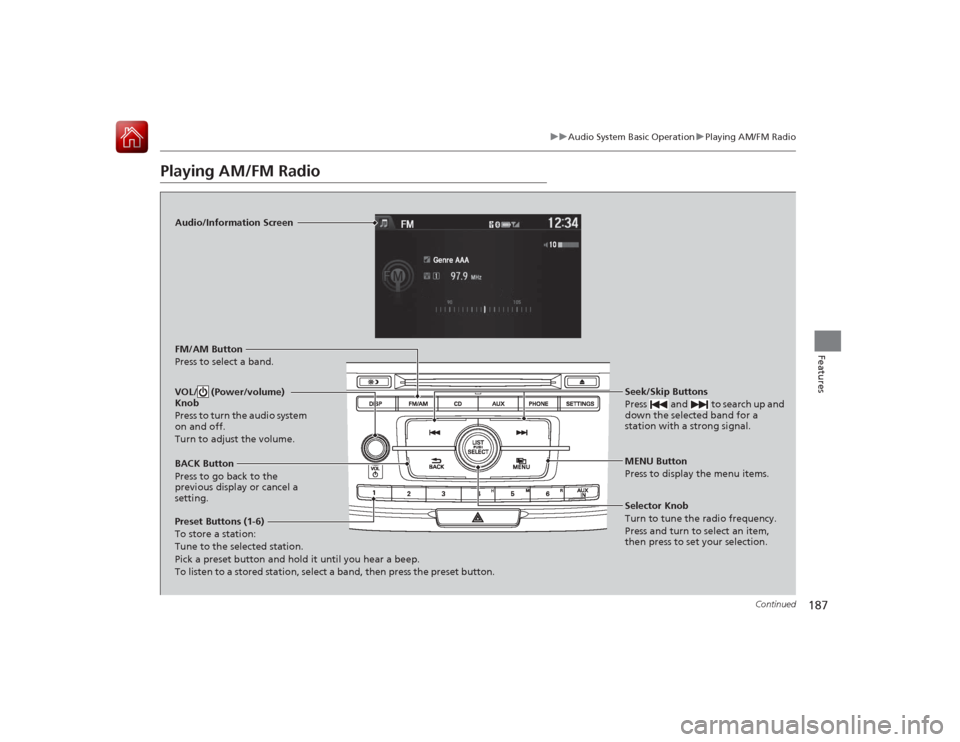
Audio/Information Screen
FM/AM Button
Press to select a band.
Preset Buttons (1-6)
To store a station:
Tune to the selected station.
Pick a preset button and hold it until you hear a beep.
To listen to a stored station, select a band, then press the preset button. Seek/Skip Buttons
Press and to search up and
down the selected band for a
station with a strong signal.
MENU Button
Press to display the menu items.
Selector Knob
Turn to tune the radio frequency.
Press and turn to select an item,
then press to set your selection.
VOL/ (Power/volume)
Knob
Press to turn the audio system
on and off.
Turn to adjust the volume.BACK Button
Press to go back to the
previous display or cancel a
setting.
Page 190 of 593
189
uuAudio System Basic Operation uPlaying a CD
Continued
Features
Playing a CDYour audio system supports audio CDs, CD-Rs and CD-RWs in either MP3, WMA, or
AAC
*1 format. With the CD loaded, press the CD button.
*1:Only AAC format files recorded with iTunes are playable on this unit.
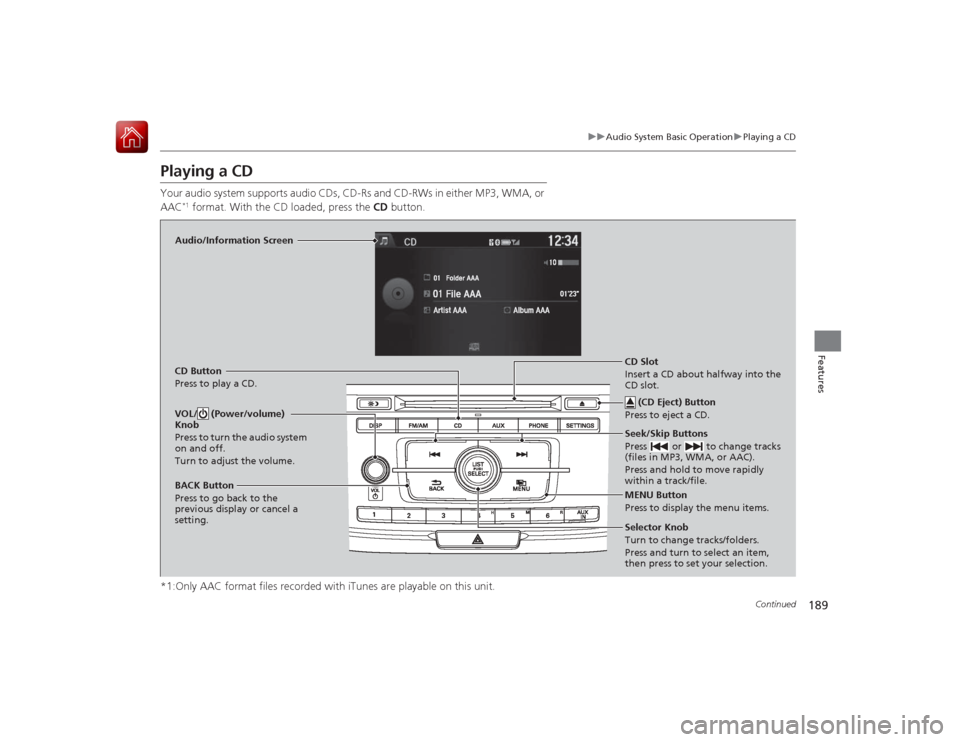
Audio/Information Screen
CD Button
Press to play a CD. Seek/Skip Buttons
Press or to change tracks
(files in MP3, WMA, or AAC).
Press and hold to move rapidly
within a track/file.
MENU Button
Press to display the menu items.
Selector Knob
Turn to change tracks/folders.
Press and turn to select an item,
then press to set your selection.
VOL/ (Power/volume)
Knob
Press to turn the audio system
on and off.
Turn to adjust the volume.BACK Button
Press to go back to the
previous display or cancel a
setting.
CD Slot
Insert a CD about halfway into the
CD slot. (CD Eject) Button
Press to eject a CD.
Page 193 of 593
192
uuAudio System Basic Operation uPlaying an iPod
Features
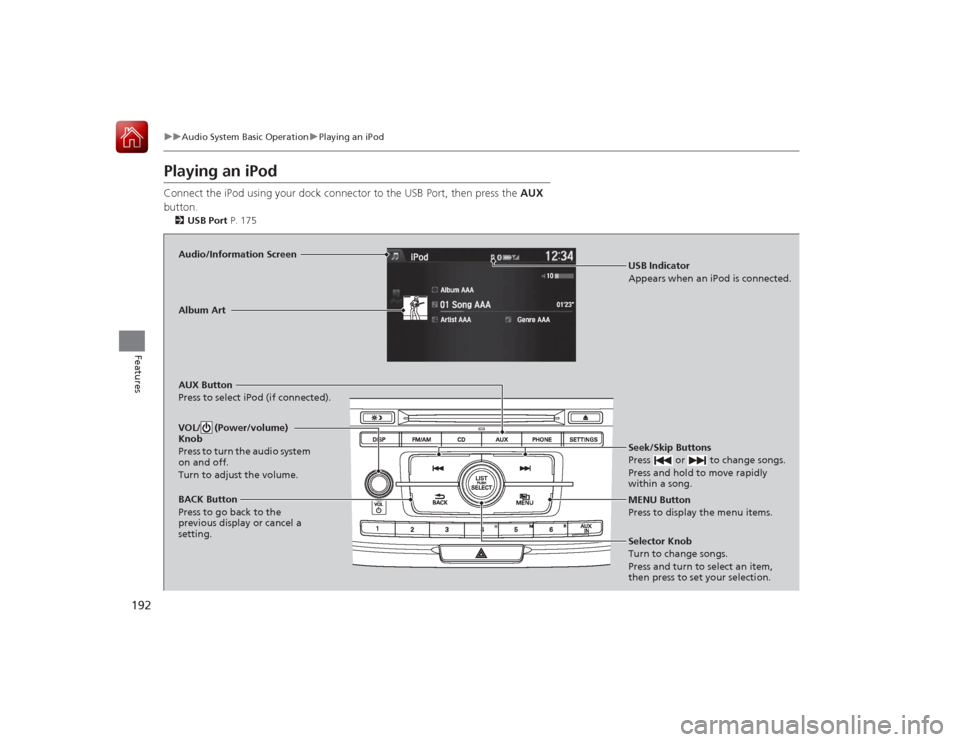
Playing an iPodConnect the iPod using your dock c onnector to the USB Port, then press the AUX
button.2 USB Port P. 175Audio/Information Screen
AUX Button
Press to select iPod (if connected). Seek/Skip Buttons
Press or to change songs.
Press and hold to move rapidly
within a song.
MENU Button
Press to display the menu items.
Selector Knob
Turn to change songs.
Press and turn to select an item,
then press to set your selection.
VOL/ (Power/volume)
Knob
Press to turn the audio system
on and off.
Turn to adjust the volume.BACK Button
Press to go back to the
previous display or cancel a
setting.Album Art
USB Indicator
Appears when an iPod is connected.
Page 198 of 593
197
uuAudio System Basic Operation uPlaying a USB Flash Drive
Continued
Features
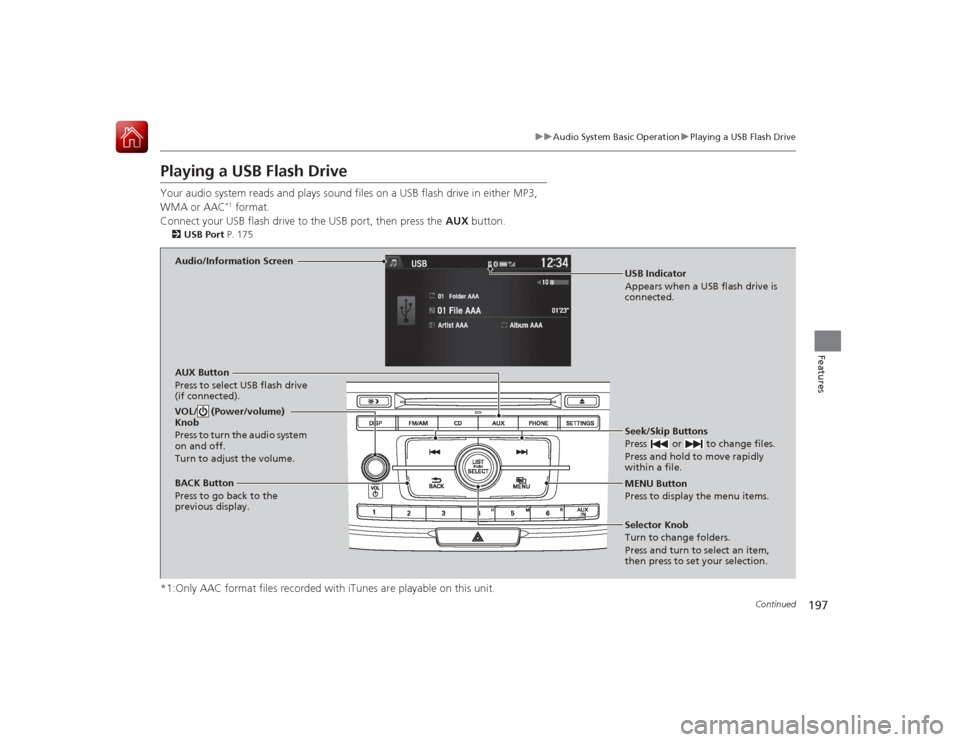
Playing a USB Flash DriveYour audio system reads and plays sound files on a USB flash drive in either MP3,
WMA or AAC
*1 format.
Connect your USB flash drive to the USB port, then press the AUX button.
2USB Port P. 175*1:Only AAC format files recorded with iTunes are playable on this unit.
Audio/Information Screen
AUX Button
Press to select USB flash drive
(if connected). Seek/Skip Buttons
Press or to change files.
Press and hold to move rapidly
within a file.
MENU Button
Press to display the menu items.
Selector Knob
Turn to change folders.
Press and turn to select an item,
then press to set your selection.
VOL/ (Power/volume)
Knob
Press to turn the audio system
on and off.
Turn to adjust the volume.BACK Button
Press to go back to the
previous display.
USB Indicator
Appears when a USB flash drive is
connected.
Page 201 of 593
200
uuAudio System Basic Operation uPlaying Bluetooth ® Audio
Features
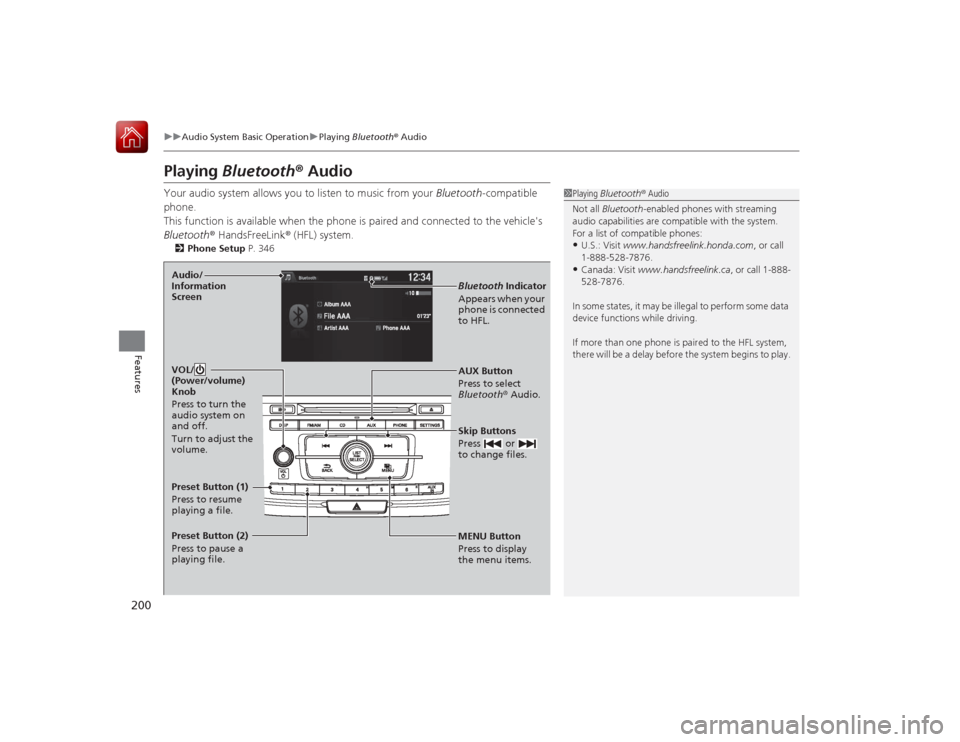
Playing Bluetooth® AudioYour audio system allows you to listen to music from your Bluetooth-compatible
phone.
This function is available when the phone is paired and connected to the vehicle's
Bluetooth ® HandsFreeLink ® (HFL) system.2 Phone Setup P. 346
1Playing Bluetooth ® Audio
Not all Bluetooth-enabled phones with streaming
audio capabilities are compatible with the system.
For a list of compatible phones:•U.S.: Visit www.handsfreelink.honda.com , or call
1-888-528-7876.•Canada: Visit www.handsfreelink.ca , or call 1-888-
528-7876.
In some states, it may be illegal to perform some data
device functions while driving.
If more than one phone is paired to the HFL system,
there will be a delay before the system begins to play.
MENU Button
Press to display
the menu items. AUX Button
Press to select
Bluetooth ® Audio.
Skip Buttons
Press or
to change files.Bluetooth Indicator
Appears when your
phone is connected
to HFL.
VOL/
(Power/volume)
Knob
Press to turn the
audio system on
and off.
Turn to adjust the
volume.
Audio/
Information
ScreenPreset Button (1)
Press to resume
playing a file.
Preset Button (2)
Press to pause a
playing file.
Page 203 of 593
202Features
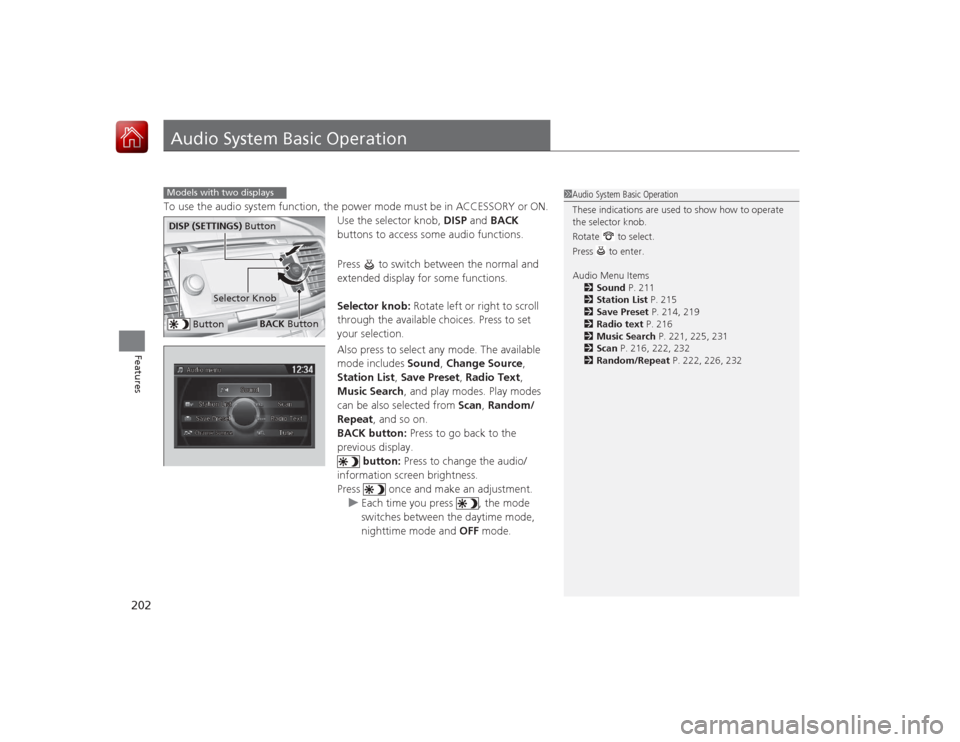
Audio System Basic OperationTo use the audio system function, the power mode must be in ACCESSORY or ON.Use the selector knob, DISP and BACK
buttons to access some audio functions.
Press to switch between the normal and
extended display for some functions.
Selector knob: Rotate left or right to scroll
through the available choices. Press to set
your selection.
Also press to select any mode. The available
mode includes Sound, Change Source ,
Station List , Save Preset , Radio Text,
Music Search , and play modes. Play modes
can be also selected from Scan, Random/
Repeat , and so on.
BACK button: Press to go back to the
previous display.
button: Press to change the audio/
information screen brightness.
Press once and make an adjustment. u Each time you press , the mode
switches between the daytime mode,
nighttime mode and OFF mode.Models with two displays
1Audio System Basic Operation
These indications are used to show how to operate
the selector knob.
Rotate to select.
Press to enter.
Audio Menu Items
2 Sound P. 211
2 Station List P. 215
2 Save Preset P. 214, 219
2 Radio text P. 216
2 Music Search P. 221, 225, 231
2 Scan P. 216, 222, 232
2 Random/Repeat P. 222, 226, 232
Button
Selector Knob
DISP (SETTINGS) Button
BACK Button
Page 239 of 593
238
uuAudio System Basic Operation uAudio/Information Screen
Features
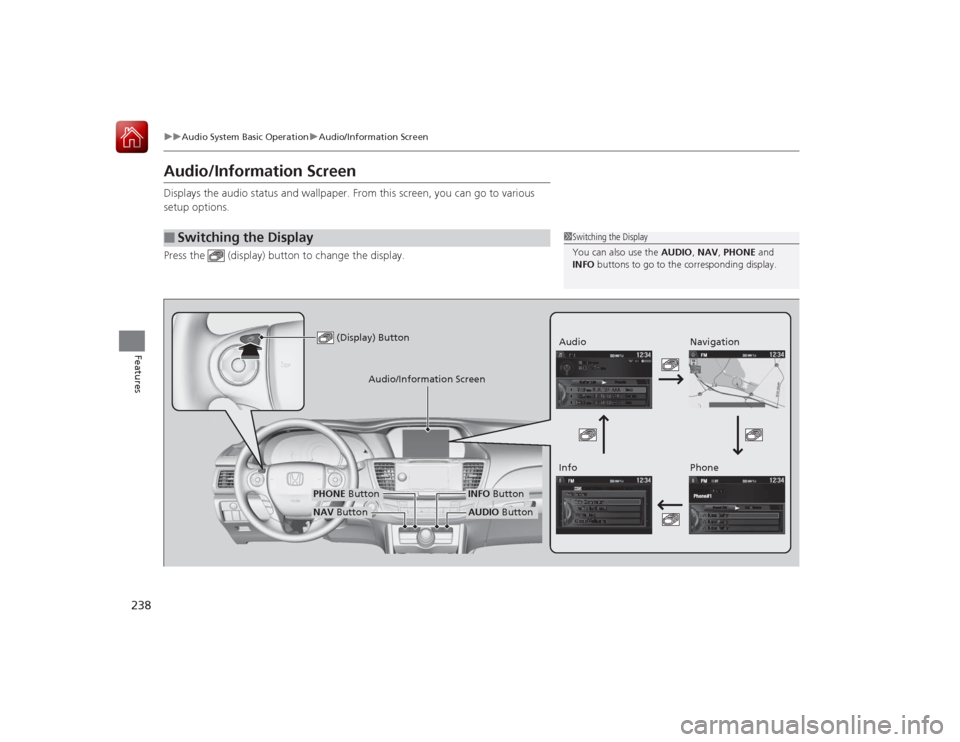
Audio/Information ScreenDisplays the audio status and wallpaper. From this screen, you can go to various
setup options.
Press the (display) button to change the display.■
Switching the Display
1Switching the Display
You can also use the AUDIO, NAV, PHONE and
INFO buttons to go to the corresponding display.
(Display) Button
Audio
Info
Audio/Information Screen
Navigation
Phone
AUDIO Button
NAV ButtonPHONE Button
INFO Button
Page 245 of 593
244
uuAudio System Basic Operation uVoice Control Operation
Features
Voice Control OperationYour vehicle has a voice control system that allows hands-free operation of most of
the navigation system functions.
The voice control system uses the (Talk) and (hang-up/back) buttons on the
steering wheel and a microphone near the map lights on the ceiling.
To achieve optimum voice recognition when using the navigation voice control
system:
• Make sure the correct screen is displayed for the voice command that you are
using.
• Close the windows and moonroof.
• Adjust the dashboard and side vents so air does not blow onto the microphone
on the ceiling.
• Speak clearly in a clear, natural speaking voice without pausing between words.
• Reduce any background noise if poss ible. The system may misinterpret your
command if more than one person is speaking at the same time.
• Refer to the Voice Help feature.
2 Refer to the Navigation System Manual
■
Voice Recognition
1Voice Control Operation
When you press the button, a helpful prompt asks
what you would like to do. Press and release the
button again to bypass this prompt and give a
command.1Voice Recognition
The voice control system can only be used from the
driver’s seat because the microphone unit removes
noises from the front passenger’s side.