buttons HONDA ACCORD 2015 9.G Owner's Manual
[x] Cancel search | Manufacturer: HONDA, Model Year: 2015, Model line: ACCORD, Model: HONDA ACCORD 2015 9.GPages: 593
Page 337 of 593
336Features
HomeLink® Universal Transceiver
*
The HomeLink ® Universal Transceiver can be programmed to operate up to three
remote controlled devices around your home, such as garage doors, lighting, or
home security systems.
Refer to the safety information that came with your garage door opener to test that
the safety features are functioning properly. If you do not have the safety
information, contact the manufacturer.
Before programming HomeLink, make sure that people and objects are out of the
way of the garage or gate to prevent potential injury or damage.
When programming a garage door opener, park just outside the garage door’s
path.Training HomeLink
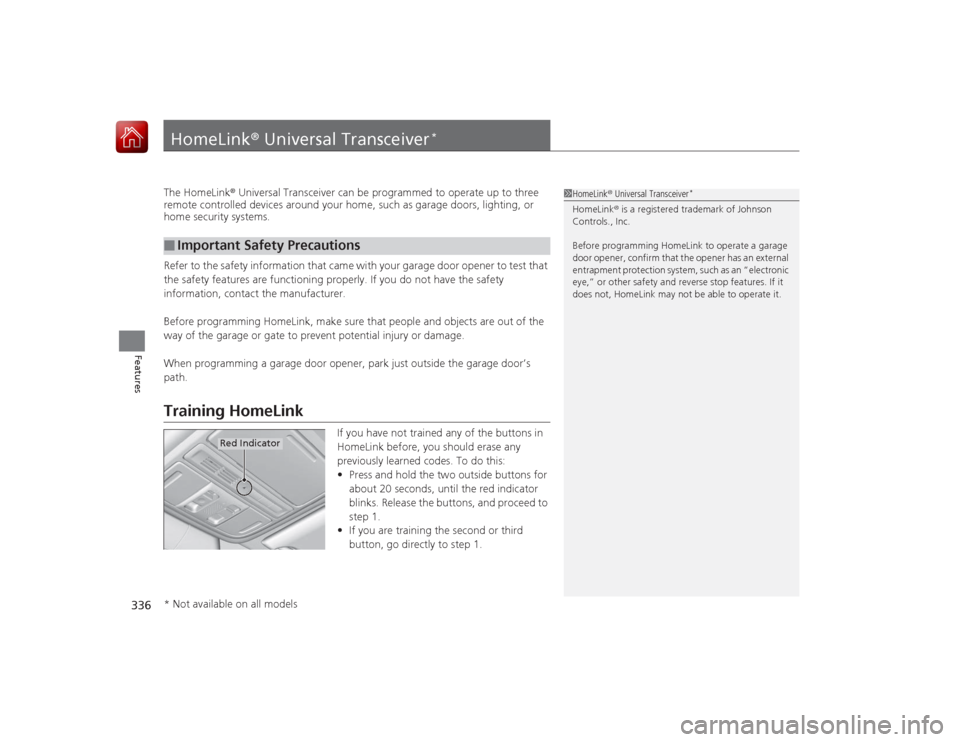
If you have not trained any of the buttons in
HomeLink before, you should erase any
previously learned codes. To do this:
• Press and hold the two outside buttons for
about 20 seconds, until the red indicator
blinks. Release the buttons, and proceed to
step 1.
• If you are training the second or third
button, go directly to step 1.
■
Important Safety Precautions
1HomeLink ® Universal Transceiver
*
HomeLink® is a registered trademark of Johnson
Controls., Inc.
Before programming HomeLink to operate a garage
door opener, confirm that the opener has an external
entrapment protection system, such as an “electronic
eye,” or other safety and reverse stop features. If it
does not, HomeLink may not be able to operate it.
Red Indicator
* Not available on all models
Page 338 of 593
337
uuHomeLink ® Universal Transceiver
*u Training HomeLink
Features
■
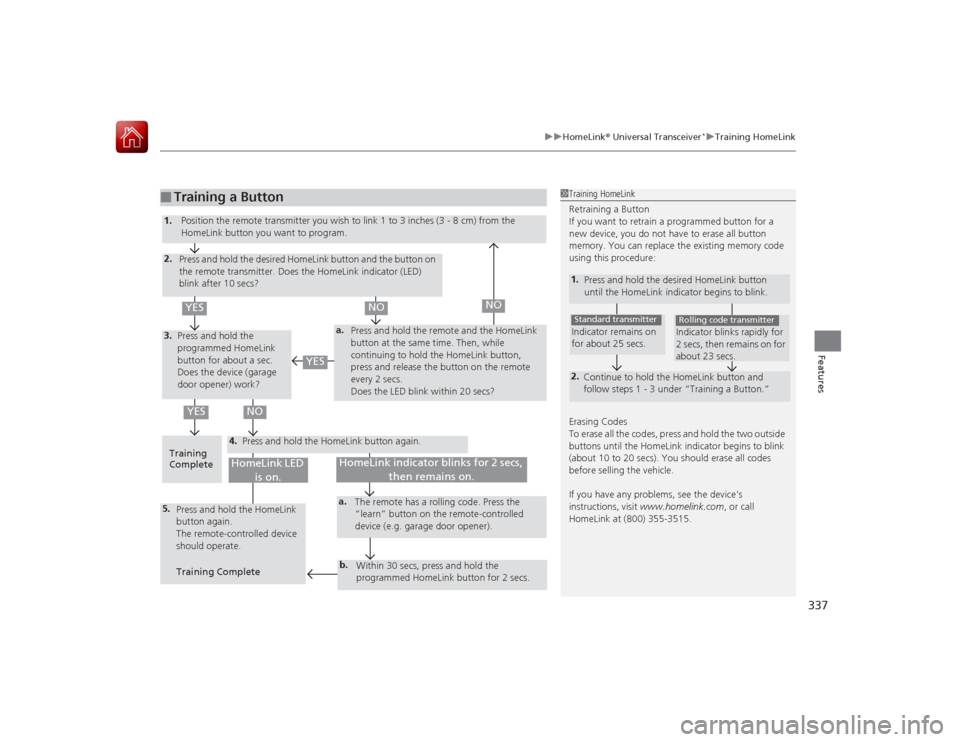
Training a Button
1Training HomeLink
Retraining a Button
If you want to retrain a programmed button for a
new device, you do not have to erase all button
memory. You can replace the existing memory code
using this procedure:1.
Press and hold the desired HomeLink button
until the HomeLink indicator begins to blink.2.
Continue to hold the HomeLink button and
follow steps 1 - 3 under “Training a Button.”Indicator remains on
for about 25 secs.Standard transmitter
Indicator blinks rapidly for
2 secs, then remains on for
about 23 secs.Rolling code transmitter
Erasing Codes
To erase all the codes, press and hold the two outside
buttons until the HomeLink indicator begins to blink
(about 10 to 20 secs). You should erase all codes
before selling the vehicle.
If you have any problems, see the device’s
instructions, visit www.homelink.com , or call
HomeLink at (800) 355-3515.
4.
a.
3.2.5.
a.b.
1. Position the remote transmit ter you wish to link 1 to 3 inches (3 - 8 cm) from the
HomeLink button you want to program.
Press and hold the desired HomeLink button and the button on
the remote transmitter. Does the HomeLink indicator (LED)
blink after 10 secs?
Press and hold the
programmed HomeLink
button for about a sec.
Does the device (garage
door opener) work? Press and hold the remote and the HomeLink
button at the same time. Then, while
continuing to hold the HomeLink button,
press and release the button on the remote
every 2 secs.
Does the LED blink within 20 secs?
Training
Complete Press and hold the HomeLink button again.
Press and hold the HomeLink
button again.
The remote-controlled device
should operate.
Training Complete The remote has a rolling code. Press the
“learn” button on the remote-controlled
device (e.g. garage door opener).
Within 30 secs, press and hold the
programmed HomeLink button for 2 secs.
HomeLink indicator blinks for 2 secs, then remains on.
HomeLink LED is on.
YES
NO
YES
YES
NO
NO
Page 339 of 593
338Features
Bluetooth® HandsFreeLink ®Bluetooth® HandsFreeLink ® (HFL) allows you to place and receive phone calls using
your vehicle’s audio system, without handling your cell phone.Using HFL
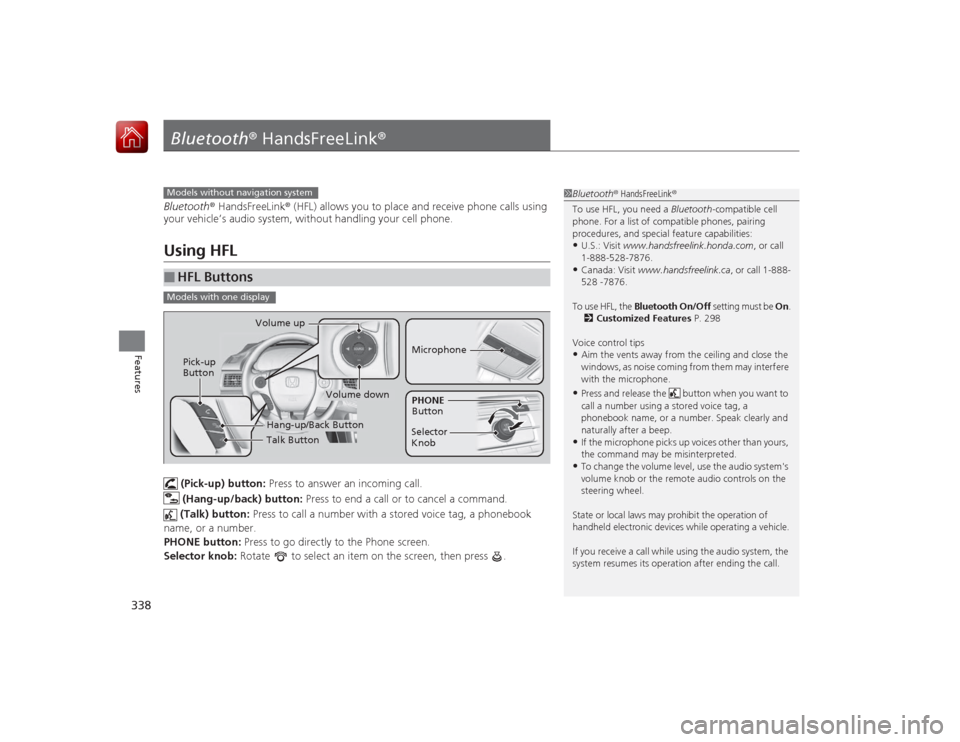
(Pick-up) button: Press to answer an incoming call.
(Hang-up/back) button: Press to end a call or to cancel a command.
(Talk) button: Press to call a number with a stored voice tag, a phonebook
name, or a number.
PHONE button: Press to go directly to the Phone screen.
Selector knob: Rotate to select an item on the screen, then press .
■
HFL Buttons
1Bluetooth ® HandsFreeLink ®
To use HFL, you need a Bluetooth-compatible cell
phone. For a list of compatible phones, pairing
procedures, and special feature capabilities:•U.S.: Visit www.handsfreelink.honda.com , or call
1-888-528-7876.•Canada: Visit www.handsfreelink.ca , or call 1-888-
528 -7876.
To use HFL, the Bluetooth On/Off setting must be On.
2 Customized Features P. 298
Voice control tips•Aim the vents away from the ceiling and close the
windows, as noise coming from them may interfere
with the microphone.•Press and release the button when you want to
call a number using a stored voice tag, a
phonebook name, or a number. Speak clearly and
naturally after a beep.•If the microphone picks up voices other than yours,
the command may be misinterpreted.•To change the volume level, use the audio system's
volume knob or the remote audio controls on the
steering wheel.
State or local laws may prohibit the operation of
handheld electronic devices while operating a vehicle.
If you receive a call while using the audio system, the
system resumes its operation after ending the call.
Models without navigation systemModels with one display
Talk Button
Volume up
MicrophoneHang-up/Back Button
Pick-up
Button
Volume down
Selector
KnobPHONE
Button
Page 366 of 593
Continued
365
uuBluetooth ® HandsFreeLink ®u HFL Menus
Features
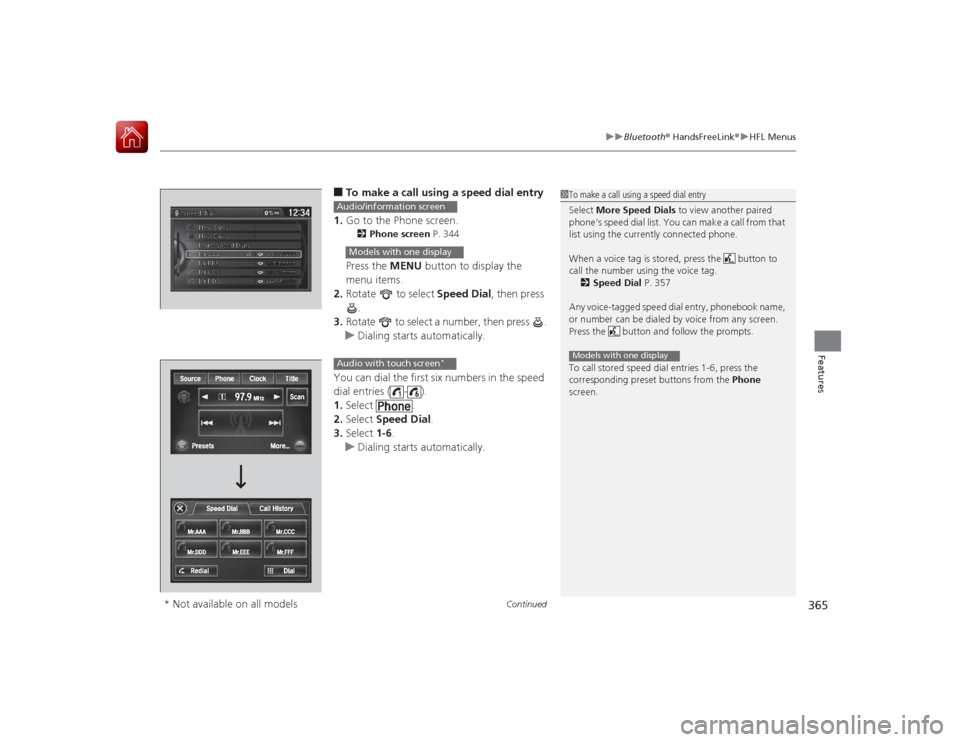
■To make a call using a speed dial entry
1. Go to the Phone screen.2 Phone screen P. 344Press the MENU button to display the
menu items.
2. Rotate to select Speed Dial, then press
.
3. Rotate to select a number, then press .
u Dialing starts automatically.
You can dial the first six numbers in the speed
dial entries ( - ).
1. Select .
2. Select Speed Dial .
3. Select 1-6.
u Dialing starts automatically.
1To make a call using a speed dial entry
Select More Speed Dials to view another paired
phone’s speed dial list. You can make a call from that
list using the currently connected phone.
When a voice tag is stored, press the button to
call the number using the voice tag. 2 Speed Dial P. 357
Any voice-tagged speed dial entry, phonebook name,
or number can be dialed by voice from any screen.
Press the button and follow the prompts.
To call stored speed dial entries 1-6, press the
corresponding preset buttons from the Phone
screen.Models with one display
Audio/information screenModels with one displayAudio with touch screen
*
* Not available on all models
Page 367 of 593
uuBluetooth ® HandsFreeLink ®u HFL Menus
366Features
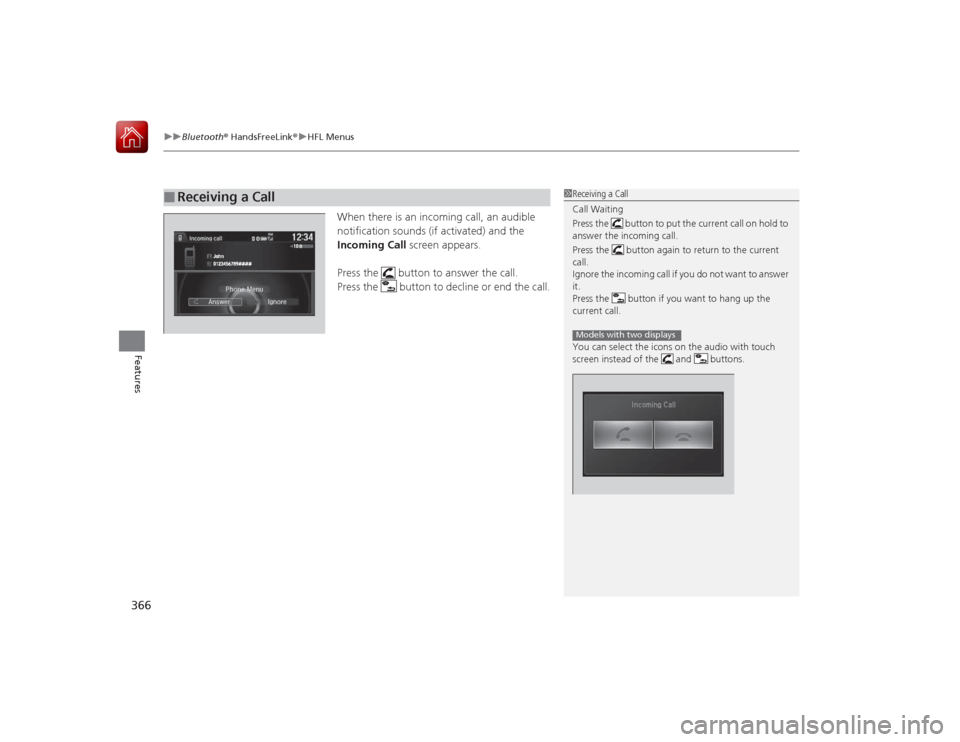
When there is an incoming call, an audible
notification sounds (if activated) and the
Incoming Call screen appears.
Press the button to answer the call.
Press the button to decline or end the call.
■
Receiving a Call
1 Receiving a Call
Call Waiting
Press the button to put the current call on hold to
answer the incoming call.
Press the button again to return to the current
call.
Ignore the incoming call if you do not want to answer
it.
Press the button if you want to hang up the
current call.
You can select the icons on the audio with touch
screen instead of the and buttons.Models with two displays
Page 376 of 593
375
Continued
Features
Bluetooth® HandsFreeLink ®Bluetooth® HandsFreeLink ® (HFL) allows you to place and receive phone calls using
your vehicle’s navigation system, without handling your cell phone.Using HFL
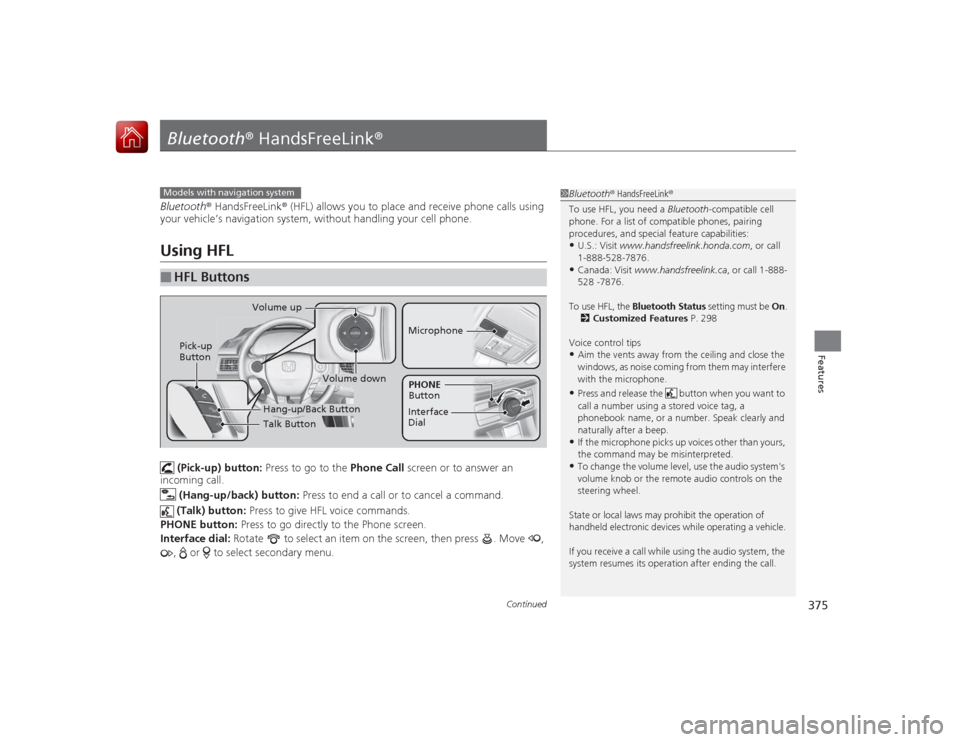
(Pick-up) button: Press to go to the Phone Call screen or to answer an
incoming call.
(Hang-up/back) button: Press to end a call or to cancel a command.
(Talk) button: Press to give HFL voice commands.
PHONE button: Press to go directly to the Phone screen.
Interface dial: Rotate to select an item on the screen, then press . Move ,
, or to select secondary menu.
■
HFL Buttons
1 Bluetooth ® HandsFreeLink ®
To use HFL, you need a Bluetooth-compatible cell
phone. For a list of compatible phones, pairing
procedures, and special feature capabilities:•U.S.: Visit www.handsfreelink.honda.com , or call
1-888-528-7876.•Canada: Visit www.handsfreelink.ca , or call 1-888-
528 -7876.
To use HFL, the Bluetooth Status setting must be On.
2 Customized Features P. 298
Voice control tips•Aim the vents away from the ceiling and close the
windows, as noise coming from them may interfere
with the microphone.•Press and release the button when you want to
call a number using a stored voice tag, a
phonebook name, or a number. Speak clearly and
naturally after a beep.•If the microphone picks up voices other than yours,
the command may be misinterpreted.•To change the volume level, use the audio system's
volume knob or the remote audio controls on the
steering wheel.
State or local laws may prohibit the operation of
handheld electronic devices while operating a vehicle.
If you receive a call while using the audio system, the
system resumes its operation after ending the call.
Models with navigation system
Talk Button
Volume up
MicrophoneHang-up/Back Button
Pick-up
Button
Volume down
Interface
DialPHONE
Button
Page 406 of 593
Continued
405
uuBluetooth ® HandsFreeLink ®u HFL Menus
Features
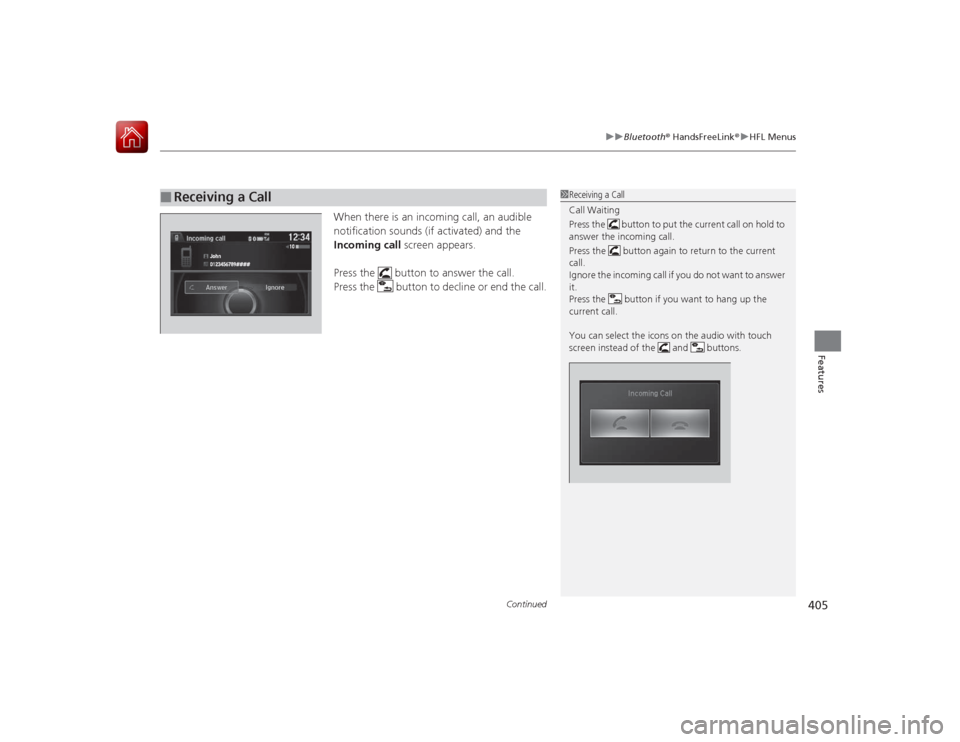
When there is an incoming call, an audible
notification sounds (if activated) and the
Incoming call screen appears.
Press the button to answer the call.
Press the button to decline or end the call.
■
Receiving a Call
1Receiving a Call
Call Waiting
Press the button to put the current call on hold to
answer the incoming call.
Press the button again to return to the current
call.
Ignore the incoming call if you do not want to answer
it.
Press the button if you want to hang up the
current call.
You can select the icons on the audio with touch
screen instead of the and buttons.
Page 448 of 593
447
uuWhen Driving uCruise Control
*
Driving
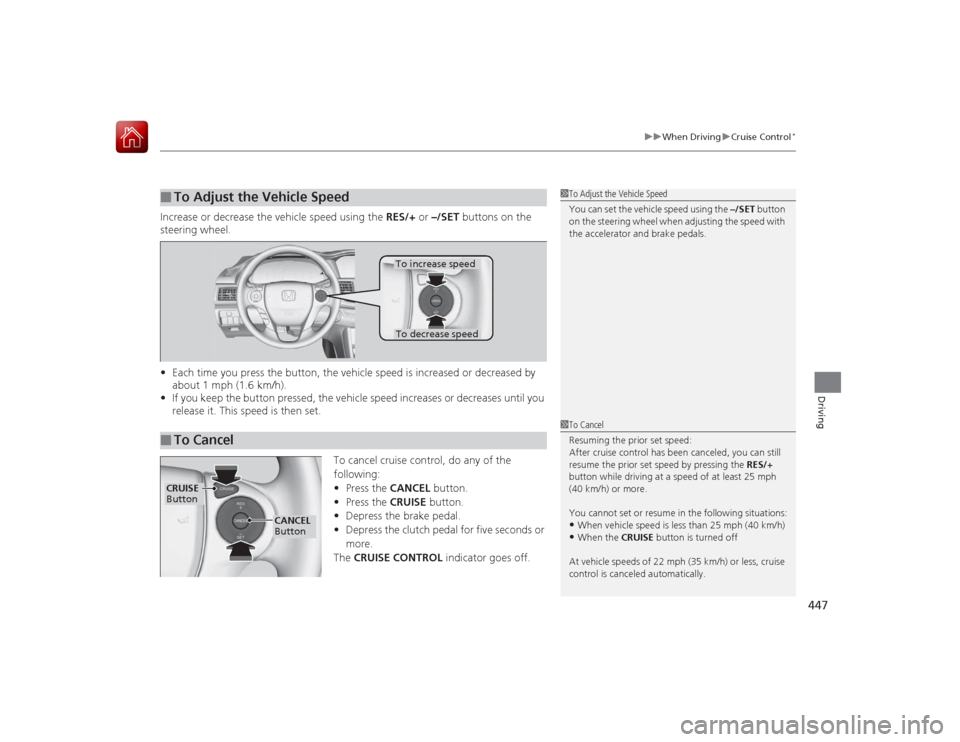
Increase or decrease the vehicle speed using the RES/+ or –/SET buttons on the
steering wheel.
• Each time you press the button, the vehicle speed is increased or decreased by
about 1 mph (1.6 km/h).
• If you keep the button pressed, the vehicle speed increases or decreases until you
release it. This speed is then set.
To cancel cruise control, do any of the
following:
•Press the CANCEL button.
• Press the CRUISE button.
• Depress the brake pedal.
• Depress the clutch pedal for five seconds or
more.
The CRUISE CONTROL indicator goes off.■
To Adjust the Vehicle Speed
1To Adjust the Vehicle Speed
You can set the vehicle speed using the –/SET button
on the steering wheel when adjusting the speed with
the accelerator and brake pedals.
■
To Cancel
To decrease speedTo increase speed
1 To Cancel
Resuming the prior set speed:
After cruise control has been canceled, you can still
resume the prior set speed by pressing the RES/+
button while driving at a speed of at least 25 mph
(40 km/h) or more.
You cannot set or resume in the following situations:•When vehicle speed is less than 25 mph (40 km/h)•When the CRUISE button is turned off
At vehicle speeds of 22 mph (35 km/h) or less, cruise
control is canceled automatically.
CRUISE
Button
CANCEL
Button
Page 453 of 593
uuWhen Driving uAdaptive Cruise Control (ACC)
*
452Driving
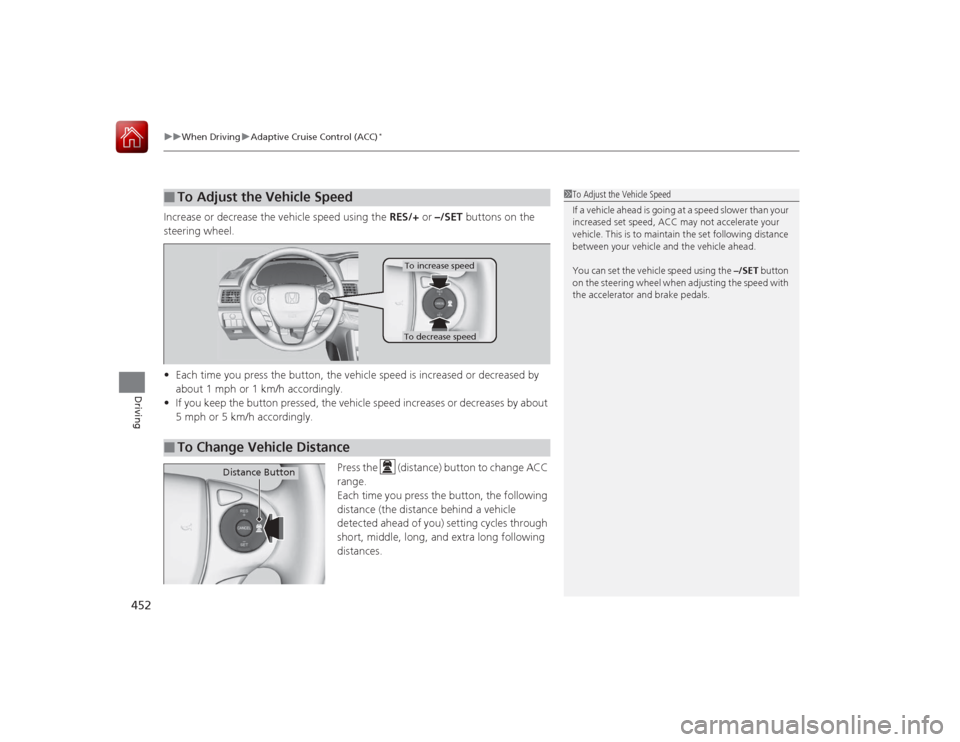
Increase or decrease the vehicle speed using the RES/+ or –/SET buttons on the
steering wheel.
• Each time you press the button, the vehicle speed is increased or decreased by
about 1 mph or 1 km/h accordingly.
• If you keep the button pressed, the vehicle speed increases or decreases by about
5 mph or 5 km/h accordingly.
Press the (distance) button to change ACC
range.
Each time you press the button, the following
distance (the distance behind a vehicle
detected ahead of you) setting cycles through
short, middle, long, and extra long following
distances.■
To Adjust the Vehicle Speed
1 To Adjust the Vehicle Speed
If a vehicle ahead is going at a speed slower than your
increased set speed, ACC may not accelerate your
vehicle. This is to maintain the set following distance
between your vehicle and the vehicle ahead.
You can set the vehicle speed using the –/SET button
on the steering wheel when adjusting the speed with
the accelerator and brake pedals.
■
To Change Vehicle Distance
To increase speedTo decrease speed
Distance Button
Page 535 of 593
534
uuRemote Transmitter Care uReplacing the Button Battery
Maintenance
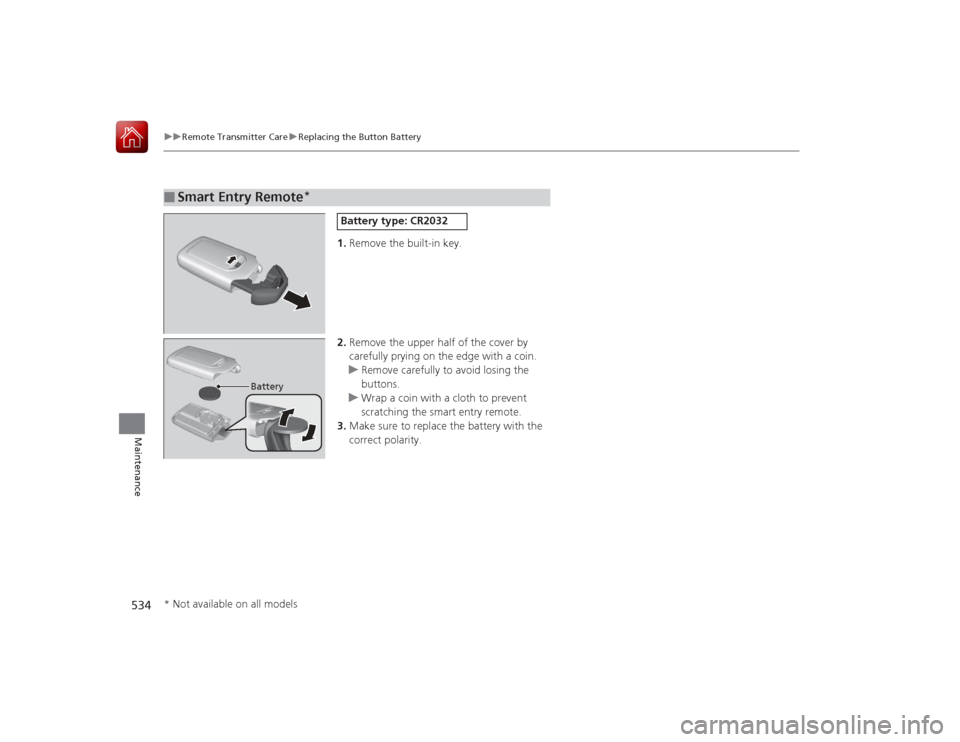
1. Remove the built-in key.
2. Remove the upper half of the cover by
carefully prying on the edge with a coin.
u Remove carefully to avoid losing the
buttons.
u Wrap a coin with a cloth to prevent
scratching the smart entry remote.
3. Make sure to replace the battery with the
correct polarity.
■
Smart Entry Remote
*
Battery type: CR2032
Battery
* Not available on all models