ECO mode HONDA ACCORD 2015 9.G Manual PDF
[x] Cancel search | Manufacturer: HONDA, Model Year: 2015, Model line: ACCORD, Model: HONDA ACCORD 2015 9.GPages: 593
Page 266 of 593
Continued
265
uuAudio System Basic Operation uPlaying Hard Disk Drive (HDD) Audio
Features
You can select scan, repeat, and random modes when playing a track.
1.Press the MENU button.
2. Rotate to select Scan or Random/
Repeat , then press .
3. Rotate to select a mode, then press .
1. Select Scan or Random/Repeat .
2Playing Hard Disk Drive (HDD) Audio
P. 262
2. Select a mode.
■To turn off a play mode
1. Press the MENU button.
2. Rotate to select the mode you want to turn off, then press .
1. Select Scan or Random/Repeat .2Playing Hard Disk Drive (HDD) Audio P. 262
2.Select the mode you want to turn off.■
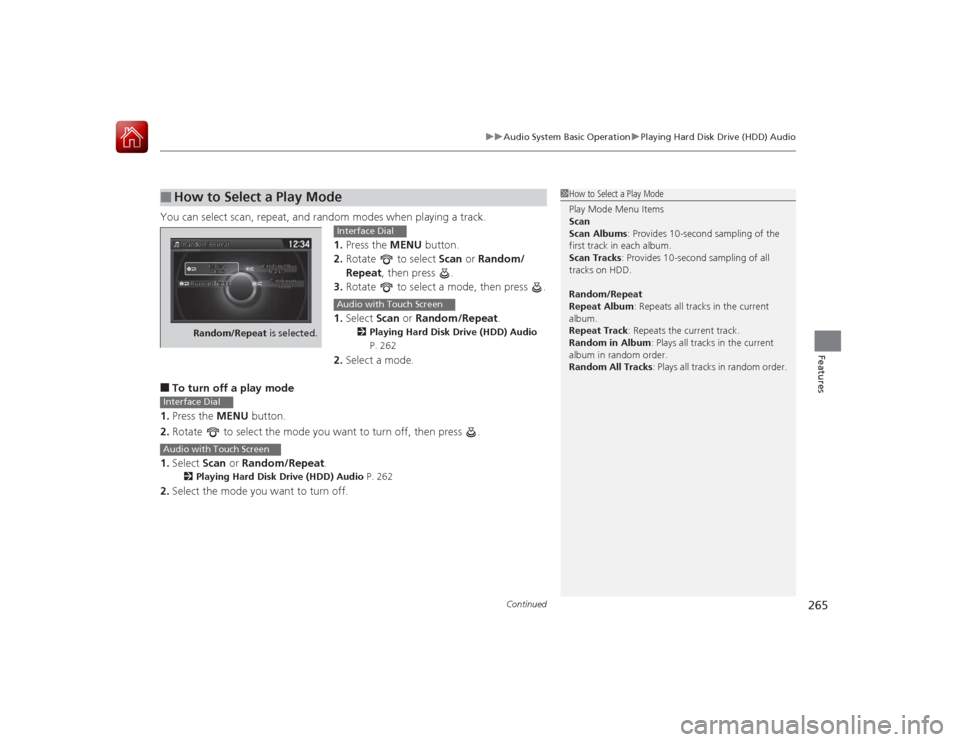
How to Select a Play Mode
1How to Select a Play Mode
Play Mode Menu Items
Scan
Scan Albums : Provides 10-second sampling of the
first track in each album.
Scan Tracks : Provides 10-second sampling of all
tracks on HDD.
Random/Repeat
Repeat Album : Repeats all tracks in the current
album.
Repeat Track : Repeats the current track.
Random in Album : Plays all tracks in the current
album in random order.
Random All Tracks : Plays all tracks in random order.
Random/Repeat is selected.
Interface DialAudio with Touch Screen
Interface DialAudio with Touch Screen
Page 273 of 593
272
uuAudio System Basic Operation uPlaying an iPod
Features
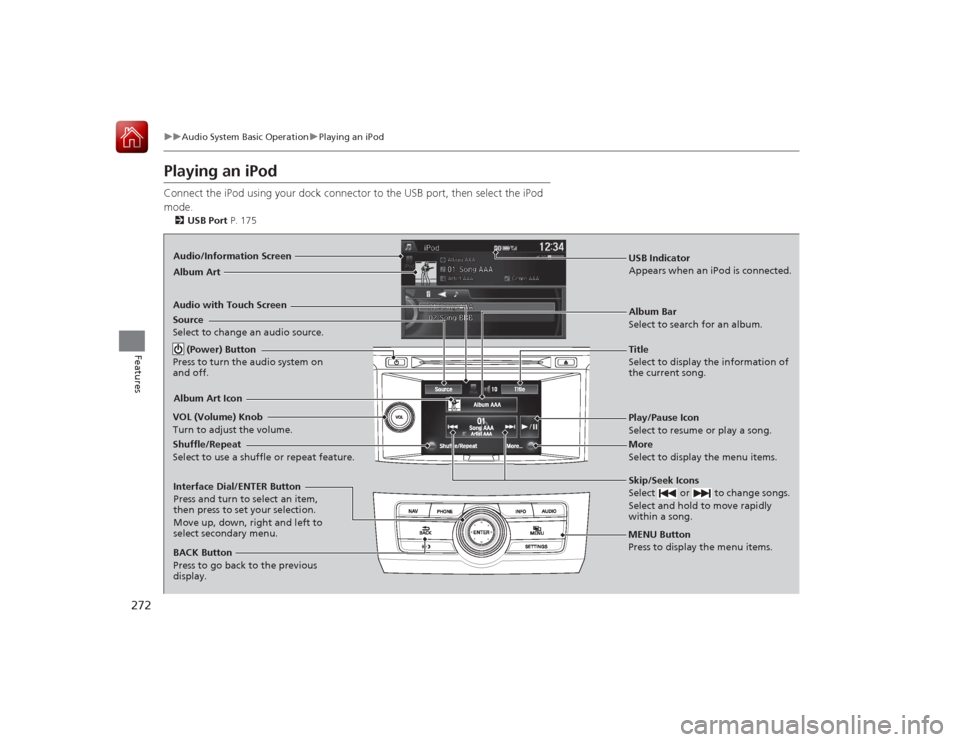
Playing an iPodConnect the iPod using your dock connector to the USB port, then select the iPod
mode.2 USB Port P. 175Audio/Information Screen
Audio with Touch Screen
MENU Button
Press to display the menu items.
Album Bar
Select to search for an album.
Source
Select to change an audio source.
Skip/Seek Icons
Select or to change songs.
Select and hold to move rapidly
within a song.More
Select to display the menu items.
(Power) Button
Press to turn the audio system on
and off.BACK Button
Press to go back to the previous
display.
VOL (Volume) Knob
Turn to adjust the volume.Interface Dial/ENTER Button
Press and turn to select an item,
then press to set your selection.
Move up, down, right and left to
select secondary menu.
USB Indicator
Appears when an iPo
d is connected.
Album ArtAlbum Art IconShuffle/Repeat
Select to use a shuffle or repeat feature.
Title
Select to display the information of
the current song.Play/Pause Icon
Select to resume or play a song.
Page 278 of 593
Continued
277
uuAudio System Basic Operation uSong By Voice
TM (SBV)
Features
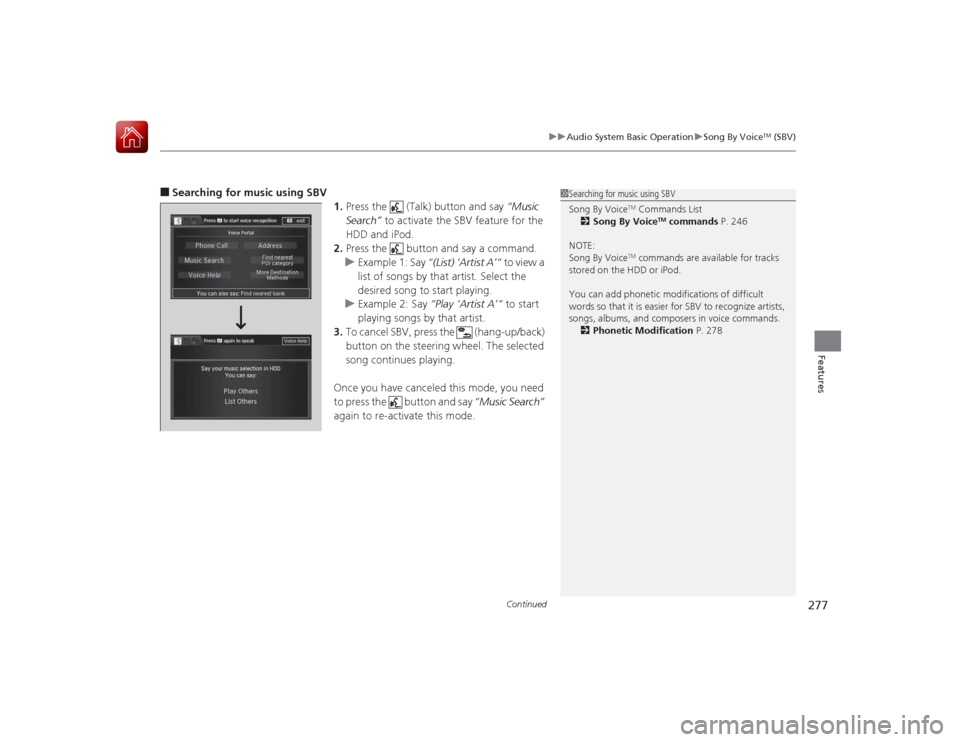
■Searching for music using SBV
1.Press the (Talk) button and say “Music
Search” to activate the SBV feature for the
HDD and iPod.
2. Press the button and say a command.
u Example 1: Say “(List) ‘Artist A’“ to view a
list of songs by that artist. Select the
desired song to start playing.
u Example 2: Say “Play ‘Artist A’“ to start
playing songs by that artist.
3. To cancel SBV, press the (hang-up/back)
button on the steering wheel. The selected
song continues playing.
Once you have canceled this mode, you need
to press the button and say “Music Search”
again to re-activate this mode.
1 Searching for music using SBV
Song By Voice
TM Commands List
2 Song By Voice
TM commands P. 246
NOTE:
Song By Voice
TM commands are available for tracks
stored on the HDD or iPod.
You can add phonetic modifications of difficult
words so that it is easier for SBV to recognize artists,
songs, albums, and composers in voice commands. 2 Phonetic Modification P. 278
Page 281 of 593
280
uuAudio System Basic Operation uPlaying Internet Radio
Features
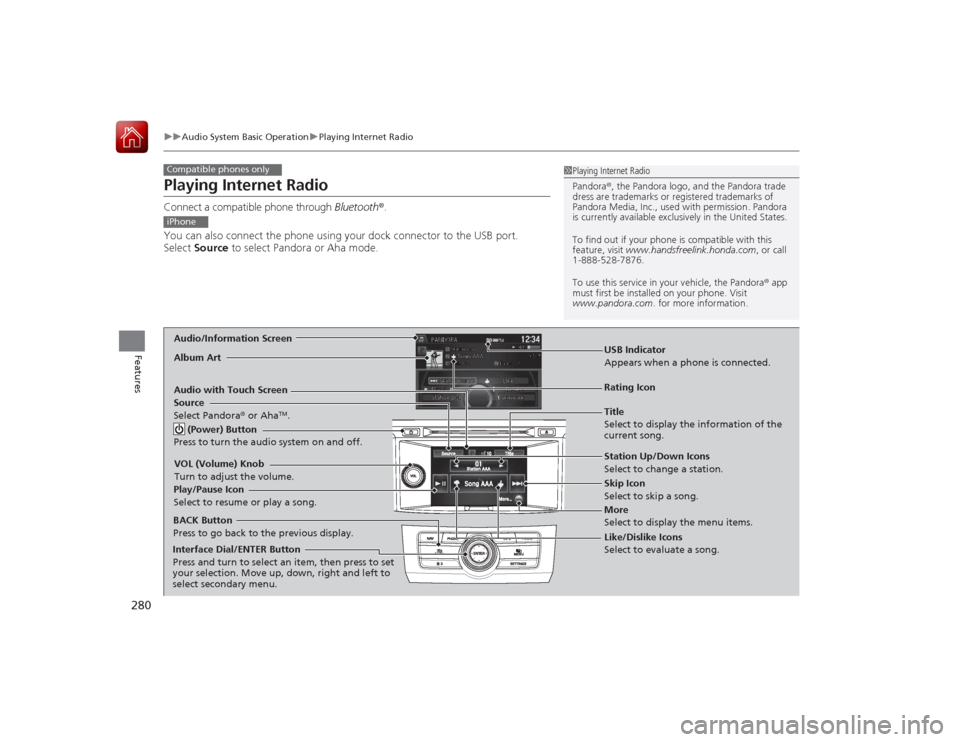
Playing Internet RadioConnect a compatible phone through Bluetooth®.
You can also connect the phone using your dock connector to the USB port.
Select Source to select Pandora or Aha mode.Compatible phones only
1Playing Internet Radio
Pandora ®, the Pandora logo, and the Pandora trade
dress are trademarks or regi stered trademarks of
Pandora Media, Inc., used with permission. Pandora
is currently available exclusively in the United States.
To find out if your phone is compatible with this
feature, visit www.handsfreelink.honda.com , or call
1-888-528-7876.
To use this service in your vehicle, the Pandora ® app
must first be installed on your phone. Visit
www.pandora.com . for more information.
iPhoneAudio/Information ScreenAlbum Art
USB Indicator
Appears when a phone is connected.Rating Icon
Audio with Touch Screen
BACK Button
Press to go back to the previous display.
Skip Icon
Select to skip a song.
More
Select to display the menu items. Station Up/Down Icons
Select to change a station.
Source
Select Pandora
® or Aha
TM.
Play/Pause Icon
Select to resume or play a song.
Like/Dislike Icons
Select to evaluate a song.
(Power) Button
Press to turn the audio system on and off.
VOL (Volume) Knob
Turn to adjust the volume.Interface Dial/ENTER Button
Press and turn to select an item, then press to set
your selection. Move up, down, right and left to
select secondary menu.
Title
Select to display the information of the
current song.
Page 284 of 593
283
uuAudio System Basic Operation uPlaying a USB Flash Drive
Continued
Features
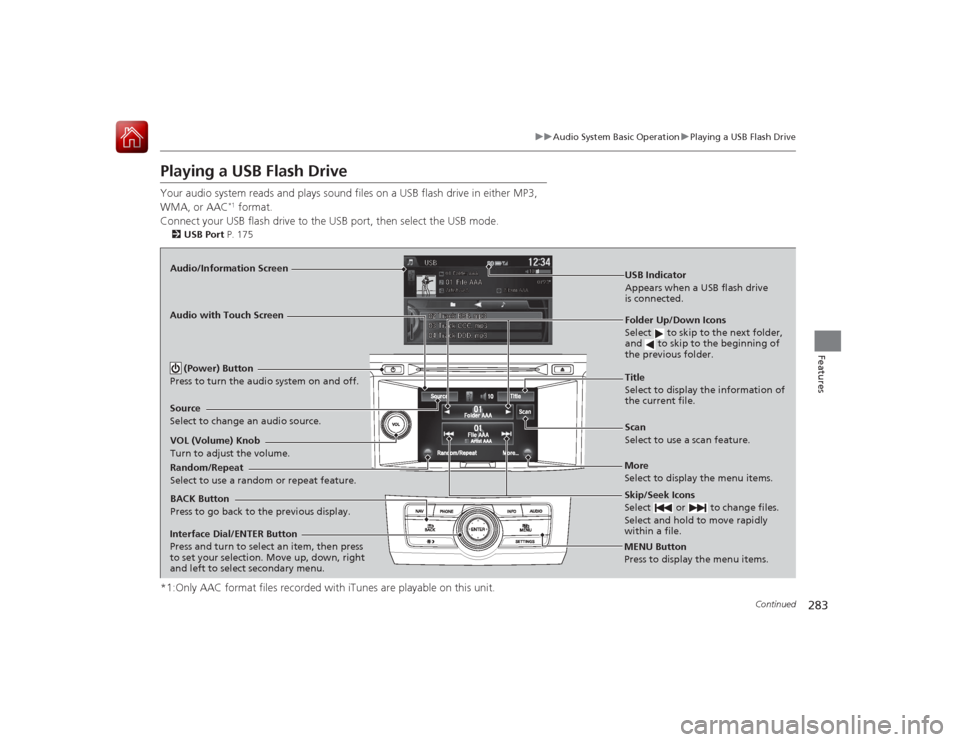
Playing a USB Flash DriveYour audio system reads and plays sound files on a USB flash drive in either MP3,
WMA, or AAC
*1 format.
Connect your USB flash drive to the USB port, then select the USB mode.
2USB Port P. 175*1:Only AAC format files recorded with iTunes are playable on this unit.Audio/Information Screen
BACK Button
Press to go back to the previous display.
More
Select to display the menu items.
Source
Select to change an
audio source. USB Indicator
Appears when a USB flash drive
is connected.Folder Up/Down Icons
Select to skip to the next folder,
and to skip to the beginning of
the previous folder.Skip/Seek Icons
Select or to change files.
Select and hold to move rapidly
within a file.
(Power) Button
Press to turn the audio system on and off.VOL (Volume) Knob
Turn to adjust the volume.
Interface Dial/ENTER Button
Press and turn to select an item, then press
to set your selection. Move up, down, right
and left to select secondary menu.
Audio with Touch Screen
MENU Button
Press to display the menu items.
Random/Repeat
Select to use a random or repeat feature.
Title
Select to display the information of
the current file.
Scan
Select to use a scan feature.
Page 286 of 593
285
uuAudio System Basic Operation uPlaying a USB Flash Drive
Features
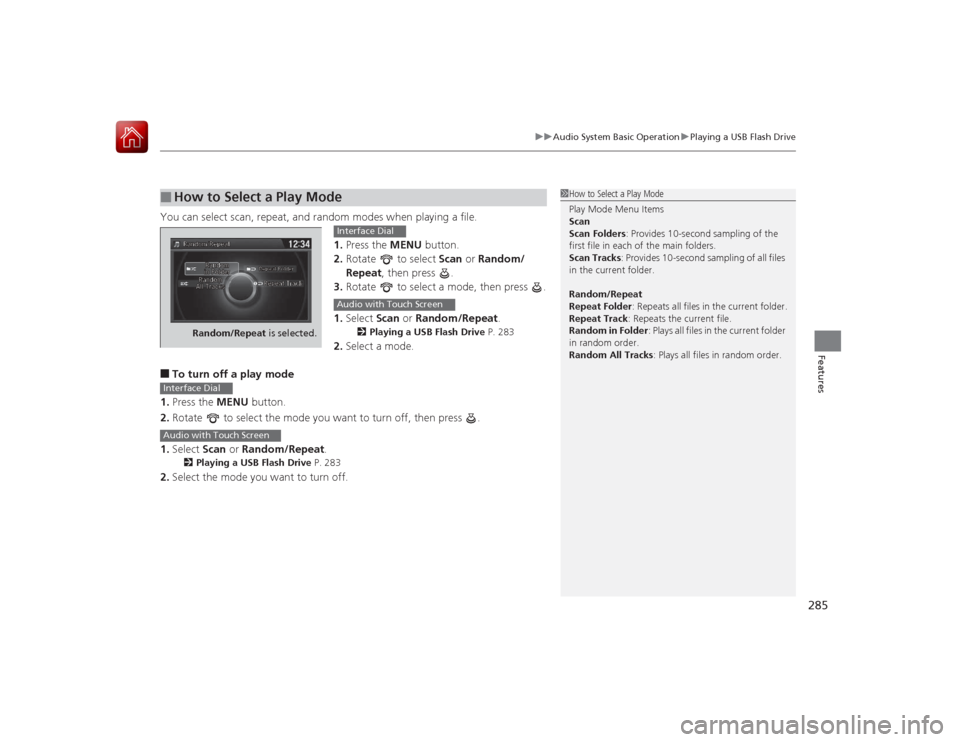
You can select scan, repeat, and random modes when playing a file.
1.Press the MENU button.
2. Rotate to select Scan or Random/
Repeat , then press .
3. Rotate to select a mode, then press .
1. Select Scan or Random/Repeat .
2Playing a USB Flash Drive P. 283
2.Select a mode.
■To turn off a play mode
1. Press the MENU button.
2. Rotate to select the mode you want to turn off, then press .
1. Select Scan or Random/Repeat .2Playing a USB Flash Drive P. 283
2.Select the mode you want to turn off.■
How to Select a Play Mode
1How to Select a Play Mode
Play Mode Menu Items
Scan
Scan Folders: Provides 10-second sampling of the
first file in each of the main folders.
Scan Tracks : Provides 10-second sampling of all files
in the current folder.
Random/Repeat
Repeat Folder : Repeats all files in the current folder.
Repeat Track : Repeats the current file.
Random in Folder : Plays all files in the current folder
in random order.
Random All Tracks: Plays all files in random order.
Random/Repeat is selected.
Interface DialAudio with Touch Screen
Interface DialAudio with Touch Screen
Page 288 of 593
287
uuAudio System Basic Operation uPlaying Bluetooth ® Audio
Features
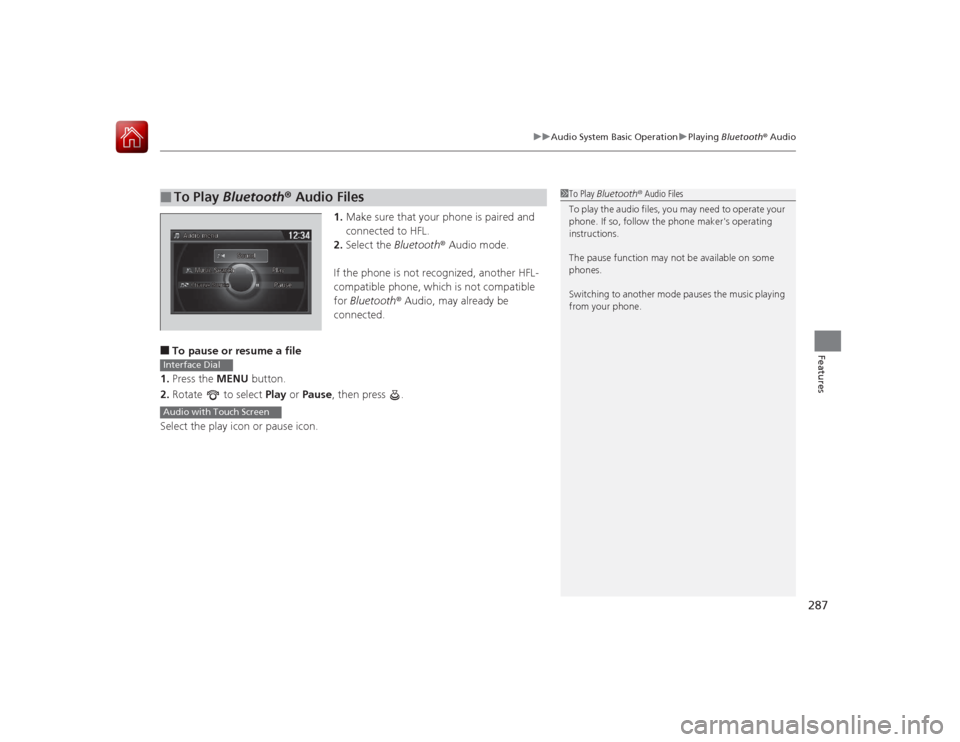
1. Make sure that your phone is paired and
connected to HFL.
2. Select the Bluetooth® Audio mode.
If the phone is not recognized, another HFL-
compatible phone, which is not compatible
for Bluetooth ® Audio, may already be
connected.
■To pause or resume a file
1. Press the MENU button.
2. Rotate to select Play or Pause , then press .
Select the play icon or pause icon.■
To Play Bluetooth ® Audio Files
1 To Play Bluetooth ® Audio Files
To play the audio files, you may need to operate your
phone. If so, follow the phone maker's operating
instructions.
The pause function may not be available on some
phones.
Switching to another mode pauses the music playing
from your phone.
Interface DialAudio with Touch Screen
Page 292 of 593
291
uuAudio Error Messages uPandora ®
Continued
Features
Pandora ®If an error occurs while playing Pandora ®, you may see the following error messages.
If you cannot clear the error message, contact a dealer.
Error Message
Solution
Incompatible USB Device
Please Check Owner’s Manual
Appears when an incompatible device is connected. Disconnect
the device. Then turn the audio system off, and turn it again. Do
not reconnect the device that caused the error.
There is no station list in the device.
Please add the station list to your device.
No stations have been created.
Please create a station on the device.
Appears when there is no station list on the device. Use the device
to create a station.
Music licenses fo rce us to limit the number of tracks you may
skip each hour.
Appears when you try to skip a song or select Dislike over the
predetermined number of times in an hour.
U.S. modelsAudio/Information ScreenAudio with Touch Screen
Page 294 of 593
293
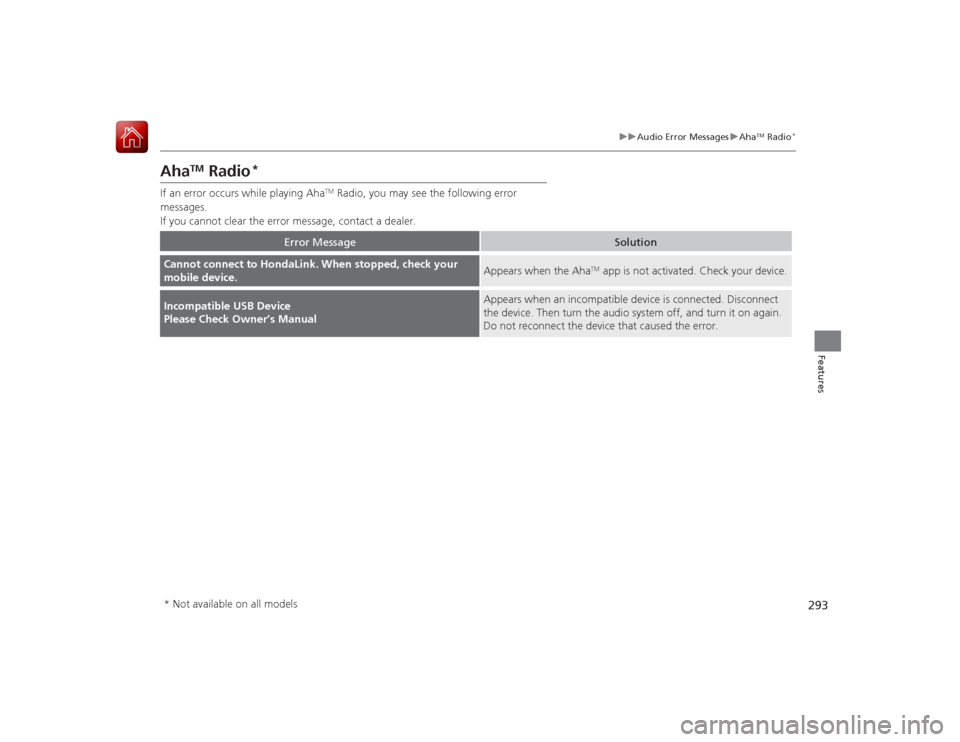
uuAudio Error Messages uAha
TM Radio
*
Features
Aha
TM
Radio
*
If an error occurs while playing Aha
TM Radio, you may see the following error
messages.
If you cannot clear the error message, contact a dealer.
Error Message
Solution
Cannot connect to HondaLink. When stopped, check your
mobile device.
Appears when the Aha
TM app is not activated. Check your device.
Incompatible USB Device
Please Check Owner’s Manual
Appears when an incompatible device is connected. Disconnect
the device. Then turn the audio system off, and turn it on again.
Do not reconnect the device that caused the error.
* Not available on all models
Page 298 of 593
297
uuGeneral Information on the Audio System uCompatible iPod, iPhone, and USB Flash Drives
Features
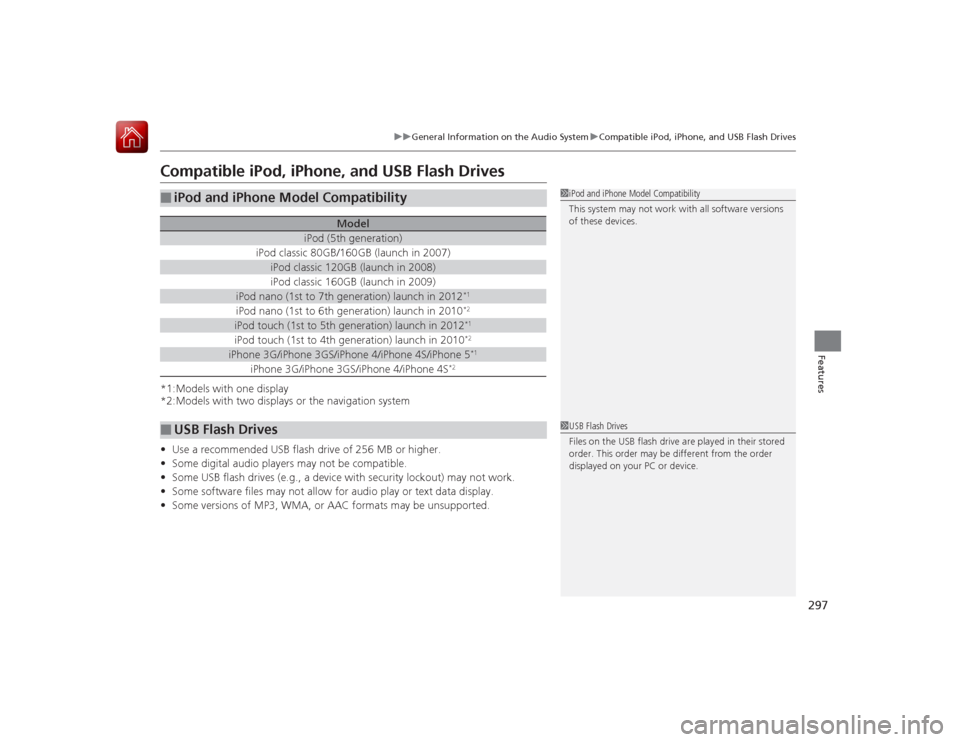
Compatible iPod, iPhone, and USB Flash Drives*1:Models with one display
*2:Models with two displays or the navigation system
• Use a recommended USB flash drive of 256 MB or higher.
• Some digital audio players may not be compatible.
• Some USB flash drives (e.g., a device with security lockout) may not work.
• Some software files may not allow for audio play or text data display.
• Some versions of MP3, WMA, or AAC formats may be unsupported.■
iPod and iPhone Model Compatibility
Model
iPod (5th generation)
iPod classic 80GB/160GB (launch in 2007)
iPod classic 120GB (launch in 2008)iPod classic 160GB (launch in 2009)
iPod nano (1st to 7th generation) launch in 2012
*1
iPod nano (1st to 6th generation) launch in 2010
*2
iPod touch (1st to 5th generation) launch in 2012
*1
iPod touch (1st to 4th generation) launch in 2010
*2
iPhone 3G/iPhone 3GS/iPhone 4/iPhone 4S/iPhone 5
*1
iPhone 3G/iPhone 3GS/iPhone 4/iPhone 4S
*2
■
USB Flash Drives
1iPod and iPhone Model Compatibility
This system may not work with all software versions
of these devices.1USB Flash Drives
Files on the USB flash drive are played in their stored
order. This order may be different from the order
displayed on your PC or device.