audio HONDA ACCORD 2022 User Guide
[x] Cancel search | Manufacturer: HONDA, Model Year: 2022, Model line: ACCORD, Model: HONDA ACCORD 2022Pages: 657, PDF Size: 11.42 MB
Page 164 of 657
uuGauges and Displays uHead-Up Display*
162
Instrument Panel
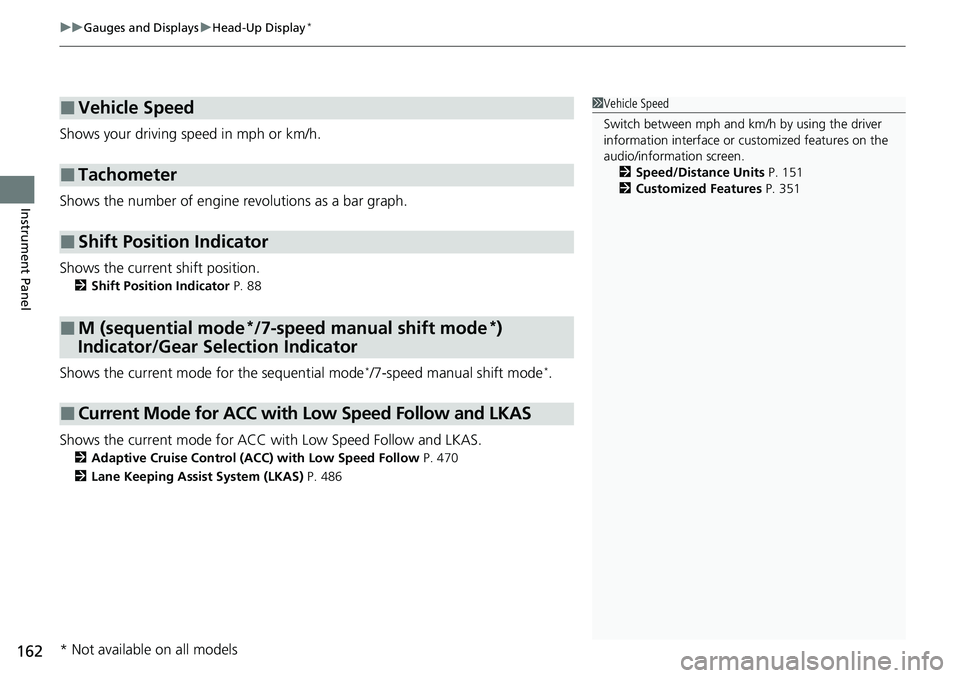
Shows your driving speed in mph or km/h.
Shows the number of engine revolutions as a bar graph.
Shows the current shift position.
2 Shift Position Indicator P. 88
Shows the current mode for the sequential mode*/7-speed manual shift mode*.
Shows the current mode for ACC wi th Low Speed Follow and LKAS.
2Adaptive Cruise Control (ACC) with Low Speed Follow P. 470
2 Lane Keeping Assist System (LKAS) P. 486
■Vehicle Speed
■Tachometer
■Shift Position Indicator
■M (sequential mode*/7-speed manual shift mode*)
Indicator/Gear Selection Indicator
■Current Mode for ACC with Low Speed Follow and LKAS
1 Vehicle Speed
Switch between mph and km/h by using the driver
information interface or cu stomized features on the
audio/information screen. 2 Speed/Distance Units P. 151
2 Customized Features P. 351
* Not available on all models
Page 168 of 657
166
Controls
Clock
Adjusting the Clock
You can adjust the time manually in the audio/information screen, with the power
mode in ON.
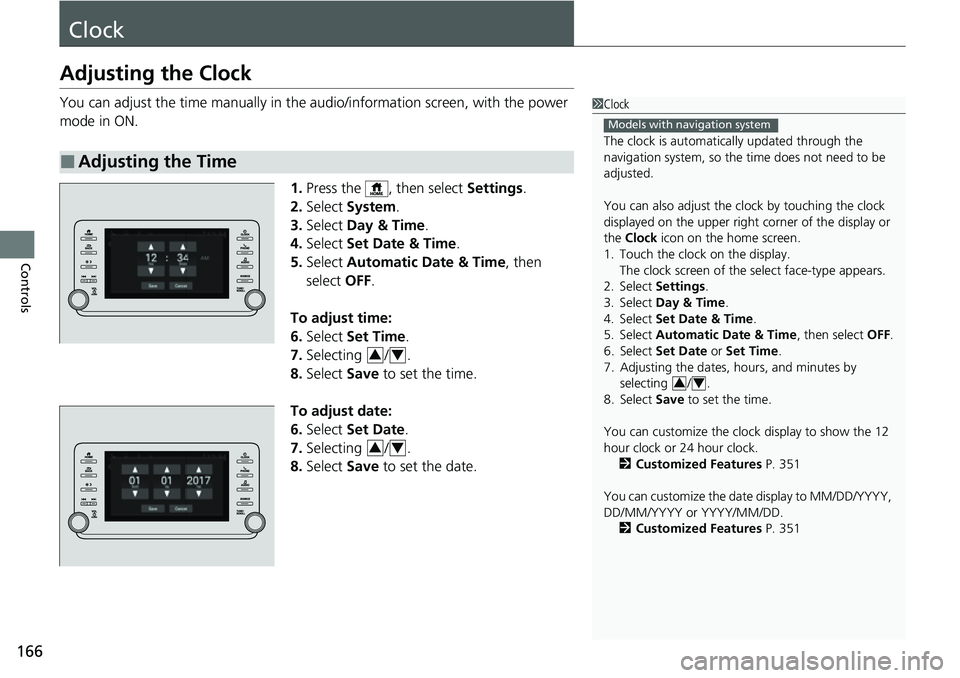
1.Press the , then select Settings.
2. Select System .
3. Select Day & Time .
4. Select Set Date & Time .
5. Select Automatic Date & Time , then
select OFF.
To adjust time:
6. Select Set Time.
7. Selecting / .
8. Select Save to set the time.
To adjust date:
6. Select Set Date .
7. Selecting / .
8. Select Save to set the date.
■Adjusting the Time
1Clock
The clock is automatica lly updated through the
navigation system, so the ti me does not need to be
adjusted.
You can also adjust the clock by touching the clock
displayed on the upper right corner of the display or
the Clock icon on the home screen.
1. Touch the clock on the display. The clock screen of the select face-type appears.
2. Select Settings .
3. Select Day & Time .
4. Select Set Date & Time .
5. Select Automatic Date & Time , then select OFF.
6. Select Set Date or Set Time.
7. Adjusting the dates, hours, and minutes by selecting / .
8. Select Save to set the time.
You can customize the clock display to show the 12
hour clock or 24 hour clock. 2 Customized Features P. 351
You can customize the date display to MM/DD/YYYY,
DD/MM/YYYY or YYYY/MM/DD. 2 Customized Features P. 351
Models with navigation system
34
34
34
Page 173 of 657
Continued171
uuLocking and Unlocking the Doors uLocking/Unlocking the Doors from the Outside
Controls
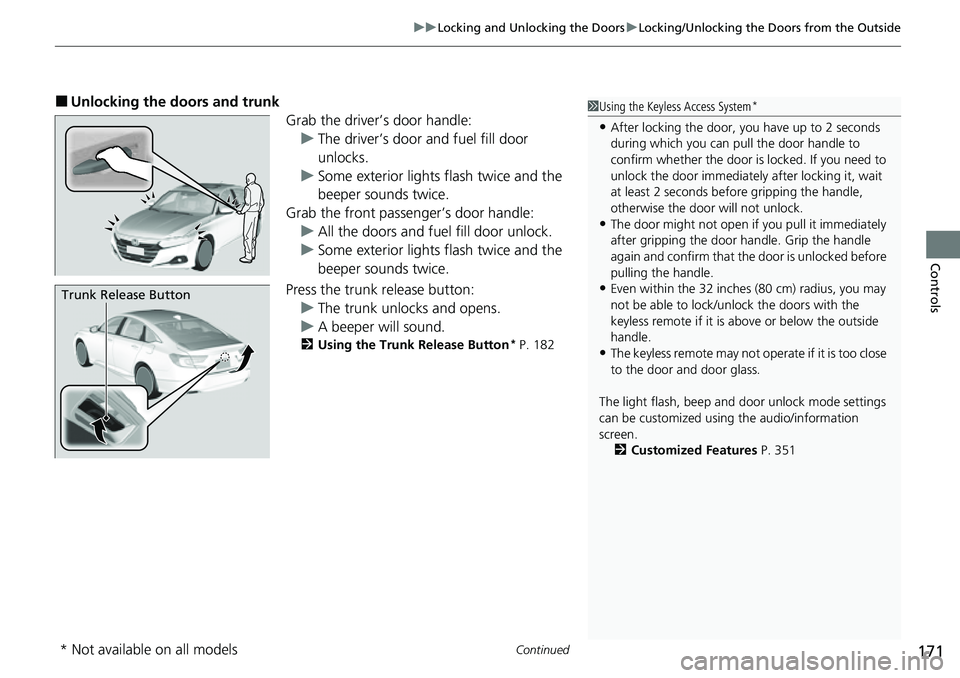
■Unlocking the doors and trunk
Grab the driver’s door handle:u The driver’s door and fuel fill door
unlocks.
u Some exterior lights flash twice and the
beeper sounds twice.
Grab the front passenger’s door handle: u All the doors and fuel fill door unlock.
u Some exterior lights flash twice and the
beeper sounds twice.
Press the trunk release button: u The trunk unlocks and opens.
u A beeper will sound.
2 Using the Trunk Release Button* P. 182
Trunk Release Button
1Using the Keyless Access System*
•After locking the door, you have up to 2 seconds
during which you can pull the door handle to
confirm whether the door is locked. If you need to
unlock the door immediately after locking it, wait
at least 2 seconds befo re gripping the handle,
otherwise the door will not unlock.
•The door might not open if you pull it immediately
after gripping the door handle. Grip the handle
again and confirm that th e door is unlocked before
pulling the handle.
•Even within the 32 inches (80 cm) radius, you may
not be able to lock/unl ock the doors with the
keyless remote if it is above or below the outside
handle.
•The keyless remote may not operate if it is too close
to the door and door glass.
The light flash, beep and door unlock mode settings
can be customized using the audio/information
screen. 2 Customized Features P. 351
* Not available on all models
Page 174 of 657
uuLocking and Unlocking the Doors uLocking/Unlocking the Doors from the Outside
172
Controls
■Locking the doors (Walk away auto
lock ®)
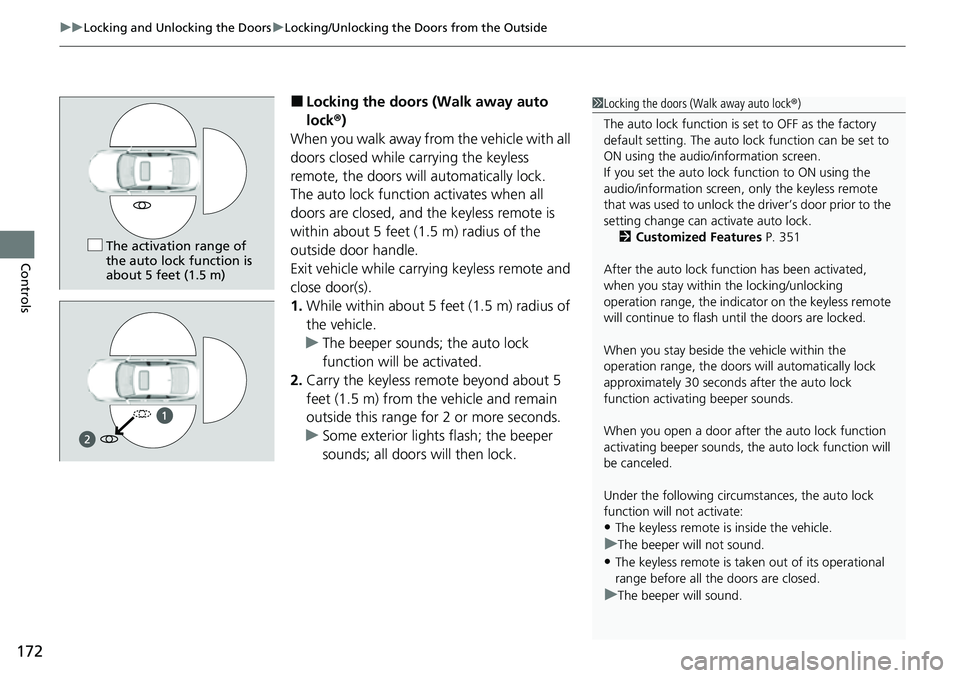
When you walk away from the vehicle with all
doors closed while carrying the keyless
remote, the doors will automatically lock.
The auto lock function activates when all
doors are closed, and the keyless remote is
within about 5 feet (1.5 m) radius of the
outside door handle.
Exit vehicle while carrying keyless remote and
close door(s).
1. While within about 5 feet (1.5 m) radius of
the vehicle.
u The beeper sounds; the auto lock
function will be activated.
2. Carry the keyless remote beyond about 5
feet (1.5 m) from the vehicle and remain
outside this range fo r 2 or more seconds.
u Some exterior lights flash; the beeper
sounds; all doors will then lock.1Locking the doors (Walk away auto lock ®)
The auto lock function is set to OFF as the factory
default setting. The auto lo ck function can be set to
ON using the audio/information screen.
If you set the auto lock function to ON using the
audio/information screen, only the keyless remote
that was used to unlock th e driver’s door prior to the
setting change can ac tivate auto lock.
2 Customized Features P. 351
After the auto lock function has been activated,
when you stay within the locking/unlocking
operation range, the indicato r on the keyless remote
will continue to flash until the doors are locked.
When you stay beside the vehicle within the
operation range, the doors wi ll automatically lock
approximately 30 seconds after the auto lock
function activating beeper sounds.
When you open a door after the auto lock function
activating beeper sounds, the auto lock function will
be canceled.
Under the following circumstances, the auto lock
function will not activate:
•The keyless remote is inside the vehicle.
uThe beeper will not sound.
•The keyless remote is taken out of its operational
range before all the doors are closed.
uThe beeper will sound.
The activation range of
the auto lock function is
about 5 feet (1.5 m)
Page 180 of 657
uuLocking and Unlocking the Doors uLocking/Unlocking the Doors from the Inside
178
Controls
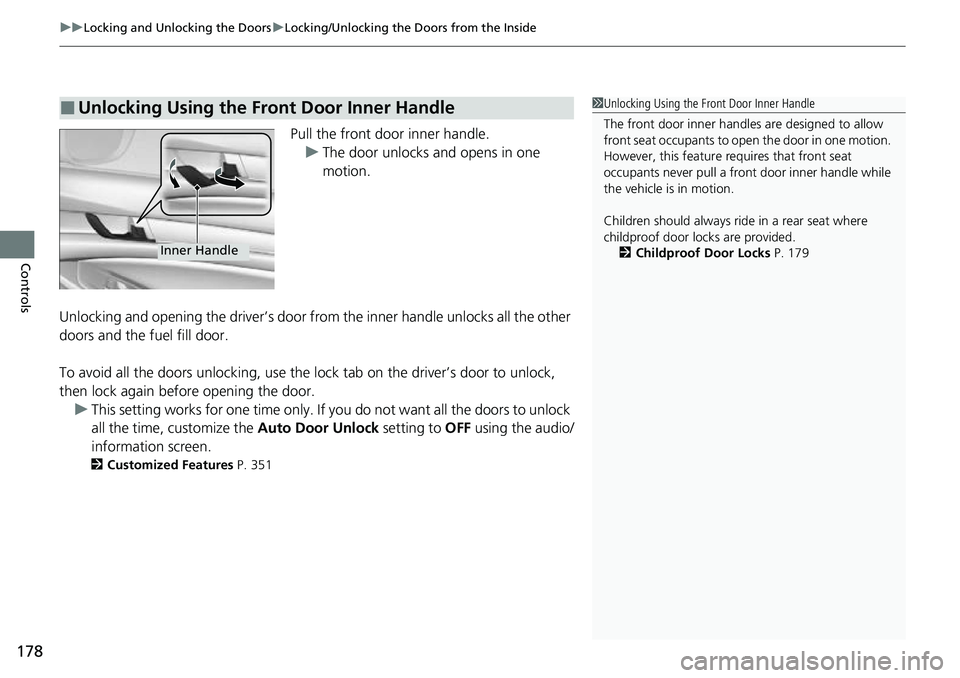
Pull the front door inner handle.
u The door unlocks and opens in one
motion.
Unlocking and opening the driver’s door from the inner handle unlocks all the other
doors and the fuel fill door.
To avoid all the doors unlocking, use the lock tab on the driver’s door to unlock,
then lock again before opening the door. u This setting works for one time only. If you do not want all the doors to unlock
all the time, customize the Auto Door Unlock setting to OFF using the audio/
information screen.
2 Customized Features P. 351
■Unlocking Using the Front Door Inner Handle1Unlocking Using the Front Door Inner Handle
The front door inne r handles are designed to allow
front seat occupants to ope n the door in one motion.
However, this feature requires that front seat
occupants never pull a front door inner handle while
the vehicle is in motion.
Children should always ride in a rear seat where
childproof door locks are provided.
2 Childproof Door Locks P. 179
Inner Handle
Page 182 of 657
180
uuLocking and Unlocking the Doors uAuto Door Locking/Unlocking
Controls
Auto Door Locking/Unlocking
Your vehicle locks or unlocks all doors auto matically when a certain condition is met.
■Drive lock mode
All doors lock when the vehicle’s speed reaches about 10 mph (15 km/h).
■Driver’s door open mode
All doors unlock when the driver’s door is opened.
■Auto Door Locking
■Auto Door Unlocking
1 Auto Door Locking/Unlocking
You can turn off or cha nge to another auto door
locking/unlocking sett ing using the audio/
information screen. 2 Customized Features P. 351
Page 186 of 657
184
Controls
Security System
Immobilizer System
This system prevents a key that has not been pre-registered from starting the
engine.
Pay attention to the follo wing when pressing the ENGINE START/STOP button:
• Do not allow objects that emit strong radio waves near the ENGINE START/
STOP button.
• Make sure the key is not covered by or touching a metal object.
• Do not bring a key from another vehi cle’s immobilizer system near the ENGINE
START/STOP button.
Do not put the key near magnetic items. El ectronic device, such as televisions and
audio systems emit strong magnetic fields . Note that even a key chain can become
magnetic.1 Immobilizer System
NOTICE
Leaving the key in the vehicl e can result in theft or
accidental movement of the vehicle.
Always take the key with you whenever you leave the
vehicle unattended.
Do not alter the system or add other devices to it.
Doing so may damage the system and make your
vehicle inoperable.
Apply and hold the brake pedal before turning the
vehicle on the first time after the battery has been
disconnected.
Canadian models
Page 193 of 657
191Continued
Controls
Operating the Switches Around the Steering Wheel
ENGINE START/STOP Button
*1 : Continuously variable transmission models for Canadian models
*2 : U.S. models
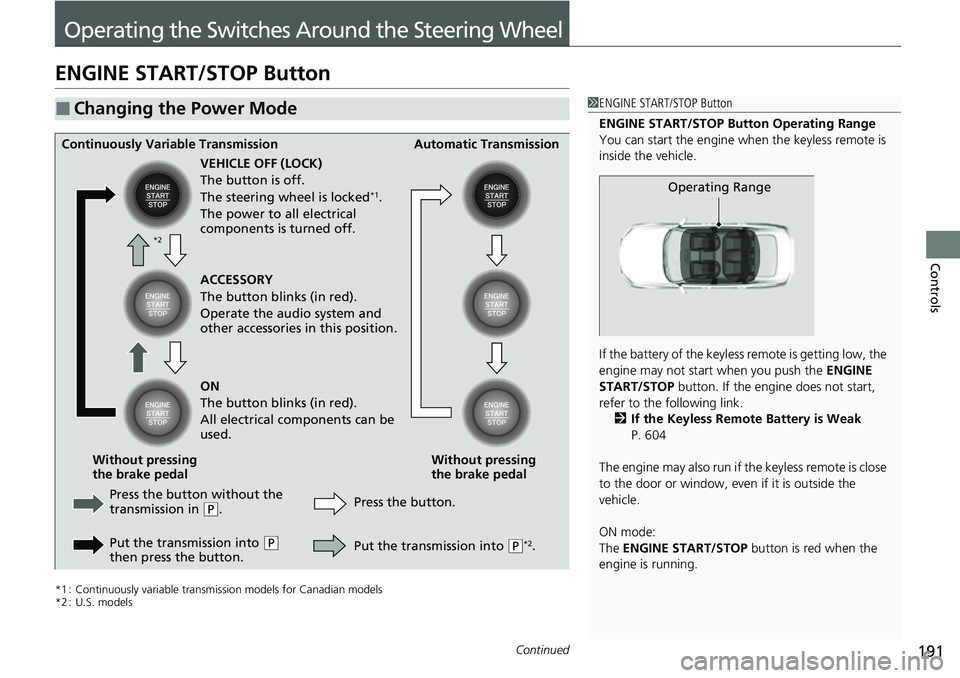
■Changing the Power Mode1ENGINE START/STOP Button
ENGINE START/STOP Button Operating Range
You can start the engine when the keyless remote is
inside the vehicle.
If the battery of the keyless remote is getting low, the
engine may not start when you push the ENGINE
START/STOP button. If the engi ne does not start,
refer to the following link. 2 If the Keyless Remote Battery is Weak
P. 604
The engine may also run if the keyless remote is close
to the door or window, even if it is outside the
vehicle.
ON mode:
The ENGINE START/STOP button is red when the
engine is running.
Operating Range
Continuously Variable Transmission Automatic Transmission
VEHICLE OFF (LOCK)
The button is off.
The steering wheel is locked
*1.
The power to all electrical
components is turned off.
Press the button without the
transmission in
( P.
Put the transmission into
( P
then press the button. Press the button.
Without pressing
the brake pedal
Without pressing
the brake pedal ACCESSORY
The button blinks (in red).
Operate the audio system and
other accessories in this position.
ON
The button blinks (in red).
All electrical components can be
used.
Put the transmission into (P*2.
*2
Page 209 of 657
207
uuOperating the Switches Around the Steering Wheel uDriving Position Memory System*
Continued
Controls
Driving Position Memory System*
You can store two driver’s seat positions (except for power lumbar) with the driving
position memory system.
When you unlock and open the driver’s door with a remote transmitter or keyless
access system, the seat adjust automatica lly to one of the two preset positions.
When you enter the vehicle, the driver in formation interface briefly shows you which
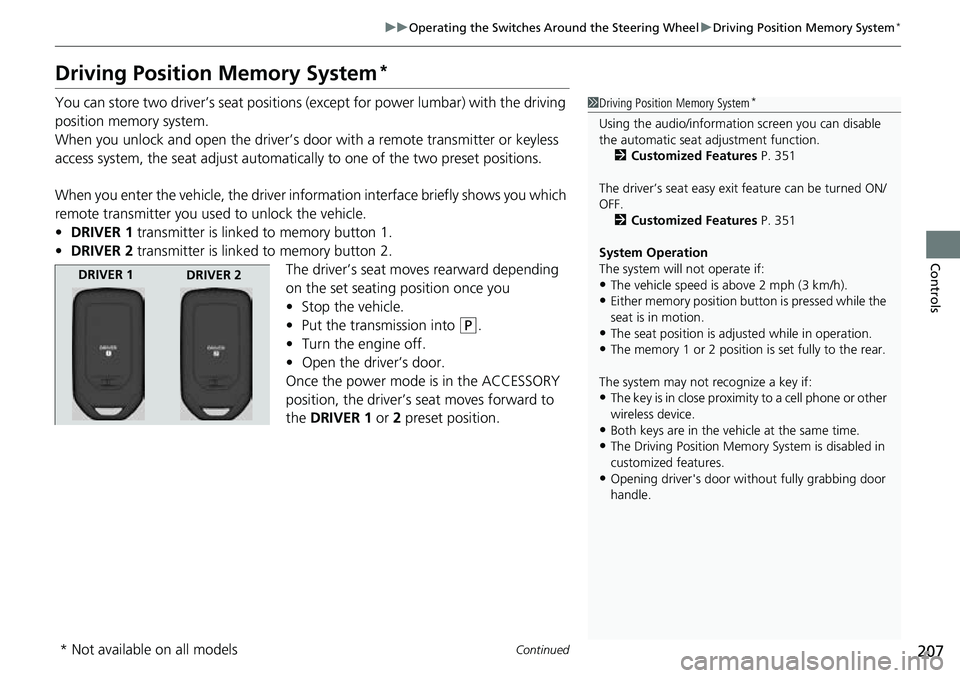
remote transmitter you used to unlock the vehicle.
• DRIVER 1 transmitter is linked to memory button 1.
• DRIVER 2 transmitter is linked to memory button 2.
The driver’s seat moves rearward depending
on the set seating position once you
•Stop the vehicle.
• Put the transmission into
(P.
• Turn the engine off.
• Open the driv er’s door.
Once the power mode is in the ACCESSORY
position, the driver’s seat moves forward to
the DRIVER 1 or 2 preset position.
1 Driving Position Memory System*
Using the audio/informati on screen you can disable
the automatic seat adjustment function. 2 Customized Features P. 351
The driver’s seat easy exit feature can be turned ON/
OFF. 2 Customized Features P. 351
System Operation
The system will not operate if:
•The vehicle speed is above 2 mph (3 km/h).
•Either memory position button is pressed while the
seat is in motion.
•The seat position is adju sted while in operation.
•The memory 1 or 2 position is set fully to the rear.
The system may not recognize a key if:
•The key is in close proximity to a cell phone or other
wireless device.
•Both keys are in the vehicle at the same time.
•The Driving Position Memory System is disabled in
customized features.
•Opening driver's door wi thout fully grabbing door
handle.
DRIVER 1 DRIVER 2
* Not available on all models
Page 234 of 657
uuInterior Convenience Items uOther Interior Convenience Items
232
Controls
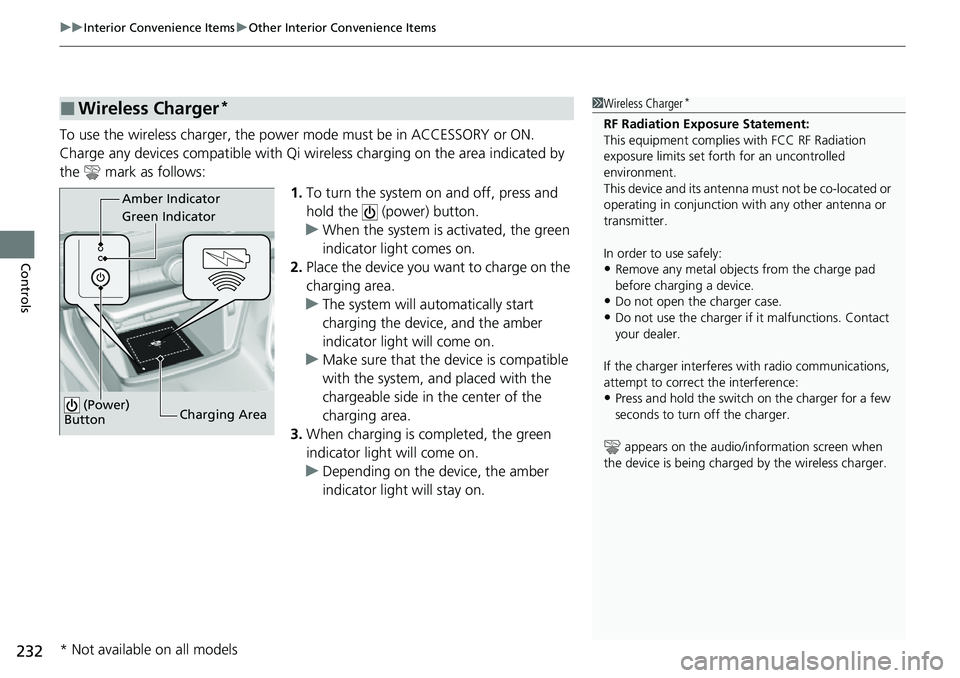
To use the wireless charger, the powe r mode must be in ACCESSORY or ON.
Charge any devices compatible with Qi wi reless charging on the area indicated by
the mark as follows:
1.To turn the system on and off, press and
hold the (power) button.
u When the system is activated, the green
indicator light comes on.
2. Place the device you want to charge on the
charging area.
u The system will automatically start
charging the device, and the amber
indicator light will come on.
u Make sure that the device is compatible
with the system, a nd placed with the
chargeable side in the center of the
charging area.
3. When charging is completed, the green
indicator light will come on.
u Depending on the device, the amber
indicator light will stay on.
■Wireless Charger*1Wireless Charger*
RF Radiation Exposure Statement:
This equipment complies with FCC RF Radiation
exposure limits set forth for an uncontrolled
environment.
This device and its antenna must not be co-located or
operating in conjunction with any other antenna or
transmitter.
In order to use safely:
•Remove any metal objects from the charge pad
before charging a device.
•Do not open the charger case.
•Do not use the charger if it malfunctions. Contact
your dealer.
If the charger interferes with radio communications,
attempt to correct the interference:
•Press and hold the switch on the charger for a few
seconds to turn off the charger.
appears on the audio/information screen when
the device is being charge d by the wireless charger.
Green Indicator Amber Indicator
Charging Area
(Power)
Button
* Not available on all models