radio HONDA ACCORD 2022 Owner's Manual
[x] Cancel search | Manufacturer: HONDA, Model Year: 2022, Model line: ACCORD, Model: HONDA ACCORD 2022Pages: 657, PDF Size: 11.42 MB
Page 291 of 657
Continued289
uuAudio System Basic Operation uPlaying SiriusXM ® Radio*
Features
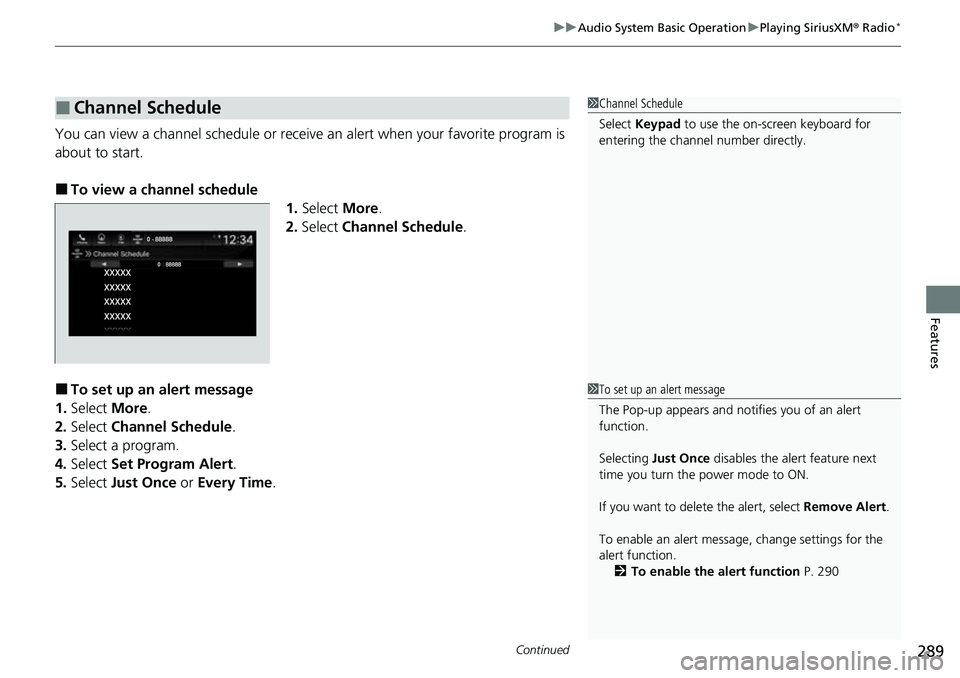
You can view a channel schedule or receive an alert when your favorite program is
about to start.
■To view a channel schedule 1.Select More.
2. Select Channel Schedule .
■To set up an alert message
1. Select More.
2. Select Channel Schedule .
3. Select a program.
4. Select Set Program Alert .
5. Select Just Once or Every Time .
■Channel Schedule1Channel Schedule
Select Keypad to use the on-screen keyboard for
entering the channel number directly.
1To set up an alert message
The Pop-up appears and not ifies you of an alert
function.
Selecting Just Once disables the alert feature next
time you turn the power mode to ON.
If you want to delete the alert, select Remove Alert.
To enable an alert message, change settings for the
alert function. 2 To enable the alert function P. 290
Page 292 of 657
290
uuAudio System Basic Operation uPlaying SiriusXM ® Radio*
Features
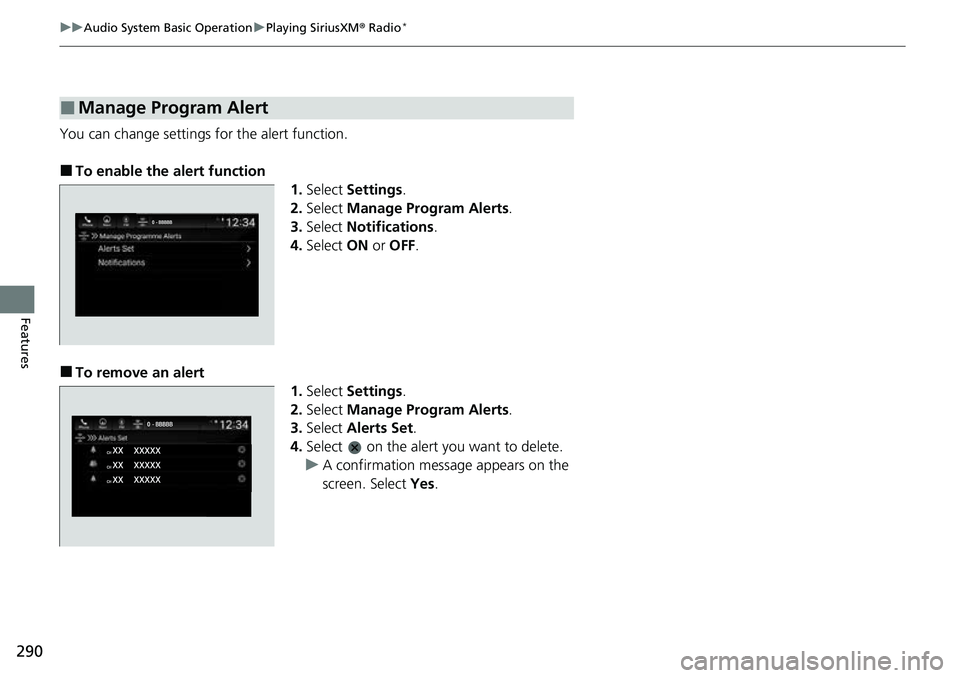
You can change settings for the alert function.
■To enable the alert function
1.Select Settings .
2. Select Manage Program Alerts .
3. Select Notifications .
4. Select ON or OFF .
■To remove an alert
1.Select Settings .
2. Select Manage Program Alerts .
3. Select Alerts Set .
4. Select on the alert you want to delete.
u A confirmation message appears on the
screen. Select Yes.
■Manage Program Alert
Page 293 of 657
Continued291
uuAudio System Basic Operation uPlaying SiriusXM ® Radio*
Features
Sample each channel on the selected mode for 10 seconds.
1. Select More.
2. Select Scan.
You can change a scan mode by the following procedure.
1. Select Settings .
2. Select Scan Mode .
3. Select Channel or Preset .
To turn off scan, select Stop.
■Scan1Scan
The “Scan Songs in Preset s” function is based on
TuneScan
TM technology of SiriusXM ®.
The “Featured Channels ” function is based on
Featured Favorites
TM technology of SiriusXM ®.
TuneScan
TM and Featured FavoritesTM are registered
trademarks of SiriusXM ® Radio, Inc.
Page 294 of 657
292
uuAudio System Basic Operation uPlaying SiriusXM ® Radio*
Features
Change the SiriusXM ® settings.
1. Select Settings .
2. Select an option.
• TuneMix: Turns multiple channel mix preset on and off.
• Tune Mode: Choose whether to group by category or channel number when
changing channels.
2 To Change the Tune Mode P. 283
•Scan Mode: Select the scan mode fro m all channels or presets.
2Scan P. 291
•Tune Start: Start the currently playing song at the beginning when you switch to
a music channel preset.
2 Tune Start: P. 283
•Sports Notifi cations Setup: Set to receive sports alerts such as scores from your
favorite teams.
2 Live Sports Alert P. 287
•Traffic & Weather Now Setup: Set to receive traffic and weather information.
2Traffic and Weather Information P. 288
•Manage Program Alerts: Change settings for the alert function.
2Manage Program Alert P. 290
■SiriusXM® Settings
Page 331 of 657
329
Features
General Information on the Audio System
SiriusXM® Radio Service*
1.You need your radio ID ready before regist ering for subscription. To see the ID in
the screen, select Channel to 0.
2. Have your radio ID ready, and either call or visit the SiriusXM® website to
subscribe.
Switch to the SiriusXM ® mode by using the audio remote controls on the steering
wheel, or through the audio/information screen, and stay in this mode for about 30
minutes until the service is activated. Make sure your vehicle is in an open area with
good reception.
Channel **** is not subscribed. Call SiriusXM to subscribe.
*1
You are not subscribed to the channel selected.
Subscription updated:
SiriusXM ® radio is receiving informati on update from the network.
Channel Not Available:
No such channel exits, or the artist or title information is unavailable.
No Signal:
The signal is too weak in the current location.
Check Tuner:
There is a problem with the SiriusXM ® tuner. Contact a dealer.
Check Antenna:
There is a problem with the SiriusXM ® antenna. Contact a dealer.
*1 : ****part is variable characters, and w ill change depending upon where an subscribe.
■Subscribing to SiriusXM® Radio
■Receiving SiriusXM ® Radio
■SiriusXM ® Radio Display Messages
1 Subscribing to SiriusXM ® Radio
Contact Information for SiriusXM ® Radio:
•US: SiriusXM ® Radio at
www.siriusxm.com/subscribenow , or 1-866-635-
2349
•Canada: SiriusXM ® Canada at
www.siriusxm.ca/subscribe-now , or 1-877-209-
0079
1 Receiving SiriusXM ® Radio
The SiriusXM ® satellites are in orbit over the equator;
therefore, objects south of the vehicle may cause
satellite reception interruptions. Sa tellite signals are
more likely to be blocked by tall buildings and
mountains the farther north you travel from the
equator.
You may experience rece ption problems under the
following circumstances:
•In a location with an obstruction to the south of
your vehicle.
•In tunnels.
•On the lower level of a multi-tiered road.•Large items carried on the roof rack.
* Not available on all models
Page 415 of 657
Continued413
uuWhen Driving uStarting the Engine
Driving
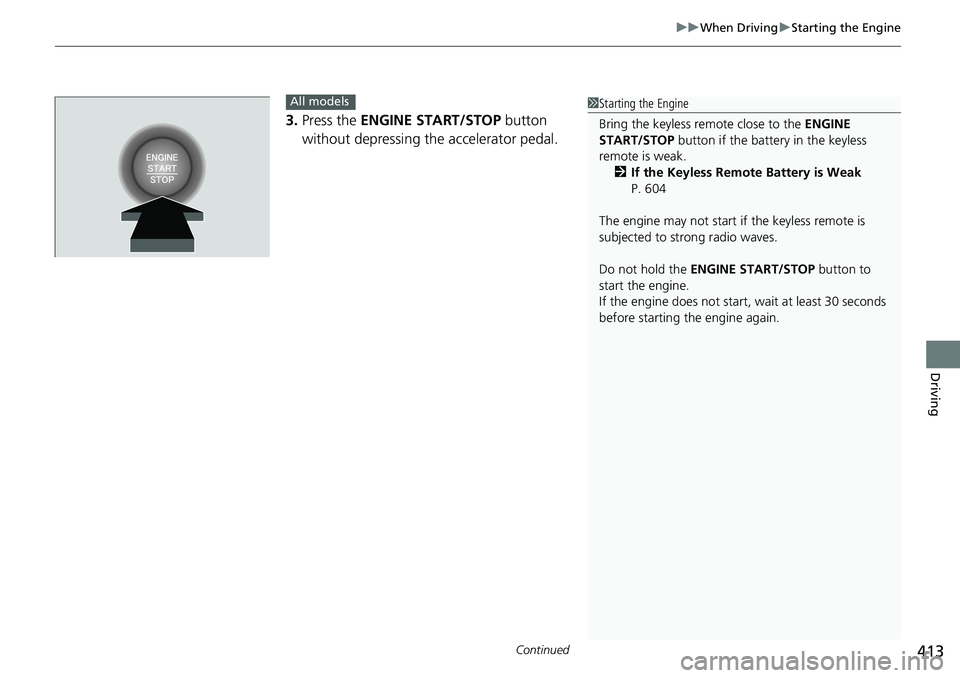
3. Press the ENGINE START/STOP button
without depressing the accelerator pedal.
All models1 Starting the Engine
Bring the keyless remote close to the ENGINE
START/STOP button if the batte ry in the keyless
remote is weak. 2 If the Keyless Remote Battery is Weak
P. 604
The engine may not start if the keyless remote is
subjected to strong radio waves.
Do not hold the ENGINE START/STOP button to
start the engine.
If the engine does not start, wait at least 30 seconds
before starting the engine again.
Page 454 of 657
uuWhen Driving uBlind spot information System*
452
Driving
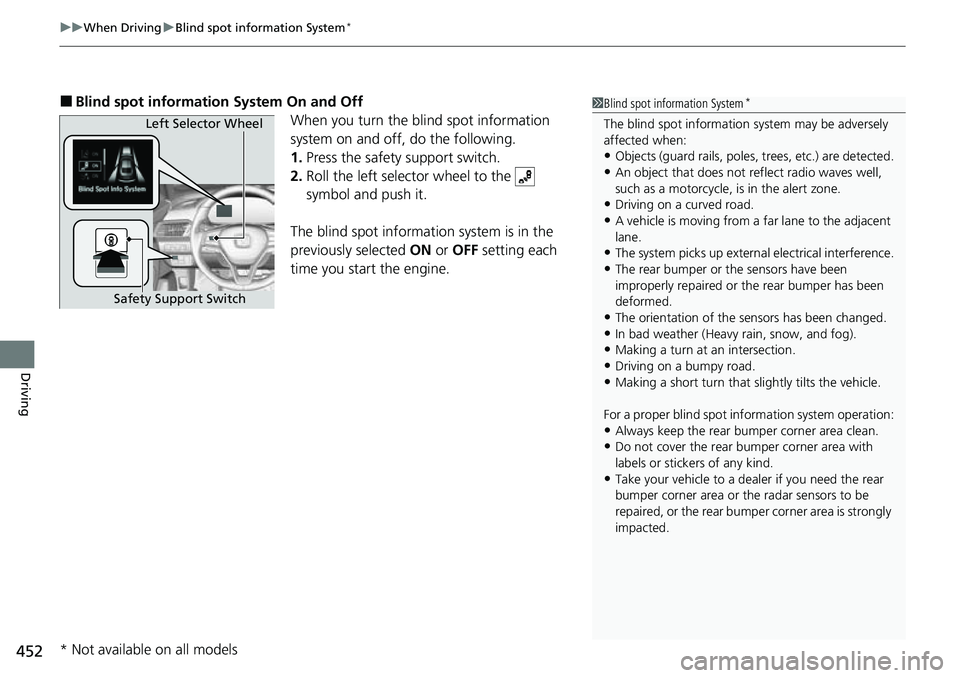
■Blind spot information System On and Off
When you turn the blind spot information
system on and off, do the following.
1. Press the safety support switch.
2. Roll the left selector wheel to the
symbol and push it.
The blind spot information system is in the
previously selected ON or OFF setting each
time you start the engine.1 Blind spot information System*
The blind spot information system may be adversely
affected when:
•Objects (guard rails, poles, trees, etc.) are detected.
•An object that does not re flect radio waves well,
such as a motorcycle, is in the alert zone.
•Driving on a curved road.
•A vehicle is moving from a far lane to the adjacent
lane.
•The system picks up external electrical interference.
•The rear bumper or the sensors have been
improperly repaired or the rear bumper has been
deformed.
•The orientation of the sensors has been changed.•In bad weather (Heavy rain, snow, and fog).
•Making a turn at an intersection.
•Driving on a bumpy road.•Making a short turn that slightly tilts the vehicle.
For a proper blind spot in formation system operation:
•Always keep the rear bumper corner area clean.•Do not cover the rear bumper corner area with
labels or stickers of any kind.
•Take your vehicle to a dealer if you need the rear
bumper corner area or the radar sensors to be
repaired, or the re ar bumper corner area is strongly
impacted.
Left Selector Wheel
Safety Support Switch
* Not available on all models
Page 528 of 657
uuParking Your Vehicle uCross Traffic Monitor*
526
Driving
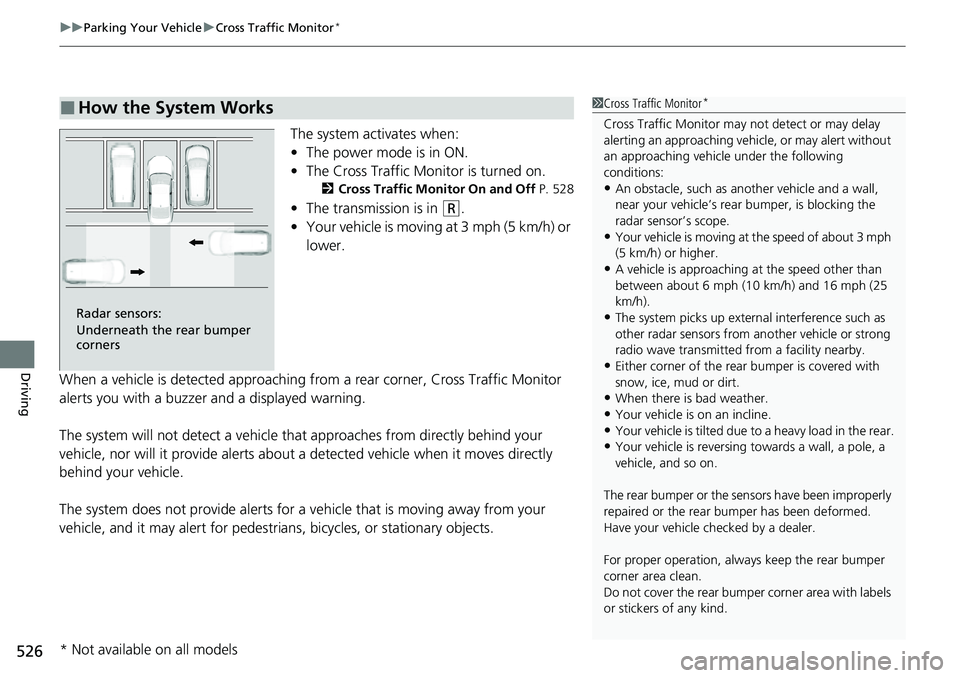
The system activates when:
• The power mode is in ON.
• The Cross Traffic Monitor is turned on.
2 Cross Traffic Monitor On and Off P. 528
•The transmission is in (R.
• Your vehicle is moving at 3 mph (5 km/h) or
lower.
When a vehicle is detected approaching from a rear corner, Cross Traffic Monitor
alerts you with a buzzer and a displayed warning.
The system will not detect a vehicle that approaches from directly behind your
vehicle, nor will it provide alerts about a detected vehicle when it moves directly
behind your vehicle.
The system does not provide alerts for a vehicle that is moving away from your
vehicle, and it may alert for pedestri ans, bicycles, or stationary objects.
■How the System Works1Cross Traffic Monitor*
Cross Traffic Monitor may not detect or may delay
alerting an approach ing vehicle, or may alert without
an approaching vehicle under the following
conditions:
•An obstacle, such as a nother vehicle and a wall,
near your vehicle’s rear bumper, is blocking the
radar sensor’s scope.
•Your vehicle is moving at the speed of about 3 mph
(5 km/h) or higher.
•A vehicle is approaching at the speed other than
between about 6 mph (10 km/h) and 16 mph (25
km/h).
•The system picks up external interference such as
other radar sensors from an other vehicle or strong
radio wave transmitted fr om a facility nearby.
•Either corner of the rear bumper is covered with
snow, ice, mud or dirt.
•When there is bad weather.
•Your vehicle is on an incline.
•Your vehicle is tilted due to a heavy load in the rear.•Your vehicle is reversing towards a wall, a pole, a
vehicle, and so on.
The rear bumper or the sens ors have been improperly
repaired or the rear bum per has been deformed.
Have your vehicle checked by a dealer.
For proper operation, always keep the rear bumper
corner area clean.
Do not cover the rear bumper corner area with labels
or stickers of any kind.
Radar sensors:
Underneath the rear bumper
corners
* Not available on all models
Page 633 of 657
631
Information
This chapter includes your vehicle's specifications, locations of identification numbers, and other
information required by regulation.
Specifications .................................... 632
Identification Numbers Vehicle Identification Number (VIN), Engine Number, and Transmission
Number ......................................... 636
Devices that Emit Radio Waves ....... 637
Reporting Safety Defects ................. 638Emissions Testing
Testing of Readiness Codes.............. 639
Warranty Coverages ........................ 641
Authorized Manuals ......................... 644
Customer Service Information ......... 645
Page 639 of 657
637
Information
Devices that Emit Radio Waves
Each radio frequency device installed in the vehicle conforms to the requirements
and standards of the regulation listed below:
As required by the FCC:
This device complies with Part 15 of the FCC rules. Operation is
subject to the following two cond itions: (1) This device may not
cause harmful interferenc e, and (2) this device must accept any
interference received, including interference that may cause
undesired operation.
Changes or modifications not ex pressly approved by the party
responsible for compliance could void the user's authority to
operate the equipment.
This device complies with Industry Canada licence-exempt RSS standard(s).
Operation is subject to the following two conditions: (1) this device may not cause
interference, and (2) this device must acce pt any interference, including interference
that may cause undesired operation of the device.