navigation system HONDA ACCORD COUPE 2014 9.G Owner's Manual
[x] Cancel search | Manufacturer: HONDA, Model Year: 2014, Model line: ACCORD COUPE, Model: HONDA ACCORD COUPE 2014 9.GPages: 593, PDF Size: 22.22 MB
Page 306 of 593
305
uuCustomized Features u
Continued
Features
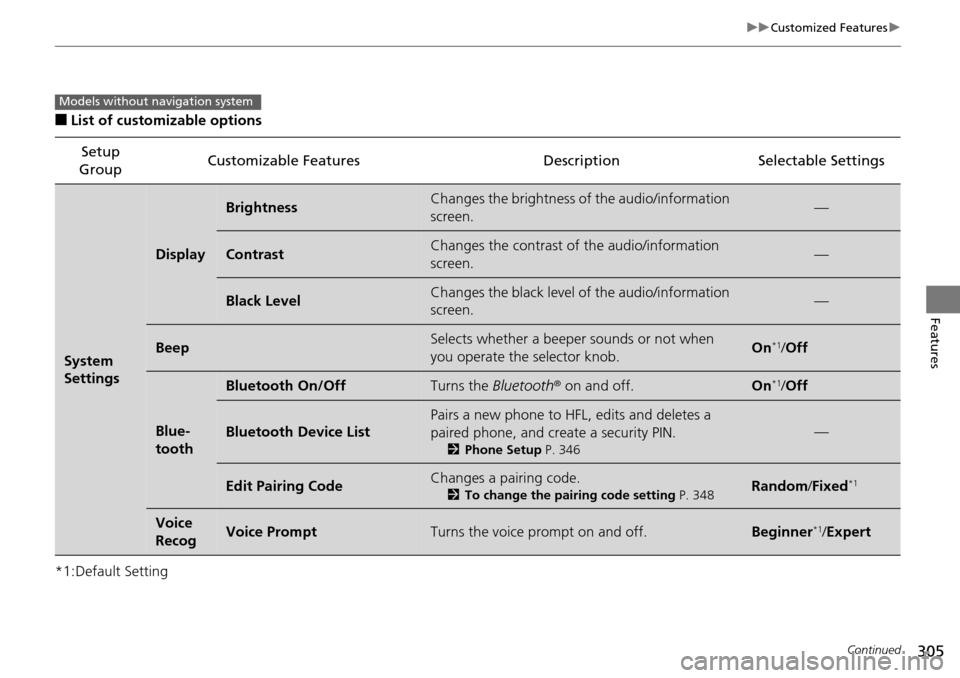
■List of customizable options
*1:Default Setting Setup
Group Customizable Features Description Selectable Settings
System
Settings
Display
BrightnessChanges the brightness of the audio/information
screen.—
ContrastChanges the contrast of the audio/information
screen.—
Black LevelChanges the black level of the audio/information
screen.—
BeepSelects whether a beeper
sounds or not when
you operate the selector knob.On*1/ Off
Blue-
tooth
Bluetooth On/OffTurns the Bluetooth® on and off.On*1/Off
Bluetooth Device List
Pairs a new phone to HFL, edits and deletes a
paired phone, and create a security PIN.
2 Phone Setup P. 346
—
Edit Pairing CodeChanges a pairing code.
2To change the pairing code setting P. 348Random /Fixed*1
Voice
RecogVoice PromptTurns the voice prompt on and off.Beginner*1/ Expert
Models without navigation system
Page 316 of 593
Continued315
uuCustomized Features u
Features
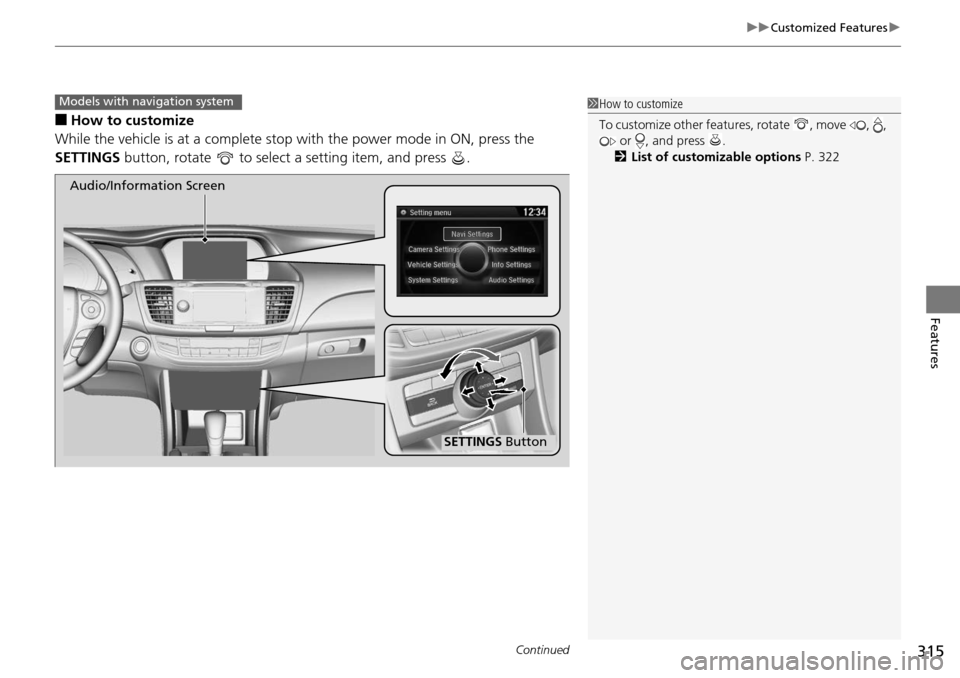
■How to customize
While the vehicle is at a complete stop with the power mode in ON, press the
SETTINGS button, rotate to select a setting item, and press .
1 How to customize
To customize other featur es, rotate , move , ,
or , and press .
2 List of customizable options P. 322Models with navigation system
SETTINGS Button
Audio/Information Screen
Page 317 of 593
316
uuCustomized Features u
Features
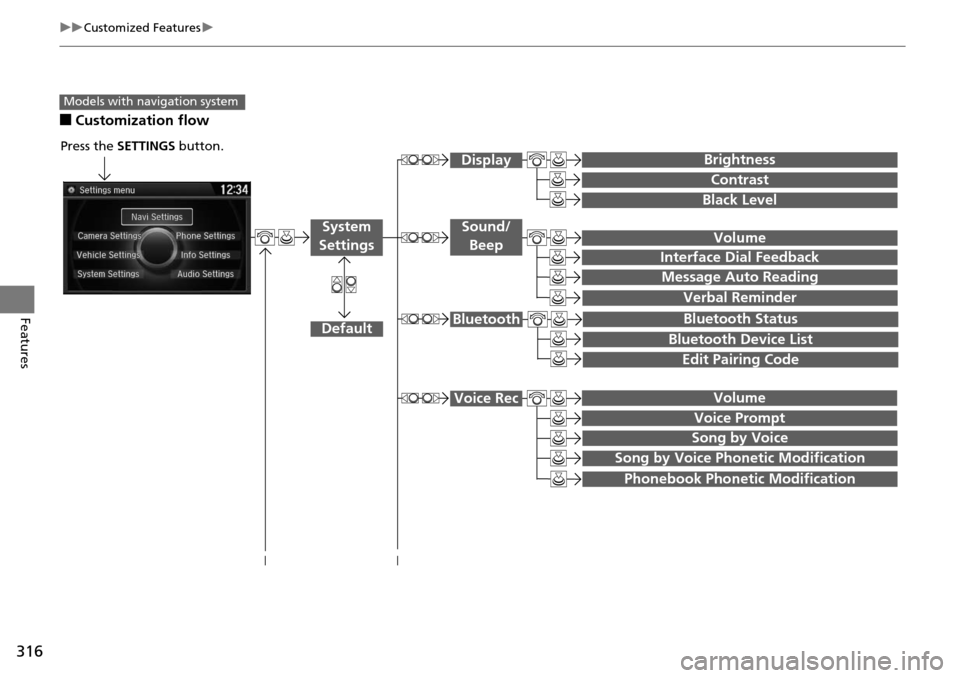
■Customization flow
Models with navigation system
Song by Voice
Song by Voice Phonetic Modification
Phonebook Phonetic Modification
Press the SETTINGS button.
Volume
Voice Prompt
Message Auto Reading
Volume
Interface Dial Feedback
Verbal Reminder
Brightness
Contrast
Black Level
Bluetooth Status
Bluetooth Device List
Edit Pairing Code
Default
Sound/Beep
Display
System
Settings
Bluetooth
Voice Rec
Page 322 of 593
321
uuCustomized Features u
Continued
Features
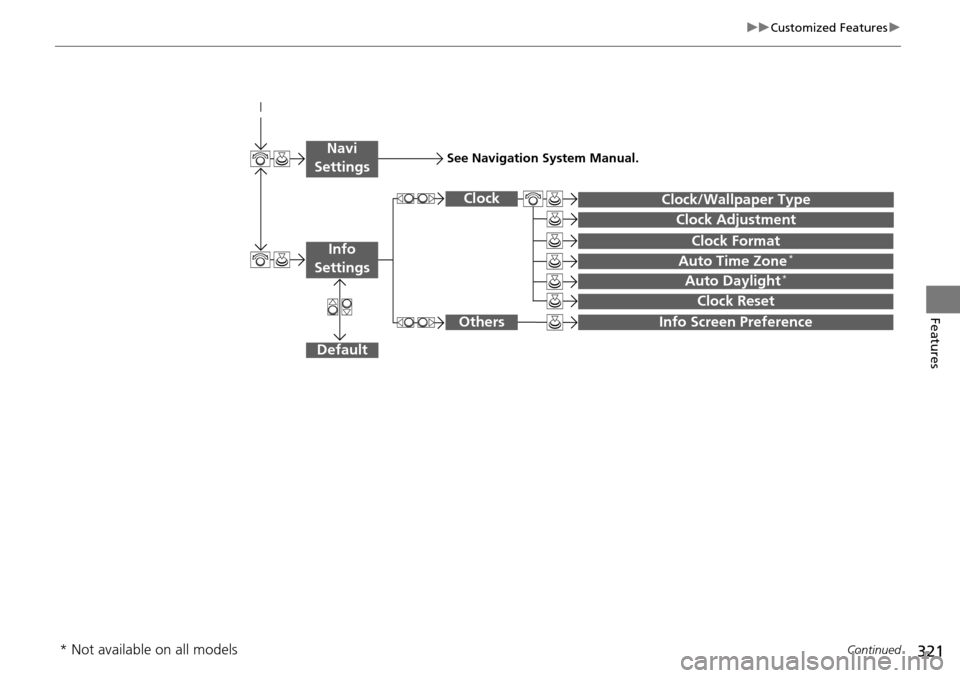
Auto Daylight*
Clock Reset
Info Screen Preference
Clock Format
Auto Time Zone*
Clock/Wallpaper Type
Clock Adjustment
Clock
Default
Others
Info
Settings
Navi
SettingsSee Navigation System Manual.
* Not available on all models
Page 323 of 593
322
uuCustomized Features u
Features
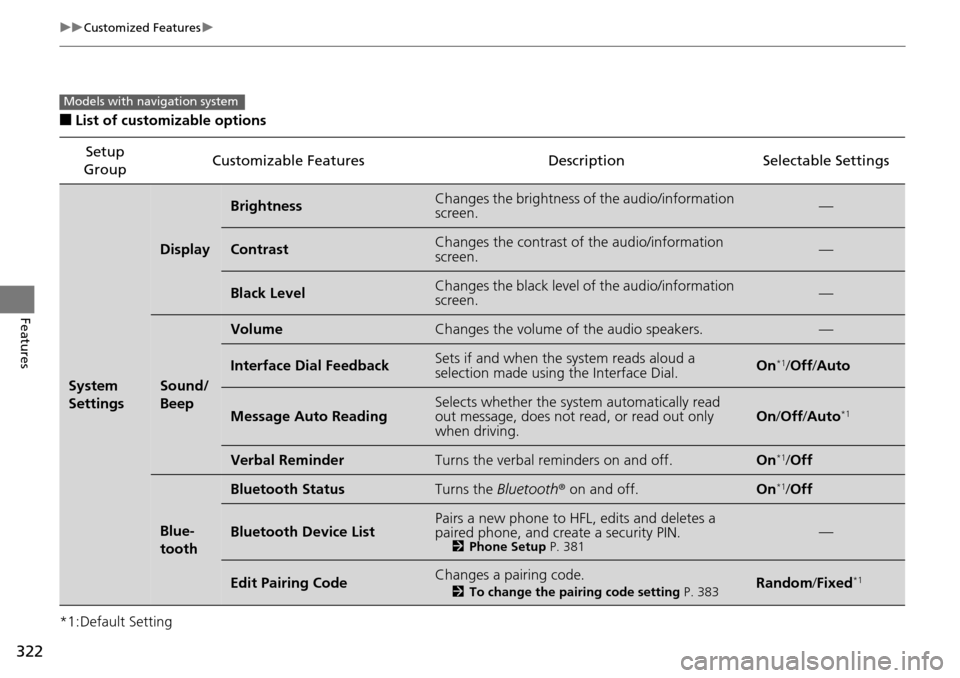
■List of customizable options
*1:Default Setting Setup
Group Customizable Features Descri
ption Selectable Settings
System
Settings
Display
BrightnessChanges the brightness of the audio/information
screen.—
ContrastChanges the contrast of the audio/information
screen.—
Black LevelChanges the black level of the audio/information
screen.—
Sound/
Beep
VolumeChanges the volume of the audio speakers.—
Interface Dial FeedbackSets if and when the system reads aloud a
selection made using the Interface Dial.On*1/Off /Auto
Message Auto ReadingSelects whether the system automatically read
out message, does not read, or read out only
when driving.On /Off /Auto*1
Verbal ReminderTurns the verbal reminders on and off.On*1/Off
Blue-
tooth
Bluetooth StatusTurns the Bluetooth ® on and off.On*1/Off
Bluetooth Device ListPairs a new phone to HFL, edits and deletes a
paired phone, and create a security PIN.
2 Phone Setup P. 381—
Edit Pairing CodeChanges a pairing code.
2To change the pairing code setting P. 383Random/Fixed*1
Models with navigation system
Page 324 of 593
323
uuCustomized Features u
Continued
Features
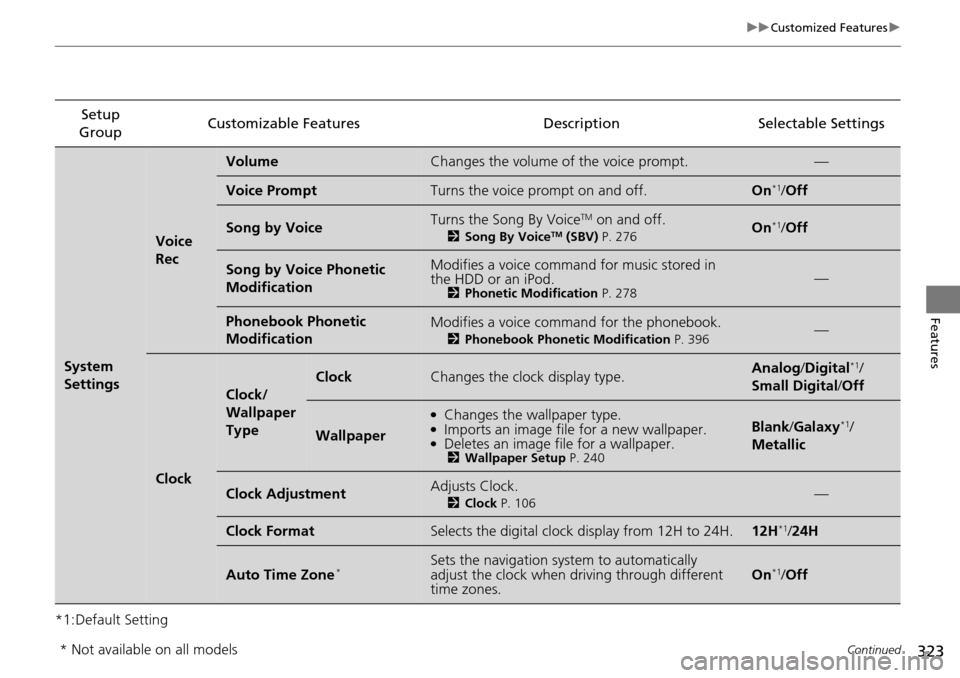
*1:Default SettingSetup
Group Customizable Features Description Selectable Settings
System
Settings
Voice
Rec
VolumeChanges the volume of the voice prompt.—
Voice PromptTurns the voice prompt on and off.On*1/
Off
Song by VoiceTurns the Song By VoiceTM on and off.
2 Song By VoiceTM (SBV) P. 276On*1/Off
Song by Voice Phonetic
ModificationModifies a voice command for music stored in
the HDD or an iPod.
2 Phonetic Modification P. 278—
Phonebook Phonetic
ModificationModifies a voice command for the phonebook.
2Phonebook Phonetic Modification P. 396—
Clock
Clock/
Wallpaper
Type
ClockChanges the clock display type.Analog/Digital*1/
Small Digital/ Off
Wallpaper
●Changes the wallpaper type.●Imports an image file for a new wallpaper.●Deletes an image file for a wallpaper.2Wallpaper Setup P. 240
Blank/Galaxy*1/
Metallic
Clock AdjustmentAdjusts Clock.
2 Clock P. 106—
Clock FormatSelects the digital clock display from 12H to 24H.12H*1/24H
Auto Time Zone*Sets the navigation syst em to automatically
adjust the clock when driving through different
time zones.On*1/ Off
* Not available on all models
Page 325 of 593
324
uuCustomized Features u
Features
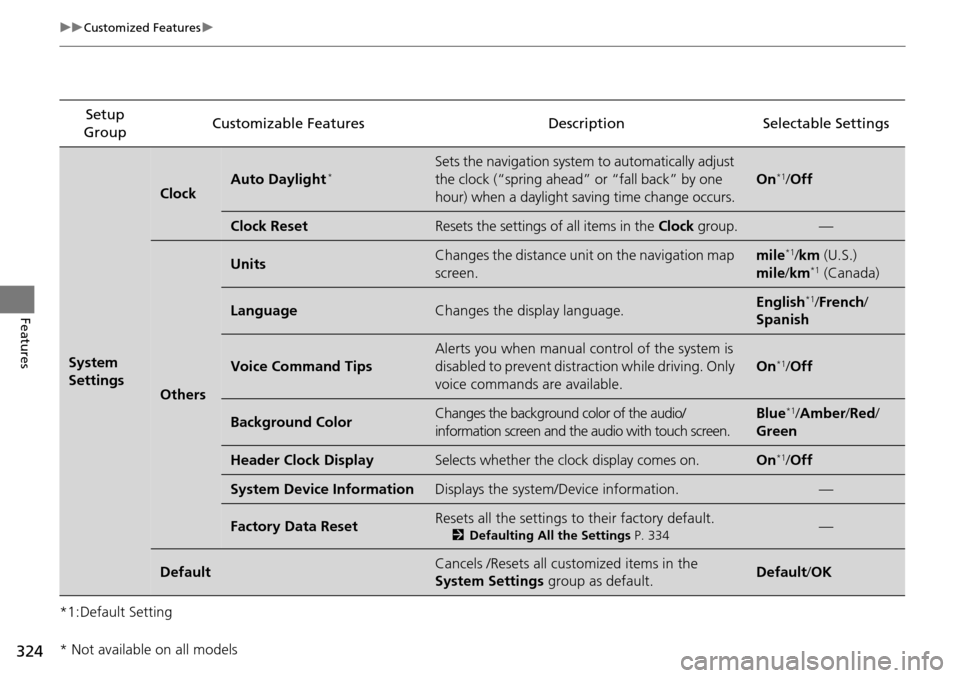
*1:Default SettingSetup
Group Customizable Features Descri
ption Selectable Settings
System
Settings
ClockAuto Daylight*Sets the navigation system to automatically adjust
the clock (“spring ahead” or “fall back” by one
hour) when a daylight saving time change occurs.
On*1/Off
Clock ResetResets the settings of all items in the Clock group.—
Others
UnitsChanges the distance unit on the navigation map
screen.mile*1/km (U.S.)
mile /km*1 (Canada)
LanguageChanges the display language.English*1/French /
Spanish
Voice Command Tips
Alerts you when manual control of the system is
disabled to prevent distraction while driving. Only
voice commands are available.
On*1/ Off
Background ColorChanges the background color of the audio/
information screen and the audio with touch screen.Blue*1/Amber /Red/
Green
Header Clock DisplaySelects whether the clock display comes on.On*1/ Off
System Device InformationDisplays the system /Device information.—
Factory Data ResetResets all the settings to their factory default.
2Defaulting All the Settings P. 334—
DefaultCancels /Resets all customized items in the
System Settings group as default.Default/OK
* Not available on all models
Page 329 of 593
328
uuCustomized Features u
Features
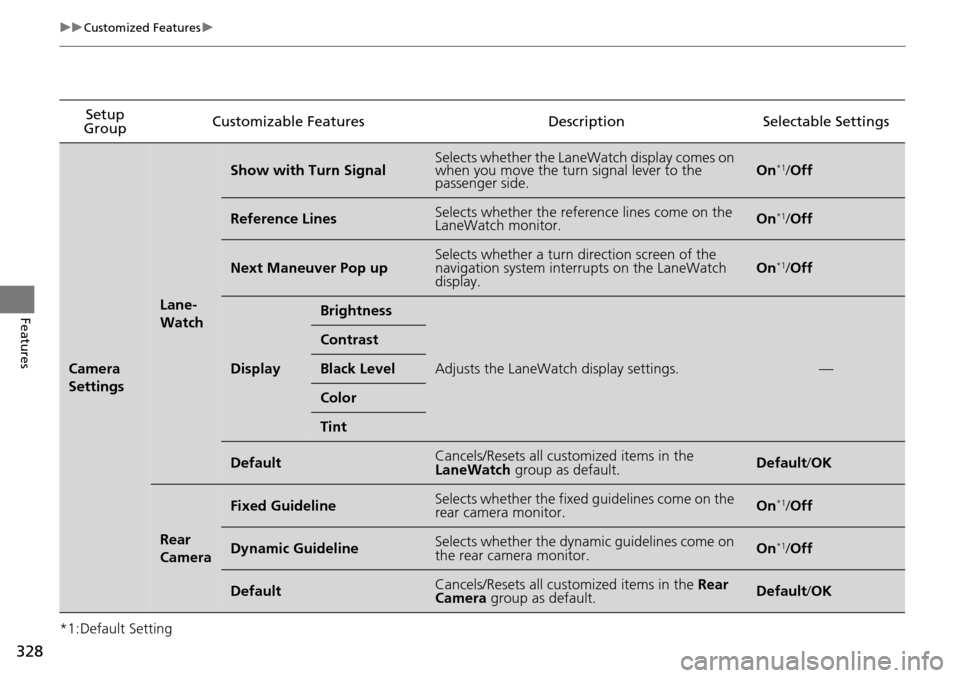
*1:Default SettingSetup
Group Customizable Features
Description Selectable Settings
Camera
Settings
Lane-
Watch
Show with Turn SignalSelects whether the LaneWatch display comes on
when you move the turn signal lever to the
passenger side.On*1/Off
Reference LinesSelects whether the reference lines come on the
LaneWatch monitor.On*1/Off
Next Maneuver Pop upSelects whether a turn direction screen of the
navigation system interrupts on the LaneWatch
display.On*1/Off
Display
Brightness
Adjusts the LaneWatch display settings.—
Contrast
Black Level
Color
Tint
DefaultCancels/Resets all cust omized items in the
LaneWatch group as default.Default/OK
Rear
Camera
Fixed GuidelineSelects whether the fixed guidelines come on the
rear camera monitor.On*1/ Off
Dynamic GuidelineSelects whether the dynamic guidelines come on
the rear camera monitor.On*1/Off
DefaultCancels/Resets all cust omized items in the Rear
Camera group as default.Default/OK
Page 334 of 593
333
uuCustomized Features uDefaulting All the Settings
Features
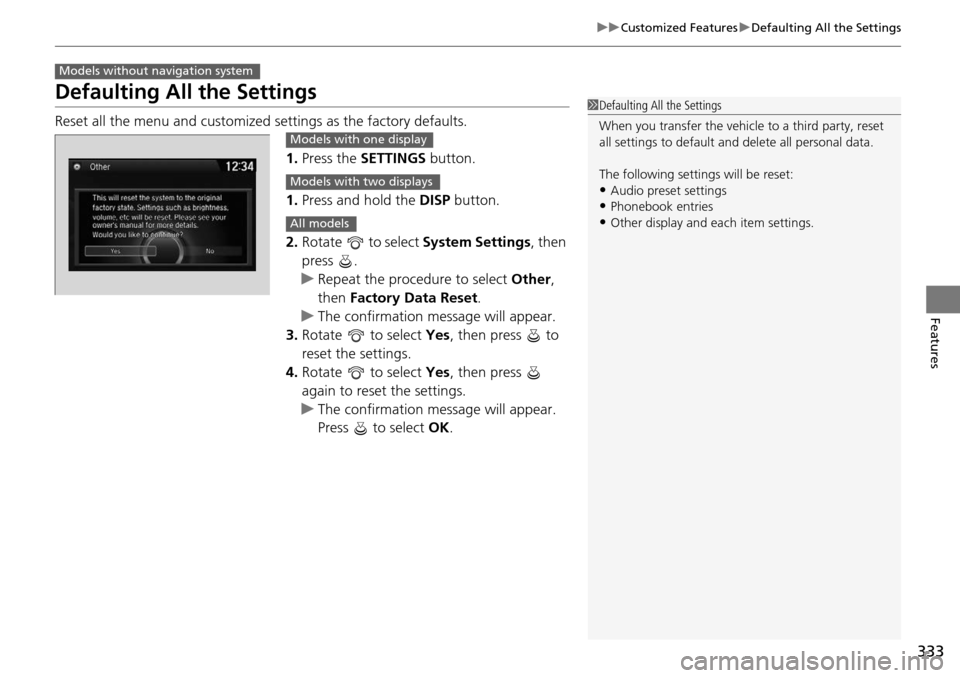
Defaulting All the Settings
Reset all the menu and customized settings as the factory defaults.
1.Press the SETTINGS button.
1. Press and hold the DISP button.
2. Rotate to select System Settings, then
press .
u Repeat the procedure to select Other,
then Factory Data Reset .
u The confirmation message will appear.
3. Rotate to select Yes, then press to
reset the settings.
4. Rotate to select Yes, then press
again to reset the settings.
u The confirmation message will appear.
Press to select OK.
Models without navigation system
1Defaulting All the Settings
When you transfer the vehicle to a third party, reset
all settings to default a nd delete all personal data.
The following settings will be reset:
•Audio preset settings
•Phonebook entries•Other display and ea ch item settings.
Models with one display
Models with two displays
All models
Page 335 of 593
334
uuCustomized Features uDefaulting All the Settings
Features
Defaulting All the Settings
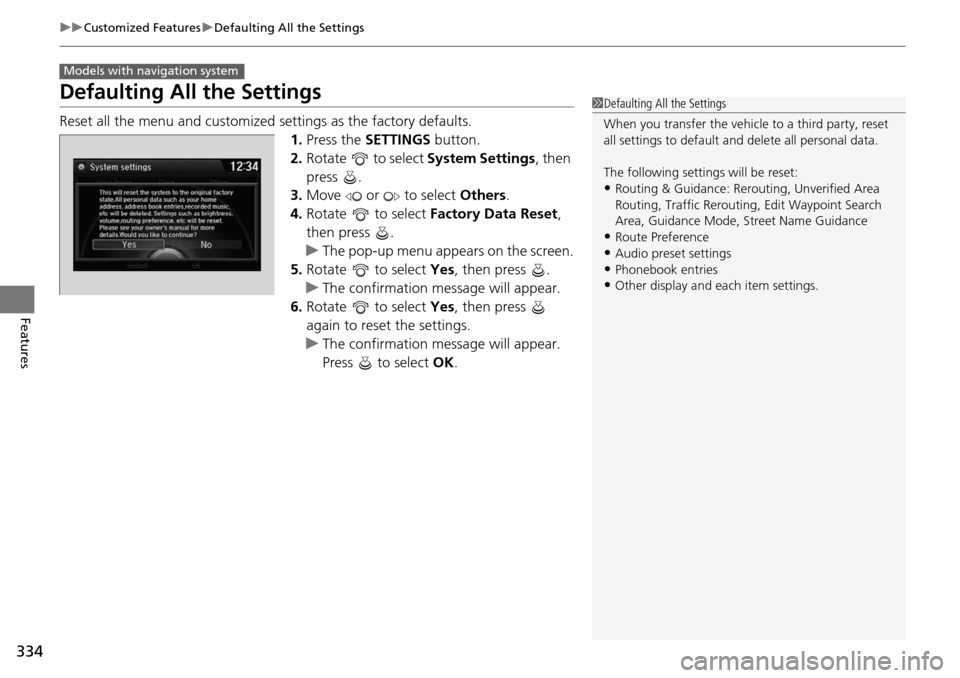
Reset all the menu and customized settings as the factory defaults.
1. Press the SETTINGS button.
2. Rotate to select System Settings, then
press .
3. Move or to select Others.
4. Rotate to select Factory Data Reset ,
then press .
u The pop-up menu appears on the screen.
5. Rotate to select Yes, then press .
u The confirmation message will appear.
6. Rotate to select Yes, then press
again to reset the settings.
u The confirmation message will appear.
Press to select OK.
Models with navigation system
1Defaulting All the Settings
When you transfer the vehicle to a third party, reset
all settings to default a nd delete all personal data.
The following settings will be reset:
•Routing & Guidance: Rerout ing, Unverified Area
Routing, Traffic Re routing, Edit Waypoint Search
Area, Guidance Mode, Street Name Guidance
•Route Preference
•Audio preset settings
•Phonebook entries•Other display and ea ch item settings.