phone HONDA ACCORD HYBRID 2014 9.G Repair Manual
[x] Cancel search | Manufacturer: HONDA, Model Year: 2014, Model line: ACCORD HYBRID, Model: HONDA ACCORD HYBRID 2014 9.GPages: 561, PDF Size: 20.3 MB
Page 354 of 561
Continued353
uuBluetooth® HandsFreeLink ®uHFL Menus
Features
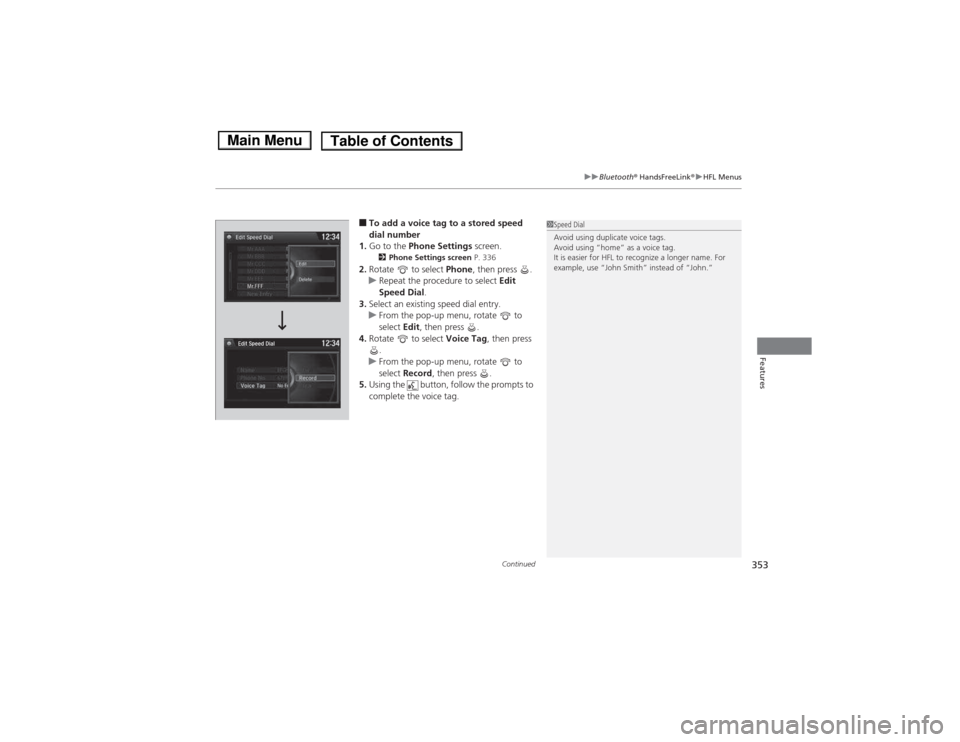
■To add a voice tag to a stored speed
dial number
1. Go to the Phone Settings screen.
2 Phone Settings screen P. 336
2. Rotate to select Phone, then press .
uRepeat the procedure to select Edit
Speed Dial .
3. Select an existing speed dial entry.
uFrom the pop-up menu, rotate to
select Edit, then press .
4. Rotate to select Voice Tag, then press
.
uFrom the pop-up menu, rotate to
select Record , then press .
5. Using the button, follow the prompts to complete the voice tag.
1Speed Dial
Avoid using duplicate voice tags.
Avoid using “home” as a voice tag.
It is easier for HFL to recognize a longer name. For
example, use “John Smith” instead of “John.”
Main MenuTable of Contents
Page 355 of 561
354
uuBluetooth® HandsFreeLink ®uHFL Menus
Features
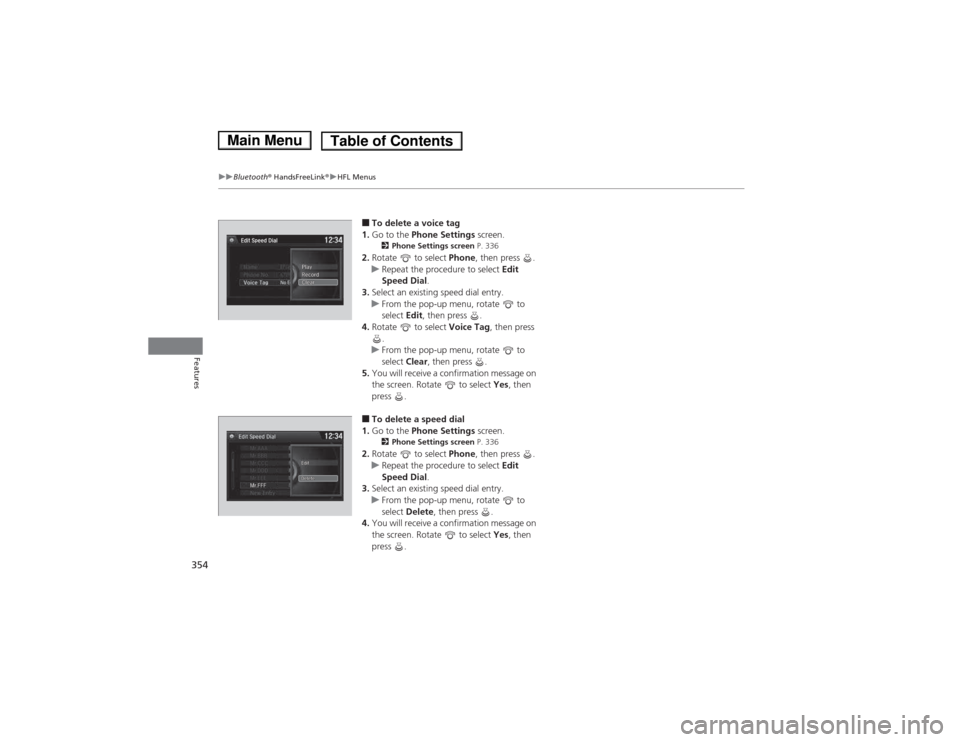
■To delete a voice tag
1. Go to the Phone Settings screen.
2 Phone Settings screen P. 336
2. Rotate to select Phone, then press .
uRepeat the procedure to select Edit
Speed Dial .
3. Select an existing speed dial entry.
uFrom the pop-up menu, rotate to select Edit, then press .
4. Rotate to select Voice Tag, then press
.
uFrom the pop-up menu, rotate to select Clear, then press .
5. You will receive a confirmation message on
the screen. Rotate to select Yes, then
press .
■ To delete a speed dial
1. Go to the Phone Settings screen.
2 Phone Settings screen P. 336
2. Rotate to select Phone, then press .
uRepeat the procedure to select Edit
Speed Dial .
3. Select an existing speed dial entry.
uFrom the pop-up menu, rotate to select Delete , then press .
4. You will receive a confirmation message on
the screen. Rotate to select Yes, then
press .
Main MenuTable of Contents
Page 356 of 561
Continued355
uuBluetooth® HandsFreeLink ®uHFL Menus
Features
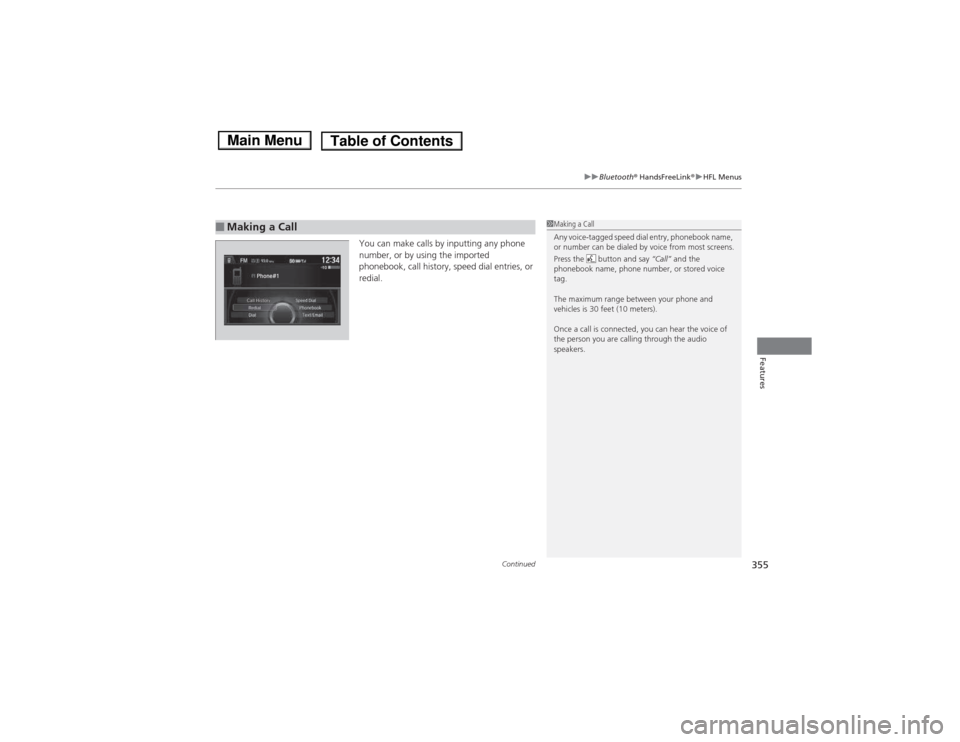
You can make calls by inputting any phone
number, or by using the imported
phonebook, call history, speed dial entries, or
redial.
■Making a Call1Making a Call
Any voice-tagged speed dial entry, phonebook name,
or number can be dialed by voice from most screens.
Press the button and say “Call” and the
phonebook name, phone number, or stored voice
tag.
The maximum range between your phone and
vehicles is 30 feet (10 meters).
Once a call is connected, you can hear the voice of
the person you are calling through the audio
speakers.
Main MenuTable of Contents
Page 357 of 561
uuBluetooth® HandsFreeLink ®uHFL Menus
356
Features
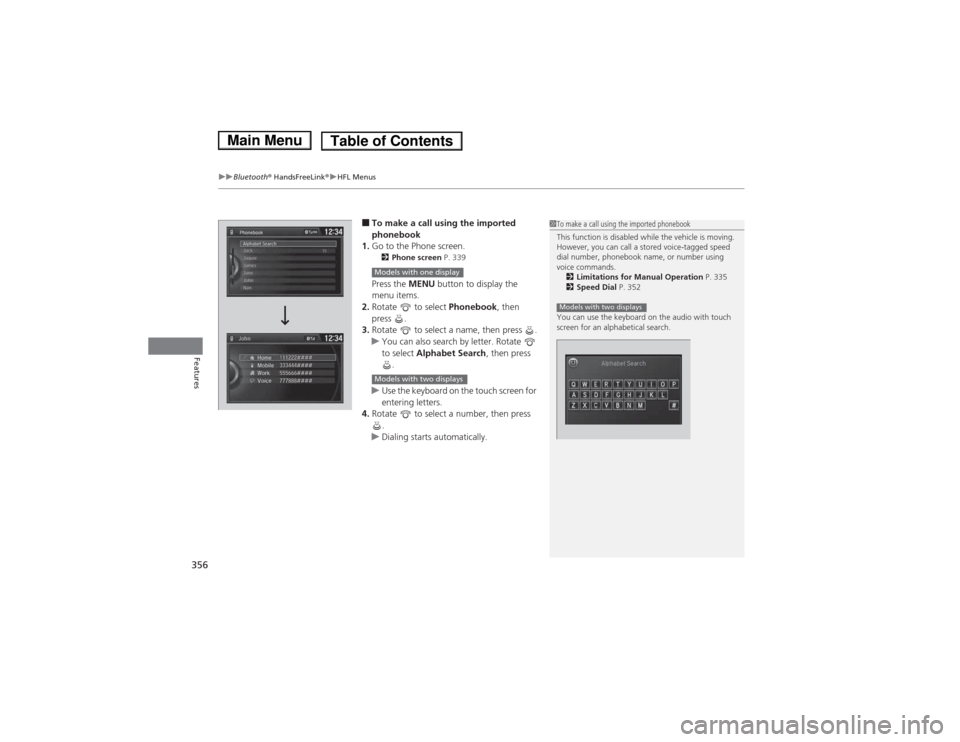
■ To make a call using the imported
phonebook
1. Go to the Phone screen.
2 Phone screen P. 339
Press the MENU button to display the
menu items.
2. Rotate to select Phonebook, then
press .
3. Rotate to select a name, then press .
uYou can also search by letter. Rotate to select Alphabet Search , then press
.
uUse the keyboard on the touch screen for
entering letters.
4. Rotate to select a number, then press
.
uDialing starts automatically.
1To make a call using the imported phonebook
This function is disabled while the vehicle is moving.
However, you can call a stored voice-tagged speed
dial number, phonebook name, or number using
voice commands.2 Limitations for Manual Operation P. 335
2 Speed Dial P. 352
You can use the keyboard on the audio with touch
screen for an alphabetical search.
Models with two displays
Models with one display
Models with two displays
Main MenuTable of Contents
Page 358 of 561
Continued357
uuBluetooth® HandsFreeLink ®uHFL Menus
Features
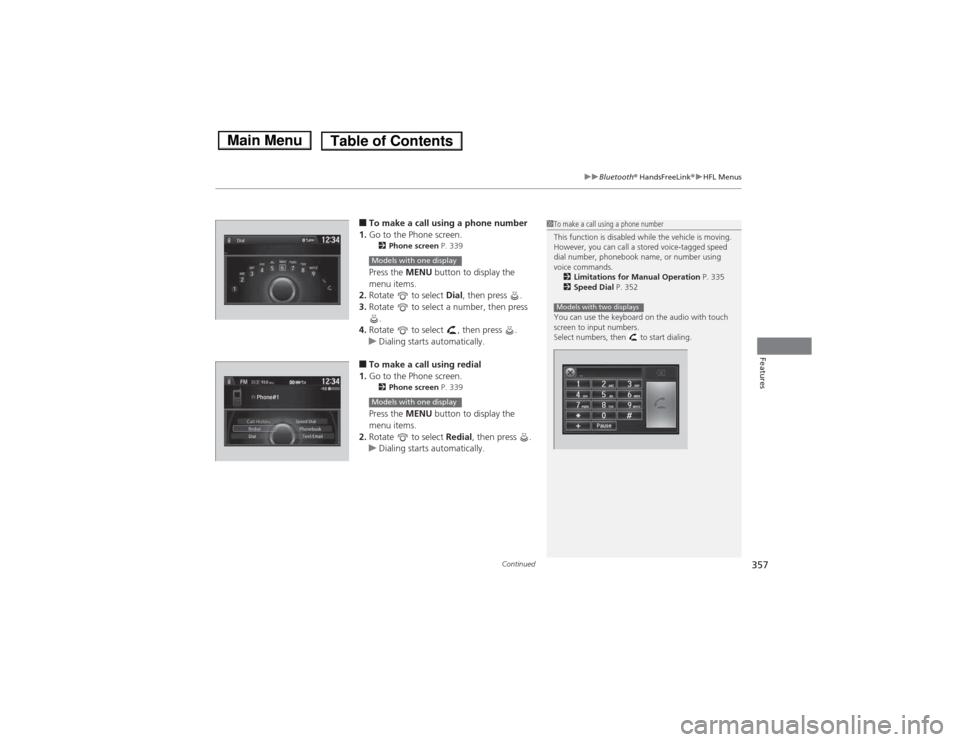
■To make a call using a phone number
1. Go to the Phone screen.
2 Phone screen P. 339
Press the MENU button to display the
menu items.
2. Rotate to select Dial, then press .
3. Rotate to select a number, then press
.
4. Rotate to select , then press .
uDialing starts automatically.
■ To make a call using redial
1. Go to the Phone screen.
2 Phone screen P. 339
Press the MENU button to display the
menu items.
2. Rotate to select Redial, then press .
uDialing starts automatically.
1To make a call using a phone number
This function is disabled while the vehicle is moving.
However, you can call a stored voice-tagged speed
dial number, phonebook name, or number using
voice commands.
2 Limitations for Manual Operation P. 335
2 Speed Dial P. 352
You can use the keyboard on the audio with touch
screen to input numbers.
Select numbers, then to start dialing.
Models with two displays
Models with one display
Models with one display
Main MenuTable of Contents
Page 359 of 561
uuBluetooth® HandsFreeLink ®uHFL Menus
358
Features
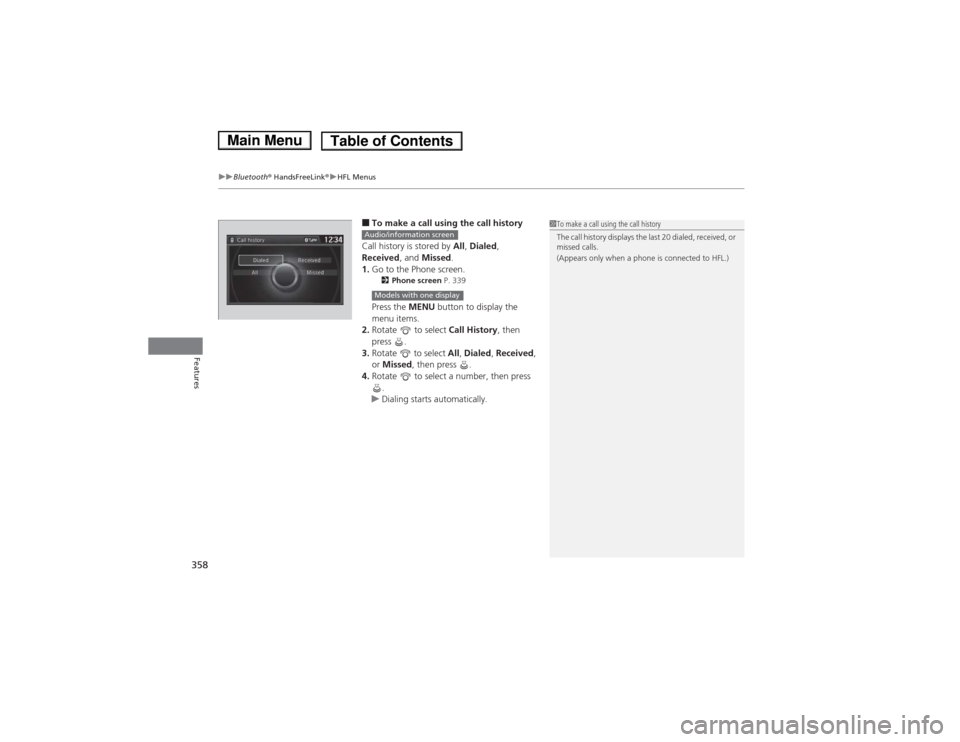
■ To make a call using the call history
Call history is stored by All, Dialed ,
Received , and Missed .
1. Go to the Phone screen.
2 Phone screen P. 339
Press the MENU button to display the
menu items.
2. Rotate to select Call History, then
press .
3. Rotate to select All, Dialed , Received ,
or Missed , then press .
4. Rotate to select a number, then press
.
uDialing starts automatically.
1To make a call using the call history
The call history displays the last 20 dialed, received, or
missed calls.
(Appears only when a phone is connected to HFL.)Audio/information screen
Models with one display
Main MenuTable of Contents
Page 361 of 561
uuBluetooth® HandsFreeLink ®uHFL Menus
360
Features
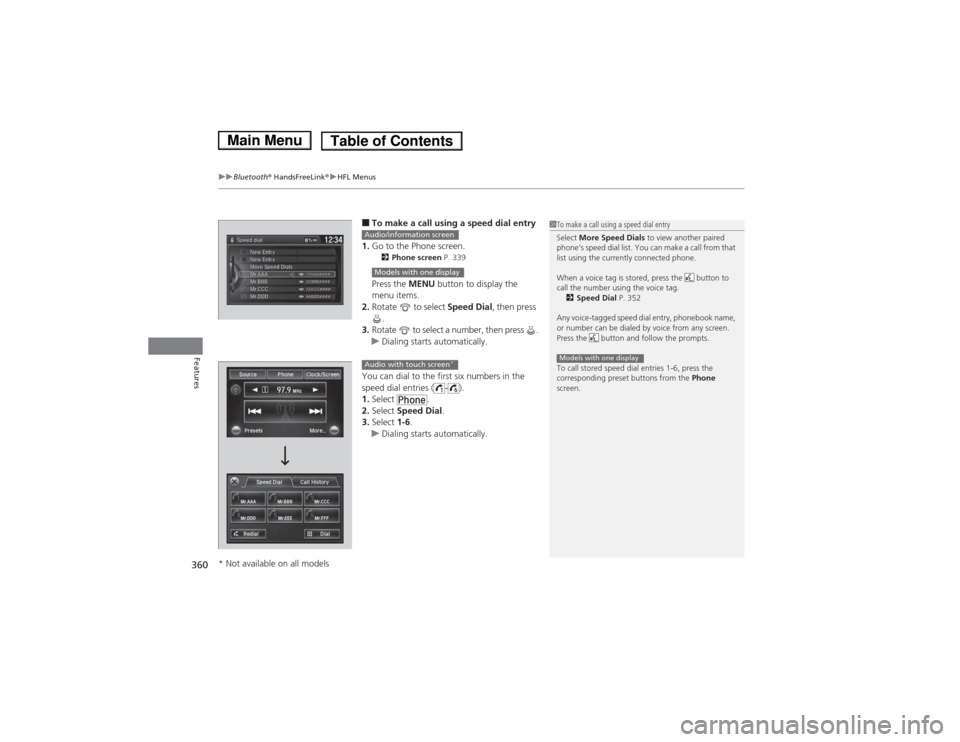
■ To make a call using a speed dial entry
1. Go to the Phone screen.
2 Phone screen P. 339
Press the MENU button to display the
menu items.
2. Rotate to select Speed Dial, then press
.
3. Rotate to select a number, then press .
uDialing starts automatically.
You can dial to the first six numbers in the
speed dial entries ( - ). 1. Select .
2. Select Speed Dial .
3. Select 1-6.
uDialing starts automatically.
1To make a call using a speed dial entry
Select More Speed Dials to view another paired
phone’s speed dial list. You can make a call from that
list using the currently connected phone.
When a voice tag is stored, press the button to
call the number using the voice tag. 2 Speed Dial P. 352
Any voice-tagged speed dial entry, phonebook name,
or number can be dialed by voice from any screen.
Press the button and follow the prompts.
To call stored speed dial entries 1-6, press the
corresponding preset buttons from the Phone
screen.
Models with one display
Audio/information screen
Models with one display
Audio with touch screen *
* Not available on all models
Main MenuTable of Contents
Page 363 of 561
uuBluetooth® HandsFreeLink ®uHFL Menus
362
Features
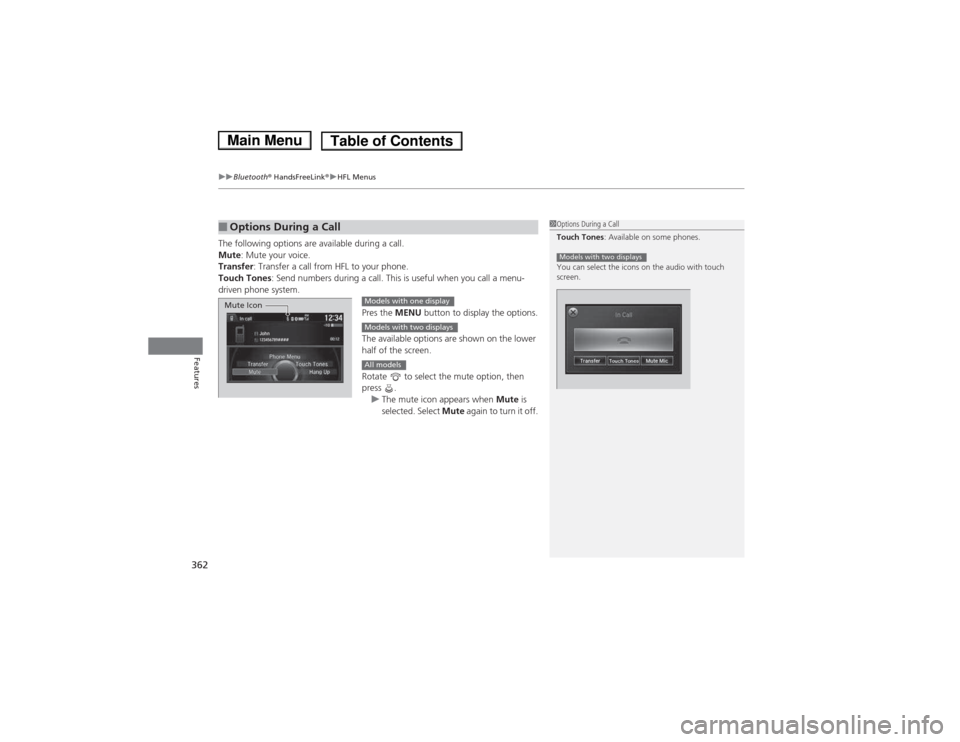
The following options are available during a call.
Mute : Mute your voice.
Transfer : Transfer a call from HFL to your phone.
Touch Tones : Send numbers during a call. This is useful when you call a menu-
driven phone system.
Pres the MENU button to display the options.
The available options are shown on the lower half of the screen.
Rotate to select the mute option, then press .
uThe mute icon appears when Mute is
selected. Select Mute again to turn it off.
■Options During a Call1Options During a Call
Touch Tones : Available on some phones.
You can select the icons on the audio with touch
screen.
Models with two displays
Mute IconModels with one display
Models with two displays
All models
Main MenuTable of Contents
Page 364 of 561
Continued363
uuBluetooth® HandsFreeLink ®uHFL Menus
Features
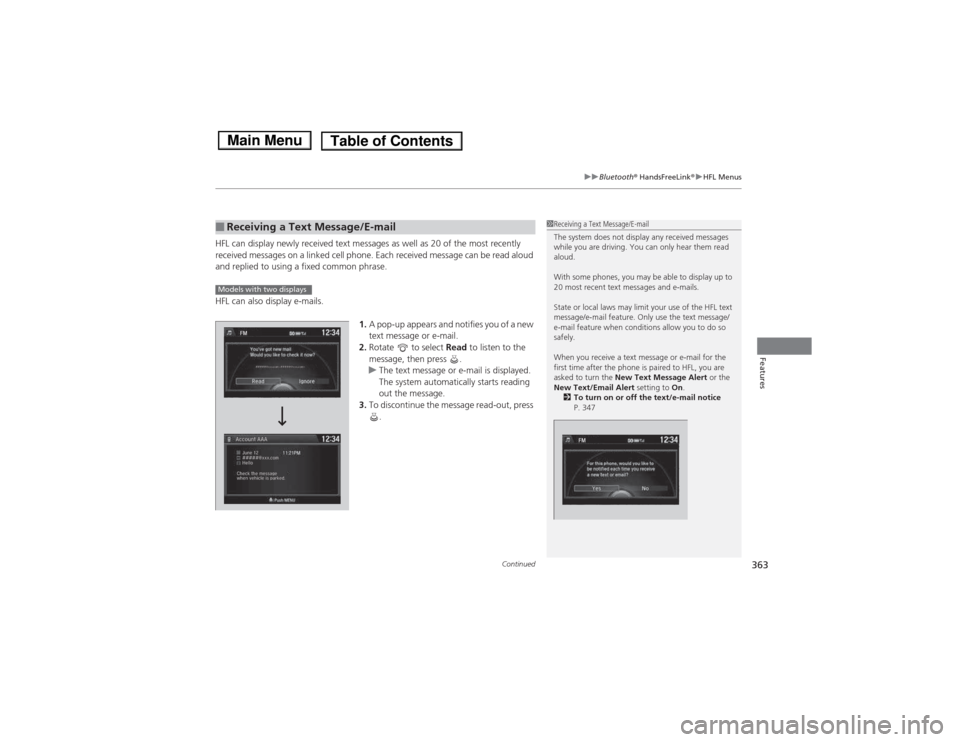
HFL can display newly receiv ed text messages as well as 20 of the most recently
received messages on a linked cell phone. Each received message can be read aloud
and replied to using a fixed common phrase.
HFL can also display e-mails.
1.A pop-up appears and notifies you of a new
text message or e-mail.
2. Rotate to select Read to listen to the
message, then press .
uThe text message or e-mail is displayed.
The system automatically starts reading
out the message.
3. To discontinue the message read-out, press
.
■Receiving a Text Message/E-mail1Receiving a Text Message/E-mail
The system does not display any received messages
while you are driving. You can only hear them read
aloud.
With some phones, you may be able to display up to
20 most recent text messages and e-mails.
State or local laws may limit your use of the HFL text
message/e-mail feature. Only use the text message/
e-mail feature when conditions allow you to do so
safely.
When you receive a text message or e-mail for the
first time after the phone is paired to HFL, you are asked to turn the New Text Message Alert or the
New Text/Email Alert setting to On.
2 To turn on or off the text/e-mail notice
P. 347
Models with two displays
Main MenuTable of Contents
Page 365 of 561
uuBluetooth® HandsFreeLink ®uHFL Menus
364
Features
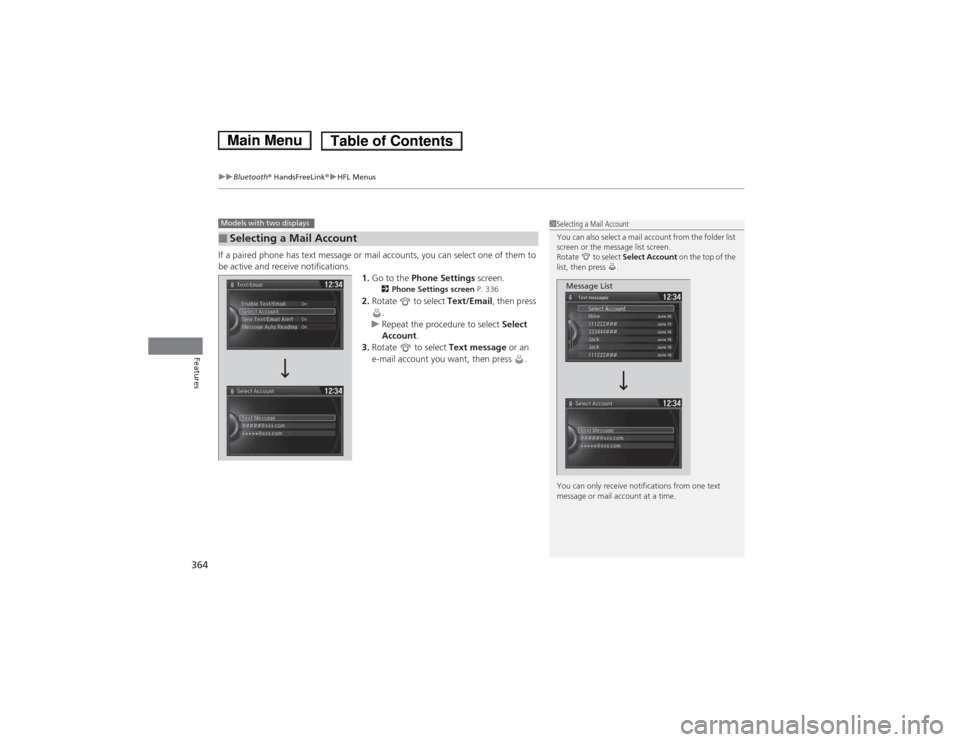
If a paired phone has text message or mail accounts, you can select one of them to
be active and receive notifications. 1.Go to the Phone Settings screen.
2 Phone Settings screen P. 336
2. Rotate to select Text/Email, then press
.
uRepeat the procedure to select Select
Account .
3. Rotate to select Text message or an
e-mail account you want, then press .
■Selecting a Mail Account
Models with two displays1Selecting a Mail Account
You can also select a mail account from the folder list
screen or the message list screen.
Rotate to select Select Account on the top of the
list, then press .
You can only receive notifications from one text
message or mail account at a time.
Message List
Main MenuTable of Contents