ad blue HONDA ACCORD HYBRID 2014 9.G Owners Manual
[x] Cancel search | Manufacturer: HONDA, Model Year: 2014, Model line: ACCORD HYBRID, Model: HONDA ACCORD HYBRID 2014 9.GPages: 561, PDF Size: 20.3 MB
Page 2 of 561
Contents
Child Safety P. 56 Exhaust Gas Hazard P. 68 Safety Labels P. 69
Opening and Closing the Trunk P. 122 Security System P. 126 Opening and Closing the Windows P. 129
Operating the Switches Around the Steering Wheel P. 133 Adjusting the Mirrors P. 146
Interior Lights/Interior Convenience Items P. 155 Climate Control System P. 165
Audio Error Messages P. 283 General Information on the Audio System P. 289
Bluetooth® HandsFreeLink ® P. 333, 370
When Driving P. 416 Braking P. 452 Parking Your Vehicle P. 456
Accessories and Modifications P. 462
Maintenance Under the Hood P. 471 Replacing Light Bulbs P. 484
Checking and Maintaining Tires P. 493 12-Volt Battery P. 502 Remote Transmitter Care P. 503
Cleaning P. 505
Jump Starting P. 522 Shift Lever Does Not Move P. 524
Fuses P. 532 Emergency Towing P. 535
Devices that Emit Radio Waves P. 541 Reporting Safety Defects P. 542
Authorized Manuals P. 547 Customer Service Information P. 548
Quick Reference GuideP. 2
Safe DrivingP. 31
Instrument PanelP. 71
ControlsP. 109
FeaturesP. 169
DrivingP. 409
MaintenanceP. 463
Handling the UnexpectedP. 509
InformationP. 537
IndexP. 552
Note: All page numbers referenced in this document are hyperlinked.
2014 ACCORD HYBRID Online Reference Owner's Manual
Page 4 of 561
3
Quick Reference Guide
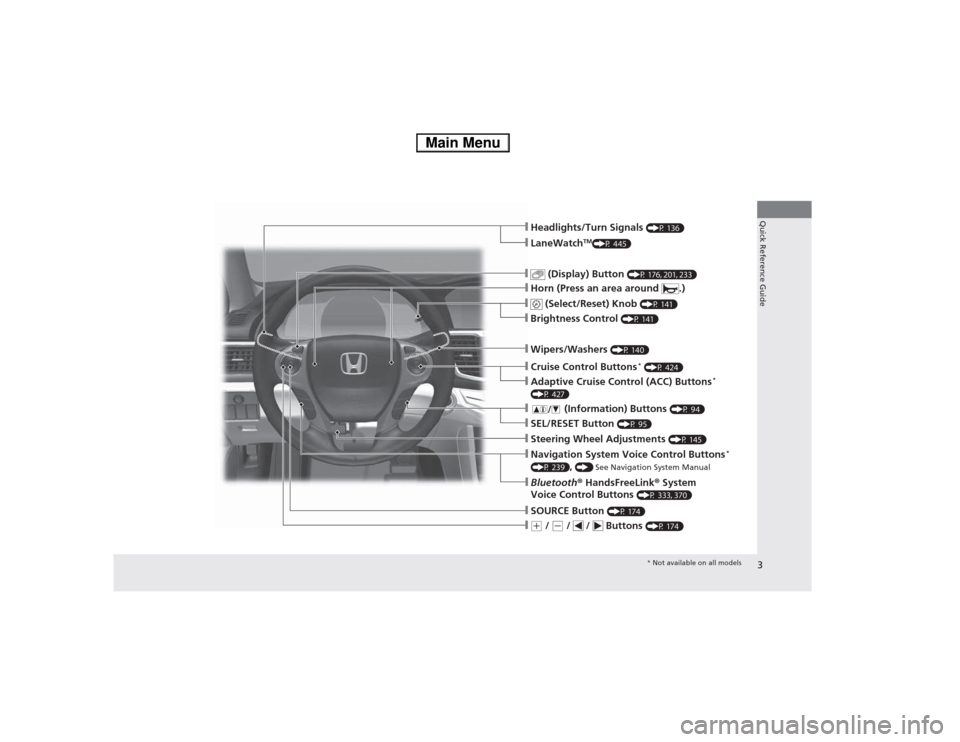
❙(+ / (- / / Buttons (P 174)
❙SOURCE Button (P 174)
❙Bluetooth® HandsFreeLink ® System
Voice Control Buttons (P 333, 370)
❙Navigation System Voice Control Buttons *
(P 239) , () See Navigation System Manual
❙Steering Wheel Adjustments (P 145)
❙SEL/RESET Button (P 95)
❙ (Information) Buttons (P 94)
❙Adaptive Cruise Control (ACC) Buttons *
(P 427)
❙Cruise Control Buttons *
(P 424)
❙Wipers/Washers (P 140)
❙Brightness Control (P 141)
❙ (Select/Reset) Knob (P 141)
❙Horn (Press an area around .)
❙ (Display) Button (P 176, 201, 233)
❙LaneWatchTM
(P 445)
❙Headlights/Turn Signals (P 136)
* Not available on all models
Main Menu
Page 14 of 561
13
Quick Reference Guide
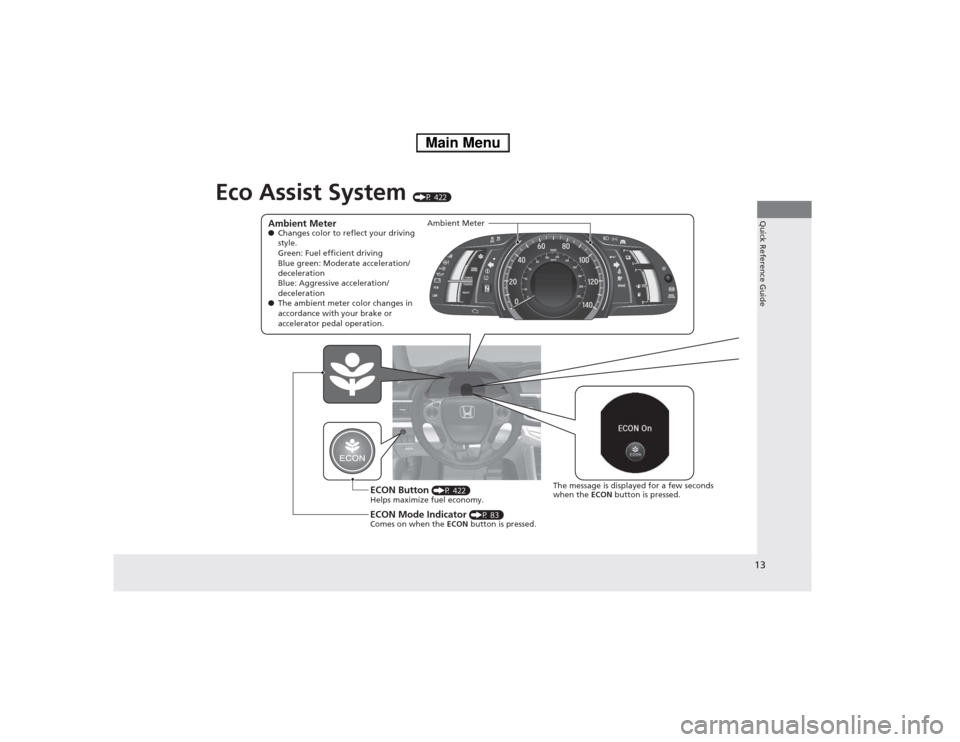
Eco Assist System (P 422)
Ambient Meter ●Changes color to reflect your driving
style.
Green: Fuel efficient driving
Blue green: Moderate acceleration/
deceleration
Blue: Aggressive acceleration/
deceleration
● The ambient meter color changes in
accordance with your brake or
accelerator pedal operation.
ECON Button (P 422)
Helps maximize fuel economy.
ECON Mode Indicator (P 83)
Comes on when the ECON button is pressed.
The message is displayed for a few seconds when the ECON button is pressed.
Ambient Meter
Main Menu
Page 21 of 561
20
Quick Reference Guide
Features (P 169)
Audio Remote Controls
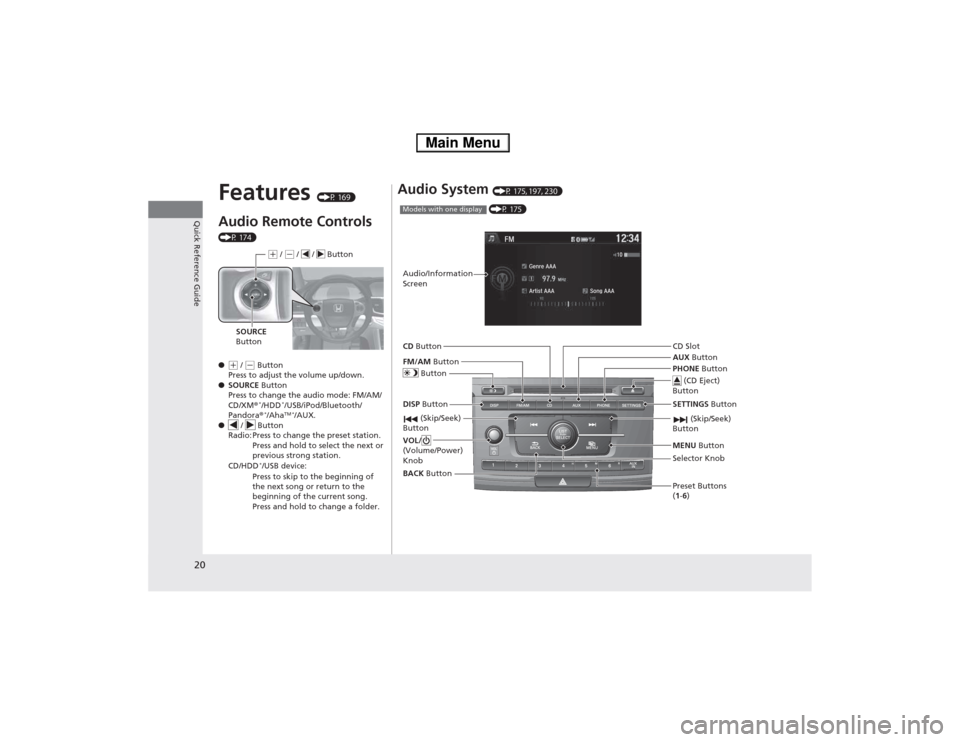
(P 174) ●
(+ / (- Button
Press to adjust the volume up/down.
● SOURCE Button
Press to change the audio mode: FM/AM/
CD/XM ®*
/HDD *
/USB/iPod/Bluetooth/
Pandora ®*
/Aha TM *
/AUX.
● / Button
Radio: Press to change the preset station.
Press and hold to select the next or
previous strong station.
CD/HDD *
/USB device:
Press to skip to the beginning of
the next song or return to the
beginning of the current song.
Press and hold to change a folder.
(+ / (- / / Button
SOURCE
Button
Audio System (P 175, 197, 230)
(P 175)Models with one display
Audio/Information Screen
BACK Button
FM/AM
Button
(Skip/Seek)
Button
Selector Knob
Button
VOL/
(Volume/Power) Knob
CD
Button
AUX Button
CD Slot
(CD Eject)
Button
Preset Buttons ( 1 -6 )
SETTINGS
Button
(Skip/Seek)
Button
PHONE Button
MENU Button
DISP Button
Main Menu
Page 100 of 561
Continued99
uuGauges and Multi-Information DisplayuMulti-Information Display
Instrument Panel
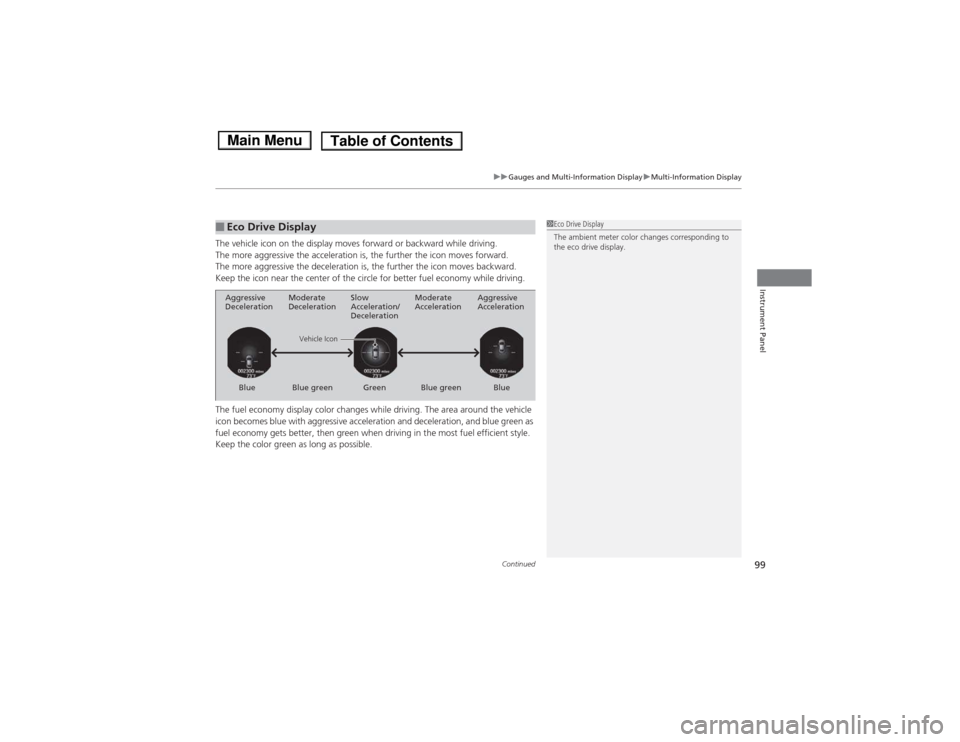
The vehicle icon on the display moves forward or backward while driving.
The more aggressive the acceleration is, the further the icon moves forward.
The more aggressive the deceleration is, the further the icon moves backward.
Keep the icon near the center of the circle for better fuel economy while driving.
The fuel economy display color changes while driving. The area around the vehicle
icon becomes blue with aggressive acceleration and deceleration, and blue green as
fuel economy gets better, then green when driving in the most fuel efficient style.
Keep the color green as long as possible.
■Eco Drive Display1Eco Drive Display
The ambient meter color changes corresponding to
the eco drive display.
Aggressive
Deceleration
Vehicle Icon Aggressive
Acceleration
Blue Green Blue Moderate
Deceleration
Slow
Acceleration/
Deceleration Moderate
Acceleration
Blue green Blue green
Main MenuTable of Contents
Page 170 of 561
169
Features
This chapter describes how to operate technology features.
Audio System USB Port .......................................... 171
Auxiliary Input Jack .......................... 172
Audio System Theft Protection *
....... 173
Audio Remote Controls .................... 174
Audio System Basic Operation ...... 175
Audio/Information Screen ................ 176
Display Setup ................................... 181
Playing AM/FM Radio ....................... 182
Playing a CD .................................... 184
Playing an iPod ................................ 187
Playing Internet Radio ...................... 190
Playing a USB Flash Drive ................. 192
Playing Bluetooth ® Audio................. 195
Models with one display
Audio System Basic Operation ...... 197
Audio with Touch Screen ................. 198
Audio/Information Screen ................ 201
Display Setup ................................... 207
Playing AM/FM Radio ....................... 208Playing XM ® Radio *
......................... 212
Playing a CD .................................... 215
Playing an iPod ................................ 218
Playing Internet Radio ...................... 222
Playing a USB Flash Drive ................. 225Playing Bluetooth ® Audio................. 228
Audio System Basic Operation ...... 230
Audio with Touch Screen ................. 231
Audio/Information Screen ................ 233Models with two displays
Models with navigation system
Display Setup ................................... 238
Voice Control Operation .................. 239
Playing AM/FM Radio....................... 247
Playing XM ® Radio ........................... 251
Playing a CD .................................... 254 Playing Hard Disc Drive (HDD) Audio..... 257
Playing an iPod ................................ 267
Playing Internet Radio .... .................. 275
Playing a USB Flash Drive ................. 278
Playing Bluetooth ® Audio ................ 281
Audio Error Messages ...................... 283
General Information on the Audio System.....289Customized Features........................ 293
HomeLink ® Universal Transceiver *
.. 331
Bluetooth ® HandsFreeLink ®..... 333 , 370
* Not available on all models
Main Menu
Page 171 of 561
170
Features
Audio System
About Your Audio System
See the Navigation System Manual for information on the navigation system.
The audio system features AM/FM radio and XM® Radio service *
. It can also play
audio CDs, WMA/MP3/AAC files, Hard Disc Drive (HDD) audio *
, USB flash drives,
and iPod, iPhone ® and Bluetooth ® devices.
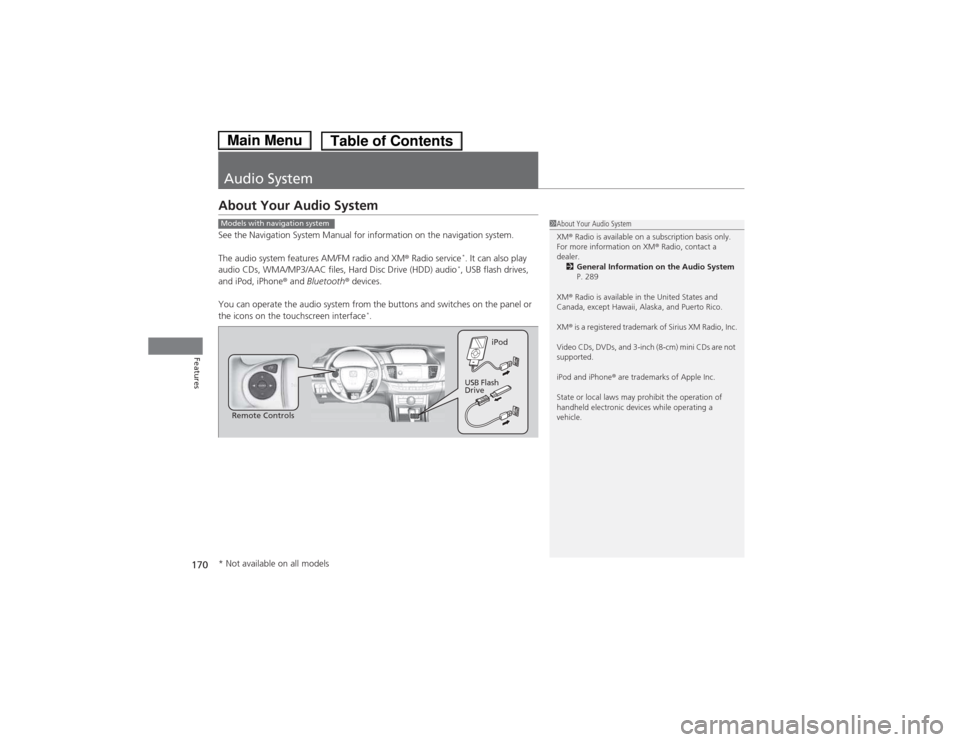
You can operate the audio system from the buttons and switches on the panel or
the icons on the touchscreen interface *
.
1About Your Audio System XM ® Radio is available on a subscription basis only.
For more information on XM ® Radio, contact a
dealer.
2 General Information on the Audio System
P. 289
XM ® Radio is available in the United States and
Canada, except Hawaii, Alaska, and Puerto Rico. XM ® is a registered trademark of Sirius XM Radio, Inc.
Video CDs, DVDs, and 3-inch (8-cm) mini CDs are not
supported.
iPod and iPhone ® are trademarks of Apple Inc.
State or local laws may prohibit the operation of
handheld electronic devices while operating a
vehicle.Models with navigation system
Remote Controls iPod
USB Flash
Drive
* Not available on all models
Main MenuTable of Contents
Page 175 of 561
174
uuAudio SystemuAudio Remote Controls
Features
Audio Remote Controls
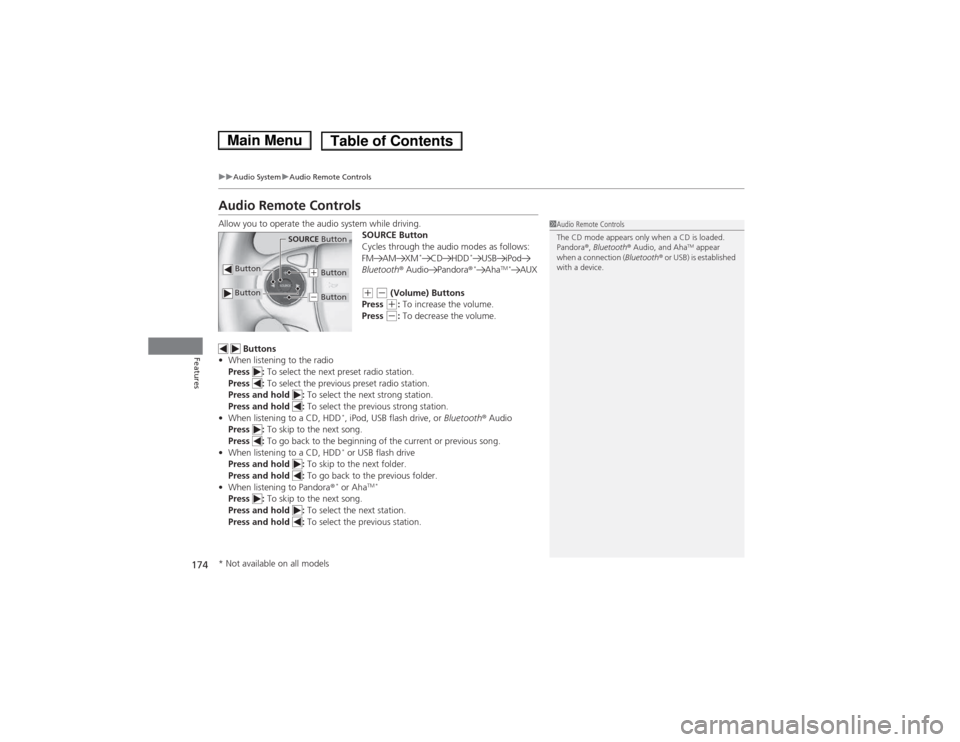
Allow you to operate the audio system while driving.SOURCE Button
Cycles through the audio modes as follows:
FM AM XM*
CD HDD *
USB iPod
Bluetooth ® Audio Pandora ®*
Aha TM *
AUX
(+ (- (Volume) Buttons
Press (+ : To increase the volume.
Press (- : To decrease the volume.
Buttons
• When listening to the radio
Press : To select the next preset radio station.
Press : To select the previous preset radio station.
Press and hold : To select the next strong station.
Press and hold : To select the previous strong station.
• When listening to a CD, HDD *
, iPod, USB flash drive, or Bluetooth® Audio
Press : To skip to the next song.
Press : To go back to the beginning of the current or previous song.
• When listening to a CD, HDD *
or USB flash drive
Press and hold : To skip to the next folder.
Press and hold : To go back to the previous folder.
• When listening to Pandora ®*
or Aha TM *
Press : To skip to the next song.
Press and hold : To select the next station.
Press and hold : To select the previous station.
1Audio Remote Controls
The CD mode appears only when a CD is loaded.
Pandora®, Bluetooth ® Audio, and Aha TM
appear
when a connection ( Bluetooth® or USB) is established
with a device.
Button
SOURCE Button
Button
(+ Button
(- Button
* Not available on all models
Main MenuTable of Contents
Page 191 of 561
190
uuAudio System Basic OperationuPlaying Internet Radio
Features
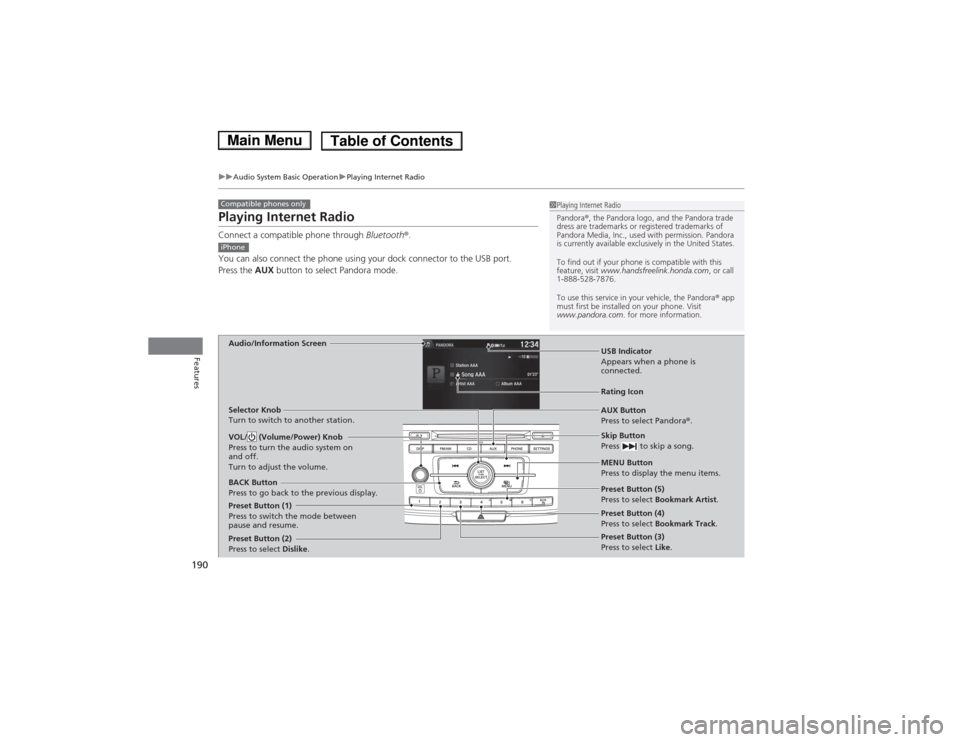
Playing Internet Radio
Connect a compatible phone through Bluetooth®.
You can also connect the phone using your dock connector to the USB port. Press the AUX button to select Pandora mode.
Compatible phones only1Playing Internet Radio
Pandora ®, the Pandora logo, and the Pandora trade
dress are trademarks or registered trademarks of
Pandora Media, Inc., used with permission. Pandora
is currently available exclusively in the United States.
To find out if your phone is compatible with this
feature, visit www.handsfreelink.honda.com , or call
1-888-528-7876.
To use this service in your vehicle, the Pandora ® app
must first be installed on your phone. Visit
www.pandora.com . for more information.
iPhone
Audio/Information Screen
AUX Button
Press to select Pandora®.
Skip Button
Press to skip a song.
MENU Button
Press to display the menu items.
Selector Knob
Turn to switch to another station.
VOL/ (Volume/Power) Knob
Press to turn the audio system on and off.
Turn to adjust the volume.
BACK Button
Press to go back to the previous display.
USB Indicator
Appears when a phone is
connected.
Rating Icon
Preset Button (1)
Press to switch the mode between
pause and resume.
Preset Button (2) Press to select
Dislike. Preset Button (3)
Press to select
Like.
Preset Button (4)
Press to select
Bookmark Track .
Preset Button (5)
Press to select
Bookmark Artist .
Main MenuTable of Contents
Page 192 of 561
191
uuAudio System Basic OperationuPlaying Internet Radio
Features
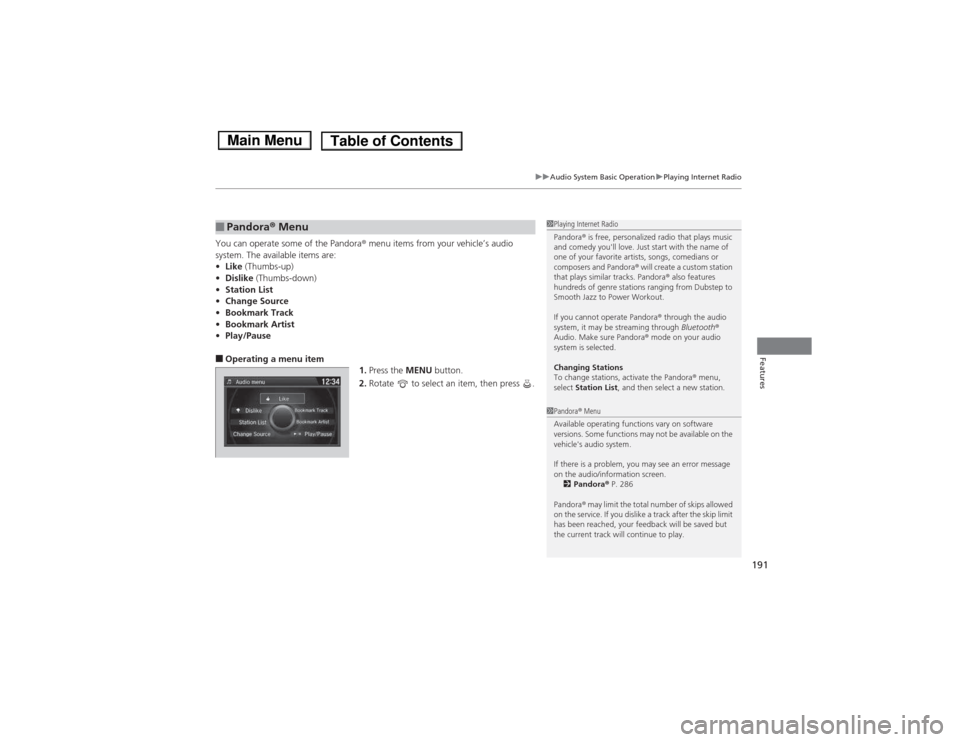
You can operate some of the Pandora® menu items from your vehicle’s audio
system. The available items are: • Like (Thumbs-up)
• Dislike (Thumbs-down)
• Station List
• Change Source
• Bookmark Track
• Bookmark Artist
• Play/Pause
■ Operating a menu item
1.Press the MENU button.
2. Rotate to select an item, then press .
■Pandora ® Menu1Playing Internet Radio
Pandora ® is free, personalized radio that plays music
and comedy you'll love. Just start with the name of
one of your favorite artists, songs, comedians or
composers and Pandora ® will create a custom station
that plays similar tracks. Pandora ® also features
hundreds of genre stations ranging from Dubstep to
Smooth Jazz to Power Workout.
If you cannot operate Pandora ® through the audio
system, it may be streaming through Bluetooth®
Audio. Make sure Pandora ® mode on your audio
system is selected.
Changing Stations
To change stations, activate the Pandora ® menu,
select Station List , and then select a new station.
1Pandora® Menu
Available operating functions vary on software
versions. Some functions may not be available on the
vehicle's audio system.
If there is a problem, you may see an error message
on the audio/information screen. 2 Pandora ® P. 286
Pandora ® may limit the total number of skips allowed
on the service. If you dislike a track after the skip limit
has been reached, your feedback will be saved but
the current track will continue to play.
Main MenuTable of Contents