change time HONDA ACCORD HYBRID 2015 9.G Owner's Manual
[x] Cancel search | Manufacturer: HONDA, Model Year: 2015, Model line: ACCORD HYBRID, Model: HONDA ACCORD HYBRID 2015 9.GPages: 569
Page 202 of 569
201Features
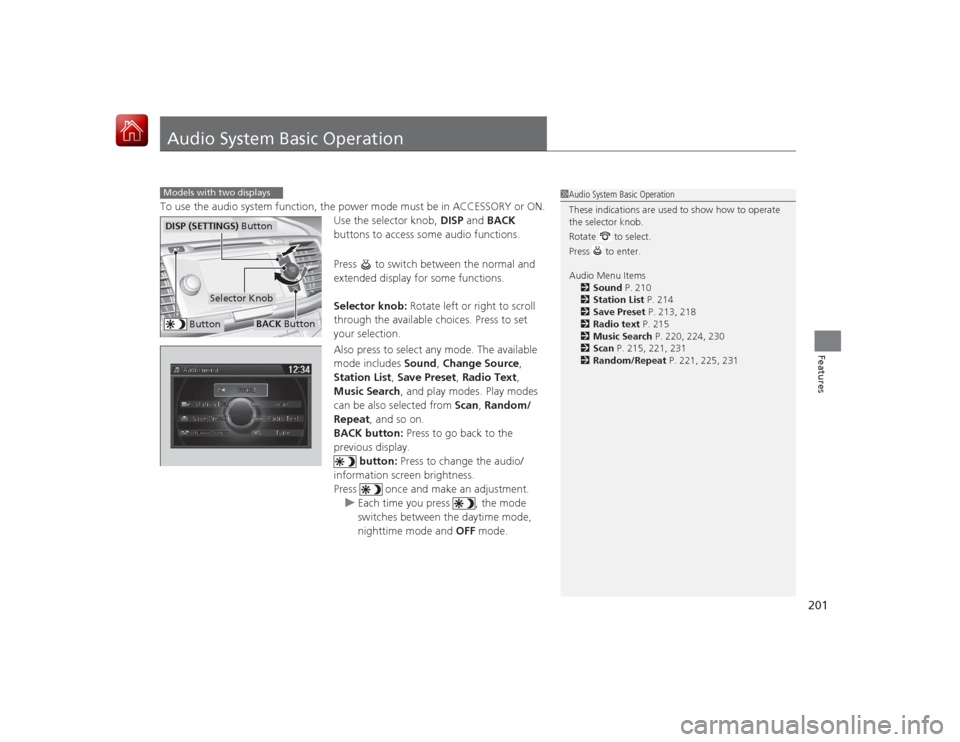
Audio System Basic OperationTo use the audio system function, the power mode must be in ACCESSORY or ON.Use the selector knob, DISP and BACK
buttons to access some audio functions.
Press to switch between the normal and
extended display for some functions.
Selector knob: Rotate left or right to scroll
through the available choices. Press to set
your selection.
Also press to select any mode. The available
mode includes Sound, Change Source ,
Station List , Save Preset , Radio Text,
Music Search, and play modes. Play modes
can be also selected from Scan, Random/
Repeat, and so on.
BACK button: Press to go back to the
previous display.
button: Press to change the audio/
information screen brightness.
Press once and make an adjustment. u Each time you press , the mode
switches between the daytime mode,
nighttime mode and OFF mode.Models with two displays
1Audio System Basic Operation
These indications are used to show how to operate
the selector knob.
Rotate to select.
Press to enter.
Audio Menu Items
2 Sound P. 210
2 Station List P. 214
2 Save Preset P. 213, 218
2 Radio text P. 215
2 Music Search P. 220, 224, 230
2 Scan P. 215, 221, 231
2 Random/Repeat P. 221, 225, 231
Button
Selector Knob
DISP (SETTINGS) Button
BACK Button
Page 204 of 569
Continued
203
uuAudio System Basic Operation uAudio with Touch Screen
Features
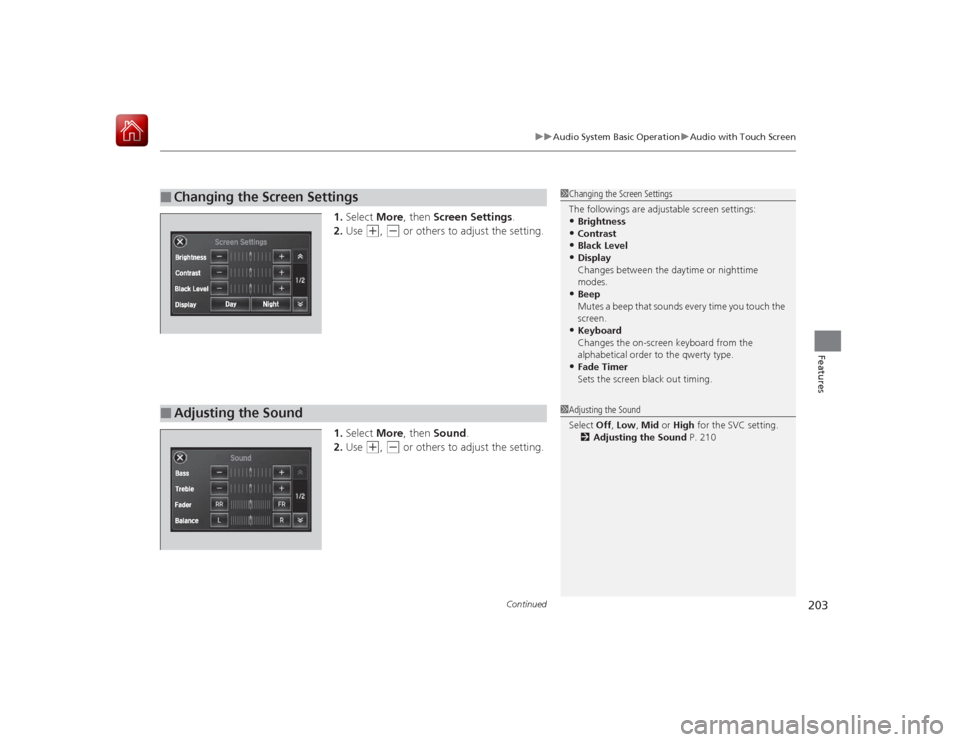
1. Select More, then Screen Settings .
2. Use
(+
, (-
or others to adjust the setting.
1. Select More, then Sound .
2. Use
(+
, (-
or others to adjust the setting.
■
Changing the Screen Settings
1Changing the Screen Settings
The followings are adjustable screen settings:•Brightness•Contrast•Black Level•Display
Changes between the daytime or nighttime
modes.•Beep
Mutes a beep that sounds every time you touch the
screen.•Keyboard
Changes the on-screen keyboard from the
alphabetical order to the qwerty type.•Fade Timer
Sets the screen black out timing.
■
Adjusting the Sound
1Adjusting the Sound
Select Off, Low , Mid or High for the SVC setting.
2 Adjusting the Sound P. 210
Page 209 of 569
uuAudio System Basic Operation uAudio/Information Screen
208Features
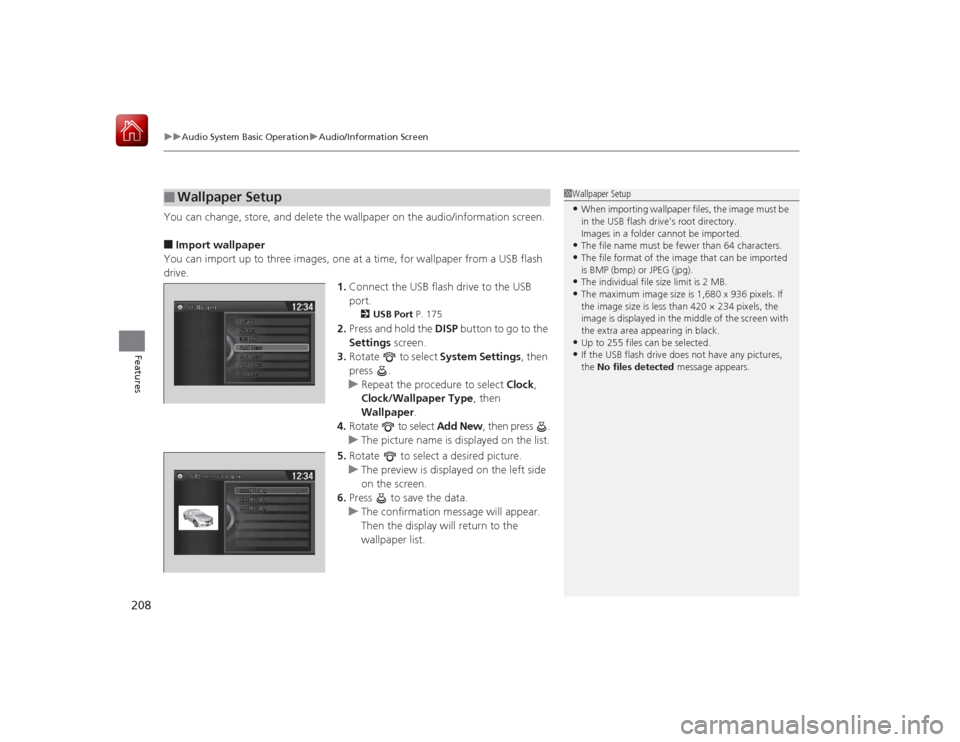
You can change, store, and delete the wallpaper on the audio/information screen.■Import wallpaper
You can import up to three images, one at a time, for wallpaper from a USB flash
drive. 1.Connect the USB flash drive to the USB
port.
2 USB Port P. 175
2.Press and hold the DISP button to go to the
Settings screen.
3. Rotate to select System Settings, then
press .
u Repeat the procedure to select Clock,
Clock/Wallpaper Type , then
Wallpaper .
4. Rotate to select Add New , then press .
u The picture name is displayed on the list.
5. Rotate to select a desired picture.
u The preview is displayed on the left side
on the screen.
6. Press to save the data.
u The confirmation message will appear.
Then the display will return to the
wallpaper list.
■
Wallpaper Setup
1Wallpaper Setup•When importing wallpaper files, the image must be
in the USB flash drive’s root directory.
Images in a folder cannot be imported.•The file name must be fewer than 64 characters.•The file format of the image that can be imported
is BMP (bmp) or JPEG (jpg).•The individual file size limit is 2 MB.•The maximum image size is 1,680 x 936 pixels. If
the image size is less than 420 × 234 pixels, the
image is displayed in the middle of the screen with
the extra area appearing in black.•Up to 255 files can be selected.•If the USB flash drive does not have any pictures,
the No files detected message appears.
Page 215 of 569
uuAudio System Basic Operation uPlaying AM/FM Radio
214Features
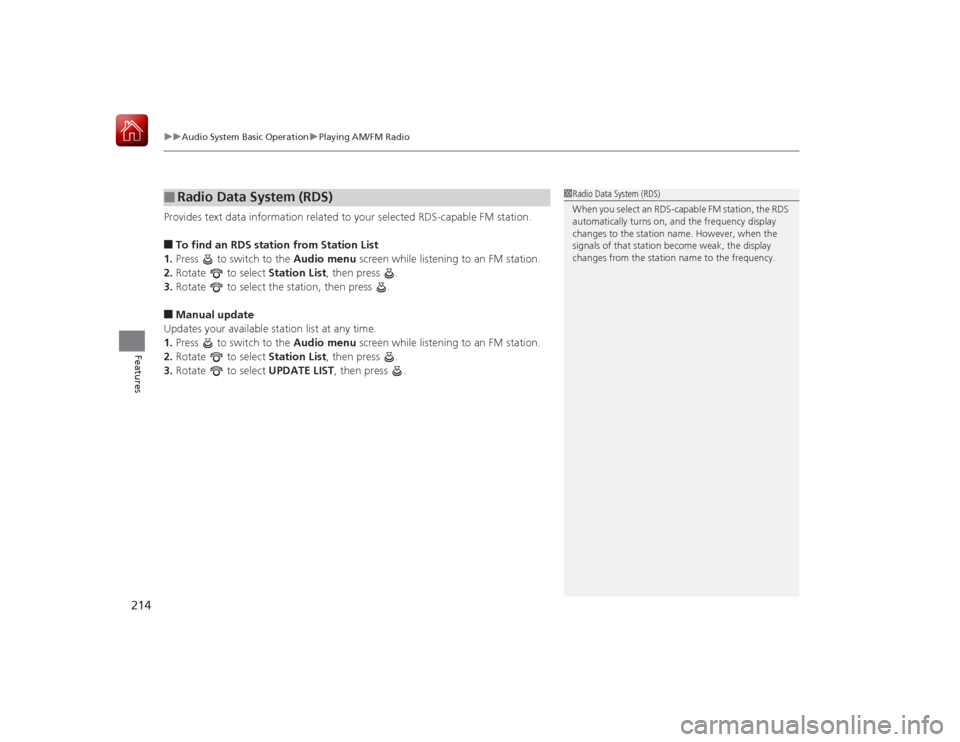
Provides text data information related to your selected RDS-capable FM station.■To find an RDS stat ion from Station List
1. Press to switch to the Audio menu screen while listening to an FM station.
2. Rotate to select Station List, then press .
3. Rotate to select the station, then press .■Manual update
Updates your available station list at any time.
1. Press to switch to the Audio menu screen while listening to an FM station.
2. Rotate to select Station List, then press .
3. Rotate to select UPDATE LIST, then press .■
Radio Data System (RDS)
1Radio Data System (RDS)
When you select an RDS-capable FM station, the RDS
automatically turns on, and the frequency display
changes to the station name. However, when the
signals of that station become weak, the display
changes from the station name to the frequency.
Page 235 of 569
234Features
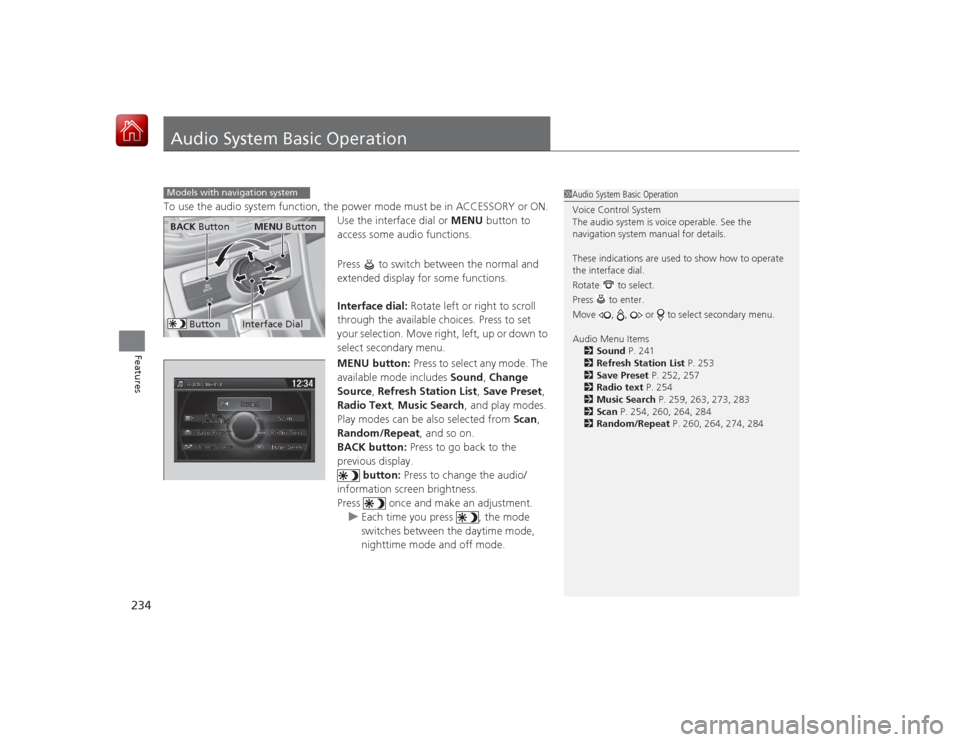
Audio System Basic OperationTo use the audio system function, the power mode must be in ACCESSORY or ON.Use the interface dial or MENU button to
access some audio functions.
Press to switch between the normal and
extended display for some functions.
Interface dial: Rotate left or right to scroll
through the available choices. Press to set
your selection. Move right, left, up or down to
select secondary menu.
MENU button: Press to select any mode. The
available mode includes Sound, Change
Source , Refresh Station List , Save Preset ,
Radio Text, Music Search , and play modes.
Play modes can be also selected from Scan,
Random/Repeat , and so on.
BACK button: Press to go back to the
previous display. button: Press to change the audio/
information screen brightness.
Press once and make an adjustment. u Each time you press , the mode
switches between the daytime mode,
nighttime mode and off mode.Models with navigation system
1Audio System Basic Operation
Voice Control System
The audio system is voice operable. See the
navigation system manual for details.
These indications are used to show how to operate
the interface dial.
Rotate to select.
Press to enter.
Move , , or to select secondary menu.
Audio Menu Items
2 Sound P. 241
2 Refresh Station List P. 253
2 Save Preset P. 252, 257
2 Radio text P. 254
2 Music Search P. 259, 263, 273, 283
2 Scan P. 254, 260, 264, 284
2 Random/Repeat P. 260, 264, 274, 284
Interface DialMENU Button
BACK Button
Button
Page 237 of 569
uuAudio System Basic Operation uAudio with Touch Screen
236Features
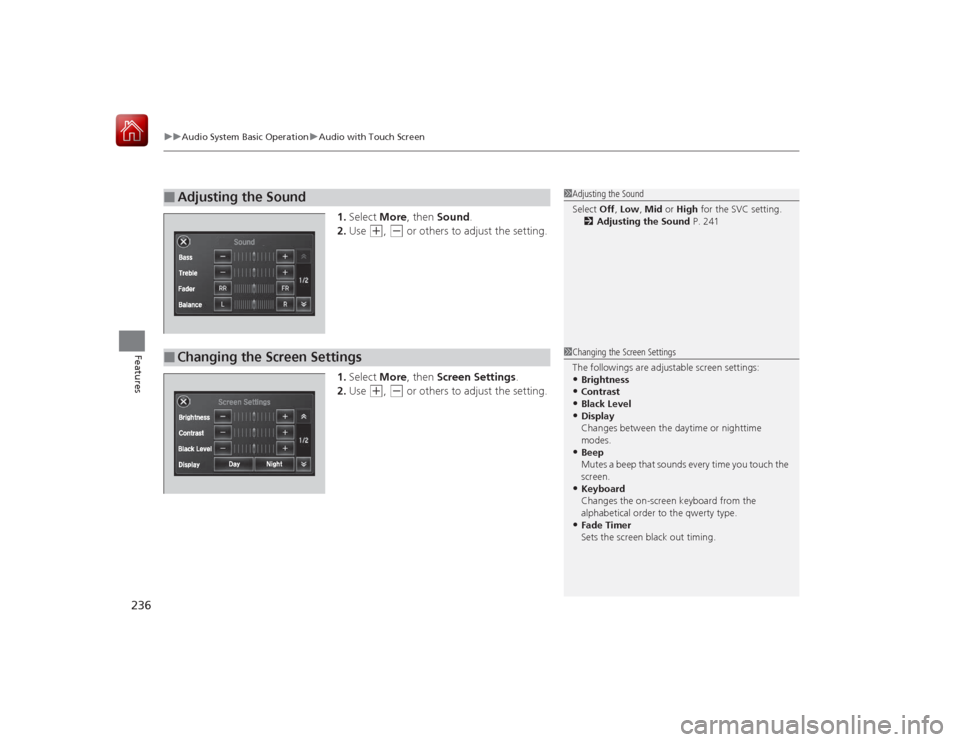
1. Select More, then Sound .
2. Use
(+
, (-
or others to adjust the setting.
1. Select More, then Screen Settings .
2. Use
(+
, (-
or others to adjust the setting.
■
Adjusting the Sound
1Adjusting the Sound
Select Off, Low , Mid or High for the SVC setting.
2 Adjusting the Sound P. 241
■
Changing the Screen Settings
1Changing the Screen Settings
The followings are adjustable screen settings:•Brightness•Contrast•Black Level•Display
Changes between the daytime or nighttime
modes.•Beep
Mutes a beep that sounds every time you touch the
screen.•Keyboard
Changes the on-screen keyboard from the
alphabetical order to the qwerty type.•Fade Timer
Sets the screen black out timing.
Page 240 of 569
Continued
239
uuAudio System Basic Operation uAudio/Information Screen
Features
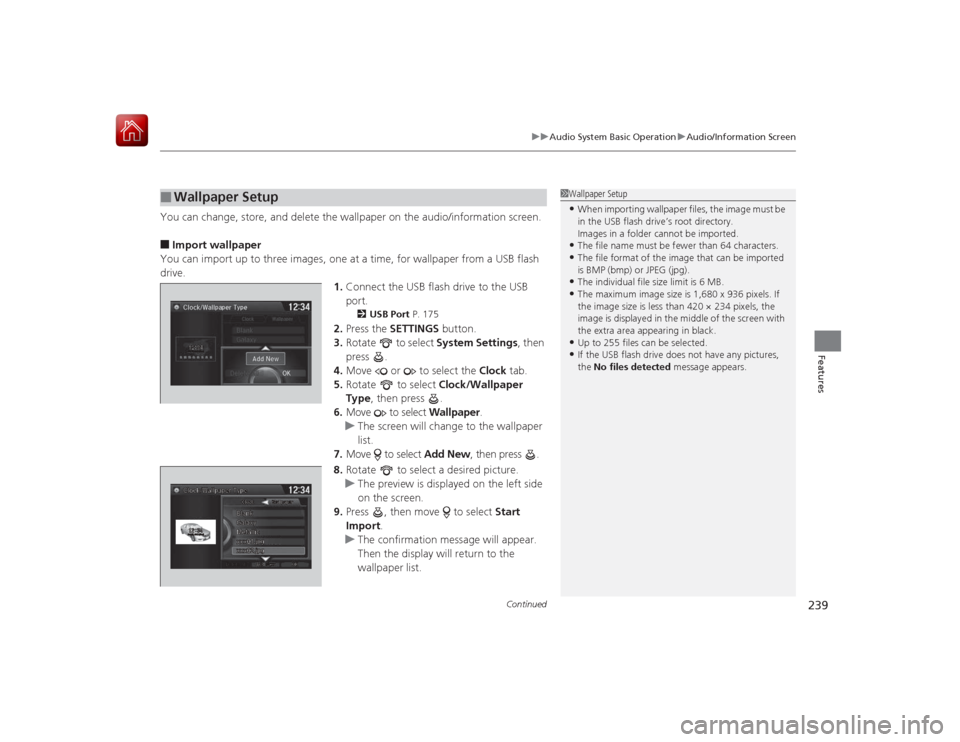
You can change, store, and delete the wallpaper on the audio/information screen.■Import wallpaper
You can import up to three images, one at a time, for wallpaper from a USB flash
drive. 1.Connect the USB flash drive to the USB
port.
2 USB Port P. 175
2.Press the SETTINGS button.
3. Rotate to select System Settings, then
press .
4. Move or to select the Clock tab.
5. Rotate to select Clock/Wallpaper
Type , then press .
6. Move to select Wallpaper.
u The screen will change to the wallpaper
list.
7. Move to select Add New, then press .
8. Rotate to select a desired picture.
u The preview is displayed on the left side
on the screen.
9. Press , then move to select Start
Import.
u The confirmation message will appear.
Then the display will return to the
wallpaper list.
■
Wallpaper Setup
1Wallpaper Setup•When importing wallpaper files, the image must be
in the USB flash drive’s root directory.
Images in a folder cannot be imported.•The file name must be fewer than 64 characters.•The file format of the image that can be imported
is BMP (bmp) or JPEG (jpg).•The individual file size limit is 6 MB.•The maximum image size is 1,680 x 936 pixels. If
the image size is less than 420 × 234 pixels, the
image is displayed in the middle of the screen with
the extra area appearing in black.•Up to 255 files can be selected.•If the USB flash drive does not have any pictures,
the No files detected message appears.
Page 254 of 569
Continued
253
uuAudio System Basic Operation uPlaying AM/FM Radio
Features
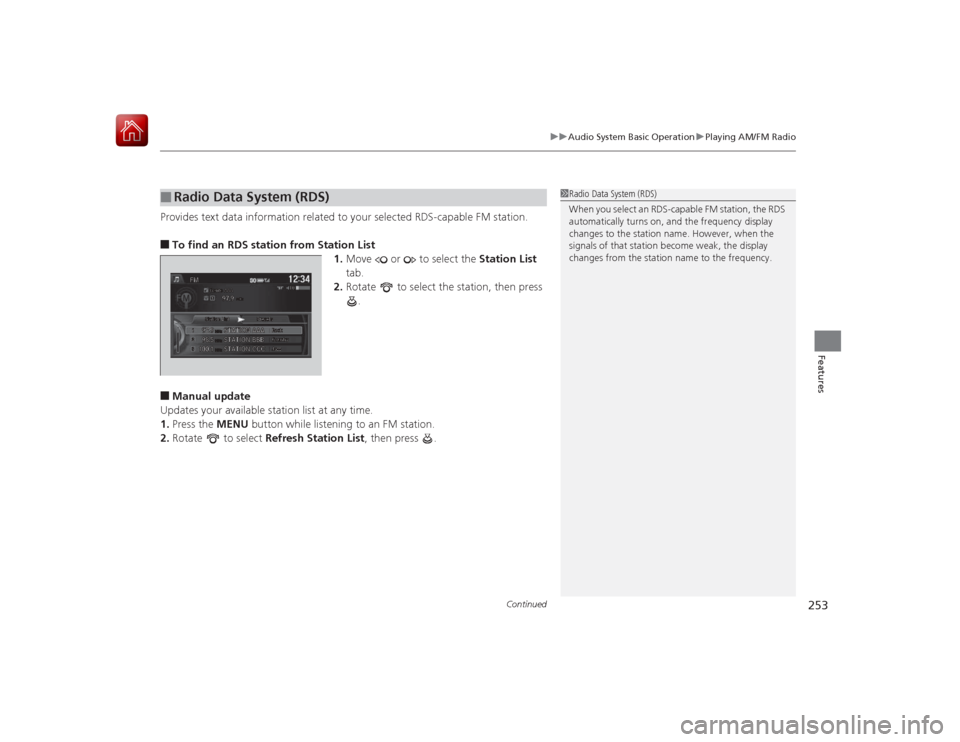
Provides text data information related to your selected RDS-capable FM station.■To find an RDS station from Station List
1.Move or to select the Station List
tab.
2. Rotate to select the station, then press
.■Manual update
Updates your available station list at any time.
1. Press the MENU button while listening to an FM station.
2. Rotate to select Refresh Station List , then press .■
Radio Data System (RDS)
1Radio Data System (RDS)
When you select an RDS-capable FM station, the RDS
automatically turns on, and the frequency display
changes to the station name. However, when the
signals of that station become weak, the display
changes from the station name to the frequency.
Page 307 of 569
306
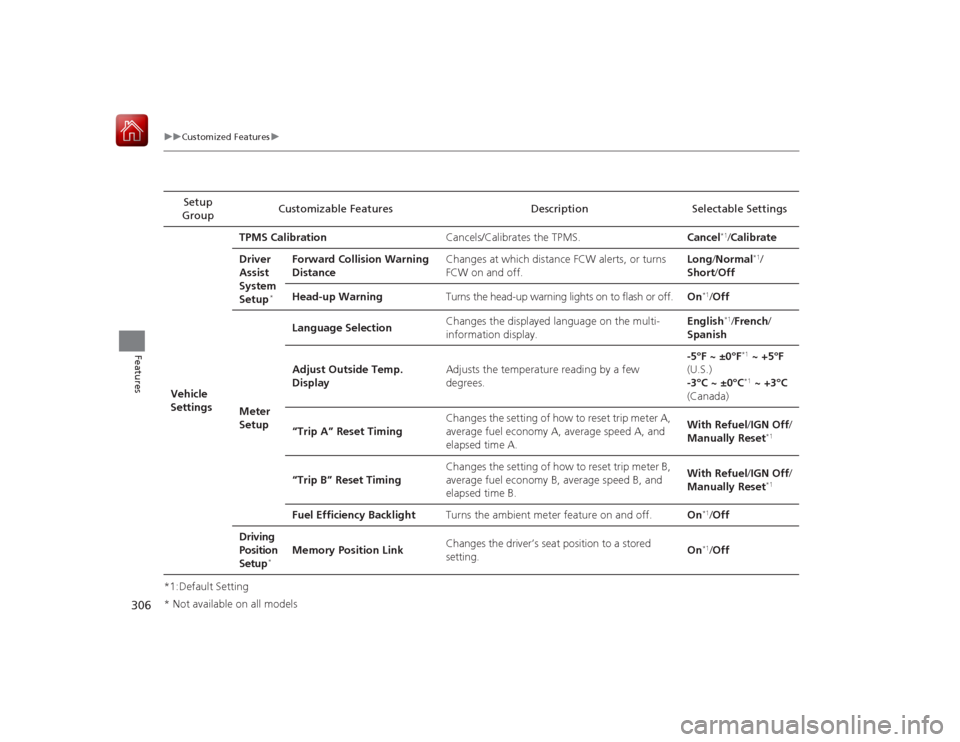
uuCustomized Features u
Features
*1:Default SettingSetup
Group Customizable Features Description Selectable Settings
Vehicle
Settings TPMS Calibration
Cancels/Calibrates the TPMS. Cancel
*1/Calibrate
Driver
Assist
System
Setup
*
Forward Collision Warning
Distance Changes at which distance FCW alerts, or turns
FCW on and off. Long
/Normal
*1/
Short /Off
Head-up Warning Turns the head-up warning lights on to flash or off. On
*1/Off
Meter
Setup Language Selection
Changes the displayed language on the multi-
information display. English
*1/
French /
Spanish
Adjust Outside Temp.
Display Adjusts the temperature reading by a few
degrees. -5°F ~ ±0°F*1
~ +5°F
(U.S.)
-3°C ~ ±0°C*1 ~ +3°C
(Canada)
“Trip A” Reset Timing Changes the setting of how to reset trip meter A,
average fuel economy A, average speed A, and
elapsed time A. With Refuel
/IGN Off /
Manually Reset
*1
“Trip B” Reset Timing Changes the setting of how to reset trip meter B,
average fuel economy B, average speed B, and
elapsed time B. With Refuel
/IGN Off /
Manually Reset
*1
Fuel Efficiency Backlight Turns the ambient meter feature on and off. On
*1/Off
Driving
Position
Setup
*
Memory Position Link Changes the driver’s seat position to a stored
setting. On
*1/
Off
* Not available on all models
Page 308 of 569
307
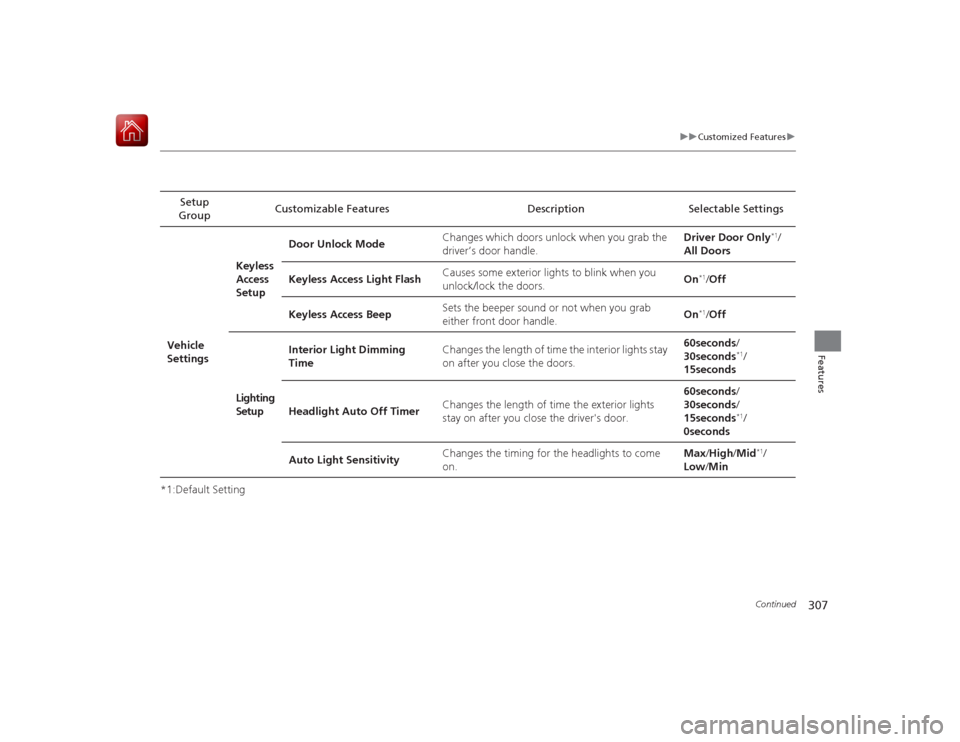
uuCustomized Features u
Continued
Features
*1:Default SettingSetup
Group Customizable Features Description Selectable Settings
Vehicle
Settings Keyless
Access
Setup
Door Unlock Mode
Changes which doors unlock when you grab the
driver’s door handle. Driver Door Only
*1/
All Doors
Keyless Access Light Flash Causes some exterior lights to blink when you
unlock/lock the doors.
On
*1/
Off
Keyless Access Beep Sets the beeper sound or not when you grab
either front door handle. On*1/
Off
Lighting
Setup Interior Light Dimming
Time
Changes the length of time the
interior lights stay
on after you close the doors. 60seconds
/
30seconds
*1/
15seconds
Headlight Auto Off Timer Changes the length of time the exterior lights
stay on after you close the driver's door. 60seconds
/
30seconds /
15seconds*1/
0seconds
Auto Light Sensitivity Changes the timing for the headlights to come
on. Max
/High /Mid
*1/
Low /Min