change time HONDA ACCORD HYBRID 2019 User Guide
[x] Cancel search | Manufacturer: HONDA, Model Year: 2019, Model line: ACCORD HYBRID, Model: HONDA ACCORD HYBRID 2019Pages: 727, PDF Size: 24.78 MB
Page 195 of 727
193uu Operating the Switches Around the Steering Wheel u Turn Signals
Continued
Controls
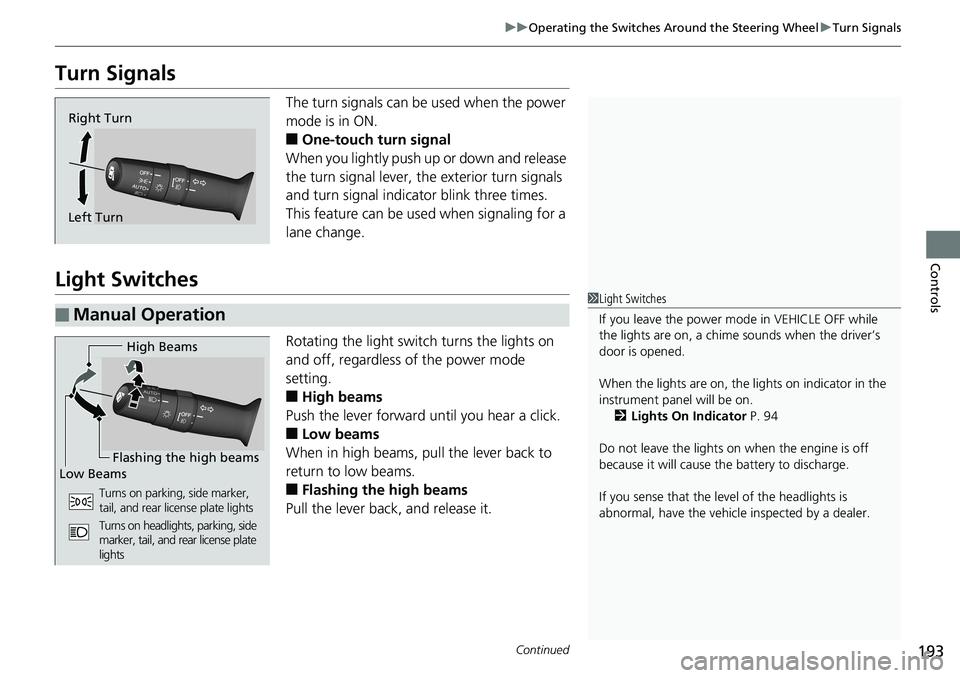
Turn Signals The turn signals can be used when the power
mode is in ON.
■ One-touch turn signal
When you lightly push up or down and release
the turn signal lever, th e exterior turn signals
and turn signal indicator blink three times.
This feature can be used when signaling for a
lane change.
Light Switches Rotating the light switch turns the lights on
and off, regardless of the power mode
setting.
■ High beams
Push the lever forward until you hear a click.
■ Low beams
When in high beams, pull the lever back to
return to low beams.
■ Flashing the high beams
Pull the lever back, and release it.Right Turn
Left Turn
■ Manual Operation 1 Light Switches
If you leave the power mode in VEHICLE OFF while
the lights are on, a chime sounds when the driver’s
door is opened.
When the lights are on, the lights on indicator in the
instrument pane l will be on.
2 Lights On Indicator P. 94
Do not leave the lights on when the engine is off
because it will cause the battery to discharge.
If you sense that the le vel of the headlights is
abnormal, have the vehicl e inspected by a dealer.High Beams
Flashing the high beams
Low Beams
Turns on parking, side marker,
tail, and rear license plate lights
Turns on headlights, parking, side
marker, tail, and rear license plate
lights
Page 197 of 727
195uu Operating the Switches Around the Steering Wheel u Fog Lights *
Controls
The headlights automatically come on when the wipers are used several times within
a certain number of intervals with the headlight switch in AUTO .
The headlights automatically go off a few mi nutes later if the wipers are stopped.
The headlights, all other exterior lights, a nd the instrument panel lights turn off 15
seconds after you set the power mode to VEHICLE OFF, take the remote with you,
and close the driver’s door.
If you set the power mode to VEHICLE OFF with the head light switch on, but do not
open the door, the lights turn off after 10 minutes (three minutes, if the switch is in
the AUTO position).
The lights turn on again when you unlock or open the driver’s door. If you unlock
the door, but do not open it within 15 seconds, the lights go off. If you open the
driver’s door, you will hear a lights on reminder chime.
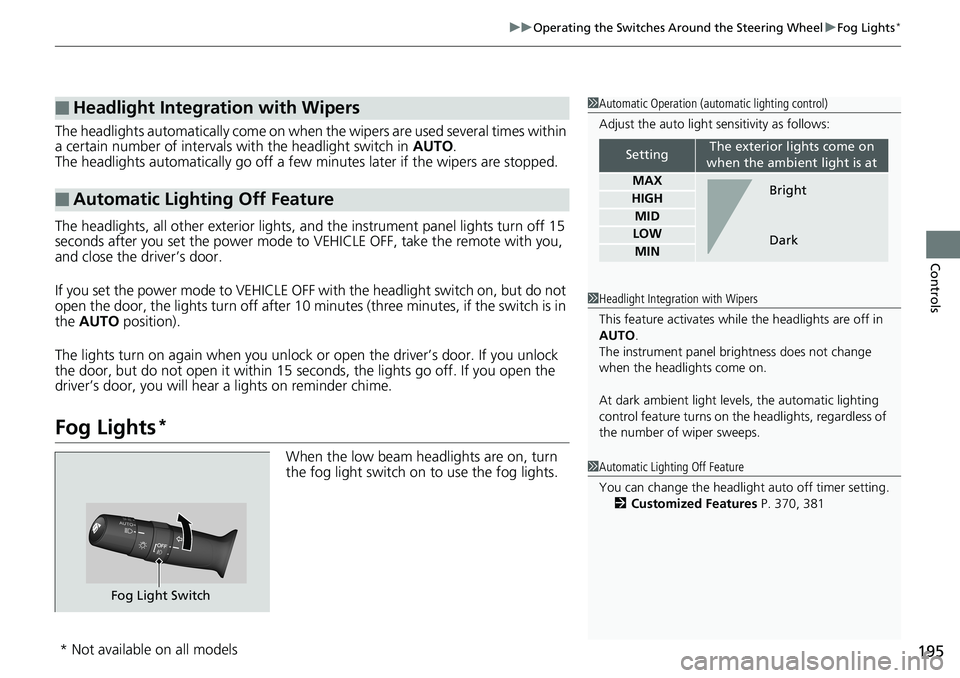
Fog Lights *
When the low beam headlights are on, turn
the fog light switch on to use the fog lights.■ Headlight Integration with Wipers
■ Automatic Lighting Off Feature 1 Automatic Operation (aut omatic lighting control)
Adjust the auto light sensitivity as follows:
Setting The exterior lights come on
when the ambient light is at
MAX
HIGH
MID
LOW
MIN Bright
Dark
1 Headlight Integration with Wipers
This feature activates while the headlights are off in
AUTO .
The instrument panel br ightness does not change
when the headlights come on.
At dark ambient light leve ls, the automatic lighting
control feature turns on the headlights, regardless of
the number of wiper sweeps.
1 Automatic Lighting Off Feature
You can change the headlight auto off timer setting.
2 Customized Features P. 370, 381
Fog Light Switch
* Not available on all models
Page 202 of 727
200 uu Operating the Switches Around the Steering Wheel u Wipers and Washers
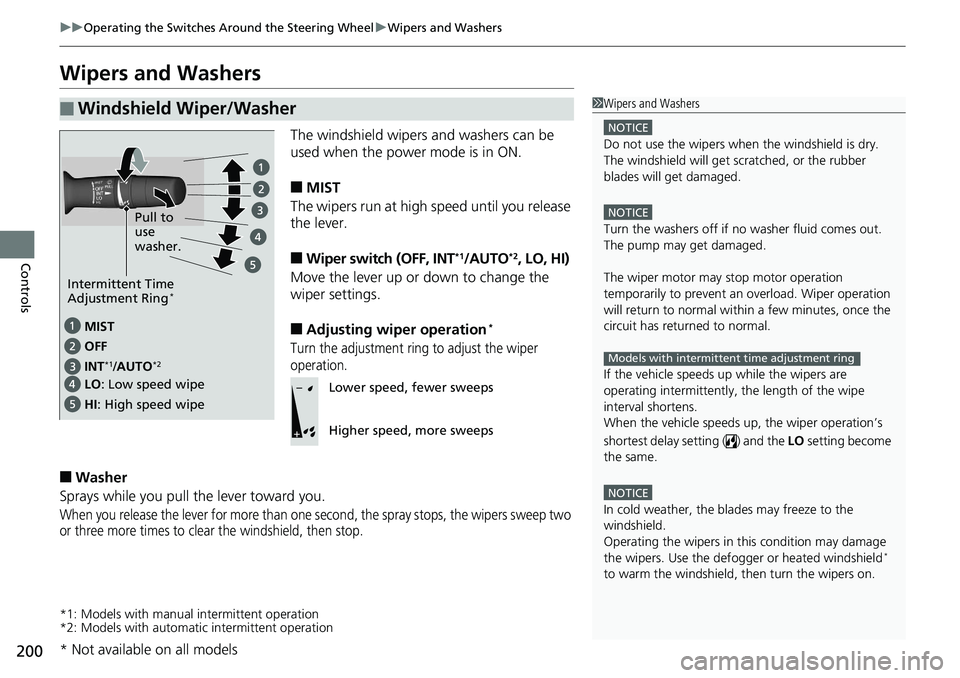
Controls Wipers and Washers The windshield wipers and washers can be
used when the power mode is in ON.
■ MIST
The wipers run at high speed until you release
the lever.
■ Wiper switch (OFF, INT *1
/AUTO *2
, LO, HI)
Move the lever up or down to change the
wiper settings.
■ Adjusting wiper operation *
Turn the adjustment ring to adjust the wiper
operation.
■ Washer
Sprays while you pull the lever toward you.
When you release the lever for more than one second, the spray stops, the wipers sweep two
or three more times to clear the windshield, then stop.
*1: Models with manual intermittent operation
*2: Models with automati c intermittent operation■ Windshield Wiper/Washer 1 Wipers and Washers NOTICE
Do not use the wipers when the windshield is dry.
The windshield will get sc ratched, or the rubber
blades will get damaged. NOTICE
Turn the washers off if no washer fluid comes out.
The pump may get damaged.
The wiper motor may stop motor operation
temporarily to prevent an overload. Wiper operation
will return to normal within a few minutes, once the
circuit has returned to normal.
If the vehicle speeds up while the wipers are
operating intermittently, the length of the wipe
interval shortens.
When the vehicle speeds up, the wiper operation’s
shortest delay se tting ( ) and the LO setting become
the same.
NOTICE
In cold weather, the blades may freeze to the
windshield.
Operating the wipers in th is condition may damage
the wipers. Use the defogge r or heated windshield *
to warm the windshield, then turn the wipers on. Models with intermittent time adjustment ring
MIST
INT *1
/ AUTO *2
OFF
LO : Low speed wipe
HI : High speed wipe Pull to
use
washer.
Intermittent Time
Adjustment Ring *
Lower speed, fewer sweeps
Higher speed, more sweeps
* Not available on all models
Page 223 of 727
221Continued
Controls
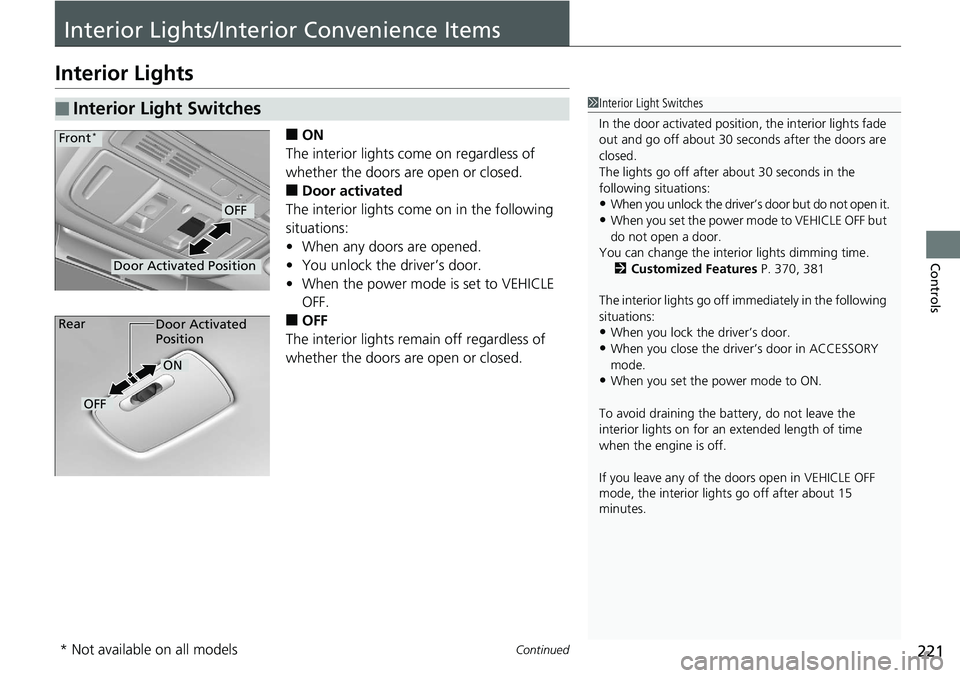
Interior Lights/Interior Convenience ItemsInterior Lights ■ ON
The interior lights come on regardless of
whether the doors are open or closed.
■ Door activated
The interior lights come on in the following
situations:
• When any doors are opened.
• You unlock the driver’s door.
• When the power mode is set to VEHICLE
OFF.
■ OFF
The interior lights remain off regardless of
whether the doors are open or closed.■ Interior Light Switches 1 Interior Light Switches
In the door activated position, the interior lights fade
out and go off about 30 se conds after the doors are
closed.
The lights go off after about 30 seconds in the
following situations:
• When you unlock the driver’s door but do not open it.
• When you set the power mode to VEHICLE OFF but
do not open a door.
You can change the interi or lights dimming time.
2 Customized Features P. 370, 381
The interior lights go off i mmediately in the following
situations:
• When you lock the driver’s door.
• When you close the driver’s door in ACCESSORY
mode.
• When you set the power mode to ON.
To avoid draining the ba ttery, do not leave the
interior lights on for an extended length of time
when the engine is off.
If you leave any of the doors open in VEHICLE OFF
mode, the interior light s go off after about 15
minutes.Door Activated Position OFFFront *
Door Activated
Position
ON
OFFRear
* Not available on all models
Page 254 of 727
252
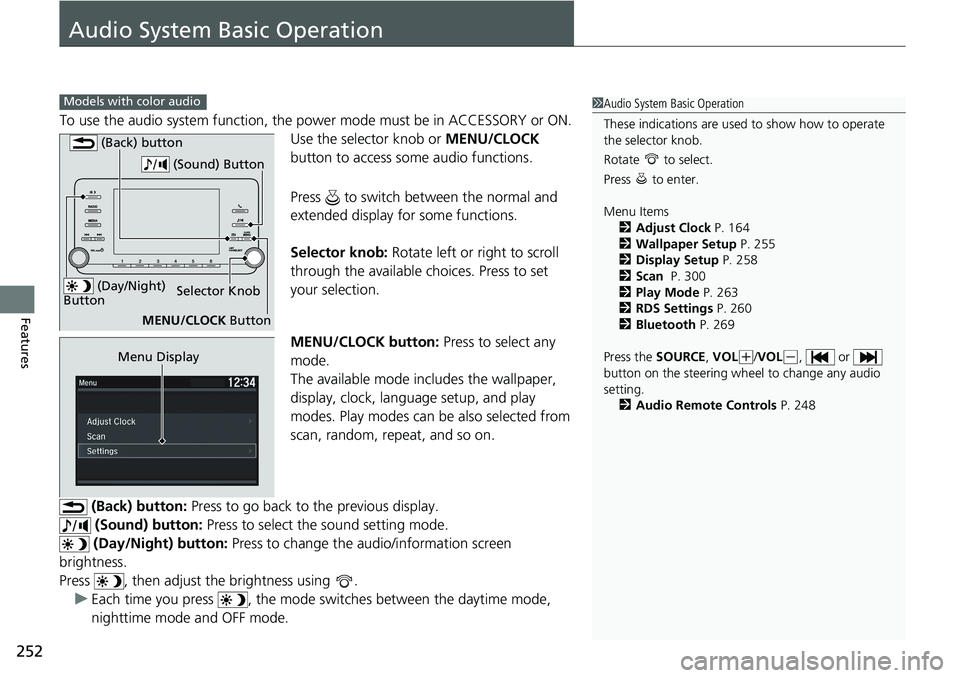
Features Audio System Basic Operation To use the audio system function, the po wer mode must be in ACCESSORY or ON.
Use the selector knob or MENU/CLOCK
button to access some audio functions.
Press to switch between the normal and
extended display fo r some functions.
Selector knob: Rotate left or right to scroll
through the available ch oices. Press to set
your selection.
MENU/CLOCK button: Press to select any
mode.
The available mode includes the wallpaper,
display, clock, langu age setup, and play
modes. Play modes can be also selected from
scan, random, repeat, and so on.
(Back) button: Press to go back to the previous display.
(Sound) button: Press to select the sound setting mode.
(Day/Night) button: Press to change the au dio/information screen
brightness.
Press , then adjust the brightness using .
u Each time you press , the mode sw itches between the daytime mode,
nighttime mode and OFF mode.Models with color audio
1 Audio System Basic Operation
These indications are used to show how to operate
the selector knob.
Rotate to select.
Press to enter.
Menu Items
2 Adjust Clock P. 164
2 Wallpaper Setup P. 255
2 Display Setup P. 258
2 Scan P. 300
2 Play Mode P. 263
2 RDS Settings P. 260
2 Bluetooth P. 269
Press the SOURCE , VOL ( +
/ VOL ( -
, or
button on the steering whee l to change any audio
setting.
2 Audio Remote Controls P. 248 (Day/Night)
Button Selector Knob
MENU/CLOCK Button (Back) button
(Sound) Button
Menu Display
Page 256 of 727
254 uu Audio System Basic Operation u Audio/Information Screen
Features ■ Audio
Shows the current audio information.
■ Trip computer (Current Drive)
Shows the range, and instant and average fu el economy of the current trip, as well
as the average fuel economy from your last trip.
■ Trip computer (History of Trip A)
Shows the average fuel economy and distance traveled for the current trip, as well
as the average fuel economy and distances traveled during the last three driving
cycles.
Each time you reset the trip meter A, the information on the display updates. The
history of the previous th ree driving cycles is kept.
■ Clock/Wallpaper
Shows a clock screen or an image you import.
■ Change display
1. Press the MENU/CLOCK button.
2. Rotate to select Settings , then press .
3. Rotate to select Display Change , then press .
4. Rotate to select Clock/Wallpaper , then press .
u If you want to return to the audio display, select Audio .
Page 257 of 727
Continued
255uu Audio System Basic Operation u Audio/Information Screen
Features
You can change, store, and delete the wa llpaper on the audio/information screen.
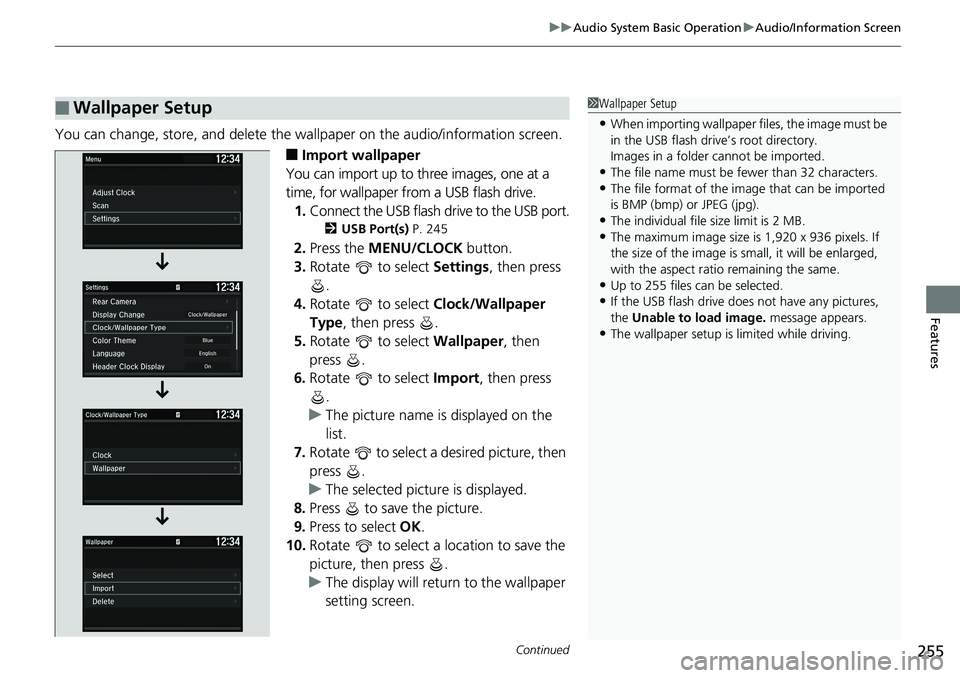
■ Import wallpaper
You can import up to three images, one at a
time, for wallpaper from a USB flash drive.
1. Connect the USB flash drive to the USB port. 2 USB Port(s) P. 245
2. Press the MENU/CLOCK button.
3. Rotate to select Settings , then press
.
4. Rotate to select Clock/Wallpaper
Type , then press .
5. Rotate to select Wallpaper , then
press .
6. Rotate to select Import , then press
.
u The picture name is displayed on the
list.
7. Rotate to select a desired picture, then
press .
u The selected picture is displayed.
8. Press to save the picture.
9. Press to select OK .
10. Rotate to select a location to save the
picture, then press .
u The display will retu rn to the wallpaper
setting screen.■ Wallpaper Setup 1 Wallpaper Setup
• When importing wallpaper files, the image must be
in the USB flash driv e’s root directory.
Images in a folder cannot be imported.
• The file name must be fewer than 32 characters.
• The file format of the im age that can be imported
is BMP (bmp) or JPEG (jpg).
• The individual file size limit is 2 MB.
• The maximum image size is 1,920 x 936 pixels. If
the size of the image is small, it will be enlarged,
with the aspect ratio remaining the same.
• Up to 255 files can be selected.
• If the USB flash drive doe s not have any pictures,
the Unable to load image. message appears.
• The wallpaper setup is limited while driving.
Page 262 of 727
uu Audio System Basic Operation u Playing AM/FM Radio
260
Features Provides text data information related to your selected RDS-capable FM station.
■ To find an RDS station from Station List
1. Press while listening to an FM station.
2. Rotate to select the station, then press .
■ Update List
Updates your available station list at any time.
1. Press while listening to an FM station.
2. Rotate to select Update List , then press .
■ Radio text
Displays the radio text informat ion of the selected RDS station.
1. Press the MENU/CLOCK button.
2. Rotate to select Settings , then press .
3. Rotate to select RDS Settings , then press .
4. Rotate to select Radio Text , then press .
■ Scan
Samples each of the strongest stations on the selected band for 10 seconds.
1. Press the MENU/CLOCK button.
2. Rotate to select Scan , then press .
To turn off scan, press .■ Radio Data System (RDS) 1 Playing AM/FM Radio
The ST indicator appears on the display indicating
stereo FM broadcasts.
Stereo reproduction in AM is not available.
Switching the Audio Mode
Press the SOURCE button on the steering wheel.
2 Audio Remote Controls P. 248
You can store 6 AM stations and 12 FM stations into
the preset memory. FM1 and FM2 let you store 6
stations each.
1 Radio Data System (RDS)
When you select an RDS-capable FM station, the RDS
automatically turns on, and the frequency display
changes to the station name. However, when the
signals of that station become weak, the display
changes from the statio n name to the frequency.
Page 271 of 727
269uu Audio System Basic Operation u Playing Bluetooth ® Audio
Continued
Features
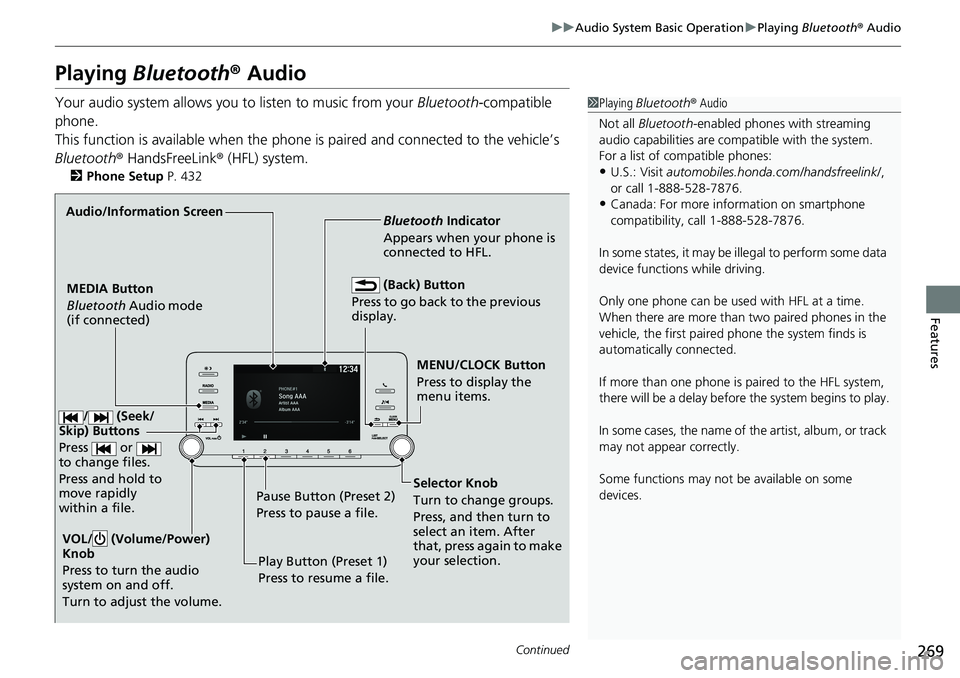
Playing Bluetooth ® AudioYour audio system allows you to listen to music from your Bluetooth -compatible
phone.
This function is available when the phone is paired an d connected to the vehicle’s
Bluetooth ® HandsFreeLink ® (HFL) system.2 Phone Setup P. 432 1 Playing Bluetooth ® Audio
Not all Bluetooth -enabled phones with streaming
audio capabilities are comp atible with the system.
For a list of compatible phones:
• U.S.: Visit automobiles.honda.com /handsfreelink/ ,
or call 1-888-528-7876.
• Canada: For more info rmation on smartphone
compatibility, call 1-888-528-7876.
In some states, it may be il legal to perform some data
device functions while driving.
Only one phone can be used with HFL at a time.
When there are more than two paired phones in the
vehicle, the first paired phone the system finds is
automatically connected.
If more than one phone is paired to the HFL system,
there will be a delay before the system begins to play.
In some cases, the name of the artist, album, or track
may not appear correctly.
Some functions may not be available on some
devices.MENU/CLOCK Button
Press to display the
menu items.MEDIA Button
Bluetooth Audio mode
(if connected) Bluetooth Indicator
Appears when your phone is
connected to HFL.
VOL/ (Volume/Power)
Knob
Press to turn the audio
system on and off.
Turn to adjust the volume. Audio/Information Screen
Play Button (Preset 1)
Press to resume a file.Pause Button (Preset 2)
Press to pause a file. (Back) Button
Press to go back to the previous
display.
Selector Knob
Turn to change groups.
Press, and then turn to
select an item. After
that, press again to make
your selection./ (Seek/
Skip) Buttons
Press or
to change files.
Press and hold to
move rapidly
within a file.
Page 275 of 727
273
Features
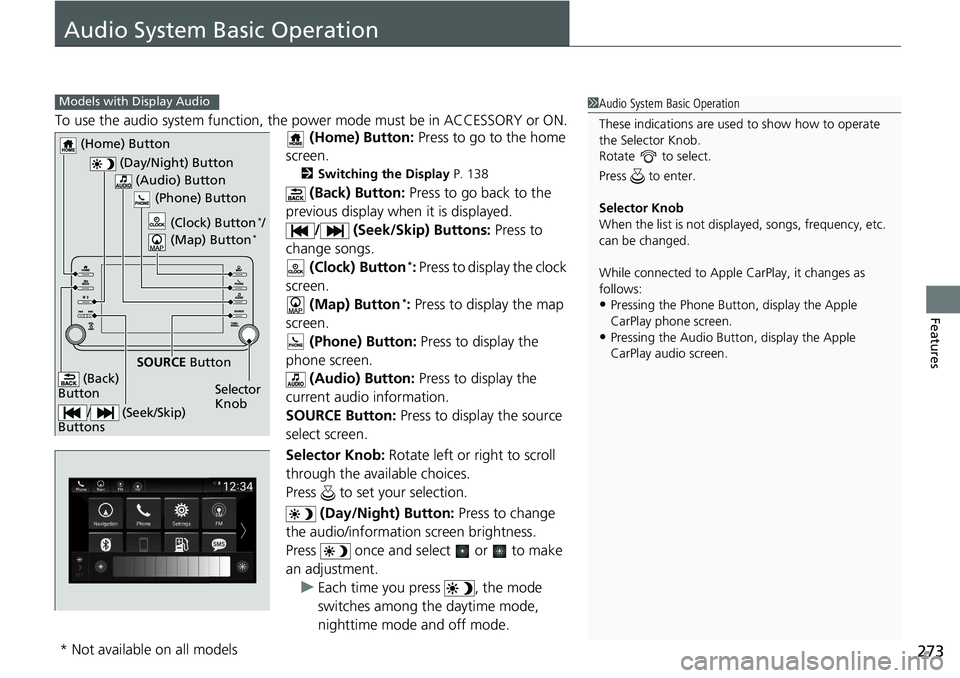
Audio System Basic Operation To use the audio system function, the po wer mode must be in ACCESSORY or ON.
(Home) Button: Press to go to the home
screen. 2 Switching the Display P. 138
(Back) Button: Press to go back to the
previous display when it is displayed.
/ (Seek/Skip) Buttons: Press to
change songs.
(Clock) Button *
: Press to display the clock
screen.
(Map) Button *
: Press to display the map
screen.
(Phone) Button: Press to display the
phone screen.
(Audio) Button: Press to display the
current audio information.
SOURCE Button: Press to display the source
select screen.
Selector Knob: Rotate left or right to scroll
through the available choices.
Press to set your selection.
(Day/Night) Button: Press to change
the audio/information screen brightness.
Press once and select or to make
an adjustment.
u Each time you press , the mode
switches among the daytime mode,
nighttime mode and off mode. 1 Audio System Basic Operation
These indications are used to show how to operate
the Selector Knob.
Rotate to select.
Press to enter.
Selector Knob
When the list is not displayed, songs, frequency, etc.
can be changed.
While connected to Apple CarPlay, it changes as
follows:
• Pressing the Phone Butt on, display the Apple
CarPlay phone screen.
• Pressing the Audio Button, display the Apple
CarPlay audio screen.Models with Display Audio
(Day/Night) Button (Home) Button
(Back)
Button (Audio) Button
Selector
Knob (Phone) Button
SOURCE Button
/ (Seek/Skip)
Buttons (Clock) Button *
/
(Map) Button *
* Not available on all models