USB port HONDA ACCORD HYBRID 2019 Owners Manual
[x] Cancel search | Manufacturer: HONDA, Model Year: 2019, Model line: ACCORD HYBRID, Model: HONDA ACCORD HYBRID 2019Pages: 727, PDF Size: 24.78 MB
Page 8 of 727
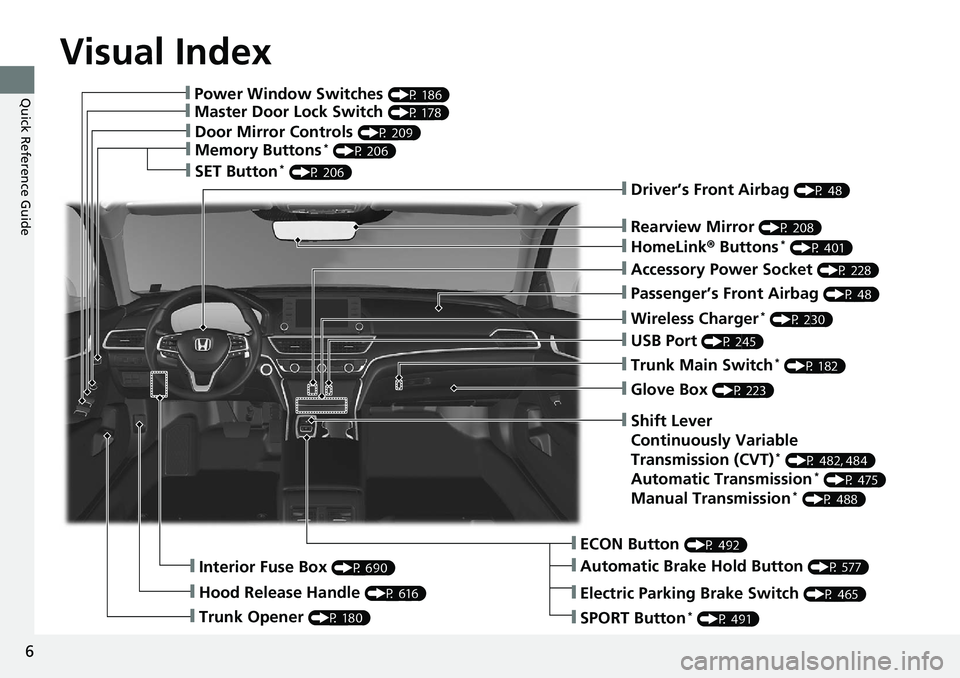
Visual Index
6
Quick Reference Guide ❙ Power Window Switches (P 186)
❙ Master Door Lock Switch (P 178)
❙ Door Mirror Controls (P 209)
❙ Memory Buttons *
(P 206)
❙ SET Button *
(P 206)
❙ Trunk Opener (P 180)❙ Interior Fuse Box (P 690)
❙ Hood Release Handle (P 616) ❙ Driver’s Front Airbag (P 48)
❙ Rearview Mirror (P 208)
❙ HomeLink ® Buttons *
(P 401)
❙ Accessory Power Socket (P 228)
❙ Passenger’s Front Airbag (P 48)
❙ Wireless Charger *
(P 230)
❙ USB Port (P 245)
❙ Trunk Main Switch *
(P 182)
❙ Glove Box (P 223)
❙ ECON Button (P 492)
❙ Automatic Brake Hold Button (P 577)❙ Shift Lever
Continuously Variable
Transmission (CVT) *
(P 482, 484)
Automatic Transmission *
(P 475)
Manual Transmission *
(P 488)
❙ Electric Parking Brake Switch (P 465)
❙ SPORT Button *
(P 491)
Page 9 of 727
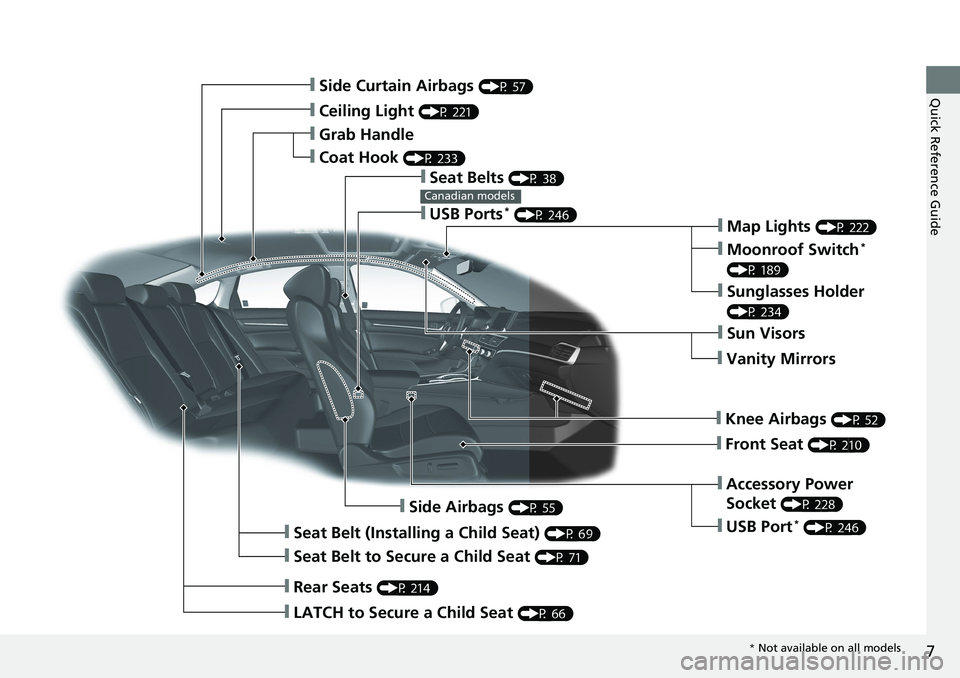
7
Quick Reference Guide
❙ Side Curtain Airbags (P 57)
❙ Ceiling Light (P 221)
❙ Grab Handle
❙ Coat Hook (P 233)
❙ Seat Belts (P 38)
❙ Map Lights (P 222)
❙ Moonroof Switch *
(P 189)
❙ Sunglasses Holder (P 234)
❙ Sun Visors
❙ Vanity Mirrors
❙ Knee Airbags (P 52)
❙ Front Seat (P 210)
❙ Accessory Power
Socket (P 228)
❙ Side Airbags (P 55)
❙ Seat Belt (Installing a Child Seat) (P 69)
❙ Seat Belt to Secure a Child Seat (P 71)
❙ LATCH to Secure a Child Seat (P 66)
❙ Rear Seats (P 214)❙ USB Ports *
(P 246)Canadian models
❙ USB Port *
(P 246)
* Not available on all models
Page 245 of 727
243Features This chapter describes how to operate technology features.
Audio System
About Your Audio System ................ 244
USB Port(s) ....................................... 245
Audio System Theft Protection ......... 247
Audio Remote Controls .................... 248
Audio System Basic Operation ........ 252
Audio/Information Screen ................ 253
Adjusting the Sound ........................ 257
Display Setup ................................... 258
Playing AM/FM Radio ....................... 259
Playing an iPod ................................ 261
Playing Pandora ® .............................. 264
Playing a USB Flash Drive ................. 266 Models with color audio Playing Bluetooth ® Audio................. 269
Siri ® Eyes Free .................................. 272
Audio System Basic Operation ........ 273
Audio/Information Screen ................ 274
System Updates ............................... 286
Adjusting the Sound ........................ 292
Display Setup ................................... 293
Voice Control Operation .................. 295
Playing AM/FM Radio ....................... 298
Playing SiriusXM ® Radio *
................. 302
Playing an iPod ................................ 313
Playing a USB Flash Drive ................. 316
Playing Bluetooth ® Audio................. 319Models with Display Audio
HondaLink ® ..................................... 321
HondaLink ® Service *
........................ 325
Wi-Fi Connection ............................. 330
Near Field Communication (NFC) *
... 332
Siri ® Eyes Free .................................. 335
Apple CarPlay ® ................................ 336
Android Auto TM
............................... 339
Audio Error Messages ...................... 343
General Information on the Audio
System ............................................. 348
Customized Features ................ 370 , 381
HomeLink ® Universal Transceiver *
..... 400
Bluetooth ® HandsFreeLink ® ..... 403 , 427
Refuel Recommend .............................. 452
* Not available on all models
Page 247 of 727
245 uu Audio System u USB Port(s)
Continued
Features
USB Port(s) Install the iPod USB connector or th e USB flash drive to the USB port.
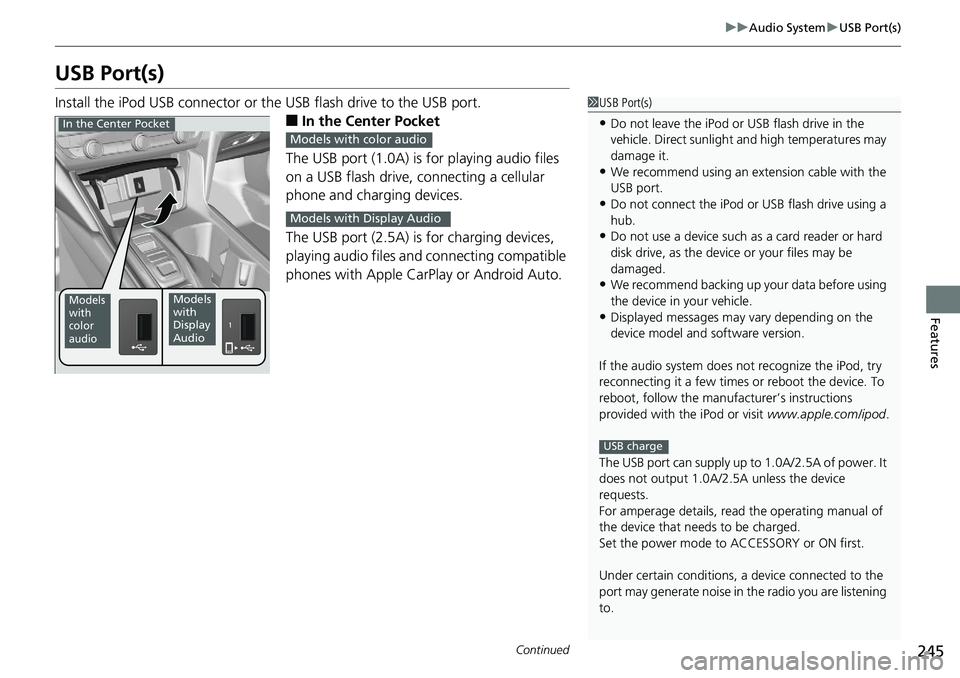
■ In the Center Pocket
The USB port (1.0A) is for playing audio files
on a USB flash drive, connecting a cellular
phone and charging devices.
The USB port (2.5A) is for charging devices,
playing audio files and connecting compatible
phones with Apple CarPlay or Android Auto. 1 USB Port(s)
• Do not leave the iPod or USB flash drive in the
vehicle. Direct sunlight and high temperatures may
damage it.
• We recommend using an ex tension cable with the
USB port.
• Do not connect the iPod or USB flash drive using a
hub.
• Do not use a device such as a card reader or hard
disk drive, as the device or your files may be
damaged.
• We recommend backing up yo ur data before using
the device in your vehicle.
• Displayed messages may vary depending on the
device model and software version.
If the audio system does not recognize the iPod, try
reconnecting it a few times or reboot the device. To
reboot, follow the manufac turer’s instructions
provided with the iPod or visit www.apple.com/ipod .
The USB port can supply up to 1.0A/2.5A of power. It
does not output 1.0A/2.5A unless the device
requests.
For amperage details, read the operating manual of
the device that ne eds to be charged.
Set the power mode to ACCESSORY or ON first.
Under certain condi tions, a device connected to the
port may generate noise in the radio you are listening
to. USB chargeModels
with
color
audio Models
with
Display
AudioIn the Center Pocket
Models with color audio
Models with Display Audio
Page 248 of 727
uu Audio System u USB Port(s)
246
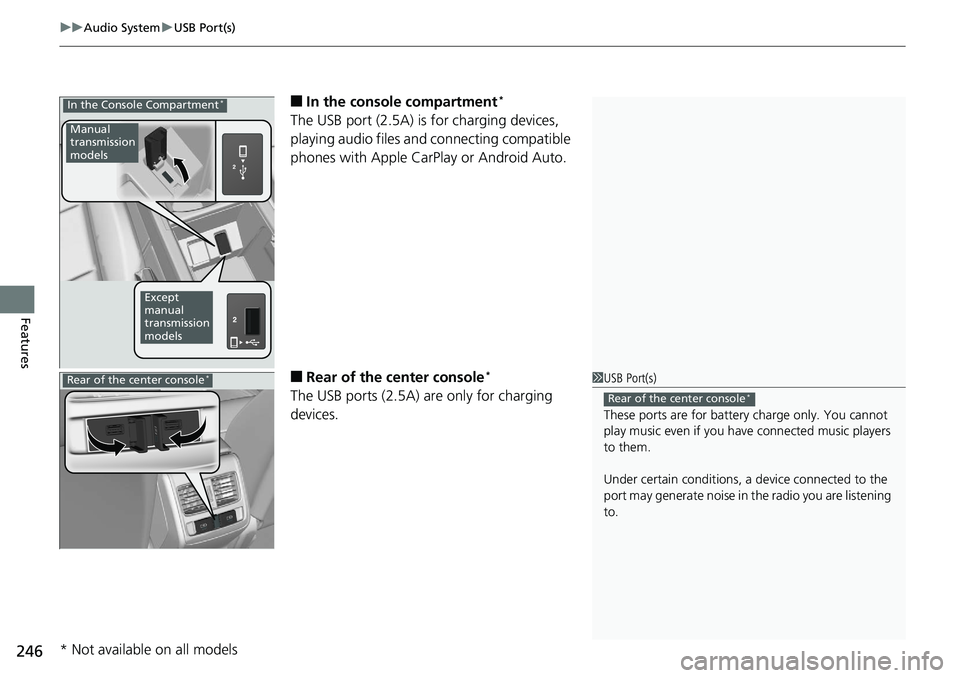
Features ■ In the consol e compartment *
The USB port (2.5A) is for charging devices,
playing audio files and connecting compatible
phones with Apple CarPlay or Android Auto.
■ Rear of the center console *
The USB ports (2.5A) are only for charging
devices.In the Console Compartment *
Manual
transmission
models
Except
manual
transmission
models
1 USB Port(s)
These ports are for battery charge only. You cannot
play music even if you ha ve connected music players
to them.
Under certain condi tions, a device connected to the
port may generate noise in the radio you are listening
to. Rear of the center console *
Rear of the center console *
* Not available on all models
Page 257 of 727
Continued
255uu Audio System Basic Operation u Audio/Information Screen
Features
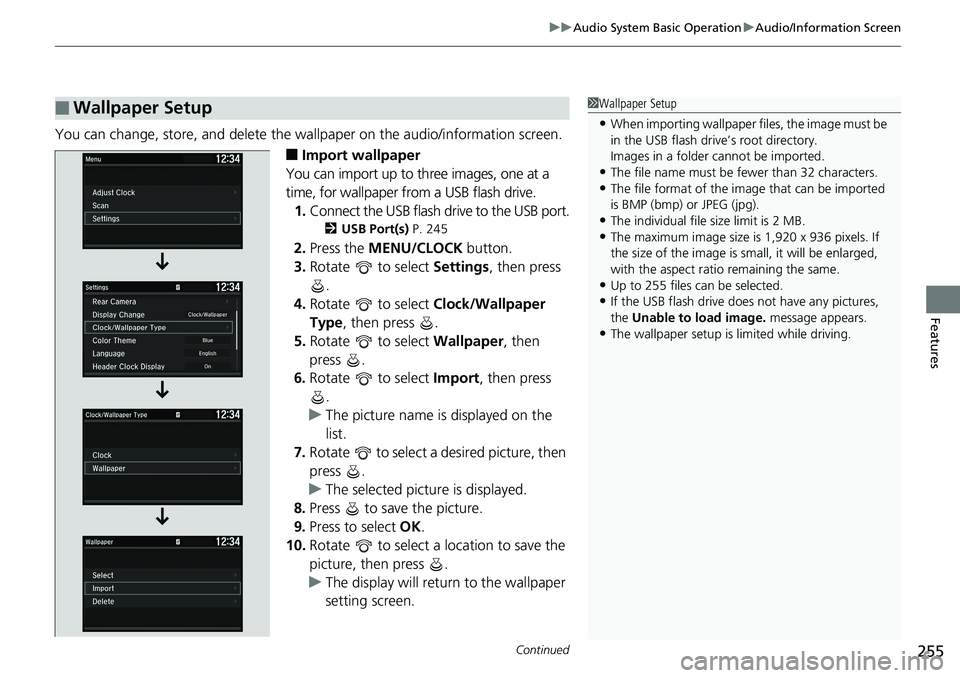
You can change, store, and delete the wa llpaper on the audio/information screen.
■ Import wallpaper
You can import up to three images, one at a
time, for wallpaper from a USB flash drive.
1. Connect the USB flash drive to the USB port. 2 USB Port(s) P. 245
2. Press the MENU/CLOCK button.
3. Rotate to select Settings , then press
.
4. Rotate to select Clock/Wallpaper
Type , then press .
5. Rotate to select Wallpaper , then
press .
6. Rotate to select Import , then press
.
u The picture name is displayed on the
list.
7. Rotate to select a desired picture, then
press .
u The selected picture is displayed.
8. Press to save the picture.
9. Press to select OK .
10. Rotate to select a location to save the
picture, then press .
u The display will retu rn to the wallpaper
setting screen.■ Wallpaper Setup 1 Wallpaper Setup
• When importing wallpaper files, the image must be
in the USB flash driv e’s root directory.
Images in a folder cannot be imported.
• The file name must be fewer than 32 characters.
• The file format of the im age that can be imported
is BMP (bmp) or JPEG (jpg).
• The individual file size limit is 2 MB.
• The maximum image size is 1,920 x 936 pixels. If
the size of the image is small, it will be enlarged,
with the aspect ratio remaining the same.
• Up to 255 files can be selected.
• If the USB flash drive doe s not have any pictures,
the Unable to load image. message appears.
• The wallpaper setup is limited while driving.
Page 263 of 727
261uu Audio System Basic Operation u Playing an iPod
Continued
Features
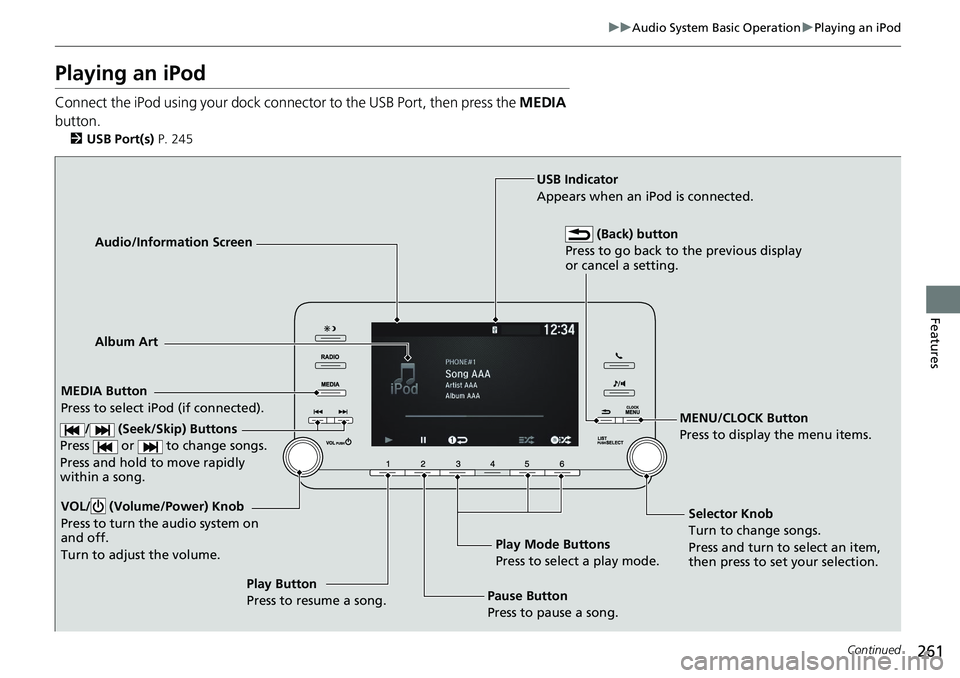
Playing an iPod Connect the iPod using your dock connector to the USB Port, then press the MEDIA
button. 2 USB Port(s) P. 245
Audio/Information Screen
MEDIA Button
Press to select iP od (if connected).
MENU/CLOCK Button
Press to display the menu items.
Selector Knob
Turn to change songs.
Press and turn to select an item,
then press to set your selection.VOL/ (Volume/Power) Knob
Press to turn the audio system on
and off.
Turn to adjust the volume.
Play Button
Press to resume a song.Album Art USB Indicator
Appears when an iPod is connected.
(Back) button
Press to go back to the previous display
or cancel a setting.
/ (Seek/Skip) Buttons
Press or to change songs.
Press and hold to move rapidly
within a song.
Play Mode Buttons
Press to select a play mode.
Pause Button
Press to pause a song.
Page 266 of 727
264 uu Audio System Basic Operation u Playing Pandora ®
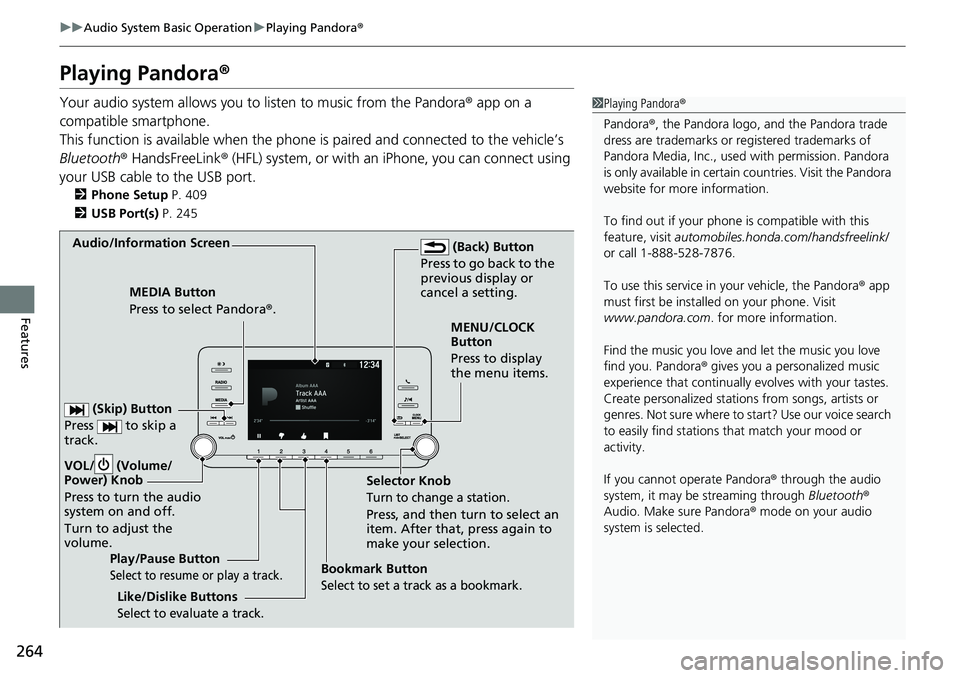
Features Playing Pandora ®Your audio system allows you to listen to music from the Pandora ® app on a
compatible smartphone.
This function is available when the phone is paired and connected to the vehicle’s
Bluetooth ® HandsFreeLink ® (HFL) system, or with an iPhone, you can connect using
your USB cable to the USB port. 2 Phone Setup P. 409
2 USB Port(s) P. 245 1 Playing Pandora ®
Pandora ® , the Pandora logo, and the Pandora trade
dress are trademarks or registered trademarks of
Pandora Media, Inc., used with permission. Pandora
is only available in certai n countries. Visit the Pandora
website for more information.
To find out if your phone is compatible with this
feature, visit automobiles.honda.com /handsfreelink/
or call 1-888-528-7876.
To use this service in your vehicle, the Pandora ® app
must first be installed on your phone. Visit
www.pandora.com . for more information.
Find the music you love and let the music you love
find you. Pandora ® gives you a personalized music
experience that continually evolves with your tastes.
Create personalized stati ons from songs, artists or
genres. Not sure where to start? Use our voice search
to easily find stations th at match your mood or
activity.
If you cannot operate Pandora ® through the audio
system, it may be streaming through Bluetooth ®
Audio. Make sure Pandora ® mode on your audio
system is selected.Audio/Information Screen
Selector Knob
Turn to change a station.
Press, and then turn to select an
item. After that, press again to
make your selection.VOL/ (Volume/
Power) Knob
Press to turn the audio
system on and off.
Turn to adjust the
volume. (Back) Button
Press to go back to the
previous display or
cancel a setting.MEDIA Button
Press to select Pandora ® .
Play/Pause Button
Select to resume or play a track. (Skip) Button
Press to skip a
track.
Like/Dislike Buttons
Select to evaluate a track. MENU/CLOCK
Button
Press to display
the menu items.
Bookmark Button
Select to set a track as a bookmark.
Page 268 of 727
266 uu Audio System Basic Operation u Playing a USB Flash Drive
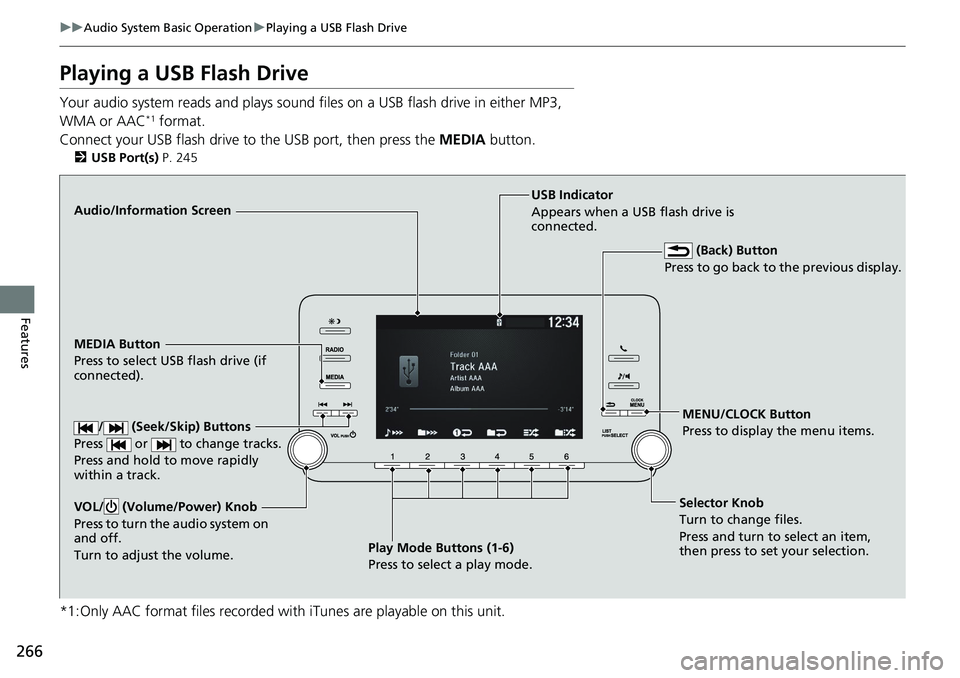
Features Playing a USB Flash Drive Your audio system reads and plays sound files on a USB flash drive in either MP3,
WMA or AAC *1
format.
Connect your USB flash drive to the USB port, then press the MEDIA button.2 USB Port(s) P. 245
*1:Only AAC format files recorded with iTunes are playable on this unit.Audio/Information Screen
MEDIA Button
Press to select USB flash drive (if
connected).
MENU/CLOCK Button
Press to display the menu items.
Selector Knob
Turn to change files.
Press and turn to select an item,
then press to set your selection.VOL/ (Volume/Power) Knob
Press to turn the audio system on
and off.
Turn to adjust the volume. USB Indicator
Appears when a USB flash drive is
connected.
(Back) Button
Press to go back to the previous display.
/ (Seek/Skip) Buttons
Press or to change tracks.
Press and hold to move rapidly
within a track.
Play Mode Buttons (1-6)
Press to select a play mode.
Page 272 of 727
uu Audio System Basic Operation u Playing Bluetooth ® Audio
270
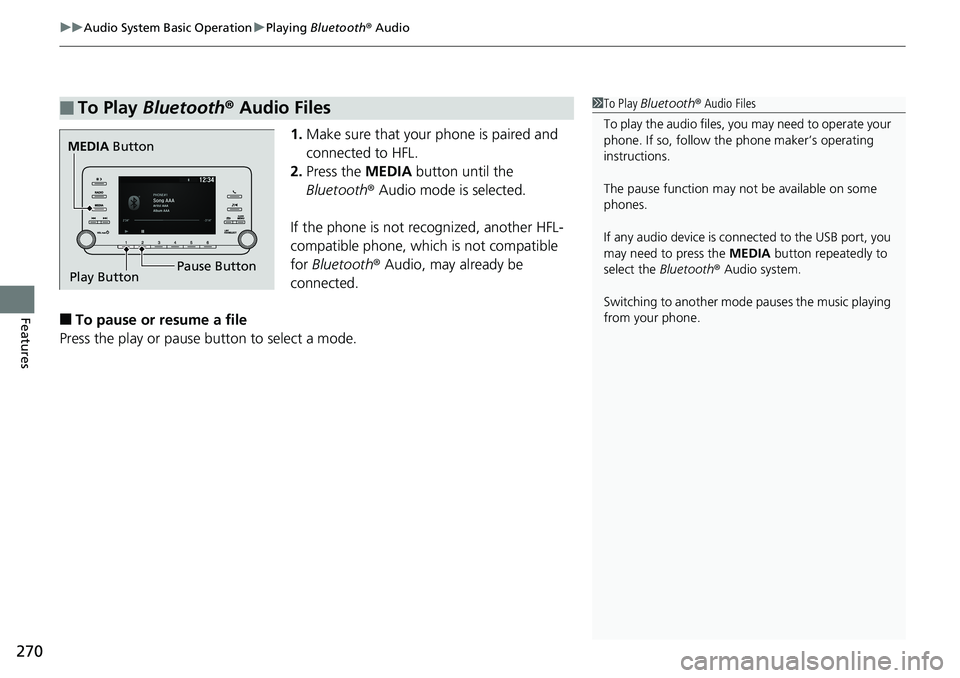
Features 1. Make sure that your phone is paired and
connected to HFL.
2. Press the MEDIA button until the
Bluetooth ® Audio mode is selected.
If the phone is not re cognized, another HFL-
compatible phone, which is not compatible
for Bluetooth ® Audio, may already be
connected.
■ To pause or resume a file
Press the play or pause button to select a mode.■ To Play Bluetooth ® Audio Files 1 To Play Bluetooth ® Audio Files
To play the audio files, y ou may need to operate your
phone. If so, follow the phone maker’s operating
instructions.
The pause function may no t be available on some
phones.
If any audio device is connected to the USB port, you
may need to press the MEDIA button repeatedly to
select the Bluetooth ® Audio system.
Switching to another mode pauses the music playing
from your phone.MEDIA Button
Play Button Pause Button