android auto HONDA ACCORD HYBRID 2019 Owners Manual
[x] Cancel search | Manufacturer: HONDA, Model Year: 2019, Model line: ACCORD HYBRID, Model: HONDA ACCORD HYBRID 2019Pages: 727, PDF Size: 24.78 MB
Page 18 of 727
16
Quick Reference Guide Features (P 243)
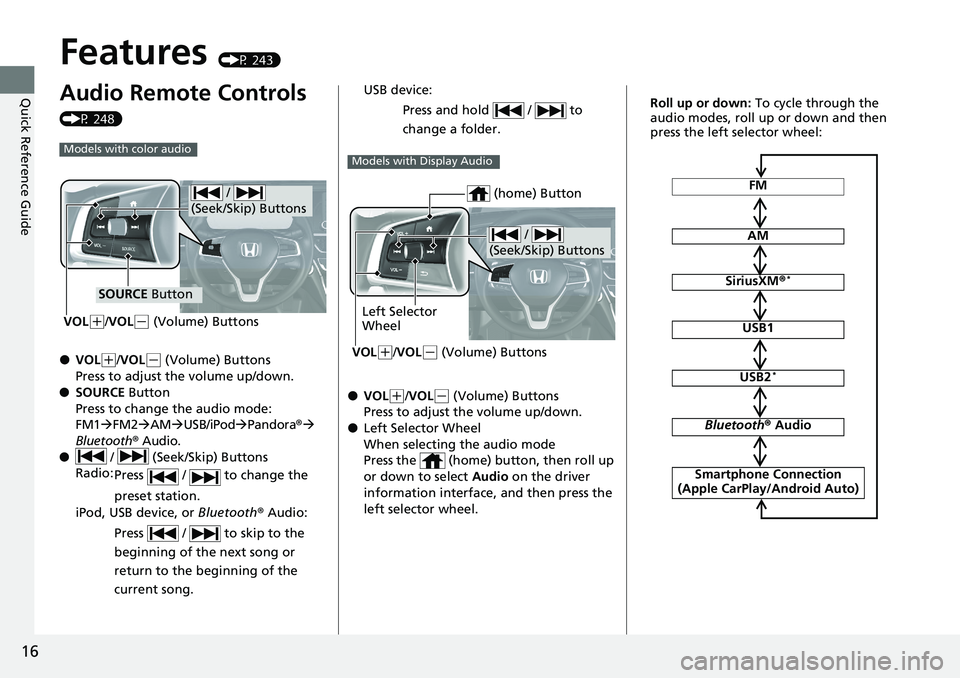
Audio Remote Controls (P 248)
● VOL ( +
/ VOL ( -
(Volume) Buttons
Press to adjust the volume up/down.
● SOURCE Button
Press to change the audio mode:
FM1 FM2 AM USB/iPod Pandora ®
Bluetooth ® Audio.
● / (Seek/Skip) Buttons
Radio:
Press / to change the
preset station.
iPod, USB device, or Bluetooth ® Audio:
Press / to skip to the
beginning of the next song or
return to the beginning of the
current song.Models with color audio
/
(Seek/Skip) Buttons
SOURCE Button
VOL ( +
/ VOL ( -
(Volume) Buttons
● VOL ( +
/ VOL ( -
(Volume) Buttons
Press to adjust the volume up/down.
● Left Selector Wheel
When selecting the audio mode
Press the (home) button, then roll up
or down to select Audio on the driver
information interface, and then press the
left selector wheel.USB device:
Press and hold / to
change a folder. Models with Display Audio
/
(Seek/Skip) Buttons
Left Selector
Wheel
VOL ( +
/ VOL ( -
(Volume) Buttons (home) Button FM
AM
SiriusXM ® *
USB1
USB2 *
Bluetooth ® Audio
Smartphone Connection
(Apple CarPlay/Android Auto)Roll up or down: To cycle through the
audio modes, roll up or down and then
press the left selector wheel:
Page 148 of 727
uu Gauges and Displays u Driver Information Interface
146
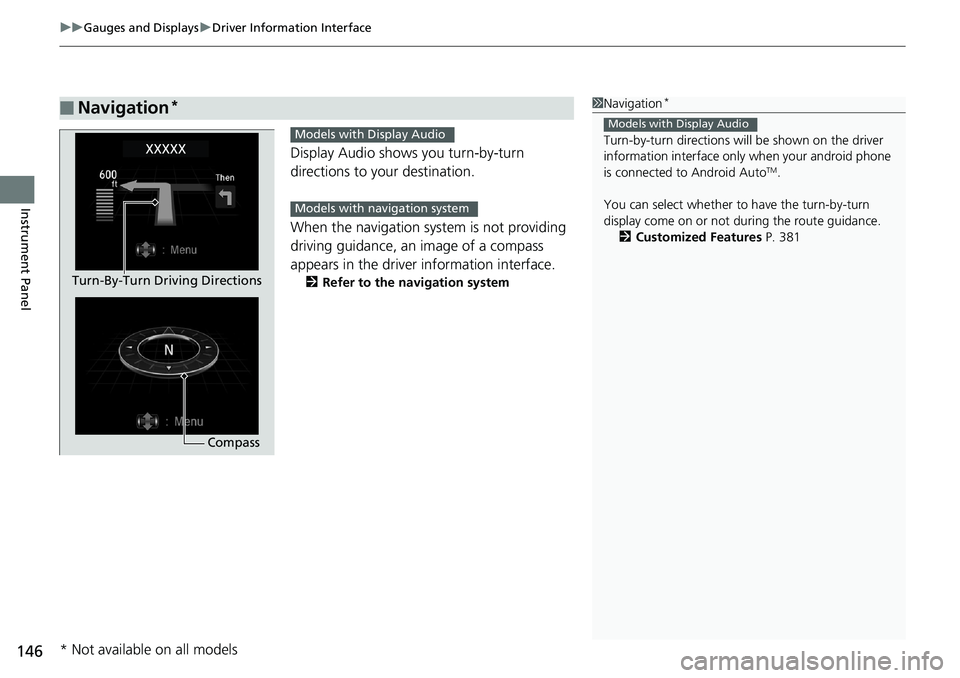
Instrument Panel Display Audio shows you turn-by-turn
directions to your destination.
When the navigation system is not providing
driving guidance, an image of a compass
appears in the driver information interface. 2 Refer to the navigation system
■ Navigation * 1 Navigation *
Turn-by-turn directions wi ll be shown on the driver
information interface only when your android phone
is connected to Android Auto TM
.
You can select whether to have the turn-by-turn
display come on or not dur ing the route guidance.
2 Customized Features P. 381Models with Display Audio
CompassTurn-By-Turn Driving Directions Models with Display Audio
Models with navigation system
* Not available on all models
Page 245 of 727
243Features This chapter describes how to operate technology features.
Audio System
About Your Audio System ................ 244
USB Port(s) ....................................... 245
Audio System Theft Protection ......... 247
Audio Remote Controls .................... 248
Audio System Basic Operation ........ 252
Audio/Information Screen ................ 253
Adjusting the Sound ........................ 257
Display Setup ................................... 258
Playing AM/FM Radio ....................... 259
Playing an iPod ................................ 261
Playing Pandora ® .............................. 264
Playing a USB Flash Drive ................. 266 Models with color audio Playing Bluetooth ® Audio................. 269
Siri ® Eyes Free .................................. 272
Audio System Basic Operation ........ 273
Audio/Information Screen ................ 274
System Updates ............................... 286
Adjusting the Sound ........................ 292
Display Setup ................................... 293
Voice Control Operation .................. 295
Playing AM/FM Radio ....................... 298
Playing SiriusXM ® Radio *
................. 302
Playing an iPod ................................ 313
Playing a USB Flash Drive ................. 316
Playing Bluetooth ® Audio................. 319Models with Display Audio
HondaLink ® ..................................... 321
HondaLink ® Service *
........................ 325
Wi-Fi Connection ............................. 330
Near Field Communication (NFC) *
... 332
Siri ® Eyes Free .................................. 335
Apple CarPlay ® ................................ 336
Android Auto TM
............................... 339
Audio Error Messages ...................... 343
General Information on the Audio
System ............................................. 348
Customized Features ................ 370 , 381
HomeLink ® Universal Transceiver *
..... 400
Bluetooth ® HandsFreeLink ® ..... 403 , 427
Refuel Recommend .............................. 452
* Not available on all models
Page 247 of 727
245 uu Audio System u USB Port(s)
Continued
Features
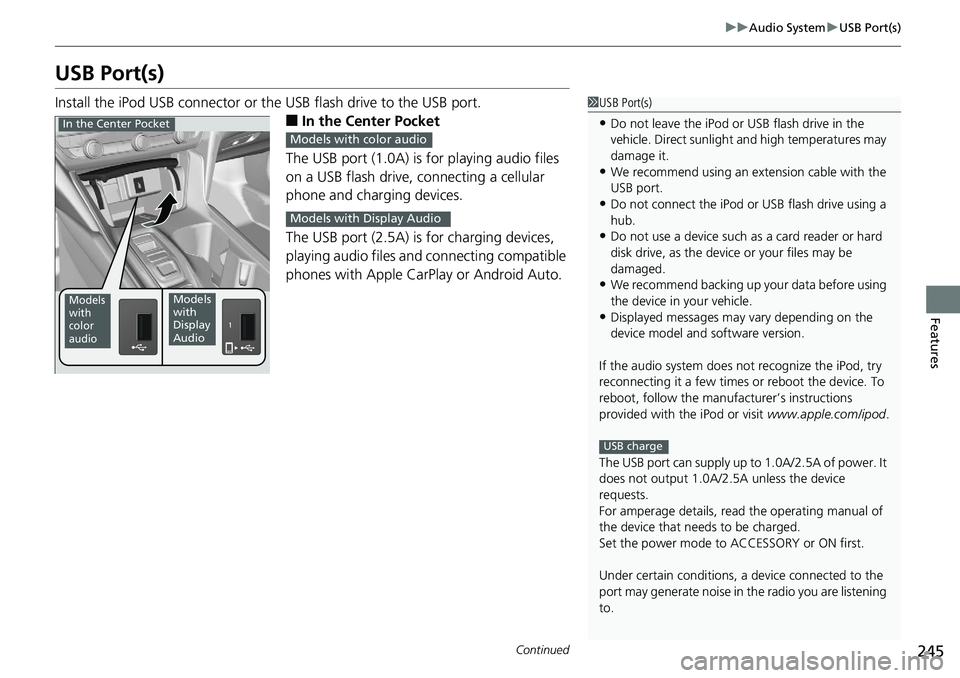
USB Port(s) Install the iPod USB connector or th e USB flash drive to the USB port.
■ In the Center Pocket
The USB port (1.0A) is for playing audio files
on a USB flash drive, connecting a cellular
phone and charging devices.
The USB port (2.5A) is for charging devices,
playing audio files and connecting compatible
phones with Apple CarPlay or Android Auto. 1 USB Port(s)
• Do not leave the iPod or USB flash drive in the
vehicle. Direct sunlight and high temperatures may
damage it.
• We recommend using an ex tension cable with the
USB port.
• Do not connect the iPod or USB flash drive using a
hub.
• Do not use a device such as a card reader or hard
disk drive, as the device or your files may be
damaged.
• We recommend backing up yo ur data before using
the device in your vehicle.
• Displayed messages may vary depending on the
device model and software version.
If the audio system does not recognize the iPod, try
reconnecting it a few times or reboot the device. To
reboot, follow the manufac turer’s instructions
provided with the iPod or visit www.apple.com/ipod .
The USB port can supply up to 1.0A/2.5A of power. It
does not output 1.0A/2.5A unless the device
requests.
For amperage details, read the operating manual of
the device that ne eds to be charged.
Set the power mode to ACCESSORY or ON first.
Under certain condi tions, a device connected to the
port may generate noise in the radio you are listening
to. USB chargeModels
with
color
audio Models
with
Display
AudioIn the Center Pocket
Models with color audio
Models with Display Audio
Page 248 of 727
uu Audio System u USB Port(s)
246
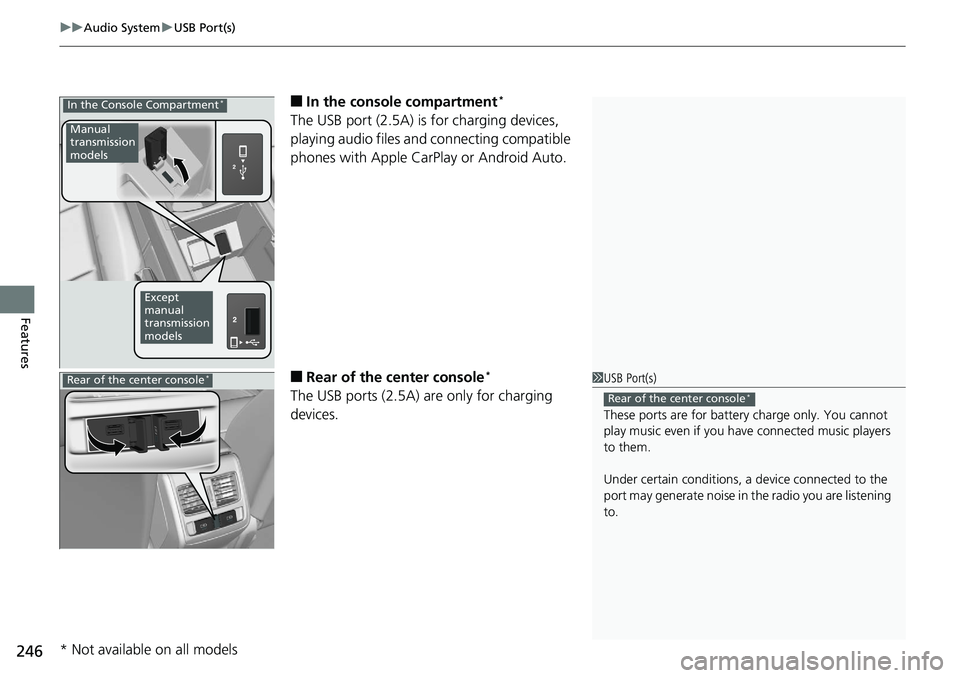
Features ■ In the consol e compartment *
The USB port (2.5A) is for charging devices,
playing audio files and connecting compatible
phones with Apple CarPlay or Android Auto.
■ Rear of the center console *
The USB ports (2.5A) are only for charging
devices.In the Console Compartment *
Manual
transmission
models
Except
manual
transmission
models
1 USB Port(s)
These ports are for battery charge only. You cannot
play music even if you ha ve connected music players
to them.
Under certain condi tions, a device connected to the
port may generate noise in the radio you are listening
to. Rear of the center console *
Rear of the center console *
* Not available on all models
Page 252 of 727
250 uu Audio System u Audio Remote Controls
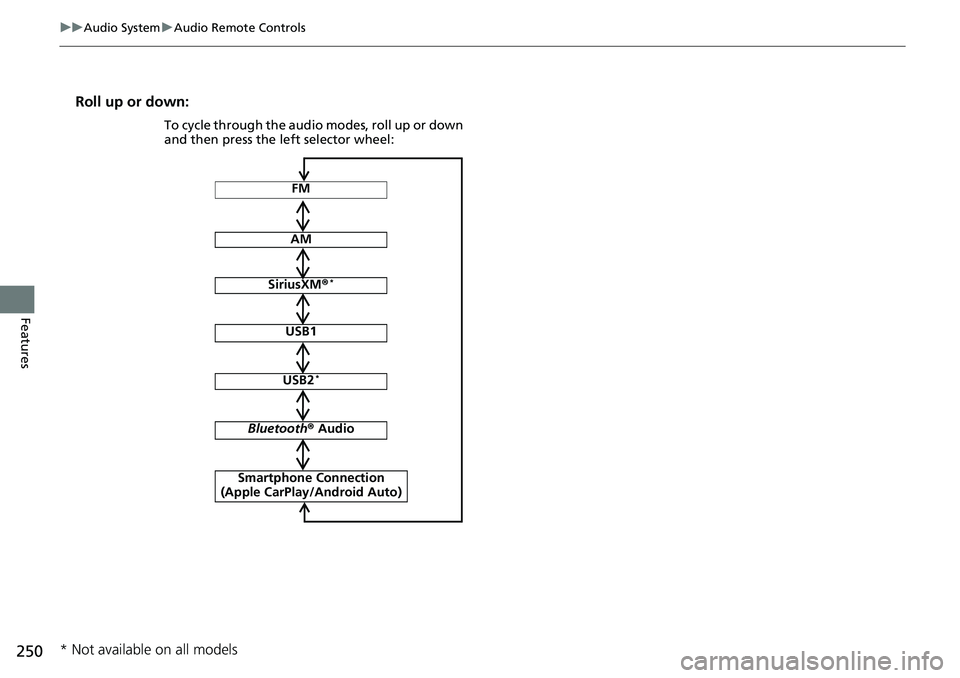
Features Roll up or down:
FM
AM
SiriusXM ® *
USB1
USB2 *
Bluetooth ® Audio
Smartphone Connection
(Apple CarPlay/Android Auto)To cycle through the audio modes, roll up or down
and then press the left selector wheel:
* Not available on all models
Page 278 of 727
276 uu Audio System Basic Operation u Audio/Information Screen
Features ■ HondaLink
Displays the H ondaLink screen.2 HondaLink ® P. 321
■ Apple CarPlay/Android Auto
Displays the Apple CarPlay or Android Auto screen.2 Apple CarPlay ® P. 336
2 Android Auto TM
P. 339
■ Messages
Displays the text message screen. 2 Bluetooth ® HandsFreeLink ® P. 427
■ AT&T Hotspot *
Displays the AT&T Hotspot screen.
■ NFC Manager *
Displays the Near Field Communi cation (NFC) manager screen.2 Near Field Communication (NFC) *
P. 332
■ Compass *
Displays the compass screen.
* Not available on all models
Page 321 of 727
319uu Audio System Basic Operation u Playing Bluetooth ® Audio
Continued
Features
Playing Bluetooth ® AudioYour audio system allows you to listen to music from your Bluetooth -compatible
phone.
This function is available when the phone is paired an d connected to the vehicle’s
Bluetooth ® HandsFreeLink ® (HFL) system.2 Phone Setup P. 432 1 Playing Bluetooth ® Audio
Not all Bluetooth-enable d phones with streaming
audio capabilities are compat ible with the system. For
a list of compatible phones:
• U.S.: Visit automobiles.honda.com /handsfreelink
or call 1-888-528-7876.
• Canada: For more info rmation on smartphone
compatibility, call 1-888-528-7876.
It may be illegal to pe rform some data device
functions while driving.
Only one phone can be used with HFL at a time.
When there are more than two paired phones in the
vehicle, the first paired phone the system finds is
automatically connected.
The connected phone for Bluetooth ® Audio can be
different.
If more than one phone is paired to the HFL system,
there may be a delay before the system begins to play.
In some cases, the name of the artist, album, or track
may not appear correctly.
Some functions may not be available on some devices.
If a phone is currently conne cted via Appl e CarPlay or
Android Auto, Bluetooth ® Audio from that phone
will be unavailable. Howe ver, you can have a second
previously paired phone stream Bluetooth ® Audio by
selecting from the Bluetooth ® device list.
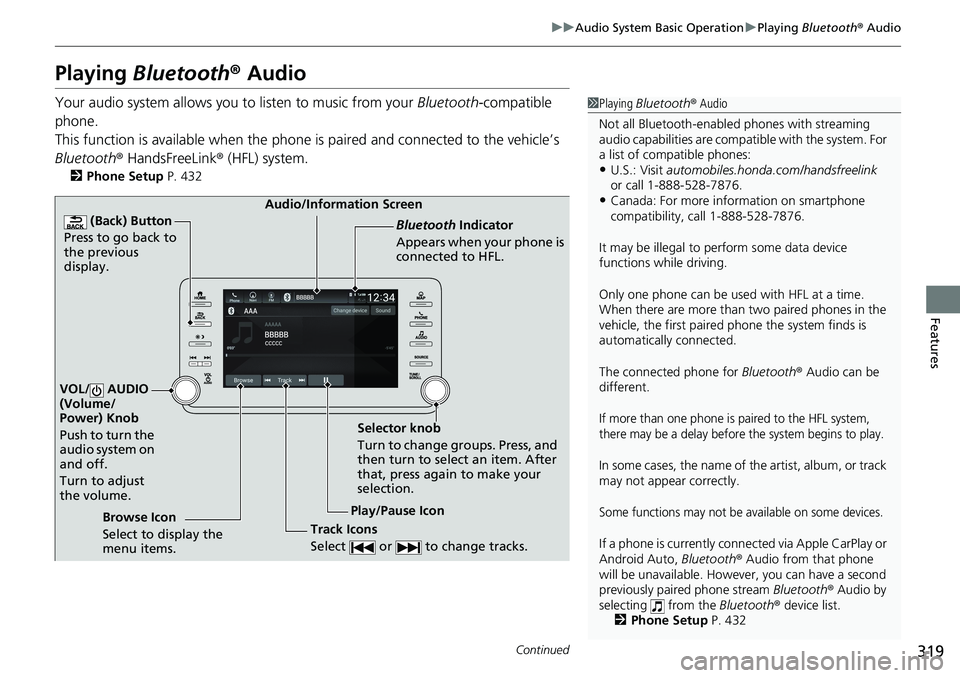
2 Phone Setup P. 432Audio/Information Screen
(Back) Button
Press to go back to
the previous
display.
VOL/ AUDIO
(Volume/
Power) Knob
Push to turn the
audio system on
and off.
Turn to adjust
the volume.
Play/Pause Icon Bluetooth Indicator
Appears when your phone is
connected to HFL.
Track Icons
Select or to change tracks.Browse Icon
Select to display the
menu items. Selector knob
Turn to change groups. Press, and
then turn to select an item. After
that, press again to make your
selection.
Page 341 of 727
339uu Audio System Basic Operation u Android Auto TM
Continued
Features
Android Auto TM
When you connect an Android phone to the audio system via the front USB port,
Android Auto is automatically initiated. When connected via Android Auto, you can
use the audio/information screen to access the Phone, Google Maps (Navigation),
Google Play Music, and Google Now functions. When you first use Android Auto, a
tutorial will appear on the screen.
We recommend that you complete this tuto rial while safely pa rked before using
Android Auto. 2 USB Port(s) P. 245
2 Auto Pairing Connection P. 341 1 Android Auto TM
To use Android Auto, you need to download the
Android Auto app from Google Play to your
smartphone.
Only Android 5.0 (Lollipop) or later versions are
compatible with Android Auto.
Bluetooth A2DP cannot be used with Android Auto
phone.
Park in a safe place befo re connecting your Android
phone to Android Auto and when launching any
compatible apps.
To use Android Auto, connect the USB cable to the
USB port(s) located in the center pocket or the
console compartment *
. The USB ports located on the
rear of the center console *
will not enable Android
Auto operation.
2 USB Port(s) P. 245
To directly access the Android Auto phone function,
press Phone on the home screen.
2 Auto Pairing Connection P. 341
When your Android phone is connected to Android
Auto, it is not possible to use the Bluetooth ® Audio.
However, other previously paired phones can stream
audio via Bluetooth ® while Android Auto is
connected.
2 Phone Setup P. 432
* Not available on all models
Page 342 of 727
uu Audio System Basic Operation u Android Auto TM
340
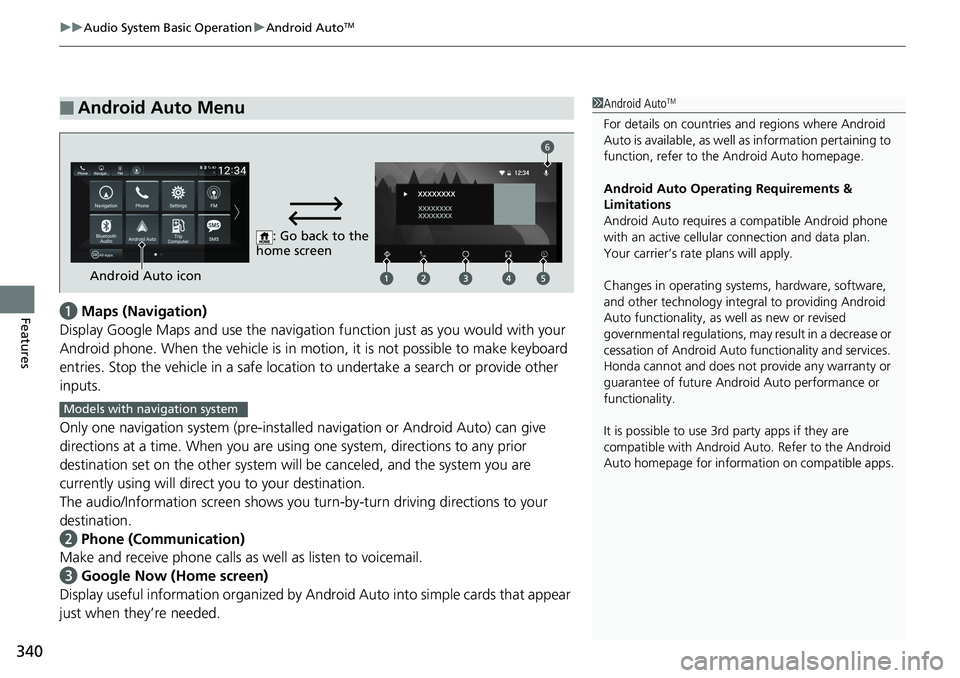
Features a Maps (Navigation)
Display Google Maps and use the navigation function just as you would with your
Android phone. When the vehicle is in motion, it is not possi ble to make keyboard
entries. Stop the vehicle in a safe location to undertake a search or provide other
inputs.
Only one navigation system (pre-installe d navigation or Android Auto) can give
directions at a time. When you are using one system, directions to any prior
destination set on the other system will be canceled, and the system you are
currently using will direct you to your destination.
The audio/Information screen shows you tu rn-by-turn driving di rections to your
destination.
b Phone (Communication)
Make and receive phone calls as well as listen to voicemail.
c Google Now (Home screen)
Display useful information organized by Andr oid Auto into simple cards that appear
just when they’re needed.■ Android Auto Menu 1 Android Auto TM
For details on c ountries and regions where Android
Auto is available, as well as information pertaining to
function, refer to the Android Auto homepage.
Android Auto Operating Requirements &
Limitations
Android Auto requires a compatible Android phone
with an active cellular connection and data plan.
Your carrier’s rate plans will apply.
Changes in operating system s, hardware, software,
and other technology integral to providing Android
Auto functionality, as well as new or revised
governmental regulations, may result in a decrease or
cessation of Android Auto functionality and services.
Honda cannot and does not pr ovide any warranty or
guarantee of future Android Auto performance or
functionality.
It is possible to use 3r d party apps if they are
compatible with Android Auto. Refer to the Android
Auto homepage for informat ion on compatible apps.: Go back to the
home screen
Android Auto icon 6
Models with navigation system