door lock HONDA ACCORD SEDAN 2015 9.G Technology Reference Guide
[x] Cancel search | Manufacturer: HONDA, Model Year: 2015, Model line: ACCORD SEDAN, Model: HONDA ACCORD SEDAN 2015 9.GPages: 15, PDF Size: 1.73 MB
Page 2 of 15
........................................................................\
16
SMS Text Messaging ........................................................................")
Bluetooth®HandsFreeLink®(HFL)........................................................................\
16
SMS Text Messaging ........................................................................\
........................20
Basic Audio Operation ........................................................................\
..................21
iPod
®or USB Flash Drive ........................................................................\
.............22
Bluetooth
®Audio ........................................................................\
..............................23
Pandora
®........................................................................\
...........................................24
Honda Owners ........................................................................\
...............................25
Safety Reminder ........................................................................\
..............................25
Fuel Recommendation........................................................................\
...................26
Honda Roadside Assistance........................................................................\
..........26
Smart Entry with Push Button Start* ...................................................................2
Instrument Panel Indicators ........................................................................\
...........4
Information Display ........................................................................\
..........................6
Eco Assist
TM........................................................................\
........................................8
Tire Pressure Monitoring System (TPMS)...........................................................9
Settings for Your Vehicle ........................................................................\
................10
Auto Door Locks ........................................................................\
...........................11
One-Touch Turn Signal..................................................................\
.........................12
Auto Headlights with Wiper Integration...........................................................12
Rearview Camera ........................................................................\
...........................13
LaneWatch
TM* ........................................................................\
.................................14
Intelligent Multi-Information Display (i-MID) ...................................................15
TECHNOLOGY REFERENCE GUIDE
This Technology Reference Guide is designed to help you
get acquainted with your 2015 Honda Accord Sedan LX,
Sport, or EX and provide basic instructions on some of its
technology and convenience features.
This guide is not intended to be a substitute for the
Owner’s Manual. For more detailed information on vehicle
controls and operation, please refer to the respective
sections in the Owner’s Manual.
*EX only
AUDIO p. 21
BLUETOOTH®
HANDSFREELINK®p. 16
ECO
ASSIST
TMp. 8
INSTRUMENT
PANEL p. 4
i-MID p. 15
EX shown
Page 3 of 15
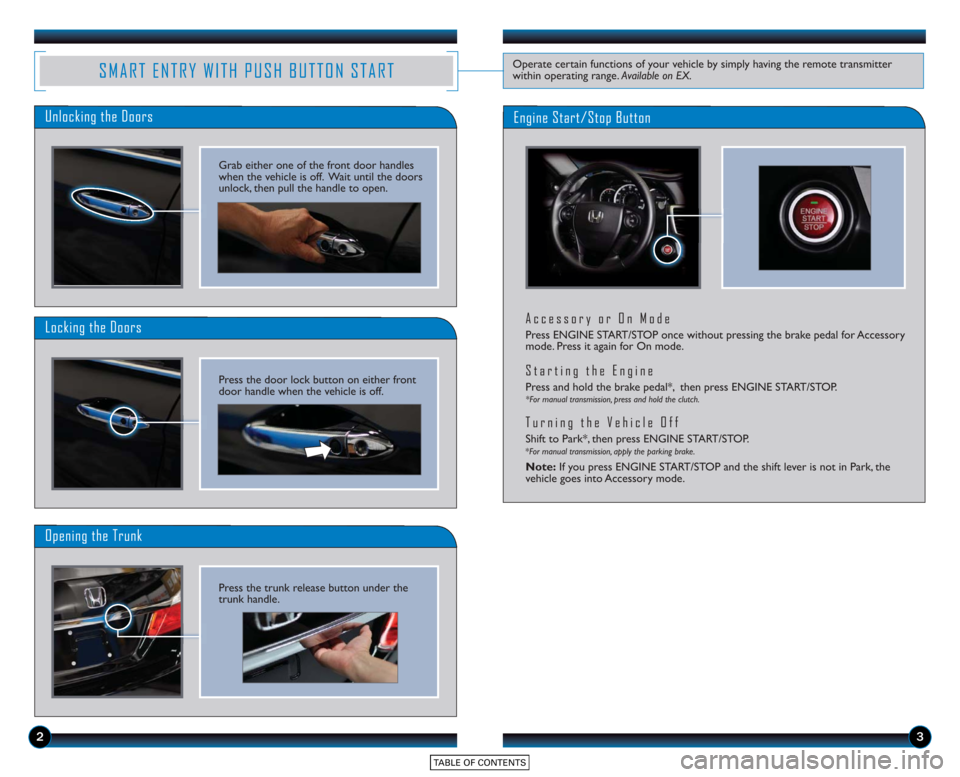
SMART ENTRY WITH PUSH BUTTON STARTOperate certain functions of your vehicle by simply having the remote transmitter
within operating range. Available on EX.
Unlocking the Doors
Locking the Doors
Opening the Trunk
Engine Start/Stop Button
23
Accessory or On Mode
Press ENGINE START/STOP once without pressing the brake pedal for Accessory
mode. Press it again for On mode.
Starting the Engine
Press and hold the brake pedal*, then press ENGINE START/STOP.*For manual transmission, press and hold the clutch.
Turning the Vehicle Off
Shift to Park*, then press ENGINE START/STOP.*For manual transmission, apply the parking brake.
Note:If you press ENGINE START/STOP and the shift lever is not in Park, the
vehicle goes into Accessory mode.
Grab either one of the front door handles
when the vehicle is off. Wait until the doors
unlock, then pull the handle to open.
Press the door lock button on either front
door handle when the vehicle is off.
Press the trunk release button under the
trunk handle.
Page 4 of 15
45
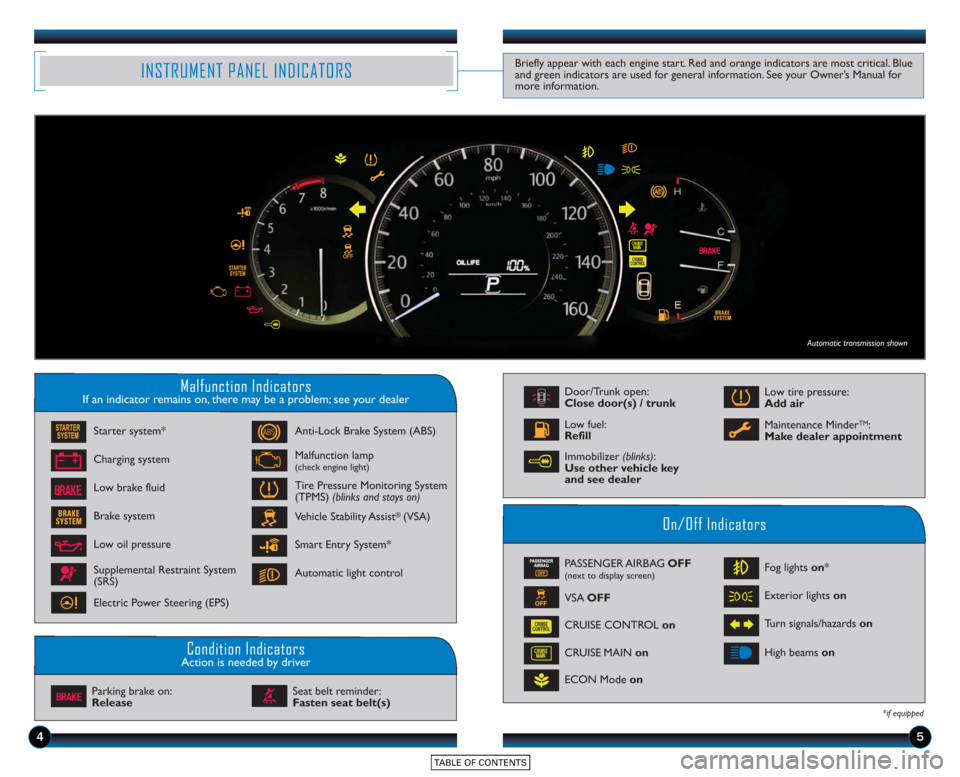
Malfunction IndicatorsIf an indicator remains on, there may be a problem; see your dealer
On/Off Indicators
Condition IndicatorsAction is needed by driver
PASSENGER AIRBAG OFF(next to display screen)
VSA OFF
CRUISE CONTROL on
ECON Mode on Fog lights
on*
Exterior lights on
Turn signals/hazards on
CRUISE MAIN on High beams
on
*if equipped
Charging system
Low brake fluid Anti-Lock Brake System (ABS)
Malfunction lamp(check engine light)
Tire Pressure Monitoring System
(TPMS) (blinks and stays on)
Vehicle Stability Assist
®(VSA)
Parking brake on:
Release Seat belt reminder:
Fasten seat belt(s)
INSTRUMENT PANEL INDICATORSBriefly appear with each engine start. Red and orange indicators are most critical. Blue
and green indicators are used for general information. See your Owner’s Manual for
more information.
Starter system*
Brake system
Smart Entry System*
Automatic light control
Low oil pressure
Supplemental Restraint System
(SRS)
Electric Power Steering (EPS)
Door/Trunk open:
Close door(s) / trunk
Low tire pressure:
Add air
Maintenance Minder
TM:
Make dealer appointmentLow fuel:
Refill
Automatic transmission shown
Immobilizer (blinks):
Use other vehicle key
and see dealer
Page 7 of 15
10
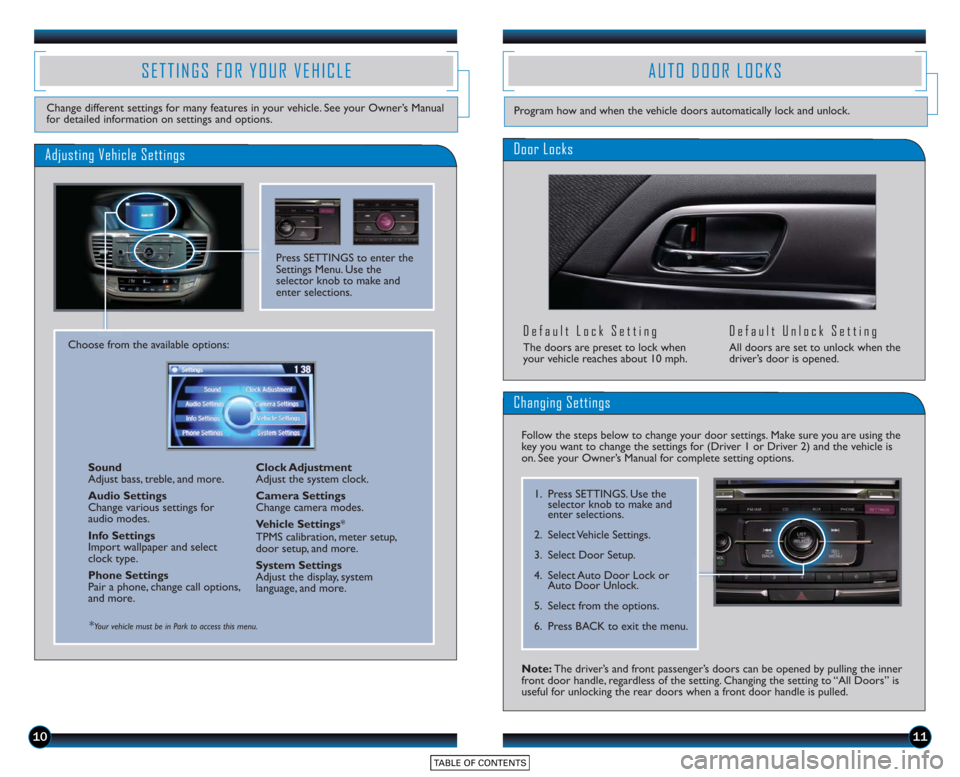
SETTINGS FOR YOUR VEHICLE
Change different settings for many features in your vehicle. See your Owner’s Manual
for detailed information on settings and options.
Adjusting Vehicle Settings
Press SETTINGS to enter the
Settings Menu. Use the
selector knob to make and
enter selections.
Choose from the available options:Sound
Adjust bass, treble, and more.
Audio Settings
Change various settings for
audio modes.
Info Settings
Import wallpaper and select
clock type.
Phone Settings
Pair a phone, change call options,
and more. Clock Adjustment
Adjust the system clock.
Camera Settings
Change camera modes.
Vehicle Settings
*
TPMS calibration, meter setup,
door setup, and more.
System Settings
Adjust the display, system
language, and more.
*Your vehicle must be in Park to access this menu.
AUTO DOOR LOCKS
Door Locks
Default Lock Setting
The doors are preset to lock when
your vehicle reaches about 10 mph.
Default Unlock Setting
All doors are set to unlock when the
driver’s door is opened.
11
Program how and when the vehicle doors automatically lock and unlock.
Note: The driver’s and front passenger’s doors can be opened by pulling the inner
front door handle, regardless of the setting. Changing the setting to “All Doors” is
useful for unlocking the rear doors when a front door handle is pulled.
Changing Settings
Follow the steps below to change your door settings. Make sure you are using the
key you want to change the settings for (Driver 1 or Driver 2) and the vehicle is
on. See your Owner’s Manual for complete setting options.
1. Press SETTINGS. Use the selector knob to make and
enter selections.
2. Select Vehicle Settings.
3. Select Door Setup.
4. Select Auto Door Lock or Auto Door Unlock.
5. Select from the options.
6. Press BACK to exit the menu.
Page 9 of 15
1415
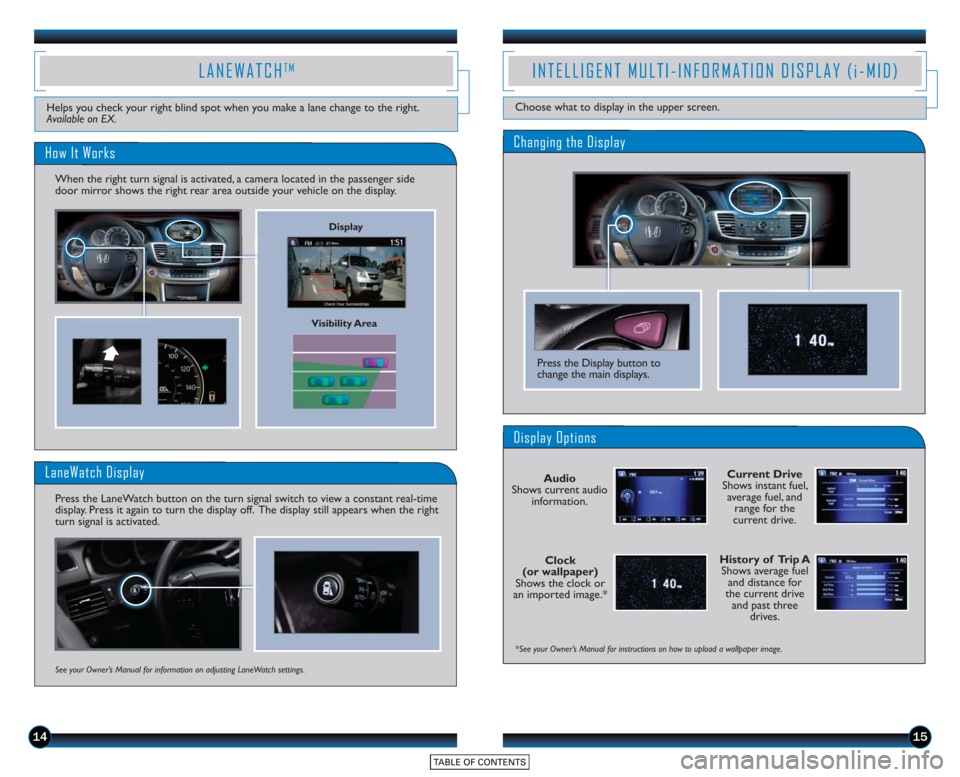
Current Drive
Shows instant fuel, average fuel, and range for the
current drive.
History of Trip A Shows average fuel and distance for
the current drive and past three drives.
*See your Owner’s Manual for instructions on how to upload a wallpaper image.
Display Options
INTELLIGENT MULTI-INFORMATION DISPLAY (i-MID)
Choose what to display in the upper screen.
Clock
(or wallpaper)
Shows the clock or
an imported image.* Audio
Shows current audio information.
Press the Display button to
change the main displays.
Changing the Display
Visibility Area
LANEWATCHTM
How It Works
When the right turn signal is activated, a camera located in the passenger side
door mirror shows the right rear area outside your vehicle on the display.
Helps you check your right blind spot when you make a lane change to the right.
Available on EX.
LaneWatch Display
Press the LaneWatch button on the turn signal switch to view a constant real-time
display. Press it again to turn the display off. The display still appears when the right
turn signal is activated.
See your Owner’s Manual for information on adjusting LaneWatch settings.
Display