set clock HONDA ACCORD SEDAN 2020 (in English) Owner's Guide
[x] Cancel search | Manufacturer: HONDA, Model Year: 2020, Model line: ACCORD SEDAN, Model: HONDA ACCORD SEDAN 2020Pages: 728, PDF Size: 34.06 MB
Page 338 of 728
uuAudio System Basic Operation uNear Field Communication (NFC)*
336
Features
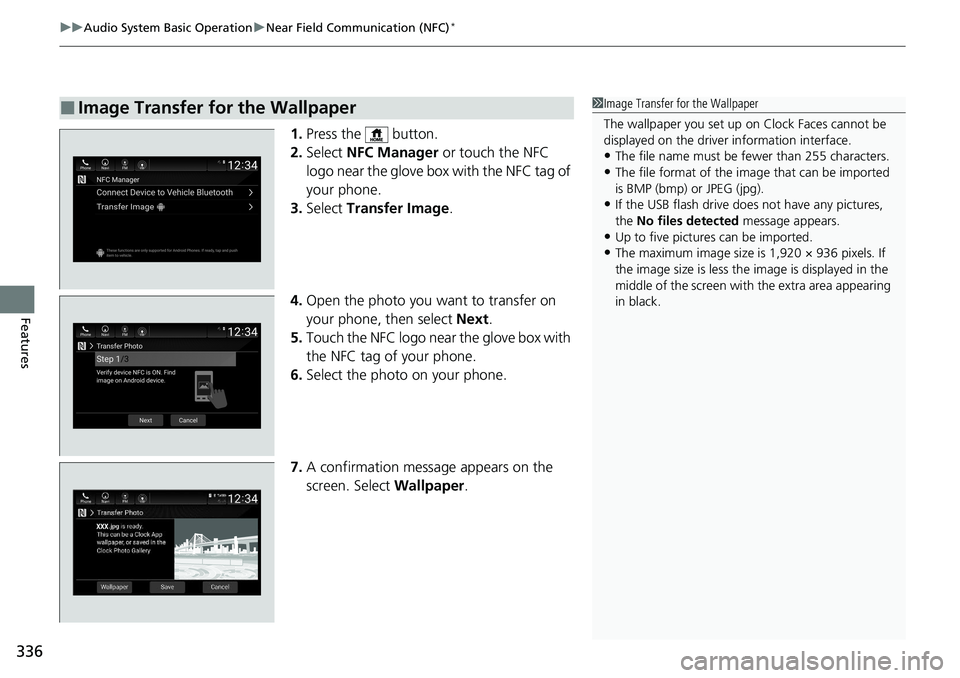
1. Press the button.
2. Select NFC Manager or touch the NFC
logo near the glove box with the NFC tag of
your phone.
3. Select Transfer Image .
4. Open the photo you want to transfer on
your phone, then select Next.
5. Touch the NFC logo near the glove box with
the NFC tag of your phone.
6. Select the photo on your phone.
7. A confirmation message appears on the
screen. Select Wallpaper.
■Image Transfer for the Wallpaper1Image Transfer for the Wallpaper
The wallpaper you set up on Clock Faces cannot be
displayed on the driver information interface.
•The file name must be fewer than 255 characters.
•The file format of the im age that can be imported
is BMP (bmp) or JPEG (jpg).
•If the USB flash drive doe s not have any pictures,
the No files detected message appears.
•Up to five pictur es can be imported.
•The maximum image size is 1,920 × 936 pixels. If
the image size is less the image is displayed in the
middle of the screen with the extra area appearing
in black.
Page 368 of 728
366
uuGeneral Information on the Audio System uAbout Open Source Licenses
Features
About Open Source Licenses
To see the open source licens e information, follow these steps.
1. Press the MENU/CLOCK button.
2. Rotate to select Settings, then press .
3. Rotate to select License, then press .
1. Press the button.
2. Select Settings .
3. Select System .
4. Select About .
5. Select Legal Information .
6. Select License .1About Open Source Licenses
Free/Open Source Software Information
This product contains Free/Open Source
Software(FOSS).
The license information and/ or the source code of
such FOSS can be found at the following URL.
https://www.denso.com/global/en/opensource/tcu/
honda/
Models with Telematics Control UnitModels with color audio
Models with Display Audio
Page 374 of 728
372
Features
Customized Features
Use the audio/information screen to customize certain features.
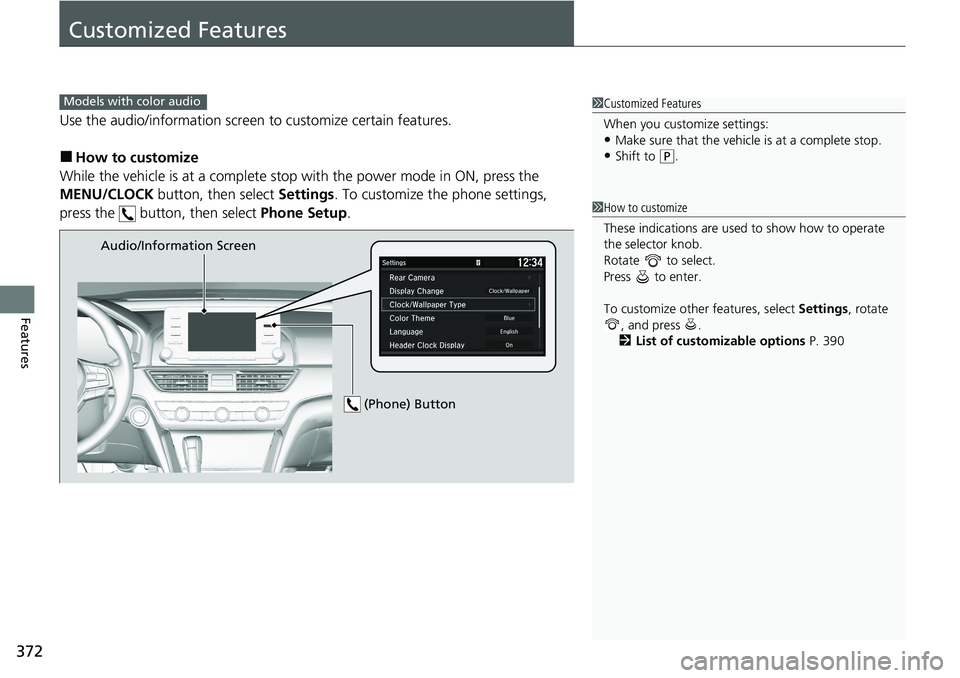
■How to customize
While the vehicle is at a complete stop with the power mode in ON, press the
MENU/CLOCK button, then select Settings. To customize the phone settings,
press the button, then select Phone Setup.
1Customized Features
When you customize settings:
•Make sure that the vehicle is at a complete stop.
•Shift to (P.
Models with color audio
1 How to customize
These indications are used to show how to operate
the selector knob.
Rotate to select.
Press to enter.
To customize other features, select Settings, rotate
, and press .
2 List of customizable options P. 390
Audio/Information Screen
(Phone) Button
Page 375 of 728
373
uuCustomized Features u
Continued
Features
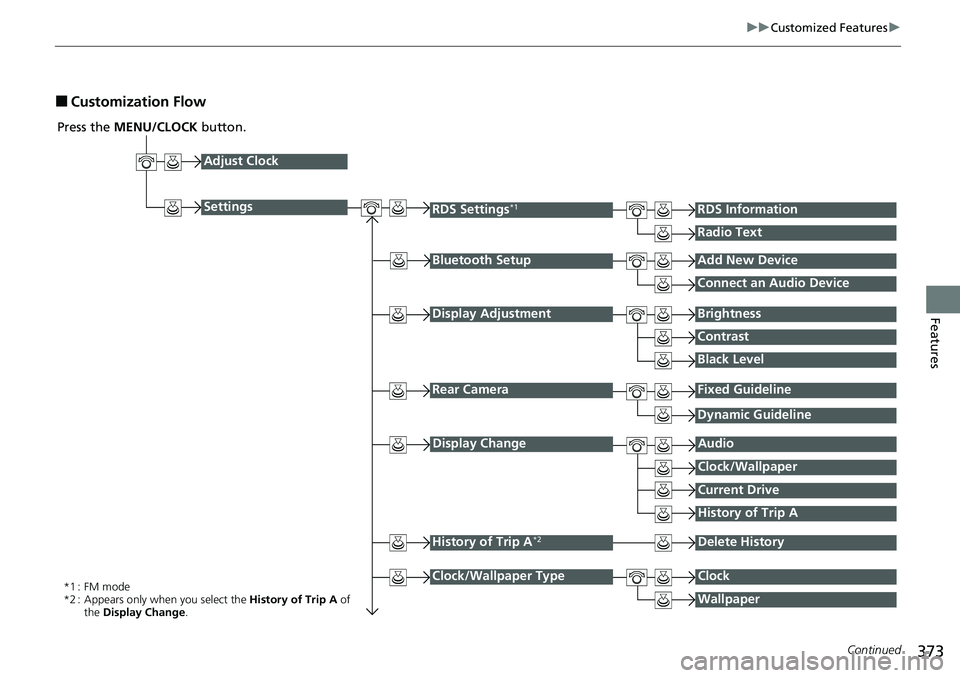
■Customization Flow
Press the MENU/CLOCK button.
Adjust Clock
Settings
Bluetooth SetupAdd New Device
Connect an Audio Device
Display AdjustmentBrightness
Contrast
Black Level
Rear CameraFixed Guideline
RDS Settings*1RDS Information
Radio Text
*1 : FM mode
*2 : Appears only when you select the History of Trip A of
the Display Change .
Dynamic Guideline
Display ChangeAudio
Current Drive
History of Trip A
Clock/Wallpaper
History of Trip A*2Delete History
Clock/Wallpaper TypeClock
Wallpaper
Page 376 of 728
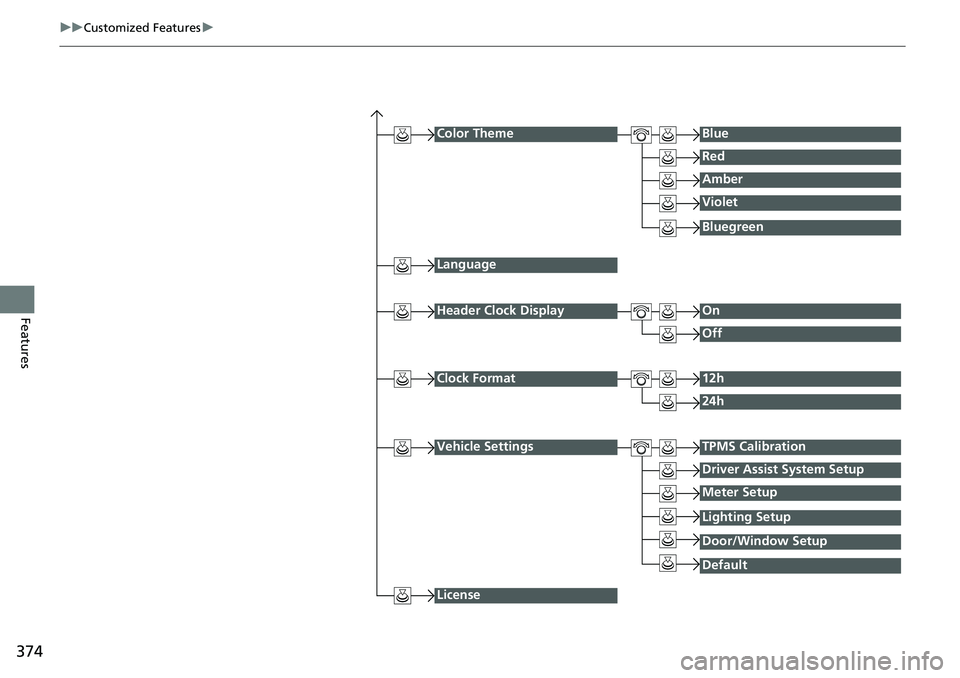
374
uuCustomized Features u
Features
Color ThemeBlue
Red
Amber
Violet
Language
Clock Format12h
24h
License
Bluegreen
Header Clock DisplayOn
Off
Vehicle SettingsTPMS Calibration
Driver Assist System Setup
Meter Setup
Default
Lighting Setup
Door/Window Setup
Page 378 of 728
376
uuCustomized Features u
Features
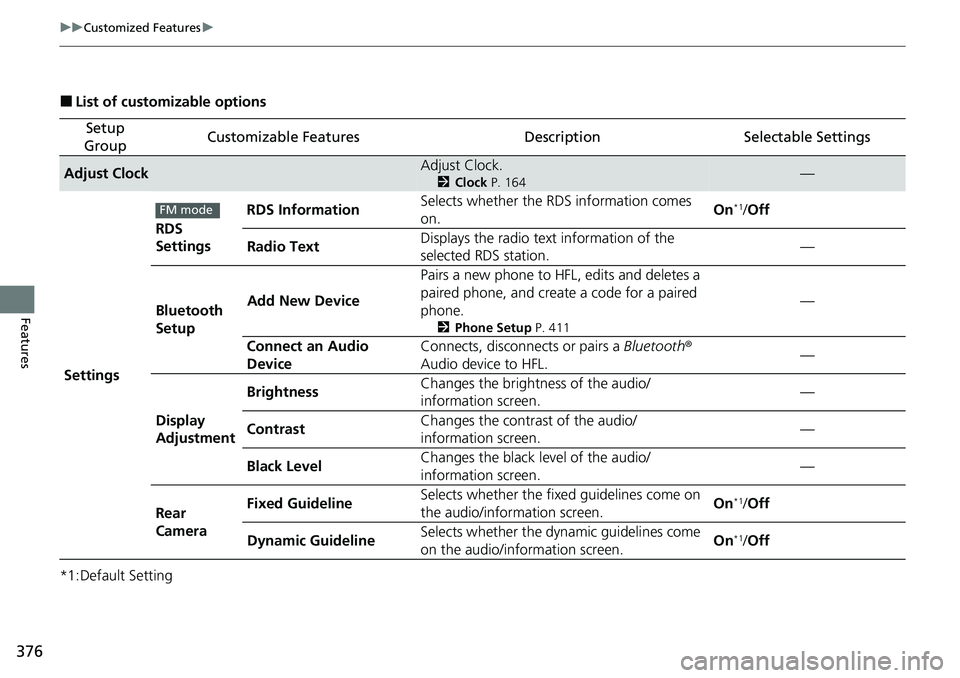
■List of customizable options
*1:Default Setting
Setup
GroupCustomizable FeaturesDescriptionSelectable Settings
Adjust ClockAdjust Clock.
2 Clock P. 164—
Settings RDS
Settings
RDS Information
Selects whether the RDS information comes
on. On
*1/
Off
Radio Text Displays the radio text information of the
selected RDS station. —
Bluetooth
Setup Add New Device
Pairs a new phone to HFL, edits and deletes a
paired phone, and create a code for a paired
phone.
2
Phone Setup P. 411
—
Connect an Audio
Device Connects, disconnects or pairs a
Bluetooth®
Audio device to HFL. —
Display
Adjustment Brightness
Changes the brightness of the audio/
information screen. —
Contrast Changes the contrast of the audio/
information screen.
—
Black Level Changes the black level of the audio/
information screen. —
Rear
Camera Fixed Guideline
Selects whether the fixed guidelines come on
the audio/information screen. On
*1/
Off
Dynamic Guideline Selects whether the dy
namic guidelines come
on the audio/information screen. On
*1/
Off
FM mode
Page 379 of 728
377
uuCustomized Features u
Continued
Features
*1:Default Setting
*2:Appears only when you select the History of Trip A of the Display Change .
Setup
GroupCustomizable FeaturesDescriptionSelectable Settings
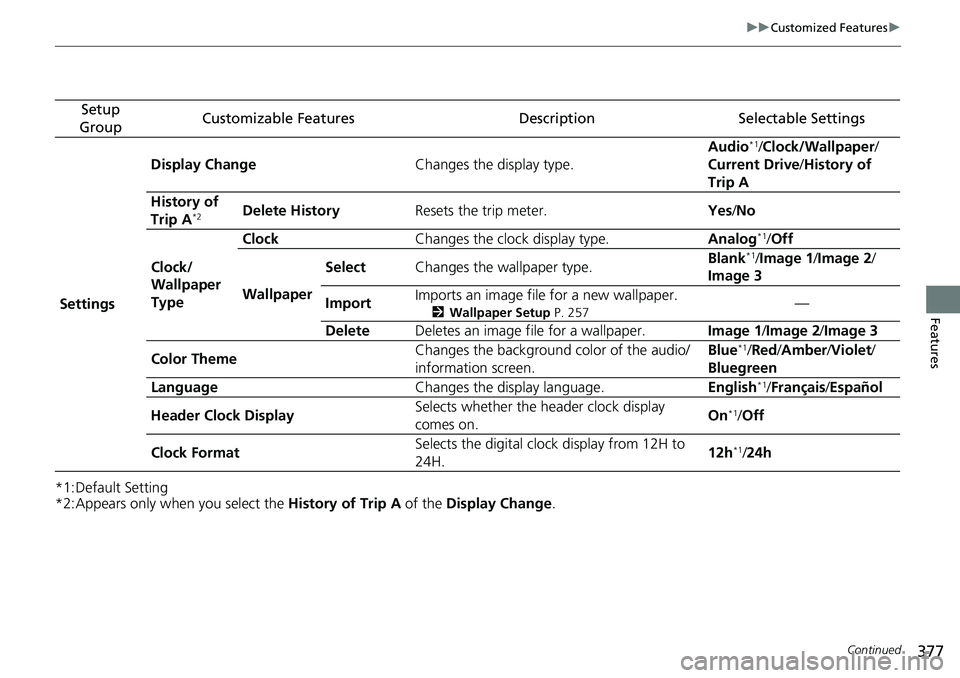
Settings Display Change
Changes the display type. Audio
*1/
Clock/Wallpaper /
Current Drive /History of
Trip A
History of
Trip A
*2Delete History Resets the trip meter. Yes/No
Clock/
Wallpaper
Type Clock
Changes the clock display type. Analog
*1/Off
Wallpaper Select
Changes the wallpaper type. Blank*1/
Image 1/ Image 2/
Image 3
Import Imports an image file for a new wallpaper.
2
Wallpaper Setup P. 257—
Delete Deletes an image file for a wallpaper. Image 1/Image 2/ Image 3
Color Theme Changes the background color of the audio/
information screen. Blue
*1/
Red /Amber /Violet/
Bluegreen
Language Changes the display language. English
*1/Français /Español
Header Clock Display Selects whether the header clock display
comes on. On
*1/
Off
Clock Format Selects the digital clock display from 12H to
24H. 12h
*1/
24h
Page 392 of 728
390
uuCustomized Features u
Features
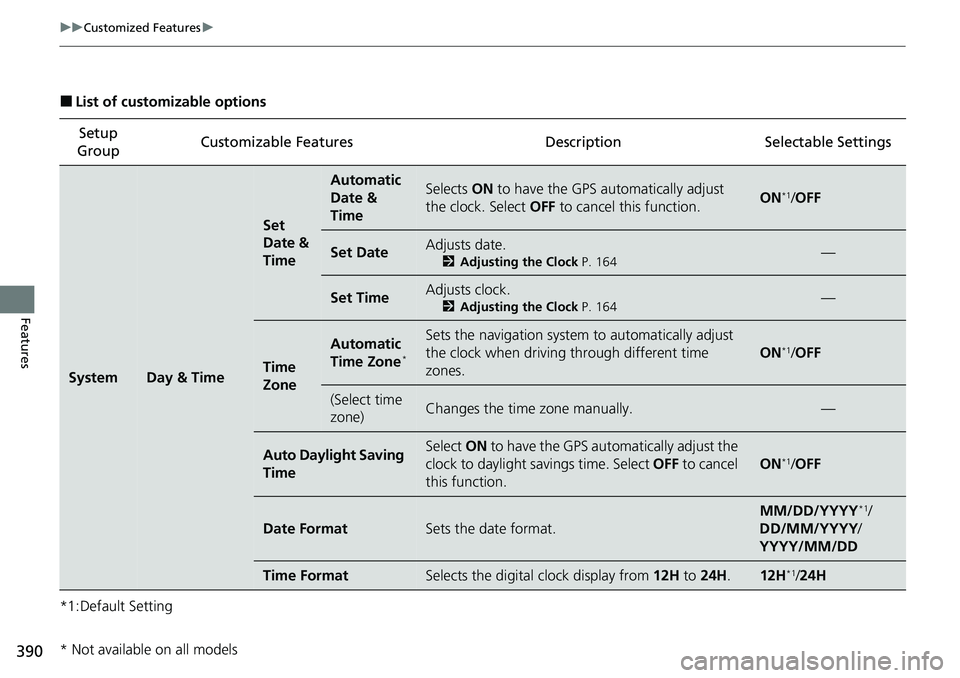
■List of customizable options
*1:Default Setting Setup
Group Customizable Features Description Selectable Settings
SystemDay & Time
Set
Date &
Time
Automatic
Date &
TimeSelects
ON to have the GPS automatically adjust
the clock. Select OFF to cancel this function.ON*1/OFF
Set DateAdjusts date.
2 Adjusting the Clock P. 164—
Set TimeAdjusts clock.
2Adjusting the Clock P. 164—
Time
Zone
Automatic
Time Zone*
Sets the navigation system to automatically adjust
the clock when driving through different time
zones.
ON*1/ OFF
(Select time
zone)Changes the time zone manually.—
Auto Daylight Saving
TimeSelect ON to have the GPS automatically adjust the
clock to daylight savings time. Select OFF to cancel
this function.
ON*1/ OFF
Date FormatSets the date format.
MM/DD/YYYY*1/
DD/MM/YYYY /
YYYY/MM/DD
Time FormatSelects the digital clock display from 12H to 24H .12H*1/24H
* Not available on all models
Page 503 of 728
Continued501
uuWhen Driving uTire Pressure Monitoring System (TPMS)
Driving
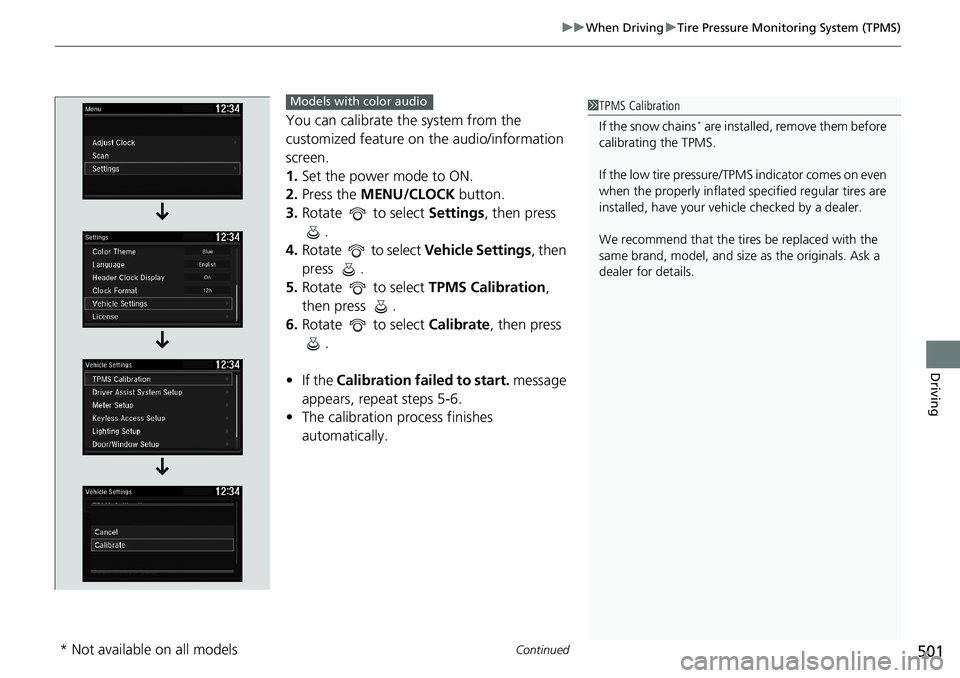
You can calibrate the system from the
customized feature on the audio/information
screen.
1. Set the power mode to ON.
2. Press the MENU/CLOCK button.
3. Rotate to select Settings, then press
.
4. Rotate to select Vehicle Settings, then
press .
5. Rotate to select TPMS Calibration,
then press .
6. Rotate to select Calibrate, then press
.
• If the Calibration failed to start. message
appears, repeat steps 5-6.
• The calibration process finishes
automatically.1TPMS Calibration
If the snow chains
* are installed, remove them before
calibrating the TPMS.
If the low tire pressure/TPMS indicator comes on even
when the properly inflated specified regular tires are
installed, have your vehi cle checked by a dealer.
We recommend that the tires be replaced with the
same brand, model, and size as the originals. Ask a
dealer for details.
Models with color audio
* Not available on all models
Page 657 of 728
655
Maintenance
Battery
Checking the Battery
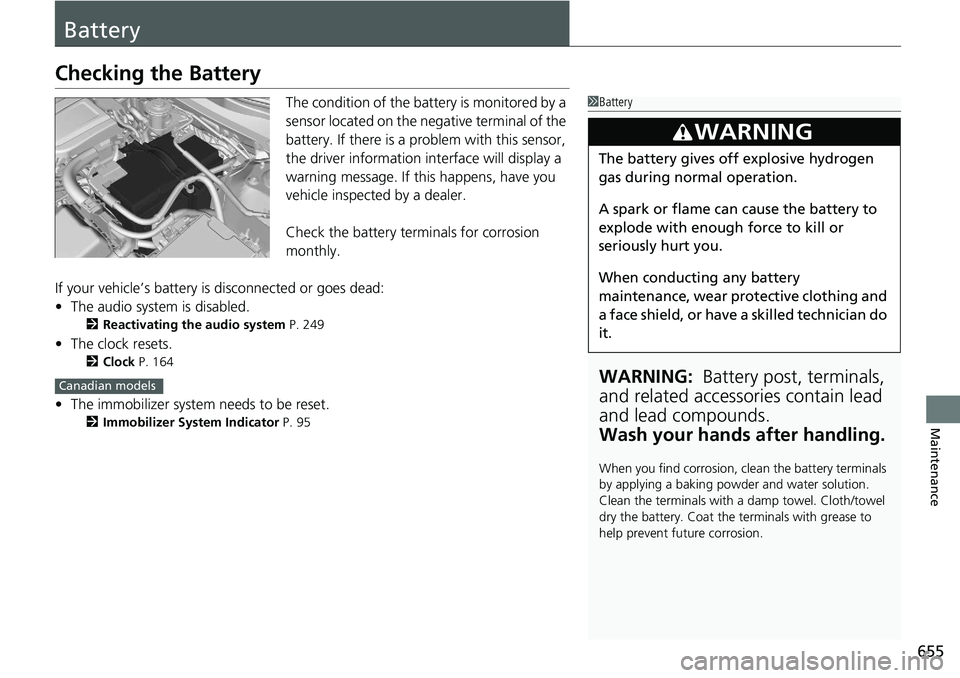
The condition of the battery is monitored by a
sensor located on the negative terminal of the
battery. If there is a problem with this sensor,
the driver information interface will display a
warning message. If this happens, have you
vehicle inspected by a dealer.
Check the battery terminals for corrosion
monthly.
If your vehicle’s battery is disconnected or goes dead:
• The audio system is disabled.
2 Reactivating the audio system P. 249
•The clock resets.
2 Clock P. 164
•The immobilizer system needs to be reset.
2 Immobilizer System Indicator P. 95
1Battery
WARNING: Battery post, terminals,
and related accessories contain lead
and lead compounds.
Wash your hands after handling.
When you find corrosion, cl ean the battery terminals
by applying a baking powder and water solution.
Clean the terminals with a damp towel. Cloth/towel
dry the battery. Coat the terminals with grease to
help prevent future corrosion.
3WARNING
The battery gives off explosive hydrogen
gas during normal operation.
A spark or flame can cause the battery to
explode with enough force to kill or
seriously hurt you.
When conducting any battery
maintenance, wear prot ective clothing and
a face shield, or have a skilled technician do
it.
Canadian models