display HONDA CIVIC 2012 9.G Repair Manual
[x] Cancel search | Manufacturer: HONDA, Model Year: 2012, Model line: CIVIC, Model: HONDA CIVIC 2012 9.GPages: 345, PDF Size: 9.02 MB
Page 166 of 345
Continued165
uuAudio System Basic Operation*uPlaying an iPod®
Features
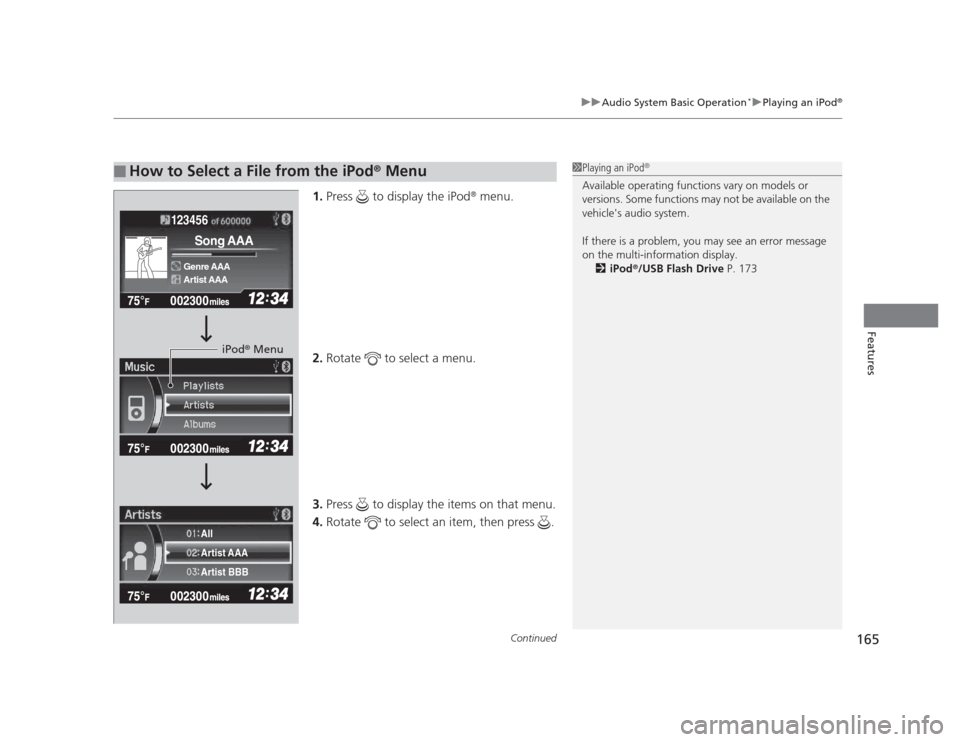
1.
Press to display the iPod ®
menu.
2. Rotate to select a menu.
3. Press to display the items on that menu.
4. Rotate to select an item, then press .
■How to Select a File from the iPod ®
Menu1Playing an iPod ®
Available operating functions vary on models or
versions. Some functions may not be available on the
vehicle's audio system.
If there is a problem, you may see an error message
on the multi-information display. 2 iPod ®
/USB Flash Drive P. 173
123456
Genre AAA
Song AAA
Artist AAA
Artist AAA
Artist BBB
All
iPod
®
Menu
Page 169 of 345
uuAudio System Basic Operation*uPlaying a USB Flash Drive
168
Features
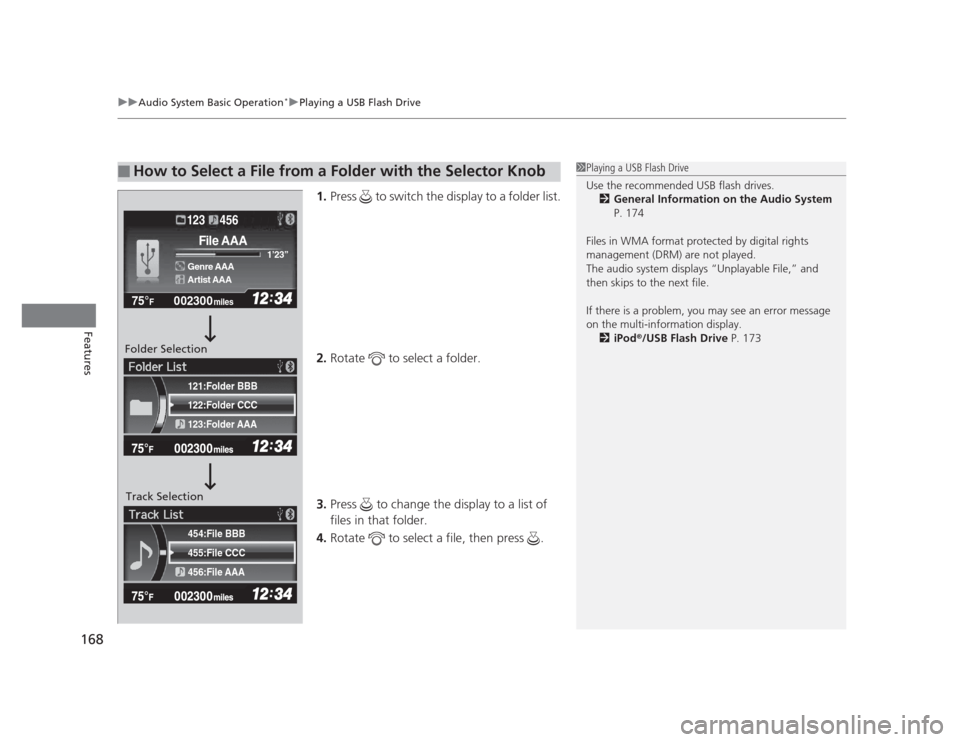
1. Press to switch the display to a folder list.
2. Rotate to select a folder.
3. Press to change the display to a list of files in that folder.
4. Rotate to select a file, then press .
■How to Select a File from a Folder with the Selector Knob1Playing a USB Flash Drive
Use the recommended USB flash drives.
2 General Information on the Audio System
P. 174
Files in WMA format protected by digital rights
management (DRM) are not played.
The audio system displays “Unplayable File,” and
then skips to the next file.
If there is a problem, you may see an error message
on the multi-information display. 2 iPod ®
/USB Flash Drive P. 173
455:File CCC
456:File AAA
454:File BBB
122:Folder CCC
123:Folder AAA
121:Folder BBB
002300
75°F miles
Genre AAA 1
Page 171 of 345
170
uuAudio System Basic Operation*uPlaying
Bluetooth ®
Audio
Features
Playing Bluetooth ®
Audio
Your audio system allows you to listen to music from your Bluetooth®
-compatible
phone.
This function is available when the phone is paired and linked to the vehicle's
Bluetooth ®
HandsFreeLink ®
(HFL) system.
2 Phone Setup P. 183
Models with Bluetooth®
HandsFreeLink ®
1Playing
Bluetooth ®
Audio
Not all Bluetooth -enabled phones with streaming
audio capabilities are compatible with the system.
You can find an approved phone by visiting
www.handsfreelink.honda.com , or by calling the
HandsFreeLink ®
consumer support at (888) 528 -
7876. In Canada, visit www.handsfreelink.ca, or call
(888) 528 -7876.
In some states, it may be illegal to perform some data
device functions while driving.
If more than one phone is paired to the HFL system,
there will be a delay before the system begins to play.
123456
Genre AAA
File AAA
Artist AAA
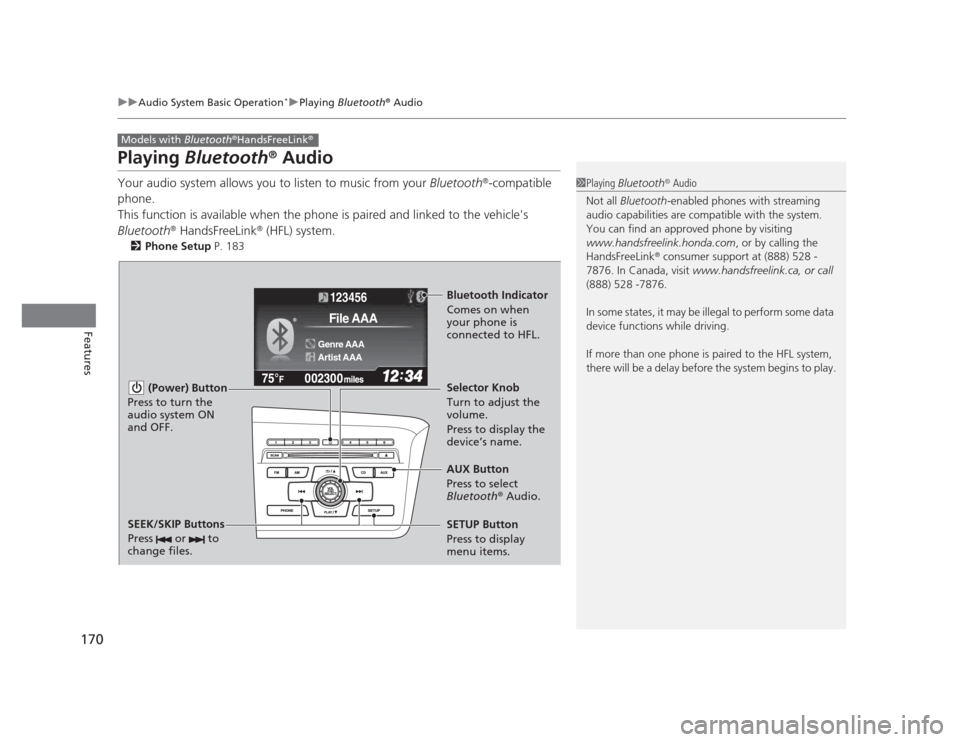
(Power) Button
Press to turn the
audio system ON and OFF.
SETUP Button
Press to display
menu items. Selector Knob
Turn to adjust the
volume.
Press to display the
device’s name.
AUX Button
Press to select
Bluetooth ®
Audio.
SEEK/SKIP Buttons
Press or to
change files.
Bluetooth Indicator
Comes on when
your phone is
connected to HFL.
Page 174 of 345
173
uuAudio Error Messages*uiPod®
/USB Flash Drive
Features
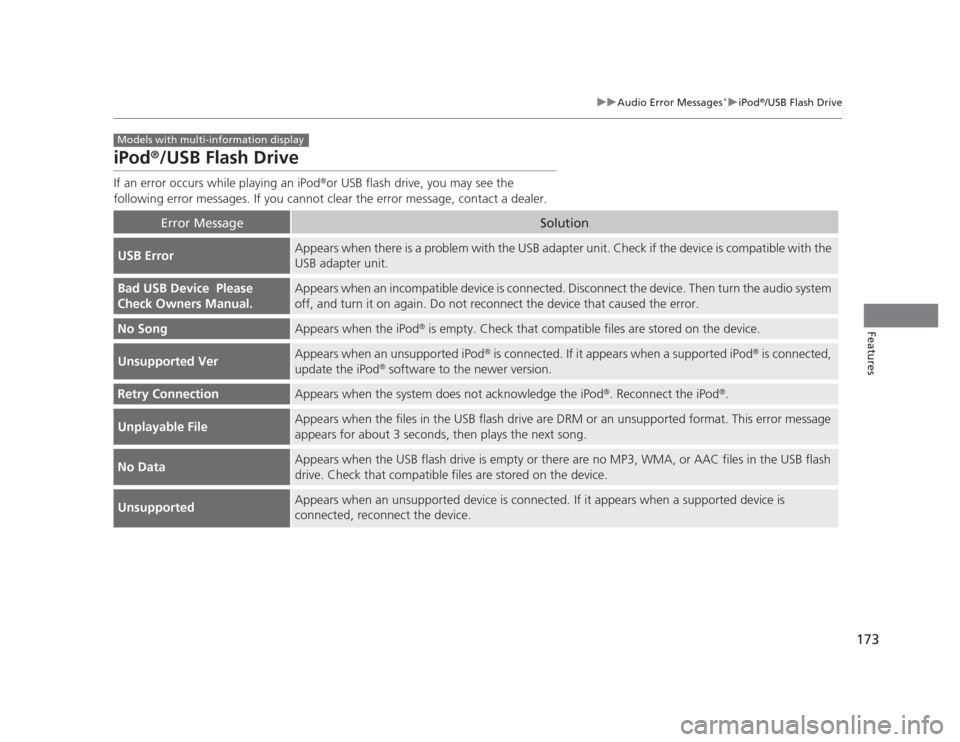
iPod ®
/USB Flash Drive
If an error occurs while playing an iPod ®
or USB flash drive, you may see the
following error messages. If you cannot clear the error message, contact a dealer.
Error MessageSolution
USB ErrorAppears when there is a problem with the USB adapter unit. Check if the device is compatible with the USB adapter unit.
Bad USB Device Please
Check Owners Manual.Appears when an incompatible device is connected. Disconnect the device. Then turn the audio system
off, and turn it on again. Do not reconnect the device that caused the error.
No SongAppears when the iPod ®
is empty. Check that compatible files are stored on the device.
Unsupported VerAppears when an unsupported iPod ®
is connected. If it appears when a supported iPod ®
is connected,
update the iPod ®
software to the newer version.
Retry ConnectionAppears when the system does not acknowledge the iPod ®
. Reconnect the iPod ®
.
Unplayable FileAppears when the files in the USB flash drive are DRM or an unsupported format. This error message
appears for about 3 seconds, then plays the next song.
No DataAppears when the USB flash drive is empty or there are no MP3, WMA, or AAC files in the USB flash
drive. Check that compatible files are stored on the device.
UnsupportedAppears when an unsupported device is connected. If it appears when a supported device is
connected, reconnect the device.
Models with multi-information display
Page 175 of 345
174
Features
General Information on the Audio System*
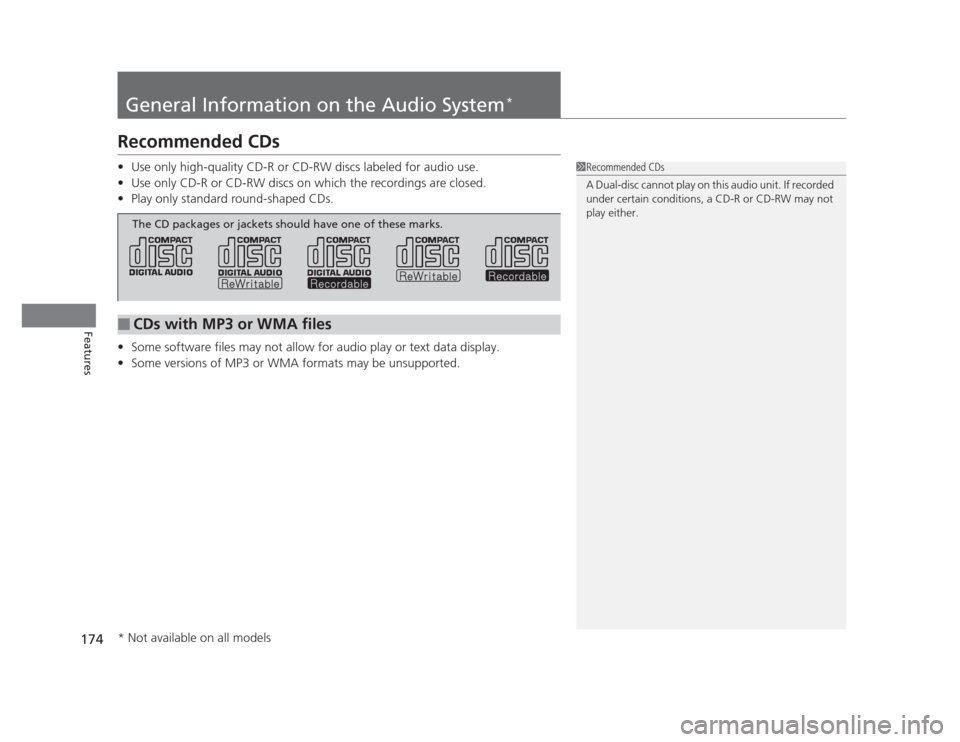
Recommended CDs •
Use only high-quality CD-R or CD-RW discs labeled for audio use.
• Use only CD-R or CD-RW discs on which the recordings are closed.
• Play only standard round-shaped CDs.
• Some software files may not allow for audio play or text data display.
• Some versions of MP3 or WMA formats may be unsupported.
1Recommended CDs
A Dual-disc cannot play on this audio unit. If recorded
under certain conditions, a CD-R or CD-RW may not play either.
■CDs with MP3 or WMA files
The CD packages or jackets should have one of these marks.
* Not available on all models
Page 177 of 345
176
uuGeneral Information on the Audio System*uCompatible iPod®
and USB Flash Drives
Features
Compatible iPod ®
and USB Flash Drives
• Use a recommended USB flash drive of 256 MB or higher.
• Some digital audio players may not be compatible.
• Some USB flash drives (e.g., a device with security lockout) may not work.
• Some software files may not allow for audio play or text data display.
• Some versions of MP3, WMA, or AAC formats may be unsupported.
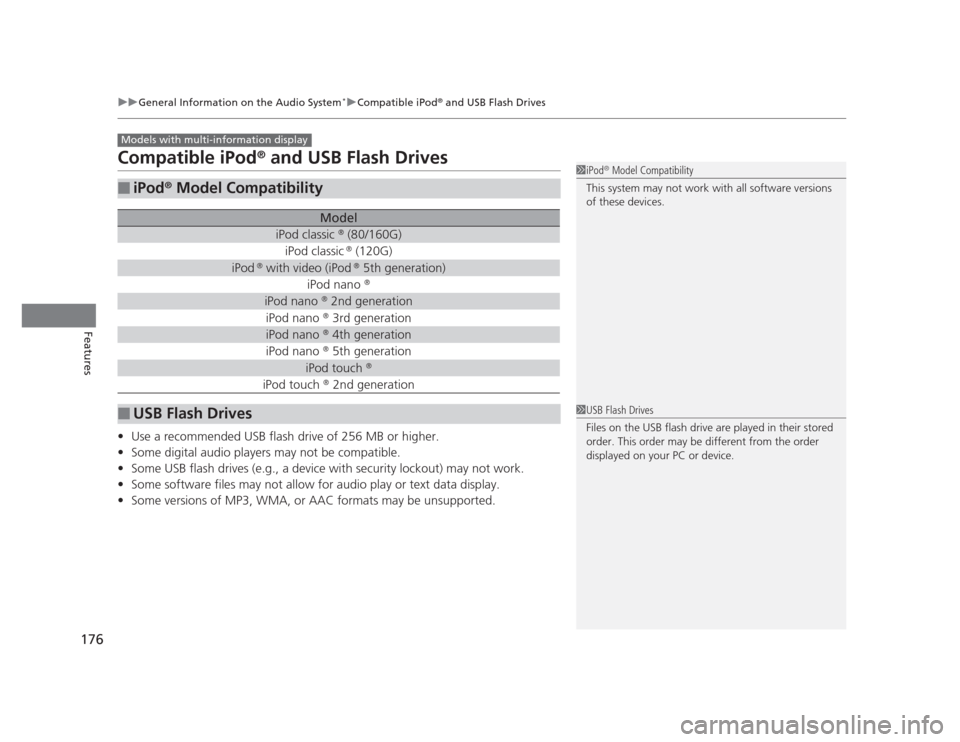
■iPod ®
Model Compatibility
Model
iPod classic ®
(80/160G)
iPod classic ®
(120G)
iPod ®
with video (iPod ®
5th generation)
iPod nano ®
iPod nano
®
2nd generation
iPod nano ®
3rd generation
iPod nano ®
4th generation
iPod nano ®
5th generation
iPod touch ®
iPod touch ®
2nd generation
■USB Flash Drives
Models with multi-information display
1iPod ®
Model Compatibility
This system may not work with all software versions
of these devices.
1USB Flash Drives
Files on the USB flash drive are played in their stored
order. This order may be different from the order
displayed on your PC or device.
Page 179 of 345
uuBluetooth®
HandsFreeLink ®*uUsing HFL
178
Features
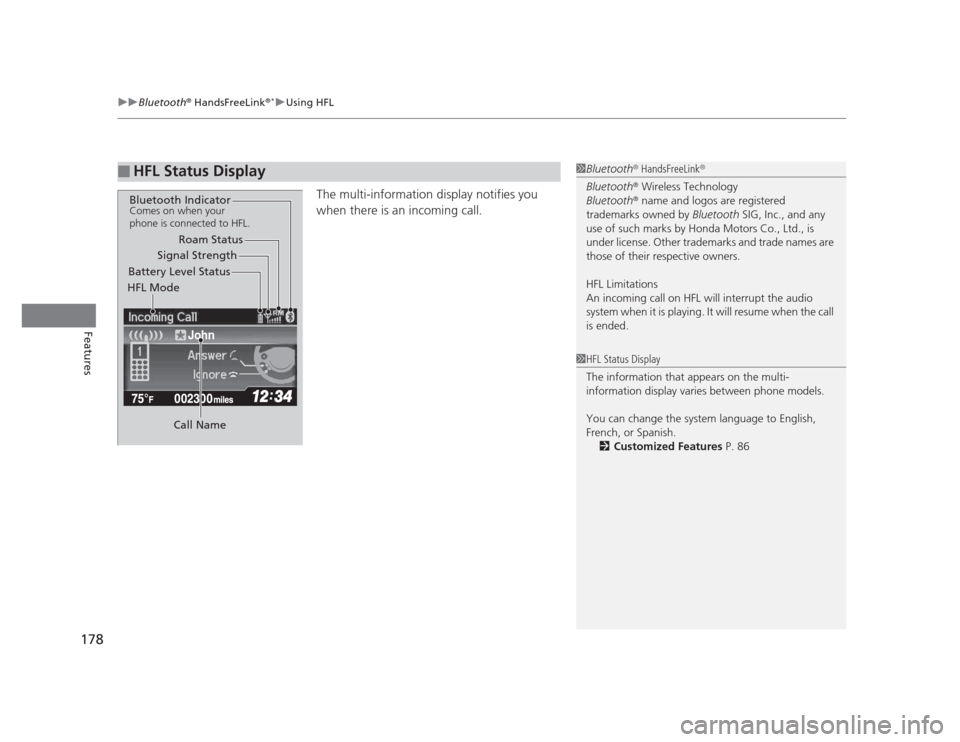
The multi-information display notifies you
when there is an incoming call.
■HFL Status Display1Bluetooth ®
HandsFreeLink ®
Bluetooth ®
Wireless Technology
Bluetooth ®
name and logos are registered
trademarks owned by Bluetooth SIG, Inc., and any
use of such marks by Honda Motors Co., Ltd., is
under license. Other trademarks and trade names are
those of their respective owners.
HFL Limitations
An incoming call on HFL will interrupt the audio
system when it is playing. It will resume when the call is ended.
John
Signal Strength
HFL Mode Battery Level Status Roam Status
Call Name
Bluetooth IndicatorComes on when your
phone is connected to HFL.
1HFL Status Display
The information that appears on the multi-
information display varies between phone models.
You can change the system language to English,
French, or Spanish. 2 Customized Features P. 86
Page 180 of 345
179
uuBluetooth®
HandsFreeLink ®*uHFL Menus
Continued
Features
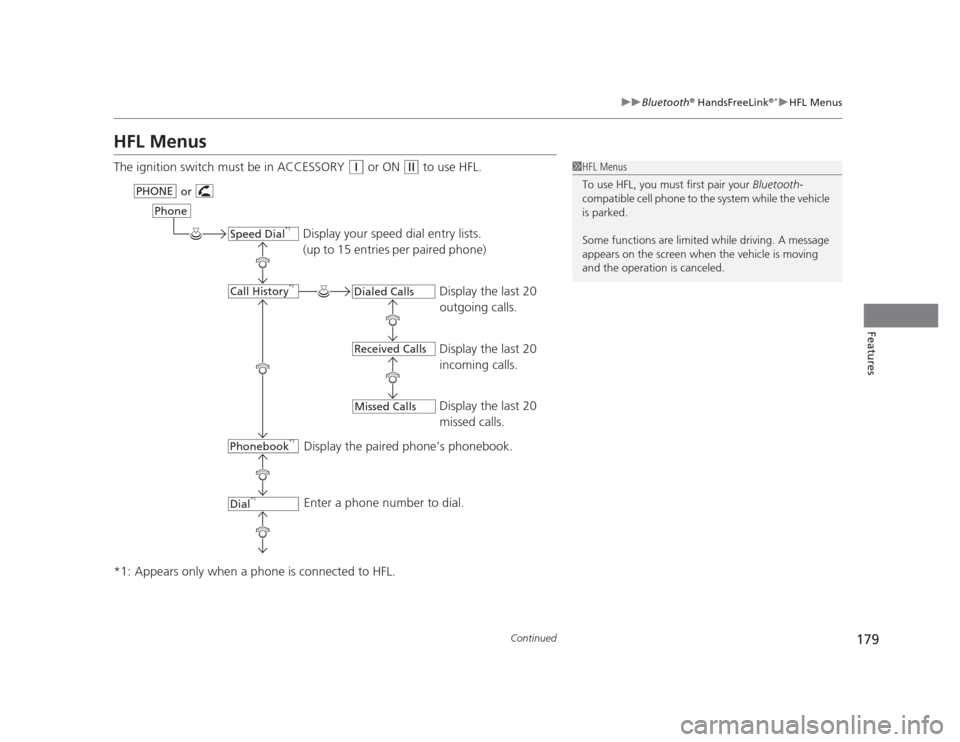
HFL Menus
The ignition switch must be in ACCESSORY
(q
or ON (w to use HFL.
*1: Appears only when a phone is connected to HFL.1HFL Menus
To use HFL, you must first pair your Bluetooth-
compatible cell phone to the system while the vehicle is parked.
Some functions are limited while driving. A message
appears on the screen when the vehicle is moving
and the operation is canceled.
Display your speed dial entry lists.
(up to 15 entries per paired phone)
Display the last 20
outgoing calls.
Display the last 20
incoming calls.
Display the last 20
missed calls.
Display the paired phone’s phonebook.
Enter a phone number to dial.
or
PHONE
Phone
Speed Dial
*1
Call History *1
Phonebook *1
Dial*1
Dialed Calls
Received Calls
Missed Calls
Page 184 of 345
Continued183
uuBluetooth®
HandsFreeLink ®*uHFL Menus
Features
■
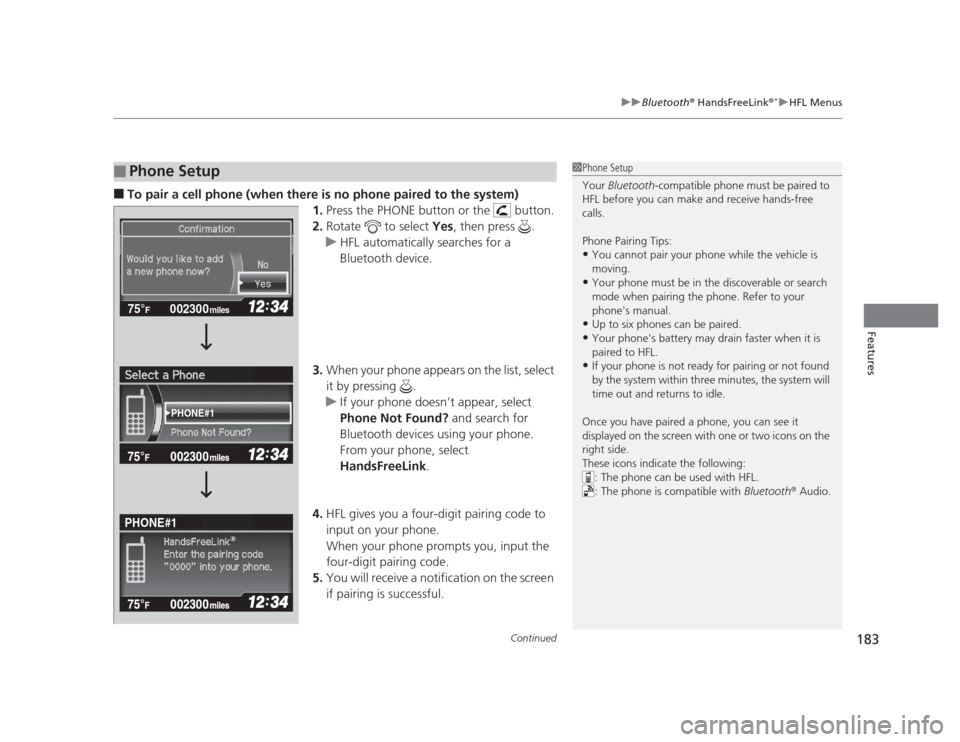
To pair a cell phone (when there is no phone paired to the system)
1.Press the PHONE button or the button.
2. Rotate to select Yes, then press .
uHFL automatically searches for a
Bluetooth device.
3. When your phone appears on the list, select
it by pressing .
uIf your phone doesn’t appear, select
Phone Not Found? and search for
Bluetooth devices using your phone.
From your phone, select
HandsFreeLink .
4. HFL gives you a four-digit pairing code to
input on your phone.
When your phone prompts you, input the
four-digit pairing code.
5. You will receive a notification on the screen
if pairing is successful.
■Phone Setup1Phone Setup
Your Bluetooth -compatible phone must be paired to
HFL before you can make and receive hands-free calls.
Phone Pairing Tips: • You cannot pair your phone while the vehicle is
moving.
• Your phone must be in the discoverable or search
mode when pairing the phone. Refer to your
phone's manual.
• Up to six phones can be paired.
• Your phone's battery may drain faster when it is
paired to HFL.
• If your phone is not ready for pairing or not found
by the system within three minutes, the system will
time out and returns to idle.
Once you have paired a phone, you can see it
displayed on the screen with one or two icons on the
right side.
These icons indicate the following: : The phone can be used with HFL.
: The phone is compatible with Bluetooth®
Audio.
002300
75°F miles
PHONE#1
PHONE#1
Page 190 of 345
Continued189
uuBluetooth®
HandsFreeLink ®*uHFL Menus
Features
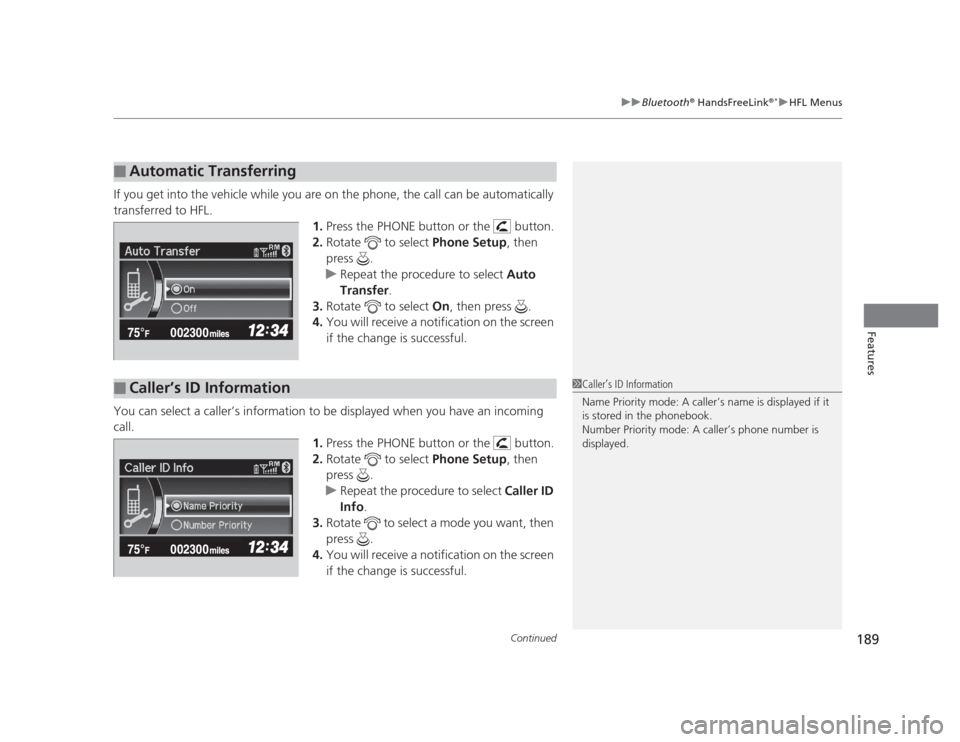
If you get into the vehicle while you are on the phone, the call can be automatically
transferred to HFL.
1.Press the PHONE button or the button.
2. Rotate to select Phone Setup, then
press .
uRepeat the procedure to select Auto
Transfer .
3. Rotate to select On, then press .
4. You will receive a notification on the screen
if the change is successful.
You can select a caller’s information to be displayed when you have an incoming
call. 1.Press the PHONE button or the button.
2. Rotate to select Phone Setup, then
press .
uRepeat the procedure to select Caller ID
Info .
3. Rotate to select a mode you want, then press .
4. You will receive a notification on the screen
if the change is successful.
■Automatic Transferring
■Caller’s ID Information1Caller’s ID Information
Name Priority mode: A caller’s name is displayed if it
is stored in the phonebook.
Number Priority mode: A caller’s phone number is
displayed.