ECO mode HONDA CIVIC 2013 9.G Service Manual
[x] Cancel search | Manufacturer: HONDA, Model Year: 2013, Model line: CIVIC, Model: HONDA CIVIC 2013 9.GPages: 367, PDF Size: 8.43 MB
Page 148 of 367
147
uuClimate Control System
*uUsing Automatic Climate Control
Controls
■Switching between the recirculation and fresh air modes
Press the (recirculation) button and switch the mode depending on
environmental conditions.
Recirculation Mode (indicator on): Recirculates air from the vehicle’s interior through
the system.
Fresh Air Mode (indicator off): Maintains outside ventilation. Keep the system in
fresh air mode in normal situations.
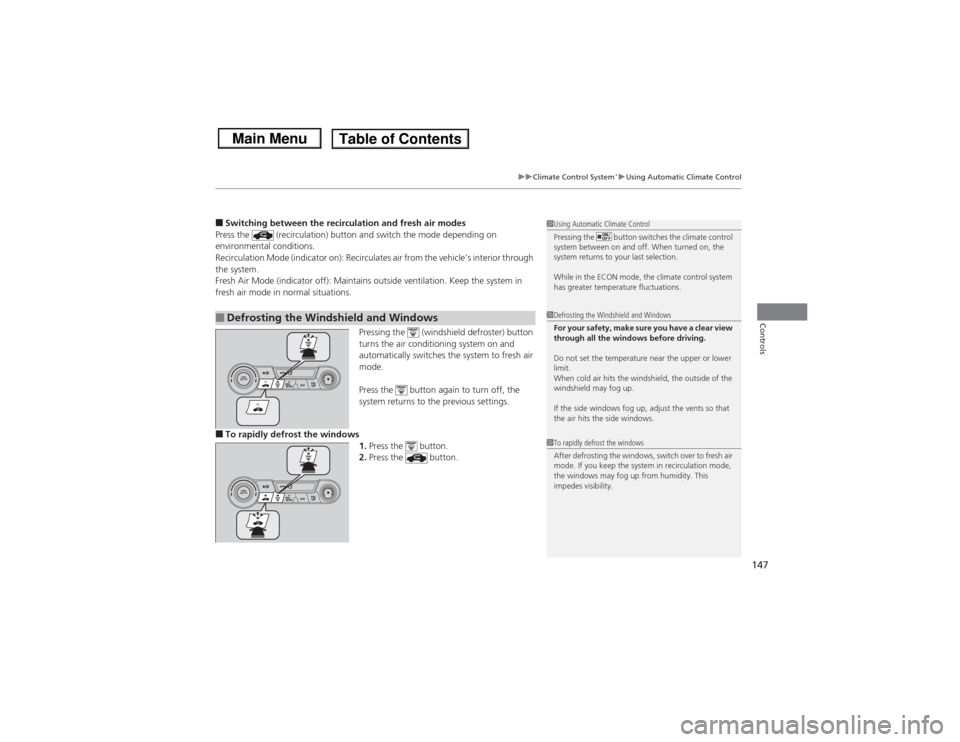
Pressing the (windshield defroster) button
turns the air conditioning system on and
automatically switches the system to fresh air
mode.
Press the button again to turn off, the
system returns to the previous settings.■To rapidly defrost the windows1.Press the button.
2. Press the button.■Defrosting the Windshield and Windows
1Using Automatic Climate Control
Pressing the button switches the climate control
system between on and off. When turned on, the
system returns to your last selection.
While in the ECON mode, the climate control system
has greater temperature fluctuations.1Defrosting the Windshield and Windows
For your safety, make sure you have a clear view
through all the windows before driving.
Do not set the temperature near the upper or lower
limit.
When cold air hits the windshield, the outside of the
windshield may fog up.
If the side windows fog up, adjust the vents so that
the air hits the side windows.1To rapidly defrost the windows
After defrosting the windows, switch over to fresh air
mode. If you keep the system in recirculation mode,
the windows may fog up from humidity. This
impedes visibility.
Page 150 of 367
149
Features
This chapter describes how to operate technology features.
Audio SystemAbout Your Audio System ................ 150
USB Adapter Cable
*........................ 151
Auxiliary Input Jack .......................... 151
Audio System Theft Protection
*....... 152
Audio System Basic Operation ...... 153
Adjusting the Sound ........................ 153
Playing AM/FM Radio ....................... 154
Playing a CD .................................... 155
Models with information display
Audio System Basic Operation ...... 156
Audio Remote Controls.................... 157
Adjusting the Sound ........................ 158
Playing AM/FM Radio ....................... 159
Playing a CD .................................... 162
Playing an iPod ®............................... 165
Playing Internet Radio ...................... 168
Playing a USB Flash Drive ................. 170
Playing Bluetooth ® Audio................. 173Models with i-MID
Audio Error Messages
CD Player......................................... 175
iPod® /USB Flash Drive ...................... 176
Pandora ®......................................... 177
General Information on the Audio System
Recommended CDs ......................... 178Compatible iPod
® and USB Flash Drives.... 180
Bluetooth® HandsFreeLink ®
*
Using HFL ........................................ 181
HFL Menus ...................................... 183
* Not available on all models
Page 152 of 367
151
uuAudio System uUSB Adapter Cable
*
Features
USB Adapter Cable
*
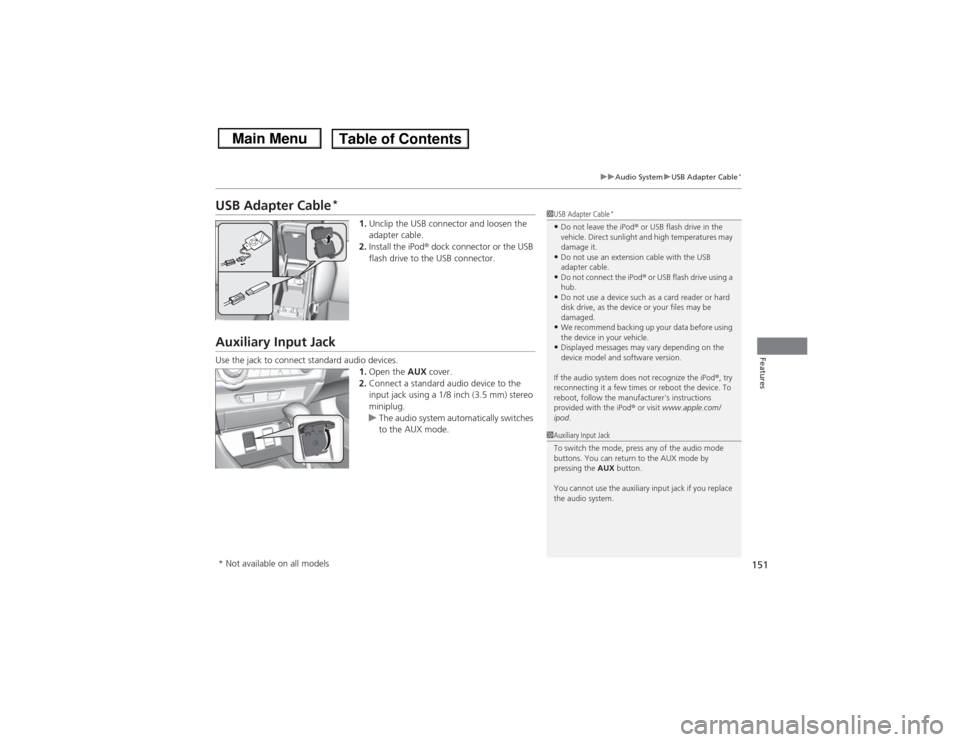
1. Unclip the USB connector and loosen the
adapter cable.
2. Install the iPod ® dock connector or the USB
flash drive to the USB connector.
Auxiliary Input JackUse the jack to connect standard audio devices. 1.Open the AUX cover.
2. Connect a standard audio device to the
input jack using a 1/8 inch (3.5 mm) stereo
miniplug.
u The audio system automatically switches
to the AUX mode.
1USB Adapter Cable
*
•Do not leave the iPod ® or USB flash drive in the
vehicle. Direct sunlight and high temperatures may
damage it.•Do not use an extension cable with the USB
adapter cable.•Do not connect the iPod ® or USB flash drive using a
hub.•Do not use a device such as a card reader or hard
disk drive, as the device or your files may be
damaged.•We recommend backing up your data before using
the device in your vehicle.•Displayed messages may vary depending on the
device model and software version.
If the audio system does not recognize the iPod® , try
reconnecting it a few times or reboot the device. To
reboot, follow the manufacturer's instructions
provided with the iPod® or visit www.apple.com/
ipod .
1Auxiliary Input Jack
To switch the mode, press any of the audio mode
buttons. You can return to the AUX mode by
pressing the AUX button.
You cannot use the auxiliary input jack if you replace
the audio system.
* Not available on all models
Page 153 of 367
152
uuAudio System uAudio System Theft Protection
*
Features
Audio System Theft Protection
*
The audio system is disabled when it is disconnected from the power source, such as
when the battery is disconnected or goes dead.■Reactivating the audio system
1. Turn the ignition switch to ON
(w, and turn on the audio system.
u If you turn the ignition switch to ACCESSORY
(q, you will be requested to
enter the audio security code. See step 3.
2. Press and hold the power button again for more than two seconds.
u The audio system is reactivated when the system’s control unit recognizes that
the system is in your vehicle.
If the control unit fails to recognize, ENTER CODE appears on the i-MID.
3. Enter the audio security code using the preset buttons. If you enter an incorrect
digit, continue to the last digit, then try again. If you do not enter code correctly
after 10 tries, leave the system for one hour before trying again, or visit a dealer
to have the system reset.
■Entering the audio security code
ENTER CODE appears on the display when the power is reconnected.
1. Turn on the audio system.
2. Enter the audio security code using the preset buttons. If you enter an incorrect
digit, continue to the last digit, then try again. If you do not enter the code
correctly after 10 tries, leave the system for one hour before trying again, or visit
a dealer to have the system reset.
1Audio System Theft Protection
*
Find the audio system's security code and serial
number label in your owner’s manual kit.
We recommend that you write down the serial
number in this owner’s manual.
Do not store the label in your vehicle. If you lose the
label, you must first retrieve the serial number, and
then obtain the code.
You can find out about your serial number and
security code from a dealer.
You can register the security code at Owner Link
(owners.honda.com. ), and find information on how
to retrieve the serial number and obtain the code at
radio-navicode.honda.com .U.S. models
Models with i-MIDModels with information display* Not available on all models
Page 156 of 367
155
uuAudio System Basic Operation uPlaying a CD
Features
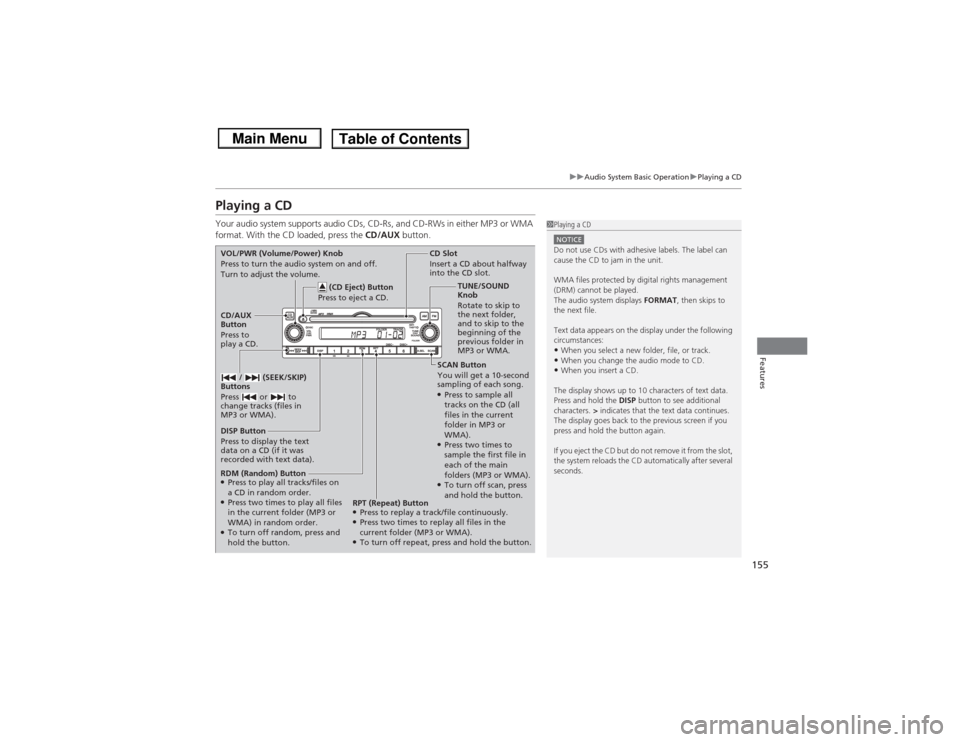
Playing a CDYour audio system supports audio CDs, CD-Rs, and CD-RWs in either MP3 or WMA
format. With the CD loaded, press the CD/AUX button.
1Playing a CDNOTICEDo not use CDs with adhesive labels. The label can
cause the CD to jam in the unit.
WMA files protected by digital rights management
(DRM) cannot be played.
The audio system displays FORMAT, then skips to
the next file.
Text data appears on the display under the following
circumstances:•When you select a new folder, file, or track.•When you change the audio mode to CD.•When you insert a CD.
The display shows up to 10 characters of text data.
Press and hold the DISP button to see additional
characters. > indicates that the text data continues.
The display goes back to the previous screen if you
press and hold the button again.
If you eject the CD but do not remove it from the slot,
the system reloads the CD automatically after several
seconds.
SCAN Button
You will get a 10-second
sampling of each song.●Press to sample all
tracks on the CD (all
files in the current
folder in MP3 or
WMA).●Press two times to
sample the first file in
each of the main
folders (MP3 or WMA).●To turn off scan, press
and hold the button.
CD Slot
Insert a CD about halfway
into the CD slot.
DISP Button
Press to display the text
data on a CD (if it was
recorded with text data). CD/AUX
Button
Press to
play a CD. (CD Eject) Button
Press to eject a CD.
VOL/PWR (Volume/Power) Knob
Press to turn the audio system on and off.
Turn to adjust the volume.
/ (SEEK/SKIP)
Buttons
Press or to
change tracks (files in
MP3 or WMA).RDM (Random) Button●Press to play all tracks/files on
a CD in random order.●Press two times to play all files
in the current folder (MP3 or
WMA) in random order.●To turn off random, press and
hold the button. TUNE/SOUND
Knob
Rotate to skip to
the next folder,
and to skip to the
beginning of the
previous folder in
MP3 or WMA.
RPT (Repeat) Button
●Press to replay a track/file continuously.●Press two times to replay all files in the
current folder (MP3 or WMA).●To turn off repeat, press and hold the button.
Page 164 of 367
Continued
163
uuAudio System Basic Operation uPlaying a CD
Features
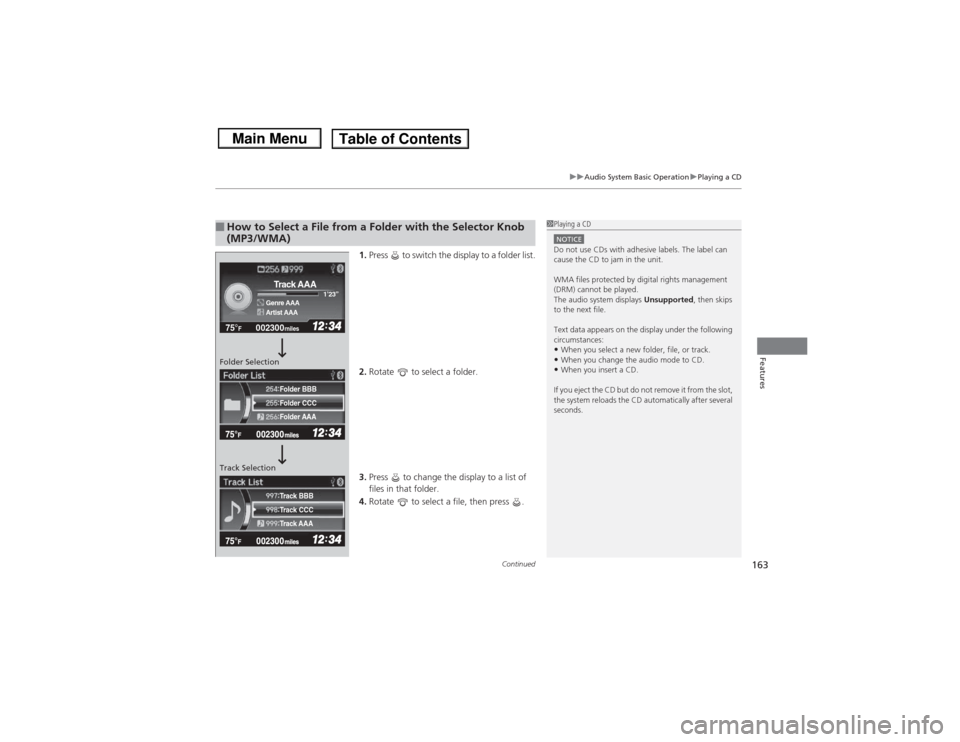
1. Press to switch the display to a folder list.
2. Rotate to select a folder.
3. Press to change the display to a list of
files in that folder.
4. Rotate to select a file, then press .
■How to Select a File from a Folder with the Selector Knob
(MP3/WMA)
1Playing a CDNOTICEDo not use CDs with adhesive labels. The label can
cause the CD to jam in the unit.
WMA files protected by digital rights management
(DRM) cannot be played.
The audio system displays Unsupported, then skips
to the next file.
Text data appears on the display under the following
circumstances:•When you select a new folder, file, or track.•When you change the audio mode to CD.•When you insert a CD.
If you eject the CD but do not remove it from the slot,
the system reloads the CD automatically after several
seconds.
002300
75°
F miles
Genre AAA 1’23’’Track AAAArtist AAA
Folder CCC
Folder AAA Folder BBB
Track CCC
Track AAA Track BBB
Folder Selection
Track Selection
Page 171 of 367
170
uuAudio System Basic Operation uPlaying a USB Flash Drive
Features
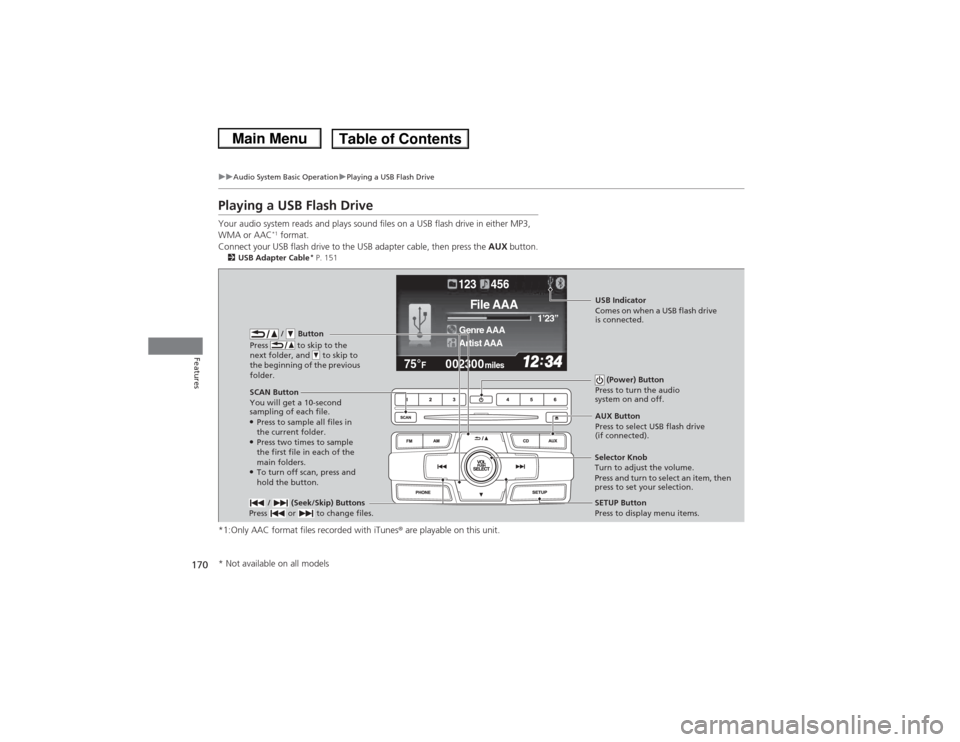
Playing a USB Flash DriveYour audio system reads and plays sound files on a USB flash drive in either MP3,
WMA or AAC
*1 format.
Connect your USB flash drive to the USB adapter cable, then press the AUX button.
2USB Adapter Cable
* P. 151
*1:Only AAC format files recorded with iTunes ® are playable on this unit.
002300
75°
F miles
Genre AAA 1’23’’File AAAArtist AAA123 456
/ Button
Press to skip to the
next folder, and to skip to
the beginning of the previous
folder.
SCAN Button
You will get a 10-second
sampling of each file.●Press to sample all files in
the current folder.●Press two times to sample
the first file in each of the
main folders.●To turn off scan, press and
hold the button. (Power) Button
Press to turn the audio
system on and off. / (Seek/Skip) Buttons
Press or to change files.
SETUP Button
Press to display menu items.
Selector Knob
Turn to adjust the volume.
Press and turn to select an item, then
press to set your selection. AUX Button
Press to select USB flash drive
(if connected).USB Indicator
Comes on when a USB flash drive
is connected.
* Not available on all models
Page 177 of 367
176
uuAudio Error Messages uiPod ®/USB Flash Drive
Features
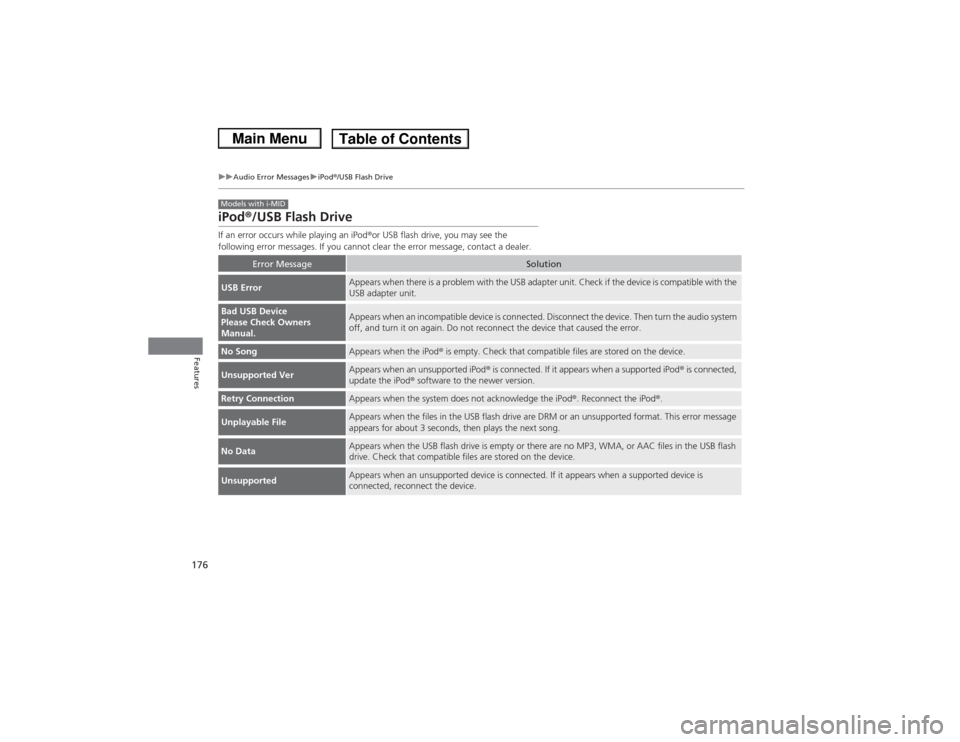
iPod®/USB Flash DriveIf an error occurs while playing an iPod ®or USB flash drive, you may see the
following error messages. If you cannot clear the error message, contact a dealer.
Error Message
Solution
USB Error
Appears when there is a problem with the USB adapter unit. Check if the device is compatible with the
USB adapter unit.
Bad USB Device
Please Check Owners
Manual.
Appears when an incompatible device is connected. Disconnect the device. Then turn the audio system
off, and turn it on again. Do not reconnect the device that caused the error.
No Song
Appears when the iPod ® is empty. Check that compatible files are stored on the device.
Unsupported Ver
Appears when an unsupported iPod ® is connected. If it appears when a supported iPod ® is connected,
update the iPod ® software to the newer version.
Retry Connection
Appears when the system does not acknowledge the iPod ®. Reconnect the iPod ®.
Unplayable File
Appears when the files in the USB flash drive are DRM or an unsupported format. This error message
appears for about 3 seconds, then plays the next song.
No Data
Appears when the USB flash drive is empty or there are no MP3, WMA, or AAC files in the USB flash
drive. Check that compatible files are stored on the device.
Unsupported
Appears when an unsupported device is connected. If it appears when a supported device is
connected, reconnect the device.
Models with i-MID
Page 181 of 367
180
uuGeneral Information on the Audio System uCompatible iPod ® and USB Flash Drives
Features
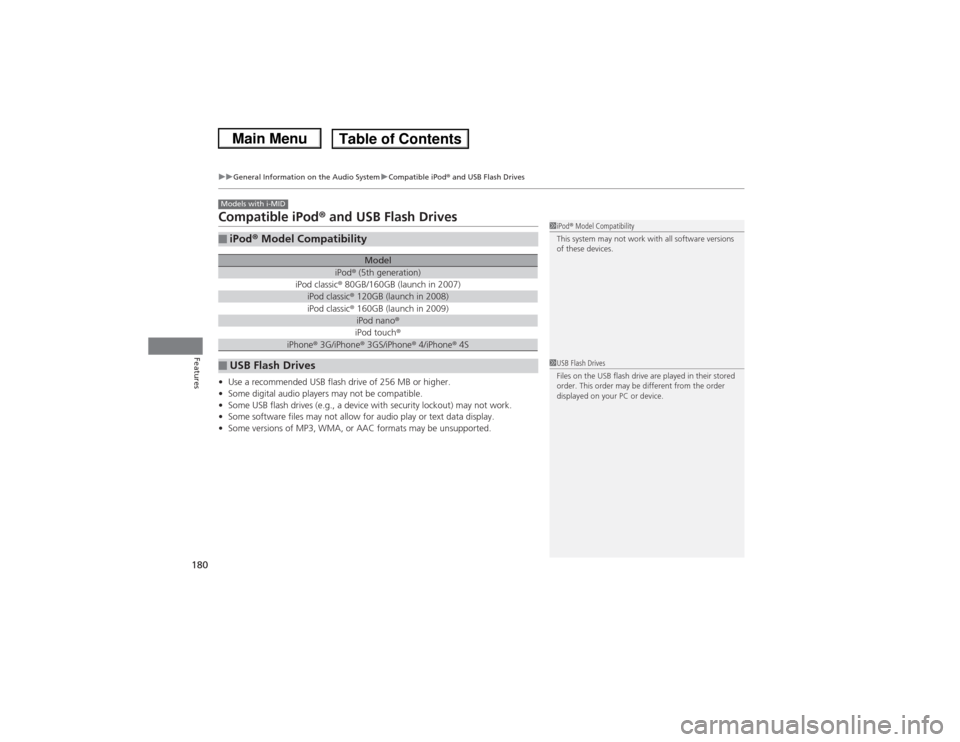
Compatible iPod® and USB Flash Drives• Use a recommended USB flash drive of 256 MB or higher.
• Some digital audio players may not be compatible.
• Some USB flash drives (e.g., a device with security lockout) may not work.
• Some software files may not allow for audio play or text data display.
• Some versions of MP3, WMA, or AAC formats may be unsupported.■iPod ® Model Compatibility
Model
iPod ® (5th generation)
iPod classic ® 80GB/160GB (launch in 2007)iPod classic ® 120GB (launch in 2008)iPod classic ® 160GB (launch in 2009)
iPod nano ®iPod touch ®
iPhone® 3G/iPhone® 3GS/iPhone® 4/iPhone ® 4S
■USB Flash DrivesModels with i-MID
1 iPod ® Model Compatibility
This system may not work with all software versions
of these devices.1 USB Flash Drives
Files on the USB flash drive are played in their stored
order. This order may be different from the order
displayed on your PC or device.
Page 214 of 367
213
Driving
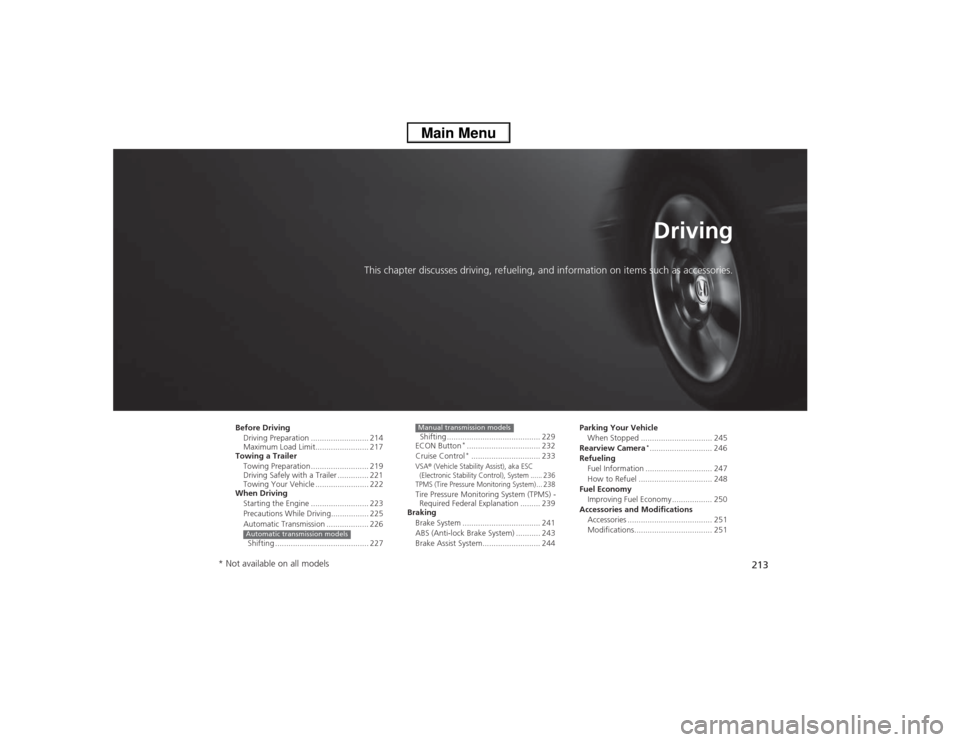
This chapter discusses driving, refueling, and information on items such as accessories.
Before DrivingDriving Preparation .......................... 214
Maximum Load Limit........................ 217
Towing a Trailer
Towing Preparation .......................... 219
Driving Safely with a Trailer .............. 221
Towing Your Vehicle ........................ 222
When Driving
Starting the Engine .......................... 223
Precautions While Driving................. 225
Automatic Transmission ................... 226
Shifting .......................................... 227Automatic transmission models
Shifting .......................................... 229
ECON Button
*................................. 232
Cruise Control*............................... 233
VSA
® (Vehicle Stability Assist), aka ESC
(Electronic Stability Control), System ...... 236
TPMS (Tire Pressure Monitoring System) ... 238
Tire Pressure Monitoring System (TPMS) - Required Federal Explanation ......... 239
Braking
Brake System ................................... 241
ABS (Anti-lock Brake System) ........... 243
Brake Assist System.......................... 244Manual transmission models
Parking Your VehicleWhen Stopped ................................ 245
Rearview Camera
*............................ 246
Refueling
Fuel Information .............................. 247
How to Refuel ................................. 248
Fuel Economy
Improving Fuel Economy .................. 250
Accessories and Modifications Accessories ...................................... 251
Modifications................................... 251
* Not available on all models