instrument panel HONDA CIVIC 2014 9.G Owner's Guide
[x] Cancel search | Manufacturer: HONDA, Model Year: 2014, Model line: CIVIC, Model: HONDA CIVIC 2014 9.GPages: 469, PDF Size: 17.32 MB
Page 94 of 469
93
uuGauges and Displays uintelligent Multi-Information Display (i-MID)
*
Continued
Instrument Panel
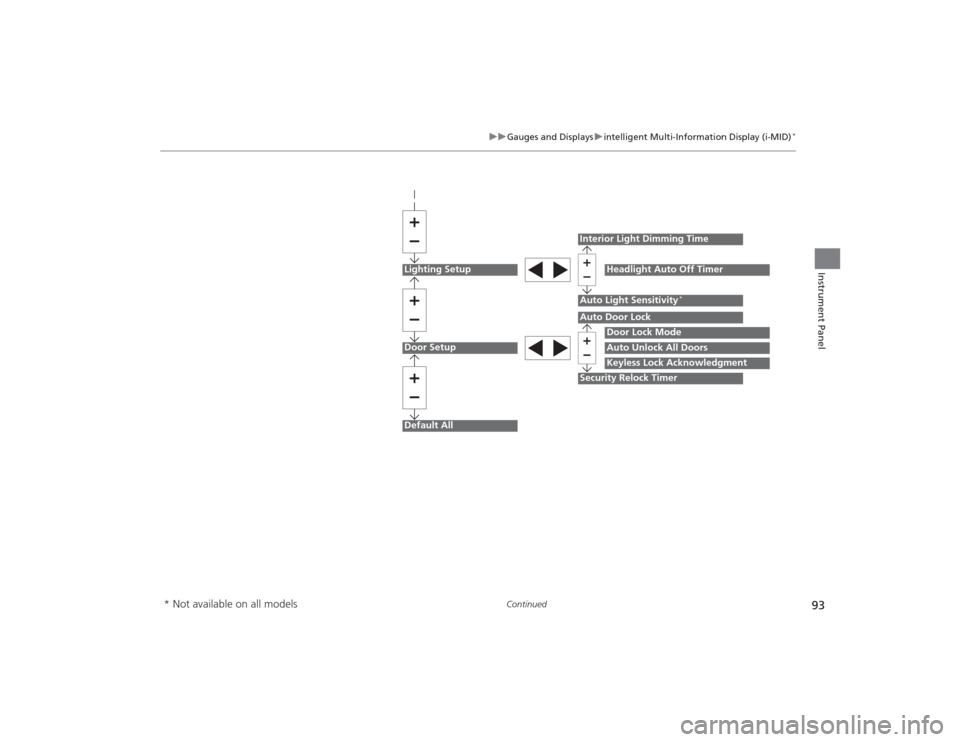
Lighting SetupDoor SetupDefault All
Auto Light Sensitivity
*
Door Lock ModeAuto Unlock All DoorsKeyless Lock Acknowledgment
Auto Door LockSecurity Relock TimerInterior Light Dimming Time
Headlight Auto Off Timer
* Not available on all models
Page 95 of 469
94
uuGauges and Displays uintelligent Multi-Information Display (i-MID)
*
Instrument Panel
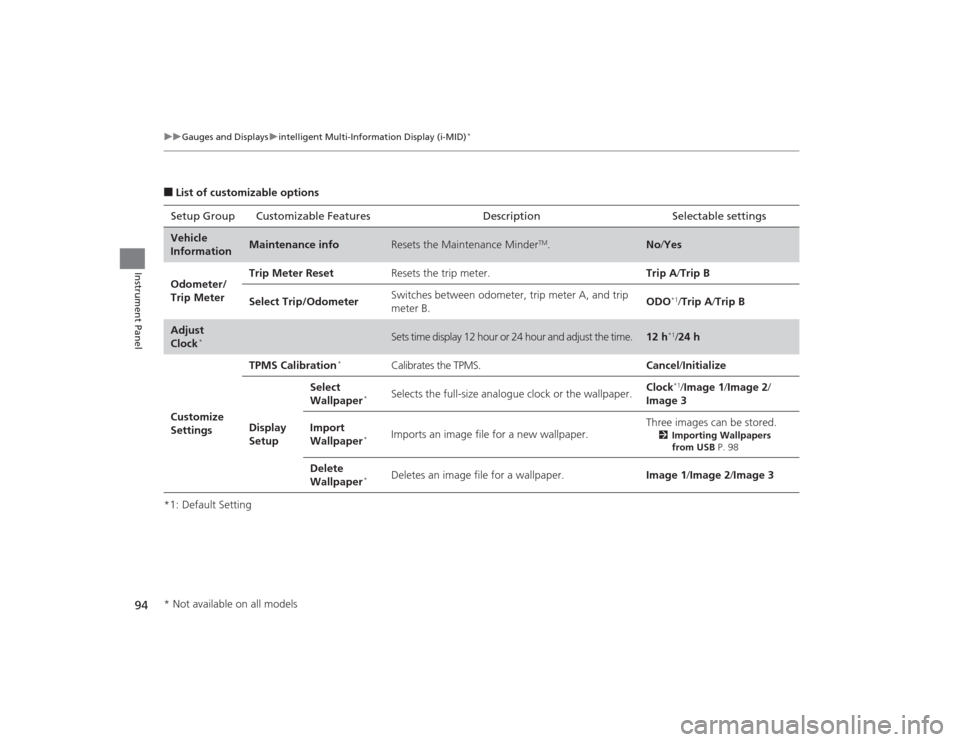
■List of customizable options
*1: Default Setting Setup Group Customizable
Features Description Selectable settingsVehicle
Information
Maintenance info
Resets the Maintenance Minder
TM.
No/Yes
Odometer/
Trip Meter Trip Meter Reset
Resets the trip meter. Trip A/Trip B
Select Trip/Odometer Switches between odometer, trip meter A, and trip
meter B. ODO
*1/
Trip A /Trip B
Adjust
Clock
*
Sets time display 12 hour or 24 hour and adjust the time.
12 h
*1/ 24 h
Customize
Settings TPMS Calibration
*
Calibrates the TPMS.
Cancel/Initialize
Display
Setup Select
Wallpaper
*
Selects the full-size analogue clock or the wallpaper.
Clock
*1/
Image 1 /Image 2 /
Image 3
Import
Wallpaper
*
Imports an image file for a new wallpaper. Three images can be stored.
2
Importing Wallpapers
from USB P. 98
Delete
Wallpaper
*
Deletes an image file for a wallpaper. Image 1/Image 2/ Image 3
* Not available on all models
Page 96 of 469
95
uuGauges and Displays uintelligent Multi-Information Display (i-MID)
*
Continued
Instrument Panel
*1: Models with the smart entry system have an ENGINE START/STOP button instead of an ignition switch.
*2: Default Setting
*3: Default Setting for 1.8 ℓ engine models
*4: Default Setting for 2.4 ℓ engine models
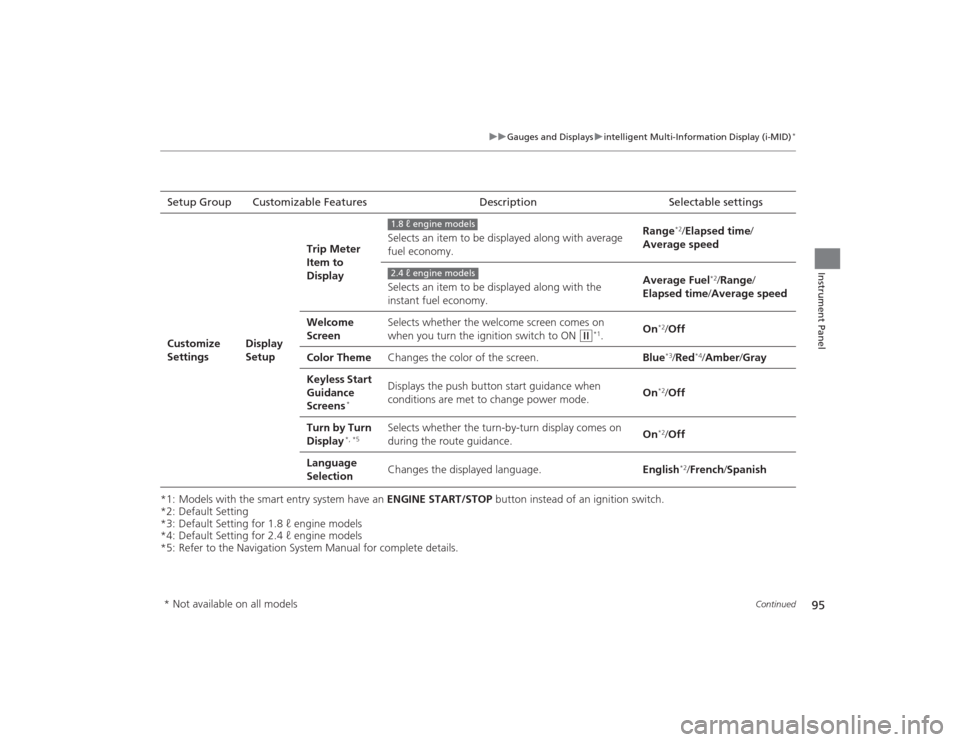
*5: Refer to the Navigation System Manual for complete details. Setup Group Customizable Features
DescriptionSelectable settingsCustomize
Settings
Display
SetupTrip Meter
Item to
Display
Selects an item to be displayed along with average
fuel economy.
Range
*2/
Elapsed time /
Average speed
Selects an item to be displayed along with the
instant fuel economy. Average Fuel
*2/
Range /
Elapsed time /Average speed
Welcome
Screen Selects whether the welcome screen comes on
when you turn the ignition switch to ON
(w
*1.
On
*2/
Off
Color Theme Changes the color of the screen. Blue*3/Red
*4/Amber /Gray
Keyless Start
Guidance
Screens
*
Displays the push button start guidance when
conditions are met to change power mode. On
*2/
Off
Turn by Turn
Display
*, *5
Selects whether the turn-by-turn display comes on
during the route guidance. On
*2/
Off
Language
Selection Changes the displayed language.
English
*2/French /Spanish
1.8 ℓ engine models2.4 ℓ engine models
* Not available on all models
Page 97 of 469
96
uuGauges and Displays uintelligent Multi-Information Display (i-MID)
*
Instrument Panel
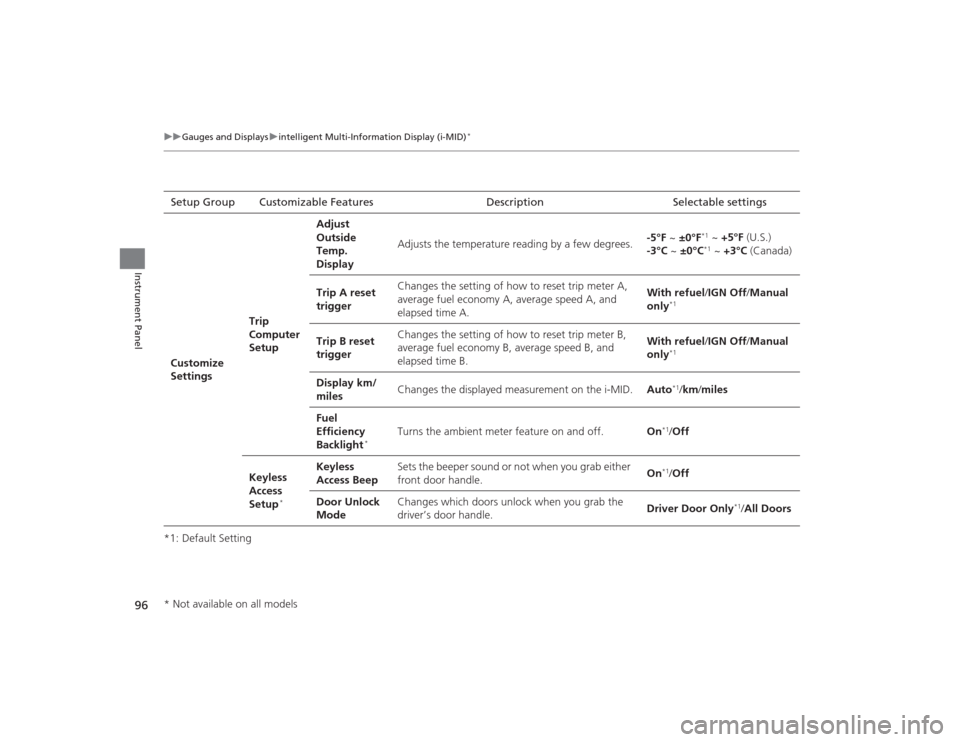
*1: Default SettingSetup Group Customizable Features Description Selectable settings
Customize
Settings Trip
Computer
SetupAdjust
Outside
Temp.
Display
Adjusts the temperature reading by a few degrees.
-5°F ~
±0°F
*1 ~ +5°F (U.S.)
-3°C ~ ±0°C*1 ~ +3°C (Canada)
Trip A reset
trigger Changes the setting of how to reset trip meter A,
average fuel economy A, average speed A, and
elapsed time A. With refuel
/IGN Off /Manual
only
*1
Trip B reset
trigger Changes the setting of how to reset trip meter B,
average fuel economy B, average speed B, and
elapsed time B. With refuel
/IGN Off /Manual
only
*1
Display km/
miles Changes the displayed measurement on the i-MID.
Auto
*1/km/ miles
Fuel
Efficiency
Backlight
*
Turns the ambient meter feature on and off. On
*1/Off
Keyless
Access
Setup
*
Keyless
Access Beep Sets the beeper sound or not when you grab either
front door handle.
On
*1/
Off
Door Unlock
Mode Changes which doors unlock when you grab the
driver’s door handle.
Driver Door Only
*1/
All Doors
* Not available on all models
Page 98 of 469
97
uuGauges and Displays uintelligent Multi-Information Display (i-MID)
*
Continued
Instrument Panel
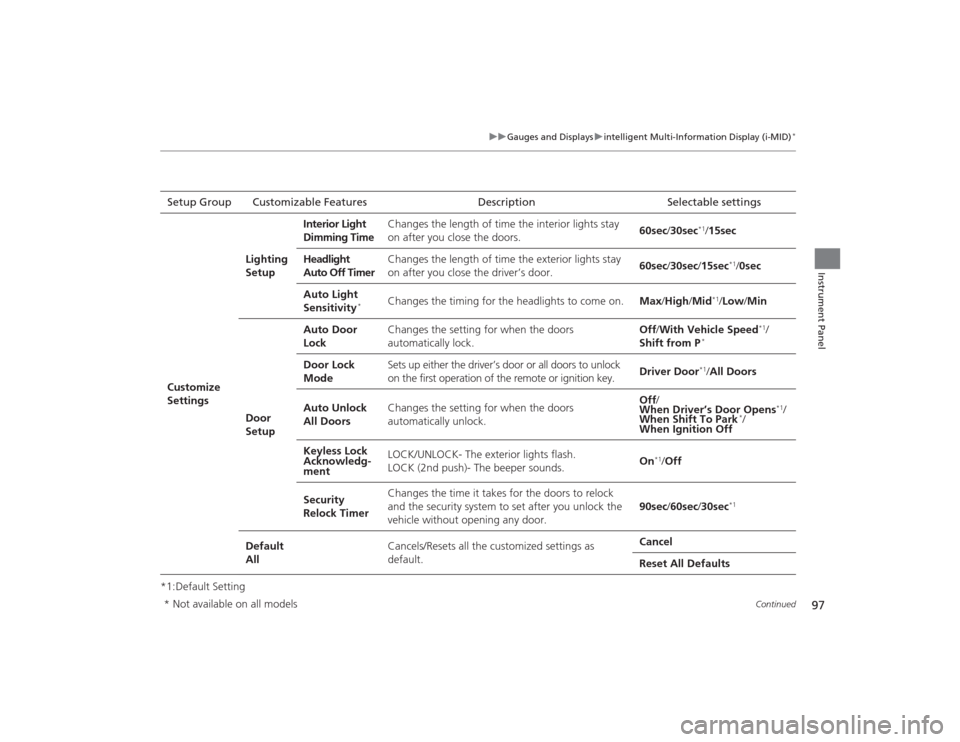
*1:Default SettingSetup Group Customizable Features Description Selectable settingsCustomize
Settings
Lighting
Setup
Interior Light
Dimming Time
Changes the length of time the interior lights stay
on after you close the doors.
60sec
/30sec
*1/15sec
Headlight
Auto Off Timer Changes the length of time the exterior lights stay
on after you close the driver’s door.
60sec
/30sec /15sec
*1/ 0sec
Auto Light
Sensitivity
*
Changes the timing for the headlights to come on. Max/High /Mid
*1/ Low /Min
Door
Setup Auto Door
Lock
Changes the setting for when the doors
automatically lock. Off
/With Vehicle Speed
*1/
Shift from P
*
Door Lock
Mode Sets up either the driver’s door or all doors to unlock
on the first operation of the remote or ignition key.
Driver Door
*1/
All Doors
Auto Unlock
All Doors Changes the setting for when the doors
automatically unlock. Off
/
When Driver’s Door Opens
*1/
When Shift To Park
*/
When Ignition Off
Keyless Lock
Acknowledg-
ment LOCK/UNLOCK- The exterior lights flash.
LOCK (2nd push)- The beeper sounds.
On
*1/
Off
Security
Relock Timer Changes the time it takes for the doors to relock
and the security system to set after you unlock the
vehicle without opening any door.
90sec
/60sec /30sec
*1
Default
All Cancels/Resets all the customized settings as
default. Cancel
Reset All Defaults
* Not available on all models
Page 99 of 469
uuGauges and Displays uintelligent Multi-Information Display (i-MID)
*
98Instrument Panel
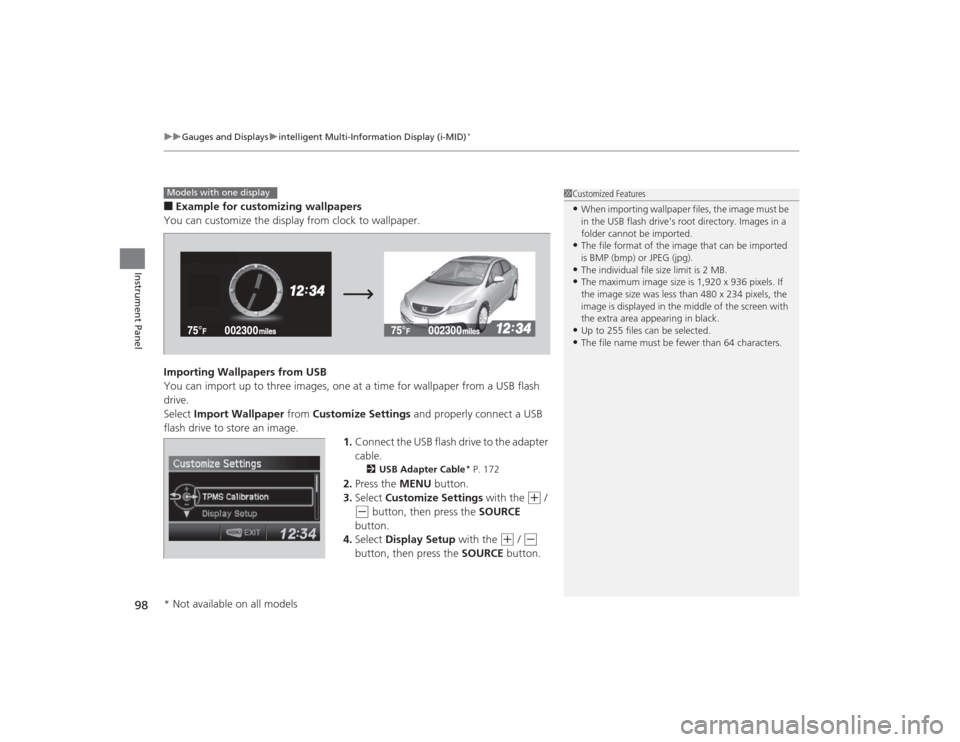
■Example for customizing wallpapers
You can customize the display from clock to wallpaper.
Importing Wallpapers from USB
You can import up to three images, one at a time for wallpaper from a USB flash
drive.
Select Import Wallpaper from Customize Settings and properly connect a USB
flash drive to store an image. 1.Connect the USB flash drive to the adapter
cable.
2 USB Adapter Cable
* P. 172
2.Press the MENU button.
3. Select Customize Settings with the
(+
/
(-
button, then press the SOURCE
button.
4. Select Display Setup with the
(+
/ (-
button, then press the SOURCE button.
1Customized Features•When importing wallpaper files, the image must be
in the USB flash drive’s root directory. Images in a
folder cannot be imported.•The file format of the image that can be imported
is BMP (bmp) or JPEG (jpg).•The individual file size limit is 2 MB.•The maximum image size is 1,920 x 936 pixels. If
the image size was less than 480 x 234 pixels, the
image is displayed in the middle of the screen with
the extra area appearing in black.•Up to 255 files can be selected.•The file name must be fewer than 64 characters.
Models with one display* Not available on all models
Page 100 of 469
99
uuGauges and Displays uintelligent Multi-Information Display (i-MID)
*
Continued
Instrument Panel
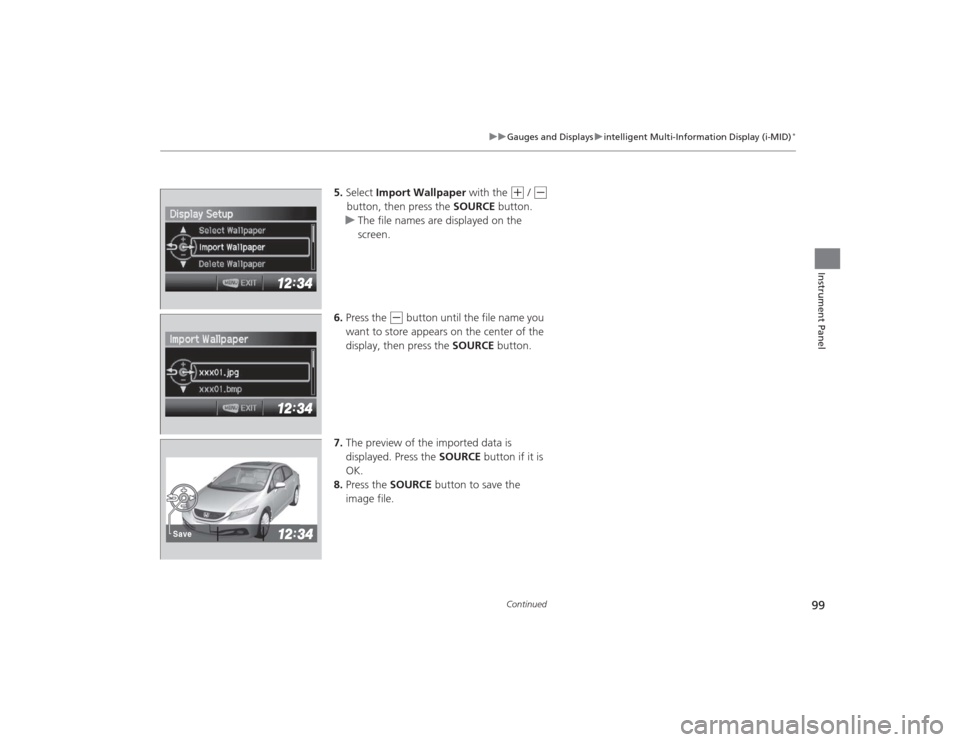
5. Select Import Wallpaper with the
(+
/ (-
button, then press the SOURCE button.
u The file names are displayed on the
screen.
6. Press the
(-
button until the file name you
want to store appears on the center of the
display, then press the SOURCE button.
7. The preview of the imported data is
displayed. Press the SOURCE button if it is
OK.
8. Press the SOURCE button to save the
image file.
Save
Page 101 of 469
100
uuGauges and Displays uintelligent Multi-Information Display (i-MID)
*
Instrument Panel
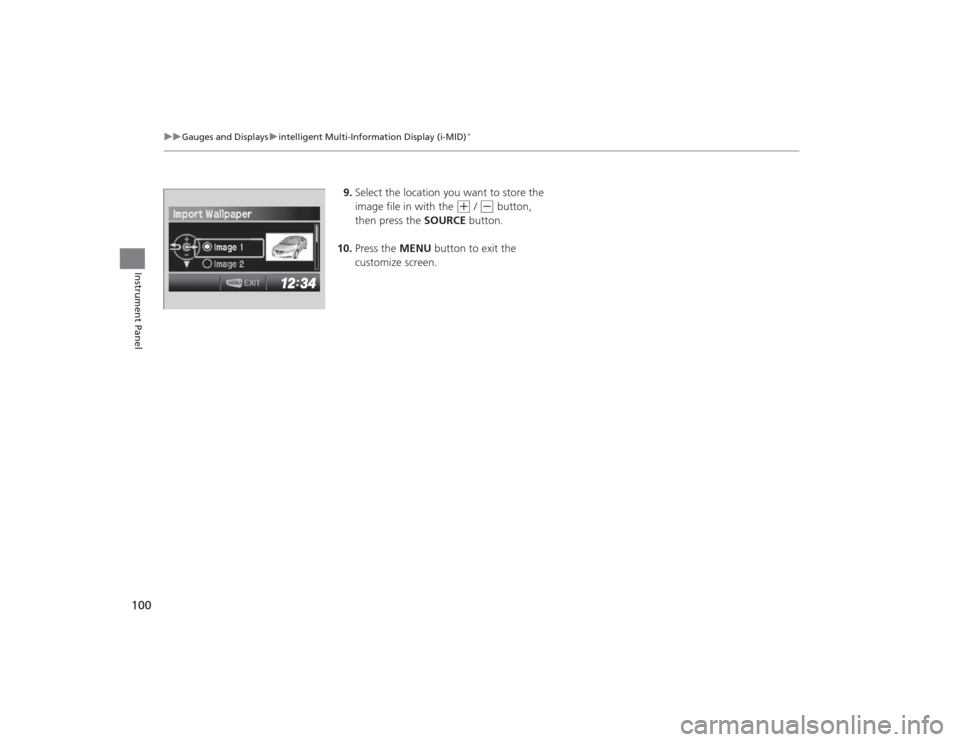
9. Select the location you want to store the
image file in with the
(+
/ (-
button,
then press the SOURCE button.
10. Press the MENU button to exit the
customize screen.
Page 102 of 469
101
uuGauges and Displays uintelligent Multi-Information Display (i-MID)
*
Instrument Panel
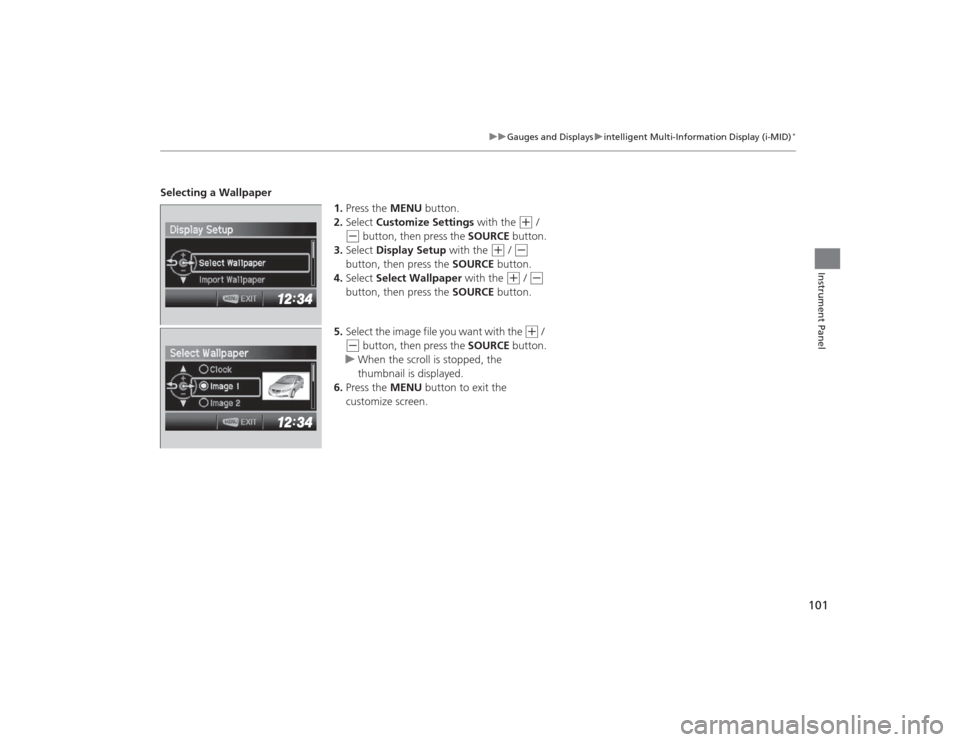
Selecting a Wallpaper
1.Press the MENU button.
2. Select Customize Settings with the
(+
/
(-
button, then press the SOURCE button.
3. Select Display Setup with the
(+
/ (-
button, then press the SOURCE button.
4. Select Select Wallpaper with the
(+
/ (-
button, then press the SOURCE button.
5. Select the image file you want with the
(+
/
(-
button, then press the SOURCE button.
u When the scroll is stopped, the
thumbnail is displayed.
6. Press the MENU button to exit the
customize screen.
Page 127 of 469
uuSecurity System uSecurity System Alarm
*
126Controls
■Setting the security system alarm
The security system alarm automatically sets when the following conditions have
been met:
• The ignition switch is in LOCK
(0
*1, and the key has been removed from the
ignition switch.
• The hood and trunk are closed.
• All doors are locked with the key, the remote transmitter, or smart entry system.
■When the security system alarm sets
The security system indicator in the instrument panel blinks. When the blinking
interval changes after about 15 seconds, the security system is set.■To cancel the security system alarm
The security system is canceled when the vehicle is unlocked using the remote
transmitter, smart entry system, or the ignition switch is turned to ON
(w
*1. The
security system indicator goes off at the same time.
*1: Models with the smart entry system have an ENGINE START/STOP button instead of an
ignition switch.
1 Security System Alarm
*
Do not set the security system alarm when someone
is in the vehicle or a window is open. The system can
accidentally activate when:•Unlocking the door with the lock tab.•Opening the trunk with the trunk release or the
emergency trunk opener.•Opening the hood with the hood release.•Moving the shift lever out of
(P.
If the battery goes dead after you have set the
security system alarm, the security alarm may go off
once the battery is recharged or replaced.
If this occurs, deactivate the security system alarm by
unlocking a door using the remote transmitter.
Do not attempt to alter this system or add another
device to it.
Automatic transmission/CVT models
* Not available on all models