audio HONDA CIVIC 2014 9.G Service Manual
[x] Cancel search | Manufacturer: HONDA, Model Year: 2014, Model line: CIVIC, Model: HONDA CIVIC 2014 9.GPages: 469, PDF Size: 17.32 MB
Page 198 of 469
197Features
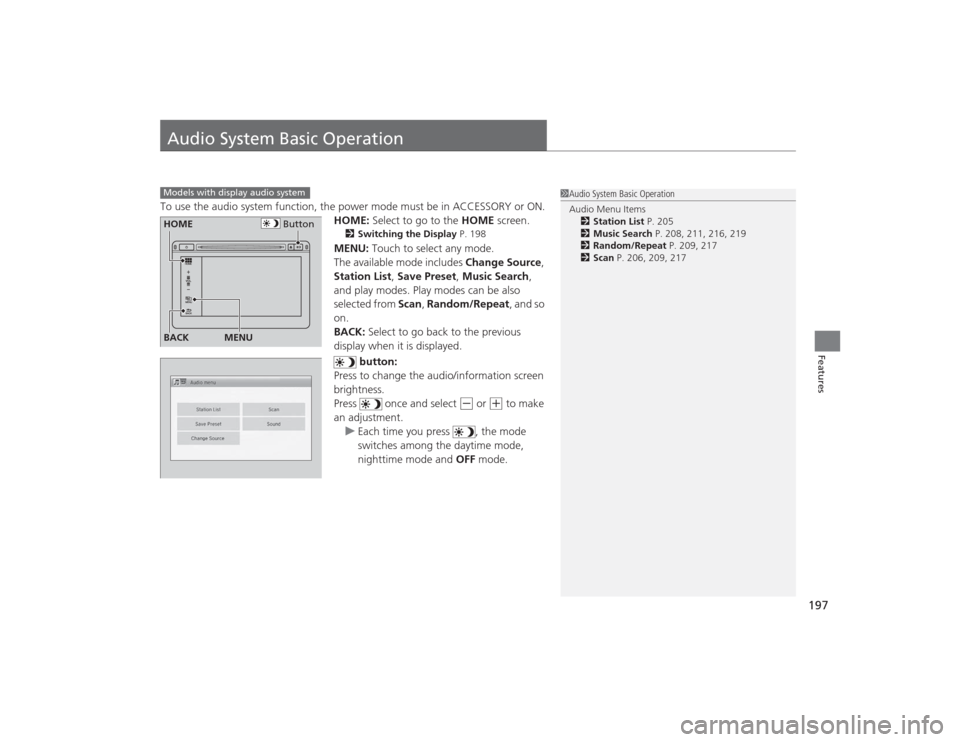
Audio System Basic OperationTo use the audio system function, the power mode must be in ACCESSORY or ON.HOME: Select to go to the HOME screen.
2Switching the Display P. 198MENU: Touch to select any mode.
The available mode includes Change Source,
Station List , Save Preset, Music Search,
and play modes. Play modes can be also
selected from Scan, Random/Repeat , and so
on.
BACK: Select to go back to the previous
display when it is displayed.
button:
Press to change the audio/information screen
brightness.
Press once and select
(-
or
(+
to make
an adjustment. u Each time you press , the mode
switches among the daytime mode,
nighttime mode and OFF mode.
Models with display audio system
1Audio System Basic Operation
Audio Menu Items
2 Station List P. 205
2 Music Search P. 208, 211, 216, 219
2 Random/Repeat P. 209, 217
2 Scan P. 206, 209, 217
Button
HOME
BACK
MENU
Page 199 of 469
198
uuAudio System Basic Operation uAudio/Information Screen
Features
Audio/Information ScreenDisplays the audio status and wallpaper. From this display, you can go to various
setup options.
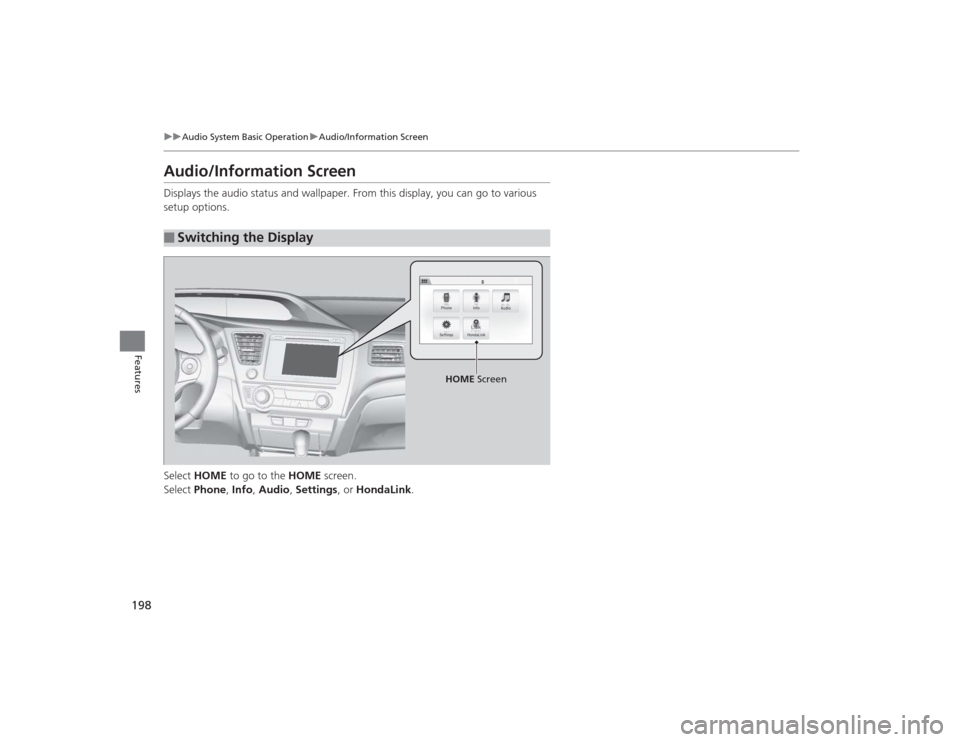
Select HOME to go to the HOME screen.
Select Phone , Info , Audio , Settings , or HondaLink .■
Switching the Display
HOME Screen
Page 200 of 469
199
uuAudio System Basic Operation uAudio/Information Screen
Continued
Features
■Phone
Shows the HFL information.2 Bluetooth ® HandsFreeLink ®
* P. 277
■Info
Shows the Trip Computer , Clock/Wallpaper , Voice Info , or System/Device
Information information.■Audio
Shows the current audio information.■Settings
Enters the customizing menu screen.2 Customized Features
* P. 233
■HondaLink Apps
Connects with your smartphone
*1 to play personalized music information, and social
media streams.
2 Smartphone Apps P. 222
*1: Available on specific phones only. Check handsfreelink.honda.com for compatible phones
and hondalink.com for feature details.* Not available on all models
Page 201 of 469
uuAudio System Basic Operation uAudio/Information Screen
200Features
You can change, store, and delete the wallpaper on the audio/information screen.■Import wallpaper
You can import up to five images, one at a time, for wallpaper from a USB flash
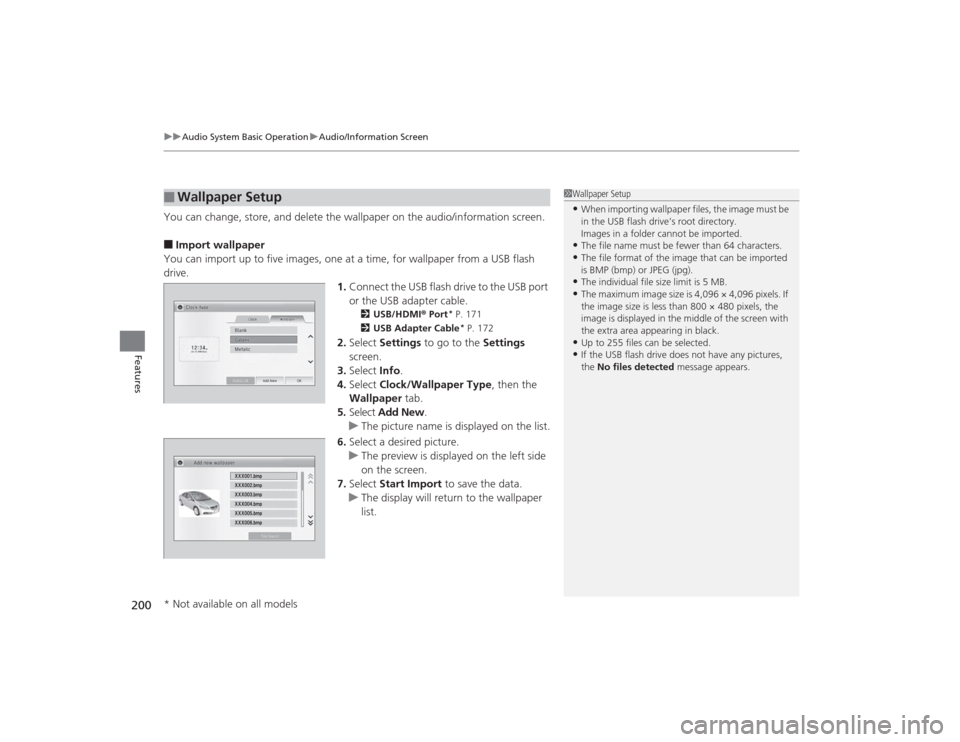
drive. 1.Connect the USB flash drive to the USB port
or the USB adapter cable.
2 USB/HDMI® Port
* P. 171
2 USB Adapter Cable* P. 172
2.Select Settings to go to the Settings
screen.
3. Select Info.
4. Select Clock/Wallpaper Type , then the
Wallpaper tab.
5. Select Add New .
u The picture name is displayed on the list.
6. Select a desired picture.
u The preview is displayed on the left side
on the screen.
7. Select Start Import to save the data.
u The display will return to the wallpaper
list.
■
Wallpaper Setup
1Wallpaper Setup•When importing wallpaper files, the image must be
in the USB flash drive’s root directory.
Images in a folder cannot be imported.•The file name must be fewer than 64 characters.•The file format of the image that can be imported
is BMP (bmp) or JPEG (jpg).•The individual file size limit is 5 MB.•The maximum image size is 4,096 × 4,096 pixels. If
the image size is less than 800 × 480 pixels, the
image is displayed in the middle of the screen with
the extra area appearing in black.•Up to 255 files can be selected.•If the USB flash drive does not have any pictures,
the No files detected message appears.
* Not available on all models
Page 202 of 469
201
uuAudio System Basic Operation uAudio/Information Screen
Features
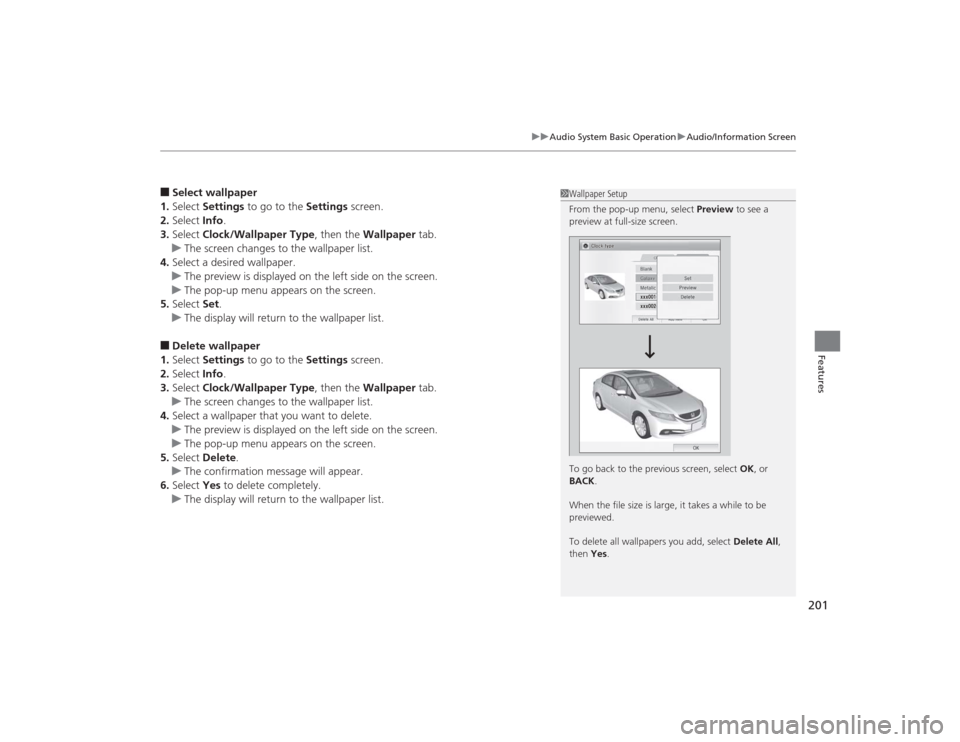
■Select wallpaper
1. Select Settings to go to the Settings screen.
2. Select Info.
3. Select Clock/Wallpaper Type , then the Wallpaper tab.
u The screen changes to the wallpaper list.
4. Select a desired wallpaper.
u The preview is displayed on the left side on the screen.
u The pop-up menu appears on the screen.
5. Select Set.
u The display will return to the wallpaper list.■Delete wallpaper
1. Select Settings to go to the Settings screen.
2. Select Info.
3. Select Clock/Wallpaper Type , then the Wallpaper tab.
u The screen changes to the wallpaper list.
4. Select a wallpaper that you want to delete.
u The preview is displayed on the left side on the screen.
u The pop-up menu appears on the screen.
5. Select Delete .
u The confirmation message will appear.
6. Select Yes to delete completely.
u The display will return to the wallpaper list.
1Wallpaper Setup
From the pop-up menu, select Preview to see a
preview at full-size screen.
To go back to the previous screen, select OK, or
BACK .
When the file size is large, it takes a while to be
previewed.
To delete all wallpapers you add, select Delete All,
then Yes .
Page 203 of 469
202
uuAudio System Basic Operation uAdjusting the Sound
Features
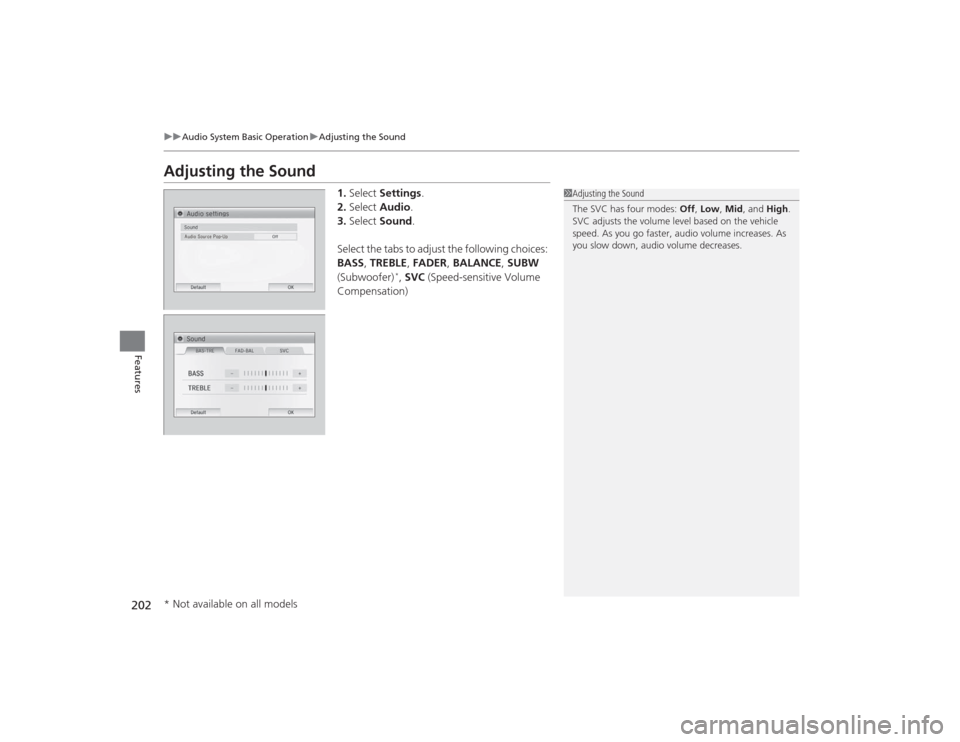
Adjusting the Sound
1. Select Settings .
2. Select Audio .
3. Select Sound.
Select the tabs to adjust the following choices:
BASS , TREBLE , FADER , BALANCE , SUBW
(Subwoofer)
*, SVC (Speed-sensitive Volume
Compensation)
1 Adjusting the Sound
The SVC has four modes: Off, Low , Mid, and High.
SVC adjusts the volume level based on the vehicle
speed. As you go faster, audio volume increases. As
you slow down, audio volume decreases.
* Not available on all models
Page 204 of 469
203
uuAudio System Basic Operation uDisplay Setup
Features
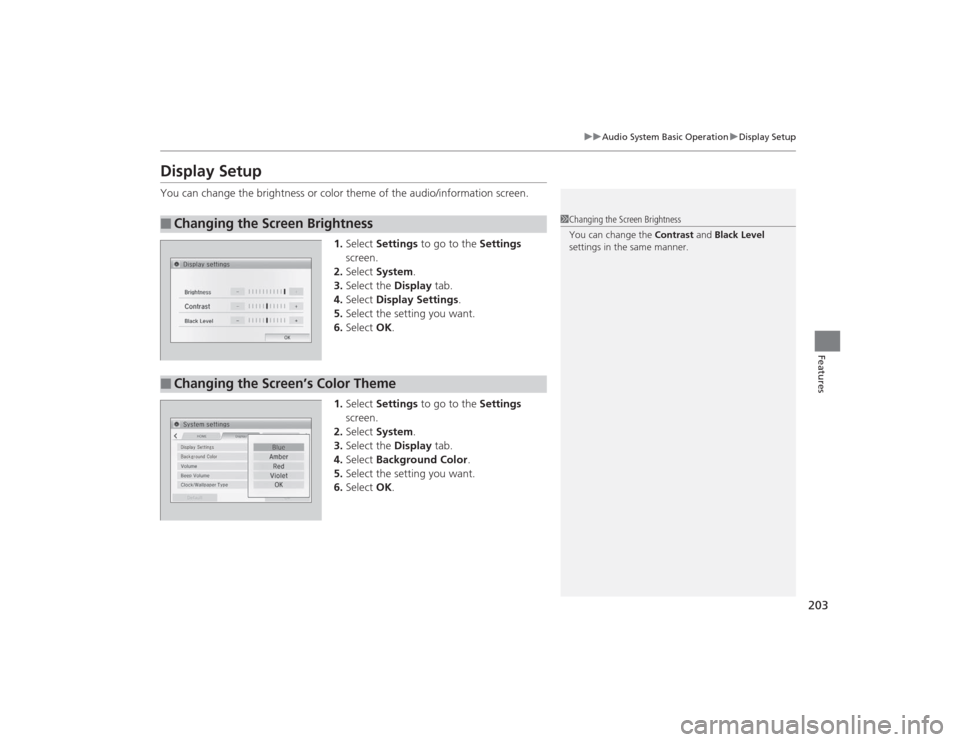
Display SetupYou can change the brightness or color theme of the audio/information screen.
1.Select Settings to go to the Settings
screen.
2. Select System.
3. Select the Display tab.
4. Select Display Settings .
5. Select the setting you want.
6. Select OK.
1. Select Settings to go to the Settings
screen.
2. Select System.
3. Select the Display tab.
4. Select Background Color .
5. Select the setting you want.
6. Select OK.■
Changing the Screen Brightness
1Changing the Screen Brightness
You can change the Contrast and Black Level
settings in the same manner.
■
Changing the Screen’s Color Theme
Page 205 of 469
204
uuAudio System Basic Operation uPlaying AM/FM Radio
Features
Playing AM/FM Radio*1:Some or all of the lists may not be displayed.
002300
75°
F miles
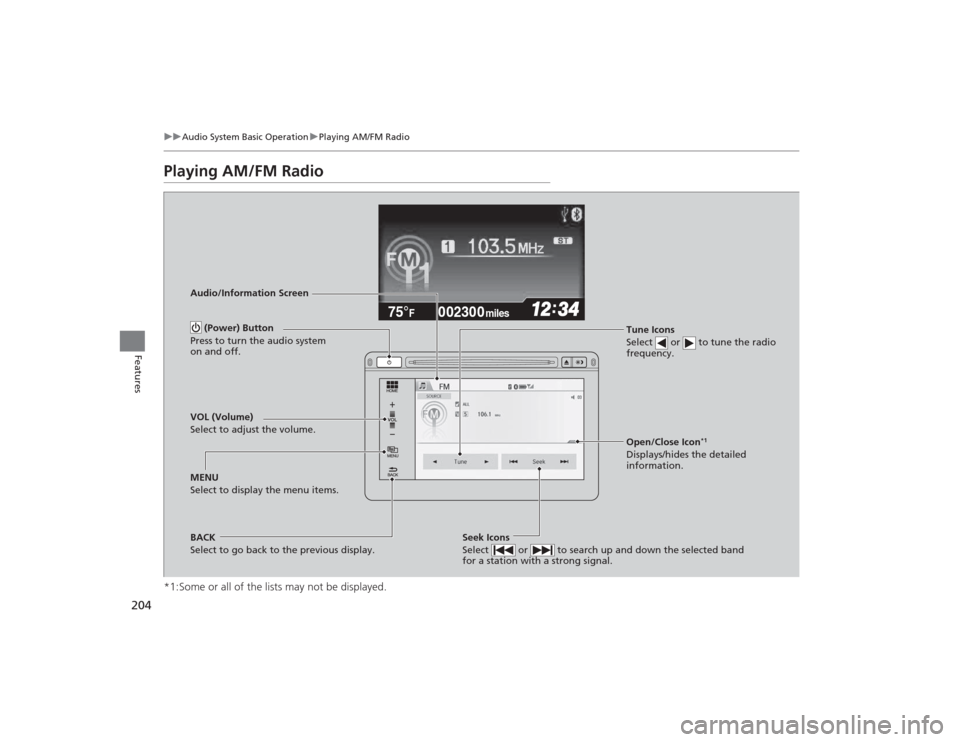
Audio/Information Screen
Tune Icons
Select or to tune the radio
frequency.BACK
Select to go back to the previous display. (Power) Button
Press to turn the audio system
on and off.
Seek Icons
Select or to search up and down the selected band
for a station with a strong signal.
MENU
Select to display the menu items. VOL (Volume)
Select to adjust the volume.
Open/Close Icon
*1
Displays/hides the detailed
information.
Page 206 of 469
Continued
205
uuAudio System Basic Operation uPlaying AM/FM Radio
Features
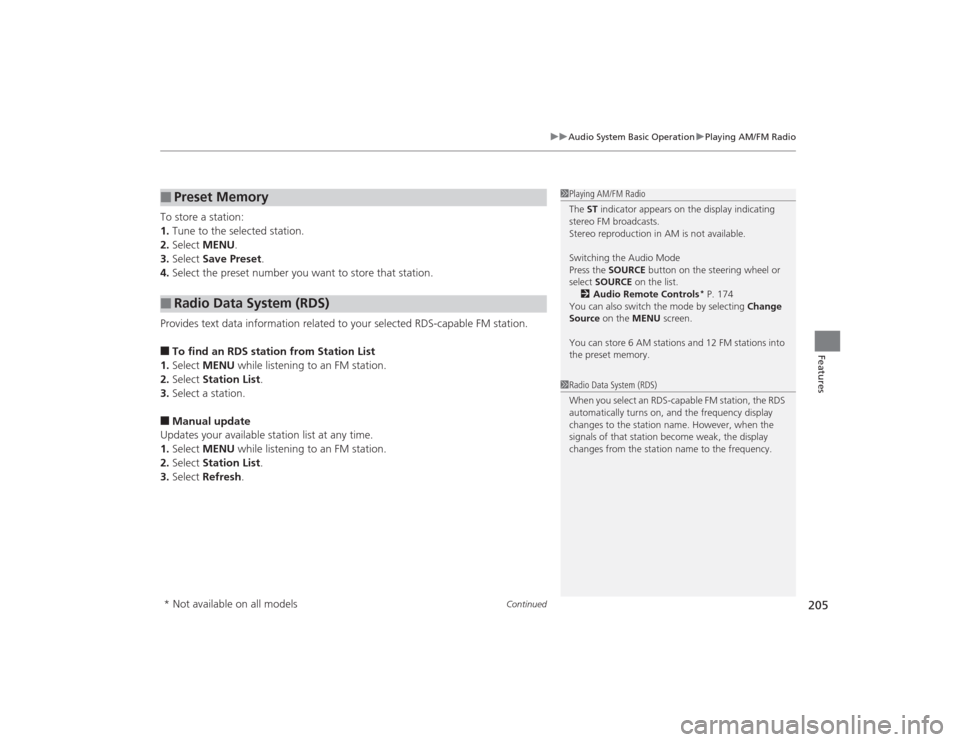
To store a station:
1. Tune to the selected station.
2. Select MENU .
3. Select Save Preset .
4. Select the preset number you want to store that station.
Provides text data information related to your selected RDS-capable FM station.■To find an RDS station from Station List
1. Select MENU while listening to an FM station.
2. Select Station List .
3. Select a station.■Manual update
Updates your available station list at any time.
1. Select MENU while listening to an FM station.
2. Select Station List .
3. Select Refresh .■
Preset Memory
■
Radio Data System (RDS)
1Playing AM/FM Radio
The ST indicator appears on the display indicating
stereo FM broadcasts.
Stereo reproduction in AM is not available.
Switching the Audio Mode
Press the SOURCE button on the steering wheel or
select SOURCE on the list.
2 Audio Remote Controls
* P. 174
You can also switch the mode by selecting Change
Source on the MENU screen.
You can store 6 AM stations and 12 FM stations into
the preset memory.
1 Radio Data System (RDS)
When you select an RDS-capable FM station, the RDS
automatically turns on, and the frequency display
changes to the station name. However, when the
signals of that station become weak, the display
changes from the station name to the frequency.
* Not available on all models
Page 207 of 469
206
uuAudio System Basic Operation uPlaying AM/FM Radio
Features
■Radio text
Displays the radio text information of the selected RDS station.
1. Select MENU .
2. Select View Radio Text .■Scan
Samples each of the strongest stations on the selected band for 10 seconds.
1. Select MENU .
2. Select Scan.
To turn off scan, select Cancel.