audio HONDA CIVIC 2014 9.G User Guide
[x] Cancel search | Manufacturer: HONDA, Model Year: 2014, Model line: CIVIC, Model: HONDA CIVIC 2014 9.GPages: 469, PDF Size: 17.32 MB
Page 133 of 469
132
uuOperating the Switches Around the Steering Wheel uENGINE START/STOP Button
*
Controls
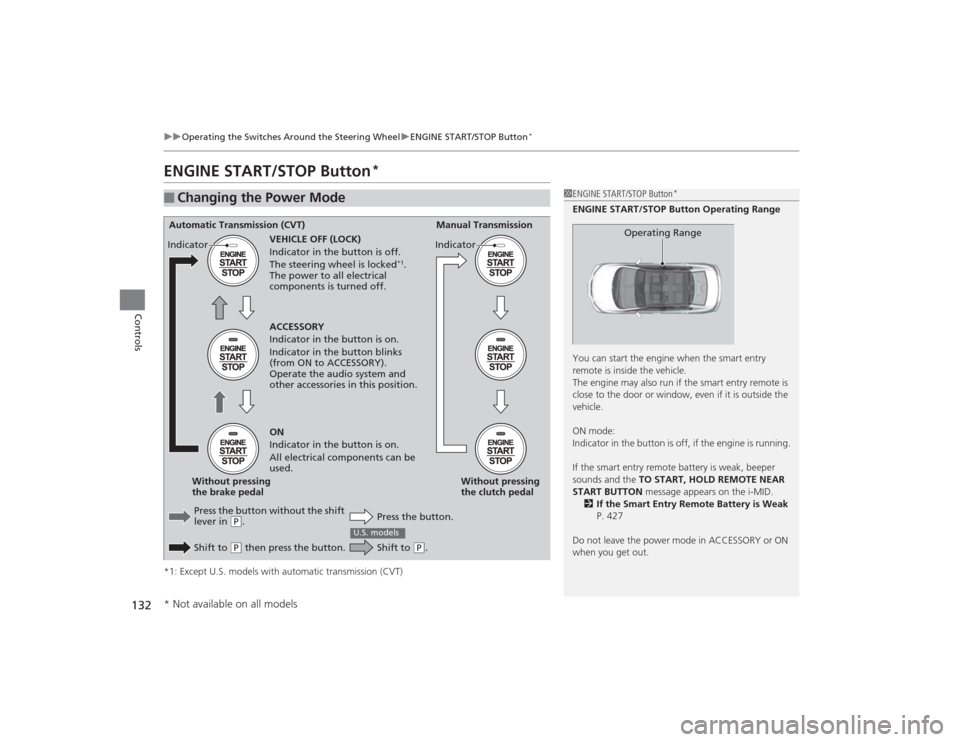
ENGINE START/STOP Button
*
*1: Except U.S. models with automatic transmission (CVT)■
Changing the Power Mode
1ENGINE START/STOP Button
*
ENGINE START/STOP Button Operating Range
You can start the engine when the smart entry
remote is inside the vehicle.
The engine may also run if the smart entry remote is
close to the door or window, even if it is outside the
vehicle.
ON mode:
Indicator in the button is off, if the engine is running.
If the smart entry remote battery is weak, beeper
sounds and the TO START, HOLD REMOTE NEAR
START BUTTON message appears on the i-MID.
2 If the Smart Entry Remote Battery is Weak
P. 427
Do not leave the power mode in ACCESSORY or ON
when you get out.
Operating Range
Automatic Transmission (CVT) Manual Transmission
VEHICLE OFF (LOCK)
Indicator in the button is off.
The steering wheel is locked
*1.
The power to all electrical
components is turned off.
Press the button without the shift
lever in
( P.
Shift to ( P then press the button. Press the button.Without pressing
the clutch pedal
Without pressing
the brake pedal ACCESSORY
Indicator in the button is on.
Indicator in the button blinks
(from ON to ACCESSORY).
Operate the audio system and
other accessories in this position.
ON
Indicator in the button is on.
All electrical components can be
used.
Indicator
Indicator
Shift to
(
P.
U.S. models
* Not available on all models
Page 136 of 469
135
uuOperating the Switches Around the Steering Wheel uIgnition Switch and Power Mode Comparison
Controls
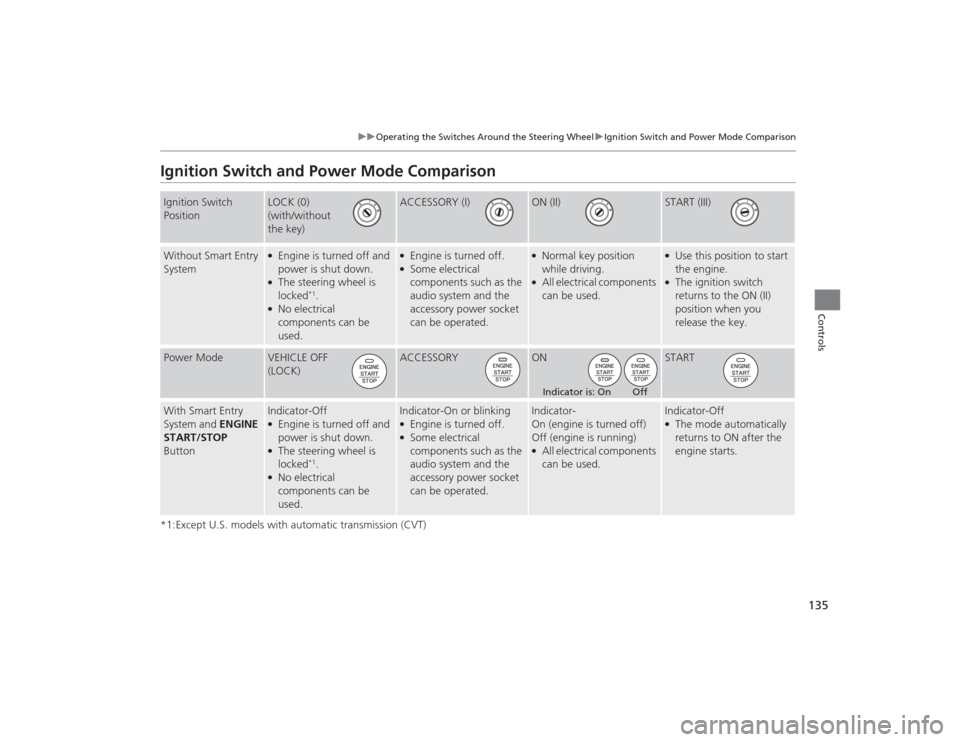
Ignition Switch and Power Mode Comparison*1:Except U.S. models with automatic transmission (CVT)Ignition Switch
Position
LOCK (0)
(with/without
the key)
ACCESSORY (I)
ON (II)
START (III)
Without Smart Entry
System
●Engine is turned off and
power is shut down.●The steering wheel is
locked
*1.
●No electrical
components can be
used.
●Engine is turned off.●Some electrical
components such as the
audio system and the
accessory power socket
can be operated.
●Normal key position
while driving.●All electrical components
can be used.
●Use this position to start
the engine.●The ignition switch
returns to the ON (II)
position when you
release the key.
Power Mode
VEHICLE OFF
(LOCK)
ACCESSORY
ON
START
With Smart Entry
System and ENGINE
START/STOP
Button
Indicator-Off●Engine is turned off and
power is shut down.●The steering wheel is
locked
*1.
●No electrical
components can be
used.
Indicator-On or blinking●Engine is turned off.●Some electrical
components such as the
audio system and the
accessory power socket
can be operated.
Indicator-
On (engine is turned off)
Off (engine is running)●All electrical components
can be used.
Indicator-Off●The mode automatically
returns to ON after the
engine starts.
Indicator is: On Off
Page 170 of 469
169
Features
This chapter describes how to operate technology features.
Audio SystemAbout Your Audio System ................ 170
USB/HDMI ® Port
*............................. 171
USB Adapter Cable*........................ 172
Auxiliary Input Jack*........................ 172
Audio System Theft Protection
*....... 173
Audio Remote Controls
*.................. 174
Audio System Basic Operation ...... 176
Adjusting the Sound ........................ 176
Playing AM/FM Radio ....................... 177
Playing a CD .................................... 178
Models with information display
Audio System Basic Operation ...... 179
Adjusting the Sound ........................ 180
Playing AM/FM Radio ....................... 181
Playing a CD .................................... 184
Playing an iPod ................................ 187
Playing Internet Radio ...................... 190
Playing a USB Flash Drive ................. 192
Playing Bluetooth ® Audio................. 195
Audio System Basic Operation ........ 197
Audio/Information Screen ................ 198
Adjusting the Sound ........................ 202
Display Setup ................................... 203Models with one displayModels with display audio system
Playing AM/FM Radio....................... 204
Playing a CD .................................... 207
Playing an iPod ................................ 210
Playing Internet Radio ...................... 213
Playing a USB Flash Drive ................. 215
Playing Bluetooth ® Audio ................ 218
Playing a Video Using the HDMI ®..... 220
Smartphone Apps ............................ 222
Siri Eyes Free .................................... 223
Audio Error Messages ...................... 224
General Information on the Audio System ............................................. 230
Customized Features
*...................... 233
Bluetooth® HandsFreeLink ®
*... 246, 277
* Not available on all models
Page 171 of 469
170Features
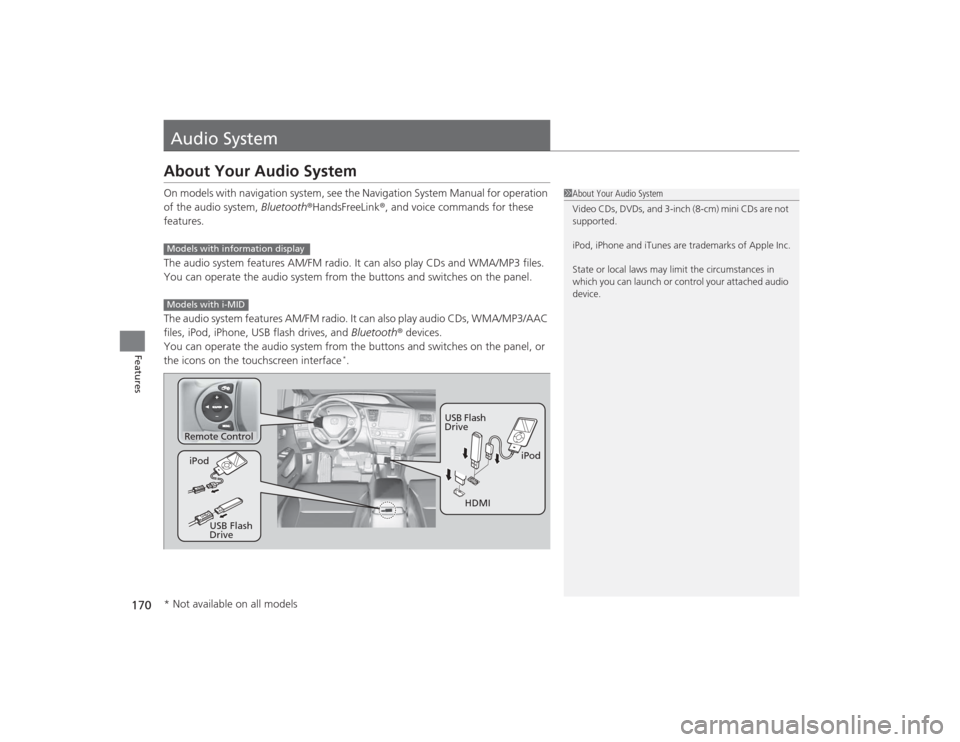
Audio SystemAbout Your Audio SystemOn models with navigation system, see the Navigation System Manual for operation
of the audio system, Bluetooth®HandsFreeLink ®, and voice commands for these
features.
The audio system features AM/FM radio. It can also play CDs and WMA/MP3 files.
You can operate the audio system from the buttons and switches on the panel.
The audio system features AM/FM radio. It can also play audio CDs, WMA/MP3/AAC
files, iPod, iPhone, USB flash drives, and Bluetooth ® devices.
You can operate the audio system from the buttons and switches on the panel, or
the icons on the touchscreen interface
*.
1 About Your Audio System
Video CDs, DVDs, and 3-inch (8-cm) mini CDs are not
supported.
iPod, iPhone and iTunes are trademarks of Apple Inc.
State or local laws may limit the circumstances in
which you can launch or control your attached audio
device.
Models with information displayModels with i-MID
Remote Control
iPod
USB Flash
Drive
iPod
USB Flash
Drive HDMI
* Not available on all models
Page 172 of 469
171
uuAudio System uUSB/HDMI ® Port
*
Features
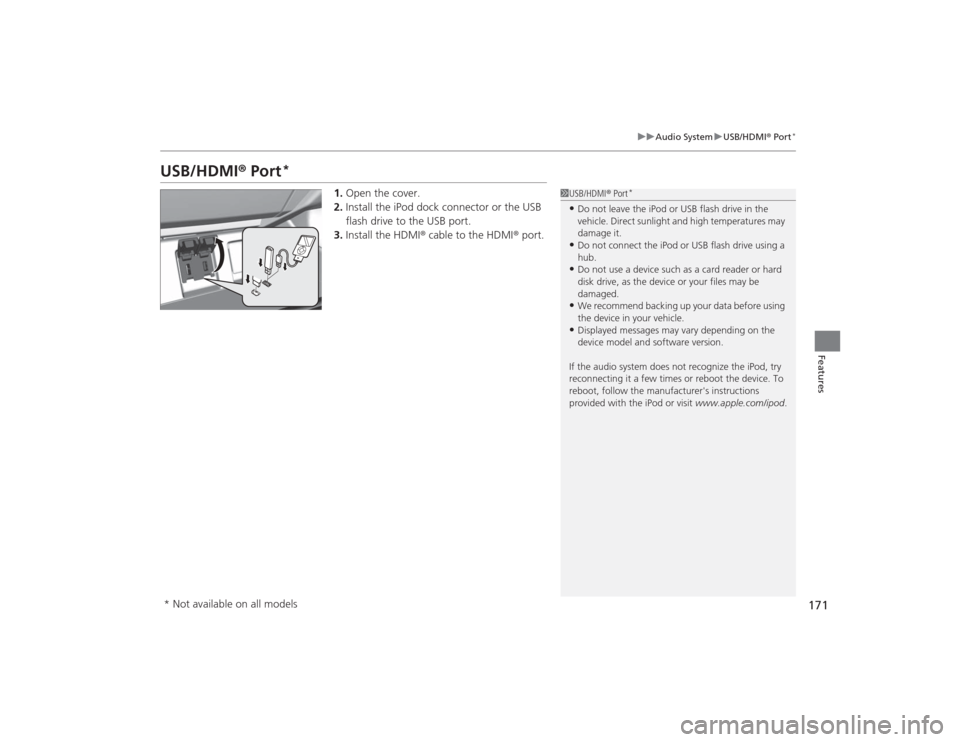
USB/HDMI ® Port
*
1. Open the cover.
2. Install the iPod dock connector or the USB
flash drive to the USB port.
3. Install the HDMI ® cable to the HDMI ® port.
1USB/HDMI ® Port
*
•Do not leave the iPod or USB flash drive in the
vehicle. Direct sunlight and high temperatures may
damage it.•Do not connect the iPod or USB flash drive using a
hub.•Do not use a device such as a card reader or hard
disk drive, as the device or your files may be
damaged.•We recommend backing up your data before using
the device in your vehicle.•Displayed messages may vary depending on the
device model and software version.
If the audio system does not recognize the iPod, try
reconnecting it a few times or reboot the device. To
reboot, follow the manufacturer's instructions
provided with the iPod or visit www.apple.com/ipod.
* Not available on all models
Page 173 of 469
172
uuAudio System uUSB Adapter Cable
*
Features
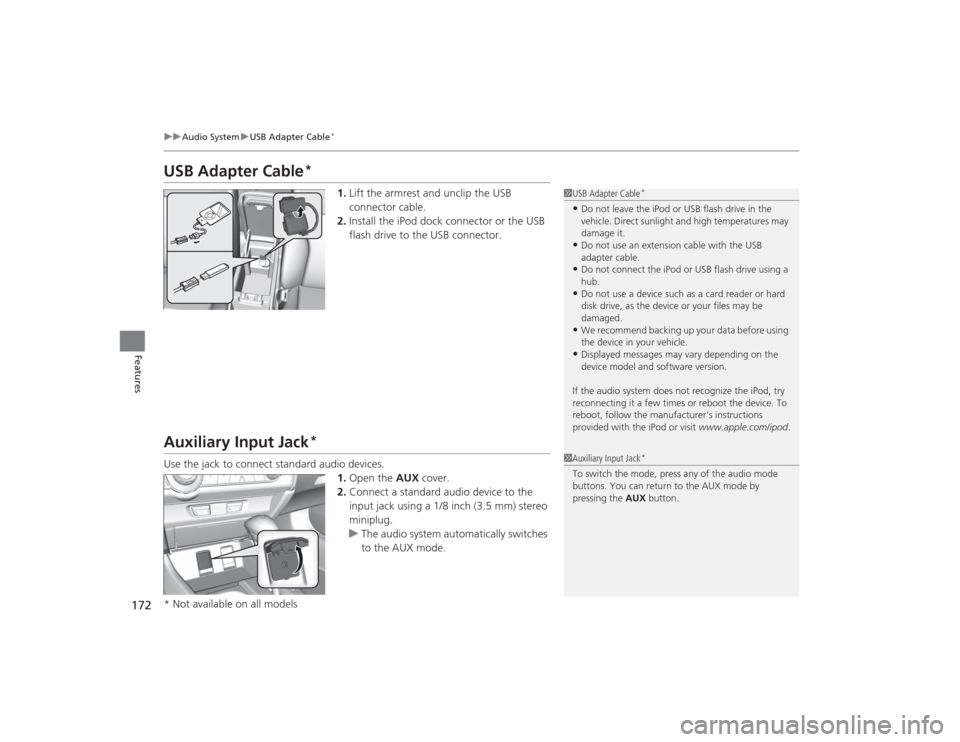
USB Adapter Cable
*
1. Lift the armrest and unclip the USB
connector cable.
2. Install the iPod dock connector or the USB
flash drive to the USB connector.
Auxiliary Input Jack
*
Use the jack to connect standard audio devices.
1.Open the AUX cover.
2. Connect a standard audio device to the
input jack using a 1/8 inch (3.5 mm) stereo
miniplug.
u The audio system automatically switches
to the AUX mode.
1USB Adapter Cable
*
•Do not leave the iPod or USB flash drive in the
vehicle. Direct sunlight and high temperatures may
damage it.•Do not use an extension cable with the USB
adapter cable.•Do not connect the iPod or USB flash drive using a
hub.•Do not use a device such as a card reader or hard
disk drive, as the device or your files may be
damaged.•We recommend backing up your data before using
the device in your vehicle.•Displayed messages may vary depending on the
device model and software version.
If the audio system does not recognize the iPod, try
reconnecting it a few times or reboot the device. To
reboot, follow the manufacturer's instructions
provided with the iPod or visit www.apple.com/ipod.
1Auxiliary Input Jack
*
To switch the mode, press any of the audio mode
buttons. You can return to the AUX mode by
pressing the AUX button.
* Not available on all models
Page 174 of 469
173
uuAudio System uAudio System Theft Protection
*
Features
Audio System Theft Protection
*
The audio system is disabled when it is disconnected from the power source, such as
when the battery is disconnected or goes dead. In certain conditions, the system
may display ENTER CODE
*1/Enter Code
*2. If this occurs, reactivate the audio
system.
■Reactivating the audio system
1. Turn the ignition switch to ON
(w
*3.
2. Turn on the audio system.
3. Press and hold the audio system power button for more than two seconds.
u The audio system is reactivated when the audio control unit establishes a
connection with the vehicle control unit. If the control unit fails to recognize
the audio unit, you must go to a dealer and have the audio unit checked.
■Entering the audio security code
ENTER CODE appears on the display when the power is reconnected.
1. Turn on the audio system.
2. Enter the audio security code using the preset buttons. If you enter an incorrect
digit, continue to the last digit, then try again. If you do not enter the code
correctly after 10 tries, leave the system for one hour before trying again, or visit
a dealer to have the system reset.*1: Models with one display
*2: Models with the display audio system
*3: Models with the smart entry system have an ENGINE START/STOP button instead of an
ignition switch.Models with i-MIDModels with information display* Not available on all models
Page 175 of 469
174
uuAudio System uAudio Remote Controls
*
Features
Audio Remote Controls
*
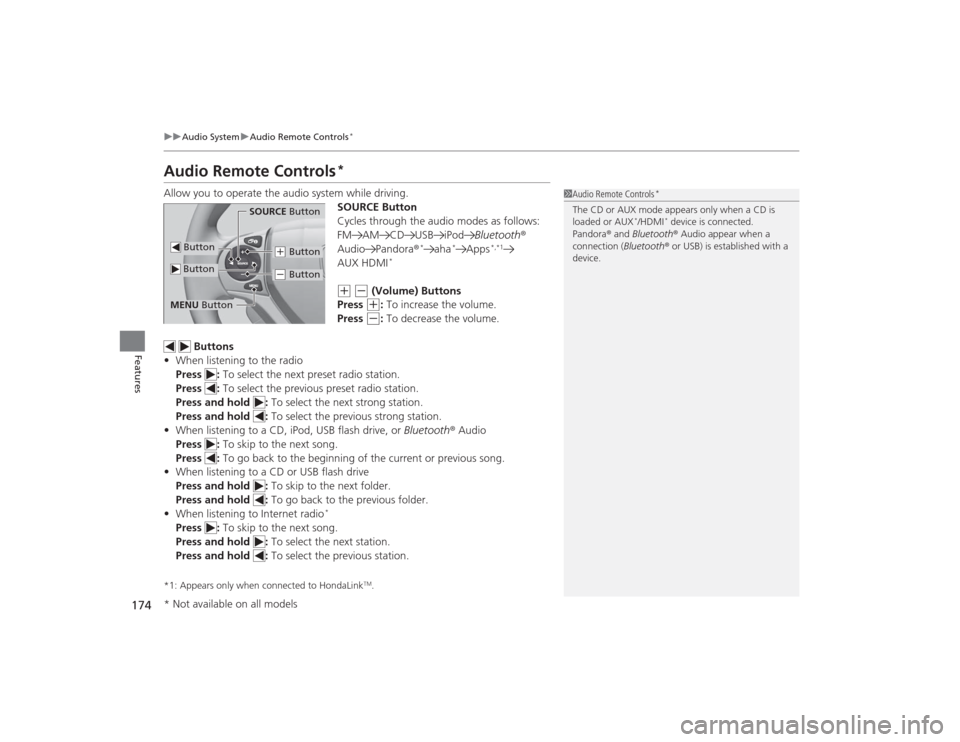
Allow you to operate the audio system while driving.
SOURCE Button
Cycles through the audio modes as follows:
FM AM CD USB iPodBluetooth®
Audio Pandora ®
*
aha
*
Apps
*,*1
AUX HDMI
*
(+
(-
(Volume) Buttons
Press (+
: To increase the volume.
Press
(-
: To decrease the volume.
Buttons
• When listening to the radio
Press : To select the next preset radio station.
Press : To select the previous preset radio station.
Press and hold : To select the next strong station.
Press and hold : To select the previous strong station.
• When listening to a CD, iPod, USB flash drive, or Bluetooth® Audio
Press : To skip to the next song.
Press : To go back to the beginning of the current or previous song.
• When listening to a CD or USB flash drive
Press and hold : To skip to the next folder.
Press and hold : To go back to the previous folder.
• When listening to Internet radio
*
Press : To skip to the next song.
Press and hold : To select the next station.
Press and hold : To select the previous station.*1: Appears only when connected to HondaLink
TM.
1Audio Remote Controls
*
The CD or AUX mode appears only when a CD is
loaded or AUX
*/HDMI
* device is connected.
Pandora ® and Bluetooth ® Audio appear when a
connection (Bluetooth ® or USB) is established with a
device.
Button
SOURCE Button
Button
(+ Button(- Button
MENU Button* Not available on all models
Page 176 of 469
175
uuAudio System uAudio Remote Controls
*
Features
Steering Wheel MENU Button
• When listening to the radio
Press and hold the MENU button: To select the radio station by Scan, Save
Preset, or Seek.
• When listening to a CD or USB flash drive
Press and hold the MENU button: To select the song by Scan, Repeat , or
Random .
• When listening to an iPod
Press and hold the MENU button: To select the song by Repeat or Shuffle .
• When listening to Internet radio
*
Press and hold the MENU button: To select Bookmark , or Play/Pause .
• When listening to a Bluetooth® Audio
Press and hold the MENU button: To select Pause or Play for the song.
1Audio Remote Controls
*
The MENU button is available only when the audio
mode is FM, AM, CD, USB, iPod, Pandora ®, Aha
TM, or
Bluetooth ® Audio.
Models with display audio system* Not available on all models
Page 177 of 469
176Features
Audio System Basic OperationTo use the audio system function, the ignition switch must be in ACCESSORY
(q
or
ON
(w
.
Adjusting the Sound
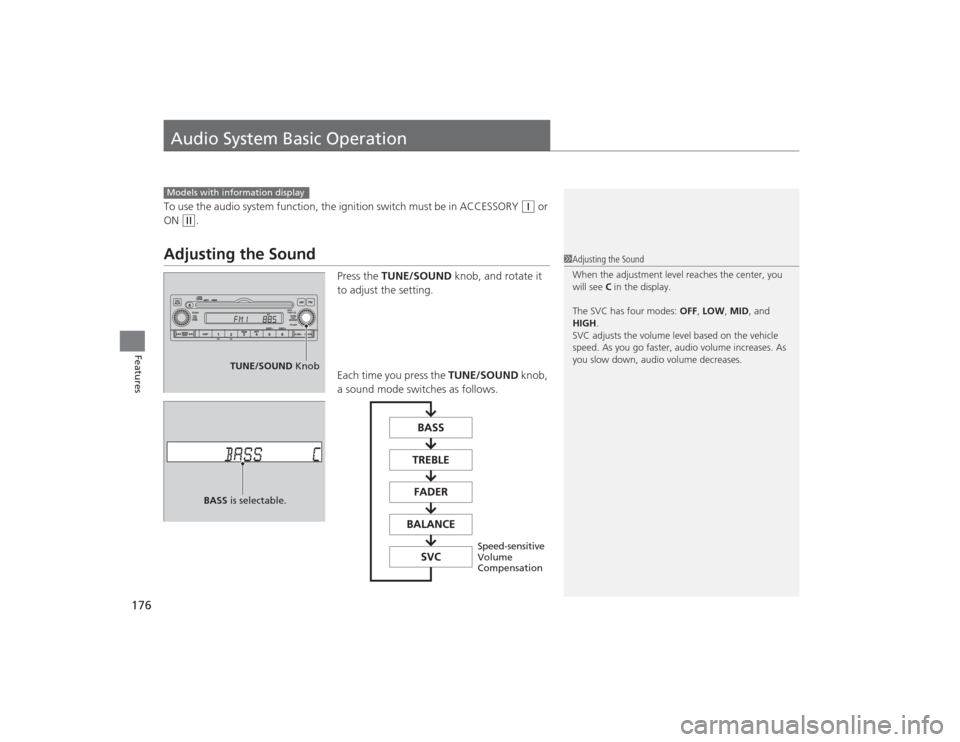
Press the TUNE/SOUND knob, and rotate it
to adjust the setting.
Each time you press the TUNE/SOUND knob,
a sound mode switches as follows.
Models with information display
1 Adjusting the Sound
When the adjustment level reaches the center, you
will see C in the display.
The SVC has four modes: OFF, LOW , MID, and
HIGH .
SVC adjusts the volume level based on the vehicle
speed. As you go faster, audio volume increases. As
you slow down, audio volume decreases.
TUNE/SOUND Knob
BASS is selectable.
Speed-sensitive
Volume
Compensation