remote control HONDA CIVIC 2016 10.G Owner's Manual
[x] Cancel search | Manufacturer: HONDA, Model Year: 2016, Model line: CIVIC, Model: HONDA CIVIC 2016 10.GPages: 590
Page 159 of 590
uuOperating the Switches Around the Steering Wheel uLight Switches
158
Controls
The headlights automatically co me on when the wipers are used several times within
a certain number of intervals wi th the headlight switch in AUTO.
The headlights automatically go off a few minutes later if the wipers are stopped.
The headlights, all other exterior lights, an d the instrument panel lights turn off 15
seconds after you remove the key or set the power mode to VEHICLE OFF (LOCK),
take the remote with you, and close the driver’s door. u You can change the headlight auto off timer setting.
2 Customized Features P. 111
If you turn the ignition switch to LOCK (0*1 with the headlight switch on, but do
not open the door, the lights turn off after 10 minutes (3 minutes, if the switch is in
the AUTO position).
The lights turn on again when you unlock or open the driver’s door. If you unlock
the door, but do not open it within 15 seconds, the lights go off. If you open the
driver’s door, you will hear a lights on reminder chime.
*1: Models with the smart entry system have an ENGINE START/STOP button instead of an
ignition switch.
■Headlight Integration with Wipers*
■Automatic Lighting Off Feature
1 Automatic Operation (aut omatic lighting control)*
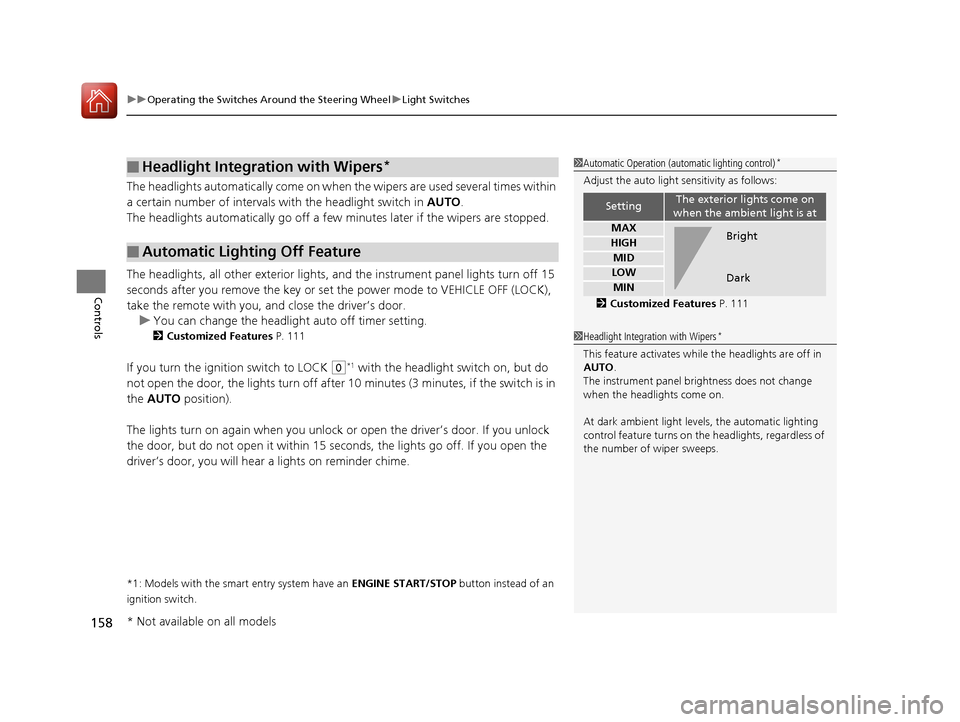
Adjust the auto light sensitivity as follows:
2 Customized Features P. 111
SettingThe exterior lights come on
when the ambient light is at
MAX
HIGH
MID
LOW
MIN
Bright
Dark
1 Headlight Integration with Wipers*
This feature activates while the headlights are off in
AUTO .
The instrument panel brightness does not change
when the headlights come on.
At dark ambient light leve ls, the automatic lighting
control feature turns on the headlights, regardless of
the number of wiper sweeps.
* Not available on all models
16 CIVIC 4D-31TBA6000.book 158 ページ 2015年8月31日 月曜日 午後5時56分
Page 198 of 590
197
Features
This chapter describes how to operate technology features.
Audio SystemAbout Your Audio System ................ 198
USB Port(s) ....................................... 199
Audio System Theft Protection ......... 200
Audio Remote Controls .................... 201
Audio System Basic Operation ........ 205
Audio/Information Screen ................ 206
Adjusting the Sound ........................ 210
Display Setup ................................... 211
Playing the AM/FM Radio ................. 212
Playing an iPod ................................ 214
Playing a USB Flash Drive ................. 217
Models with color audio system
Playing Bluetooth ® Audio................. 220
Audio System Basic Operation ........ 223
Audio/Information Screen ................ 224
Adjusting the Sound ........................ 245
Display Setup ................................... 246
Voice Control Operation .................. 248
Playing AM/FM Radio ....................... 252
Playing SiriusXM ® Radio
*................. 256
Playing an iPod ................................ 263
Song By Voice
TM (SBV) ...................... 266
Playing Pandora ®*............................ 270
Playing AhaTM................................... 272
Models with Display AudioPlaying a USB Flash Drive ................. 273
Playing Bluetooth ® Audio ................ 276
HondaLink ®..................................... 278
Wi-Fi Connection ............................. 283
Siri Eyes Free .................................... 285
Apple CarPlay .................................. 286
Android Auto .................................. 289
Audio Error Messages ...................... 293
General Information on the Audio System ............................................. 296
Customized Features ........................ 302
Bluetooth® HandsFreeLink®
*... 333, 356
* Not available on all models
16 CIVIC 4D-31TBA6000.book 197 ページ 2015年8月31日 月曜日 午後5時56分
Page 199 of 590
198
Features
Audio System
About Your Audio System
The audio system features AM/FM radio and SiriusXM® Radio service*. It can also
play USB flash drives, and iPod, iPhone and Bluetooth® devices.
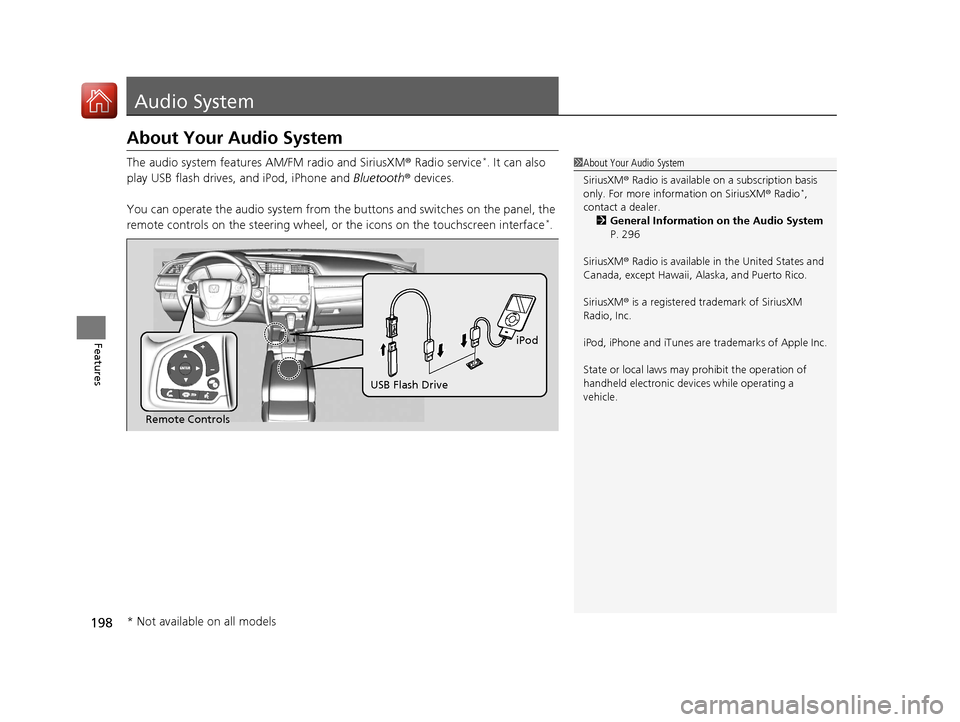
You can operate the audio system from the buttons and switches on the panel, the
remote controls on the steering wheel, or the icons on the touchscreen interface
*.
1 About Your Audio System
SiriusXM ® Radio is available on a subscription basis
only. For more information on SiriusXM ® Radio
*,
contact a dealer.
2 General Information on the Audio System
P. 296
SiriusXM ® Radio is available in the United States and
Canada, except Ha waii, Alaska, and Puerto Rico.
SiriusXM ® is a registered trademark of SiriusXM
Radio, Inc.
iPod, iPhone and iTunes are trademarks of Apple Inc.
State or local laws may pr ohibit the operation of
handheld electronic devi ces while operating a
vehicle.
Remote Controls iPod
USB Flash Drive
* Not available on all models
16 CIVIC 4D-31TBA6000.book 198 ページ 2015年8月31日 月曜日 午後5時56分
Page 202 of 590
201
uuAudio System uAudio Remote Controls
Continued
Features
Audio Remote Controls
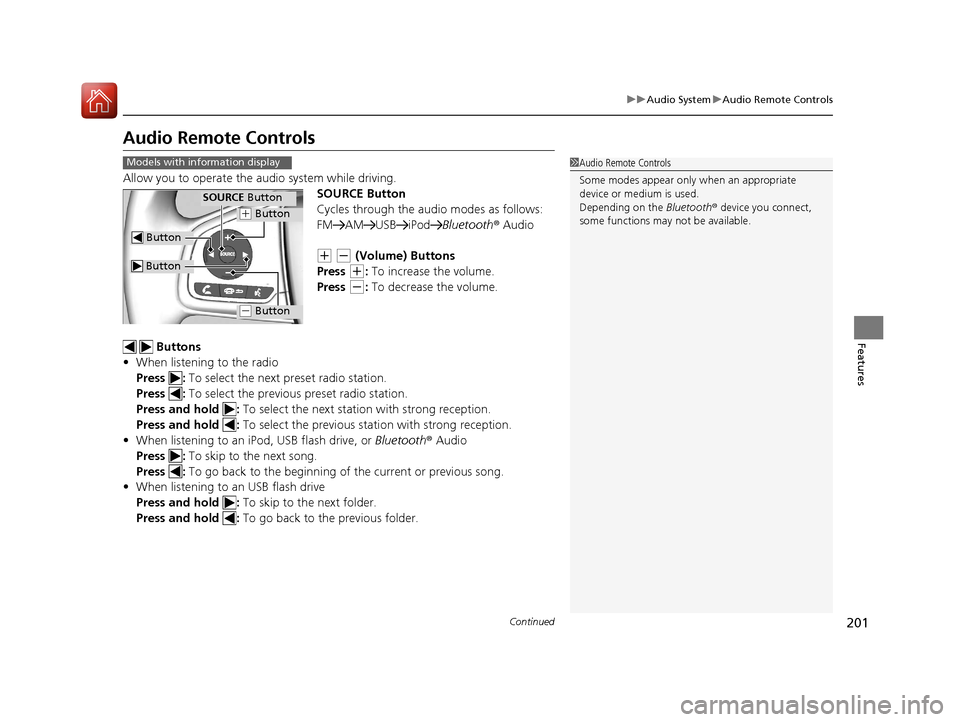
Allow you to operate the au dio system while driving.
SOURCE Button
Cycles through the audio modes as follows:
FM AM USB iPod Bluetooth® Audio
(+ (- (Volume) Buttons
Press
(+: To increase the volume.
Press
(-: To decrease the volume.
Buttons
• When listening to the radio
Press : To select the next preset radio station.
Press : To select the previous preset radio station.
Press and hold : To select the next station with strong reception.
Press and hold : To select the previous station with strong reception.
• When listening to an iPod, USB flash drive, or Bluetooth® Audio
Press : To skip to the next song.
Press : To go back to the beginning of the current or previous song.
• When listening to an USB flash drive
Press and hold : To skip to the next folder.
Press and hold : To go back to the previous folder.
1Audio Remote Controls
Some modes appear only when an appropriate
device or medium is used.
Depending on the Bluetooth® device you connect,
some functions may not be available.Models with information display
Button
SOURCE Button
Button
(+ Button
(- Button
16 CIVIC 4D-31TBA6000.book 201 ページ 2015年8月31日 月曜日 午後5時56分
Page 203 of 590
uuAudio System uAudio Remote Controls
202
Features
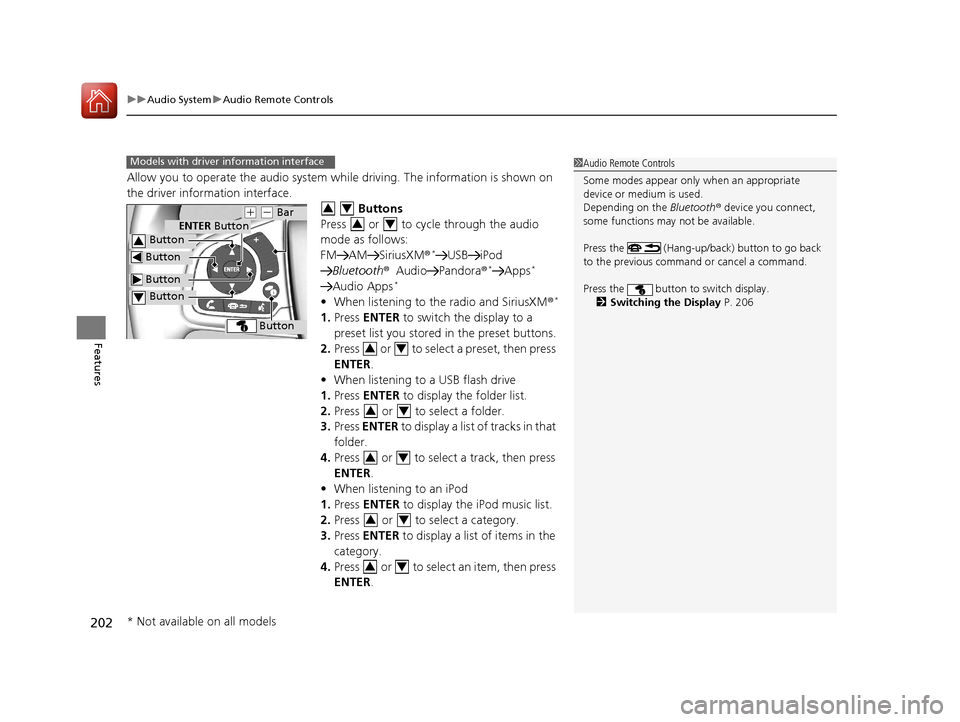
Allow you to operate the audio system wh ile driving. The information is shown on
the driver information interface.
Buttons
Press or to cycle through the audio
mode as follows:
FM AM SiriusXM®
*USB iPod
Bluetooth ®Audio Pandora ®*Apps*
Audio Apps*
•When listening to the radio and SiriusXM ®*
1.Press ENTER to switch the display to a
preset list you stored in the preset buttons.
2. Press or to select a preset, then press
ENTER .
• When listening to a USB flash drive
1. Press ENTER to display the folder list.
2. Press or to select a folder.
3. Press ENTER to display a list of tracks in that
folder.
4. Press or to select a track, then press
ENTER .
• When listening to an iPod
1. Press ENTER to display the iPod music list.
2. Press or to select a category.
3. Press ENTER to display a list of items in the
category.
4. Press or to select an item, then press
ENTER .
1Audio Remote Controls
Some modes appear only when an appropriate
device or medium is used.
Depending on the Bluetooth® device you connect,
some functions may not be available.
Press the (Hang-up/back) button to go back
to the previous command or cancel a command.
Press the button to switch display. 2 Switching the Display P. 206Models with driver information interface
Button
ENTER Button
Button
(+ (- Bar
Button
Button3
Button4
34
34
34
34
34
34
34
* Not available on all models
16 CIVIC 4D-31TBA6000.book 202 ページ 2015年8月31日 月曜日 午後5時56分
Page 204 of 590
203
uuAudio System uAudio Remote Controls
Continued
Features
u Press ENTER and press or
repeatedly until the desired mode you
want to listen to is displayed.
• When listening to Internet Radio
*
1.Press ENTER to display the station list.
2. Press or to select an item, then press
ENTER .
• When listening to Bluetooth ®Audio
1. Press ENTER to display the track list.
2. Press or to select a track, then press
ENTER .
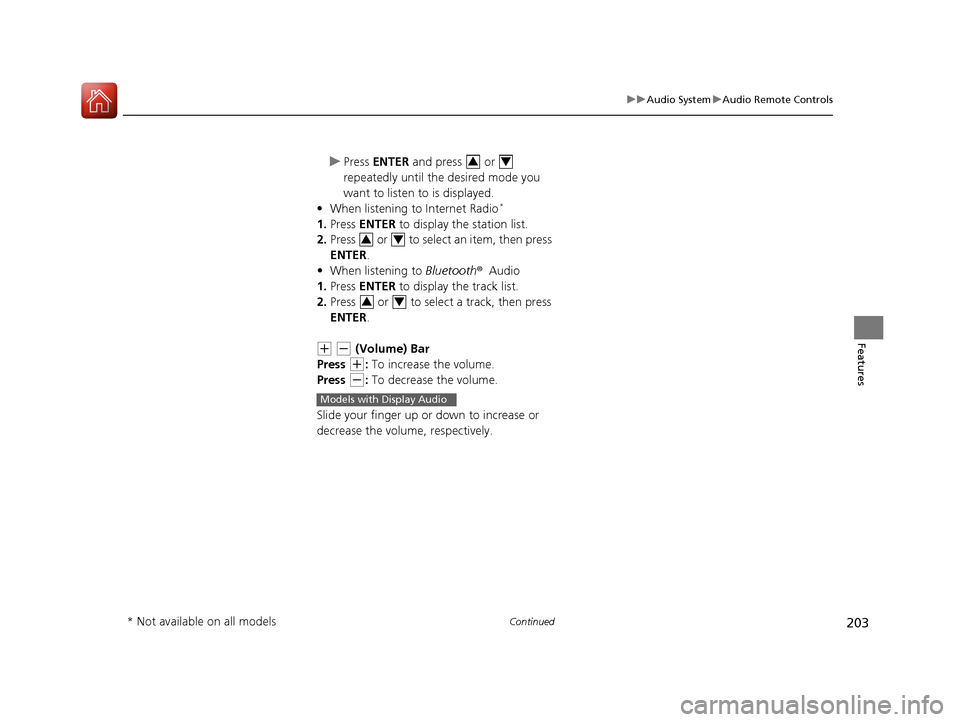
(+ (- (Volume) Bar
Press
(+: To increase the volume.
Press
(-: To decrease the volume.
Slide your finger up or down to increase or
decrease the volume, respectively.
34
34
34
Models with Display Audio
* Not available on all models
16 CIVIC 4D-31TBA6000.book 203 ページ 2015年8月31日 月曜日 午後5時56分
Page 205 of 590
204
uuAudio System uAudio Remote Controls
Features
Buttons
• When listening to the radio
Press : To select the next preset radio station.
Press : To select the previous preset radio station.
Press and hold : To select the next strong station.
Press and hold : To select the previous strong station.
• When listening to an iPod, USB flash drive, or Bluetooth ® Audio
Press : To skip to the next song.
Press : To go back to the beginning of the current or previous song.
• When listening to an USB flash drive
Press and hold : To skip to the next folder.
Press and hold : To go back to the previous folder.
• When listening to Internet radio
*
Press : To skip to the next song.
Press and hold : To select the next station.
Press and hold : To select the previous station.
* Not available on all models
16 CIVIC 4D-31TBA6000.book 204 ページ 2015年8月31日 月曜日 午後5時56分
Page 206 of 590
205
Features
Audio System Basic Operation
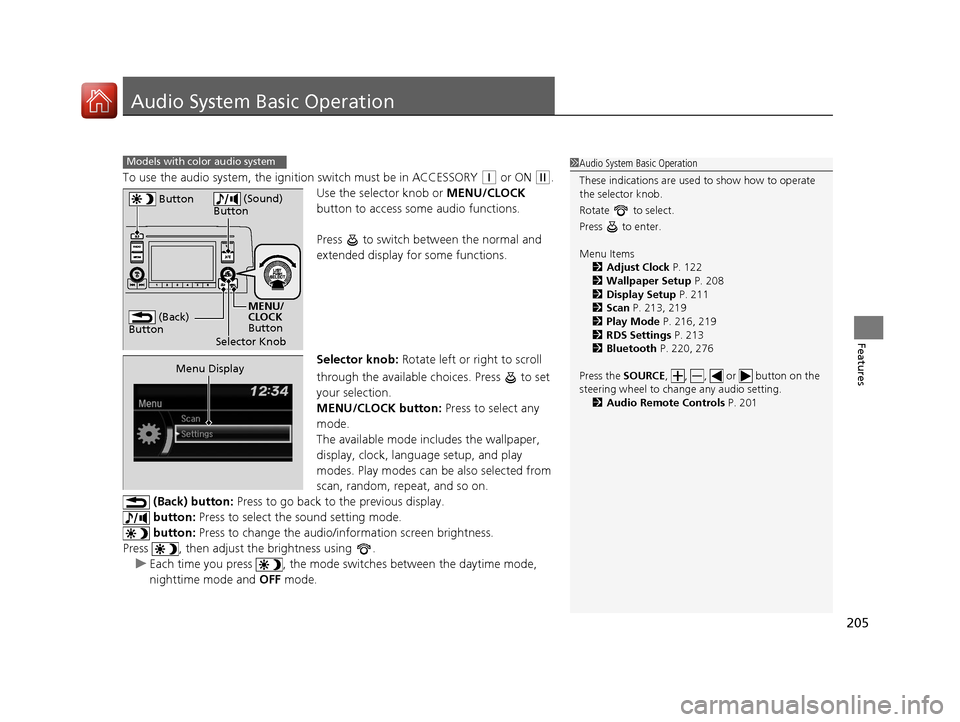
To use the audio system, the ignition switch must be in ACCESSORY (q or ON (w.
Use the selector knob or MENU/CLOCK
button to access some audio functions.
Press to switch between the normal and
extended display fo r some functions.
Selector knob: Rotate left or right to scroll
through the available choices. Press to set
your selection.
MENU/CLOCK button: Press to select any
mode.
The available mode in cludes the wallpaper,
display, clock, language setup, and play
modes. Play modes can be also selected from
scan, random, repeat, and so on.
(Back) button: Press to go back to the previous display.
button: Press to select the sound setting mode.
button: Press to change the audio/in formation screen brightness.
Press , then adjust the brightness using . u Each time you press , the mode switches between the daytime mode,
nighttime mode and OFF mode.
Models with color audio system1Audio System Basic Operation
These indications are used to show how to operate
the selector knob.
Rotate to select.
Press to enter.
Menu Items 2 Adjust Clock P. 122
2 Wallpaper Setup P. 208
2 Display Setup P. 211
2 Scan P. 213, 219
2 Play Mode P. 216, 219
2 RDS Settings P. 213
2 Bluetooth P. 220, 276
Press the SOURCE , , , or button on the
steering wheel to cha nge any audio setting.
2 Audio Remote Controls P. 201
(Back)
Button
Selector Knob MENU/
CLOCK
Button
Button
(Sound)
Button
Menu Display
16 CIVIC 4D-31TBA6000.book 205 ページ 2015年8月31日 月曜日 午後5時56分
Page 214 of 590
213
uuAudio System Basic Operation uPlaying the AM/FM Radio
Features
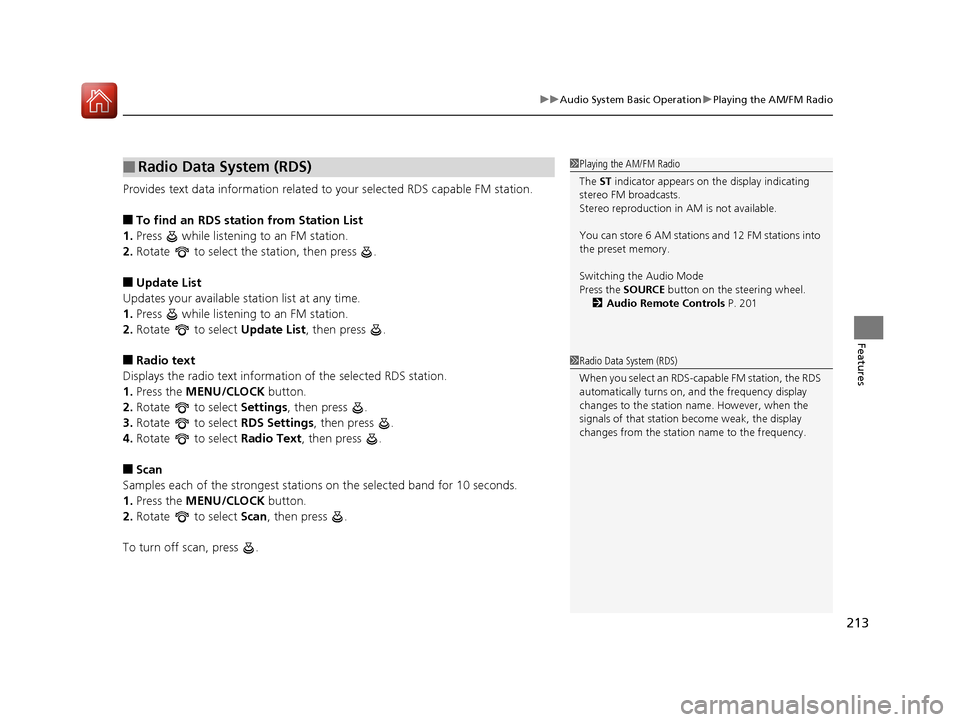
Provides text data information related to your selected RDS capable FM station.
■To find an RDS station from Station List
1. Press while listening to an FM station.
2. Rotate to select the station, then press .
■Update List
Updates your available st ation list at any time.
1. Press while listening to an FM station.
2. Rotate to select Update List, then press .
■Radio text
Displays the radio text information of the selected RDS station.
1. Press the MENU/CLOCK button.
2. Rotate to select Settings, then press .
3. Rotate to select RDS Settings, then press .
4. Rotate to select Radio Text, then press .
■Scan
Samples each of the strongest stations on the selected band for 10 seconds.
1. Press the MENU/CLOCK button.
2. Rotate to select Scan, then press .
To turn off scan, press .
■Radio Data System (RDS)1 Playing the AM/FM Radio
The ST indicator appears on the display indicating
stereo FM broadcasts.
Stereo reproduction in AM is not available.
You can store 6 AM stations and 12 FM stations into
the preset memory.
Switching the Audio Mode
Press the SOURCE button on the steering wheel.
2 Audio Remote Controls P. 201
1Radio Data System (RDS)
When you select an RDS-capable FM station, the RDS
automatically turns on, and the frequency display
changes to the station name. However, when the
signals of that station become weak, the display
changes from the statio n name to the frequency.
16 CIVIC 4D-31TBA6000.book 213 ページ 2015年8月31日 月曜日 午後5時56分
Page 254 of 590
Continued253
uuAudio System Basic Operation uPlaying AM/FM Radio
Features
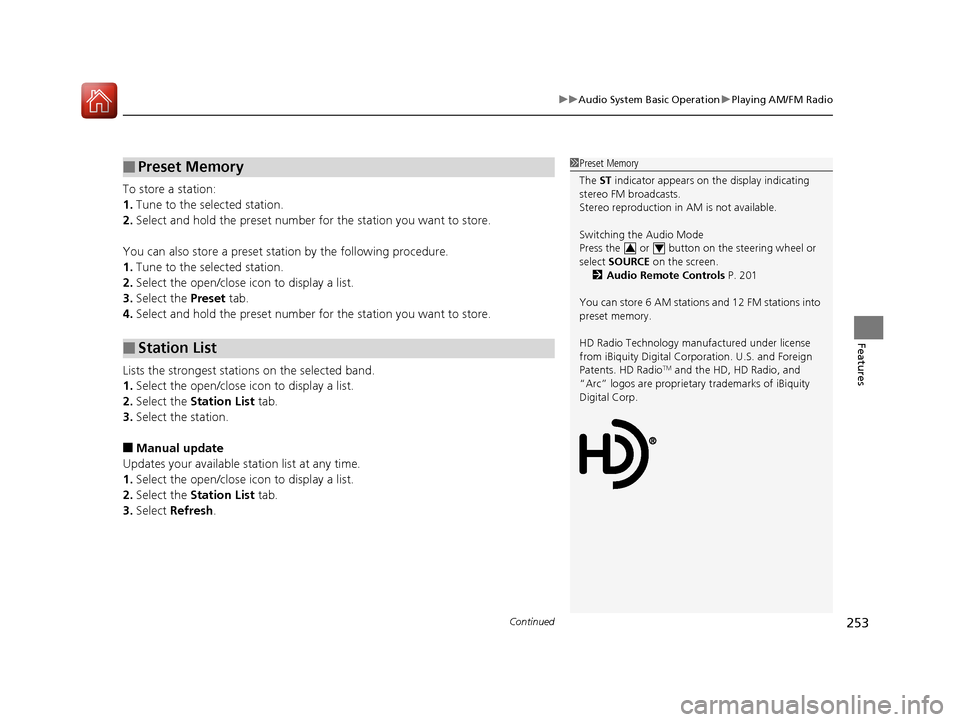
To store a station:
1. Tune to the selected station.
2. Select and hold the preset number for the station you want to store.
You can also store a preset station by the following procedure.
1. Tune to the selected station.
2. Select the open/close icon to display a list.
3. Select the Preset tab.
4. Select and hold the preset number for the station you want to store.
Lists the strongest stations on the selected band.
1. Select the open/close icon to display a list.
2. Select the Station List tab.
3. Select the station.
■Manual update
Updates your available st ation list at any time.
1. Select the open/close icon to display a list.
2. Select the Station List tab.
3. Select Refresh .
■Preset Memory
■Station List
1Preset Memory
The ST indicator appears on the display indicating
stereo FM broadcasts.
Stereo reproduction in AM is not available.
Switching the Audio Mode
Press the or button on the steering wheel or
select SOURCE on the screen.
2 Audio Remote Controls P. 201
You can store 6 AM stations and 12 FM stations into
preset memory.
HD Radio Technology manufactured under license
from iBiquity Digi tal Corporation. U.S. and Foreign
Patents. HD Radio
TM and the HD, HD Radio, and
“Arc” logos are proprietary trademarks of iBiquity
Digital Corp.
34
16 CIVIC 4D-31TBA6000.book 253 ページ 2015年8月31日 月曜日 午後5時56分