ECO mode HONDA CIVIC 2016 10.G Manual Online
[x] Cancel search | Manufacturer: HONDA, Model Year: 2016, Model line: CIVIC, Model: HONDA CIVIC 2016 10.GPages: 590
Page 268 of 590
Continued267
uuAudio System Basic Operation uSong By VoiceTM (SBV)
Features
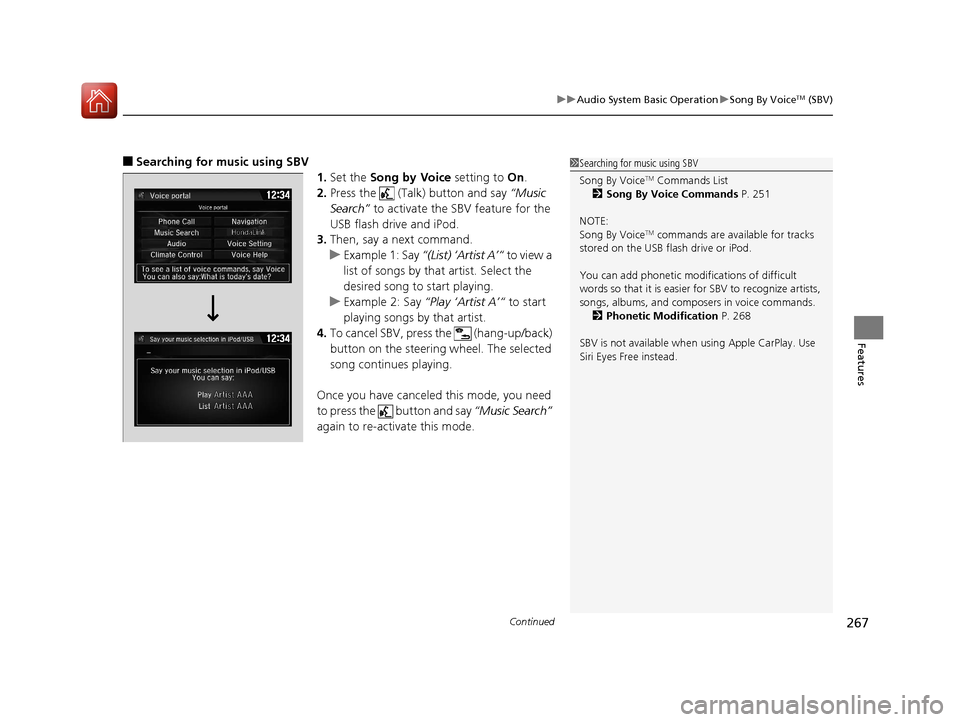
■Searching for music using SBV
1.Set the Song by Voice setting to On.
2. Press the (Talk) button and say “Music
Search” to activate the SBV feature for the
USB flash drive and iPod.
3. Then, say a next command.
u Example 1: Say “(List) ‘Artist A’“ to view a
list of songs by that artist. Select the
desired song to start playing.
u Example 2: Say “Play ‘Artist A’“ to start
playing songs by that artist.
4. To cancel SBV, pres s the (hang-up/back)
button on the steering wheel. The selected
song continues playing.
Once you have canceled this mode, you need
to press the button and say “Music Search”
again to re-activate this mode.1 Searching for music using SBV
Song By Voice
TM Commands List
2 Song By Voice Commands P. 251
NOTE:
Song By Voice
TM commands are available for tracks
stored on the USB flash drive or iPod.
You can add phonetic modi fications of difficult
words so that it is easier for SBV to recognize artists,
songs, albums, and composers in voice commands. 2 Phonetic Modification P. 268
SBV is not available when using Apple CarPlay. Use
Siri Eyes Free instead.
16 CIVIC 4D-31TBA6000.book 267 ページ 2015年8月31日 月曜日 午後5時56分
Page 274 of 590
273
uuAudio System Basic Operation uPlaying a USB Flash Drive
Continued
Features
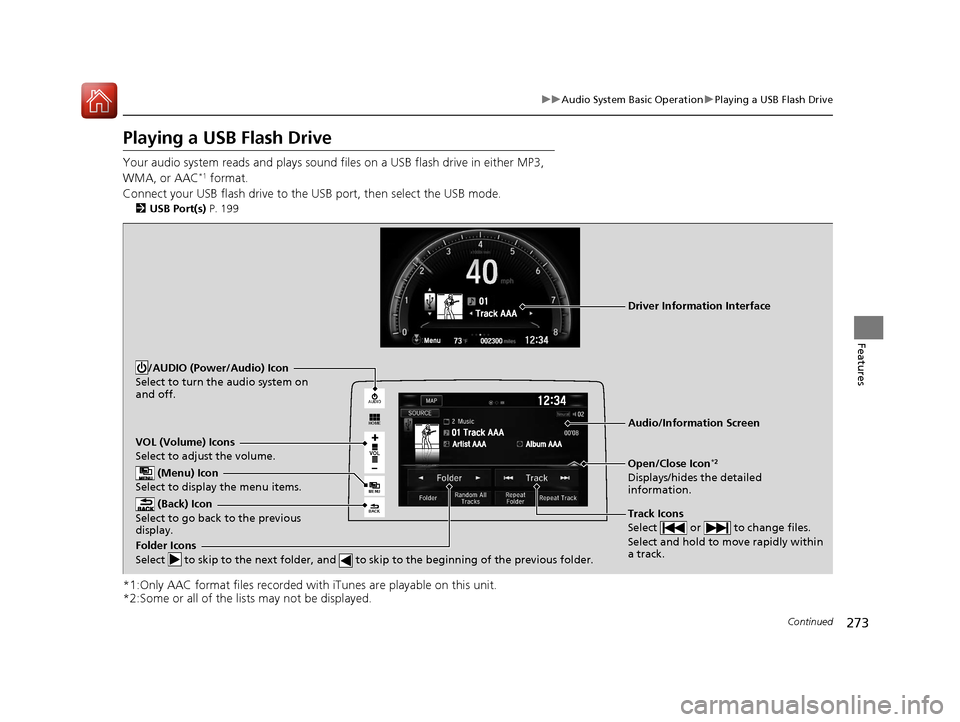
Playing a USB Flash Drive
Your audio system reads and plays sound files on a USB flash drive in either MP3,
WMA, or AAC*1 format.
Connect your USB flash drive to the USB port, then select the USB mode.
2 USB Port(s) P. 199
*1:Only AAC format files recorded with iTunes are playable on this unit.
*2:Some or all of the lists may not be displayed.
VOL
HOME
MENU
BACK
AUDIO
VOL (Volume) Icons
Select to adjust the volume.
(Back) Icon
Select to go back to the previous
display.
Track Icons
Select or to change files.
Select and hold to move rapidly within
a track.
/AUDIO (Power/Audio) Icon
Select to turn the audio system on
and off.
Open/Close Icon*2
Displays/hides the detailed
information.
(Menu) Icon
Select to display the menu items.
Folder Icons
Select to skip to the next folder, and to skip to the beginning of the previous folder.
Audio/Information Screen
Driver Information Interface
16 CIVIC 4D-31TBA6000.book 273 ページ 2015年8月31日 月曜日 午後5時56分
Page 276 of 590
275
uuAudio System Basic Operation uPlaying a USB Flash Drive
Features
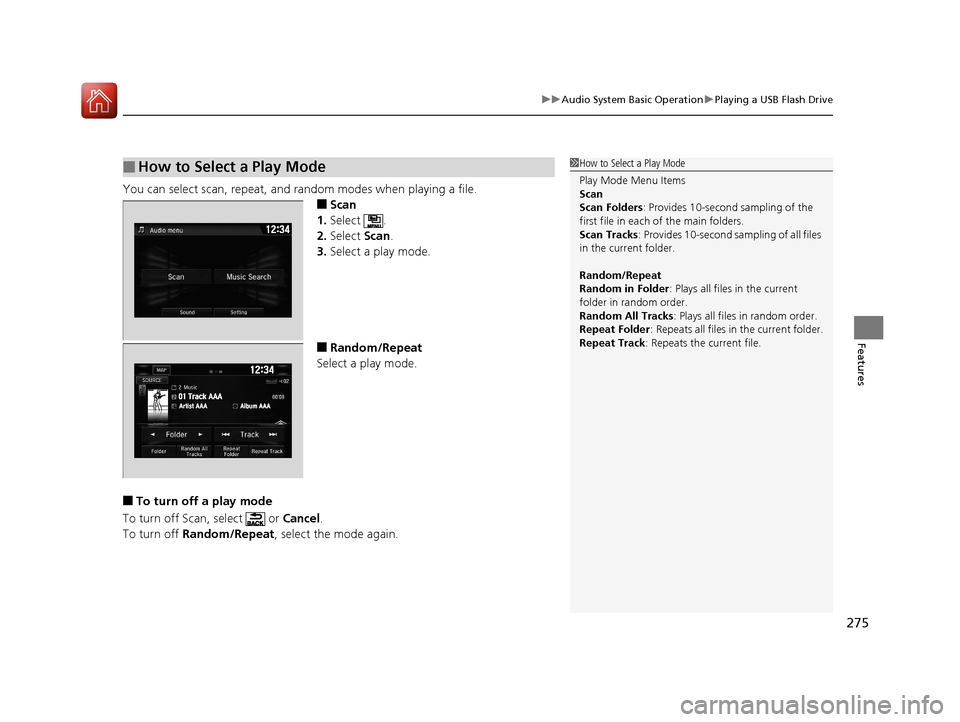
You can select scan, repeat, and random modes when playing a file.
■Scan
1. Select .
2. Select Scan.
3. Select a play mode.
■Random/Repeat
Select a play mode.
■To turn off a play mode
To turn off Scan, select or Cancel.
To turn off Random/Repeat , select the mode again.
■How to Select a Play Mode1How to Select a Play Mode
Play Mode Menu Items
Scan
Scan Folders : Provides 10-second sampling of the
first file in each of the main folders.
Scan Tracks: Provides 10-second sa mpling of all files
in the current folder.
Random/Repeat
Random in Folder : Plays all files in the current
folder in random order.
Random All Tracks : Plays all files in random order.
Repeat Folder : Repeats all files in the current folder.
Repeat Track: Repeats the current file.
16 CIVIC 4D-31TBA6000.book 275 ページ 2015年8月31日 月曜日 午後5時56分
Page 278 of 590
277
uuAudio System Basic Operation uPlaying Bluetooth ® Audio
Features
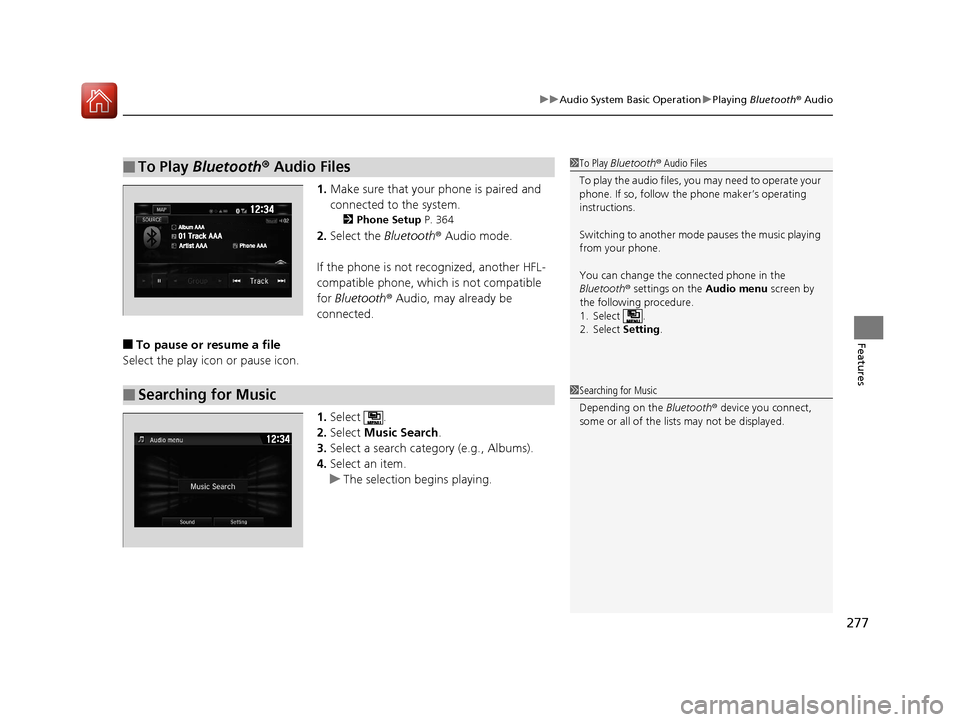
1. Make sure that your phone is paired and
connected to the system.
2 Phone Setup P. 364
2.Select the Bluetooth® Audio mode.
If the phone is not recognized, another HFL-
compatible phone, which is not compatible
for Bluetooth ® Audio, may already be
connected.
■To pause or resume a file
Select the play icon or pause icon.
1.Select .
2. Select Music Search.
3. Select a search catego ry (e.g., Albums).
4. Select an item.
u The selection begins playing.
■To Play Bluetooth ® Audio Files1 To Play Bluetooth ® Audio Files
To play the audio files, y ou may need to operate your
phone. If so, follow the phone maker’s operating
instructions.
Switching to another mode pauses the music playing
from your phone.
You can change the connected phone in the
Bluetooth ® settings on the Audio menu screen by
the following procedure.
1. Select .
2. Select Setting.
■Searching for Music1Searching for Music
Depending on the Bluetooth® device you connect,
some or all of the list s may not be displayed.
16 CIVIC 4D-31TBA6000.book 277 ページ 2015年8月31日 月曜日 午後5時56分
Page 294 of 590
293
Features
Audio Error Messages
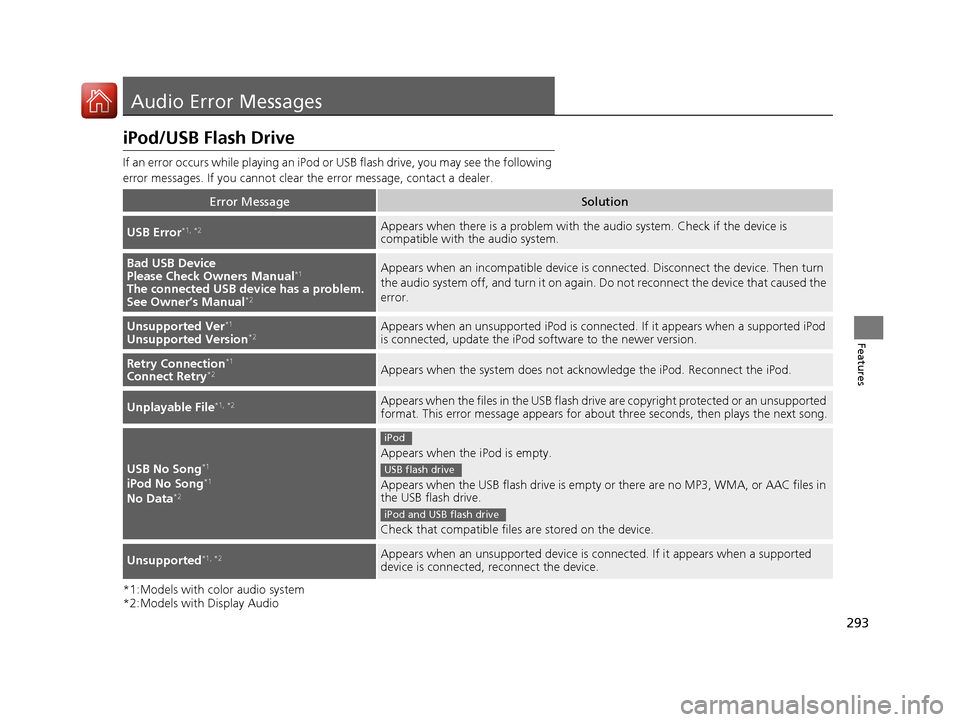
iPod/USB Flash Drive
If an error occurs while playing an iPod or USB flash drive, you may see the following
error messages. If you cannot clear the error message, contact a dealer.
*1:Models with color audio system
*2:Models with Display Audio
Error MessageSolution
USB Error*1, *2Appears when there is a pr oblem with the audio system. Check if the device is
compatible with the audio system.
Bad USB Device
Please Check Owners Manual*1
The connected USB de vice has a problem.
See Owner’s Manual*2
Appears when an incompatible device is connected. Disconnect the device. Then turn
the audio system off, and turn it on again. Do not reconnect the device that caused the
error.
Unsupported Ver*1
Unsupported Version*2Appears when an unsupported iPod is connect ed. If it appears when a supported iPod
is connected, update the iPod software to the newer version.
Retry Connection*1
Connect Retry*2Appears when the system does not acknowledge the iPod. Reconnect the iPod.
Unplayable File*1, *2Appears when the files in the USB flash drive are copyright protected or an unsupported
format. This error message appears for about three seconds, then plays the next song.
USB No Song*1
iPod No Song*1
No Data*2
Appears when the iPod is empty.
Appears when the USB flash drive is empty or there are no MP3, WMA, or AAC files in
the USB flash drive.
Check that compatible files are stored on the device.
Unsupported*1, *2Appears when an unsupported device is connected. If it appears when a supported
device is connected, reconnect the device.
iPod
USB flash drive
iPod and USB flash drive
16 CIVIC 4D-31TBA6000.book 293 ページ 2015年8月31日 月曜日 午後5時56分
Page 295 of 590
294
uuAudio Error Messages uPandora®*
Features
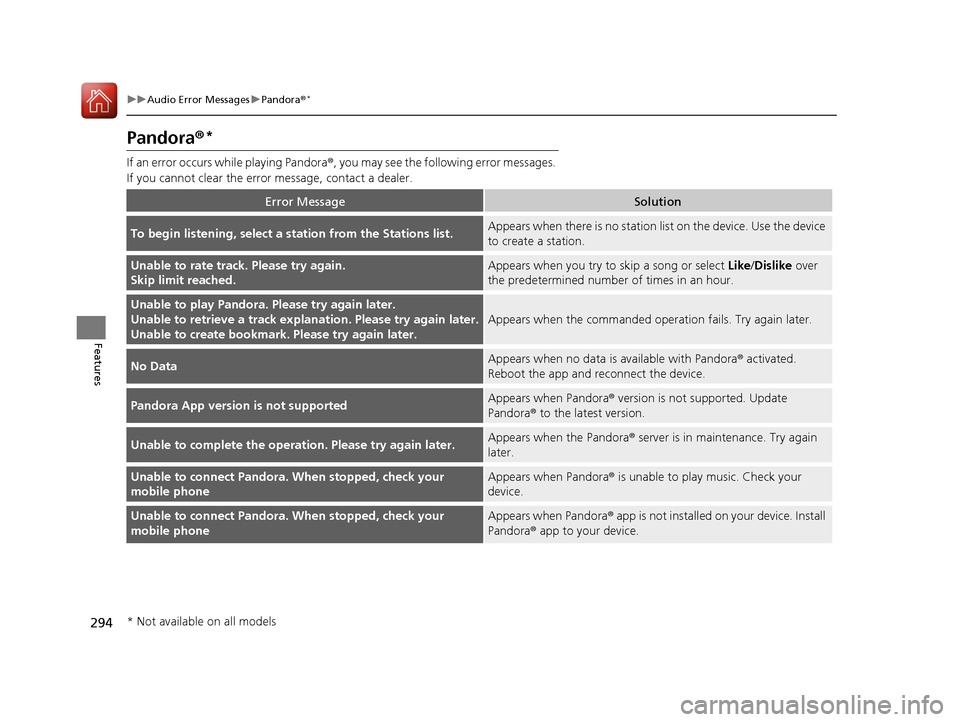
Pandora ®*
If an error occurs while playing Pandora ®, you may see the following error messages.
If you cannot clear the error message, contact a dealer.
Error MessageSolution
To begin listening, select a st ation from the Stations list.Appears when there is no station lis t on the device. Use the device
to create a station.
Unable to rate track. Please try again.
Skip limit reached.Appears when you try to skip a song or select Like/Dislike over
the predetermined number of times in an hour.
Unable to play Pandora. Please try again later.
Unable to retrieve a track explan ation. Please try again later.
Unable to create bookmark. Please try again later.
Appears when the commanded oper ation fails. Try again later.
No DataAppears when no data is available with Pandora® activated.
Reboot the app and reconnect the device.
Pandora App version is not supportedAppears when Pandora ® version is not supported. Update
Pandora® to the latest version.
Unable to complete the operat ion. Please try again later.Appears when the Pandora® server is in maintenance. Try again
later.
Unable to connect Pandora. When stopped, check your
mobile phoneAppears when Pandora ® is unable to play music. Check your
device.
Unable to connect Pandora. When stopped, check your
mobile phoneAppears when Pandora ® app is not installed on your device. Install
Pandora® app to your device.
* Not available on all models
16 CIVIC 4D-31TBA6000.book 294 ページ 2015年8月31日 月曜日 午後5時56分
Page 298 of 590
297
uuGeneral Information on the Audio System uCompatible iPod, iPhone, and USB Flash Drives
Features
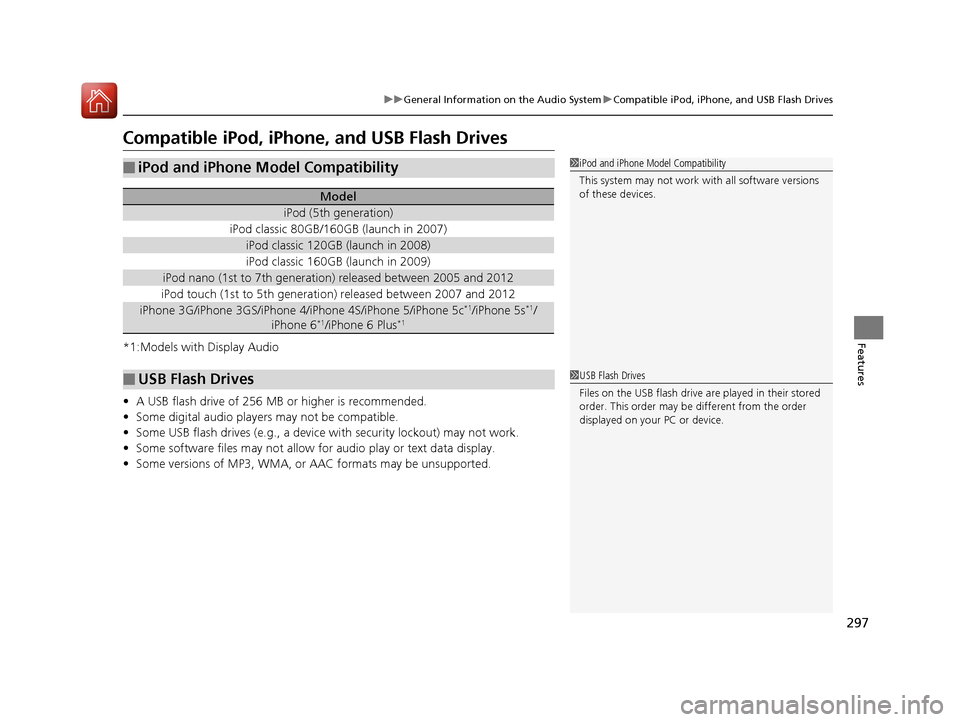
Compatible iPod, iPhone , and USB Flash Drives
*1:Models with Display Audio
•A USB flash drive of 256 MB or higher is recommended.
• Some digital audio players may not be compatible.
• Some USB flash drives (e.g., a device with security lockout) may not work.
• Some software files may not allow for audio play or text data display.
• Some versions of MP3, WMA, or AAC formats may be unsupported.
■iPod and iPhone Model Compatibility
Model
iPod (5th generation)
iPod classic 80GB/160GB (launch in 2007)
iPod classic 120GB (launch in 2008)
iPod classic 160GB (launch in 2009)
iPod nano (1st to 7th generation) released between 2005 and 2012
iPod touch (1st to 5th generation) released between 2007 and 2012
iPhone 3G/iPhone 3GS/iPhone 4/iPhone 4S/iPhone 5/iPhone 5c*1/iPhone 5s*1/
iPhone 6*1/iPhone 6 Plus*1
■USB Flash Drives
1 iPod and iPhone Model Compatibility
This system may not work with all software versions
of these devices.
1USB Flash Drives
Files on the USB flash drive are played in their stored
order. This order may be different from the order
displayed on your PC or device.
16 CIVIC 4D-31TBA6000.book 297 ページ 2015年8月31日 月曜日 午後5時56分
Page 315 of 590
314
uuCustomized Features u
Features
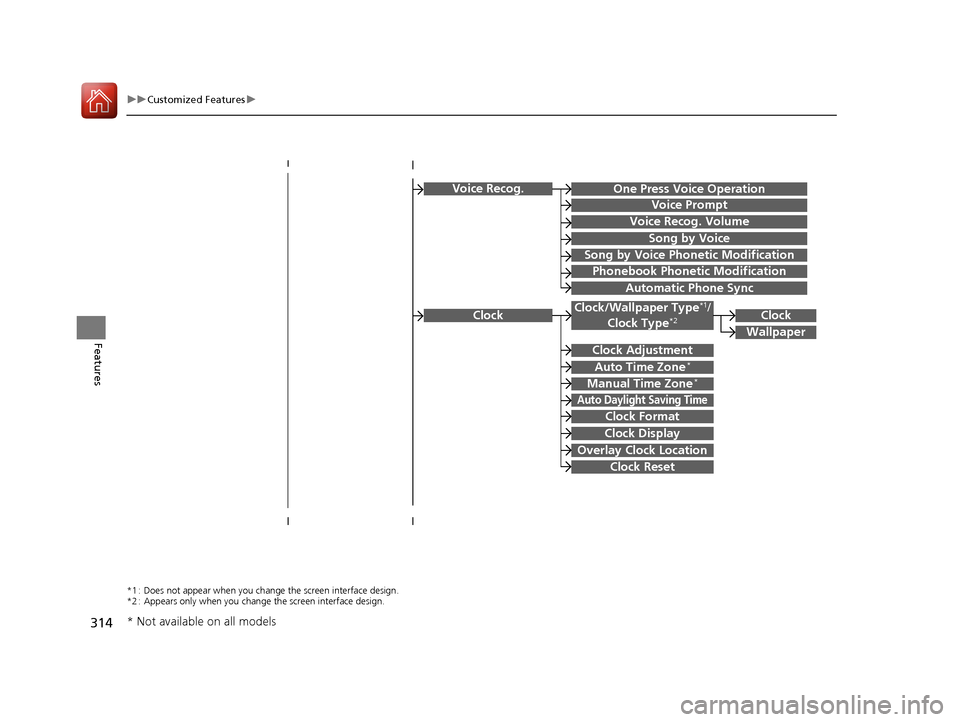
Voice Recog.
Voice Prompt
Voice Recog. Volume
Song by Voice
Song by Voice Phonetic Modification
Phonebook Phonetic Modification
Automatic Phone Sync
ClockClock/Wallpaper Type*1/
Clock Type*2
Clock Adjustment
Clock Format
Auto Time Zone*
Manual Time Zone*
Auto Daylight Saving Time
Clock Display
Overlay Clock Location
Clock Reset
Clock
Wallpaper
One Press Voice Operation
*1 : Does not appear when you chang e the screen interface design.
*2 : Appears only when you change the screen interface design.
* Not available on all models
16 CIVIC 4D-31TBA6000.book 314 ページ 2015年8月31日 月曜日 午後5時56分
Page 320 of 590
319
uuCustomized Features u
Continued
Features
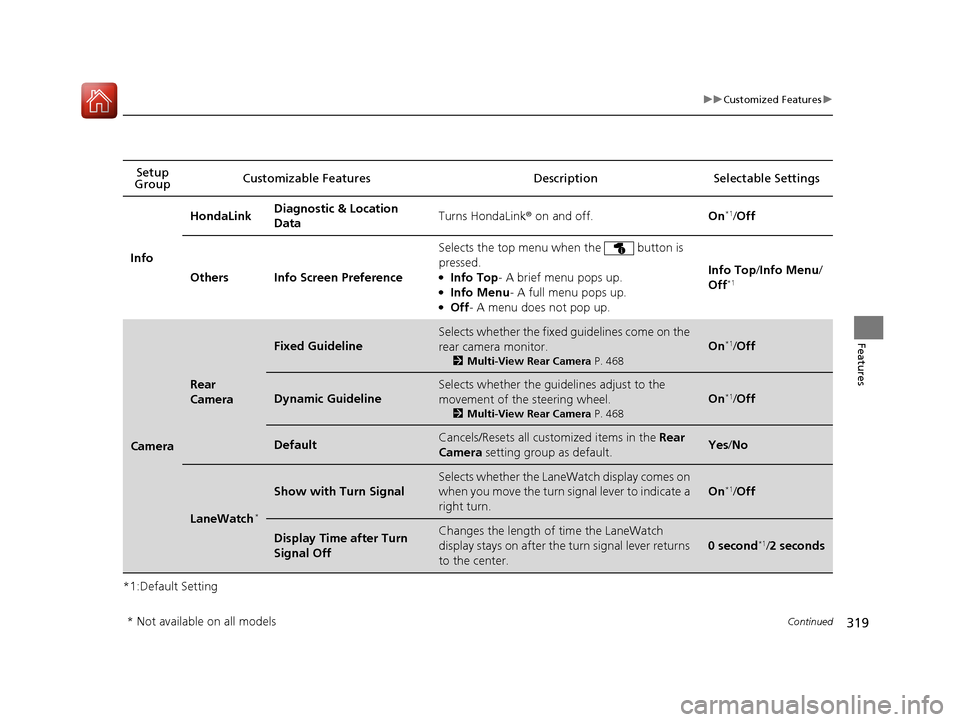
*1:Default SettingSetup
Group Customizable Features Descri
ption Selectable Settings
Info HondaLink
Diagnostic & Location
Data
Turns HondaLink
® on and off. On
*1/Off
Others Info Screen Preference Selects the top menu when the button is
pressed.
●Info Top
- A brief menu pops up.●Info Menu - A full menu pops up.●Off- A menu does not pop up. Info Top
/Info Menu/
Off
*1
Camera
Rear
Camera
Fixed Guideline
Selects whether the fixed guidelines come on the
rear camera monitor.
2 Multi-View Rear Camera P. 468
On*1/Off
Dynamic Guideline
Selects whether the guidelines adjust to the
movement of the steering wheel.
2 Multi-View Rear Camera P. 468
On*1/Off
DefaultCancels/Resets all customized items in the Rear
Camera setting group as default.Yes/No
LaneWatch*
Show with Turn Signal
Selects whether the LaneWatch display comes on
when you move the turn si gnal lever to indicate a
right turn.
On*1/ Off
Display Time after Turn
Signal OffChanges the length of time the LaneWatch
display stays on after the turn signal lever returns
to the center.
0 second*1/ 2 seconds
* Not available on all models
16 CIVIC 4D-31TBA6000.book 319 ページ 2015年8月31日 月曜日 午後5時56分
Page 326 of 590
325
uuCustomized Features u
Continued
Features
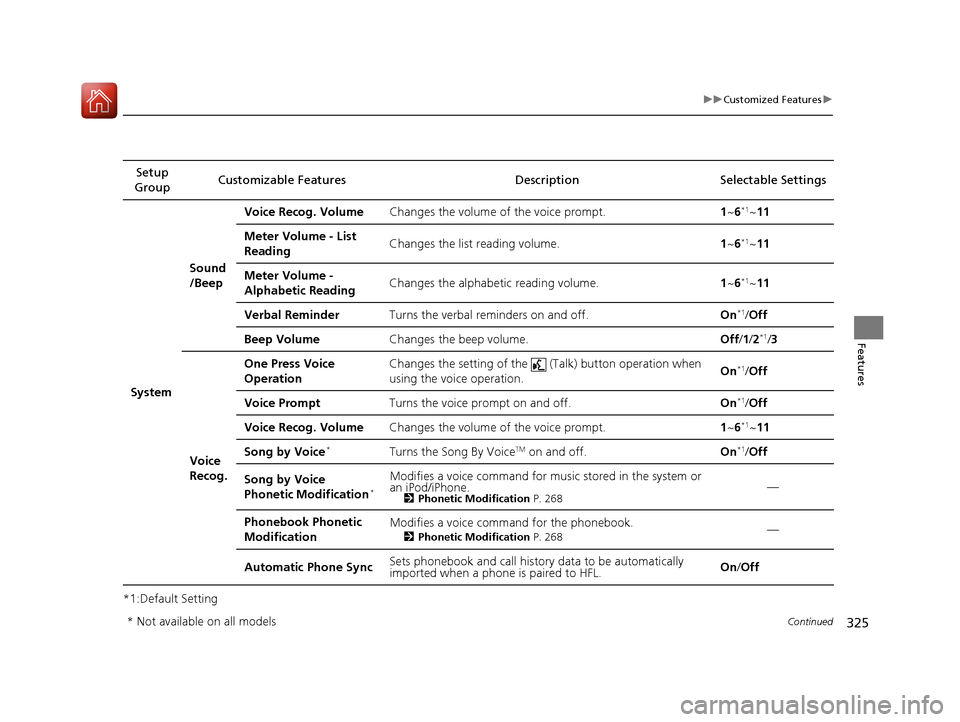
*1:Default SettingSetup
Group Customizable Featur
es Description Selectable Settings
System Sound
/Beep
Voice Recog. Volume
Changes the volume of the voice prompt. 1~6
*1~11
Meter Volume - List
Reading Changes the list reading volume.
1~6
*1~11
Meter Volume -
Alphabetic Reading Changes the alphabetic reading volume.
1~6
*1~11
Verbal Reminder Turns the verbal reminders on and off. On
*1/Off
Beep Volume Changes the beep volume. Off/1 /2
*1/3
Voice
Recog. One Press Voice
Operation
Changes the setting of the (T
alk) button operation when
using the voice operation. On
*1/
Off
Voice Prompt Turns the voice prompt on and off. On
*1/Off
Voice Recog. Volume Changes the volume of the voice prompt. 1~6
*1~11
Song by Voice
*Turns the Song By VoiceTM on and off. On*1/Off
Song by Voice
Phonetic Modification
*
Modifies a voice command for musi c stored in the system or
an iPod/iPhone.
2 Phonetic Modification P. 268—
Phonebook Phonetic
Modification Modifies a voice comm
and for the phonebook.
2Phonetic Modification P. 268—
Automatic Phone Sync Sets phonebook and call history data to be automatically
imported when a phone is paired to HFL. On
/Off
* Not available on all models
16 CIVIC 4D-31TBA6000.book 325 ページ 2015年8月31日 月曜日 午後5時56分