steering HONDA CIVIC 2016 10.G Quick Guide
[x] Cancel search | Manufacturer: HONDA, Model Year: 2016, Model line: CIVIC, Model: HONDA CIVIC 2016 10.GPages: 82, PDF Size: 5.52 MB
Page 31 of 82

54 || 55
AUDIO AND CONNECTIVITY
AUDIO AND CONNECTIVITY
Steering Wheel Controls
You can operate certain functions of the audio system using the steering \
wheel
controls.
Models with information display
SOURCE button: Cycle through available audio
modes.
+ / - buttons: Adjust audio volume.
t / u buttons: Change presets, tracks, albums, or
folders.
FM/AM Radio
Press t or u for the next or previous preset station.
Press and hold t or u to seek the next or previous strong station.
iPod
®/USB/Bluetooth® Audio
Press t or u for the next or previous track.
Press and hold t or u for the next or previous folder (USB).
Models with Driver Information Interface
button: Press until the audio screen is displayed
in the Driver Information Interface.
+ / - bar: Press the ends of the bar or slide to adjust
audio volume.
t / u buttons: Change presets, tracks, albums, or
folders.
FM/AM/SiriusXM
® Radio*
Press t or u for the next or previous preset station.
Press and hold t or u to seek the next or previous strong station.
iPod
®/USB/Bluetooth® Audio
Press t or u for the next or previous track.
Press and hold t or u for the next or previous folder (USB).
Pandora
®
Press u for the next song.
Press and hold t or u for the next or previous station.
*if equipped
Steering Wheel Controls (continued)
Models with Driver Information Interface (continued)
p / q buttons: Cycle through available audio modes, or scroll through audio
options in the Driver Information Interface
ENTER button: Make audio selections in the Driver Information Interface.
From the audio screen in the Driver Information Interface:
FM/AM/SiriusXM
® Radio*
Press the eNTer button to display a preset list. Press p or q to scroll the list, and
press the eNTer button to select a preset.
USB Flash Drive
Press the eNTer button to display the folder list. Press p or q to scroll the list,
and press the eNTer button to select a folder. repeat to select a track.
iPod®
Press the eNTer button to display the iPod list. Press p or q to scroll the
category, and press the eNTer button to select an item. repeat to select a track.
Bluetooth® Audio
Press the eNTer button to display the track list. Press p or q to scroll the list,
and press the eNTer button to select a track.
Pandora®
Press the eNTer button to display the station list. Press p or q to scroll the list,
and press the eNTer button to select a station.
*if equipped
Page 36 of 82

64 || 65
AUDIO AND CONNECTIVITY
AUDIO AND CONNECTIVITY
Models with Display Audio
Wi-Fi Connection
You can connect the audio system to the internet using Wi-Fi and use onli\
ne
services through the touchscreen. If your compatible phone has hotspot c\
apabilities,
the system can be tethered to the phone. Follow the steps below to set u\
p Wi-Fi
when the vehicle is stopped. Standard data rates apply with your phone s\
ervice
provider.
1. From the Home screen, select Settings.
2. Select Bluetooth/Wi-Fi. Select the Wi-Fi tab.
3. Select Wi-Fi on/off Status, and select on.
4. Select Wi-Fi Device List. Make sure your phone’s
Wi-Fi setting is in access point (tethering) mode.
5. Select the phone you want to connect to the
system. If the phone you want to connect does not
appear, select Scan.
6. Select Connect.
7. enter a password for your phone, if necessary.
Select oK. The Wi-Fi symbol is displayed on the list
when connection is successful.
1234AAAAA
BBBBB
CCCCC
DDDDD
EEEE E
Aha™ Radio
Access music and information programming, location-based services, and social
media through your vehicle’s audio system.
visit handsfreelink.honda.com (U.S.) or handsfreelink.ca (Canada) to check phone
compatibility. Standard data rates apply. Make sure you have an active Aha account.
If there is an active connection to Apple CarPlay
® (see page 65) or Android Auto™
(see page 66), Aha can only be connected through Wi-Fi.
Bluetooth connection
Connect your compatible smartphone via Bluetooth
® HandsFreeLink® (see page
78). Make sure the HondaLink Connect app is downloaded to your phone (\
see
page 63). Follow steps 1 and 2 below.
Wi-Fi connection
You can also connect via Wi-Fi (see page 64) or Wi-Fi tethering with yo\
ur enabled
smartphone. Follow steps 1 and 2 below.
1. From the HoMe screen, select Aha.
2. enter your Aha account email and password to begin using Aha.
Models with Display Audio
Apple CarPlay®
Connect an Apple CarPlay-compatible iPhone to the system. You can use the
touchscreen to make a phone call, listen to music, and more. visit the Apple CarPlay
website for more information.
Park in a safe place before connecting your iPhone
and launching any compatible apps.
1. Connect the iPhone to the USB port (see page
52).
2. Apple CarPlay requires you to send vehicle information to Honda. Select enable once, Always enable, or Cancel. Your phone may prompt you to allow access for CarPlay to be launched.
3. From the HoMe screen, select Apple CarPlay.
4. Select a menu option.
Phone: Access your contacts, make phone calls, or listen to voicemail. While
connected to Apple CarPlay, calls can only be made through Apple CarPlay, not
through Bluetooth
® HandsFreeLink®.
Music: Play music stored on your iPhone.
Maps:
view a map and operate navigation. You can only use Apple CarPlay or the
pre-installed navigation system to set a destination with routing guidan\
ce.
Messages:
view and reply to text messages, or have messages read to you aloud
by the system.
once connected, press and hold the Talk button on the steering wheel (see page
76) to operate the system using voice commands with Siri® eyes Free.
HOME screen
Apple CarPlay
Apple CarPlay menu
Return
to HOME
screen
Return to Apple CarPlay menu screen
Depending on use, Apple CarPlay can share certain vehicle information (e.g., vehicle location, speed, and other operating conditions) with the connected iPhone. See Apple’s privacy policy for details regarding Apple’s use and handling of data uploaded by CarPlay. Use of CarPlay is at user’s own risk, and is subject to agreement to the CarPlay terms of use, which are included as part of the Apple iOS terms of use. CarPlay vehicle integration is provided “as is,” and Honda cannot guarantee CarPlay operability or functionality now or in the future due to, among other conditions, changes in CarPlay software/Apple iOS, service interruptions, or incompatibility or obsolesce of vehicle-integrated hardware or software. See dealer for details. Only use CarPlay when conditions allow you to do so safely. See your Owner’s Manual on the Owner Information CD or at owners.honda.com (U.S.) or myhonda.ca (Canada) for further license and warranty terms.
Page 37 of 82
66 || 67
AUDIO AND CONNECTIVITY
AUDIO AND CONNECTIVITY
Models with Display Audio
Android Auto™
Connect a compatible Android phone to the system. You can use the touchscreen
to make a phone call, listen to music, and more. visit the Android Auto website for
more information.
Park in a safe place before connecting your iPhone
and launching any compatible apps.
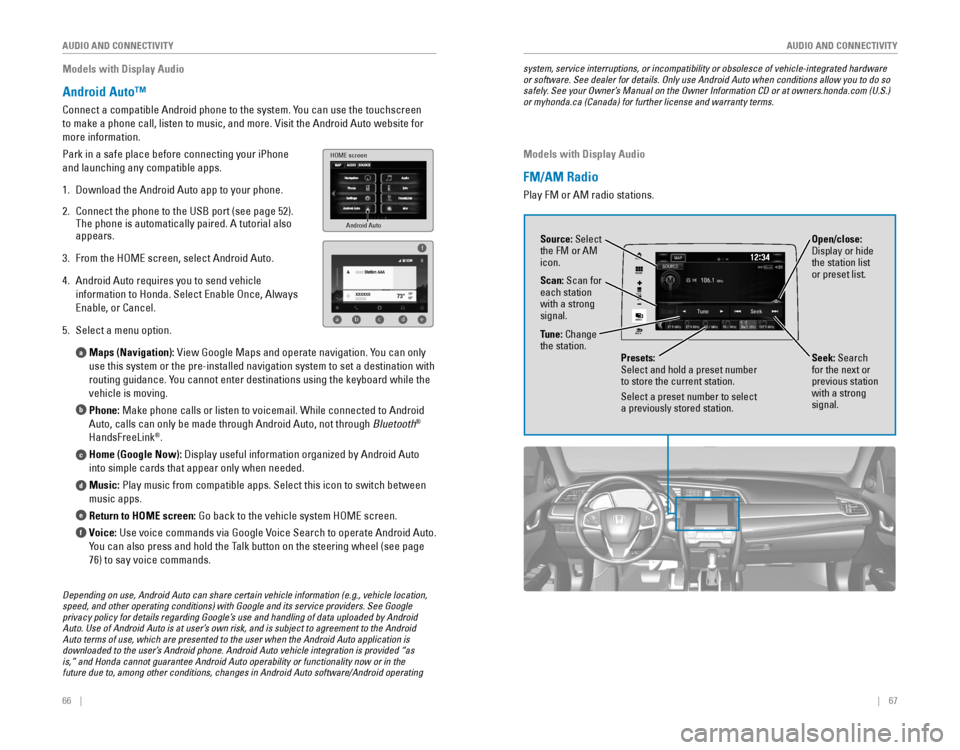
1. Download the Android Auto app to your phone.
2. Connect the phone to the USB port (see page 52).
The phone is automatically paired. A tutorial also
appears.
3. From the HoMe screen, select Android Auto.
4. Android Auto requires you to send vehicle
information to Honda. Select enable once, Always
enable, or Cancel.
5. Select a menu option.
Maps (Navigation):
view Google Maps and operate navigation. You can only
use this system or the pre-installed navigation system to set a destinat\
ion with
routing guidance. You cannot enter destinations using the keyboard while the
vehicle is moving.
Phone: Make phone calls or listen to voicemail. While connected to Android
Auto, calls can only be made through Android Auto, not through Bluetooth
®
HandsFreeLink®.
Home (Google Now): Display useful information organized by Android Auto
into simple cards that appear only when needed.
Music: Play music from compatible apps. Select this icon to switch between
music apps.
Return to HOME screen:
Go back to the vehicle system HoMe screen.
Voice: Use voice commands via Google voice Search to operate Android Auto.
You can also press and hold the Talk button on the steering wheel (see page
76) to say voice commands.
a
b
c
d
e
f
Android Auto
HOME screen
f
ab cde
Depending on use, Android Auto can share certain vehicle information (e.g., vehicle location, speed, and other operating conditions) with Google and its service providers. See Google privacy policy for details regarding Google’s use and handling of data uploaded by Android Auto. Use of Android Auto is at user’s own risk, and is subject to agreement to the Android Auto terms of use, which are presented to the user when the Android Auto application is downloaded to the user’s Android phone. Android Auto vehicle integration is provided “as is,” and Honda cannot guarantee Android Auto operability or functionality now or in the future due to, among other conditions, changes in Android Auto software/Android operating
system, service interruptions, or incompatibility or obsolesce of vehicle-integrated hardware or software. See dealer for details. Only use Android Auto when conditions allow you to do so safely. See your Owner’s Manual on the Owner Information CD or at owners.honda.com (U.S.) or myhonda.ca (Canada) for further license and warranty terms.
Models with Display Audio
FM/AM Radio
Play FM or AM radio stations.
VOL
HOME
MENU
BACK
AUDIO
Source: Select
the FM or AM
icon.
Tune: Change
the station.
Seek: Search
for the next or
previous station
with a strong
signal. Open/close:
Display or hide
the station list
or preset list.
Scan: Scan for
each station
with a strong
signal.
Presets:
Select and hold a preset number
to store the current station.
Select a preset number to select
a previously stored station.
Page 44 of 82
80 || 81
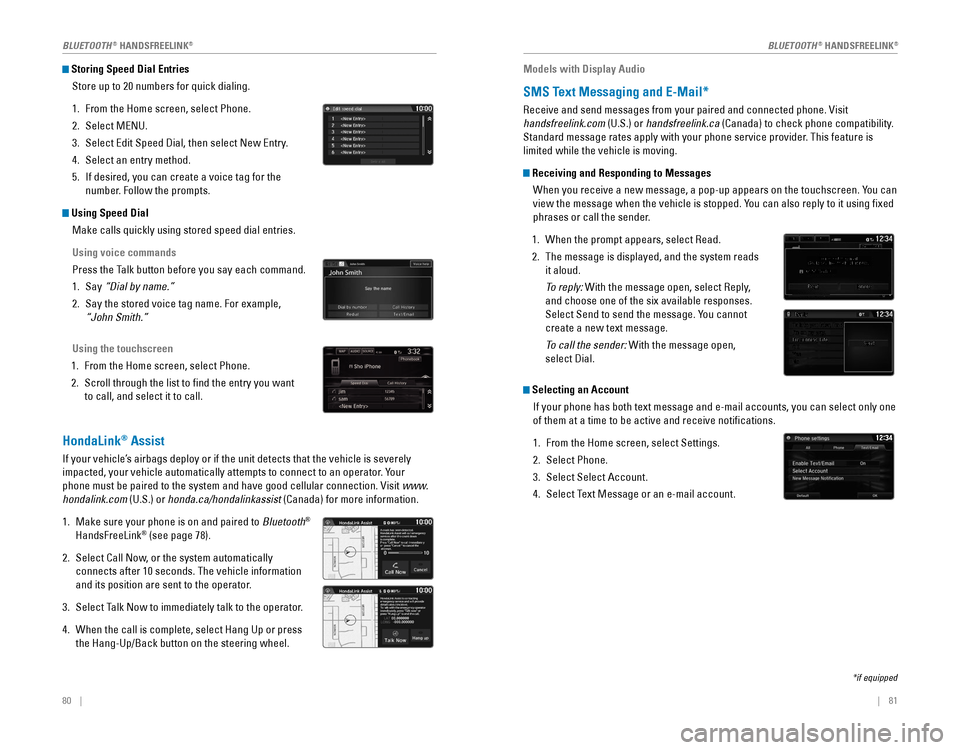
Storing Speed Dial Entries
Store up to 20 numbers for quick dialing.
1. From the Home screen, select Phone.
2. Select MeNU.
3. Select edit Speed Dial, then select New entry.
4. Select an entry method.
5. If desired, you can create a voice tag for the
number. Follow the prompts.
Using Speed DialMake calls quickly using stored speed dial entries.
Using voice commands
Press the Talk button before you say each command.
1. Say “Dial by name.”
2. Say the stored voice tag name. For example,
“John Smith.”
Using the touchscreen
1. From the Home screen, select Phone.
2. Scroll through the list to find the entry you want
to call, and select it to call.
HondaLink® Assist
If your vehicle’s airbags deploy or if the unit detects that the vehicle is severely
impacted, your vehicle automatically attempts to connect to an operator. Your
phone must be paired to the system and have good cellular connection. visit www.
hondalink.com (U.S.) or honda.ca/hondalinkassist (Canada) for more information.
1. Make sure your phone is on and paired to Bluetooth®
HandsFreeLink® (see page 78).
2. Select Call Now, or the system automatically
connects after 10 seconds. The vehicle information
and its position are sent to the operator.
3. Select Talk Now to immediately talk to the operator.
4. When the call is complete, select Hang Up or press
the Hang-Up/Back button on the steering wheel.
Models with Display Audio
SMS Text Messaging and E-Mail*
receive and send messages from your paired and connected phone. visit
handsfreelink.com (U.S.) or handsfreelink.ca (Canada) to check phone compatibility.
Standard message rates apply with your phone service provider. This feature is
limited while the vehicle is moving.
Receiving and Responding to Messages
When you receive a new message, a pop-up appears on the touchscreen. You can
view the message when the vehicle is stopped. You can also reply to it using fixed
phrases or call the sender.
1. When the prompt appears, select read.
2. The message is displayed, and the system reads
it aloud.
To reply: With the message open, select reply,
and choose one of the six available responses.
Select Send to send the message. You cannot
create a new text message.
To call the sender: With the message open,
select Dial.
Selecting an Account
If your phone has both text message and e-mail accounts, you can select \
only one
of them at a time to be active and receive notifications.
1. From the Home screen, select Settings.
2. Select Phone.
3. Select Select Account.
4. Select Text Message or an e-mail account.
*if equipped
BLUETOOTH® HANDSFreeLINK®BLUETOOTH® HANDSFreeLINK®
Page 45 of 82
82 || 83
Models with Display Audio
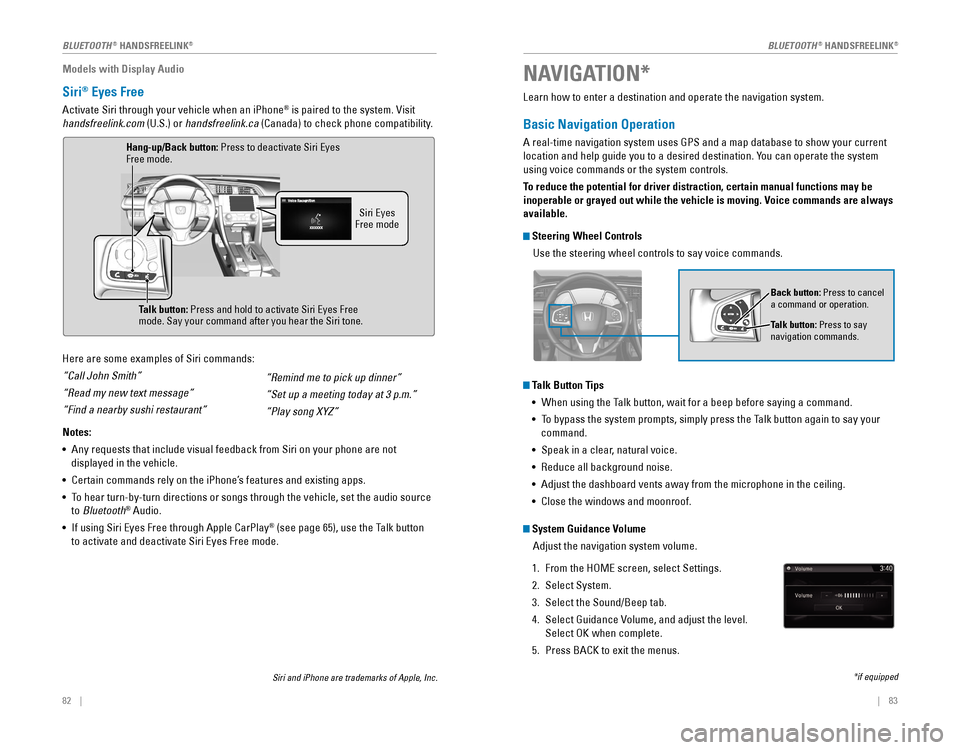
Siri® Eyes Free
Activate Siri through your vehicle when an iPhone® is paired to the system. visit
handsfreelink.com (U.S.) or handsfreelink.ca (Canada) to check phone compatibility.
Here are some examples of Siri commands:
“Call John Smith”
“Read my new text message”
“Find a nearby sushi restaurant”
Notes:
• Any requests that include visual feedback from Siri on your phone are no\
t
displayed in the vehicle.
• Certain commands rely on the iPhone’s features and existing apps.
• To hear turn-by-turn directions or songs through the vehicle, set the aud\
io source
to Bluetooth
® Audio.
•
If using Siri eyes Free through Apple CarPlay® (see page 65), use the Talk button
to activate and deactivate Siri eyes Free mode.
“Remind me to pick up dinner”
“Set up a meeting today at 3 p.m.”
“Play song XYZ”
Siri eyes Free mode
Talk button:
Press and hold to activate Siri eyes Free mode. Say your command after you hear the Siri tone.
Siri and iPhone are trademarks of Apple, Inc.
Hang-up/Back button: Press to deactivate Siri eyes Free mode.
Learn how to enter a destination and operate the navigation system.
Basic Navigation Operation
A real-time navigation system uses GPS and a map database to show your current
location and help guide you to a desired destination. You can operate the system
using voice commands or the system controls.
To reduce the potential for driver distraction, certain manual functions \
may be
inoperable or grayed out while the vehicle is moving. Voice commands are always
available.
Steering Wheel Controls Use the steering wheel controls to say voice commands.
Talk Button Tips• When using the Talk button, wait for a beep before saying a command.
• To bypass the system prompts, simply press the Talk button again to say your
command.
• Speak in a clear, natural voice.
•
reduce all background noise.
• Adjust the dashboard vents away from the microphone in the ceiling.
• Close the windows and moonroof.
Back button: Press to cancel
a command or operation.
Talk button: Press to say
navigation commands.
NAVIGATION*
*if equipped
System Guidance Volume
Adjust the navigation system volume.
1. From the HoMe screen, select Settings.
2. Select System.
3. Select the Sound/Beep tab.
4. Select Guidance volume, and adjust the level.
Select oK when complete.
5. Press BACK to exit the menus.
BLUETOOTH® HANDSFreeLINK®BLUETOOTH® HANDSFreeLINK®
Page 49 of 82
90 || 91
DRIVING
DRIVING
DRIVING
Learn about preparation for driving, as well as other features.
Before Driving
Check the following items before you begin driving.
Exterior Checks
• Make sure there are no obstructions on the windows, door mirrors, exterior
lights, or other parts of the vehicle.
•
remove any frost, snow, or ice.
• Make sure the hood is securely closed.
• Heat from the engine and exhaust can ignite flammable materials left u\
nder
the hood, causing a fire. If you’ve parked your vehicle for an exte\
nded period,
inspect and remove any debris that may have collected, such as dried grass
and leaves that have fallen or have been carried in for use as a nest by\
a small
animal. Also check under the hood for leftover flammable materials aft\
er you or
someone else has performed maintenance on your vehicle.
• Make sure the tires are in good condition.
• Make sure there are no people or objects behind or around the vehicle.
Interior Checks
• Store or secure all items on board properly.
• Do not pile items in the cargo area higher than the seatback height.
• Do not place anything in the front seat footwells. Make sure to secure t\
he floor
mats.
• If you have any animals on board, do not let them move freely around in \
the
vehicle.
• Securely close and lock all doors and the trunk.
• Adjust your seating position, mirrors, and steering wheel properly.
• Make sure items placed on the floor behind the front seats cannot roll\
under the
seats.
•
everyone in the vehicle must fasten their seat belt.
• Make sure that the indicators in the instrument panel come on when you s\
tart
the vehicle, and go off soon after.
If the doors are frozen shut, use warm water around the door edges to me\
lt any
ice. Do not try to force them open, as this can damage the rubber trim a\
round the
doors. When done, wipe dry to avoid further freezing.
NOTICE In addition:
• During the first 600 miles (1,000 km) of operation, avoid sudden acc\
eleration or
full throttle operation so as not to damage the engine or powertrain.
• Avoid hard braking for the first 200 miles (300 km). You should also follow this
when the brake pads are replaced.
Improper accessories or modifications can affect your vehicle’s handling,
stability, and performance, and cause a crash in which you can be seriously
hurt or killed.
Follow all instructions in the vehicle owner’s manual regarding accessories
and modifications.
WARNING
Page 53 of 82
98 || 99
DRIVING
DRIVING
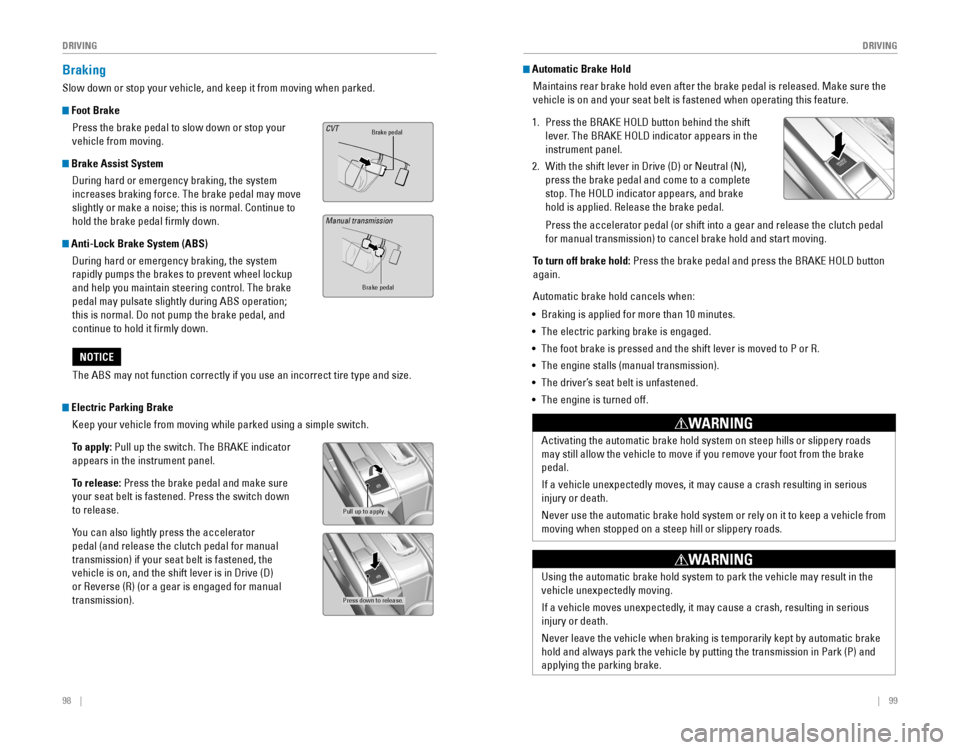
Braking
Slow down or stop your vehicle, and keep it from moving when parked.
Foot Brake
Press the brake pedal to slow down or stop your
vehicle from moving.
Brake Assist System During hard or emergency braking, the system
increases braking force. The brake pedal may move
slightly or make a noise; this is normal. Continue to
hold the brake pedal firmly down.
Anti-Lock Brake System (ABS) During hard or emergency braking, the system
rapidly pumps the brakes to prevent wheel lockup
and help you maintain steering control. The brake
pedal may pulsate slightly during ABS operation;
this is normal. Do not pump the brake pedal, and
continue to hold it firmly down.
Brake pedalCVT
Brake pedal
The ABS may not function correctly if you use an incorrect tire type and\
size.
NOTICE
Electric Parking Brake Keep your vehicle from moving while parked using a simple switch.
To apply:
Pull up the switch. The BrAKe indicator
appears in the instrument panel.
To release: Press the brake pedal and make sure
your seat belt is fastened. Press the switch down
to release.
You can also lightly press the accelerator
pedal (and release the clutch pedal for manual
transmission) if your seat belt is fastened, the
vehicle is on, and the shift lever is in Drive (D)
or reverse (r) (or a gear is engaged for manual
transmission).
Pull up to apply.
Press down to release.
Manual transmission
Automatic Brake Hold Maintains rear brake hold even after the brake pedal is released. Make sure the
vehicle is on and your seat belt is fastened when operating this feature\
.
1. Press the BrAKe HoLD button behind the shift
lever. The BrAKe HoLD indicator appears in the
instrument panel.
2. With the shift lever in Drive (D) or Neutral (N),
press the brake pedal and come to a complete
stop. The HoLD indicator appears, and brake
hold is applied. release the brake pedal.
Press the accelerator pedal (or shift into a gear and release the clutc\
h pedal
for manual transmission) to cancel brake hold and start moving.
To turn off brake hold:
Press the brake pedal and press the BrAKe HoLD button
again.
Automatic brake hold cancels when:
• Braking is applied for more than 10 minutes.
• The electric parking brake is engaged.
•
The foot brake is pressed and the shift lever is moved to P or r.
• The engine stalls (manual transmission).
• The driver’s seat belt is unfastened.
• The engine is turned off.
Activating the automatic brake hold system on steep hills or slippery ro\
ads
may still allow the vehicle to move if you remove your foot from the bra\
ke
pedal.
If a vehicle unexpectedly moves, it may cause a crash resulting in serio\
us
injury or death.
Never use the automatic brake hold system or rely on it to keep a vehicl\
e from
moving when stopped on a steep hill or slippery roads.
WARNING
Using the automatic brake hold system to park the vehicle may result in \
the
vehicle unexpectedly moving.
If a vehicle moves unexpectedly, it may cause a crash, resulting in serious
injury or death.
Never leave the vehicle when braking is temporarily kept by automatic brake
hold and always park the vehicle by putting the transmission in Park (P\
) and
applying the parking brake.
WARNING
Page 56 of 82
*
Provides steering input to help keep the vehicle in the middle of a dete\
cted lane and
visual and tactile alerts if the veh")
104 || 105
DRIVING
DRIVING
Lane Keeping Assist System (LKAS)*
Provides steering input to help keep the vehicle in the middle of a dete\
cted lane and
visual and tactile alerts if the vehicle is detected drifting out of its\
lane while driving
between 45–90 mph (72–145 km/h).
If your vehicle is getting too close to detected left or
right side lane markings without a turn signal activated,
a message appears on the Driver Information Interface,
and the steering wheel vibrates. Steering torque is also
applied to help keep your vehicle within your driving
lane.
Turning the System On or Off
1. Press the MAIN button. LKAS appears in the
Driver Information Interface.
2. Press the LKAS button. Lane outlines appear
in the Driver Information Interface. Dotted lane
lines turn solid when the system starts operating.
3. Press the MAIN button or the LKAS button to turn
the system off.
Important Safety Reminder
LKAS is for your convenience only. It is not a substitute for your vehicle control. The
system does not work if you take your hands off the steering wheel or fa\
il to steer
the vehicle.
Do not place an object on the top of the instrument panel. It may refl\
ect onto the
windshield and prevent the system from detecting lane lines properly.
MAIN button
*if equipped
Steering assistance
LKAS button
Road Departure Mitigation (RDM)*
Alerts and helps to assist you if the system determines a possibility of\
your vehicle
unintentionally crossing over detected lane markings while driving betwe\
en 45–90
mph (72–145 km/h).
If your vehicle is getting too close to detected lane
markings without a turn signal activated, a message
appears in the Driver Information Interface. Steering
wheel torque and vibrations are applied to help your
vehicle stay in the lane.
Braking may also be applied if the lane lines are solid
and continuous.
If the system operates several times without detecting
driver response, the system beeps to alert you.
Changing Settings Determine the warning type.
1. From the HoMe screen, select Settings.
2. Select vehicle. The vehicle must be in Park (P).
3. Select Driver Assist System Setup.
4. Select road Departure Mitigation Setting.
5. Select from the options.
Normal (default): Steering control starts from inside the lane edge.
Wide: Steering control starts from outside the lane edge.
Warning Only: The system only provides a BrAKe message and steering wheel
vibrations, but does not apply steering torque or braking.
6. Press BACK to exit the menu.
Important Safety Reminder
The rDM system has limitations. over-reliance on it may result in a collision. It is
always your responsibility to keep your vehicle within the driving lane.\
*if equipped
Turning the System On or Off
Press the rDM button to turn the system on or off.
A green indicator appears on the button when the
system is on.
RDM button
Indicator
Steering assistance
Page 57 of 82
*
Can assist you when there is a possibility of your vehicle colliding wit\
h a vehicle or a
pedestrian detecte")
106 || 107
DRIVING
DRIVING
Collision Mitigation Braking System™ (CMBS™)*
Can assist you when there is a possibility of your vehicle colliding wit\
h a vehicle or a
pedestrian detected in front of yours.
The system can give you visual, audible, and tactile
alerts when a potential collision is determined, and
reduce your vehicle speed to help minimize collision
severity when a collision is deemed unavoidable.
When a potential collision with a detected oncoming
vehicle is determined, the system also alerts you with
rapid vibrations on the steering wheel.
The system activates when:
• The speed difference between your vehicle and a vehicle or pedestrian de\
tected
in front of you is about 3 mph (5 km/h) and over with a chance of a co\
llision.
• Your vehicle speed is about 62 mph (100 km/h) or less and there is a ch\
ance of a
collision with an oncoming detected vehicle or a pedestrian in front of \
you.
Changing Settings
Determine the warning timing.
1. From the HoMe screen, select Settings.
2. Select vehicle. The vehicle must be in Park (P).
3. Select Driver Assist System Setup.
4. Select Forward Collision Warning Distance.
5. Select Long, Normal, or Short.
6. Press BACK to exit the menu.
*if equipped
Alert StagesThe system has three alert stages for a possible collision. Depending on\
the
circumstances or CMBS settings, CMBS may not go through all of the stage\
s
before initiating the last stage.
Stage 1:
visual and audible warning, steering wheel vibrations
Stage 2: visual and audible warning and light brake application
Stage 3: visual and audible warning and strong brake application
Beep
Steering vibrationsImportant Safety Reminder
CMBS is designed to reduce the severity of an unavoidable collision. It \
does not
prevent collisions nor stop the vehicle automatically. It is still your responsibility to
operate the brake pedal and steering wheel appropriately according to th\
e driving
conditions.
Turning CMBS On or Off
Press and hold the CMBS oFF button. A beep sounds
and a message appears in the MID. The CMBS
indicator appears when the system is off.
Page 59 of 82
110 || 111
DRIVING
DRIVING
Models with Display Audio
1. From the Home screen, select Settings.
2. Select Camera.
3. Select rear Camera.
4. Select an option:
Fixed Guideline: Guidelines appear when you shift into reverse.
Dynamic Guideline: Guidelines move as you turn the steering wheel.
5. Select on or off.
6. Press BACK to exit the menu.
Changing Camera Settings
Turn the guidelines on or off.
Models with color audio system
1. Press the MeNU/CLoCK button.
2. Select Settings.
3. Select rear Camera.
4. Select Camera Guideline.
5. Select on or off.
6. Press the Back button to exit the menu.
Refueling
Use the proper fuel and refueling procedure to ensure the best performan\
ce and
safety of your vehicle.
Fuel InformationUse of unleaded gasoline of 87 octane or higher is recommended.
•
Honda recommends ToP TIer Detergent Gasoline where available.
• Do NoT use gasoline containing more than 15% ethanol.
• Do NoT use gasoline containing methanol.
• Do NoT use gasoline containing MMT.
We recommend quality gasoline containing detergent additives that help
prevent fuel system and engine deposits. In addition, in order to mainta\
in good
performance, fuel economy, and emissions control, we strongly recommend the
use of gasoline that does NoT contain harmful manganese-based fuel additives
such as MMT, if such gasoline is available.
NOTICE
Gasoline is highly flammable and explosive. You can be burned or seriously
injured when handling fuel.
• Stop the engine, and keep heat, sparks, and flame away.
• Handle fuel only outdoors.
• Wipe up spills immediately.
WARNING
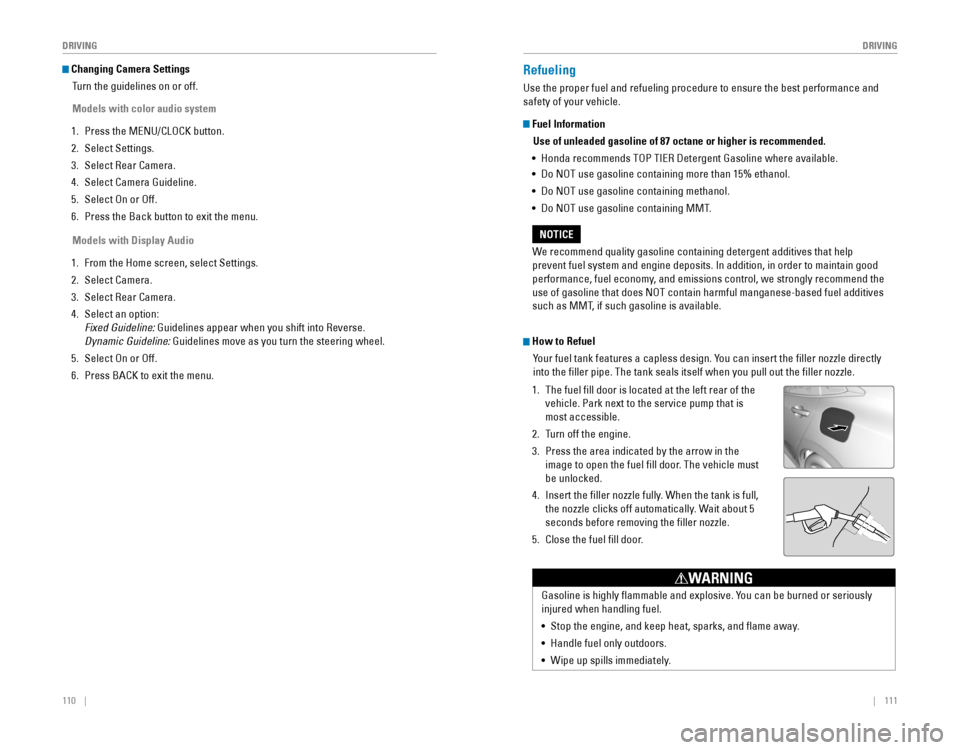
How to Refuel
Your fuel tank features a capless design. You can insert the filler nozzle directly
into the filler pipe. The tank seals itself when you pull out the fi\
ller nozzle.
1. The fuel fill door is located at the left rear of the
vehicle. Park next to the service pump that is
most accessible.
2. Turn off the engine.
3. Press the area indicated by the arrow in the
image to open the fuel fill door. The vehicle must
be unlocked.
4. Insert the filler nozzle fully. When the tank is full,
the nozzle clicks off automatically. Wait about 5
seconds before removing the filler nozzle.
5. Close the fuel fill door.