reset HONDA CIVIC 2017 10.G User Guide
[x] Cancel search | Manufacturer: HONDA, Model Year: 2017, Model line: CIVIC, Model: HONDA CIVIC 2017 10.GPages: 601, PDF Size: 32.51 MB
Page 125 of 601
124
uuGauges and Displays uDriver Information Interface*
Instrument Panel
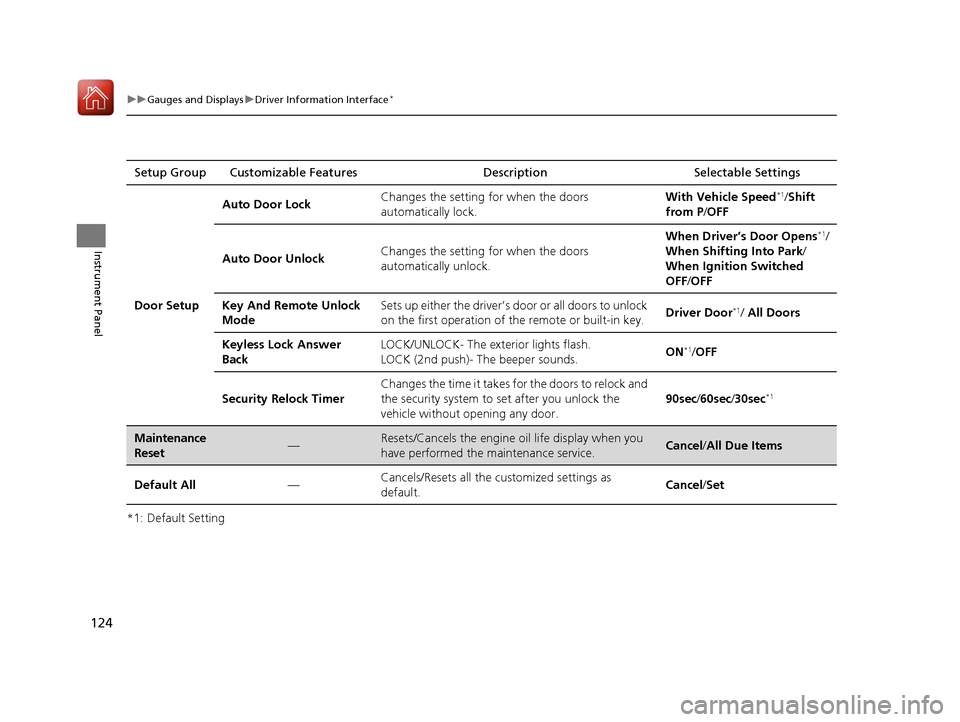
*1: Default SettingSetup Group Customizable Features Description Selectable Settings
Door Setup Auto Door Lock
Changes the setting for when the doors
automatically lock. With Vehicle Speed
*1/
Shift
from P /OFF
Auto Door Unlock Changes the setting for when the doors
automatically unlock. When Driver’s Door Opens
*1/
When Shifting Into Park/
When Ignition Switched
OFF /OFF
Key And Remote Unlock
Mode Sets up either the driver’s door or all doors to unlock
on the first operation of the remote or built-in key.
Driver Door
*1/ All Doors
Keyless Lock Answer
Back LOCK/UNLOCK- The exterior lights flash.
LOCK (2nd push)- The beeper sounds.
ON
*1/
OFF
Security Relock Timer Changes the time it takes for the doors to relock and
the security system to set after you unlock the
vehicle without opening any door.
90sec
/60sec /30sec
*1
Maintenance
Reset—Resets/Cancels the engine oil life display when you
have performed the maintenance service. Cancel /All Due Items
Default All —Cancels/Resets all the customized settings as
default. Cancel
/Set
17 CIVIC 4D HCM (KA KC KL)-31TBA6100.book 124 ページ 2016年8月31日 水曜日 午後6時5分
Page 126 of 601
125
uuGauges and Displays uDriver Information Interface*
Continued
Instrument Panel
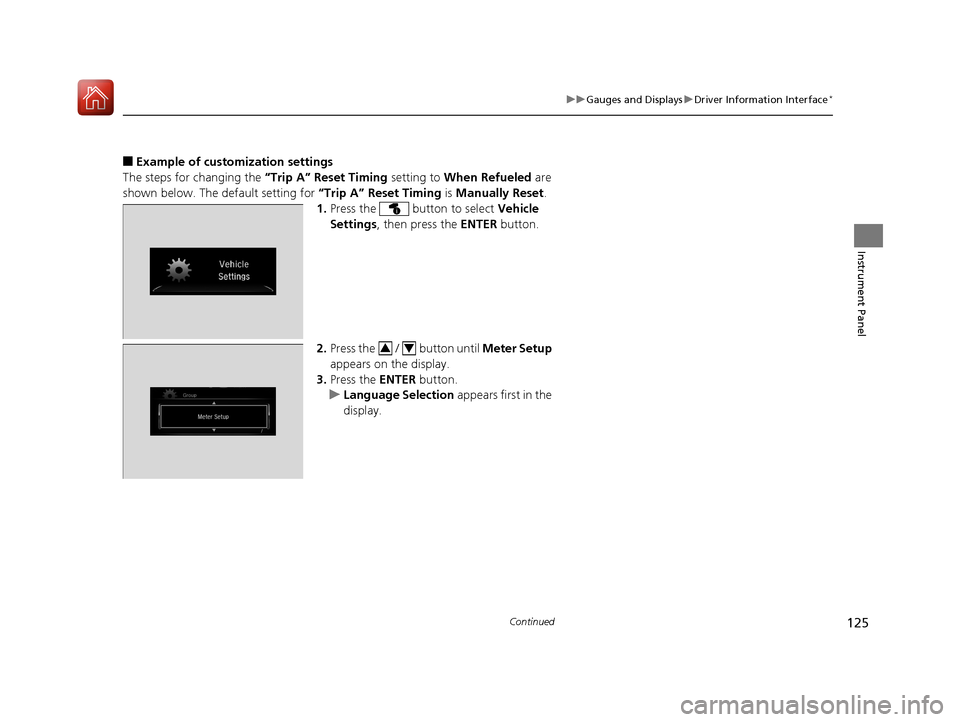
■Example of customization settings
The steps for changing the “Trip A” Reset Timing setting to When Refueled are
shown below. The default setting for “Trip A” Reset Timing is Manually Reset .
1. Press the button to select Vehicle
Settings , then press the ENTER button.
2. Press the / button until Meter Setup
appears on the display.
3. Press the ENTER button.
u Language Selection appears first in the
display.
34
17 CIVIC 4D HCM (KA KC KL)-31TBA6100.book 125 ページ 2016年8月31日 水曜日 午後6時5分
Page 127 of 601
126
uuGauges and Displays uDriver Information Interface*
Instrument Panel
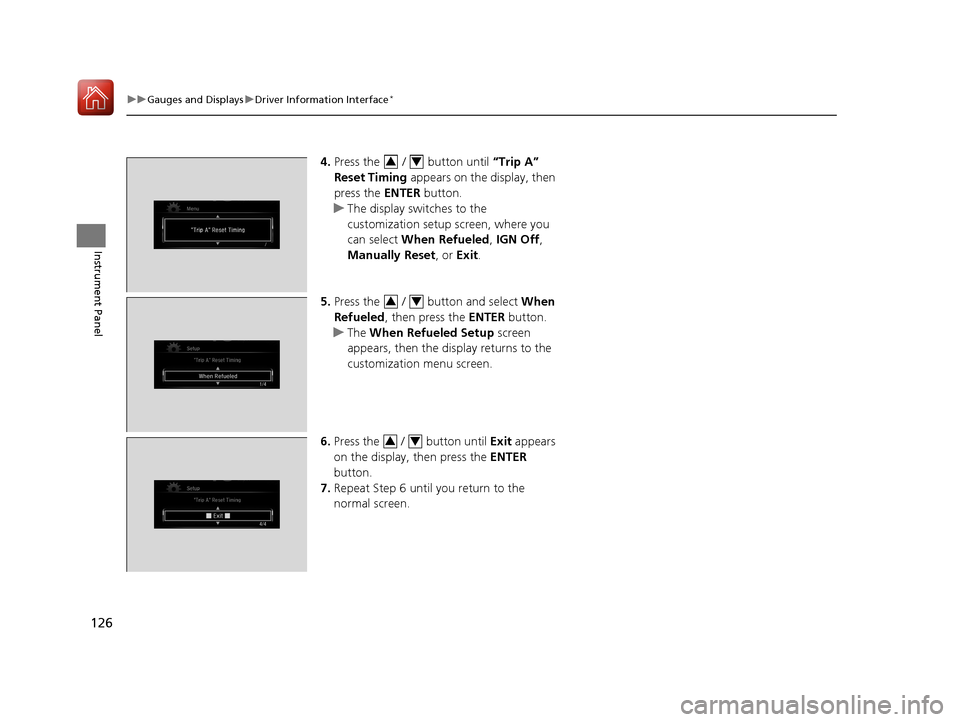
4. Press the / button until “Trip A”
Reset Timing appears on the display, then
press the ENTER button.
u The display switches to the
customization setup screen, where you
can select When Refueled , IGN Off,
Manually Reset , or Exit .
5. Press the / button and select When
Refueled , then press the ENTER button.
u The When Refueled Setup screen
appears, then the di splay returns to the
customization menu screen.
6. Press the / button until Exit appears
on the display, then press the ENTER
button.
7. Repeat Step 6 until you return to the
normal screen.34
34
34
17 CIVIC 4D HCM (KA KC KL)-31TBA6100.book 126 ページ 2016年8月31日 水曜日 午後6時5分
Page 208 of 601
207
uuAudio System uAudio Remote Controls
Continued
Features
Audio Remote Controls
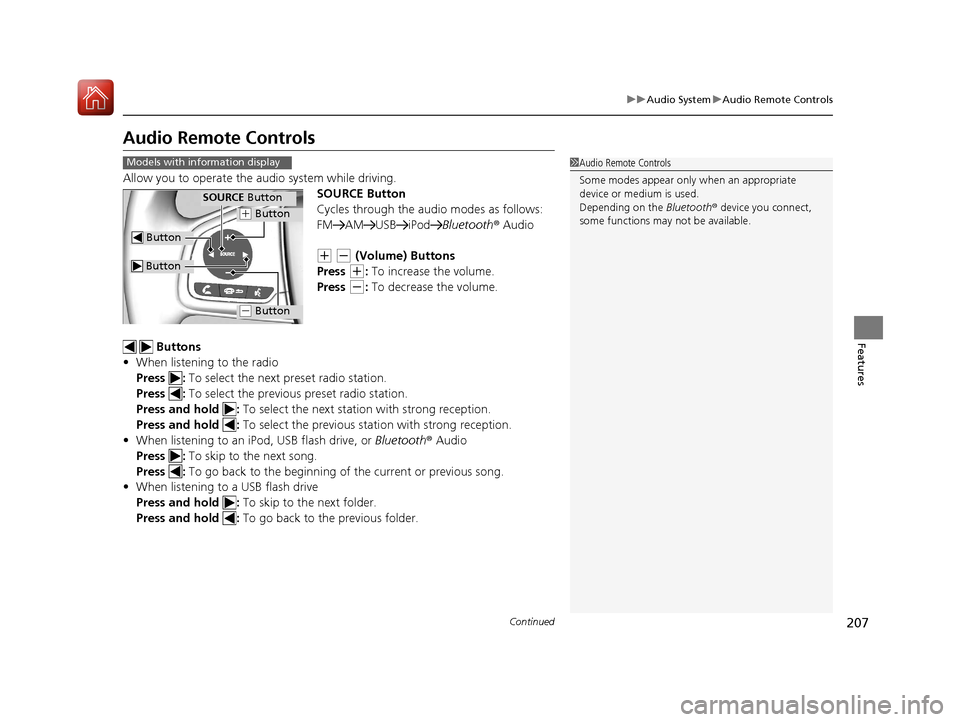
Allow you to operate the au dio system while driving.
SOURCE Button
Cycles through the audio modes as follows:
FM AM USB iPod Bluetooth® Audio
(+ (- (Volume) Buttons
Press
(+: To increase the volume.
Press
(-: To decrease the volume.
Buttons
• When listening to the radio
Press : To select the next preset radio station.
Press : To select the previous preset radio station.
Press and hold : To select the next station with strong reception.
Press and hold : To select the previous station with strong reception.
• When listening to an iPod, USB flash drive, or Bluetooth® Audio
Press : To skip to the next song.
Press : To go back to the beginning of the current or previous song.
• When listening to a USB flash drive
Press and hold : To skip to the next folder.
Press and hold : To go back to the previous folder.
1Audio Remote Controls
Some modes appear only when an appropriate
device or medium is used.
Depending on the Bluetooth® device you connect,
some functions may not be available.Models with information display
Button
SOURCE Button
Button
(+ Button
(- Button
17 CIVIC 4D HCM (KA KC KL)-31TBA6100.book 207 ページ 2016年8月31日 水曜日 午後6時5分
Page 209 of 601
uuAudio System uAudio Remote Controls
208
Features
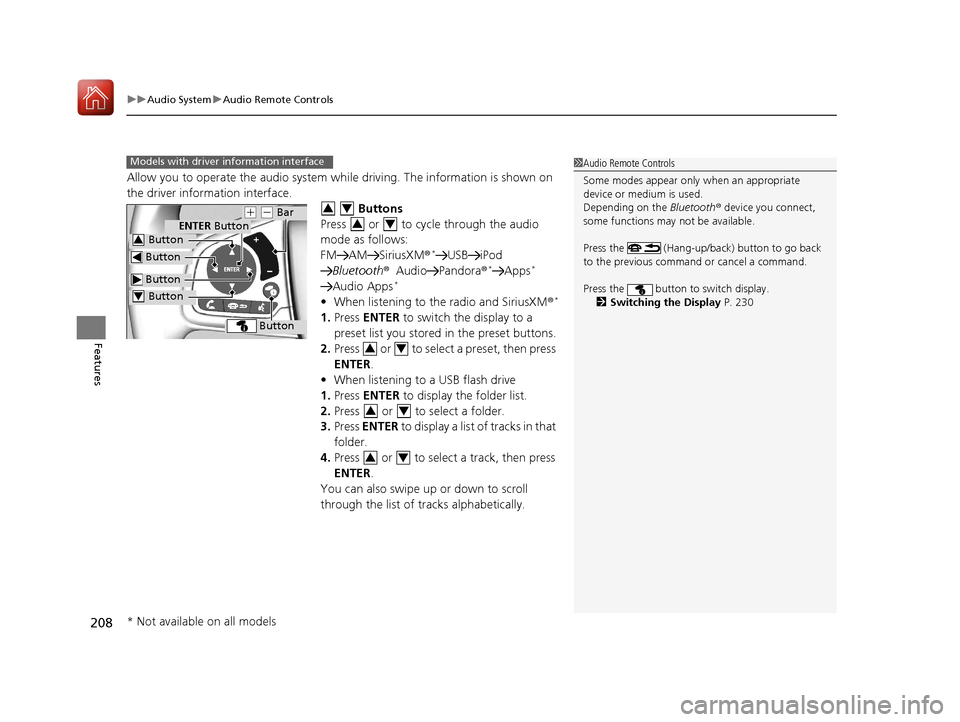
Allow you to operate the audio system wh ile driving. The information is shown on
the driver information interface.
Buttons
Press or to cycle through the audio
mode as follows:
FM AM SiriusXM®
*USB iPod
Bluetooth ®Audio Pandora ®*Apps*
Audio Apps*
•When listening to the radio and SiriusXM ®*
1.Press ENTER to switch the display to a
preset list you stored in the preset buttons.
2. Press or to select a preset, then press
ENTER .
• When listening to a USB flash drive
1. Press ENTER to display the folder list.
2. Press or to select a folder.
3. Press ENTER to display a list of tracks in that
folder.
4. Press or to select a track, then press
ENTER .
You can also swipe up or down to scroll
through the list of tracks alphabetically.
1 Audio Remote Controls
Some modes appear only when an appropriate
device or medium is used.
Depending on the Bluetooth® device you connect,
some functions may not be available.
Press the (Hang-up/back) button to go back
to the previous command or cancel a command.
Press the button to switch display. 2 Switching the Display P. 230Models with driver information interface
Button
ENTER Button
Button
(+ (- Bar
Button
Button3
Button4
34
34
34
34
34
* Not available on all models
17 CIVIC 4D HCM (KA KC KL)-31TBA6100.book 208 ページ 2016年8月31日 水曜日 午後6時5分
Page 211 of 601
210
uuAudio System uAudio Remote Controls
Features
(+ (- (Volume) Bar
Press
(+: To increase the volume.
Press
(-: To decrease the volume.
Slide your finger up or down to incr ease or decrease the volume, respectively.
Swipe down quickly to mute the volu me and swipe up to cancel the mute.
Buttons
• When listening to the radio
Press : To select the next preset radio station.
Press : To select the previous preset radio station.
Press and hold : To select the next strong station.
Press and hold : To select the previous strong station.
• When listening to an iPod, USB flash drive, or Bluetooth ® Audio
Press : To skip to the next song.
Press : To go back to the beginning of the current or previous song.
• When listening to a USB flash drive
Press and hold : To skip to the next folder.
Press and hold : To go back to the previous folder.
• When listening to Internet radio
*
Press : To skip to the next song.
Press and hold : To select the next station.
Press and hold : To select the previous station.
Models with Display Audio
* Not available on all models
17 CIVIC 4D HCM (KA KC KL)-31TBA6100.book 210 ページ 2016年8月31日 水曜日 午後6時5分
Page 219 of 601
218
uuAudio System Basic Operation uPlaying the AM/FM Radio
Features
Playing the AM/FM Radio
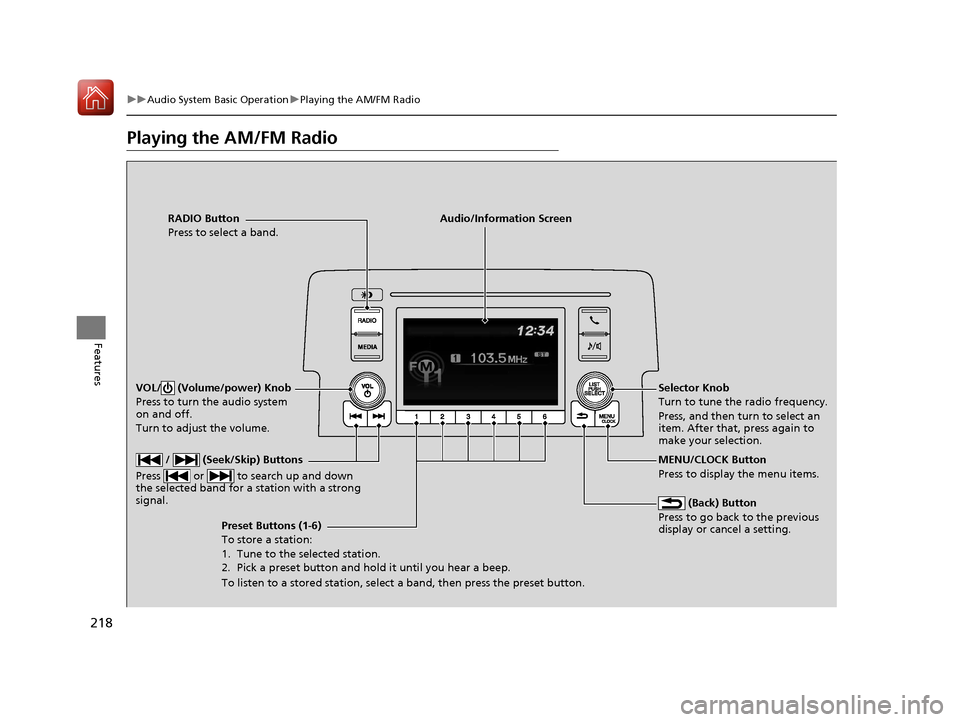
RADIO Button
Press to select a band.
(Back) Button
Press to go back to the previous
display or cancel a setting.
/ (Seek/Skip) Buttons
Press or to search up and down
the selected band for a station with a strong
signal.
VOL/ (Volume/power) Knob
Press to turn the audio system
on and off.
Turn to adjust the volume.
Preset Buttons (1-6)
To store a station:
1. Tune to the selected station.
2. Pick a preset button and hold it until you hear a beep.
To listen to a stored station, select a band, then press the preset button. Selector Knob
Turn to tune the radio frequency.
Press, and then turn to select an
item. After that, press again to
make your selection.
MENU/CLOCK Button
Press to display the menu items.
Audio/Information Screen
17 CIVIC 4D HCM (KA KC KL)-31TBA6100.book 218 ページ 2016年8月31日 水曜日 午後6時5分
Page 220 of 601
219
uuAudio System Basic Operation uPlaying the AM/FM Radio
Features
Provides text data information related to your selected RDS capable FM station.
■To find an RDS station from Station List
1. Press while listening to an FM station.
2. Rotate to select the station, then press .
■Update List
Updates your available st ation list at any time.
1. Press while listening to an FM station.
2. Rotate to select Update List, then press .
■Radio text
Displays the radio text information of the selected RDS station.
1. Press the MENU/CLOCK button.
2. Rotate to select Settings, then press .
3. Rotate to select RDS Settings, then press .
4. Rotate to select Radio Text, then press .
■Scan
Samples each of the strongest stations on the selected band for 10 seconds.
1. Press the MENU/CLOCK button.
2. Rotate to select Scan, then press .
To turn off scan, press .
■Radio Data System (RDS)1 Playing the AM/FM Radio
The ST indicator appears on the display indicating
stereo FM broadcasts.
Stereo reproduction in AM is not available.
You can store 6 AM stations and 12 FM stations into
the preset memory.
Switching the Audio Mode
Press the SOURCE button on the steering wheel.
2 Audio Remote Controls P. 207
1Radio Data System (RDS)
When you select an RDS-capable FM station, the RDS
automatically turns on, and the frequency display
changes to the station name. However, when the
signals of that station become weak, the display
changes from the statio n name to the frequency.
17 CIVIC 4D HCM (KA KC KL)-31TBA6100.book 219 ページ 2016年8月31日 水曜日 午後6時5分
Page 227 of 601
226
uuAudio System Basic Operation uPlaying Bluetooth ® Audio
Features
Playing Bluetooth ® Audio
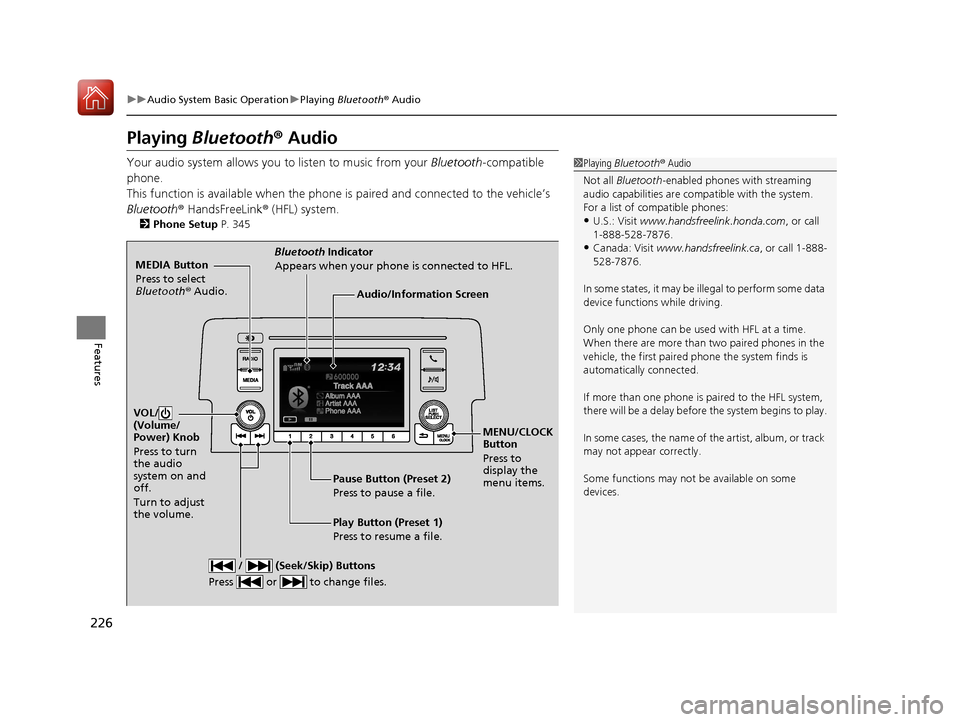
Your audio system allows you to listen to music from your Bluetooth-compatible
phone.
This function is available when the phone is paired and connected to the vehicle’s
Bluetooth ® HandsFreeLink ® (HFL) system.
2 Phone Setup P. 345
1Playing Bluetooth ® Audio
Not all Bluetooth -enabled phones with streaming
audio capabilities are comp atible with the system.
For a list of compatible phones:
•U.S.: Visit www.handsfreelink.honda.com , or call
1-888-528-7876.
•Canada: Visit www.handsfreelink.ca , or call 1-888-
528-7876.
In some states, it may be il legal to perform some data
device functions while driving.
Only one phone can be used with HFL at a time.
When there are more than two paired phones in the
vehicle, the first paired phone the system finds is
automatically connected.
If more than one phone is paired to the HFL system,
there will be a delay before the system begins to play.
In some cases, the name of the artist, album, or track
may not appear correctly.
Some functions may not be available on some
devices.
MEDIA Button
Press to select
Bluetooth ® Audio.
VOL/
(Volume/
Power) Knob
Press to turn
the audio
system on and
off.
Turn to adjust
the volume.
MENU/CLOCK
Button
Press to
display the
menu items.
Audio/Information Screen
Bluetooth Indicator
Appears when your phone is connected to HFL.
/ (Seek/Skip) Buttons
Press or to change files.
Play Button (Preset 1)
Press to resume a file. Pause Button (Preset 2)
Press to pause a file.
17 CIVIC 4D HCM (KA KC KL)-31TBA6100.book 226 ページ 2016年8月31日 水曜日 午後6時5分
Page 233 of 601
232
uuAudio System Basic Operation uAudio/Information Screen
Features
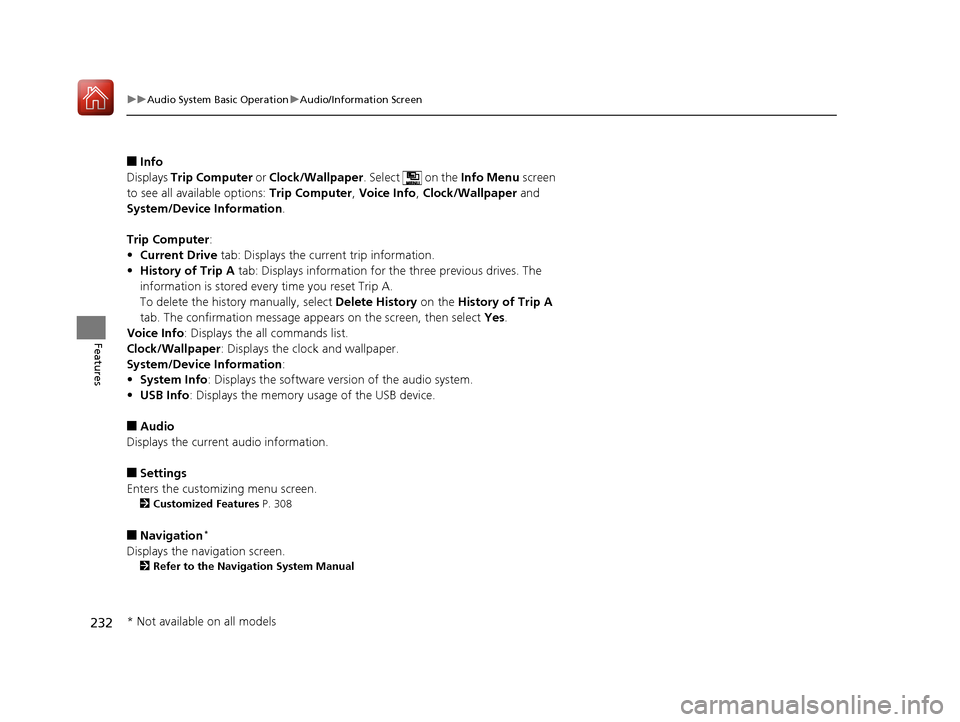
■Info
Displays Trip Computer or Clock/Wallpaper . Select on the Info Menu screen
to see all available options: Trip Computer, Voice Info , Clock/Wallpaper and
System/Device Information .
Trip Computer :
• Current Drive tab: Displays the current trip information.
• History of Trip A tab: Displays information for the three previous drives. The
information is stored every time you reset Trip A.
To delete the history manually, select Delete History on the History of Trip A
tab. The confirmation message ap pears on the screen, then select Yes.
Voice Info : Displays the all commands list.
Clock/Wallpaper : Displays the clock and wallpaper.
System/Device Information :
• System Info: Displays the software version of the audio system.
• USB Info : Displays the memory usage of the USB device.
■Audio
Displays the current audio information.
■Settings
Enters the customiz ing menu screen.
2Customized Features P. 308
■Navigation*
Displays the navigation screen.
2Refer to the Navigation System Manual
* Not available on all models
17 CIVIC 4D HCM (KA KC KL)-31TBA6100.book 232 ページ 2016年8月31日 水曜日 午後6時5分