transmission HONDA CIVIC 2022 User Guide
[x] Cancel search | Manufacturer: HONDA, Model Year: 2022, Model line: CIVIC, Model: HONDA CIVIC 2022Pages: 700, PDF Size: 13.98 MB
Page 175 of 700
uuSecurity System uSecurity System Alarm
174
Controls
■When the security sy stem alarm activates
The horn sounds intermittently, and some exterior lights flash.
■To deactivate the security system alarm
Unlock the vehicle using the key, remote transmitter or keyless access system*, or
power mode is in ON. The system, along with the horn and flashing lights, is
deactivated.
■Setting the security system alarm
The security system alarm automatically sets when the following conditions have
been met:
• The power mode is set to VEHICLE OFF (LOCK).
• The hood is closed.
• All doors and trunk are locked from outsi de with the remote transmitter, or
keyless access system
*.
■When the security system alarm sets
The security system alarm indicator in the instrument panel blinks and the blinking
interval changes after about 15 seconds.
■To cancel the security system alarm
The security system is canceled when th e vehicle is unlocked using the remote
transmitter or keyless access system
*, or when the power mode is set to ON. The
security system alarm indicator goes off at the same time.
1 Security System Alarm
Do not set the security system alarm when someone
is in the vehicle or a window is open. The system can
accidentally activate when:
•Unlocking the door with the lock tab.•Opening the trunk with the trunk opener on the
driver’s door or the emergency trunk opener.
•Opening the hood with the hood release.•Taking the transmission out of (P.
If the battery goes dead after you have set the
security system alarm, the security alarm may activate
once the battery is re charged or replaced.
If this occurs, deactivate the security system alarm by
unlocking a door using the remote transmitter or
keyless access system
*.
* Not available on all models
Page 181 of 700
180
Controls
Operating the Switches Around the Steering Wheel
ENGINE START/STOP Button
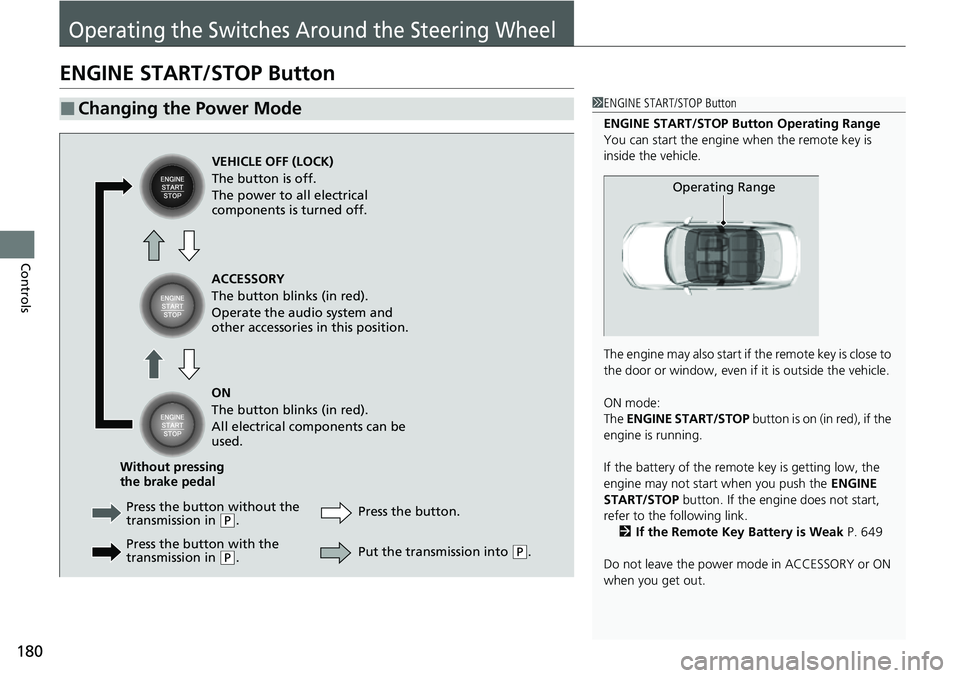
■Changing the Power Mode1ENGINE START/STOP Button
ENGINE START/STOP Button Operating Range
You can start the engine when the remote key is
inside the vehicle.
The engine may also start if the remote key is close to
the door or window, even if it is outside the vehicle.
ON mode:
The ENGINE START/STOP button is on (in red), if the
engine is running.
If the battery of the remote key is getting low, the
engine may not start when you push the ENGINE
START/STOP button. If the engi ne does not start,
refer to the following link. 2 If the Remote Key Battery is Weak P. 649
Do not leave the power mode in ACCESSORY or ON
when you get out.
Operating Range
VEHICLE OFF (LOCK)
The button is off.
The power to all electrical
components is turned off.
Press the butto n without the
transmission in
( P.
Press the button with the
transmission in
( P. Press the button.
Without pressing
the brake pedal ACCESSORY
The button blinks (in red).
Operate the audio system and
other accessories in this position.
ON
The button blinks (in red).
All electrical components can be
used.
Put the transmission into (P.
Page 182 of 700
181
uuOperating the Switches Around the Steering Wheel uENGINE START/STOP Button
Controls
If you leave the vehicle for 30 to 60 minutes with the transmission in (P and the
power mode in ACCESSORY, the vehicle automa tically goes into the mode similar to
VEHICLE OFF (LOCK) to avoid draining the battery.
If you open the driver’s door when the power mode is in ACCESSORY, a warning
beep sounds.
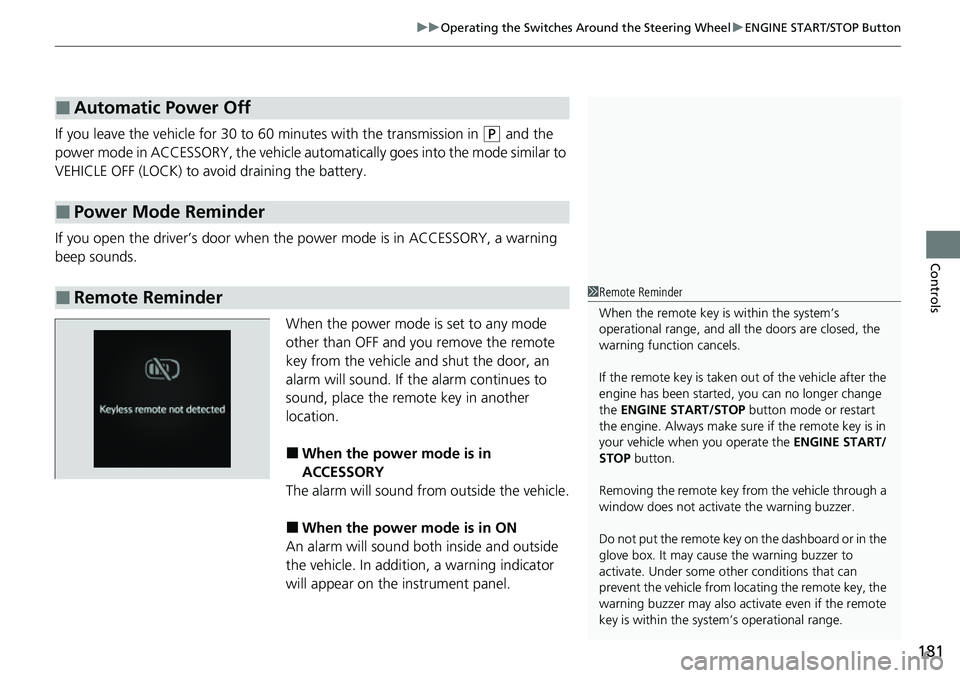
When the power mode is set to any mode
other than OFF and you remove the remote
key from the vehicle and shut the door, an
alarm will sound. If the alarm continues to
sound, place the remote key in another
location.
■When the power mode is in
ACCESSORY
The alarm will sound from outside the vehicle.
■When the power mode is in ON
An alarm will sound both inside and outside
the vehicle. In additi on, a warning indicator
will appear on the instrument panel.
■Automatic Power Off
■Power Mode Reminder
■Remote Reminder1 Remote Reminder
When the remote key is within the system’s
operational range, and all the doors are closed, the
warning function cancels.
If the remote key is taken out of the vehicle after the
engine has been started, you can no longer change
the ENGINE START/STOP button mode or restart
the engine. Always make sure if the remote key is in
your vehicle when you operate the ENGINE START/
STOP button.
Removing the remote key from the vehicle through a
window does not activate the warning buzzer.
Do not put the remote key on the dashboard or in the
glove box. It may cause the warning buzzer to
activate. Under some ot her conditions that can
prevent the vehicle from locating the remote key, the
warning buzzer may also activate even if the remote
key is within the syst em’s operational range.
Page 184 of 700
183
uuOperating the Switches Around the Steering Wheel uLight Switches
Continued
Controls
Light Switches
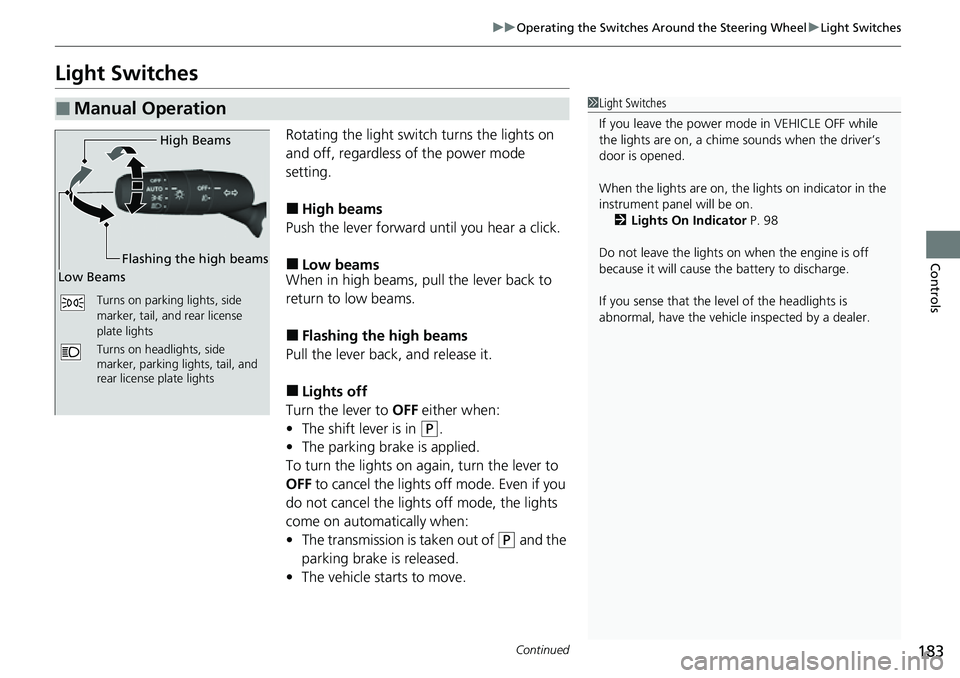
Rotating the light switch turns the lights on
and off, regardless of the power mode
setting.
■High beams
Push the lever forward until you hear a click.
■Low beams
When in high beams, pull the lever back to
return to low beams.
■Flashing the high beams
Pull the lever back, and release it.
■Lights off
Turn the lever to OFF either when:
• The shift lever is in
(P.
• The parking brake is applied.
To turn the light s on again, turn the lever to
OFF to cancel the lights off mode. Even if you
do not cancel the lights off mode, the lights
come on automatically when:
• The transmission is taken out of
(P and the
parking brake is released.
• The vehicle starts to move.
■Manual Operation1Light Switches
If you leave the power mode in VEHICLE OFF while
the lights are on, a chime sounds when the driver’s
door is opened.
When the lights are on, the lights on indicator in the
instrument pane l will be on.
2 Lights On Indicator P. 98
Do not leave the lights on when the engine is off
because it will cause the battery to discharge.
If you sense that the le vel of the headlights is
abnormal, have the vehicl e inspected by a dealer.
Turns on parking lights, side
marker, tail, and rear license
plate lights
Turns on headlights, side
marker, parking lights, tail, and
rear license plate lights
High Beams
Flashing the high beams
Low Beams
Page 197 of 700
196
Controls
Mirrors
Interior Rearview Mirror
Adjust the angle of the rearview mirror when you are sitting in the correct driving
position.
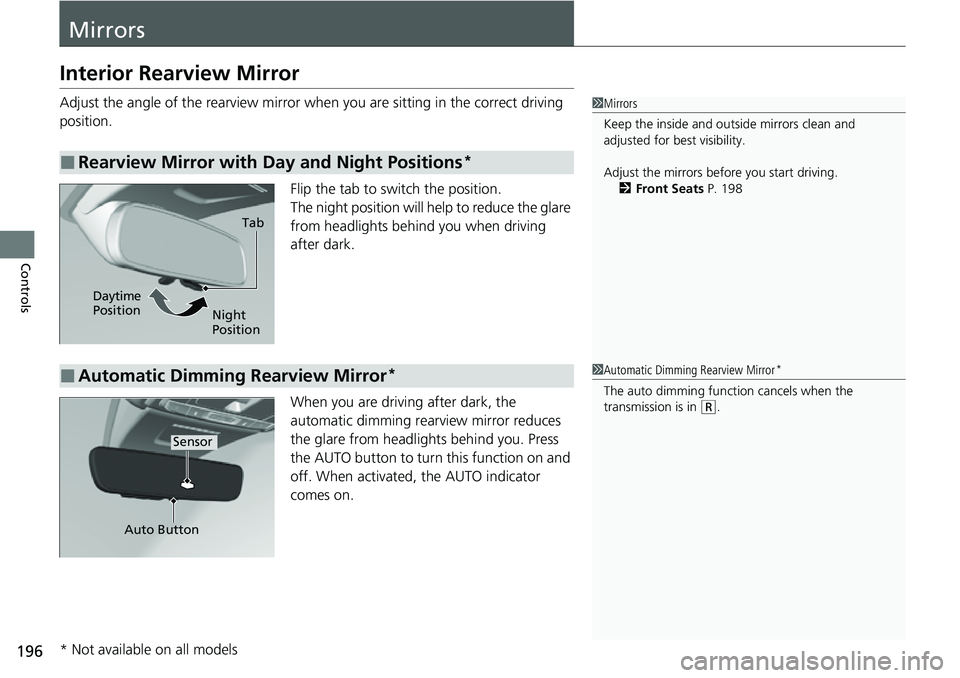
Flip the tab to switch the position.
The night position will help to reduce the glare
from headlights behind you when driving
after dark.
When you are driving after dark, the
automatic dimming rearview mirror reduces
the glare from headlights behind you. Press
the AUTO button to turn this function on and
off. When activated, the AUTO indicator
comes on.
■Rearview Mirror with Day and Night Positions*
1 Mirrors
Keep the inside and out side mirrors clean and
adjusted for best visibility.
Adjust the mirrors before you start driving. 2 Front Seats P. 198
Tab
Daytime
Position Night
Position
■Automatic Dimming Rearview Mirror*1Automatic Dimming Rearview Mirror*
The auto dimming function cancels when the
transmission is in (R.
Sensor
Auto Button
* Not available on all models
Page 257 of 700
uuAudio System Basic Operation uApple CarPlay
256
Features
After you have connected your iPhone to the system via the front USB, use the
following procedure to set up Apple CarPlay. Use of Apple CarPlay will result in the
transmission of certain user and vehicle information (such as vehicle location, speed,
and status) to your iPhone to enhance th e Apple CarPlay experience. You will need
to consent to the sharing of this information on the audio/information screen.
1. Connect the iPhone to the USB port using the USB cable.
2 USB Port(s) P. 231
uThe confirmation screen will be displayed.
2. Select Yes.
u If you do not want to connect Apple CarPlay, select No.
You may change the consent settings under the Smartphone Settings menu.
■Setting Up Apple CarPlay
■Connecting Apple CarPlay Using the USB Cable to the USB Port
1Setting Up Apple CarPlay
Only initialize Apple CarPlay when you are safely
parked.
When Apple CarPlay first detects your iPhone, you
will need to set up your iPhone. Refer to the
instruction manual that came with your iPhone.
You can use the following procedure to disconnect or
delete the devices conn ecting Apple CarPlay:
Press the MENU button
Select Smartphone Settings Apple CarPlay
Select device
Use of user and vehicle information
The use and handling of user and vehicle information
transmitted to/from your iP hone by Apple CarPlay is
governed by the Apple iOS terms and conditions and
Apple’s Privacy Policy.
Page 318 of 700
317
uuAudio System Basic Operation uWi-Fi Connection
Continued
Features
Wi-Fi Connection
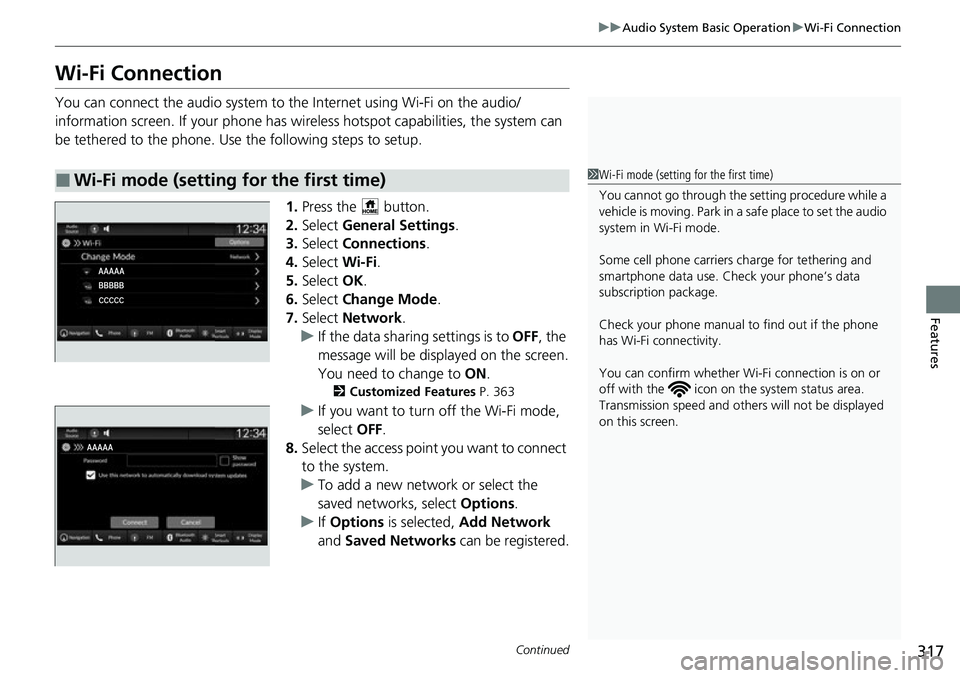
You can connect the audio system to the Internet using Wi-Fi on the audio/
information screen. If your phone has wireless hotspot capabilities, the system can
be tethered to the phone. Use the following steps to setup.
1.Press the button.
2. Select General Settings .
3. Select Connections .
4. Select Wi-Fi.
5. Select OK.
6. Select Change Mode .
7. Select Network .
u If the data sharing settings is to OFF, the
message will be displayed on the screen.
You need to change to ON.
2Customized Features P. 363
uIf you want to turn off the Wi-Fi mode,
select OFF .
8. Select the access point you want to connect
to the system.
u To add a new network or select the
saved networks, select Options.
u If Options is selected, Add Network
and Saved Networks can be registered.
■Wi-Fi mode (setting for the first time)1Wi-Fi mode (setting for the first time)
You cannot go through the setting procedure while a
vehicle is moving. Park in a safe place to set the audio
system in Wi-Fi mode.
Some cell phone carriers charge for tethering and
smartphone data use. Check your phone’s data
subscription package.
Check your phone manual to find out if the phone
has Wi-Fi connectivity.
You can confirm whether Wi -Fi connection is on or
off with the icon on th e system status area.
Transmission speed and others will not be displayed
on this screen.
Page 322 of 700
Continued321
uuAudio System Basic Operation uApple CarPlay
Features
After you have connected your iPhone to the system via the front USB port or
wirelessly, use the following procedure to set up Apple CarPlay. Use of Apple
CarPlay will result in the transmission of certain user and vehicle information (such
as vehicle location, speed, an d status) to your iPhone to enhance the Apple CarPlay
experience. You will n eed to consent to the sharing of this information on the audio/
information screen.
1. Connect the iPhone to the USB port using the USB cable.
2 USB Port(s) P. 231
uThe confirmation screen will be displayed.
2. Select Yes.
u If you do not want to connect Apple CarPlay, select No.
You may change the cons ent settings under the Smartphone Connection settings
menu.
■Setting Up Apple CarPlay
■Connecting Apple CarPlay Using the USB Cable to the USB Port
1 Setting Up Apple CarPlay
Only initialize Apple CarPlay when you are safely
parked.
When Apple CarPlay first detects your iPhone, you
will need to set up your iPhone. Refer to the
instruction manual that came with your iPhone.
You can use the following procedure to disconnect or
delete the devices conn ecting Apple CarPlay:
Press the button
Select General Settings
Smartphone Connection
Apple CarPlaySelect device
Use of user and vehicle information
The use and handling of user and vehicle information
transmitted to/from your iP hone by Apple CarPlay is
governed by the Apple iOS terms and conditions and
Apple’s Privacy Policy.
Page 346 of 700
345
uuGeneral Information on the Audio System uHonda App License Agreement
Continued
Features
I. Availability/Interruption. The SOFTWARE and certain SERVICES are made availa ble through your VEHICLE’s compatible multimedia
system when the VEHICLE is turned on. Certain SERVICES may be available only through your compatible mobile device when it is within
the operating range of the VEHICLE and a wireless carrier. The av ailability of the SOFTWARE and SERVICES may be subject to transmission
limitation or interruption, including but no t limited to technical obsolesce or sunsetting of the hardware, software or firmwar e, inside of
or external to the Vehicle, required for data transmission or receipt. HONDA does not guarantee that the SOFTWARE, SERVICES, or any
portion thereof will be available at all times or in all areas. You acknowledge and agree that HONDA is not responsible for per formance
degradation, interruption or dela ys. You acknowledge that HONDA shall not be liable to you if the SOFTWARE or SERVICES in a given
location are not available. If the SOFTWARE or SERVICES are not available within your intended location, you agree that your sole remedy
shall be to cease using the SOFTWARE and SERVICES.
J. PRODUCT SUPPORT: Product support for the SOFTWARE is provided by HONDA. For product support, please refer to HONDA
instructions provided in the DOCUMENTATION. Should you have any questions concerning this AGREEMENT, or if you desire to contact
HONDA for any other reason, please refer to the HONDA contact information provided in the DOCUMENTATION.
K. Termination and Transfer.
1. Termination. This AGREEMENT is effective until te rminated by you or US. WE may terminate this AGREEMENT for any or no reason,
and with or without notice to you. Your rights under this AGR EEMENT will terminate automatically without notice from US if you fail to
comply with any term of this AGREEMENT. U pon termination of this AGREEMENT, you shall cease all use of the SOFTWARE and SERVICE S.
2. Transfer: You may permanently transfer your rights under this AGREEMENT only as part of a sale or transfer of the VEHICLE, provided
you retain no copies, y ou transfer all of the SOFTWARE and HONDA SERVICES (inc luding all component parts, the media and printed
materials, and any upgrades), and the recipient agrees to the terms of this AGREEMENT. You agree to notify HONDA upon the sale or
transfer of the VEHICLE. To contact HO NDA, please refer to the HONDA contact info rmation provided in the DOCUMENTATION.
Page 430 of 700
429
Driving
This chapter discusses driving and refueling.
Before Driving................................... 430
Towing a Trailer ................................ 435
When Driving
Starting the Engine .......................... 436
Precautions While Driving................. 441
Continuously Variable Transmission ..... 442Shifting .................................... 443, 445
ECON Button*................................. 449
Drive Mode Switch*......................... 450
Auto Idle Stop .................................. 453
Vehicle Stability AssistTM (VSA®), aka Electronic
Stability Control (ESC), System .............. 459
Agile Handling Assist ....................... 461
Tire Pressure Monitoring System (TPMS) .... 462Tire Pressure Monitoring System (TPMS) - Required Federal Explanation ......... 467
Blind Spot Information System
*....... 469
Honda Sensing ®................................ 473
Collision Mitigati on Braking System
TM
(CMBSTM) ....................................... 476
Low Speed Braking Control*............ 488
Adaptive Cruise Control (ACC) with Low
Speed Follow ................................. 494
Lane Keeping Assist System (LKAS).... 516
Traffic Jam Assist ............................. 528
Road Departure Mitigation System ... 537 Traffic Sign Recognition System ....... 545
Front Wide View Camera ................. 551
Sonar Sensors
*................................ 553
Braking
Brake System ................................... 554
Anti-lock Brake System (ABS) ........... 560
Brake Assist System ......................... 561
Parking Your Vehicle ........................ 562
Multi-View Rear Camera .................. 573
Refueling ........................................... 575
Fuel Economy and CO
2 Emissions .... 578
Turbo Engine Vehicle*...................... 579
* Not available on all models