key HONDA CIVIC 2022 Owner's Manual
[x] Cancel search | Manufacturer: HONDA, Model Year: 2022, Model line: CIVIC, Model: HONDA CIVIC 2022Pages: 700, PDF Size: 13.98 MB
Page 180 of 700
179
Controls
Moonroof*
Opening/Closing the Moonroof
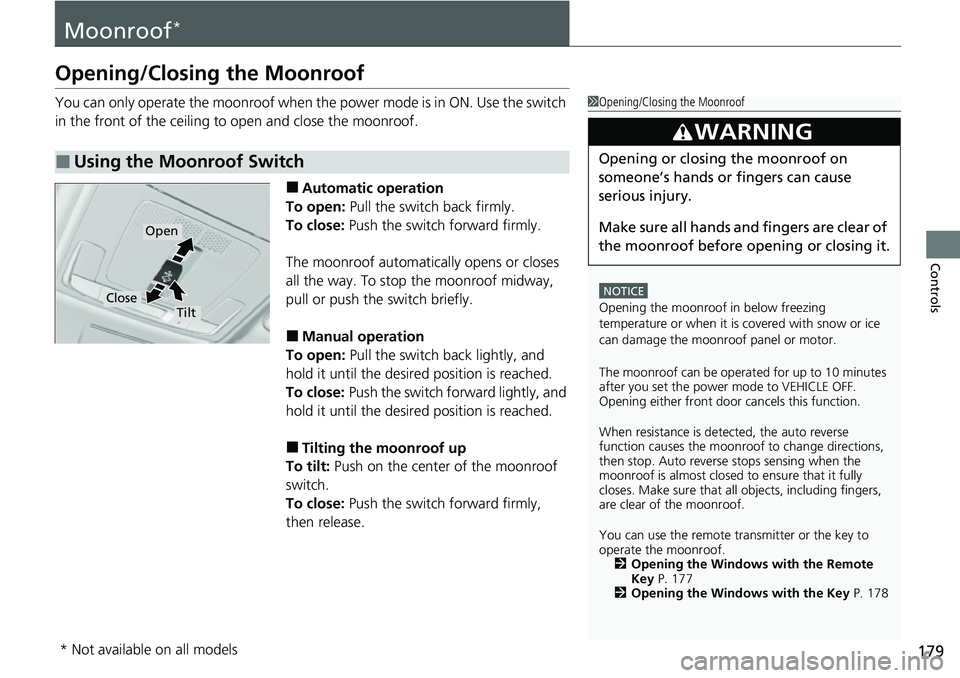
You can only operate the moonroof when the power mode is in ON. Use the switch
in the front of the ceiling to open and close the moonroof.
■Automatic operation
To open: Pull the switch back firmly.
To close: Push the switch forward firmly.
The moonroof automatically opens or closes
all the way. To stop the moonroof midway,
pull or push the switch briefly.
■Manual operation
To open: Pull the switch back lightly, and
hold it until the desired position is reached.
To close: Push the switch forward lightly, and
hold it until the desired position is reached.
■Tilting the moonroof up
To tilt: Push on the center of the moonroof
switch.
To close: Push the switch forward firmly,
then release.
■Using the Moonroof Switch
1 Opening/Closing the Moonroof
NOTICE
Opening the moonroof in below freezing
temperature or when it is covered with snow or ice
can damage the moonr oof panel or motor.
The moonroof can be opera ted for up to 10 minutes
after you set the power mode to VEHICLE OFF.
Opening either front door cancels this function.
When resistance is detected, the auto reverse
function causes the moonroof to change directions,
then stop. Auto reverse stops sensing when the
moonroof is almost closed to ensure that it fully
closes. Make sure that al l objects, including fingers,
are clear of the moonroof.
You can use the remote transmitter or the key to
operate the moonroof. 2 Opening the Windows with the Remote
Key P. 177
2 Opening the Windows with the Key P. 178
3WARNING
Opening or closing the moonroof on
someone’s hands or fingers can cause
serious injury.
Make sure all hands and fingers are clear of
the moonroof before opening or closing it.
Open
CloseTilt
* Not available on all models
Page 181 of 700
180
Controls
Operating the Switches Around the Steering Wheel
ENGINE START/STOP Button
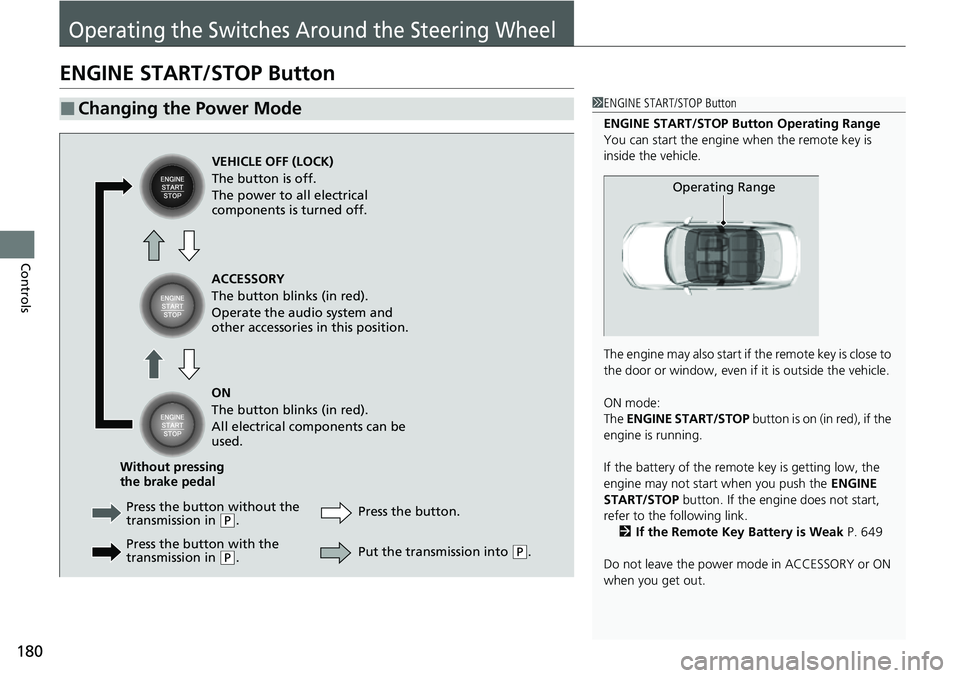
■Changing the Power Mode1ENGINE START/STOP Button
ENGINE START/STOP Button Operating Range
You can start the engine when the remote key is
inside the vehicle.
The engine may also start if the remote key is close to
the door or window, even if it is outside the vehicle.
ON mode:
The ENGINE START/STOP button is on (in red), if the
engine is running.
If the battery of the remote key is getting low, the
engine may not start when you push the ENGINE
START/STOP button. If the engi ne does not start,
refer to the following link. 2 If the Remote Key Battery is Weak P. 649
Do not leave the power mode in ACCESSORY or ON
when you get out.
Operating Range
VEHICLE OFF (LOCK)
The button is off.
The power to all electrical
components is turned off.
Press the butto n without the
transmission in
( P.
Press the button with the
transmission in
( P. Press the button.
Without pressing
the brake pedal ACCESSORY
The button blinks (in red).
Operate the audio system and
other accessories in this position.
ON
The button blinks (in red).
All electrical components can be
used.
Put the transmission into (P.
Page 182 of 700
181
uuOperating the Switches Around the Steering Wheel uENGINE START/STOP Button
Controls
If you leave the vehicle for 30 to 60 minutes with the transmission in (P and the
power mode in ACCESSORY, the vehicle automa tically goes into the mode similar to
VEHICLE OFF (LOCK) to avoid draining the battery.
If you open the driver’s door when the power mode is in ACCESSORY, a warning
beep sounds.
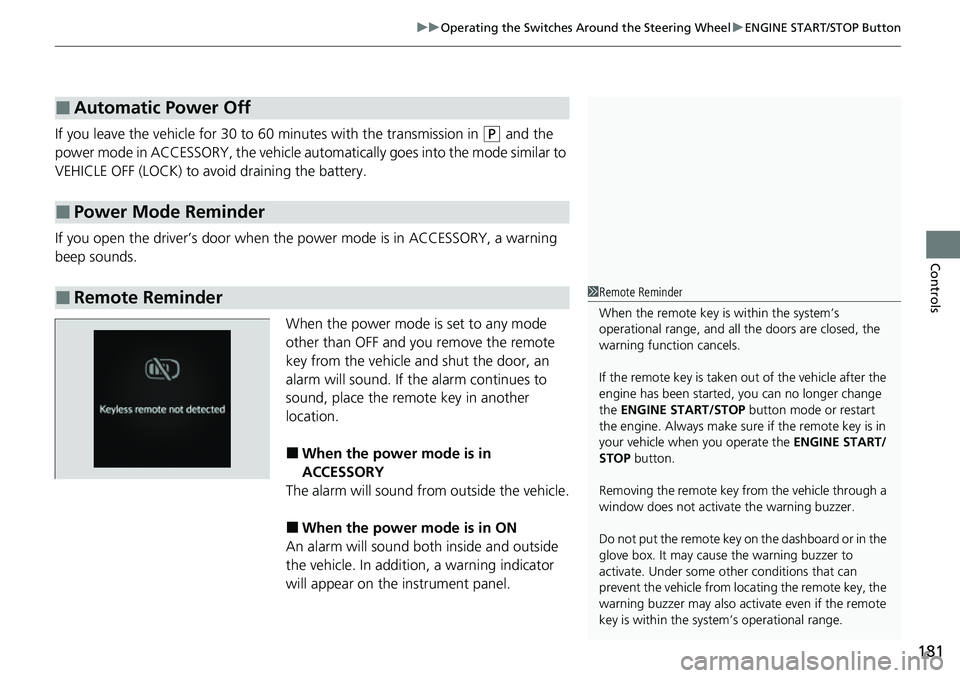
When the power mode is set to any mode
other than OFF and you remove the remote
key from the vehicle and shut the door, an
alarm will sound. If the alarm continues to
sound, place the remote key in another
location.
■When the power mode is in
ACCESSORY
The alarm will sound from outside the vehicle.
■When the power mode is in ON
An alarm will sound both inside and outside
the vehicle. In additi on, a warning indicator
will appear on the instrument panel.
■Automatic Power Off
■Power Mode Reminder
■Remote Reminder1 Remote Reminder
When the remote key is within the system’s
operational range, and all the doors are closed, the
warning function cancels.
If the remote key is taken out of the vehicle after the
engine has been started, you can no longer change
the ENGINE START/STOP button mode or restart
the engine. Always make sure if the remote key is in
your vehicle when you operate the ENGINE START/
STOP button.
Removing the remote key from the vehicle through a
window does not activate the warning buzzer.
Do not put the remote key on the dashboard or in the
glove box. It may cause the warning buzzer to
activate. Under some ot her conditions that can
prevent the vehicle from locating the remote key, the
warning buzzer may also activate even if the remote
key is within the syst em’s operational range.
Page 186 of 700
185
uuOperating the Switches Around the Steering Wheel uLight Switches
Controls
The headlights automatically come on when th e wipers are used several times within
a certain number of intervals with the headlight switch in AUTO.
The headlights automatically go off a few mi nutes later if the wipers are stopped.
The headlights, all other exterior lights, and the instrument panel lights turn off 15
seconds after you set the power mode to VEHICLE OFF (LOCK), take the remote key
with you, and close the driver’s door.
If you set the power mode to VEHICLE OFF (LOCK) with the headlight switch on, but
do not open the door, the lights turn off after 10 minutes (3 minutes, if the switch
is in the AUTO position).
The lights turn on again when you unlock or open the driver’s door. If you unlock
the door, but do not open it within 15 seconds, the lights go off. If you open the
driver’s door, you will hear a reminder chime alerting you that the lights are on.
■Headlight Integration with Wipers
■Automatic Lighting Off Feature
1 Automatic Operation (aut omatic lighting control)
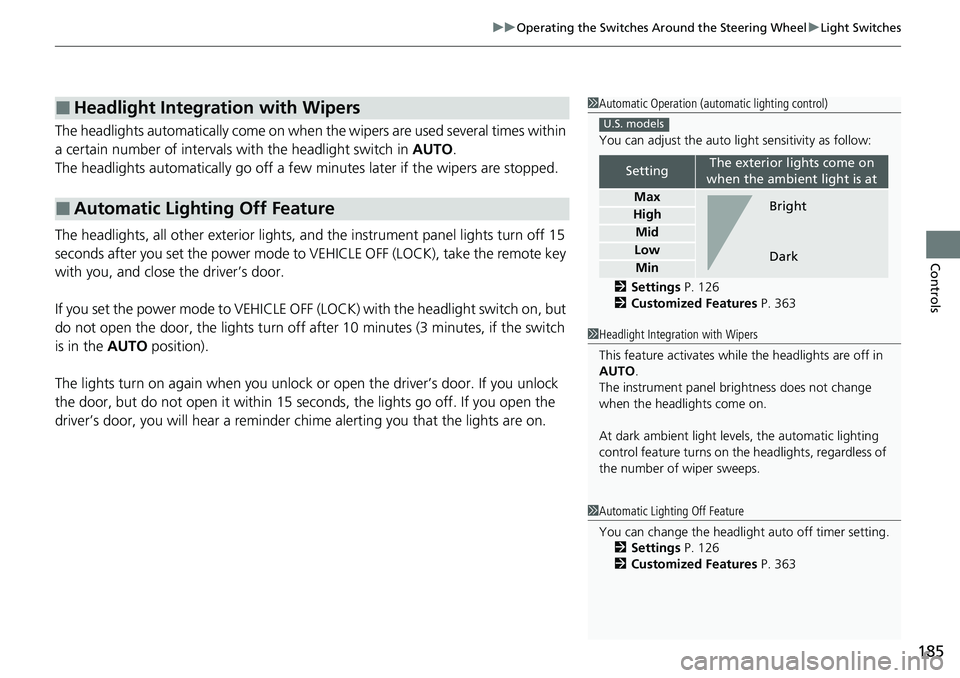
You can adjust the auto li ght sensitivity as follow:
2 Settings P. 126
2 Customized Features P. 363
SettingThe exterior lights come on
when the ambient light is at
Max
High
Mid
Low
Min
U.S. models
Bright
Dark
1 Headlight Integration with Wipers
This feature activates while the headlights are off in
AUTO .
The instrument panel br ightness does not change
when the headlights come on.
At dark ambient light leve ls, the automatic lighting
control feature turns on the headlights, regardless of
the number of wiper sweeps.
1 Automatic Lighting Off Feature
You can change the headlight auto off timer setting.
2 Settings P. 126
2 Customized Features P. 363
Page 219 of 700
uuInterior Convenience Items uOther Interior Convenience Items
218
Controls
1Wireless Charger*
During the charging phase, it is normal for the
charging area and de vice to heat up.
Charging may be briefl y interrupted when:
•All the doors and the trunk are closed
- to avoid interference with the proper functioning
of the keyless access system.
•The position of the device is altered.
Do not charge more than one device at a time on a
charging area.
If the device becomes too hot and its battery
protection function activa tes, it may charge
extremely slowly or no longer charge.
The temperature at which the battery protection
function activates de pends on the device.
* Not available on all models
Page 260 of 700
Continued259
uuAudio System Basic Operation uAndroid Auto
Features
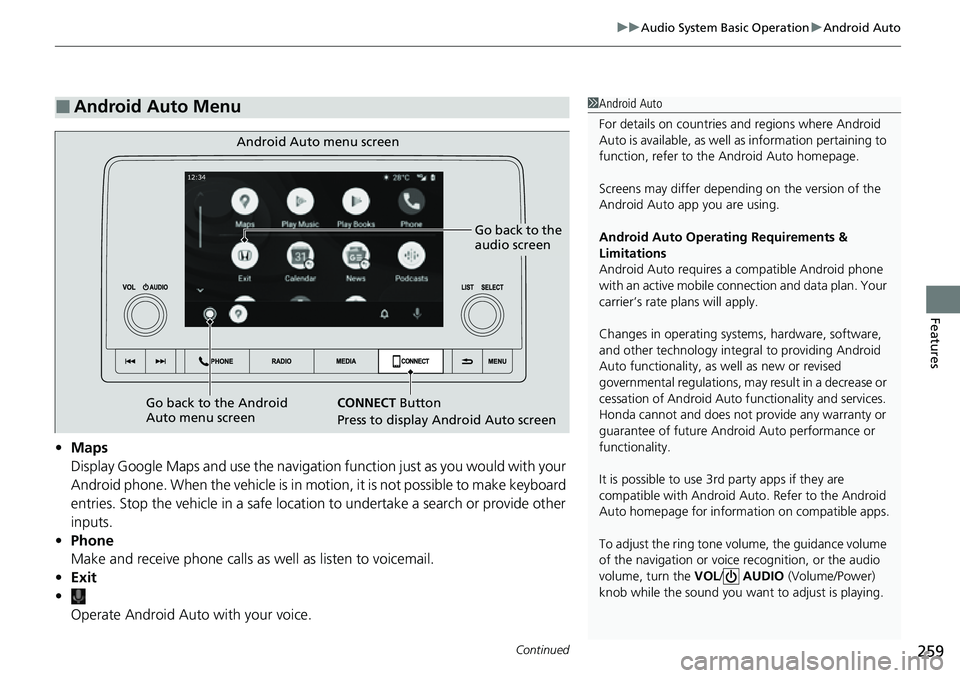
• Maps
Display Google Maps and use the navigation function just as you would with your
Android phone. When the vehicle is in motion, it is not possible to make keyboard
entries. Stop the vehicle in a safe location to undertake a search or provide other
inputs.
• Phone
Make and receive phone calls as well as listen to voicemail.
• Exit
• Operate Android Auto with your voice.
■Android Auto Menu1Android Auto
For details on c ountries and regions where Android
Auto is available, as well as information pertaining to
function, refer to the Android Auto homepage.
Screens may differ depending on the version of the
Android Auto app you are using.
Android Auto Operating Requirements &
Limitations
Android Auto requires a compatible Android phone
with an active mobile connection and data plan. Your
carrier’s rate plans will apply.
Changes in operating systems, hardware, software,
and other technology integral to providing Android
Auto functionality, as well as new or revised
governmental regulations, may result in a decrease or
cessation of Android Auto functionality and services.
Honda cannot and does not pr ovide any warranty or
guarantee of future Android Auto performance or
functionality.
It is possible to use 3r d party apps if they are
compatible with Android Auto. Refer to the Android
Auto homepage for informat ion on compatible apps.
To adjust the ring tone volume, the guidance volume
of the navigation or voice recognition, or the audio
volume, turn the VOL / AUDIO (Volume/Power)
knob while the sound you want to adjust is playing.
Go back to the
audio screen
CONNECT Button
Press to display Android Auto screen
Android Auto menu screen
Go back to the Android
Auto menu screen
Page 287 of 700
286
uuAudio System Basic Operation uPlaying AM/FM Radio
Features
Playing AM/FM Radio
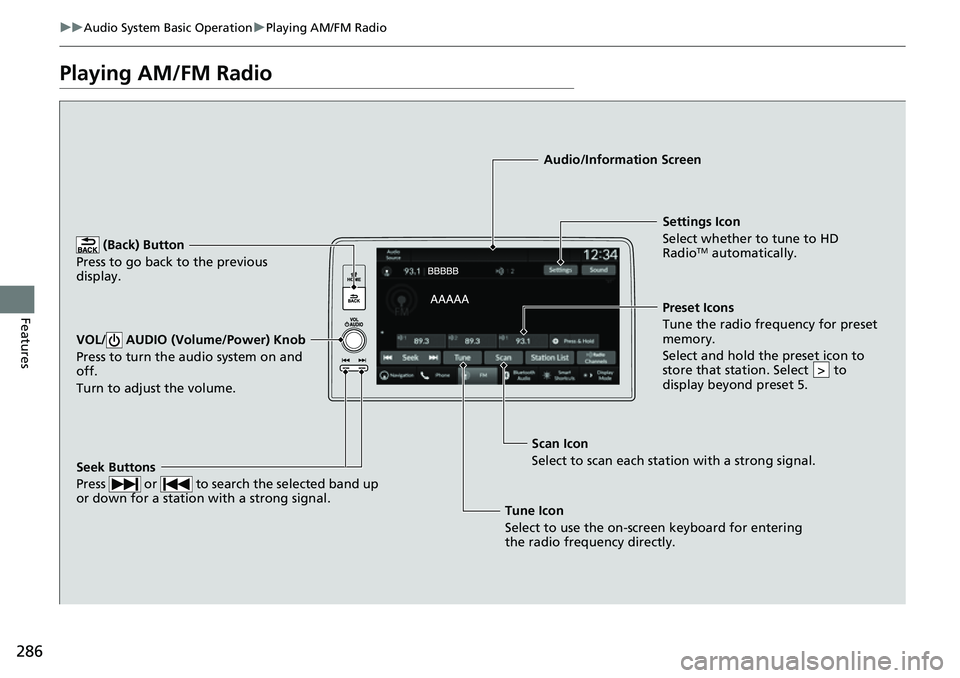
(Back) Button
Press to go back to the previous
display.
Seek Buttons
Press or to search the selected band up
or down for a station with a strong signal.
VOL/ AUDIO (Volume/Power) Knob
Press to turn the audio system on and
off.
Turn to adjust the volume.
Settings Icon
Select whether to tune to HD
Radio
TM automatically.
Tune Icon
Select to use the on-screen keyboard for entering
the radio frequency directly. Audio/Information Screen
Scan Icon
Select to sca n each stat
ion with a strong signal.
Preset Icons
Tune the radio frequency for preset
memory.
Select and hold the preset icon to
store that station. Select to
display beyond preset 5.
>
Page 294 of 700
Continued293
uuAudio System Basic Operation uPlaying SiriusXM ® Radio
Features
Suggested channel listing received from SiriusXM ® can be displayed and selected.
1. Select More.
2. Select Category List .
3. Select Featured Favorites .
4. Select the featured favorite list title you want to listen to.
u The selected channel list of the title is displayed.
5. Select the channel.
■Listening to Featured Channels1Listening to Featured Channels
Up to 10 featured channels by SiriusXM ® can be
displayed.
To switch the sorting method, select Number or
Name on the upper right of the screen.
Select Keypad to use the on-screen keyboard for
entering the channel number directly.
Page 298 of 700
Continued297
uuAudio System Basic Operation uPlaying SiriusXM ® Radio
Features
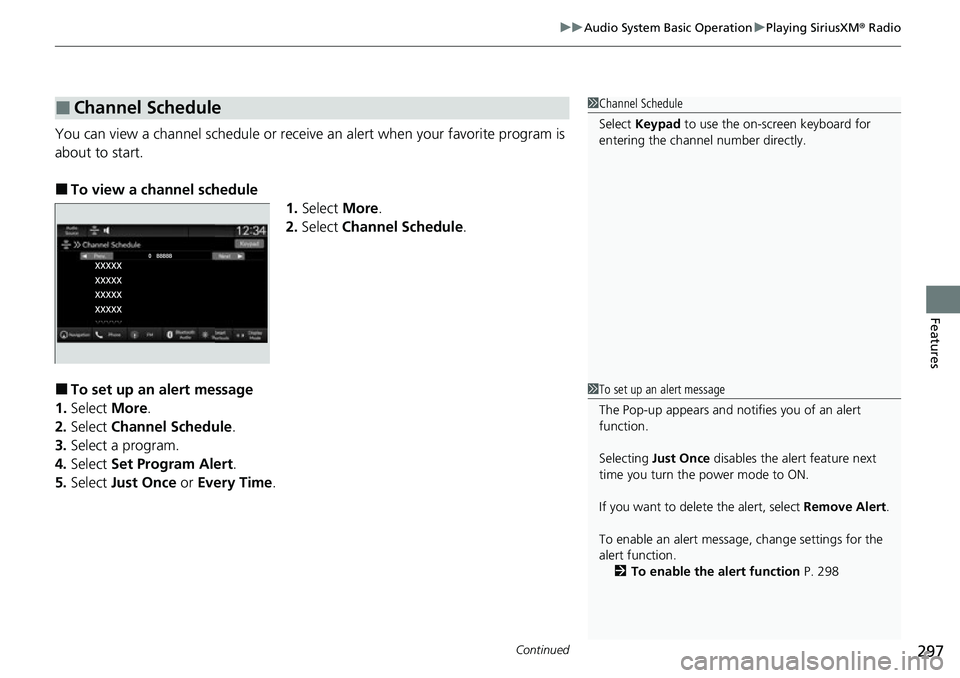
You can view a channel schedule or receive an alert when your favorite program is
about to start.
■To view a channel schedule 1.Select More.
2. Select Channel Schedule .
■To set up an alert message
1. Select More.
2. Select Channel Schedule .
3. Select a program.
4. Select Set Program Alert .
5. Select Just Once or Every Time .
■Channel Schedule1Channel Schedule
Select Keypad to use the on-screen keyboard for
entering the channel number directly.
1To set up an alert message
The Pop-up appears and not ifies you of an alert
function.
Selecting Just Once disables the alert feature next
time you turn the power mode to ON.
If you want to delete the alert, select Remove Alert.
To enable an alert message, change settings for the
alert function. 2 To enable the alert function P. 298
Page 315 of 700
314
uuAudio System Basic Operation uSmart Shortcuts
Features
Smart Shortcuts
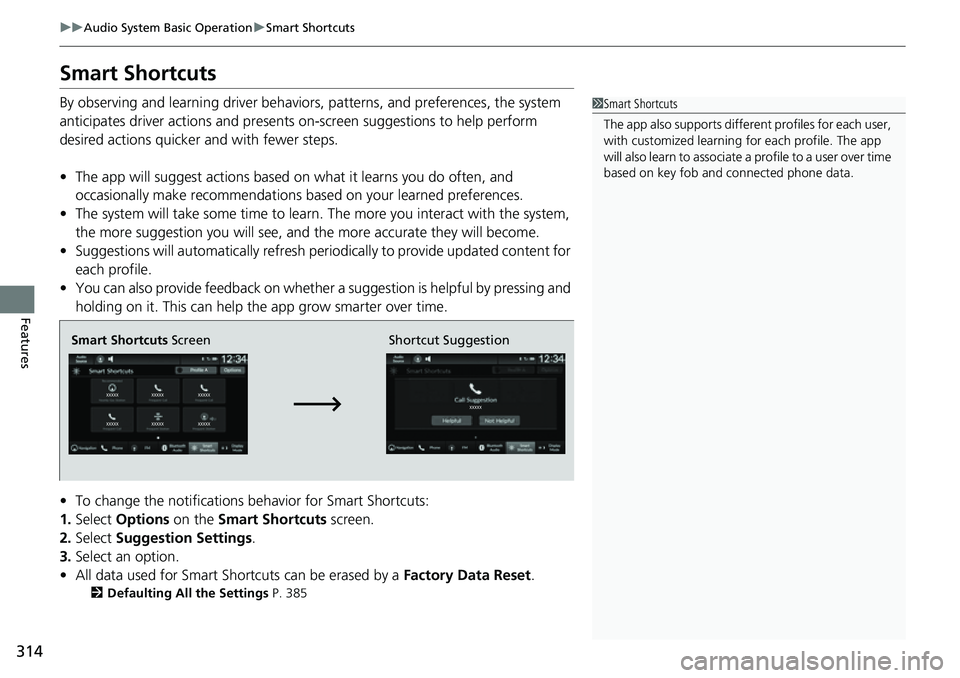
By observing and learning driver behaviors, patterns, and preferences, the system
anticipates driver actions and presents on-screen suggestions to help perform
desired actions quicker and with fewer steps.
• The app will suggest actions based on what it learns you do often, and
occasionally make recommendations based on your learned preferences.
• The system will take some time to learn. The more you interact with the system,
the more suggestion you will see, and the more accurate they will become.
• Suggestions will automatically refresh peri odically to provide updated content for
each profile.
• You can also provide feedback on whether a suggestion is helpful by pressing and
holding on it. This can help the app grow smarter over time.
• To change the notifications behavior for Smart Shortcuts:
1. Select Options on the Smart Shortcuts screen.
2. Select Suggestion Settings .
3. Select an option.
• All data used for Smart Shortcuts can be erased by a Factory Data Reset.
2Defaulting All the Settings P. 385
1Smart Shortcuts
The app also supports different profiles for each user,
with customized learning for each profile. The app
will also learn to associate a profile to a user over time
based on key fob and connected phone data.
Smart Shortcuts Screen Shortcut Suggestion